

How-to — task-oriented recipe.
How to sign in with Microsoft Exchange (On-Premise)
- If you’re signing in for the first time, please sign in via the email invite that was sent to your inbox. Already signed in before? Type in “https://[subdomain].affinity.co” on your web browser (see How to find your Affinity subdomain).
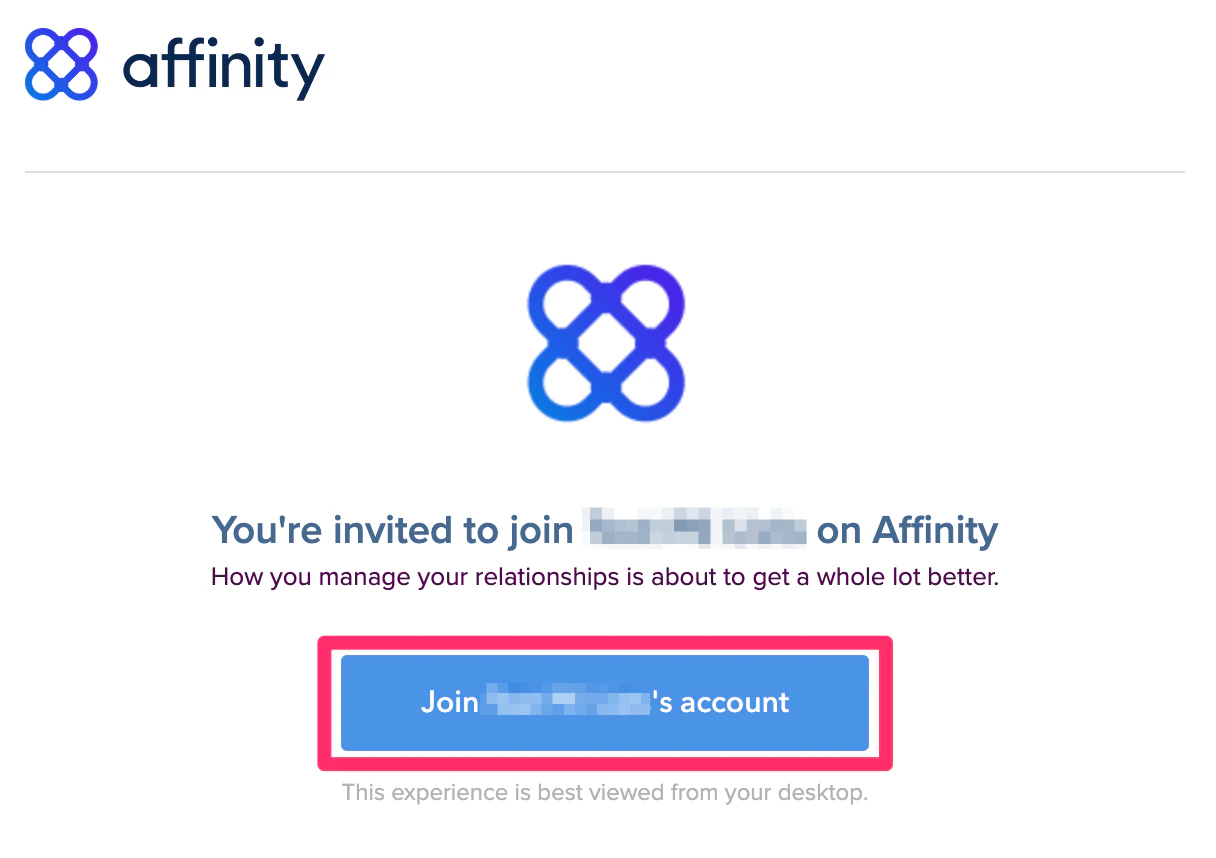
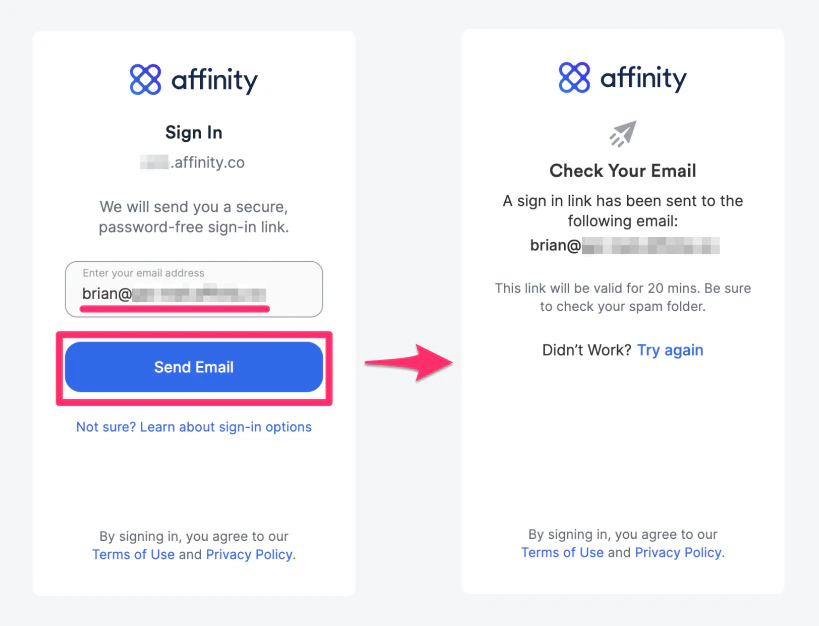
- Enter your email address, then click Send Email to receive your unique sign in link.
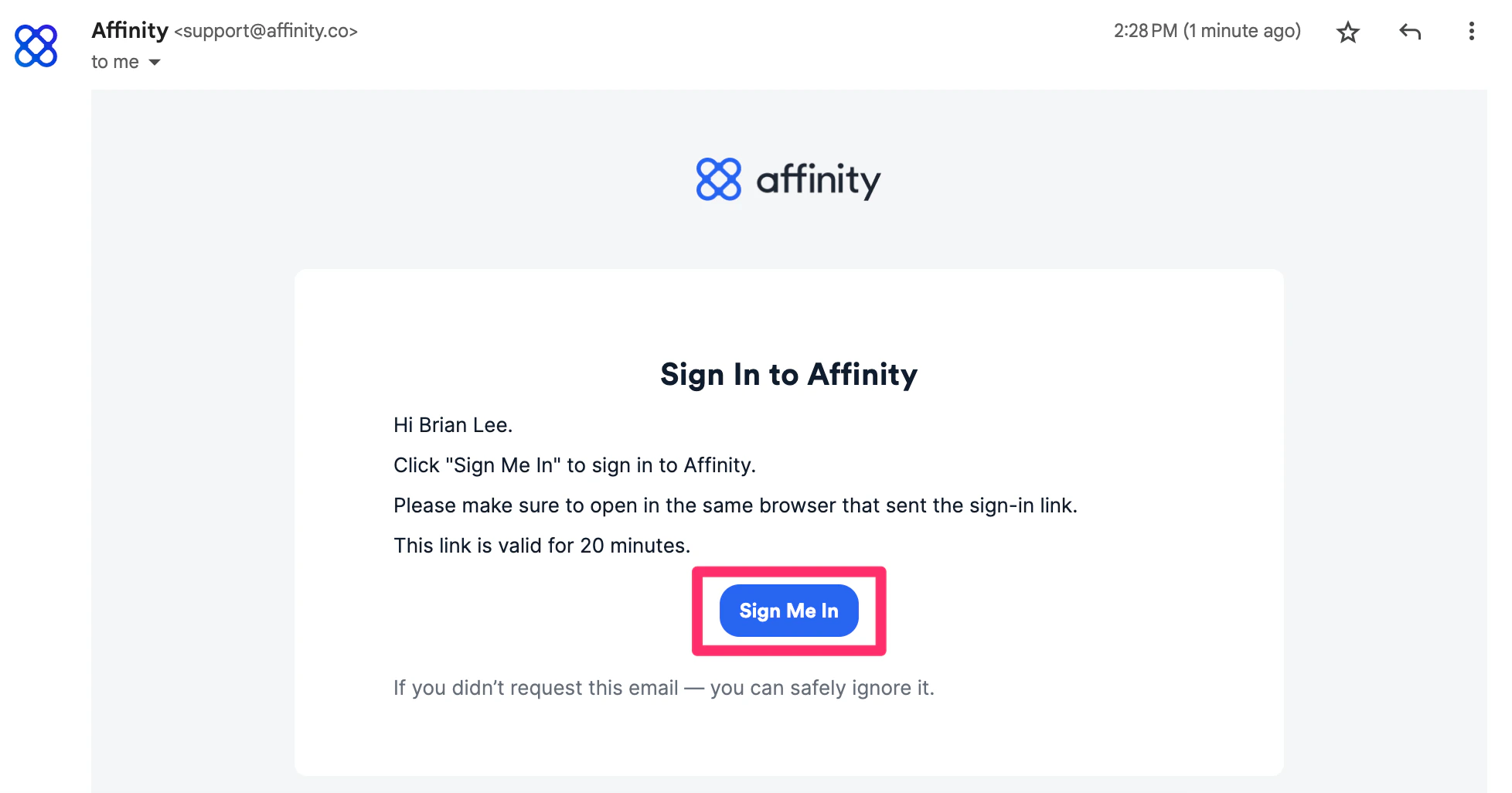
- Click into the email that Affinity just sent you, then click Sign Me In.
- Then, fill in these four fields on the new window that appears:
- Exchange email address
- Exchange password
- Username (also known as EWS username). If you don’t have an EWS username, then leave this field blank.
- Your custom EWS URL (see How to find your custom EWS URL).
- If you come across any error messages while attempting to sign in, feel free to take a screenshot and send it to support@affinity.co.
Important Callouts
- If you do not use 2-Factor Authentication (2FA) or single sign-on (SSO), then you can sign in using your Exchange email address and password.
- If you are using 2FA or SSO, please see Troubleshooting sign in for Microsoft Exchange (On-Premise).
- For first-time users who sign in successfully, please follow these steps to ensure that your Exchange email account is syncing successfully:
- Click on Settings.
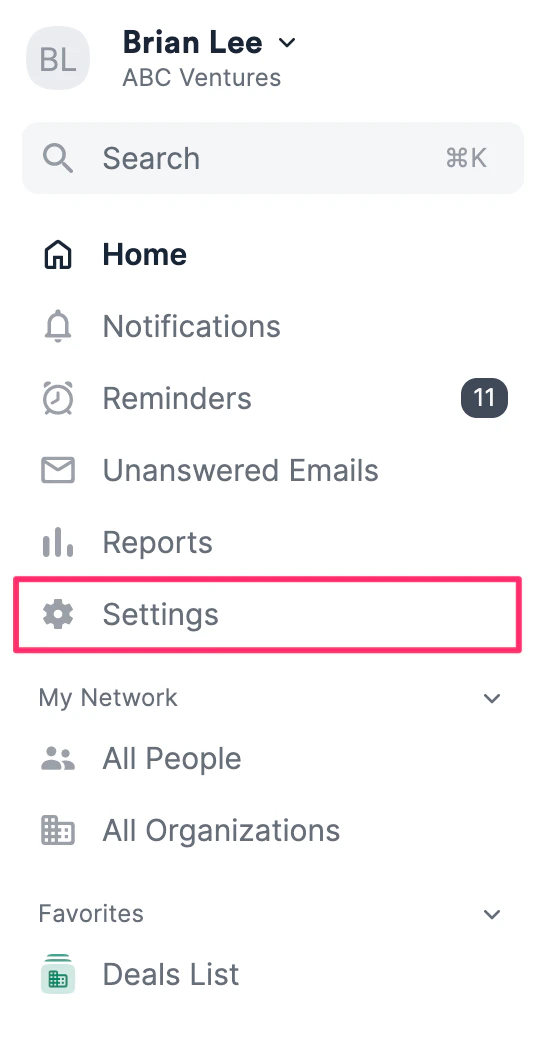
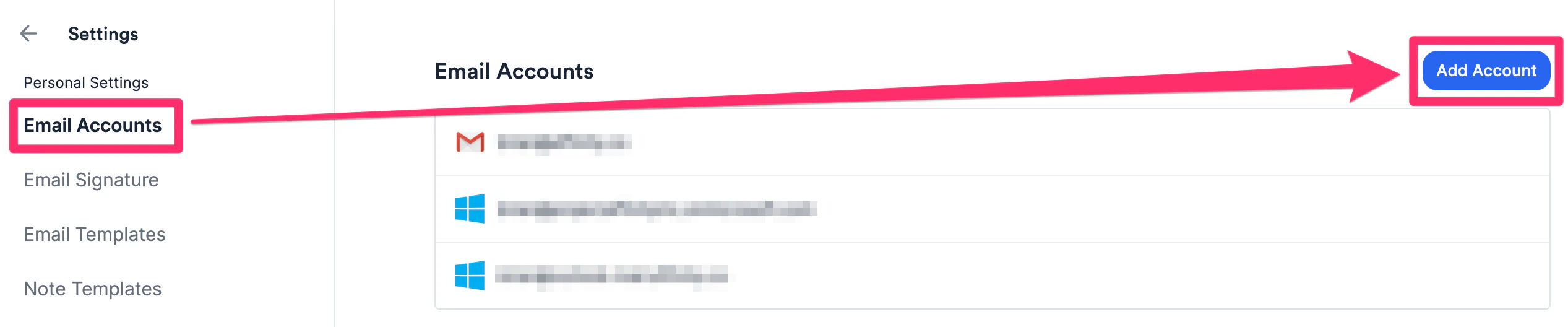
- Then, click the Email Accounts tab and click Add Account.
- Sign in with the exact same credentials one more time to ensure that Affinity starts syncing your email/calendar data.