How-to — task-oriented recipe.
When should you undo an import?
- You mapped a column in your CSV file to the wrong Affinity field.
- This causes inaccurate data and in some cases cannot be easily revised
- You imported data without organization domains or person email addresses that didn’t match any existing profiles.
- This can cause duplicates since the system is unable to able to identify a specific person or organization to map to (see How to import your data into Affinity)
- Imported data can incorrectly map to existing data (eg. you have two with the name of John Doe in your directory and it maps to the incorrect one)
- The import created unintentional duplicates.
- There is no email address or domain associated to match to the correct Organization or Person in your directory (see How to import your data into Affinity)
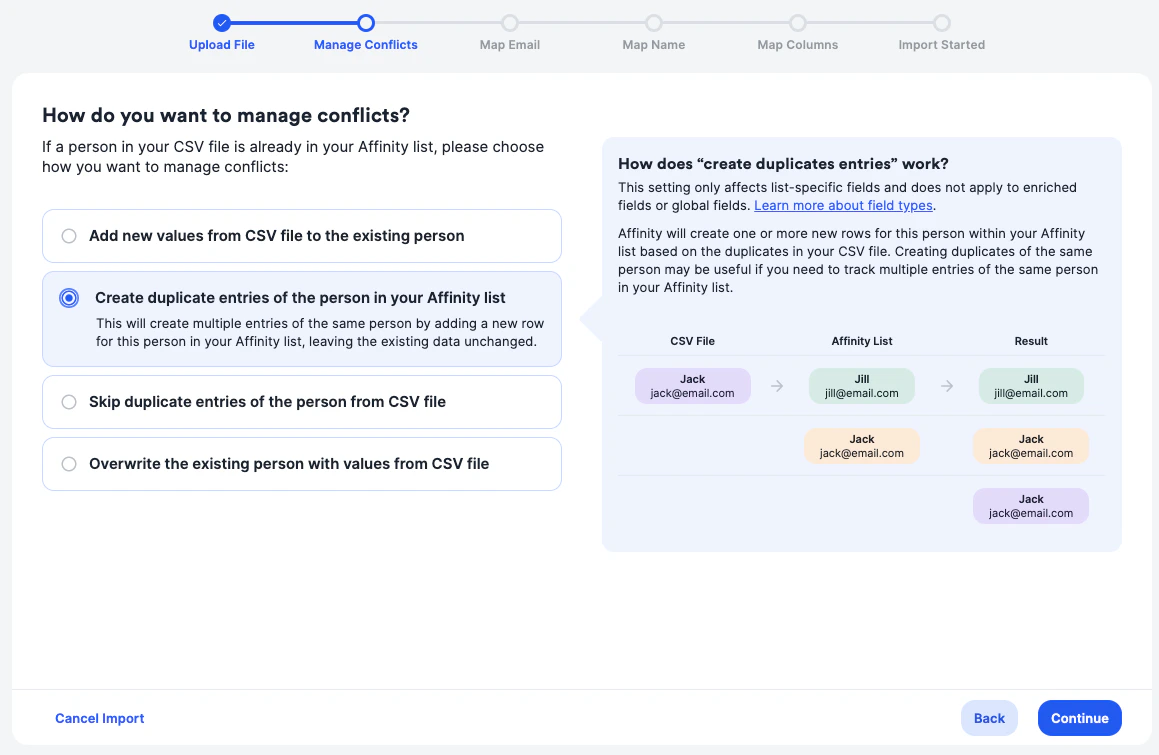
- Erroneously choosing to create duplicates when managing conflicts during import.
- If you deleted a list in attempt to undo an import.
- Even after deleting the list, the imported contacts remain in your All People and All Organizations directories, so undoing the import will ensure that the information from that import was deleted.
How does undo import work?
- All profiles you created from the import will be removed from the list or deleted.
- If the profile didn’t exist before the import, then the profile that got created because of the import, and any data added to it, will be deleted when you undo the import.
- Note: For organizations that are enriched by Affinity, all data related to the import will be removed from the list, but the organizations themselves will remain on your All Organizations directory.
- Note: For organizations that are not enriched by Affinity, they will be removed from the list, as well as the All Organizations directory.
- All updates made to existing profiles will be reverted.
- Any edits made to existing profiles will be reverted back to the state before the import
- If an enriched company and a person were associated because of an import, those associations will remain even if you undo the import.
- If an import was done within three days, you will be eligible to undo the import from your account, but if the import was done over three days ago, you can reach out to us at support@affinity.co.
How to undo an import
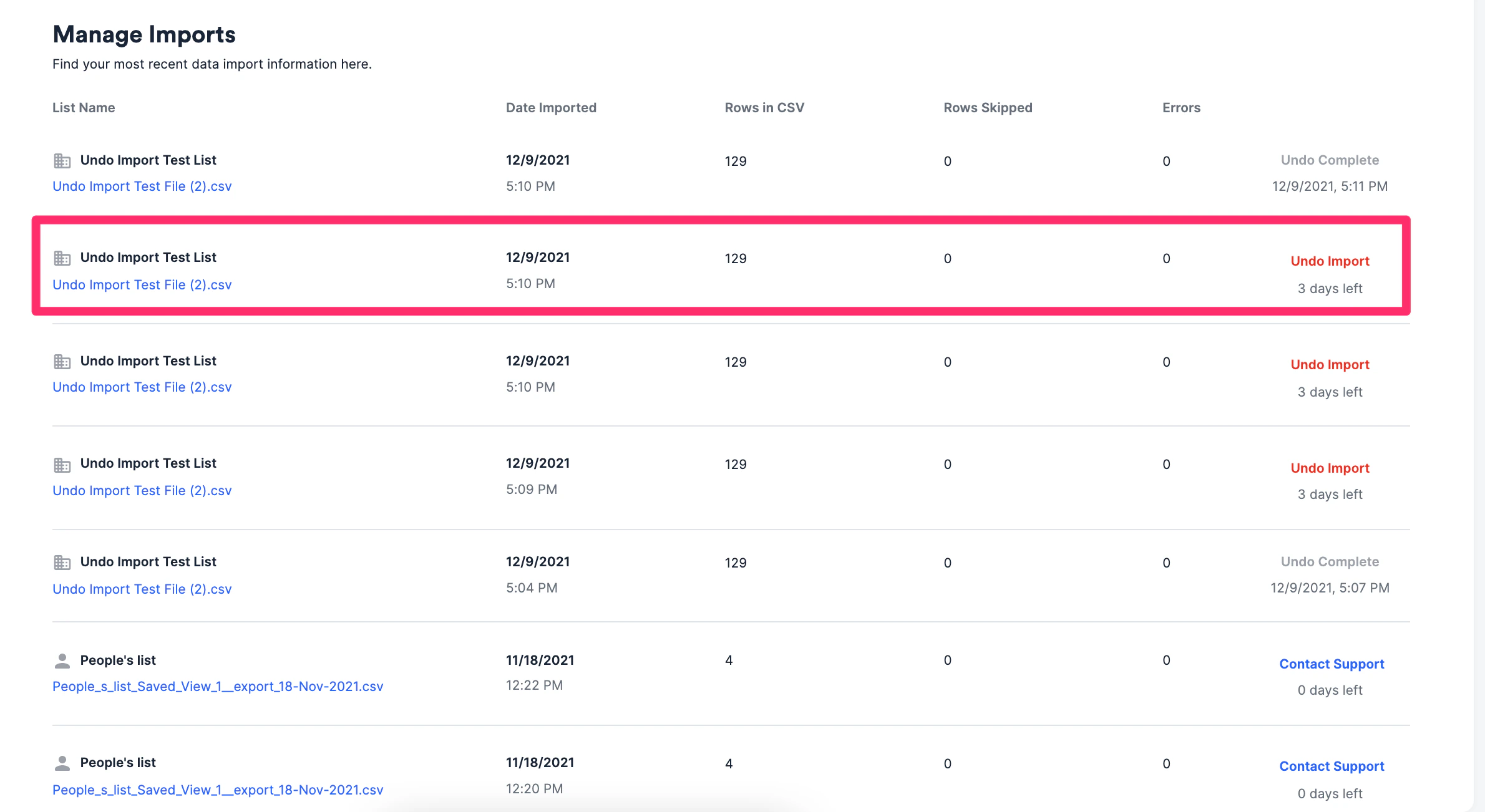
You can undo your imports by yourself if it is within three days of the import. Once three days have passed, you will need to contact support to undo the import for you.- Click List Options on the top-right corner, then click Manage Imports.
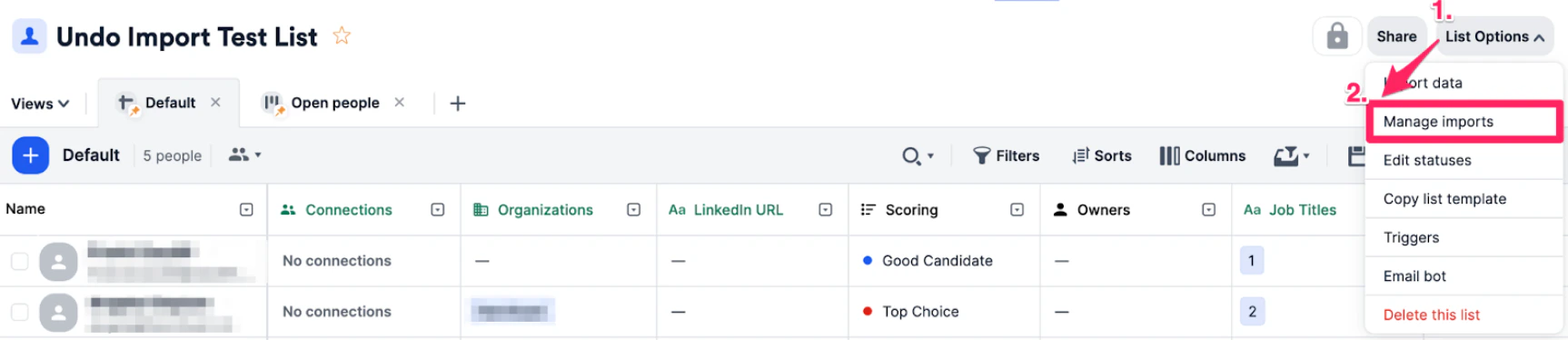
- Find the import you want to undo.
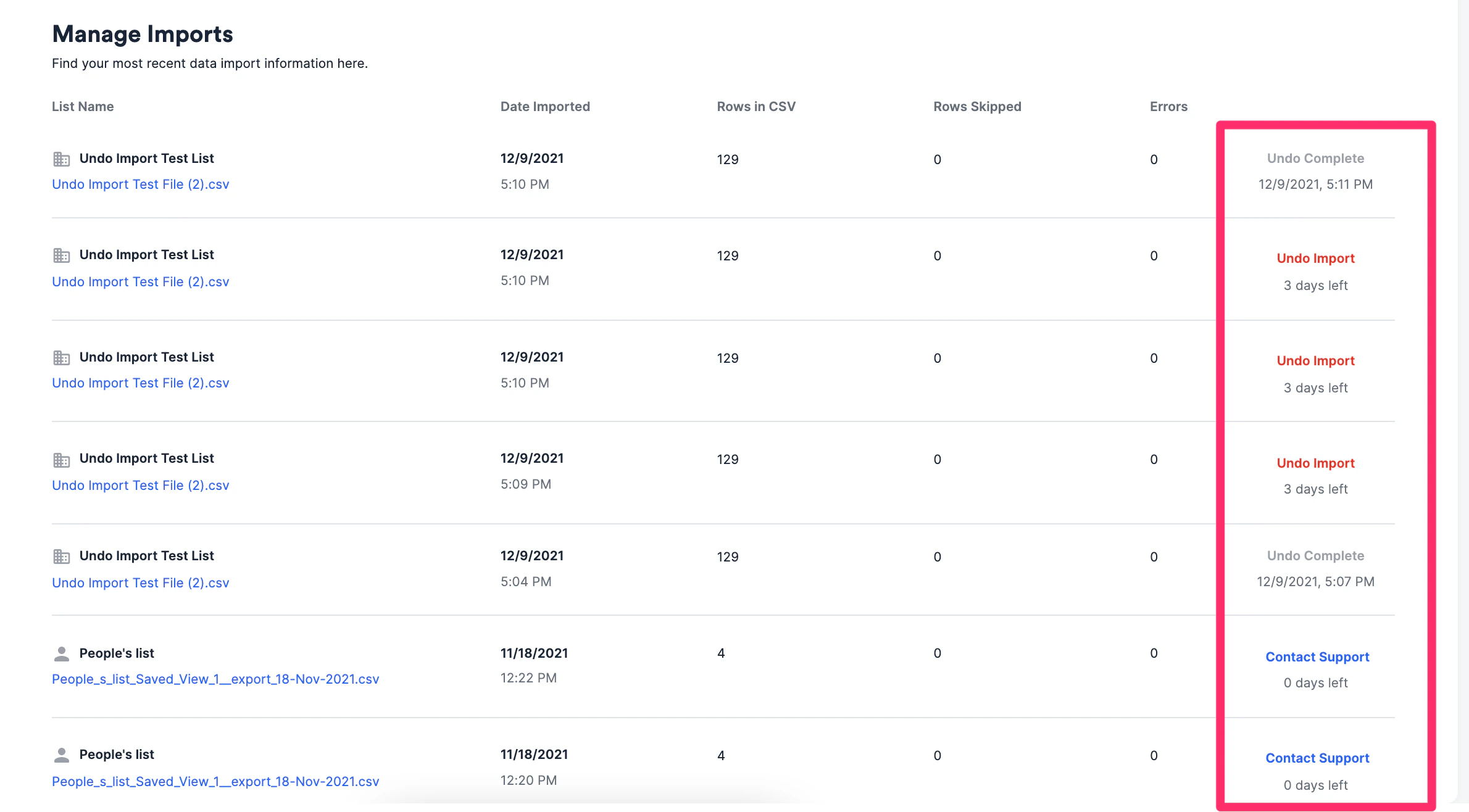
- Check the status of the import
- If the status shows Undo in Progress, you will not be able to undo the import until the import has finished processing.

- If the status shows Undo Import in gray, that means an import is in progress in that list, so you cannot take action until the import is complete.

- If the status shows Undo Import (x days left), you are still eligible to undo your import.

- If the status shows Undo Complete (Date, Time), that indicates when your undo request was completed.

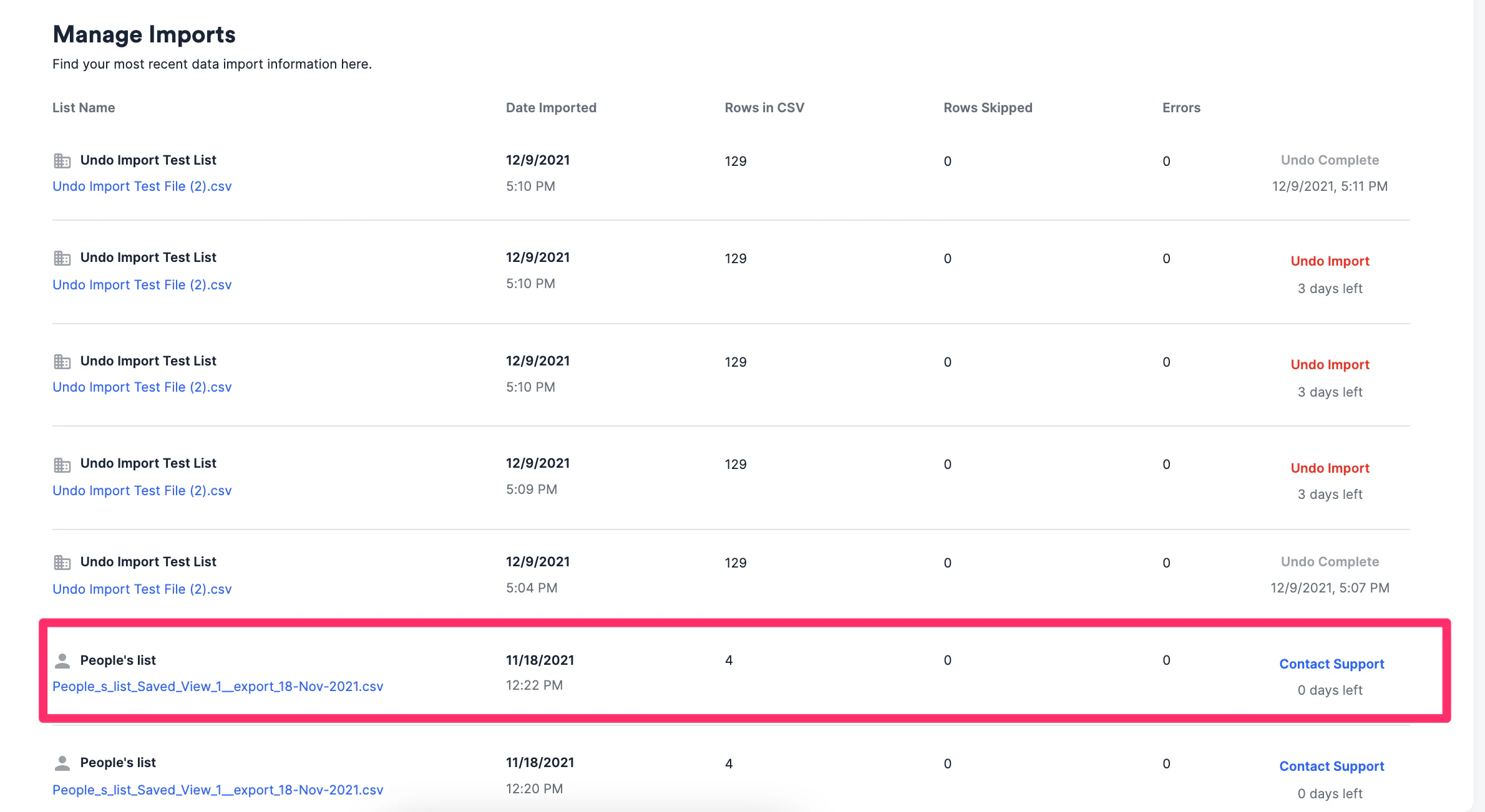
- If the status shows Contact Support (0 days left), this indicates that the three-day window to undo your import has passed so you will need to contact Affinity Support to undo the import for you.

- If the import was done within the last three days, you are eligible to undo the import by yourself.
- Click Undo Import on the right side.
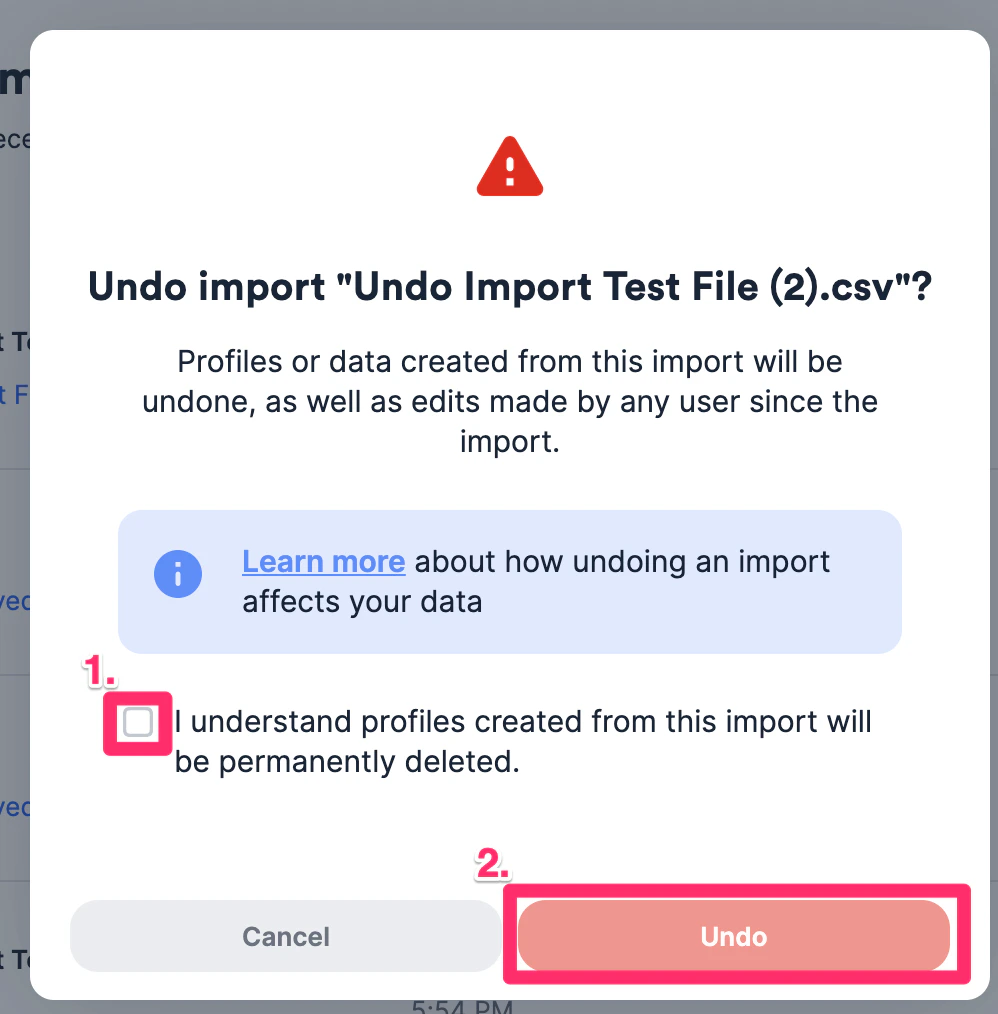
- Check the box that ensures your understanding of the impact it will have. Then, press Undo.
- If the import was done over three days ago, you can click Contact Support on the right side.
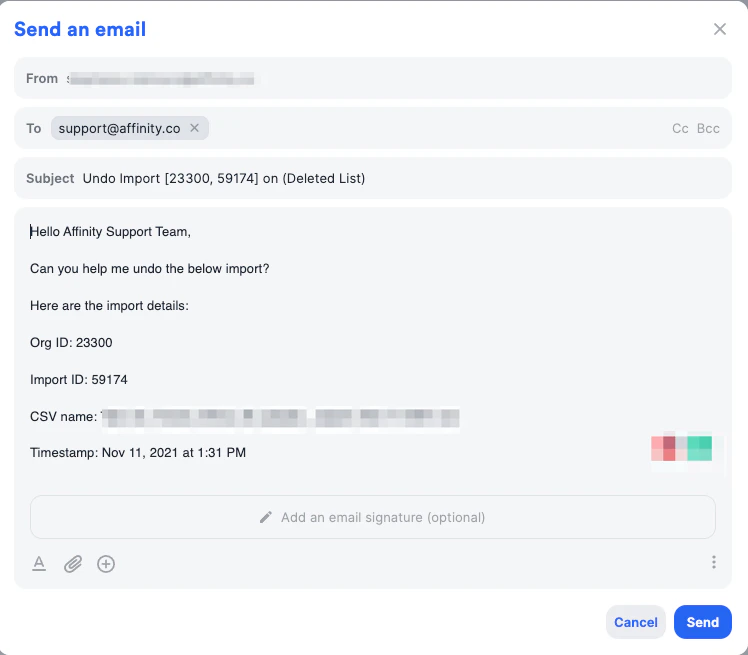
- Click Contact Support.
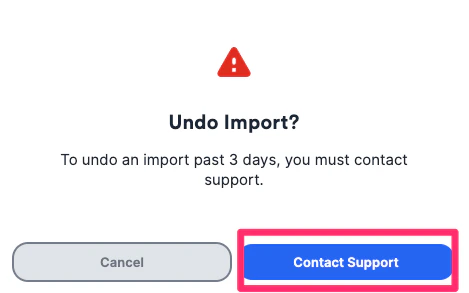
- You will then be able to send an email to us at support@affinity.co with the following pre-filled template.