How-to — task-oriented recipe.
Board (Kanban) view is available in New Lists. Drag cards between columns, reorder the fields shown on a card, and group by status or another dropdown field.
Drag and drop cards from one category to another
Click and hold on a card to drag and drop from one category to another.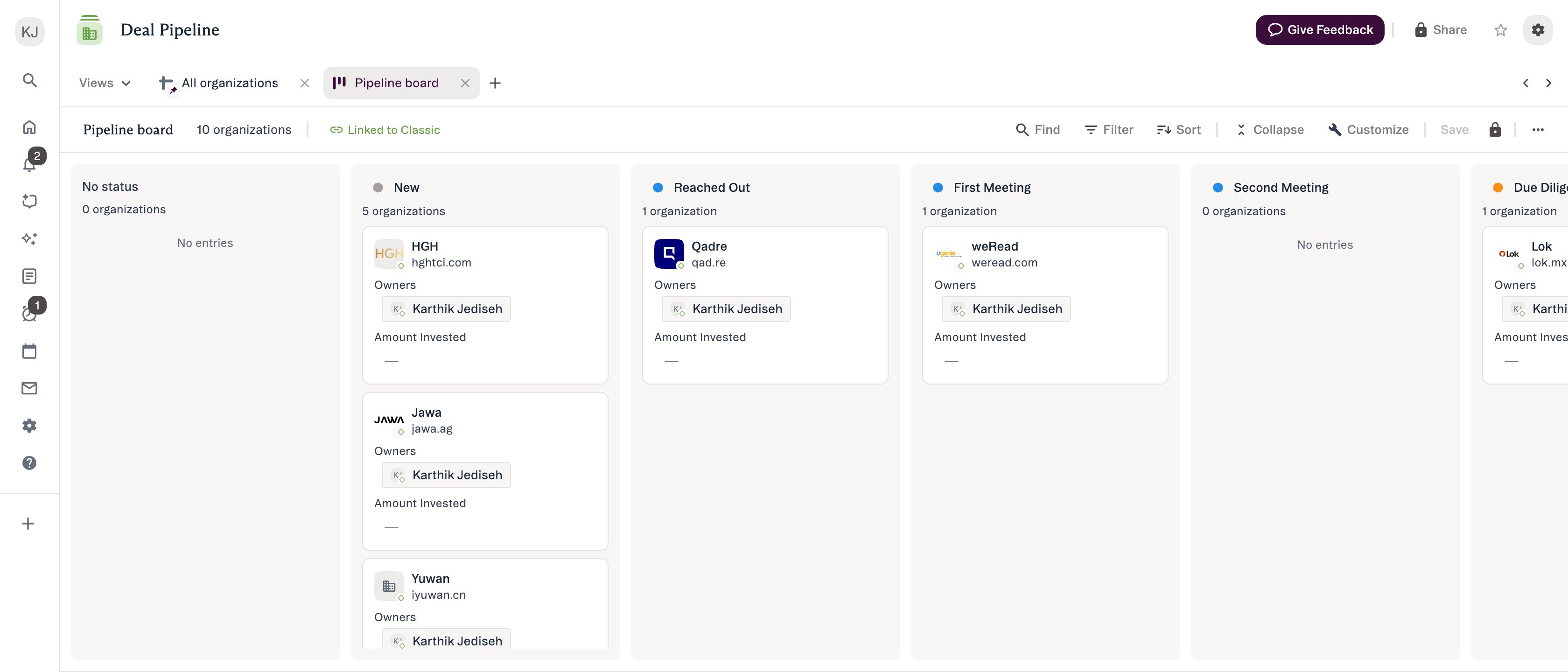
Customize cards within board view
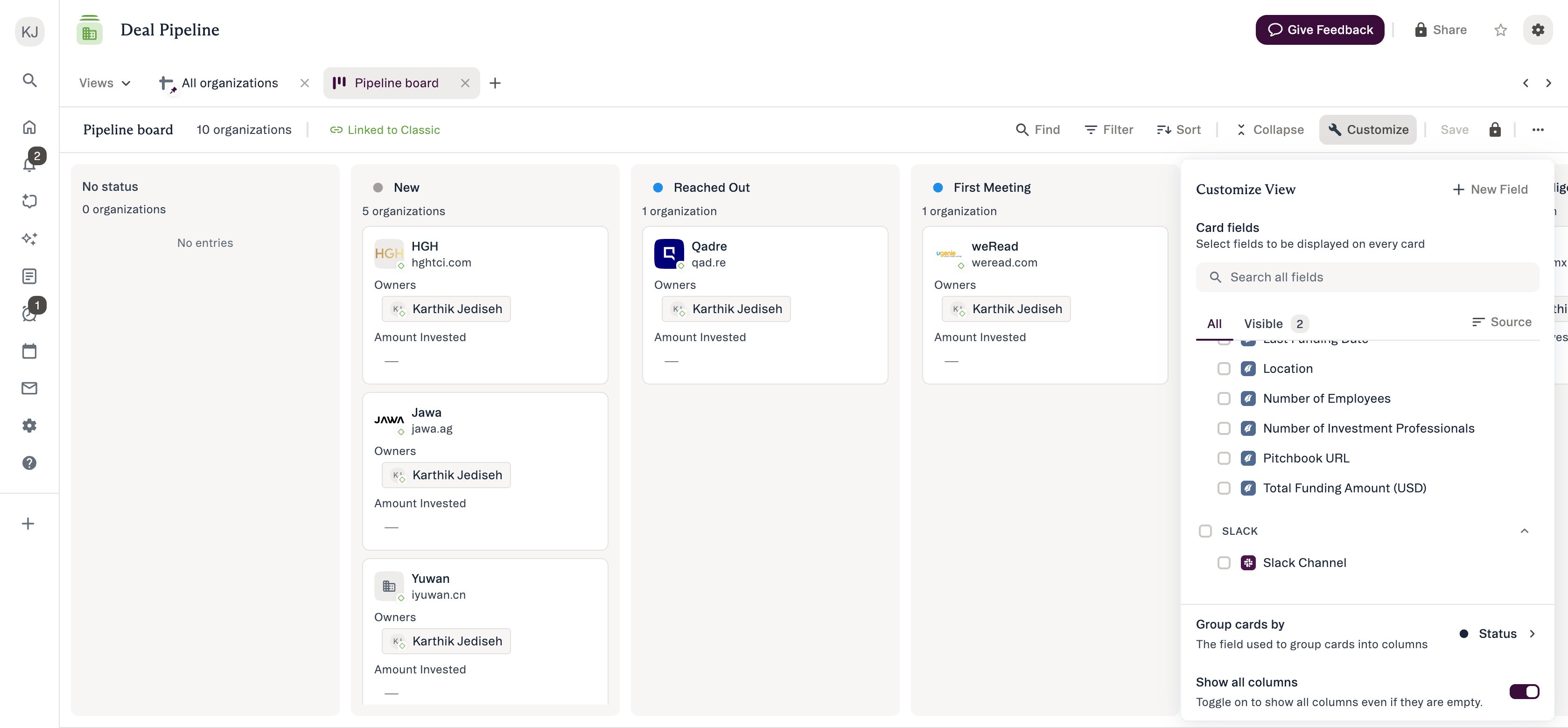
- Click the Customize View icon.
-
Customize your cards by selecting the relevant fields you want to show within each card (6 fields max).
-
Or, condense them to view more cards at once by switching to Slim View.
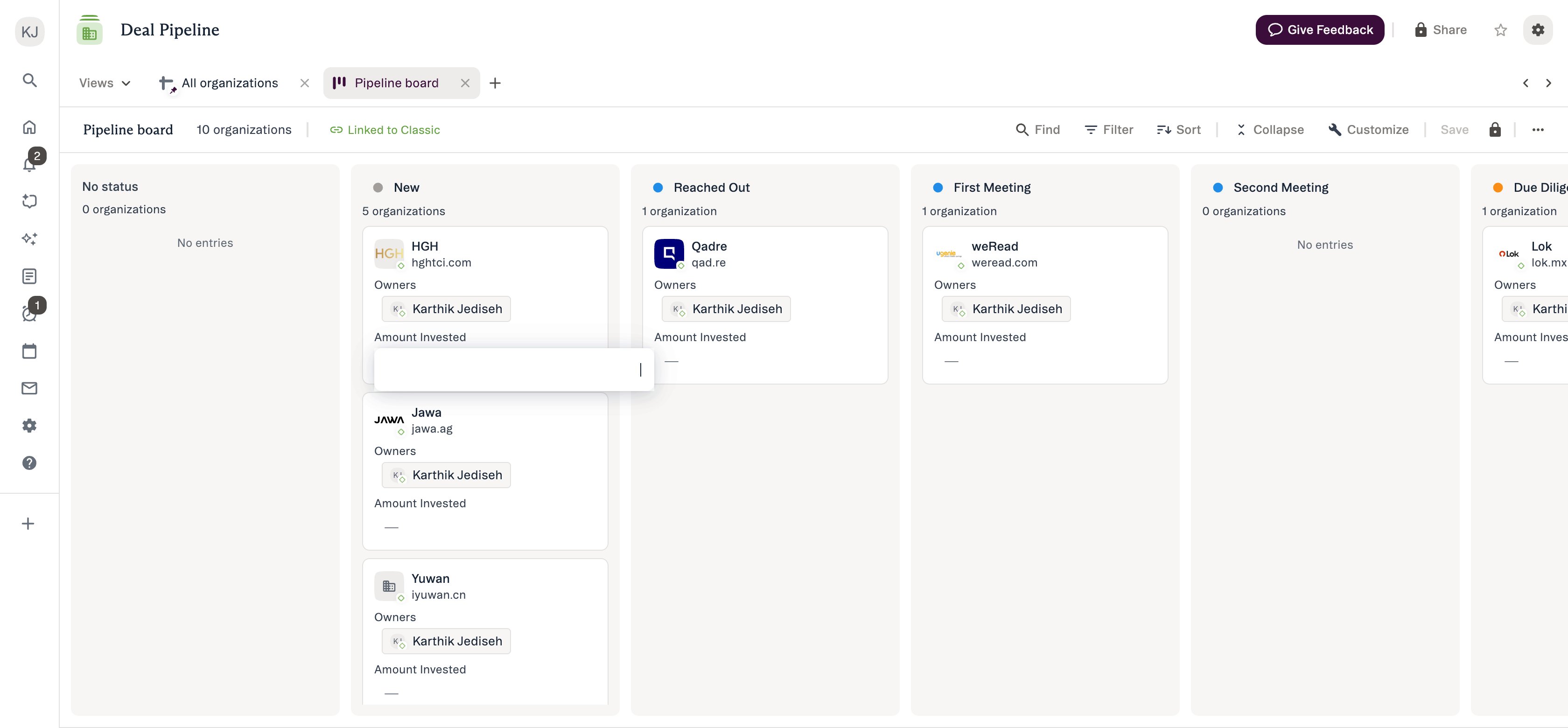
- Here are all the field types that are available (or not) in board views based on list type:
* These are the specific field types that are not supported for board view at this time:
- Location-type fields (single value and multiple values)
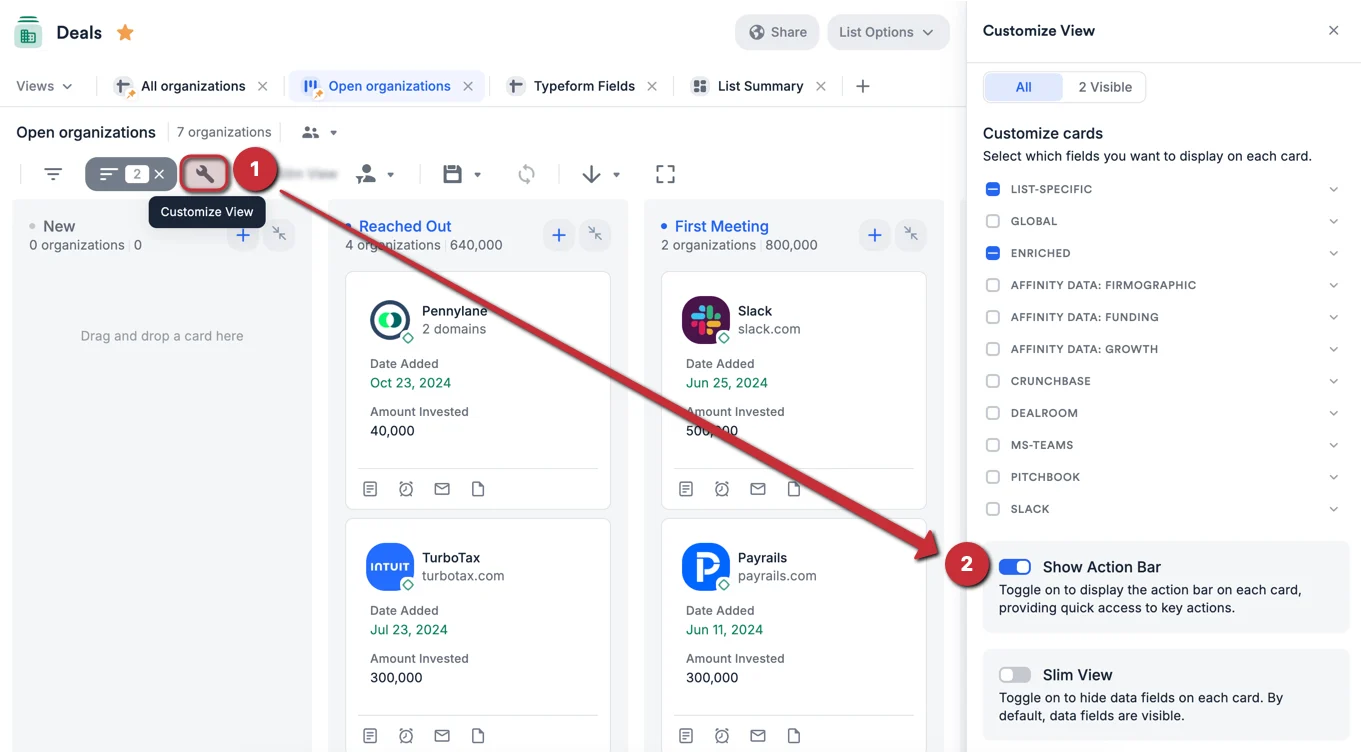
Toggle on Action Bar for each card (Classic Lists)
The Action Bar is a Classic Lists feature. New Lists has no Action Bar and no Show Action Bar
toggle. For the New Lists equivalent, see Card actions in New Lists.
-
Click the Customize View button, then turn the toggle on for Show Action Bar.
-
You will see 4 icons appear at the bottom of each card, representing the 4 actions you can take:

- Add a note
- Set a reminder
- Send an email
- Upload a file
Card actions in New Lists
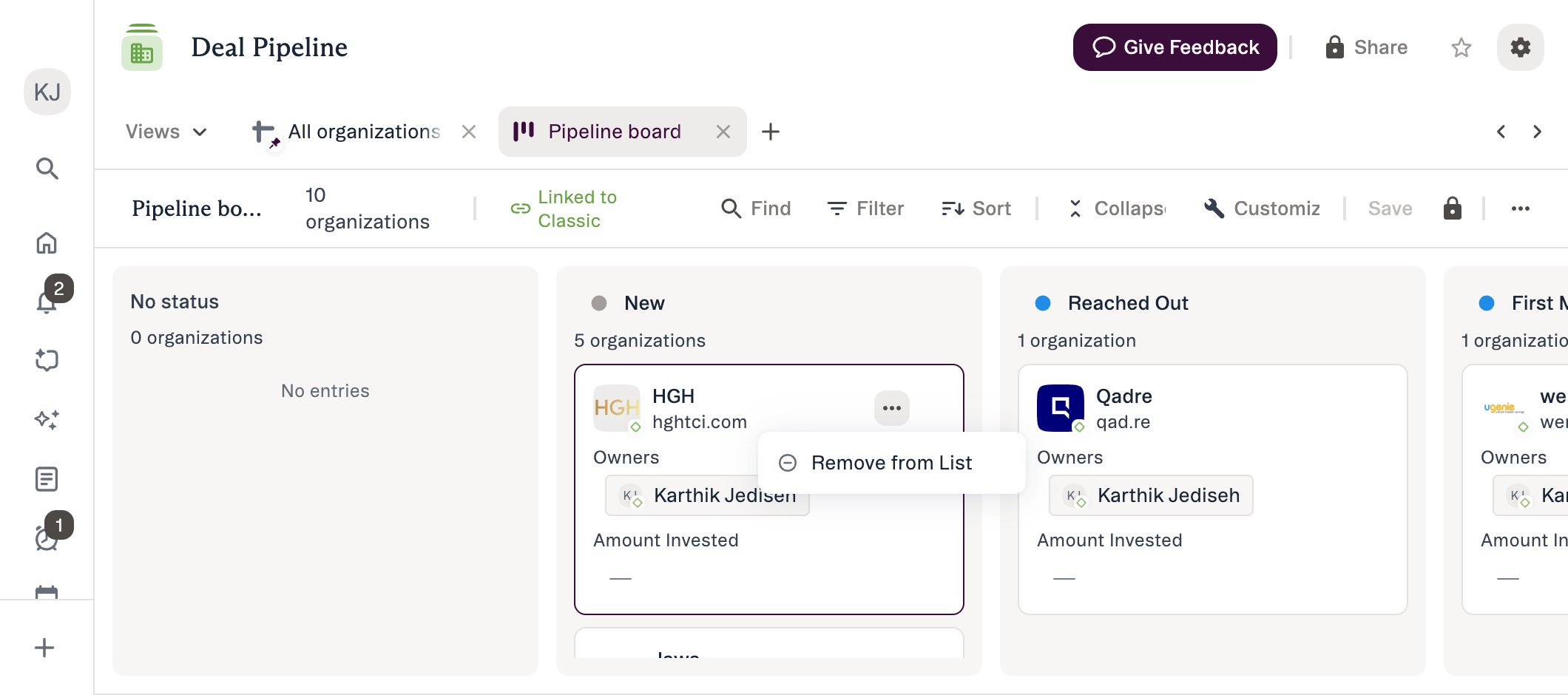
Hover over a card to reveal two controls in its top-right corner:- Card actions (the ⋯ button) — opens a menu containing Remove from List
- Collapse card — hides the card’s fields so that only the name and domain remain
Group by different ranked/regular dropdown fields
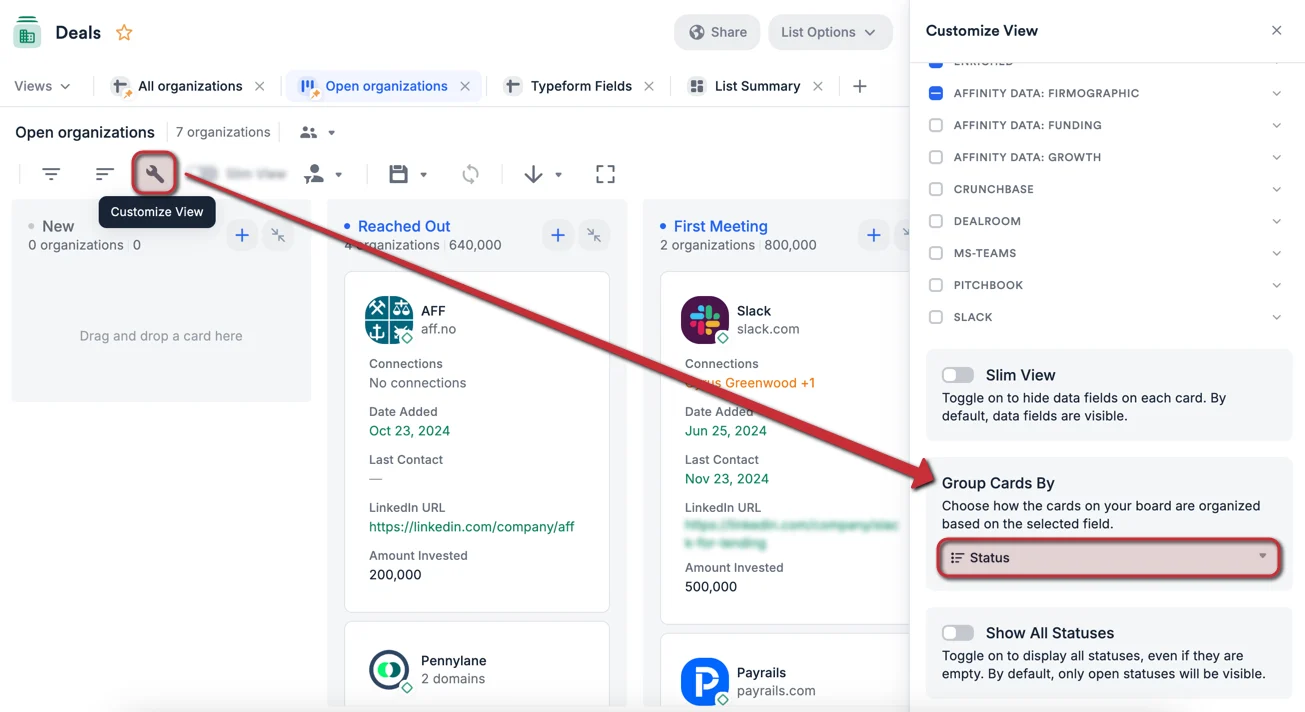
Though board views are initially grouped by the default Status field, you can now group by a different ranked/regular dropdown field (single values only — multiple values not supported). In New Lists:- Click Customize in the view toolbar.
- Click Group cards by at the bottom of the panel.
- Choose a field. Only status, dropdown and ranked dropdown fields are eligible — the picker states “Choose a status, dropdown, or ranked dropdown field to represent the columns in this view.”
- Click Save in the view toolbar to keep the change.
- Click the Customize View button.
- Under Select your board’s grouping field, select a field. You will see both list-specific fields and global fields available (see List-specific fields vs. Global fields).
- Make sure to click the Save icon to save the changes you made (see Update a saved view).
Show empty columns (New Lists)
In New Lists, the Customize panel has a Show all columns toggle — “Toggle on to show all columns even if they are empty.” Turn it on to keep every group visible, including groups that contain no entries. New Lists has no separate Open / All status-category toggle. Its Customize panel contains only Card fields, Group cards by and Show all columns.Toggle between Open status options and All status options (Classic Lists)
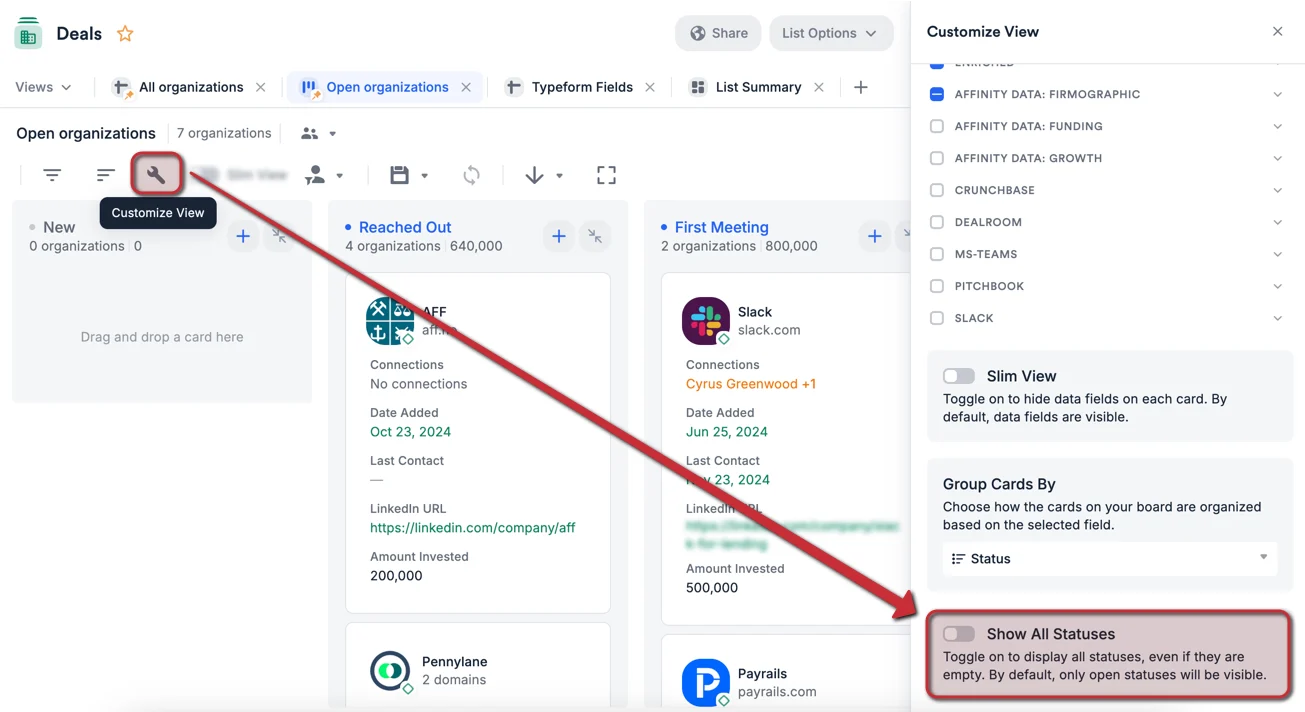
Board views grouped by the default Status field will show status options in the Open category, but you can now show all categories (i.e. Won, Lost, and On Hold).- Click the Customize View icon.
- Toggle on Display all statuses on the board.
Easily access profile pages
In New Lists: clicking the body of a card does not open a profile. Click the company name or its logo to open the organization’s profile, or click an avatar in the Owners field to open that person’s profile. Both open in a new browser tab. In Classic Lists: click on a card to access the profile page.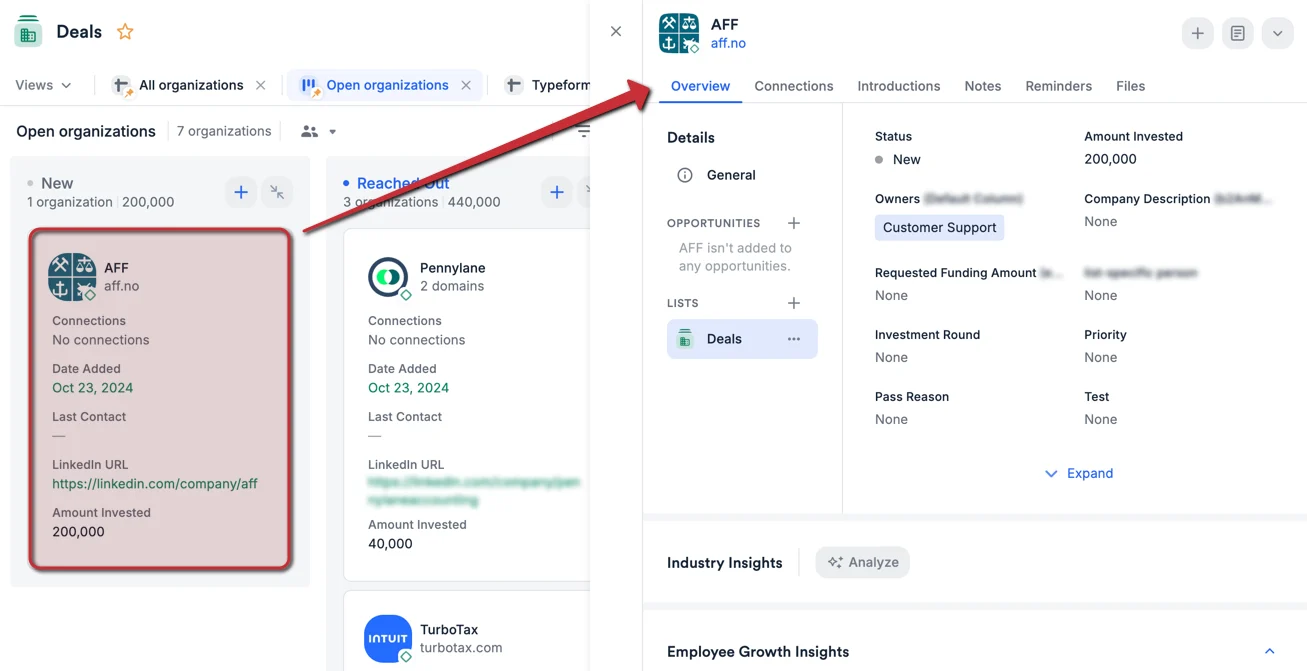
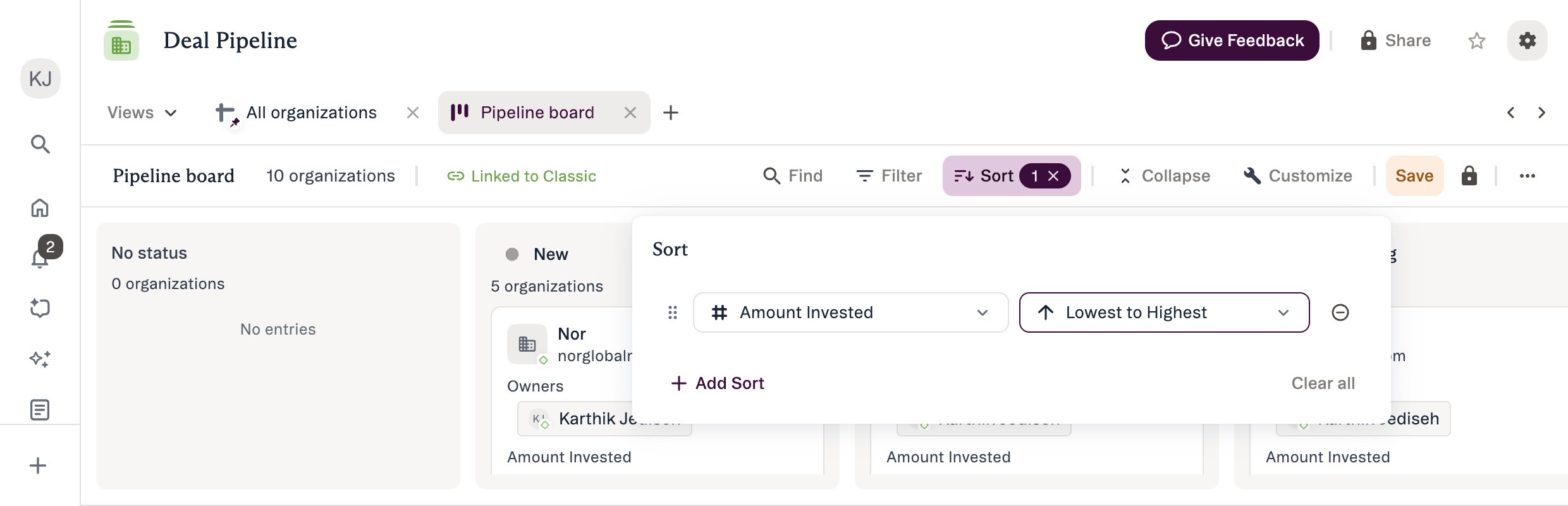
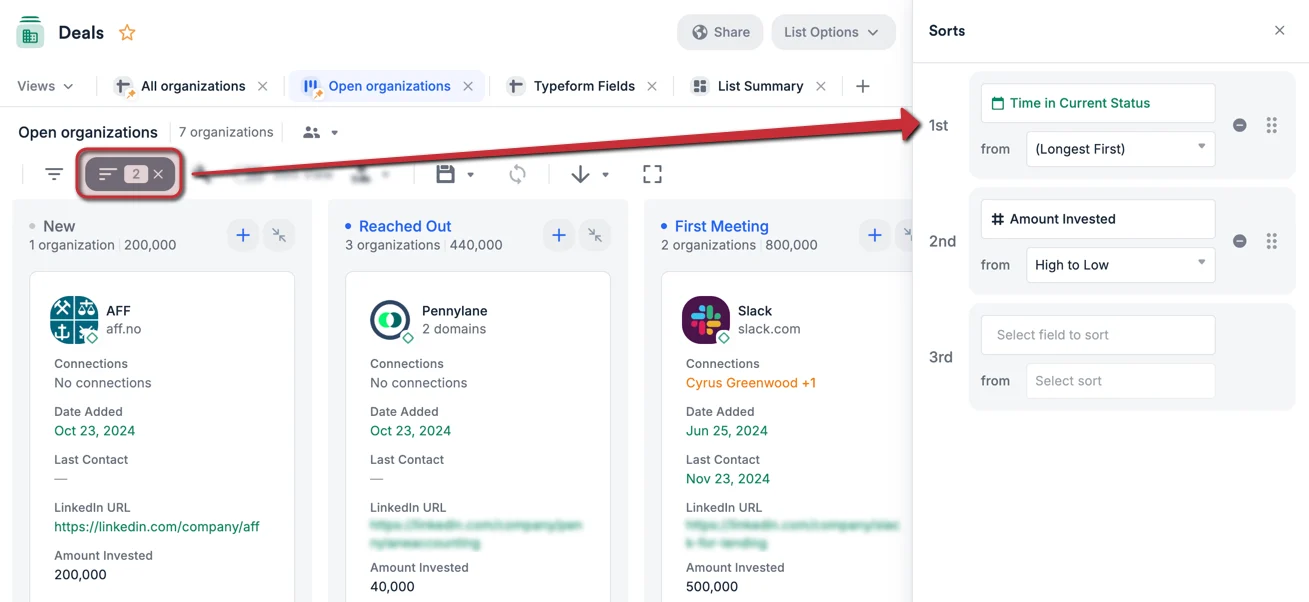
Sort by different fields
In New Lists: click Sort in the view toolbar, then Add Sort, and choose a field and a direction (for example Amount Invested, Lowest to Highest). You can add more than one sort and drag the handle at the left of a row to reorder them; Clear all removes them all. The Sort button shows a badge with the number of active sorts, and Save turns amber while the change is unsaved.