

How-to — task-oriented recipe.
- Plus icon (+) on the bottom-left corner
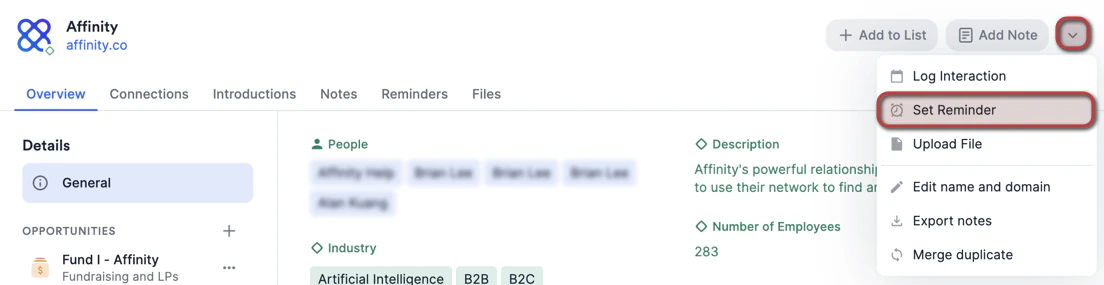
- On any entity’s profile page
- On the Reminders column in any list
- Reminder Triggers in any list Once you’re done setting up reminders, here are some helpful next steps/tips:
- Where to view all of your/your team’s reminders
- Important Callouts
Plus icon (+) on the bottom-left corner
Click the Plus icon (+) on the bottom-left corner, then click Set Reminder.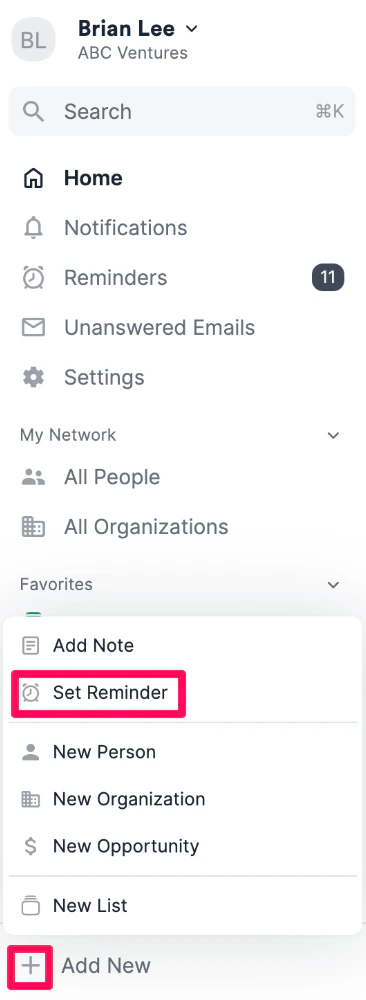
On any entity’s profile page
- Click the dropdown button, then click Set Reminder.
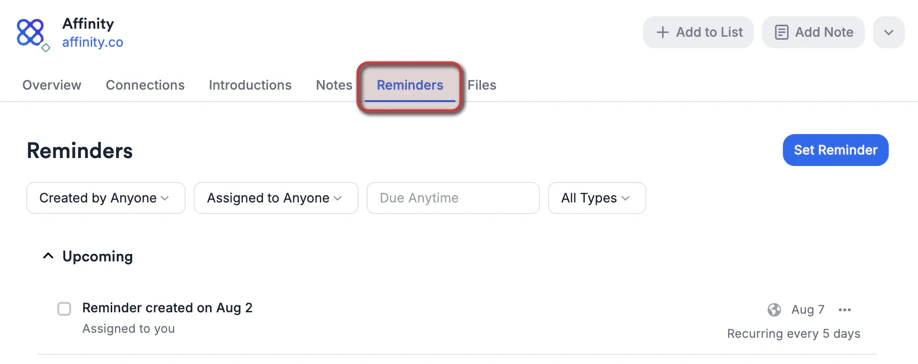
- You can view all reminders related to that entity by clicking on the Reminders tab at the top. You can also filter reminders by Created by, Assigned to, Due Date, or Type (one-time or recurring).
On the Reminders column in any list
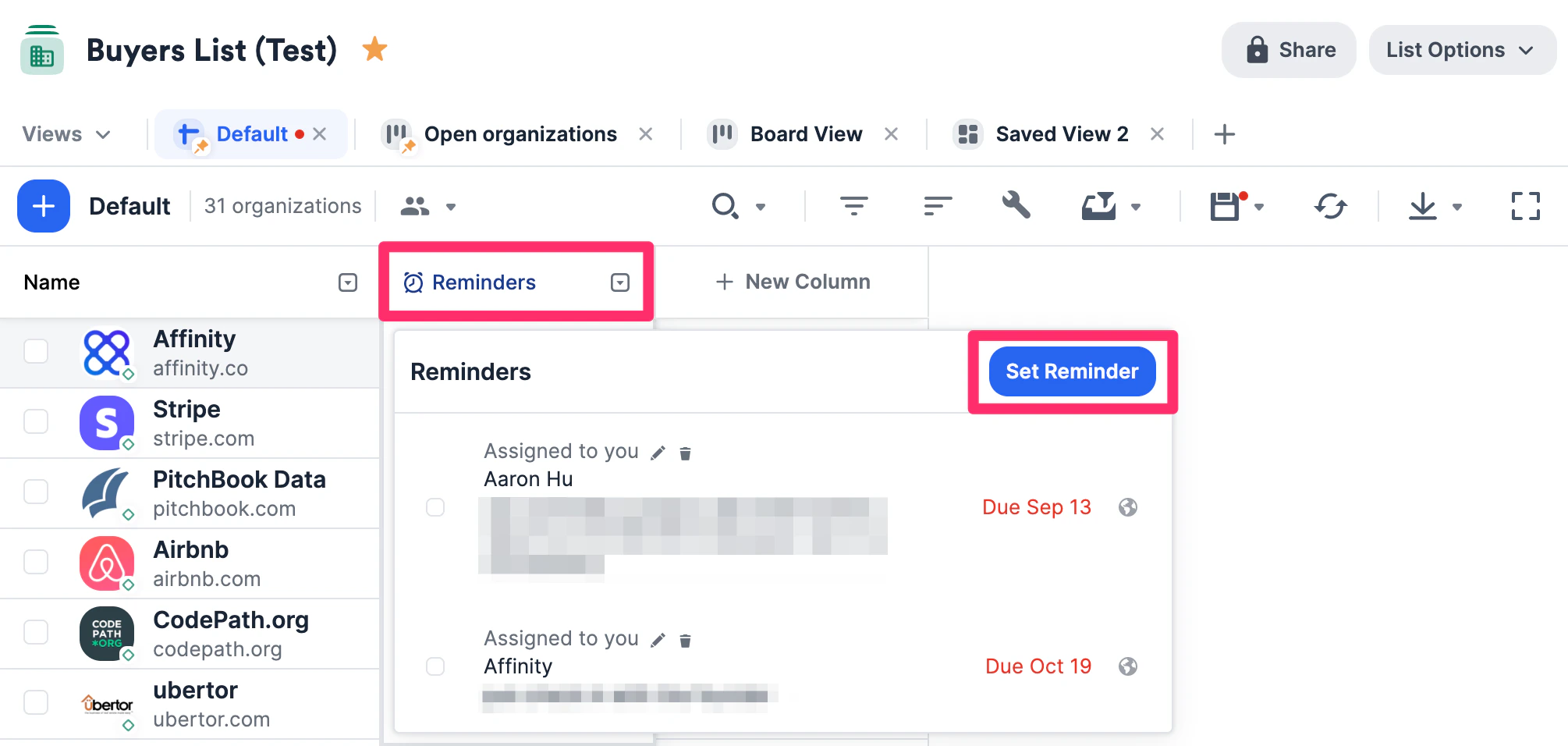
- Click on any list.
- Make sure the Reminders column is on display. If it isn’t, click on the Customize View icon to check the box for Reminders.
- Double-click on any cell below the Reminders column to see all reminders for that entity and to create a new reminder.
Reminder Triggers in any list
To create automatic reminders based on the default Status column in any list, check out Reminder Triggers.Where to view all of your/your team’s reminders
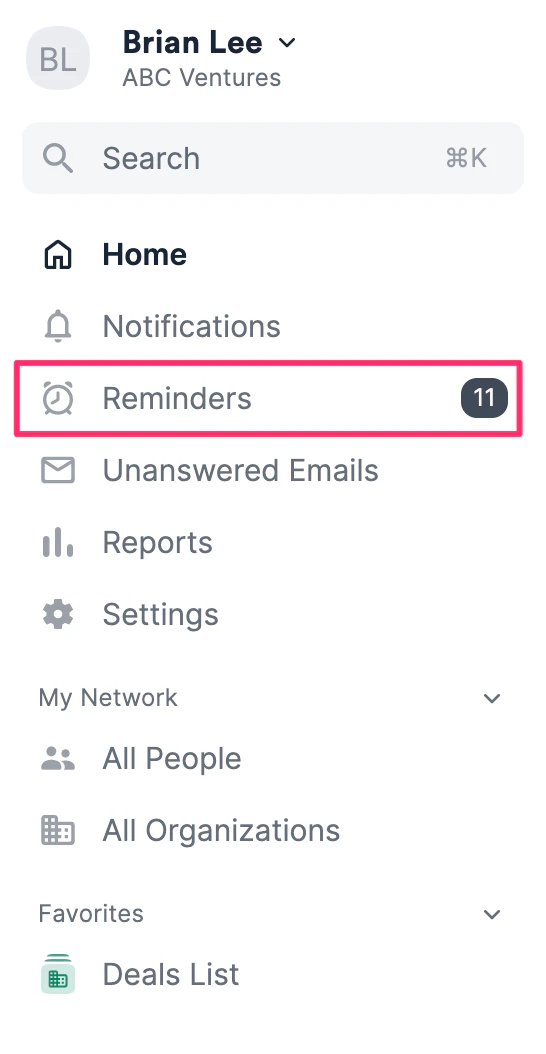
Once you have set up your reminders, you can view all past, present, and future reminders for not just yourself, but also for your team members by following the steps below: Note: If you are on the Enterprise tier, you and your team members may not see all reminders based on the different levels of sharing options set by the Enterprise Admin (see the section titled “What can my immediate team see? What can all users see?” in Enterprise Permissions).- Click Reminders on the left-side of your screen.
- You can also filter all reminders by: Created by, Assigned to, Due Date, or Type (one-time or recurring).
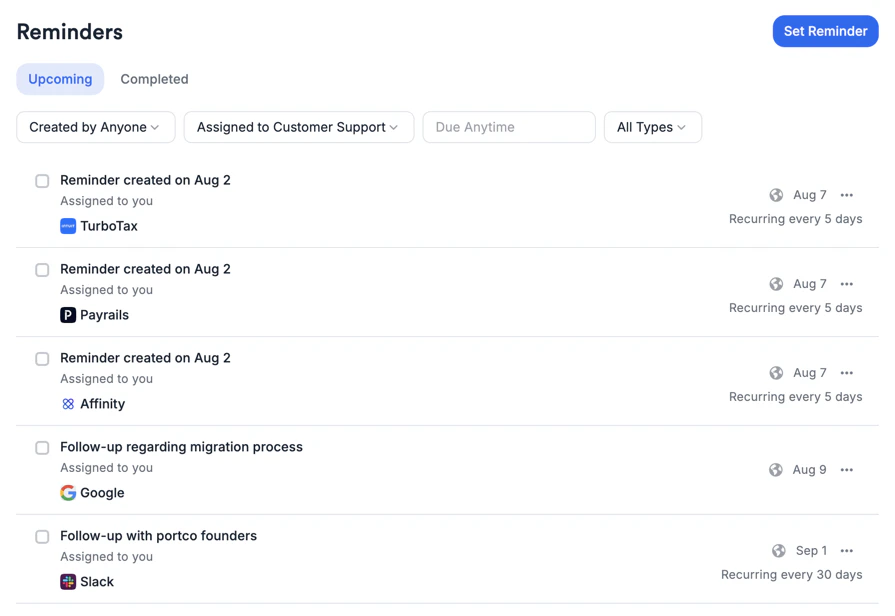
- On the Reminders page, you can switch between the Upcoming and Completed tabs to see past, present, and future reminders.
- You can also filter all reminders by: Created by, Assigned to, Due Date, or Type (one-time or recurring).
Reminder Logic
- The due date is X days after whichever of these happened most recently:
- The last qualifying interaction (meeting, email, or either, per the reminder’s setup)
- Someone marking the reminder complete. The click counts as contact and restarts the clock
- A meeting booked in the future. The reminder jumps past it, so it won’t nag before a meeting you already have
- One hard rule sits on top: a due date can only move later, never earlier.
- If the booked meeting is canceled, the date stays stuck
- If you shorten the period, the date does not move in
Important Callouts
- If your notification preference for reminders is set to Immediately (see Email Notifications), then you will receive two notifications for a reminder - one immediately when a team member assigns a reminder to you and another on the reminder’s due date.
- You can only delete reminders that you have created or have been assigned to. You cannot delete anyone else’s reminders.
- If a user gets deactivated/removed from the account:
- Any reminders they created will remain as is, they will not get deleted.
- Any reminders they’ve been assigned to will remain as is, they will not get deleted.
- For reminders that you set for yourself, you will not receive immediate email notifications - you will only receive email notifications when they are due.
- For reminders that team members assign to you, you will receive email notifications both when they are first assigned, as well as when they are due.
- Reminders added to a person’s profile page will also show up on the profile pages of the organizations and opportunities the person is associated with.
- Reminders added to an organization’s profile page will NOT show up on the profile pages of the people or the opportunities the organization is associated with.
- Reminders added to an opportunity’s profile page will NOT show up on the profile pages of the people or the organizations the opportunity is associated with.
- Reminders linked to a restricted opportunity. When a note, file, or reminder is linked to one or more restricted opportunities, your sharing choices are unchanged — Everyone, Teams and users, or Private — but the content is only visible to people who have access to all of the restricted opportunities it’s associated with. Affinity states this in the sharing picker: “Sharing will always be limited to members who have access to all associated restricted opportunities.” See Restricted Opportunities.