

Getting started with lists
Upon sign in, you’ll notice that Affinity has provided you with a Deals list to begin with. Follow the suggestions below to create more lists from list templates and learn how these lists work best together to optimize your workflow.
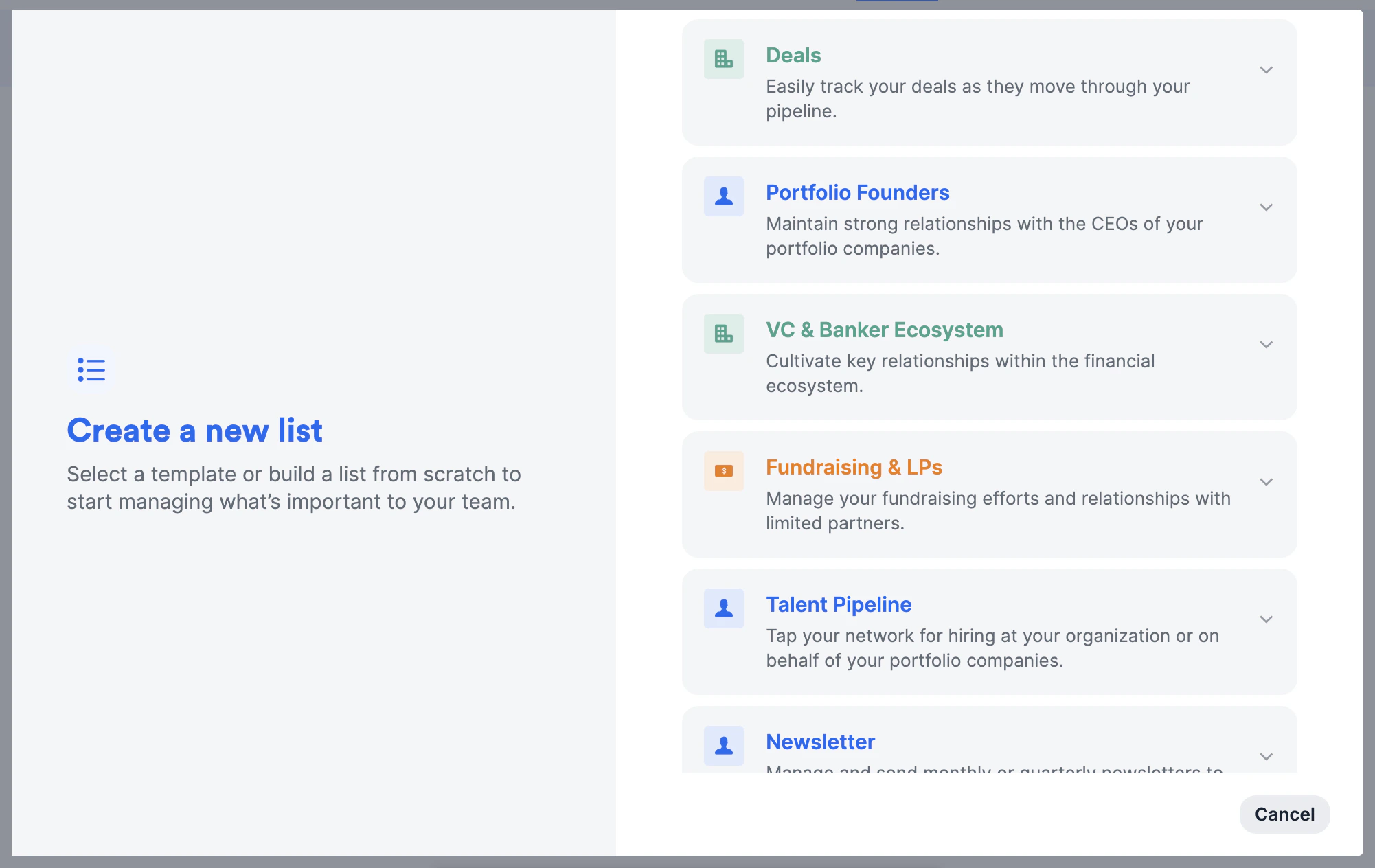
- Deals is an organization list that will help you/your team track all deals in one place (skip to 1:25 in the video for a demo).
- You can simply filter by all the won deals in the Status column, then create a new saved view by choosing Duplicate this view and labeling it “Portfolio Companies” (see How to create and use saved views within a list). Otherwise, you can create a new organization list titled “Portfolio Companies” and track them separately.
- You can also create board views to visualize your deals by different stages of the pipeline, often used for weekly team meetings across many VC firms.
- Keep these relationships warm by setting up reminder triggers to stay in touch if a certain amount of time passes since your last interaction.
- Portfolio Founders/CEOs is a people list that will help you/your team track all the founders of your portfolio companies in one place.
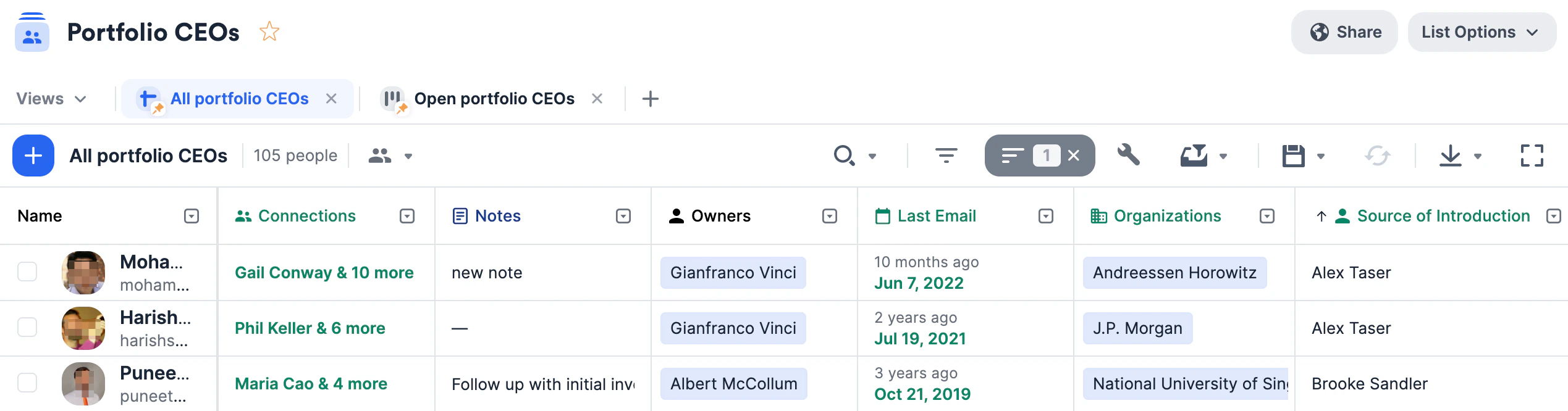
- Once a deal is won in the Deals list, go to this list and add the respective founders/CEOs.
- Keep these relationships warm by setting up reminder triggers.
- VC & Banker Ecosystem is an organization list that will help you/your team track key relationships with other Venture Capital, Private Equity, and Investment Banking firms.
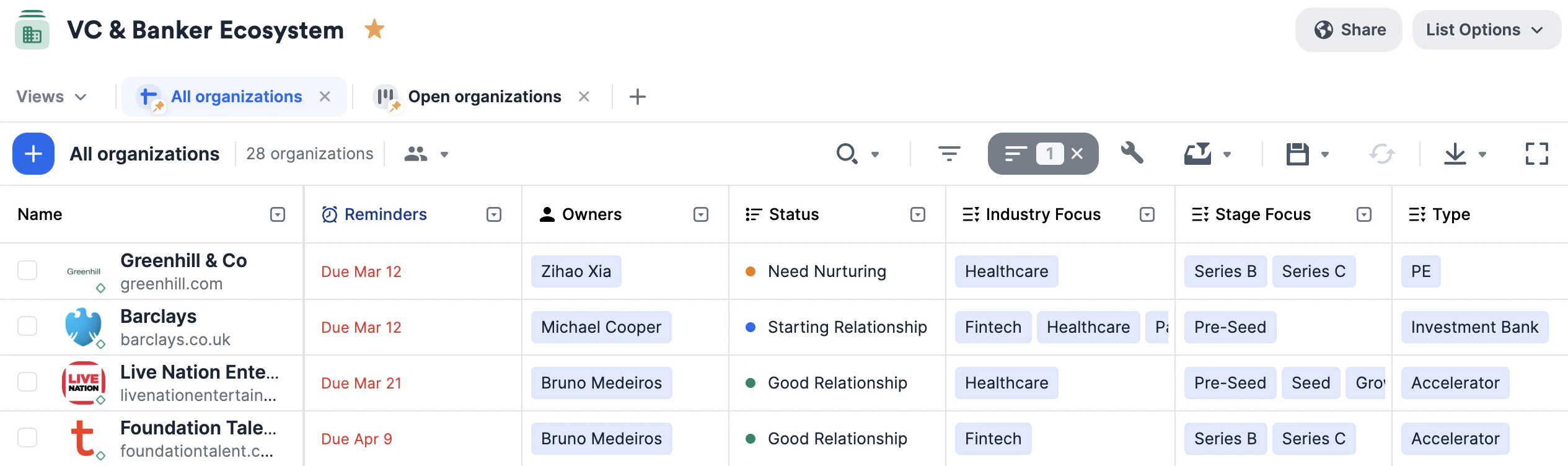
- Use the columns provided (i.e. Firm Type, Sector Focus, Preferred Deal Stage, etc.) to easily filter and narrow down your list based on different interests and attributes.
- Fundraising & LPs is an opportunity list that will help you/your team track all your LPs and their respective statuses when it comes to raising capital for different funds over time.
- Make sure to fill out the default Organizations and People fields for each opportunity - these fields will determine how the other enriched fields get auto-populated with data.
- Use the columns provided (i.e. Previous Funds Invested, Prospective Funds, etc.) to keep track of all the different funds each LP has invested in or is interested in.
- Talent Pipeline is a people list that consists of all the individuals in your network open to new opportunities in your portfolio companies.
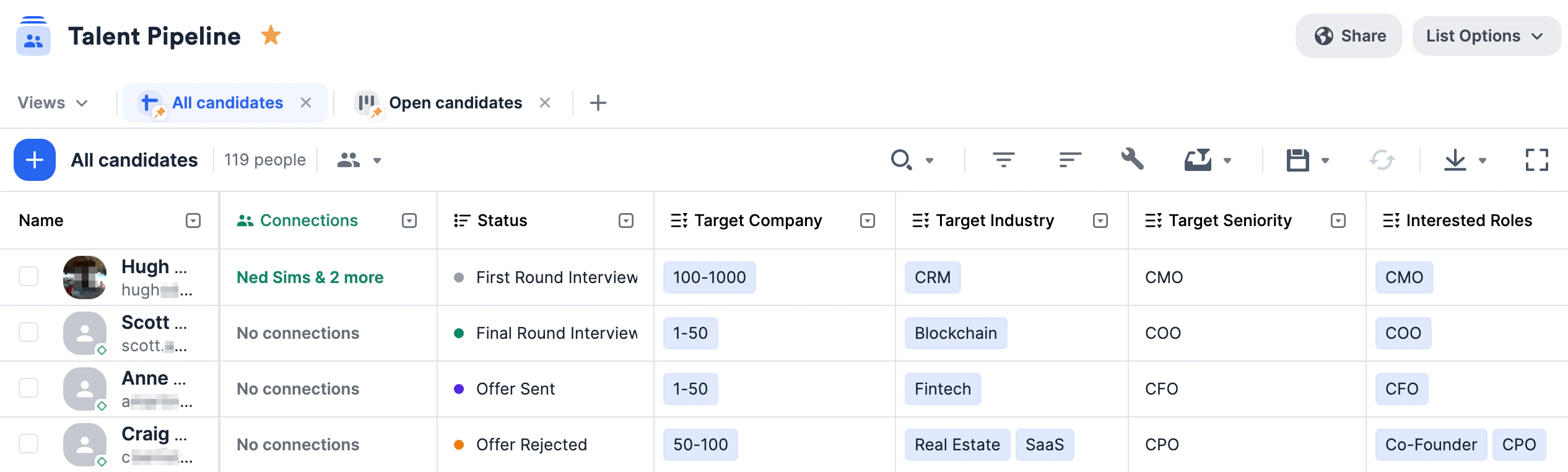
- Keep these relationships warm by setting up reminder triggers to stay in touch if a certain amount of time passes since your last interaction.
- Create custom columns like Target Company Size, Target Industry, Interested Roles, and more to apply quick filters or add unique data points moving forward.
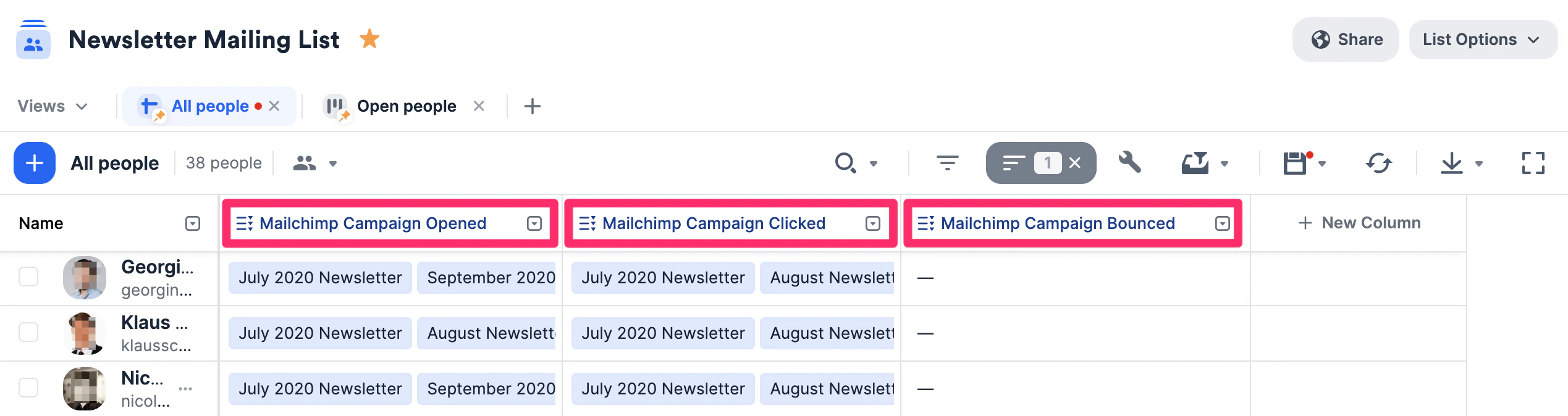
- Newsletter Mailing List is a people list that consists of individuals that have opted in to receive monthly/quarterly newsletters.
- You can leverage Affinity’s bulk email feature and email templates feature.
- If you’re on the Advanced or Enterprise tiers and also use Mailchimp for your newsletters, you can also leverage Affinity’s native integration with Mailchimp.
- If you integrate with Mailchimp, use the columns provided (e.g. Mailchimp Campaign Opened, Mailchimp Campaign Clicked, and Mailchimp Campaign Bounced) to identify recipients who are either interested in or not receiving the newsletter.
Importing data into these lists
Now that you have these lists set up, quickly migrate data from other CRMs into Affinity using our data importer.Getting started with reporting/analytics
Once your lists are filled with relevant data, you can leverage Affinity Analytics if you’re on the Scale, Advanced, or Enterprise tiers.- Getting started with Affinity Analytics
- Affinity Analytics - List Summary Reports
- Affinity Analytics - Status Reports for Investment Banking
- Affinity Analytics - Introductions Summary Reports
- Affinity Analytics - Team Activity Reports
- Affinity Analytics - Funnel Analysis Reports
- Get notified when certain metrics/thresholds are met using Affinity Analytics alerts.