

How-to — task-oriented recipe.
You can now set these up in New Lists. Open List Options — the gear icon in the top right — and choose List triggers, then New Trigger → Require Fields. In New Lists this trigger type is called Require Fields. Creating, editing and removing these requires list admin. Both experiences read the same triggers, so anything you built in Classic is already there and nothing needs migrating.
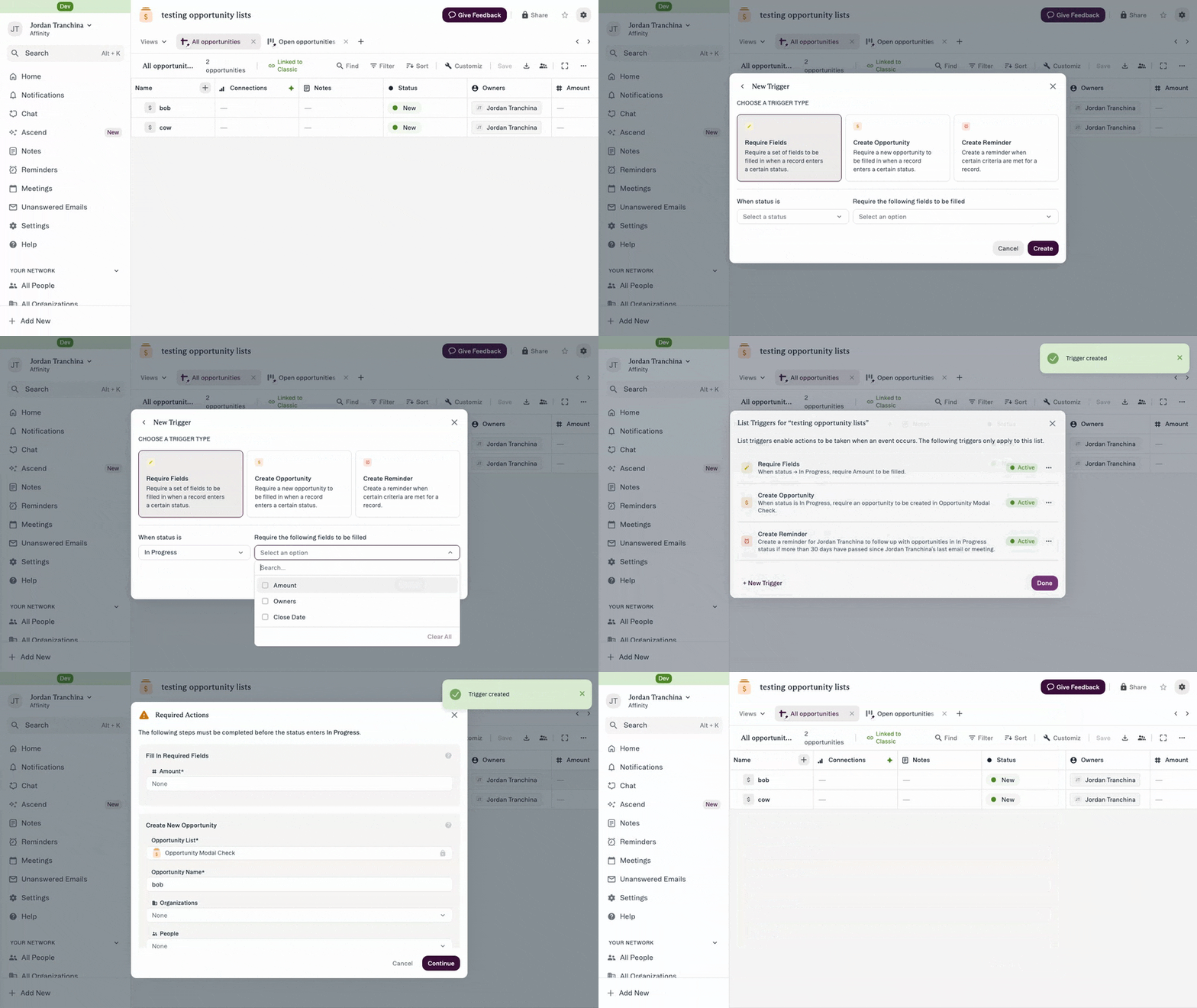
Overview
Status Triggers automatically prompt you to fill required fields when changing a list entry’s status to a specific value. This ensures critical information is captured at key moments in your deal flow, maintaining data quality and enforcing consistent workflows across your team.Prerequisites
Permissions Required:- You must be a List Owner or List Admin to configure Status Triggers
- To become a List Admin, ask the List Owner to grant you admin access
- List with a Status field (or Ranked Dropdown field used for pipeline stages)
- List-specific fields created to serve as required fields
- Understanding of which information is critical at each pipeline stage
Step 1: Navigate to Triggers Settings
- Open the list where you want to configure Status Triggers
- Click List Options in the top-right corner
- Click Triggers
- The Triggers configuration panel opens
Step 2: Create a New Status Trigger
- Click the Status Triggers tab
- Click Create New Trigger
- The trigger configuration form appears
Step 3: Select the Status Value
- In the Status dropdown, select which status value will activate this trigger
- Example: “Due Diligence”, “Passed”, “Partner Review”
- This is the status that, when selected by a user, will prompt the required fields modal Important: Each status value can only have ONE trigger configuration (but that trigger can require multiple fields)
Step 4: Select Required Fields
- In the Required Fields section, select which fields must be completed
- You can select multiple fields for a single trigger
- Only list-specific fields can be required (global fields not currently supported)
- Formula fields are automatically excluded (they auto-calculate)
- “Due Diligence” status → Require: “DD Lead”, “Target Close Date”, “Investment Memo Link”
- “Passed” status → Require: “Pass Reason”, “Pass Category”
- “Partner Review” status → Require: “Deal Champion”, “Investment Thesis”
Step 5: Save the Trigger
- Review your configuration
- Click Save
- The trigger is now active and will fire when users change status to your selected value
Step 6: Test the Trigger (Optional but Recommended)
- Navigate to a test entry in your list
- Change the status to your trigger value
- Verify the required fields modal appears
- Complete fields to ensure workflow works as expected
- Confirm entry updates with both status and required fields
Expected Outcome
- When any user changes an entry’s status to your configured value, a modal appears
- User must complete all required fields before status change saves
- Entry updates with new status AND required field values
- In New Lists: If both Status Trigger and Opportunity Trigger exist for same status, they appear in consolidated modal
- Team maintains consistent data capture at critical pipeline milestones
Where Status Triggers Fire
Surfaces where triggers work:- Sheets view in Classic and New versions
- Kanban/Board view
- Entity Profiles
- Pathfinder
- Mobile App (only on first status when adding, not subsequent changes)
- Adding via Lists column
- Data imports
- API calls
- Outlook Add-in
Tips & Best Practices
Configuration Strategy:- Start with critical fields only - Don’t overwhelm users with too many requirements
- Consider workflow timing - Require fields at the stage where information is actually known
- One trigger per status - Can’t have multiple triggers, but can require multiple fields in one trigger
- Document expectations - Communicate to team why certain fields are required
- Review and iterate - Regularly assess whether required fields are still necessary Field Selection:
- Choose fields that are critical for that stage (not nice-to-have)
- Avoid requiring fields with information not yet available
- Consider using text fields for flexibility (e.g., free text instead of rigid dropdowns)
- Cannot require: Formula fields, Communication fields, Status field itself
- Announce new triggers to your team before activating
- Explain the “why” behind required fields
- Create documentation or examples of what to put in each field
- Gather feedback and adjust based on team input
- Don’t create triggers for every status (causes trigger fatigue)
- Don’t require fields that users won’t know at that stage
- Don’t require too many fields at once (5+ fields = friction)
- Don’t forget to test before rolling out to whole team
- Triggers only fire when status changes (not on every save)
- User cannot bypass triggers (must complete to proceed)
- Canceling trigger = status change is cancelled
- Triggers cascade: Status Trigger fires before Opportunity Trigger if both configured