

How-to — task-oriented recipe.
Overview
You can view, upload, and manage files on person, organization, and opportunity profiles directly from the Affinity iOS app (iPhone and iPad). This allows you to access critical documents, share files with teammates, and manage profile attachments while on the go—whether in meetings, at conferences, or away from your desk. What’s included:- View files uploaded from the web CRM on your iOS device
- Upload files from your iOS device to any profile
- Manage files you’ve uploaded (edit sharing, delete)
- Preview files in-app without downloading
Prerequisites
Available on:- Affinity iOS Mobile App (version 5.41.0 or later for viewing, version 5.45.0 for uploading)
- iPad app Requirements:
- You must have permission to view/upload files on profiles
- Supported file types: PDF, DOCX, XLSX, PPTX, images (JPEG, PNG), and more
- Maximum file size: 100MB per file
- Files must be uploaded one at a time
How to View Files on iOS
Files uploaded from the web CRM are visible in the iOS app’s Files tab on any profile.- Open a profile
- Search for and open any person, organization, or opportunity profile
- Or navigate to a profile from a List
- Navigate to the Files tab
- Tap the Files tab on the Profile
- You’ll see all files uploaded to this profile
- View file list
- Each file shows:
- File name
- File type icon
- Upload date
- Uploaded by (team member name)
- Each file shows:
- Preview a file
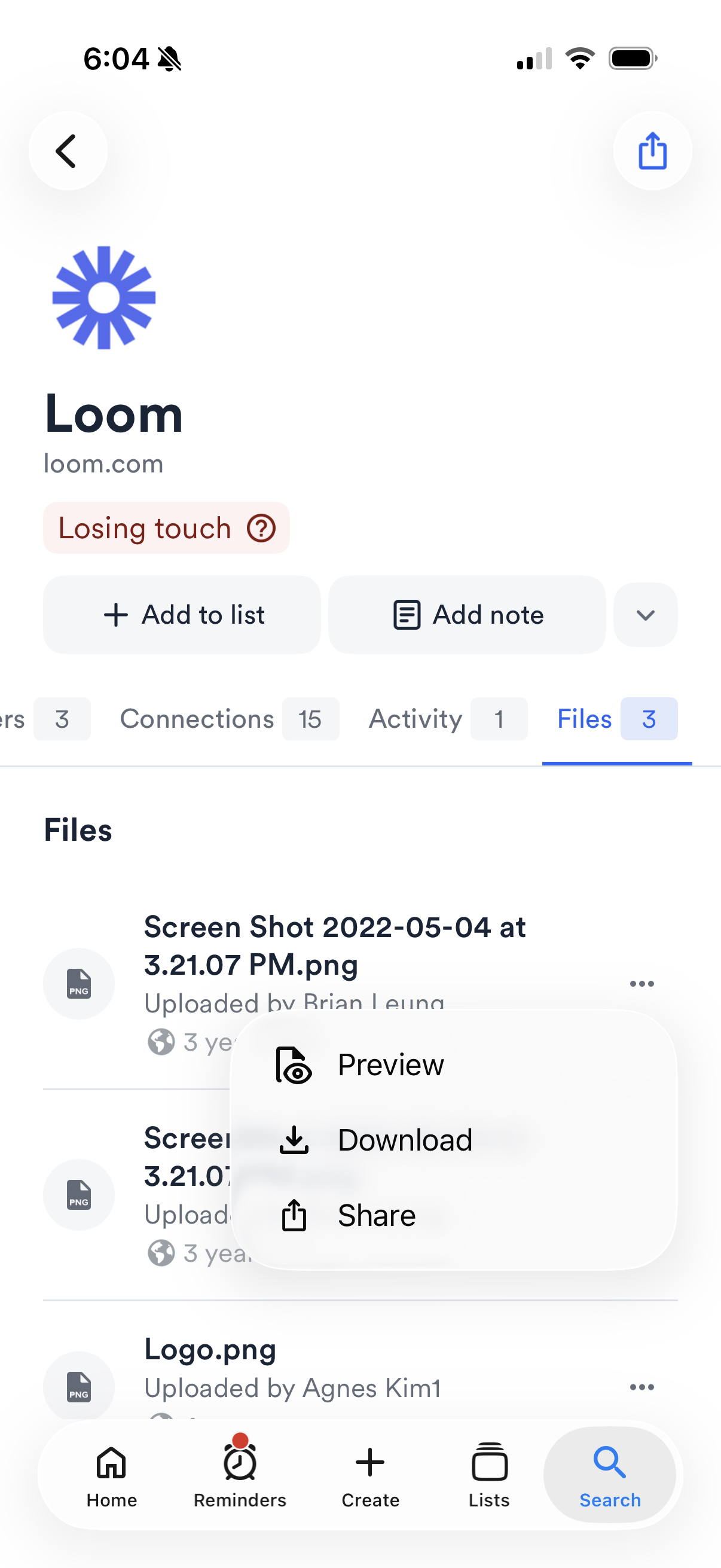
- Tap any file to open in-app preview
- Many file types (PDF, images, documents) preview directly in Affinity
- Use pinch-to-zoom for images and PDFs
- Download or share a file
- Swipe to navigate multi-page documents
- While viewing a file, tap the Share button
- Use iOS share sheet to:
- Download to Files app
- Share via email, Messages, or other apps
- Save to cloud storage (Dropbox, Google Drive, etc.)
How to Upload Files on iOS
Upload files from your iOS device’s photo library, Files app, or camera.- Open a profile
- Navigate to the person, organization, or opportunity profile where you want to upload a file

- Navigate to the person, organization, or opportunity profile where you want to upload a file
- Access file upload (three options)
- Option 1: From Global Create menu
- Tap the Create + button in the navigation bar
- Select Add** File**
- Choose the profile to attach file to
- Option 2: From Profile menu
- Open the profile
- Tap the ••• menu button
- Select Add** File**
- Option 3: From Files tab
- Open the profile
- Navigate to Files tab
- Tap Add** File** button
- Option 1: From Global Create menu
- Select file source
- Choose where to upload from:
- Photo Library (images and videos saved to your device)
- Files (documents in iCloud Drive, Dropbox, etc.)
- Take Photo/Video (use camera to capture new file)
- Choose where to upload from:
- Choose your file
- Browse and select the file to upload
- Preview appears to confirm selection
- Configure file settings
- File name: Edit if needed (auto-populated from original filename)
- Sharing permissions: Choose who can view the file:
- Everyone at your firm
- Selected teams and users
- Private (only you)
- Confirm upload
- Tap Upload or Done
- Progress indicator shows upload status
- File appears in Files tab when complete
- Note: Files must be uploaded one at a time. To upload multiple files, repeat the process for each file.
How to Manage Files on iOS
Edit sharing permissions or delete files you’ve uploaded.- Navigate to the file
- Open the profile
- Go to Files tab
- Find the file you want to manage
- Open file options
- Tap the ••• menu button next to the file
- Or long-press on the file
- Edit sharing permissions
- Select Edit Sharing
- Change who can view the file:
- Everyone at your firm
- Selected teams and users
- Private (only you)
- Tap Save
- Change who can view the file:
- Delete a file
- Select Delete
- Confirm deletion
- File is permanently removed from the profile
- Important: You can only manage files you’ve uploaded. Files uploaded by teammates can be viewed but not edited or deleted by you.
Tips & Best Practices
Uploading files efficiently:- Upload files immediately after meetings while details are fresh
- Use camera to capture whiteboard sketches or presentation slides during meetings
- Name files descriptively before uploading for easier team discovery Organizing files:
- Use sharing permissions to control visibility (firm-wide vs team/user-specific vs private)
- Upload pitch decks, term sheets, and due diligence docs to company profiles
- Upload resumes and references to people profiles
- Upload deal memos and investment committees materials to opportunity profiles File access:
- Files uploaded on iOS are immediately visible to teammates on web CRM and other devices
- Preview in-app to avoid unnecessary downloads
- Use share sheet to send files to other apps (email, Slack, etc.) without downloading first Performance:
- Smaller files (<10MB) upload faster, especially on cellular connections
- PDFs and images preview fastest in-app
- Large files (50-100MB) may take several minutes on slow connections
What’s Supported
File types with in-app preview:- PDF documents
- Images (JPEG, PNG)
- Microsoft Office (DOCX, XLSX, PPTX)
- Text files
- Many other common formats Upload sources:
- Photo Library (images and videos)
- Files app (iCloud Drive, Dropbox, Google Drive, etc.)
- Camera (take photo/video directly) File management:
- Edit sharing permissions (files you uploaded)
- Delete files (files you uploaded)
- Download files (any file you can view)
- Share files via iOS share sheet
What’s NOT yet supported
Current limitations: ❌ Uploading multiple files at once: Must upload files one at a time. To attach multiple files, repeat upload process for each. ❌ Uploading from other apps: Cannot share files to Affinity directly from other apps (e.g., can’t share from Mail app to Affinity). Must save to Files app first, then upload from Affinity. ❌ Editing files: Cannot edit file content in Affinity. Download to edit in another app, then re-upload updated version. ❌ Managing files uploaded by others: Can view files uploaded by teammates but cannot change their sharing permissions or delete them. ❌ Bulk file operations: Cannot delete or change permissions for multiple files at once. Expected future improvements:- Upload multiple files to a profile at once
- Share files to Affinity from other iOS apps