

How-to — task-oriented recipe.
- Affinity’s latest app versions are supported on iOS 18.1+
- Users on iOS 18.0 or lower will be capped at Affinity app version 5.47.0 (released May 11, 2026)
- Update to iOS 18.1+ to ensure you have access to all of the latest features of Affinity for iOS
Who can access the Affinity Mobile App?
Interested in upgrading to Scale, Advanced, or Enterprise? Please reach out to your Affinity point of contact or support@affinity.co.
What actions can you take on the mobile app?
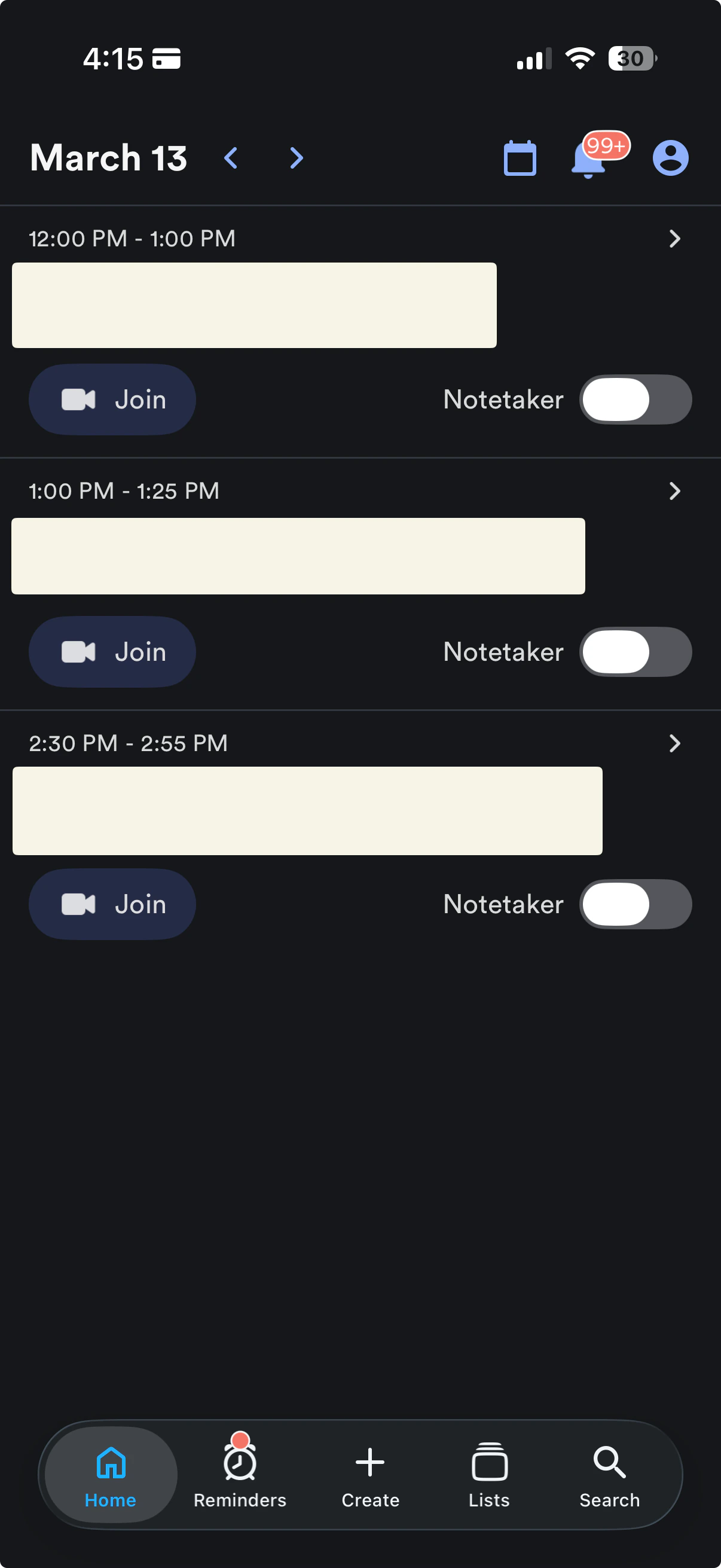
- Home - View your upcoming meetings and join them call directly from the meeting, toggle Notetaker on/off and tap into each one to quickly add a note or view the profiles of the meeting participants and their associated organizations.
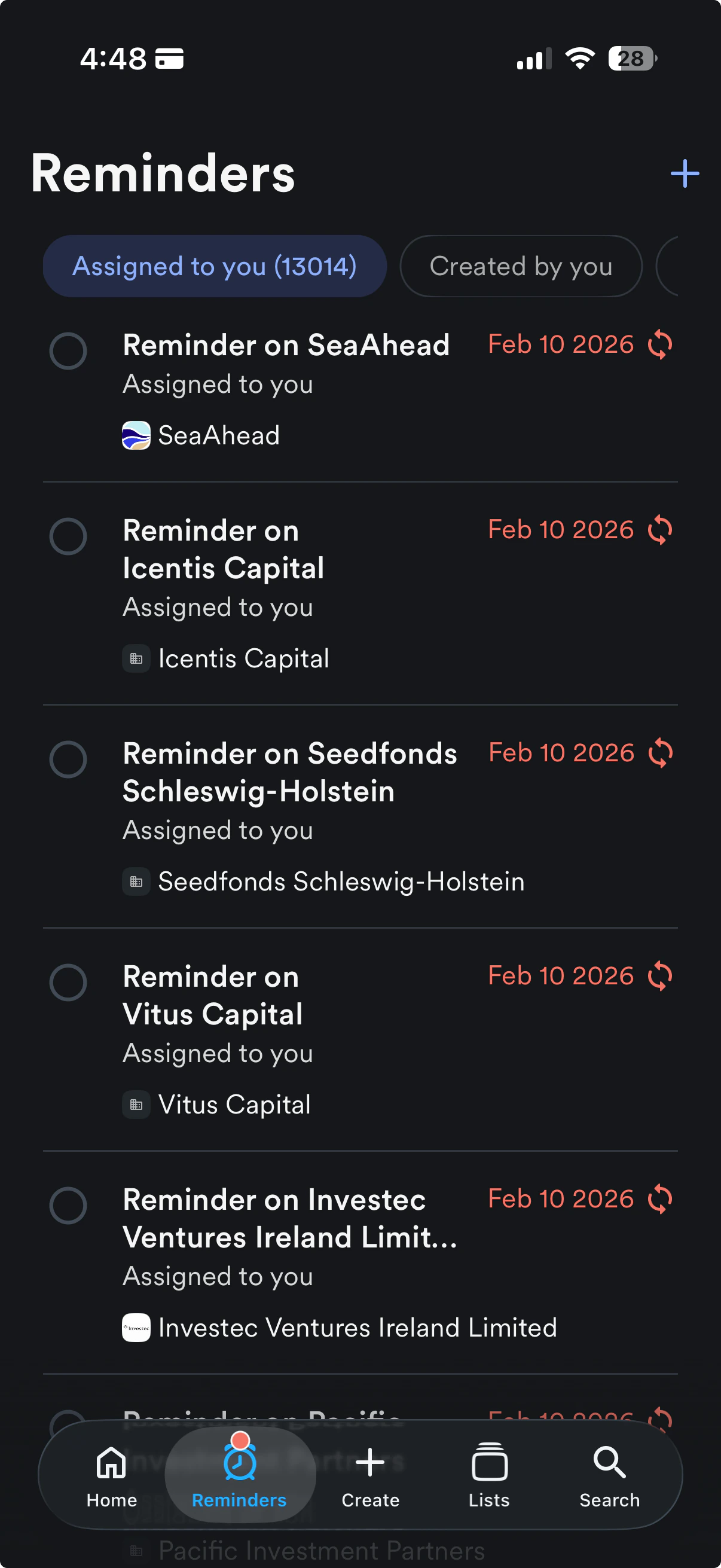
- Reminders - View your upcoming/overdue reminders and create a new reminder by clicking the + icon on the top-right corner.
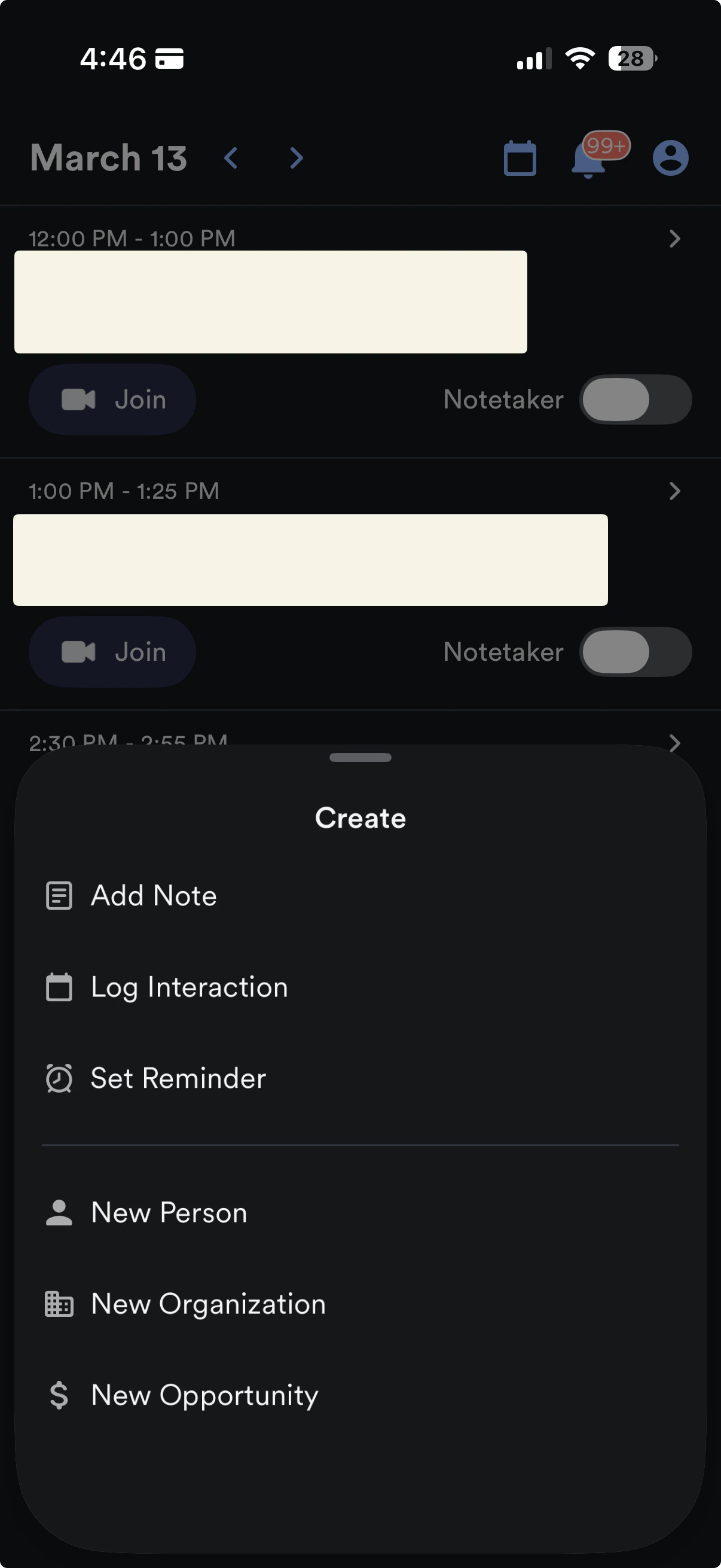
- Create - Quickly create a new organization, person, opportunity, note, or reminder as well as log interactions.
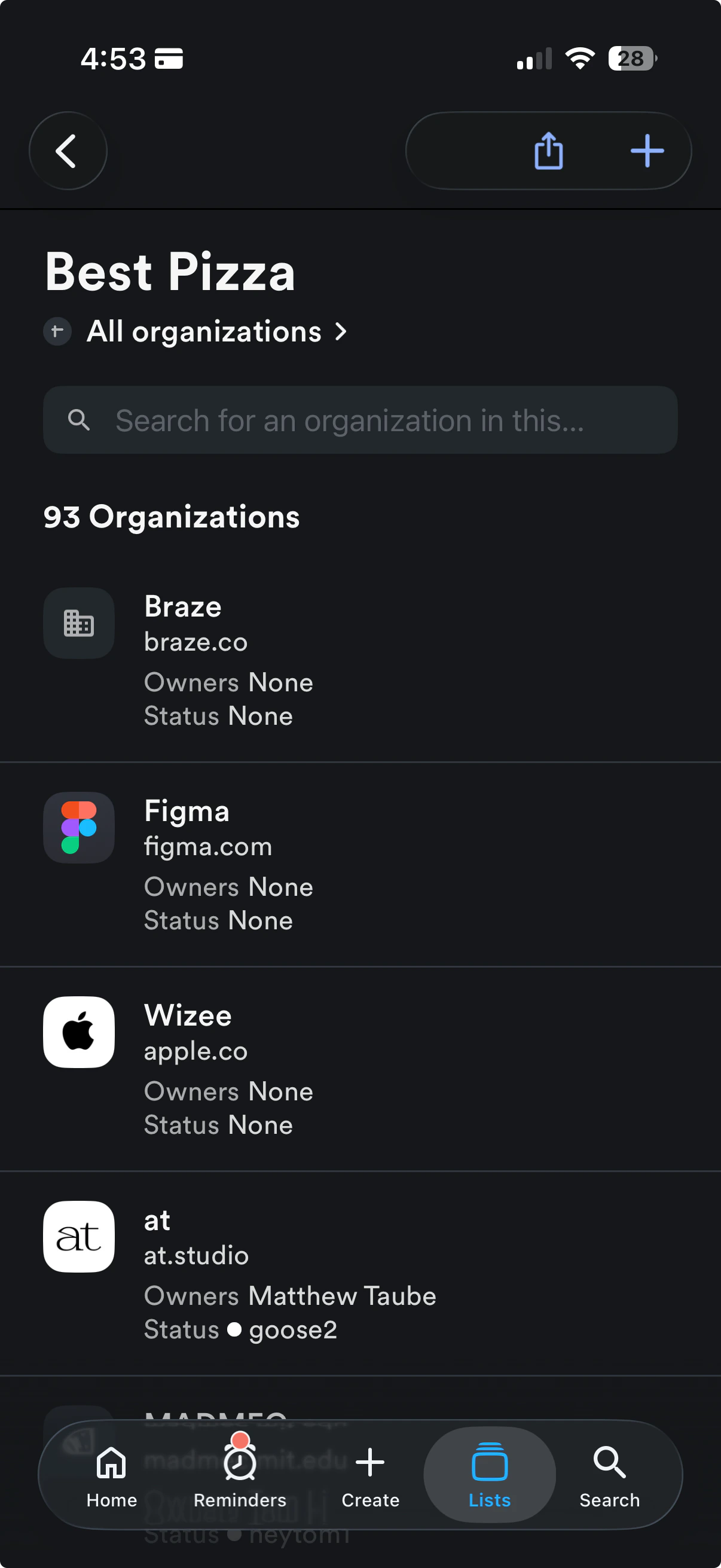
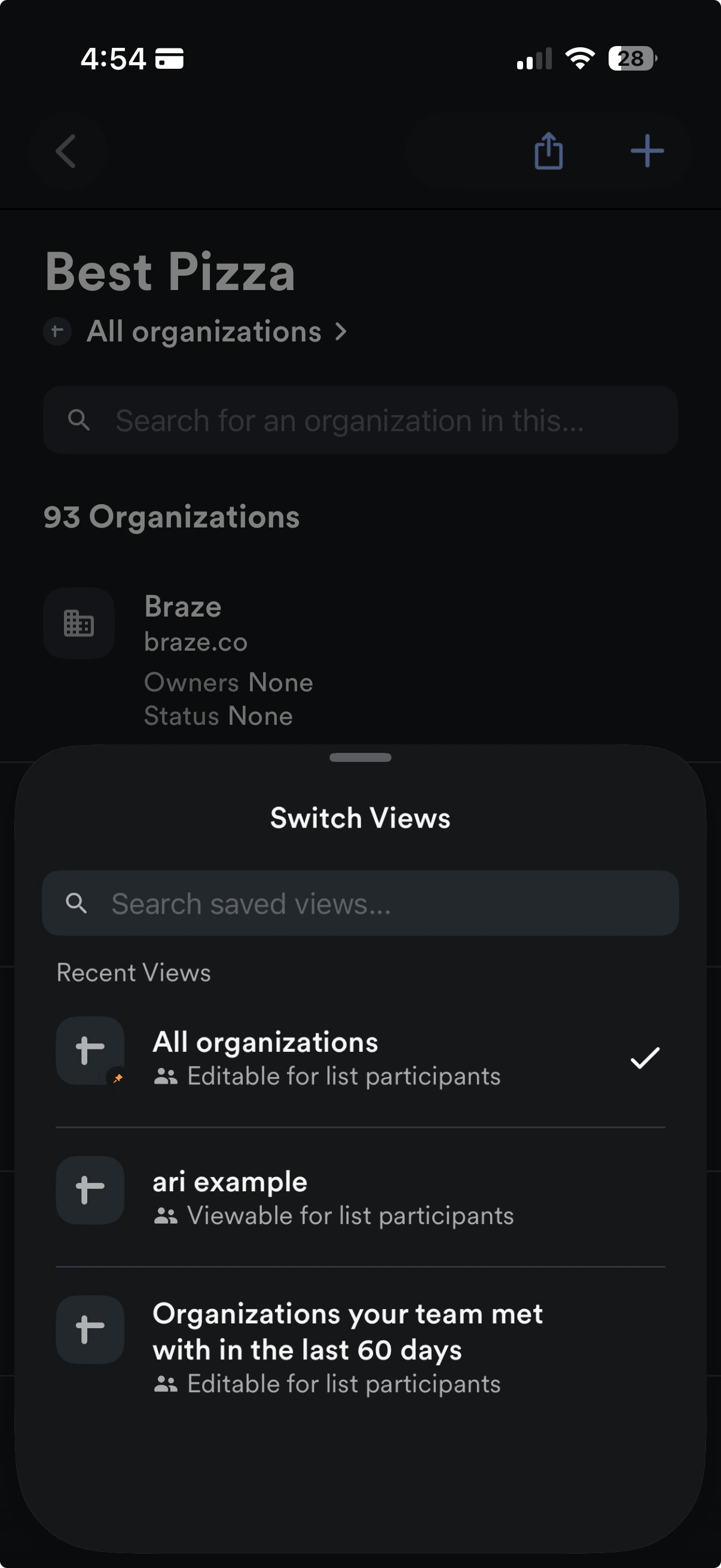
- Lists - Quickly access your lists, switch between saved views within each list, see your favorite lists, and view/edit list entry details by clicking on a list entry.
- Search - Search for people, organizations, opportunities, lists, and notes with enhanced filtering capabilities:
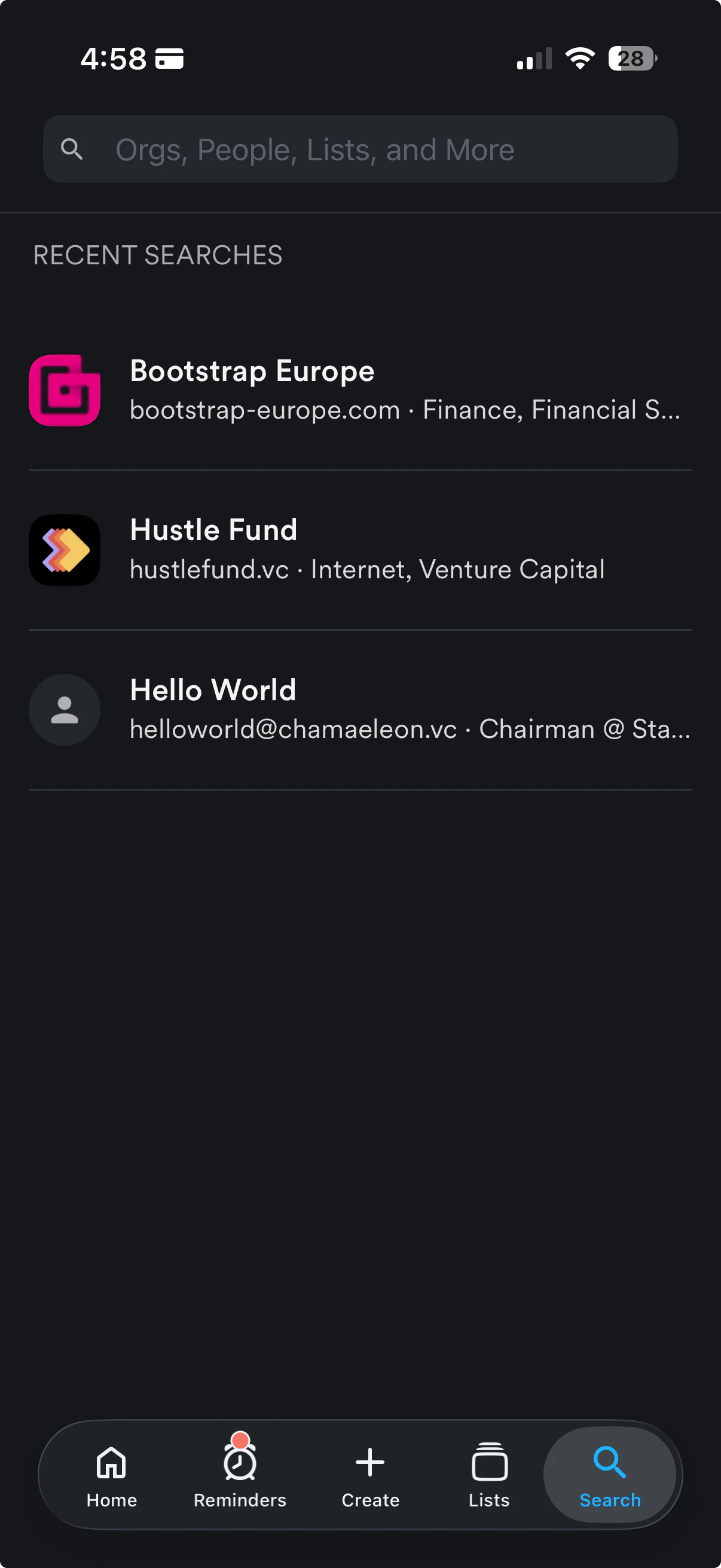
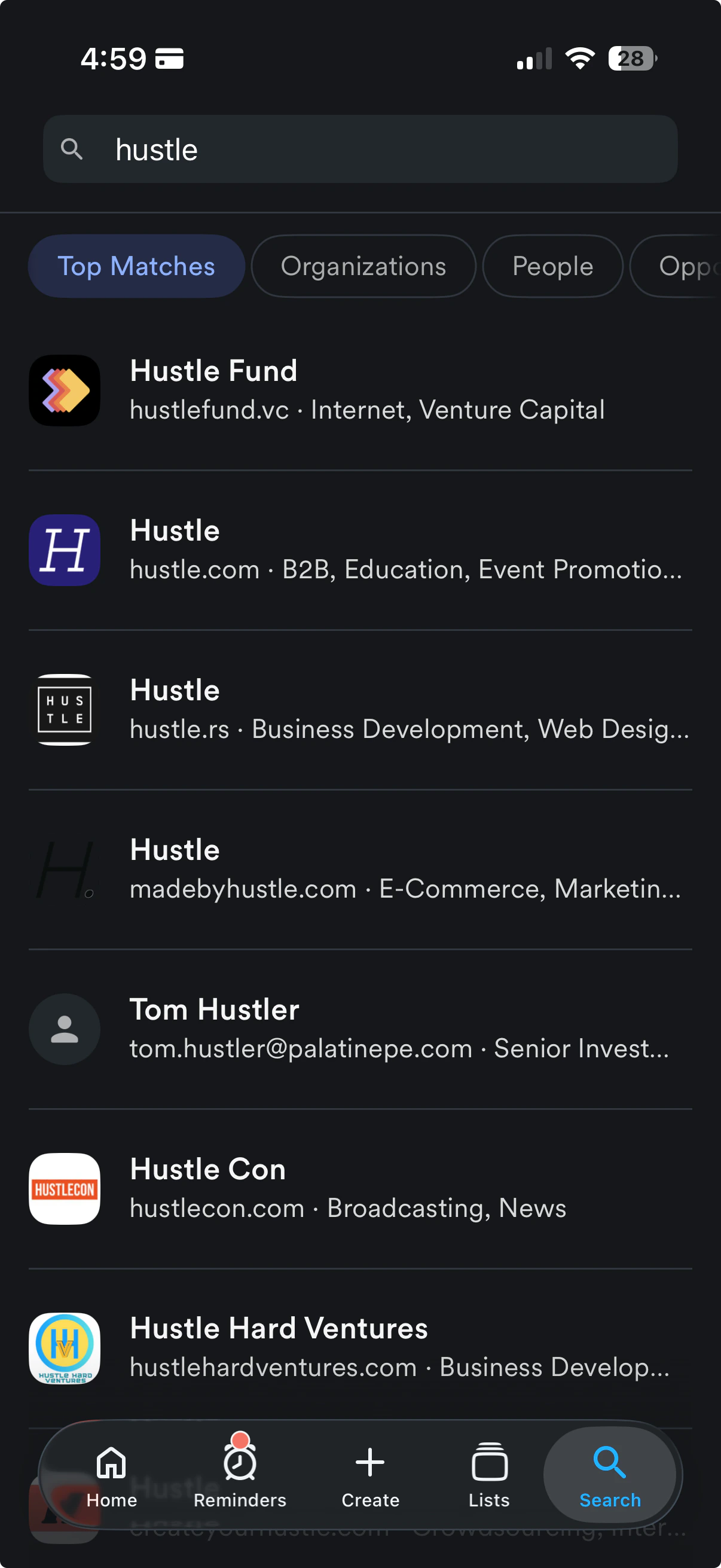
- Filter search results by entity type: Top Matches, Organizations, People, Opportunities, Lists, and Notes
- Search note content by keyword
- View up to 50 results per entity type
- Top Matches displays top 10 results across orgs, people, opps, and lists, plus top 5 notes
- Push Notifications - Click on the Profile icon the top-right corner to set up push notifications for the following actions:
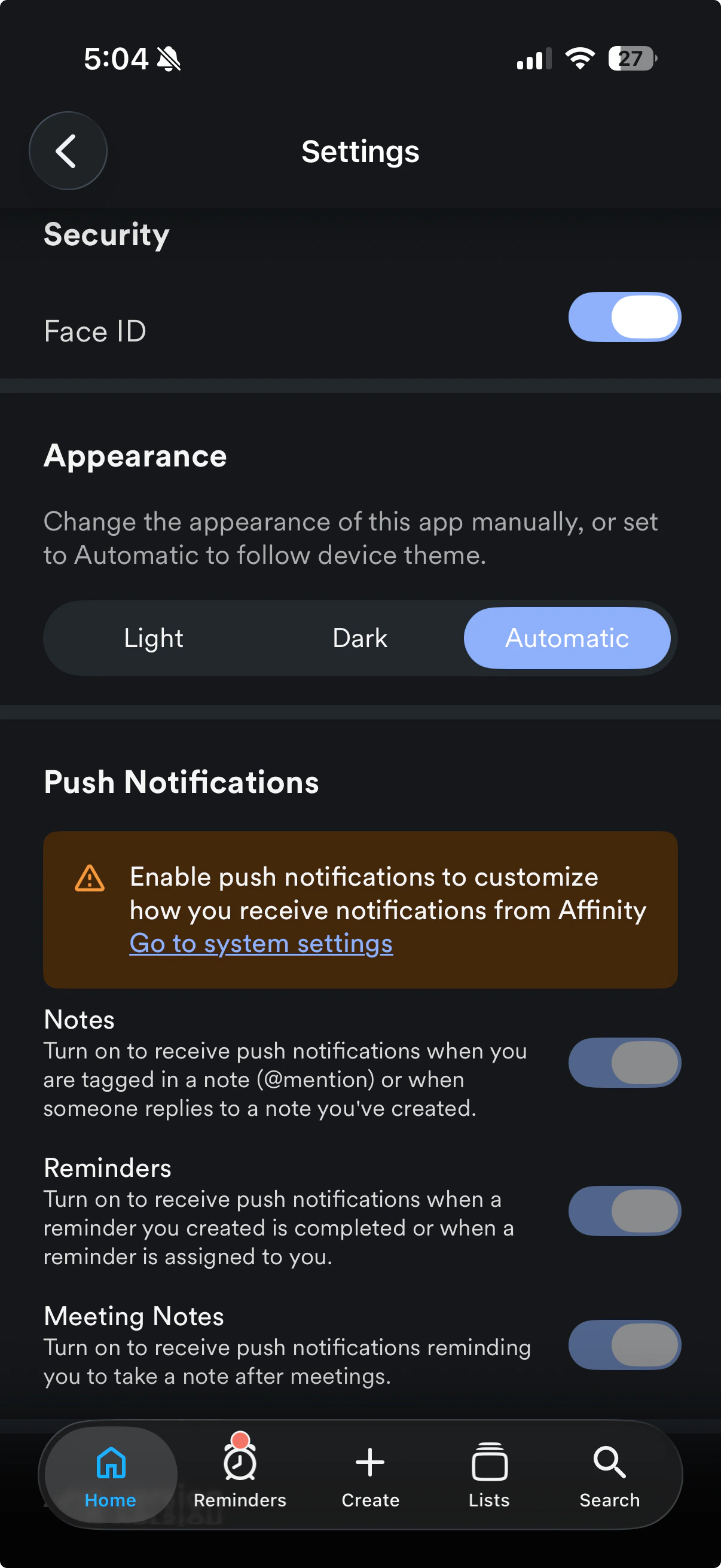
- Notes - When you’re @ mentioned on a note or someone replies to a note you’ve created.
- Reminders - When a reminder you created is completed or when someone assigns a reminder to you.
- Meeting Notes - Receive a reminder to take notes for a meeting you just finished.
- Dark Mode - Set the appearance of the app to Light, Dark, or Automatic (to follow device theme). This is accessed via Profile Icon > Appearance settings.
- Notifications Center - View all of your notifications in one place.
- **Deep Linking - **Tap Affinity links in emails or notifications to open directly in the app instead of your mobile browser, providing seamless access to profiles, lists, reminders, and notes without additional login steps.
- Interactions - Log meetings, calls, and chat messages directly from the app. Capture interactions immediately while at conferences, meetings, or on the go without needing to switch to your desktop.
- Notes with Images - Add up to 10 images to any note using your photo library or camera. Supported formats include JPEG, JPG, and PNG (max 5MB per image). View notes with images created on web or extensions directly in the app.
- Notetaker Access - View both internal and external meetings in your daily meeting list, and add Affinity Notetaker to video conferencing meetings with a one-tap toggle. Access full meeting transcripts alongside summaries to review complete conversation details while mobile.
- Face ID/Touch ID Login - Use biometric authentication for instant, secure access to the app without manual login steps. (Requires app version 5.33 or later)
- Face ID/Touch ID login is not available for accounts that require SSO-only authentication
- Add/view uploaded Files to a Profile - You can upload, view, download, and share multiple files on any CRM Profile (company, person or opportunity), so that you have full deal context available when on-the-go.
- File Analyzer - File Analyzer is an AI-powered Labs feature in the Affinity iOS app that analyzes PDF files attached to profiles and generates summaries of key content. Review pitch decks, CIMs, and investment documents directly from your iPhone or iPad, then save the summary as a note with one tap—all without switching to desktop.
Frequently Asked Questions
Are default fields supported on the mobile app?- Default fields, also known as fields that are shown and/or required for users to fill out when creating a new entity, are currently not supported on the mobile app. Rest assured that this feature will be made available in future updates to the mobile app.
Current Limitations
Here are the current limitations on the iOS mobile app:- You can only see sheet views when accessing lists on the mobile app. Board views and dashboard views are not supported at this time.
- You cannot update the name of a person or organization.
- You cannot update an existing email address or organization domain.
- However, you will be able to add an email address/domain when creating a new person/organization from scratch within the app.
- You cannot create a new option in a dropdown-type field.
- You cannot configure email notifications.
- Receiving notifications for pending reminders are not supported.
- Face ID/Touch ID login is not available for accounts that require SSO-only authentication