

- Note: This is a uni-directional sync from Affinity to Microsoft SharePoint. It will only upload already-uploaded files from Affinity to a designated folder on Microsoft Sharepoint, not the other way around.
- Once you’ve checked the prerequisites (check out the section titled “Prerequisites” within this article: Getting started with native integrations in Affinity) and enabled proper access to Microsoft SharePoint, click Settings on the left side of your screen.
- Click on the Integrations tab, then click on Microsoft SharePoint.
New Authentication Setup (For integrations created after February 26, 2026)
Before configuring the integration in Affinity, you’ll need to set up an App registration in Microsoft Azure:Step 1: Create App Registration in Azure
- Log in to the Microsoft Azure Portal
- Navigate to Azure Active Directory > App registrations
- Click New registration
- Provide the following information:
- Name: Affinity SharePoint Integration (or your preferred name)
- Supported account types: Select appropriate option for your organization
- Redirect URI: Web: https://auth.tray.io/oauth2/token
- Click Register
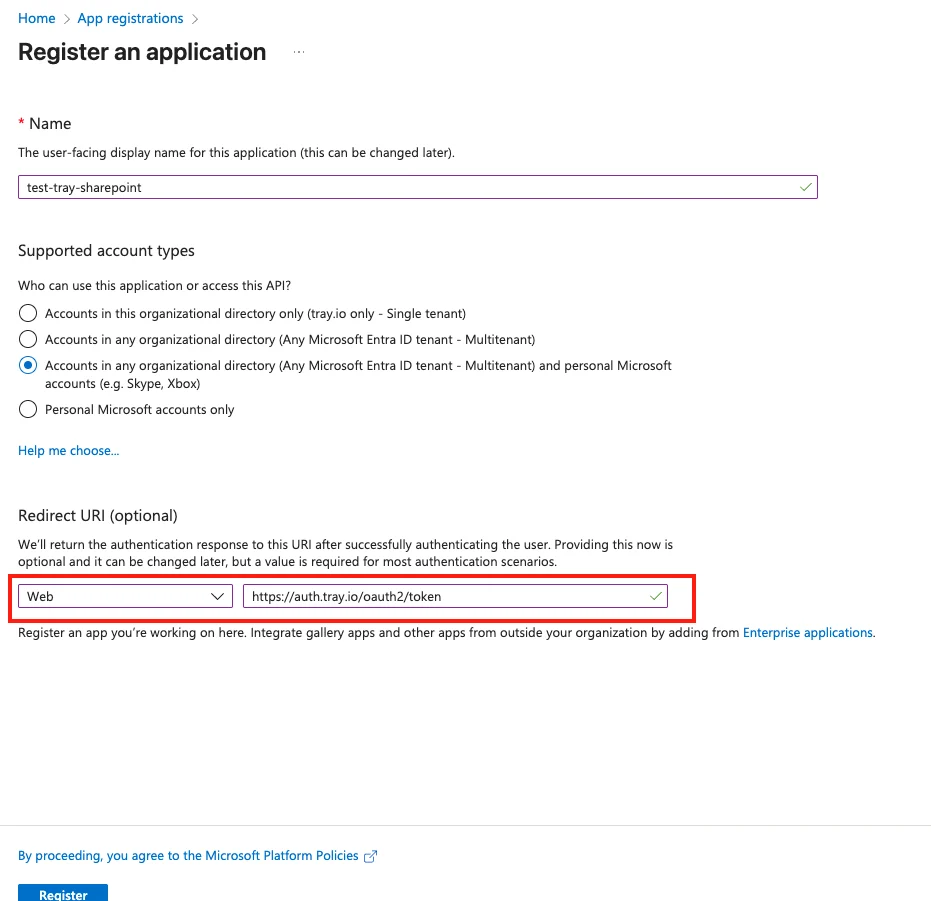
Step 2: Configure API Permissions
- In your new App registration, navigate to API permissions
- Click Add a permission
- Select Microsoft Graph > Delegated permissions
- Add the following permissions:
- offline_access
- Sites.Manage.All
- Sites.Read.All
- Sites.ReadWrite.All
- Sites.Selected
Files.ReadWrite.All - User.Read
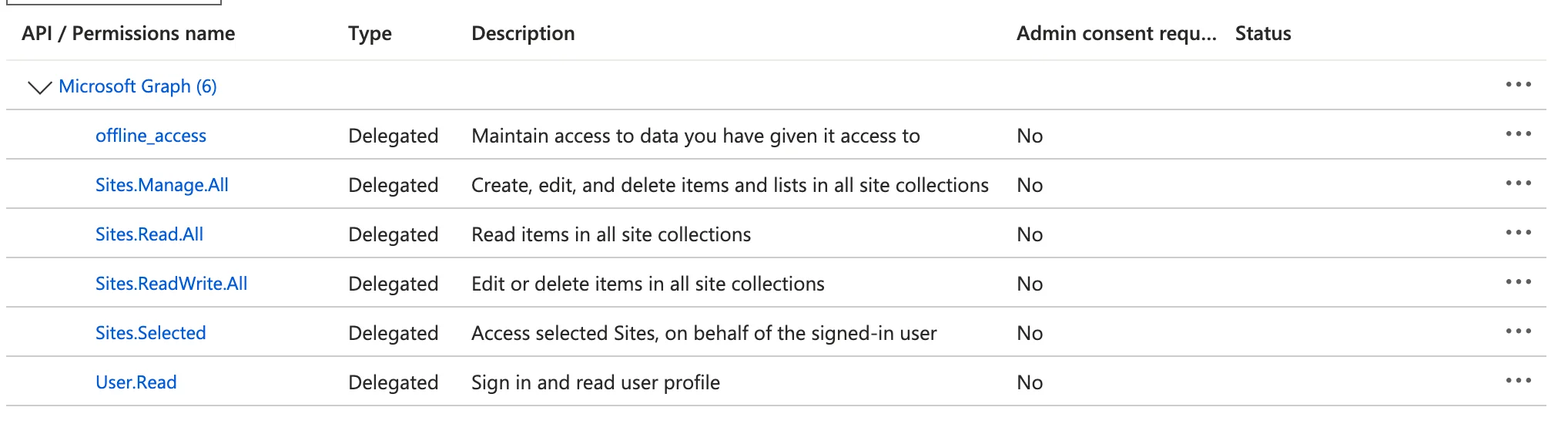
Step 3: Create Client Secret
- Navigate to Certificates & secrets
- Click New client secret
- Add a description and select an expiration period. The integration will stop working after the expiration period. Choose a timeline accordingly!
- Click Add
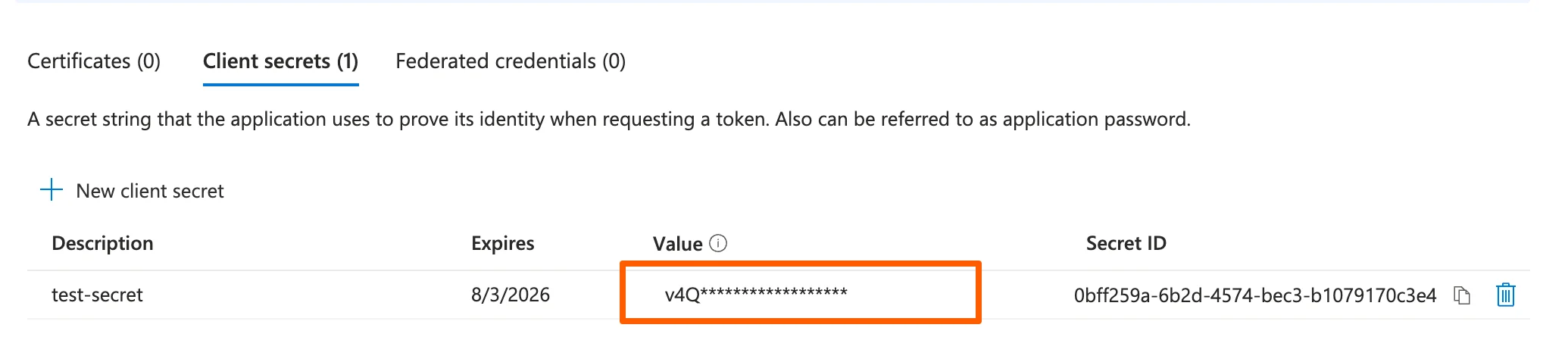
Step 4: Collect Required Values
You’ll need three values from Azure to complete the Affinity integration:- Tenant ID: Found in the App registration Overview page
- Client ID: Found in the App registration Overview page
- Client Secret: The value you copied in Step 3
Affinity Files to SharePoint Folders
For all list entries within a specific Affinity list, the files that have been uploaded to these list entries’ profile pages will also sync to their own auto-created folders within a designated folder in your Microsoft SharePoint account.- Within the Affinity Files to SharePoint Folders integration, click Select.
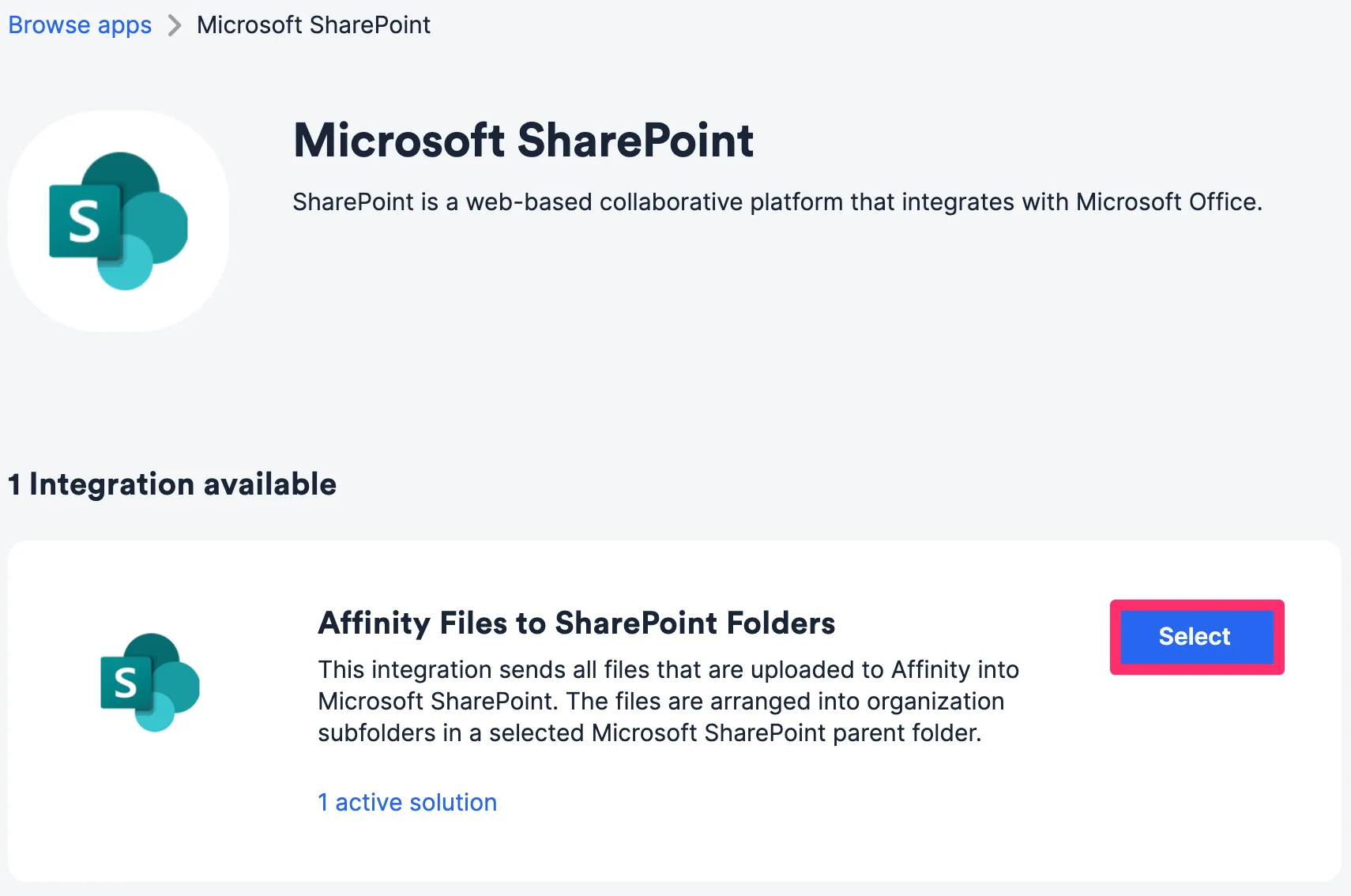
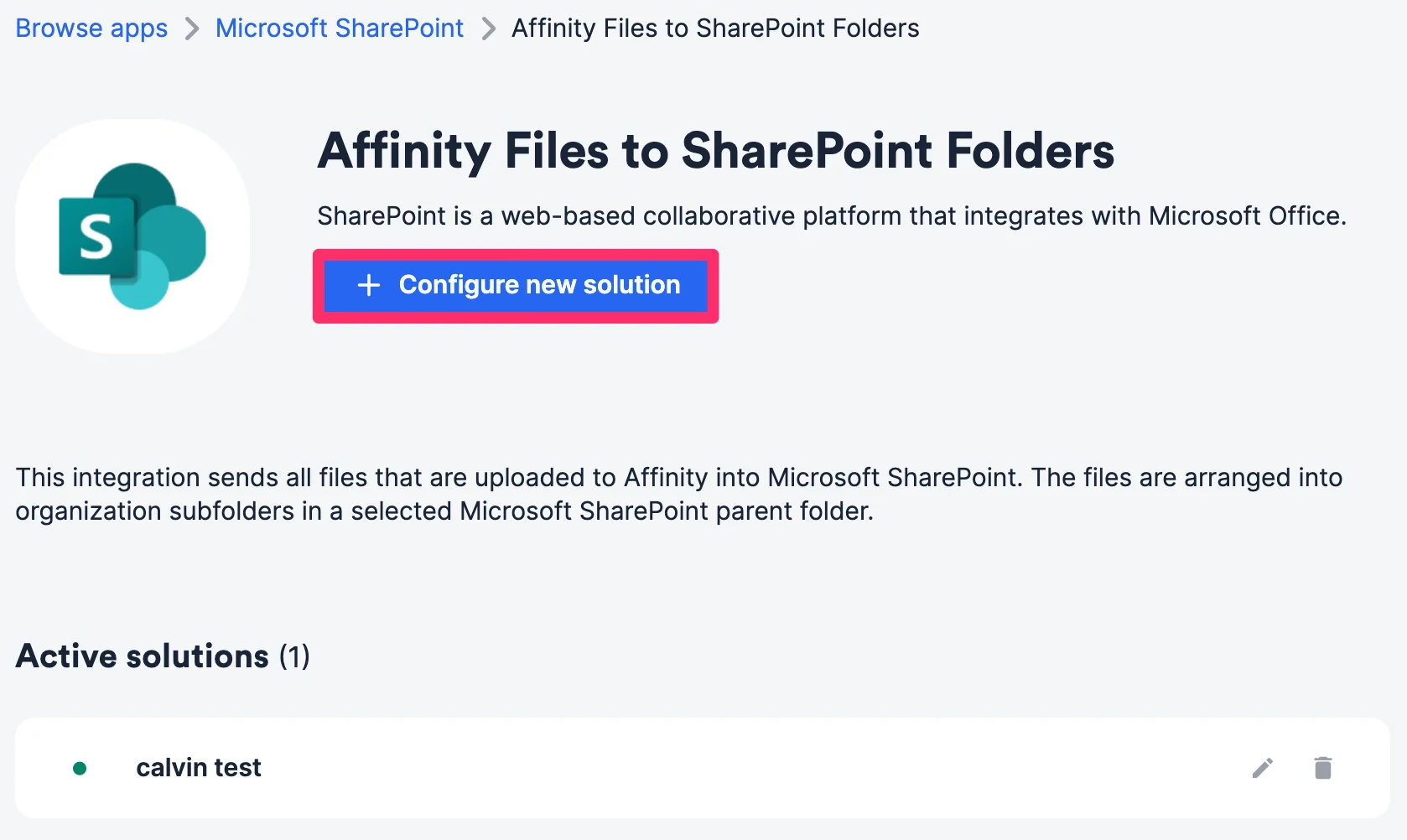
- Click Configure new solution.
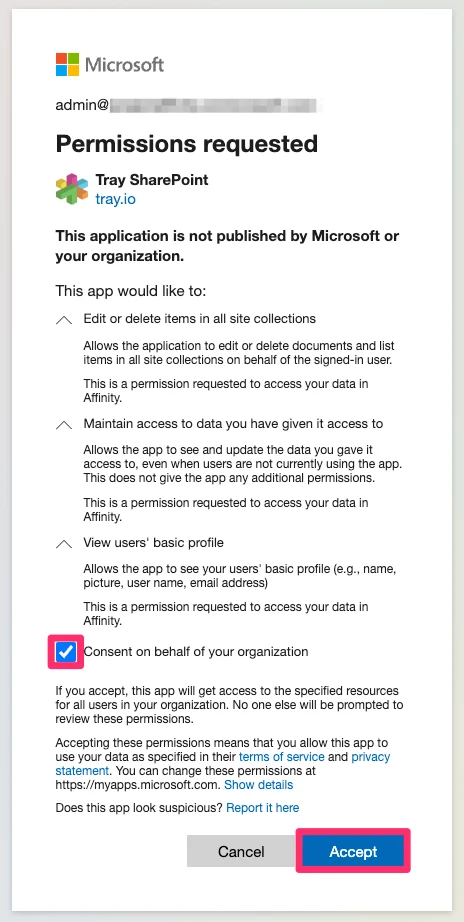
- You will find a modal regarding Tray SharePoint (tray.io) asking for permissions. Click the checkbox to approve “Consent on behalf of your organization” and click Accept to continue.
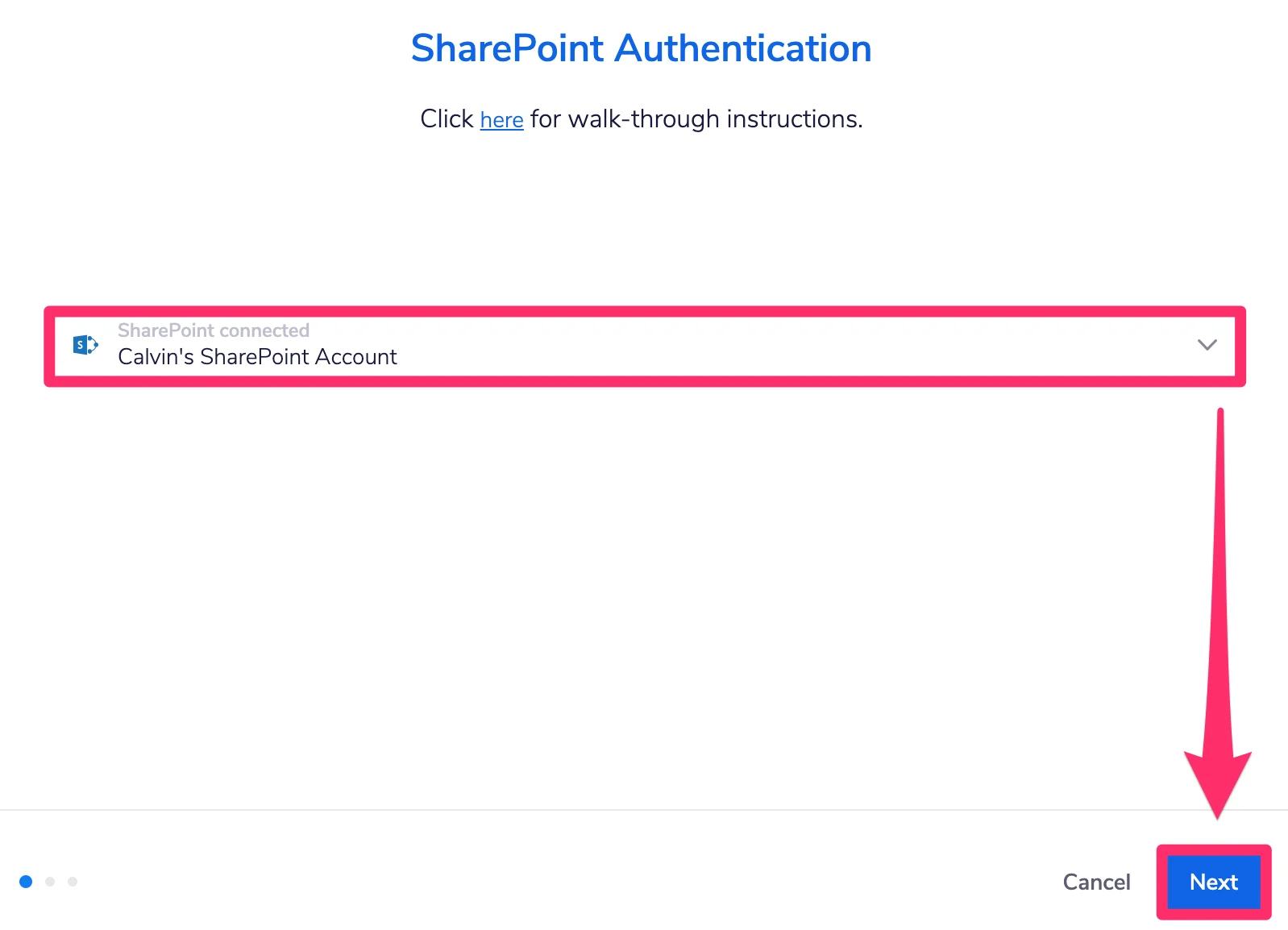
- Select an existing authentication method or create a new one if it’s your first time.
- For integrations created AFTER February 26, 2026 (using new authentication):
- If creating new, enter the three values from your Azure App registration:
- Tenant ID
- Client ID
- Client Secret
- Click Connect to authenticate
- If creating new, enter the three values from your Azure App registration:
- For integrations created AFTER February 26, 2026 (using new authentication):
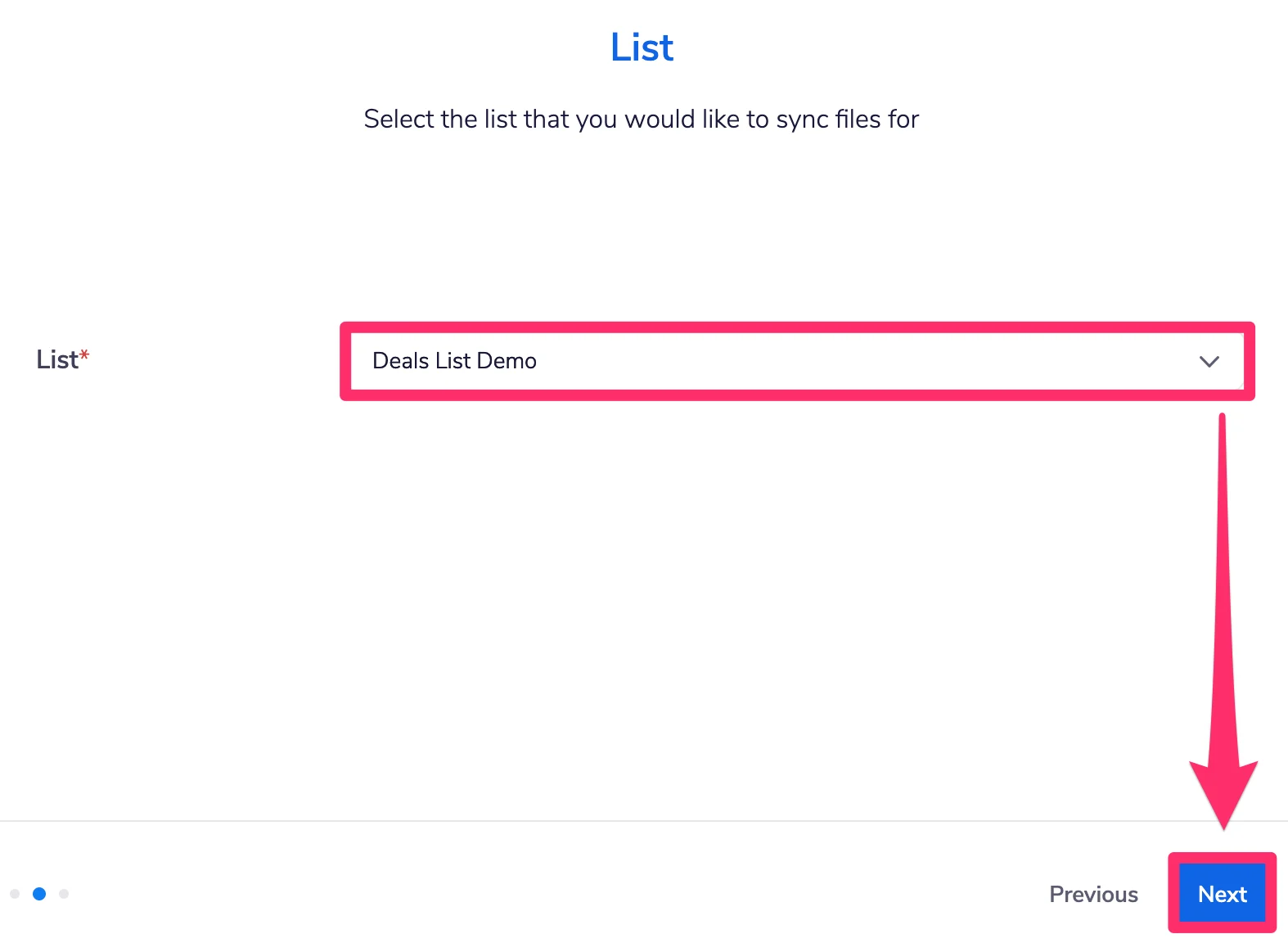
- Select the Affinity list you’d like to sync from, then click Next. Ideally, you’d also want to have this list approved for auto-upload (check out the section titled “How to auto-upload files” within this article: How to upload, download, and remove files in Affinity) in your privacy settings, as we only sync files that are uploaded to Affinity, not those that are in the found in your email section.
- Note: Once it is set up, this integration will automatically backfill for already-uploaded files on Affinity profile pages, upload them to the designated SharePoint folder, and continuously sync for new files that get uploaded to Affinity over time.
- Next, get the name of your Root folder, and the Filepath where you would you like to have the files be uploaded to.
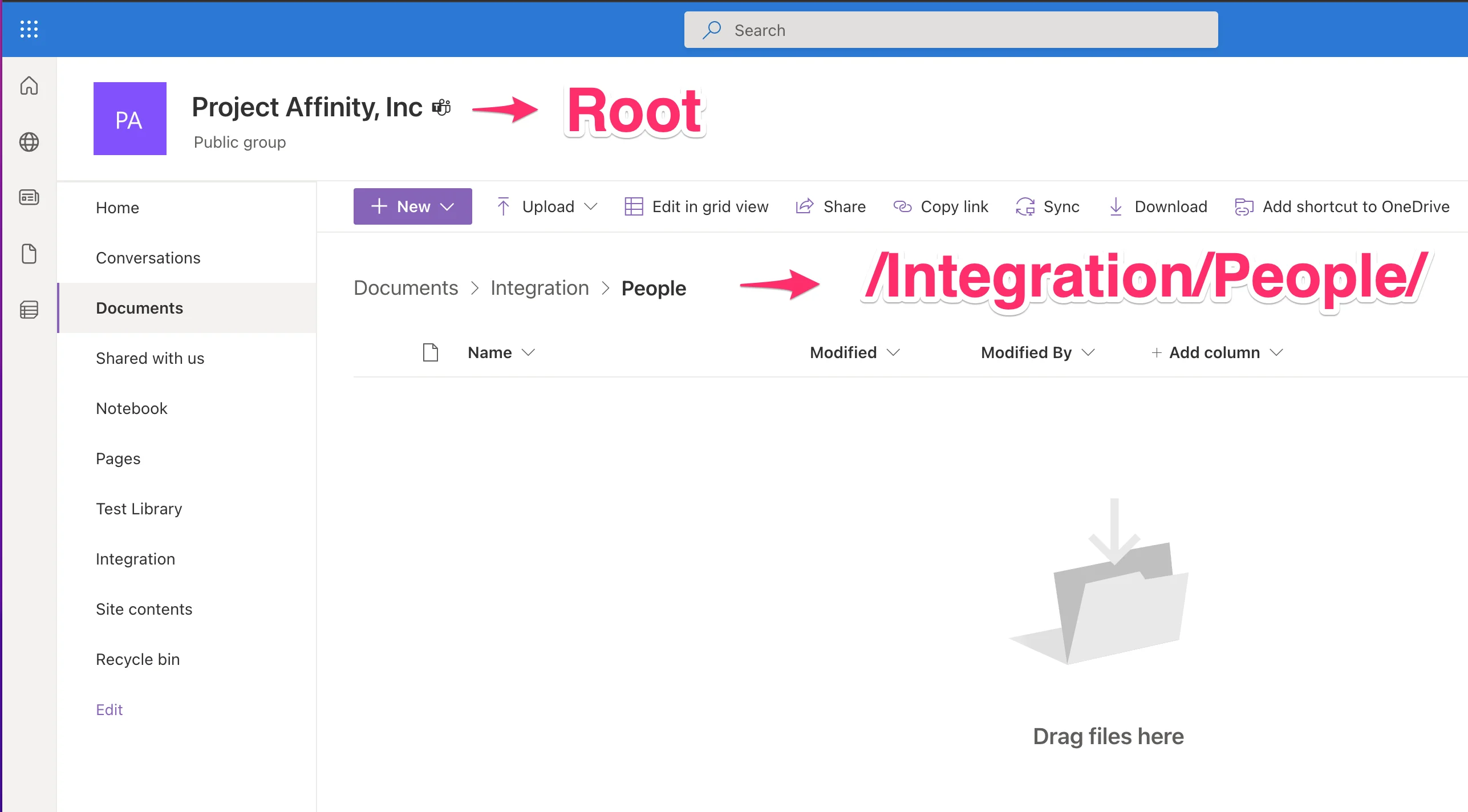
- On the following screen, you would need to select the root folder, and enter your file path.
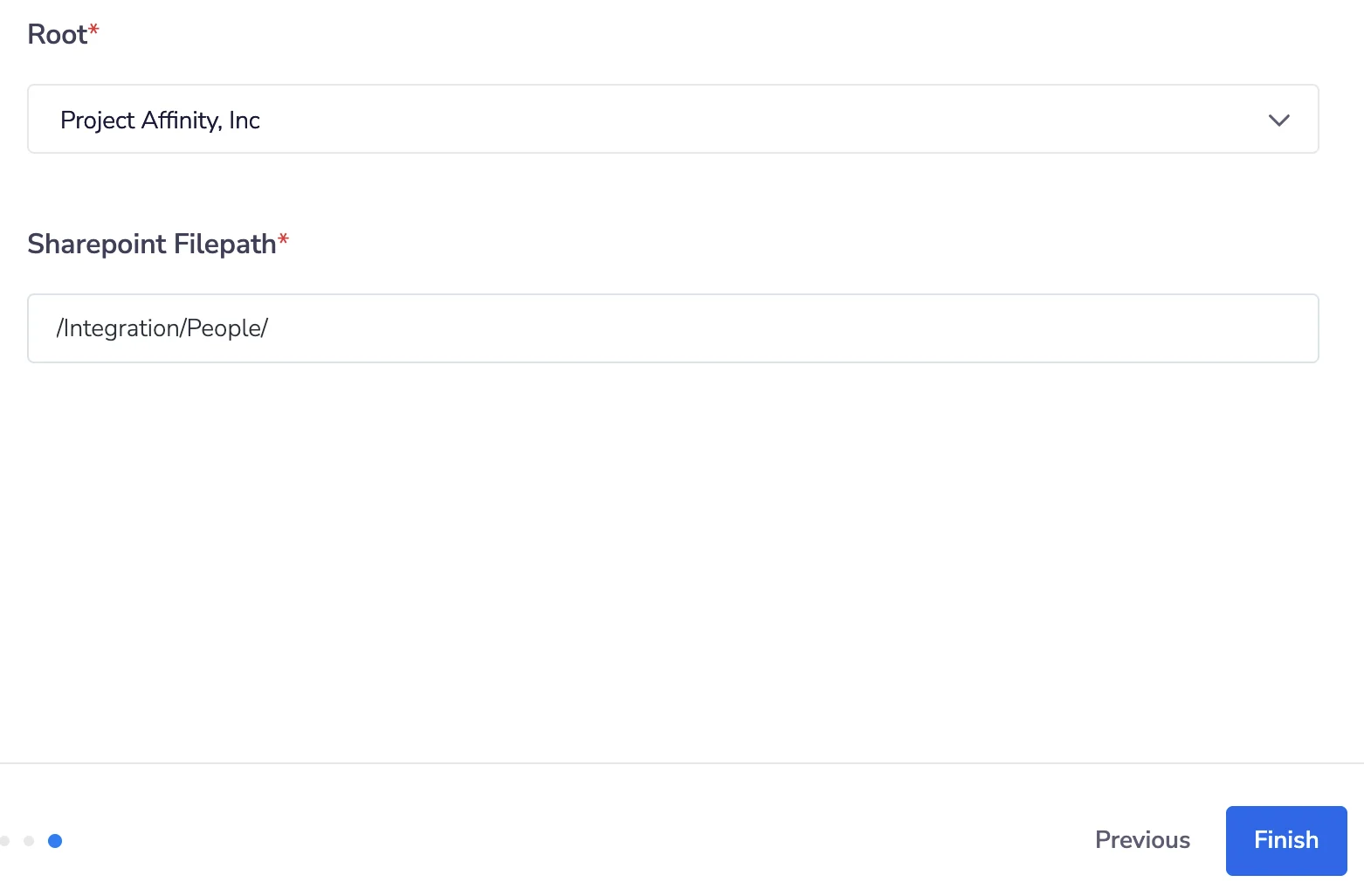
- In this example, we will select Project Affinity, Inc as the Root.
- The Sharepoint Filepath /Integration/People/ is case sensitive and requires the forward slashes in the beginning and end. The default is to the Documents folder, so there is no need to add “Documents” to the filepath.
- Finally, click Finish to complete the integration.
- Within the designated folder/filepath, an individual folder will be auto-created for each entity and contain their respective files based on the files that get uploaded to their Affinity profile pages.
Re-authenticate Existing Integration (Required after February 26, 2026)
If you set up your SharePoint integration before February 26, 2026, you must re-authenticate it to continue working after April 1, 2026.Step 1: Create Azure App Registration
Follow the “New Authentication Setup” steps above to create an App registration in Microsoft Azure and collect your Tenant ID, Client ID, and Client Secret.Step 2: Update Integration in Affinity
- Log in to Affinity as an admin user
- Go to Settings > Integrations > Microsoft SharePoint
- Click Edit on your active SharePoint integration
- Click New authentication
- Enter the three values from your Azure App registration:
- Tenant ID
- Client ID
- Client Secret
- Click Connect to authenticate
- Complete the workflow to save your changes
Step 3: Update Additional Integrations (if applicable)
If you have multiple SharePoint integrations, you’ll need to update each one:- Edit each additional integration
- Either:
- Option 1 (Recommended): Reuse the SharePoint v5 authentication you created in Step 2
- Option 2: Create a new authentication with a separate Client Secret if you need more granular access controls
⚠️ Critical: Integrations that remain with the previous authentication after April 1, 2026 are subject to stop working correctly.
Frequently Asked Questions
Which list types are supported for this integration?- All three list types are supported: people lists, organization lists, and opportunity lists
- See the following screenshots below:
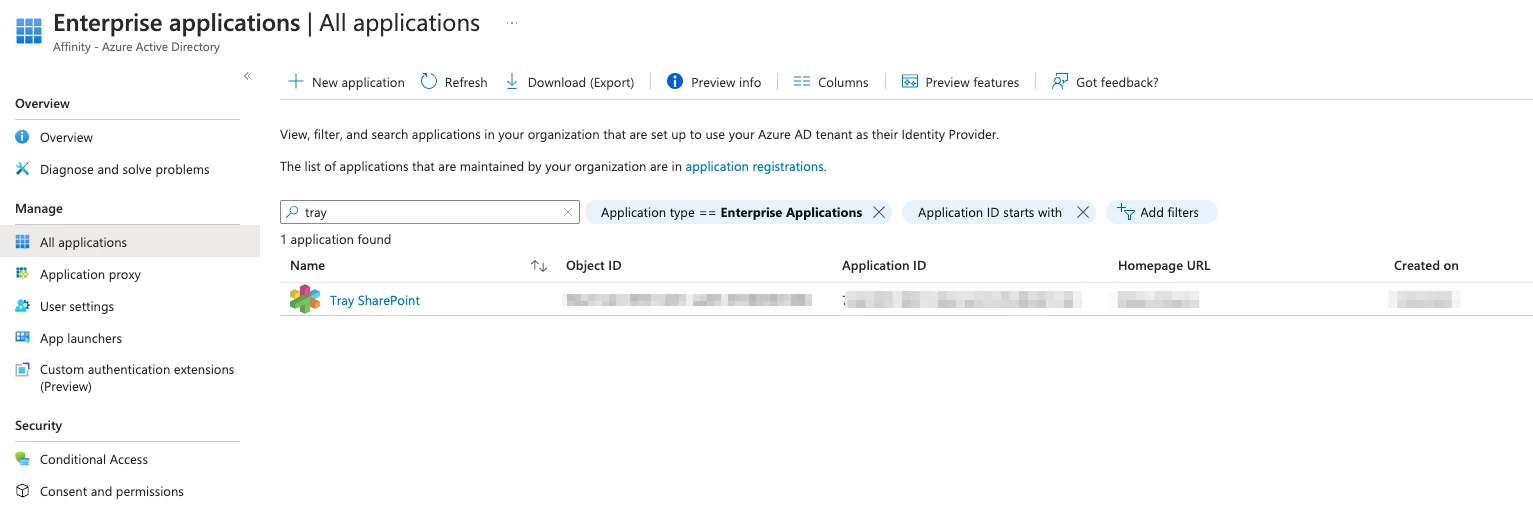
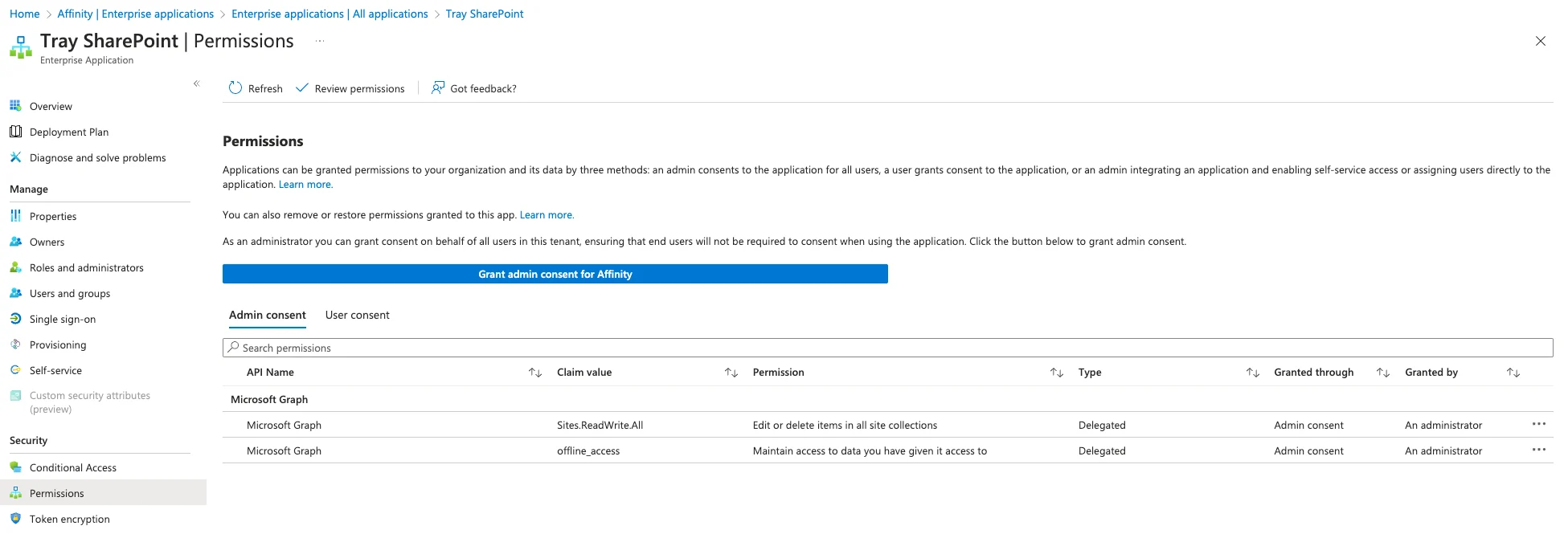
- These must be granted admin consent in your Azure App registration
- Required Microsoft Graph API permissions:
- offline_access⏎
- Sites.Manage.All
- Sites.Read.All
- Sites.ReadWrite.All
- Sites.Selected
- User.Read
- No action needed. This only affects customers with active SharePoint integrations.
- Your SharePoint integration may stop syncing files correctly
- We recommend re-authenticating as soon as possible after February 26, 2026 to avoid any disruption
- Yes, you can create a test integration with a test list to validate the new authentication flow works correctly
- Once validated, update your production integrations
- Refer to Tray’s detailed setup guide: https://docs.tray.ai/connectors/service/sharepoint#version-5-0
- Contact Affinity support at support@affinity.co if you need assistance
- Your IT or Azure administrator may also be able to help with the App registration setup
- No, files already synced to SharePoint will remain unchanged
- Re-authentication only affects future file syncing
- The integration will continue syncing new files once re-authenticated
- No, you can reuse the same App registration (and thus the same Tenant ID, Client ID, and Client Secret) across multiple SharePoint integrations
- Only create separate App registrations if you need different permission scopes for different integrations
- Microsoft is enforcing stricter security measures. If no action is taken, your integration will stop working after the expiry. We strongly recommend you set a reminder closer to the expiry date to rotate the client secret, and re-authenticate in the existing workflows.