

Reference — lookup information.
Overview
- Signing into the Affinity mobile app or Pathfinder Chrome extension
- How are magic links more secure?
- What are the advantages to Passwordless Logins?
- What if I can’t access my email address on my mobile phone?
- Face ID/Touch ID login
Signing into the Affinity CRM, mobile app or Pathfinder Chrome extension
- When you sign into the Affinity CRM (from a general login page), Affinity mobile app or Pathfinder Chrome Extension, you will be prompted to enter your email address, then click Sign In.
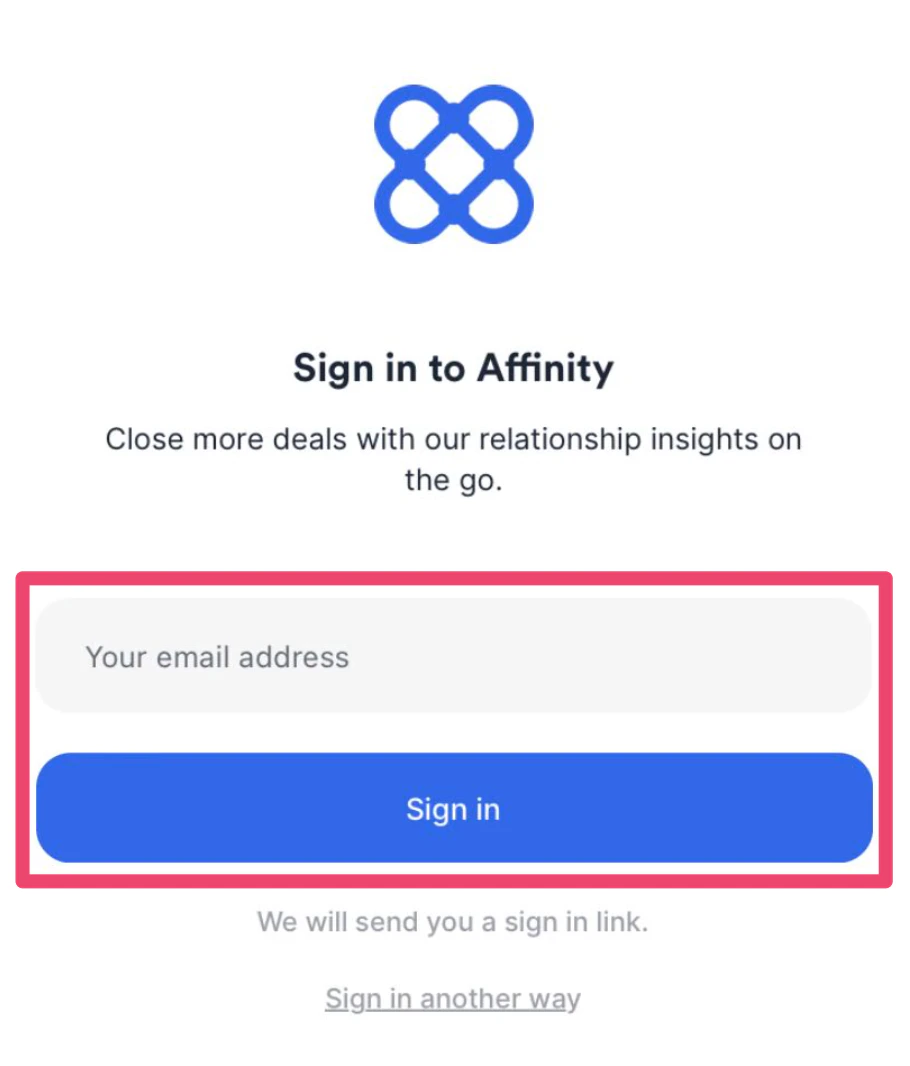
- Then, open the email on the same device/browser you’re signing into Affinity to access the magic link:
- If you’re signing into the Pathfinder Chrome Extension on your laptop/desktop, you should open the email in the same web browser.
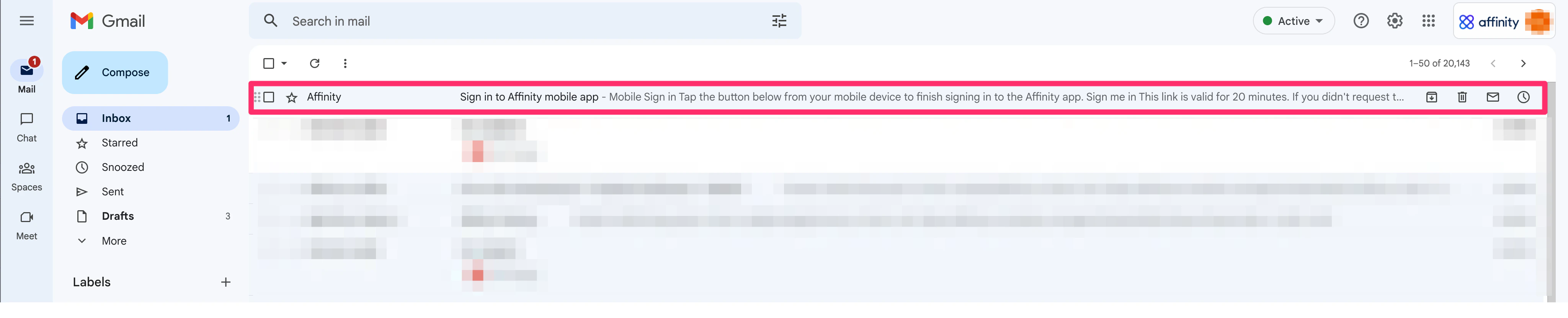
- If you’re signing into the mobile app on your phone, you should open the email in the Mail app of your choice.
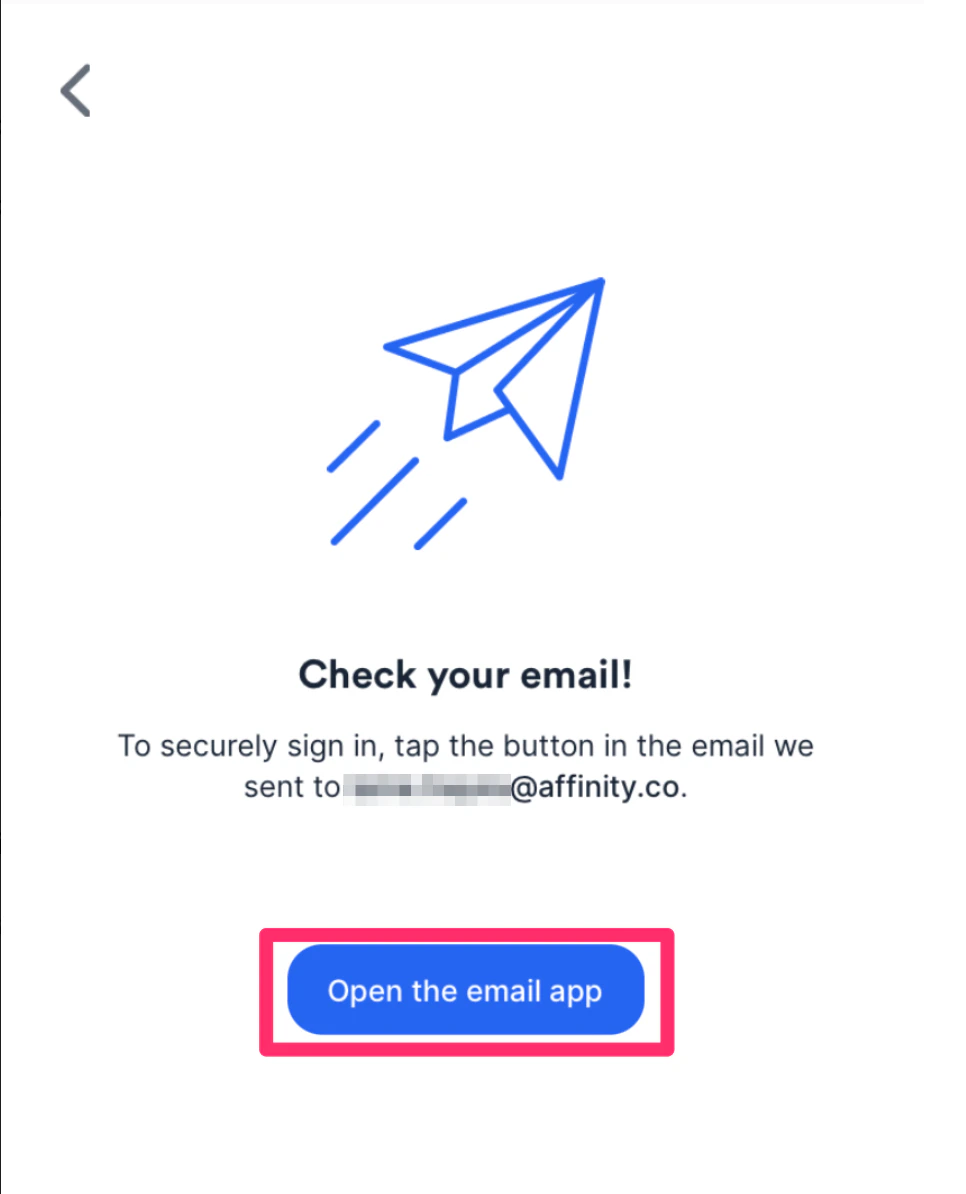
- If you run into any error messages or have trouble signing in via the magic link, please check out the section titled “Troubleshooting sign in issues” within this article: How to download/sign into the Affinity Mobile App
How are magic links more secure?
- When the user submits their email and requests a magic link for login, Affinity performs a check to see if the email is tied to a valid user account.
- If the email is tied to a valid user account, then Affinity’s system sends an email to the submitted email address. This means that only the user who has access to the submitted email address can access the magic link.
- The magic link sent to the user can only be used once.
- The magic link will expire after 20 minutes.
- The magic link can only be used on the device that requested the link. If a user forwards the email to a colleague, or the link is intercepted by another app on the phone, the link will not be usable.
What are the advantages to Passwordless Logins?
- Passwords are difficult to remember and keep updated. As a result, many users reuse passwords across different accounts.
- If an account with a shared password becomes compromised, this means the other accounts with that same password may also be compromised.
- Typing in passwords on-the-go on a mobile keyboard can be difficult, especially if they’re complex. Affinity’s magic link login allows users to securely log in without having to remember or type in a password on their mobile device.
What if I can’t access my email address on my mobile phone?
Although using a magic link is the primary way for users to access their data via the Affinity mobile app, we will continue to support signing in using your email account’s password as a secondary option.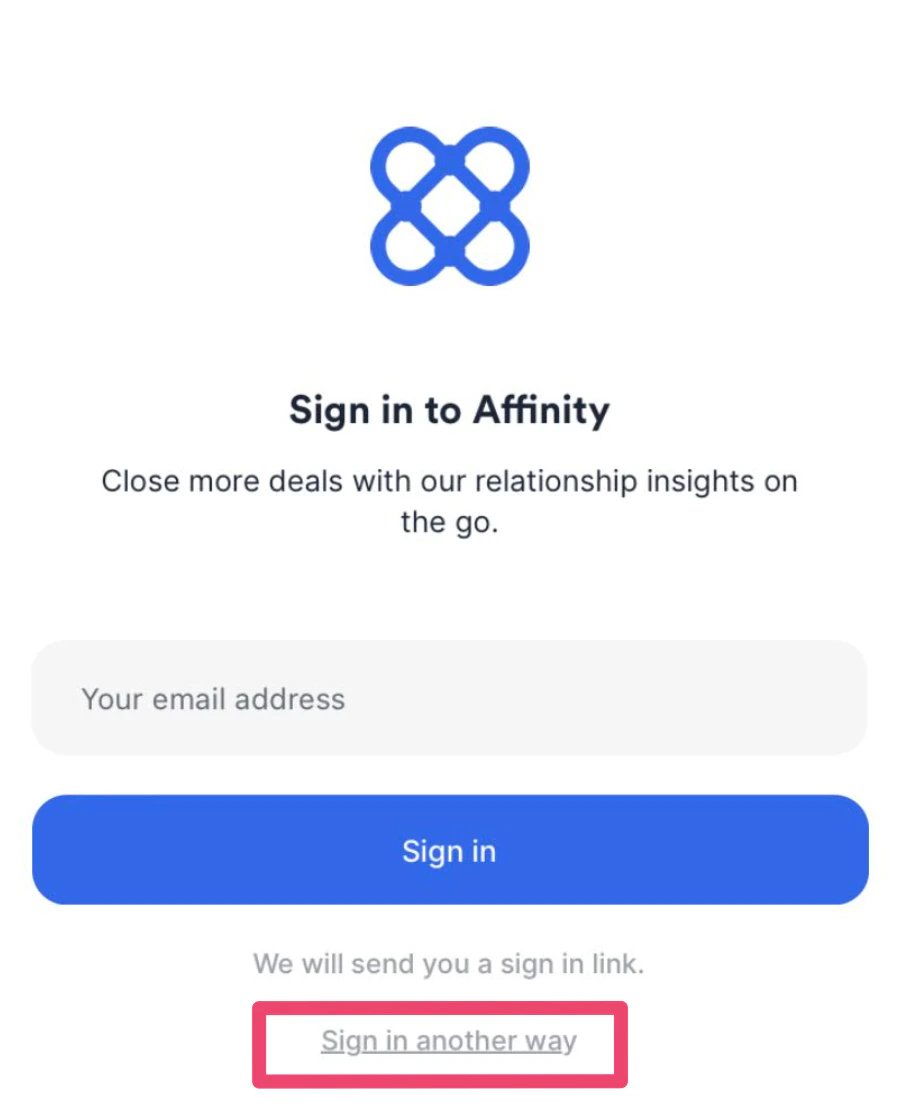
FaceID/Touch ID login
- Users now have the ability to login using Face ID/Touch ID (available only on iOS).
- Users will be able to enable FaceID/Touch ID based login and then to easily and instantly login to the Affinity app when using their iOS/iPad devices.
- You can enable Face ID/Touch ID based logins for the app from the settings page (every iPhone/iPad device currently only supports one of the 2 options, either Face ID or Touch ID)
- NOTE: They need to ensure that Face ID / Touch ID is enabled on their phone first.
- Once enabled, users will now have the option to login via Face ID/Touch ID for all subsequent logins.
- Users can disable Face/Touch ID based login via the settings page as well.
- Deactivating users will deactivate Face ID/Touch ID/passkeys.