How-to — task-oriented recipe.
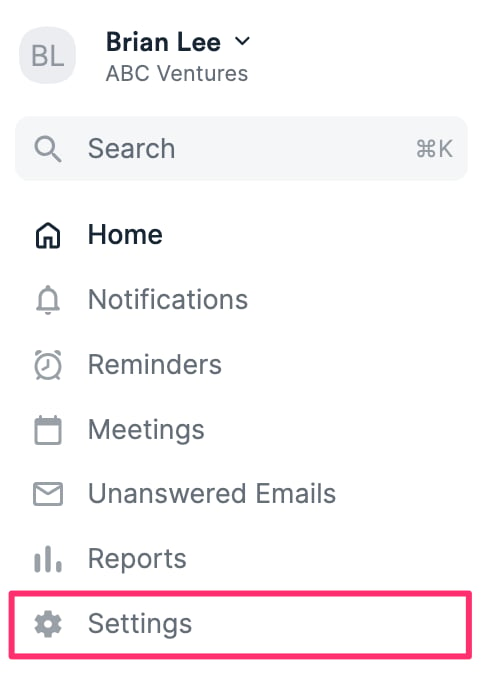
- Once you’ve done the above, click your Personal Avatar on the top-right corner of your screen, then click Affinity Settings.
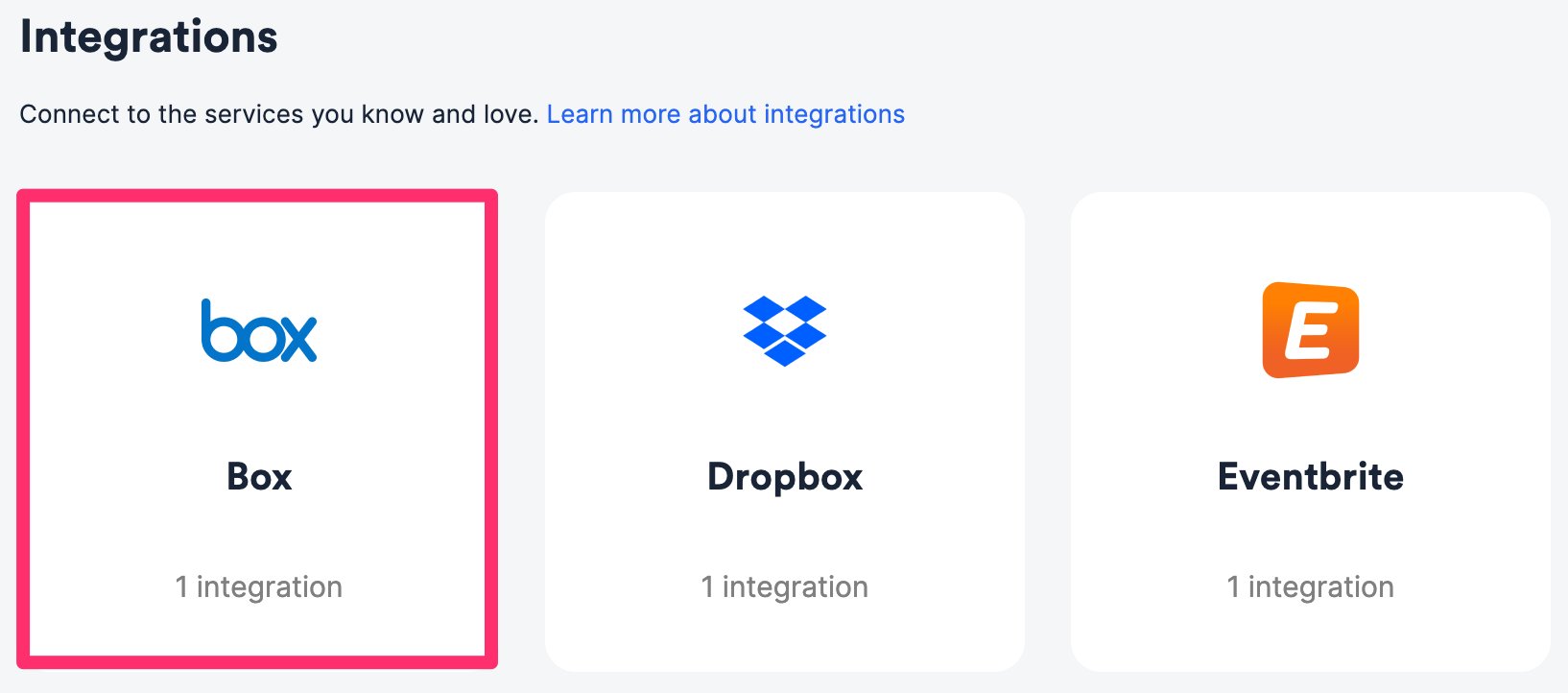
- Click on the Integrations tab, then click on Box.
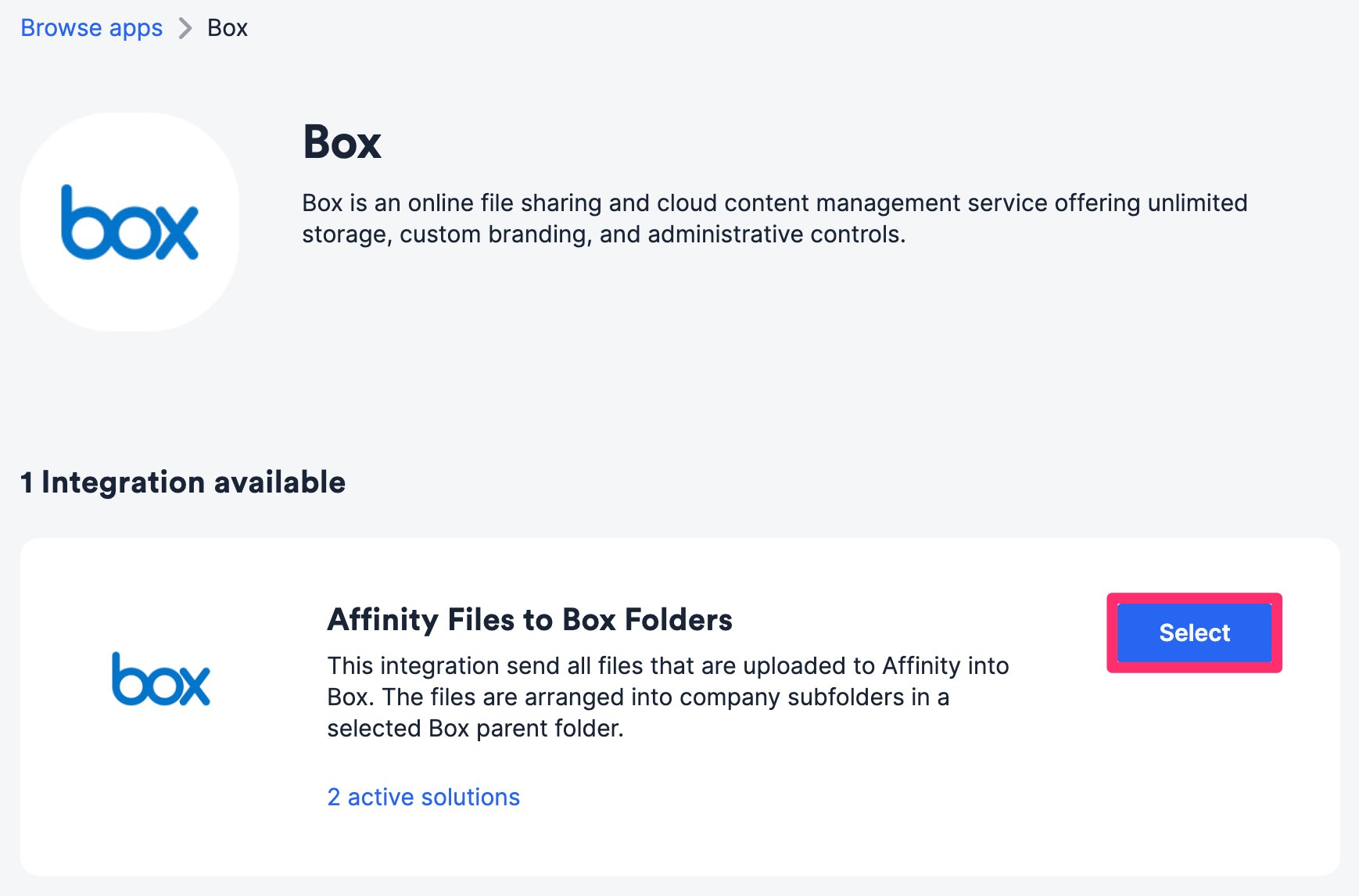
Affinity Files to Box Folders
For all list entries within a specific Affinity list, the files that have been uploaded to these list entries’ profile pages will also sync to a specific folder in your Box account.- Within the Affinity Files to Box Folders integration, click Select.
- Click Configure new solution.
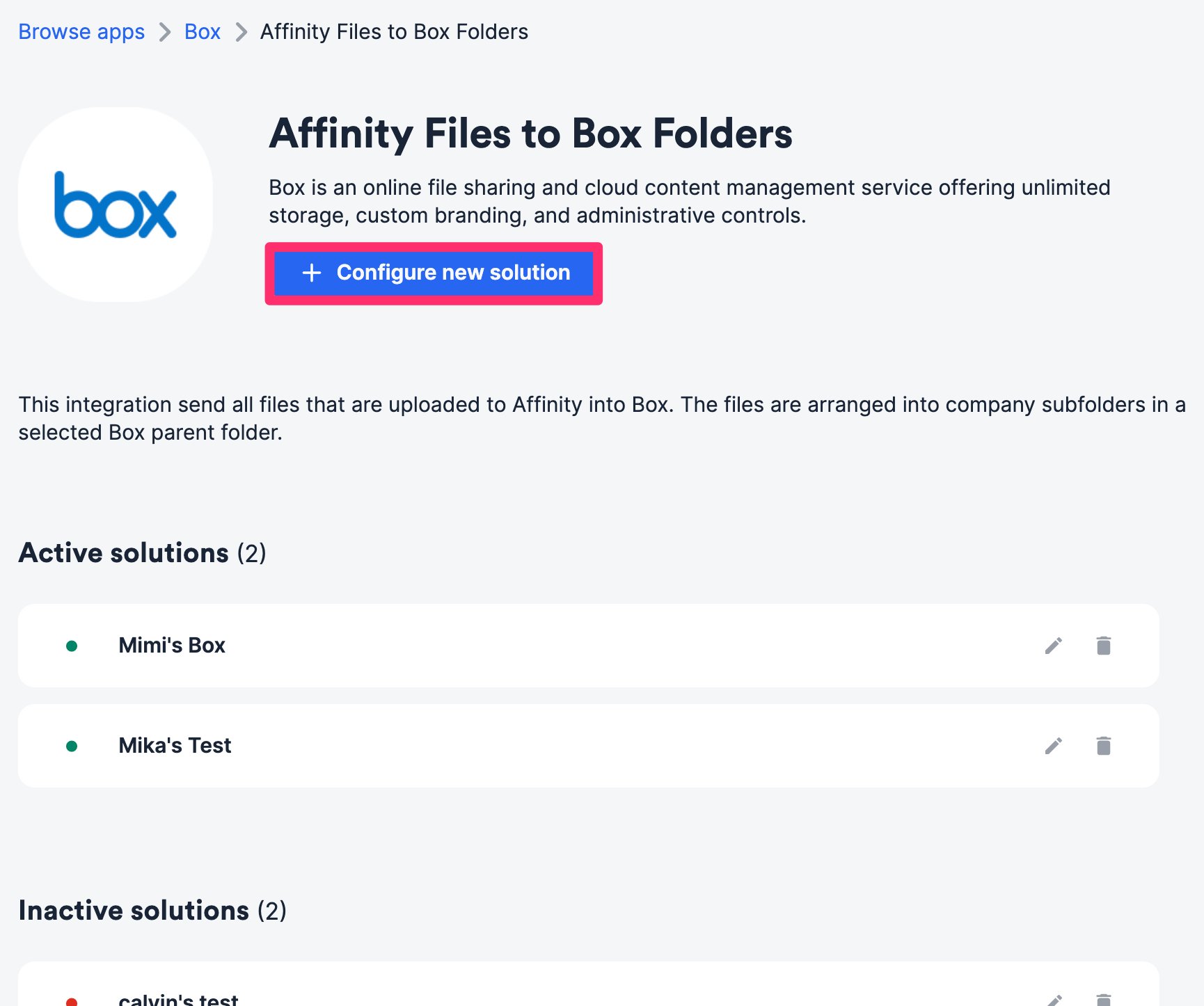
- Authenticate your Box account.
- Select the Affinity list you’d like to sync from. Ideally, you’d also want to have this list approved for auto-upload in your privacy settings as we only sync files that are uploaded to Affinity, not those that remain in the Found in your email section.
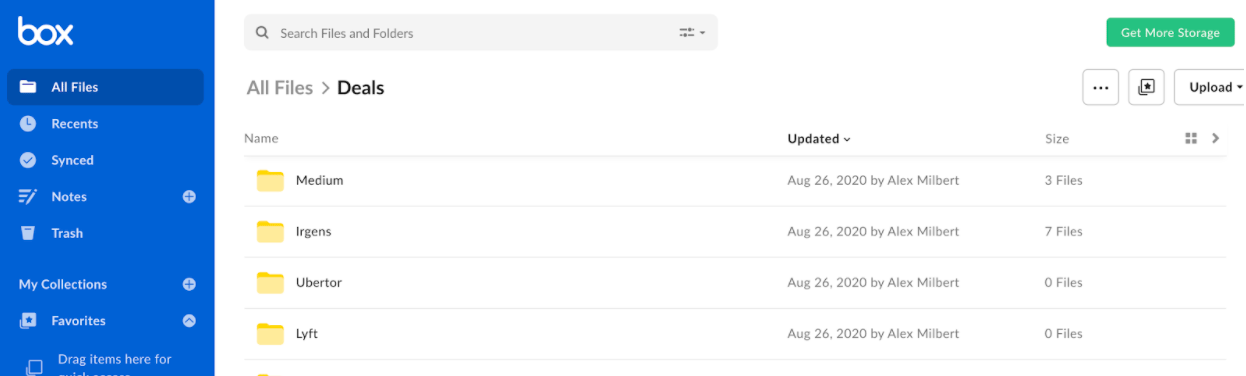
- Select the Box folder where these uploaded files will sync into. You can find the folder ID in the URL:
https://app.box.com/folder/{folder_id}. For example, the folder ID forhttps://app.box.com/folder/123456would be 123456.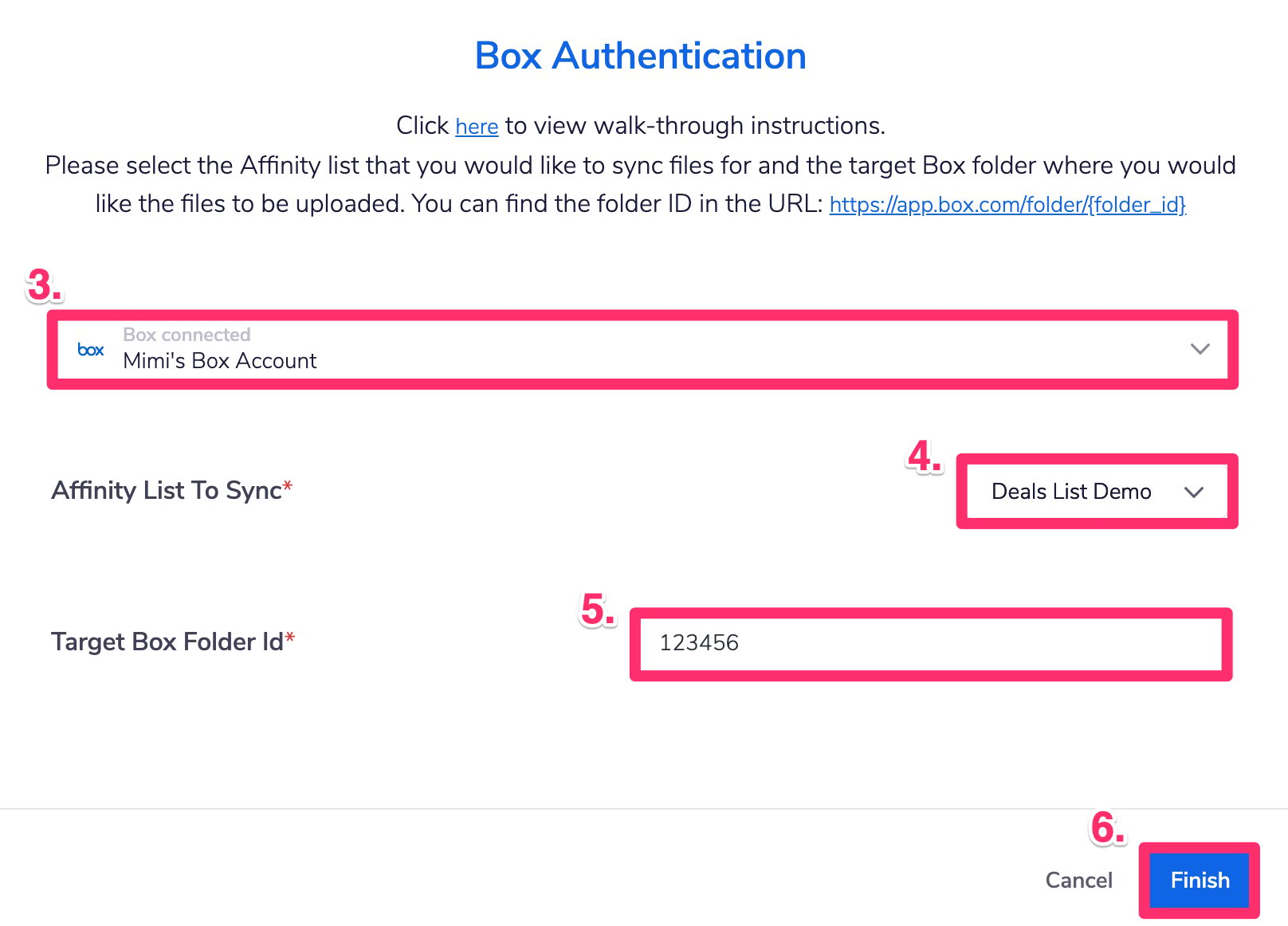
- Click Finish and you are all set! These files will start syncing into the selected folder in your Box account and will create separate folders for each list entry.