How-to — task-oriented recipe.
Who can access Affinity’s Outlook Add-in?
Interested in upgrading to Scale, Advanced, or Enterprise? Please reach out to your Affinity point of contact or support@affinity.co.
Prerequisites
- Affinity’s Outlook add-in is only available for Office 365 and Exchange (On-Prem) accounts.
- Affinity’s Outlook add-in is only compatible for Outlook versions after Outlook 2016.
- Affinity’s Outlook add-in is only supported on the following browsers: Google Chrome, Microsoft Edge, and Safari.
How to install the Affinity for Outlook add-in
Microsoft updates where add-ins live in Outlook from time to time. The steps below match Microsoft’s current menus; if yours look different, see Microsoft’s article on using add-ins in Outlook for the latest. Before you start:- Affinity CRM users can go straight to the steps for your version of Outlook.
- Affinity for Salesforce users: make sure your Salesforce Admin has given you access to the Affinity for Outlook add-in (see “How to assign the Affinity permission set to users” in How to install/update Affinity’s Managed Package in Salesforce).
- Sign in to the Outlook account that has access to your Affinity instance.
Outlook on the web and new Outlook for Windows
- In the app bar on the left, or on the ribbon, select More apps, then Add apps.
- Search for Affinity for Outlook and select it.
- Select Add.
- To open the add-in, open an email and select Apps on the message’s action bar (or More apps on the ribbon), then select Affinity for Outlook.
Classic Outlook for Windows
- On the Home tab, select All Apps. If you use the simplified ribbon, select the ellipsis (…) first. (Older versions of Outlook show Get Add-ins here instead.)
- Select Add Apps (or Get Add-ins, depending on your version).
- Search for Affinity for Outlook, then select Add.
- To open the add-in, open an email and select All Apps (or the Affinity icon) on the ribbon.
Outlook for Mac
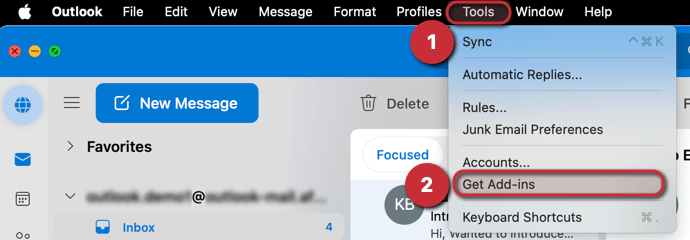
- On the ribbon, select Get Add-ins. If you don’t see it, select the ellipsis (…) on the ribbon first. In some versions, it’s also under Tools → Get Add-ins in the menu bar.
- Search for Affinity for Outlook, then select Add (and Continue if asked).
- To open the add-in, open an email and select its button on the ribbon (it may be under the ellipsis (…)). Your reading pane needs to be set to Right or Below.
- Affinity CRM - How to use Affinity’s Outlook Add-in
- Affinity for Salesforce - How to use Affinity’s Outlook add-in
Troubleshooting Common Issues
Problem: Blank Screen? Clear your cache
If met with a blank screen (see example below), you will need to empty your cache and perform a hard reload of the application. The reload will help to retrieve the latest version of the Outlook add-in.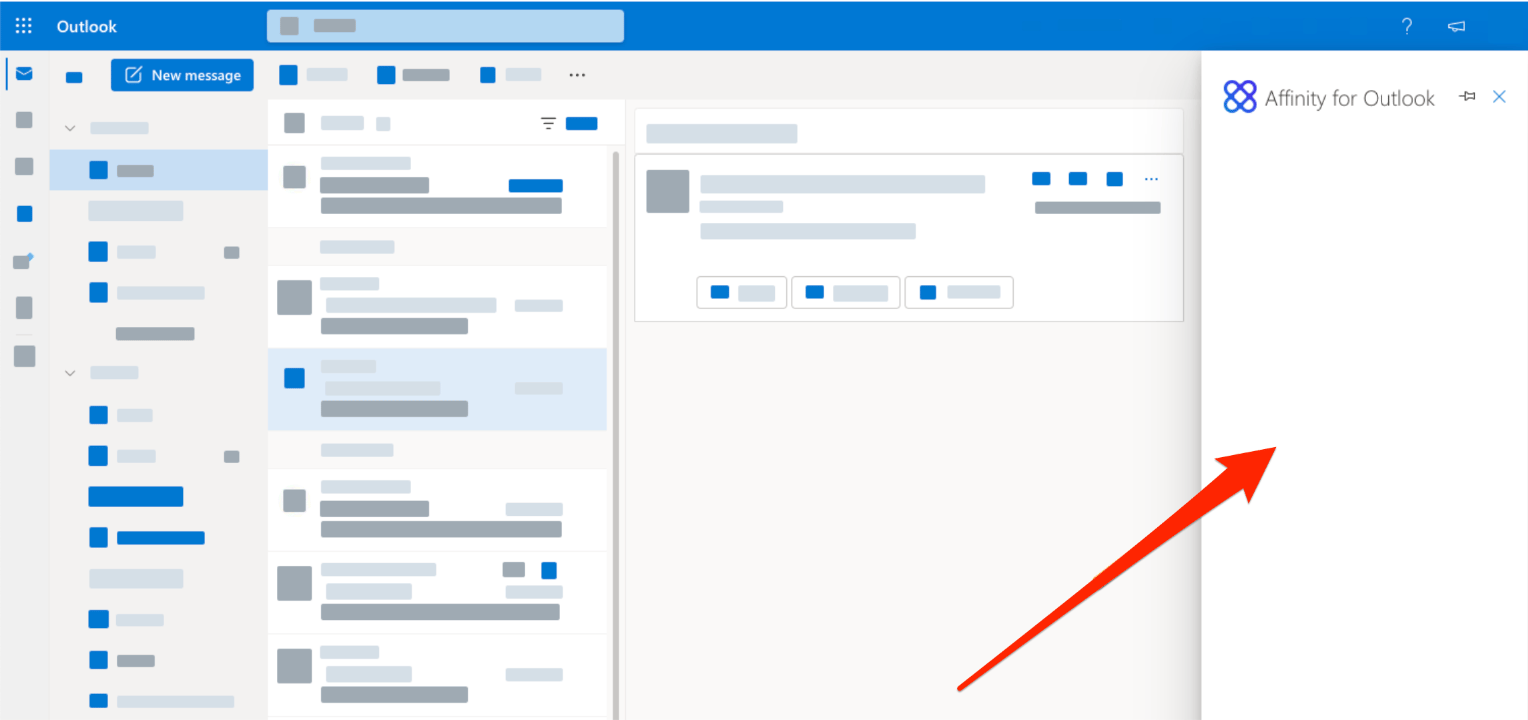
Web App — Clearing your cache
Google Chrome- Windows users — Press Ctrl + F5 on your keyboard.
- Mac users — Press Cmd + Shift + R on your keyboard.
- Windows users — Press Ctrl + F5 on your keyboard.
- Mac users — Press Cmd + Shift + R on your keyboard.
- Click Safari on the top navigation bar, then click Empty Cache, or press Opt + Cmd + E.
- To refresh, click the Refresh button on the address bar or press Cmd + R.
- Press Ctrl + F5 on your keyboard.
Desktop App — Clearing your cache
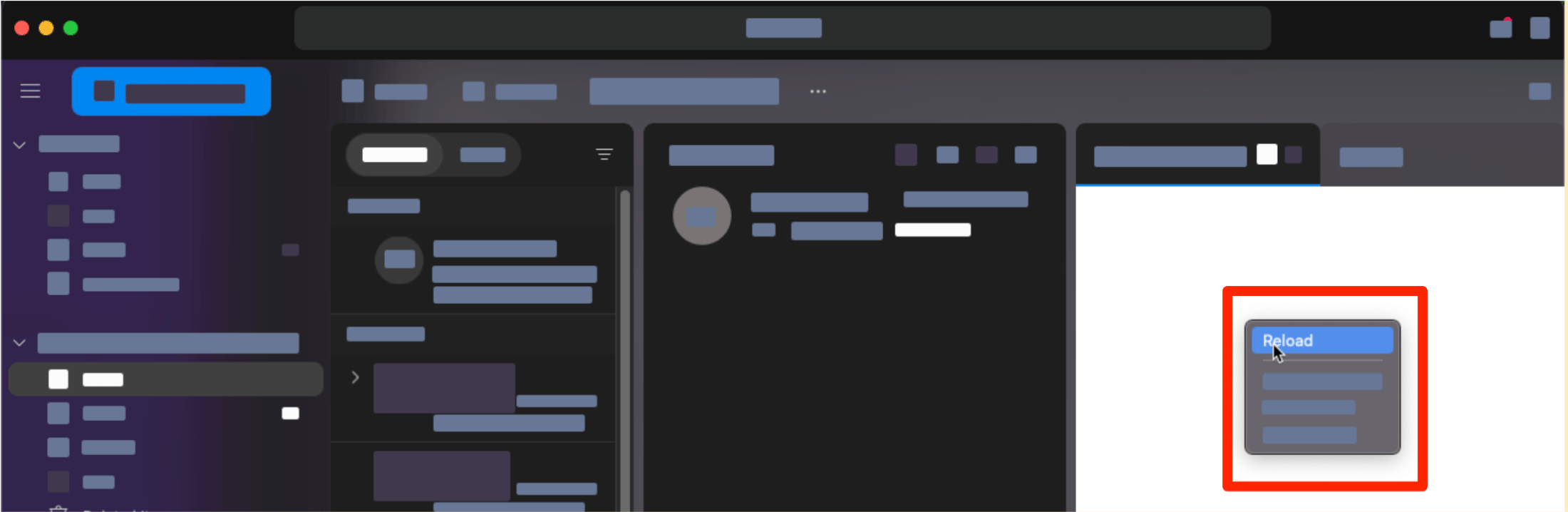
Outlook Desktop for Mac- Open Affinity for Outlook add-in.
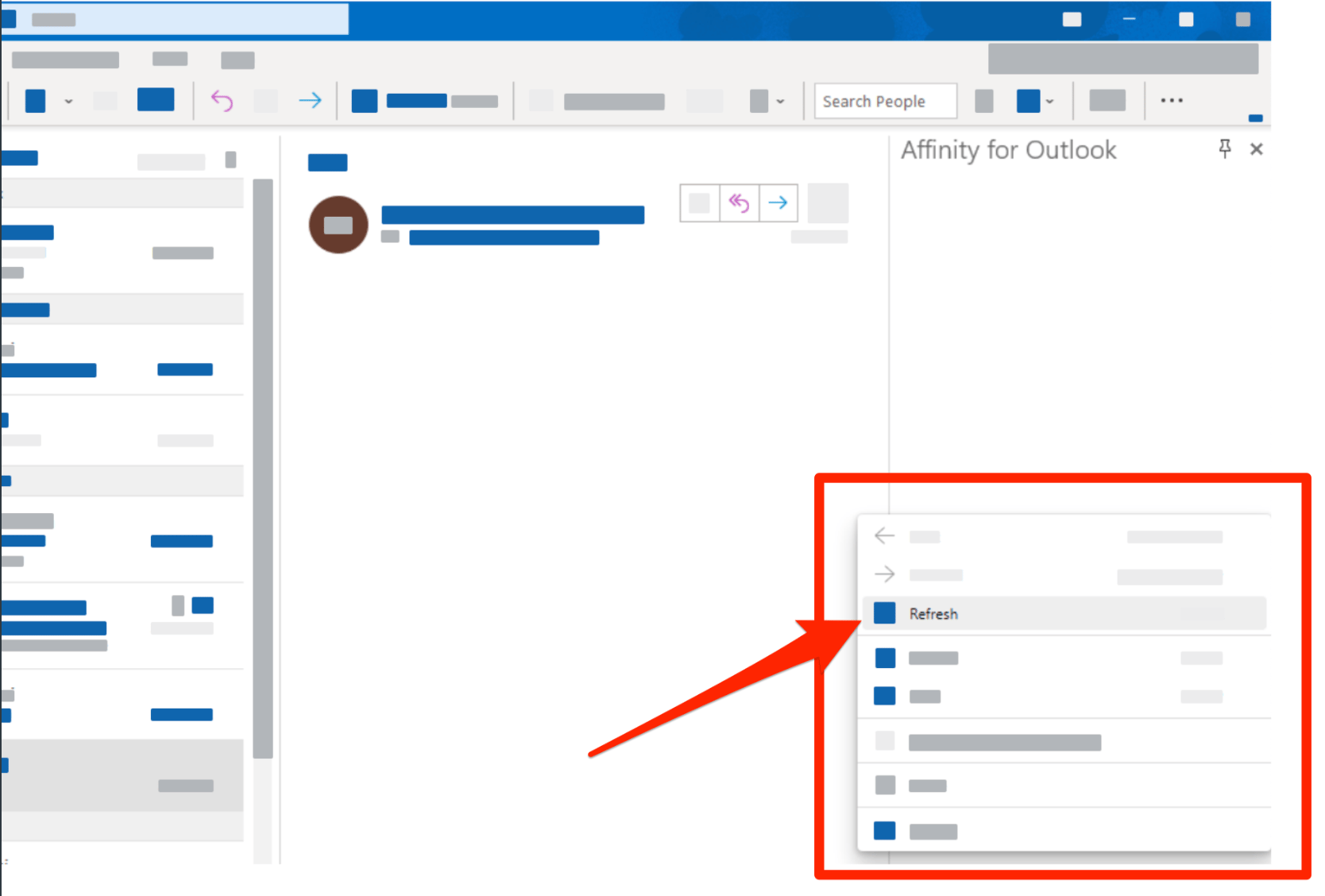
- Right click the side panel.
- Select Reload.
- Open the Affinity for Outlook add-in.
- Right click the side panel.
- Select Refresh.
Problem: Missing or Disabled add-in icon?
Web App — Checking your cookie settings
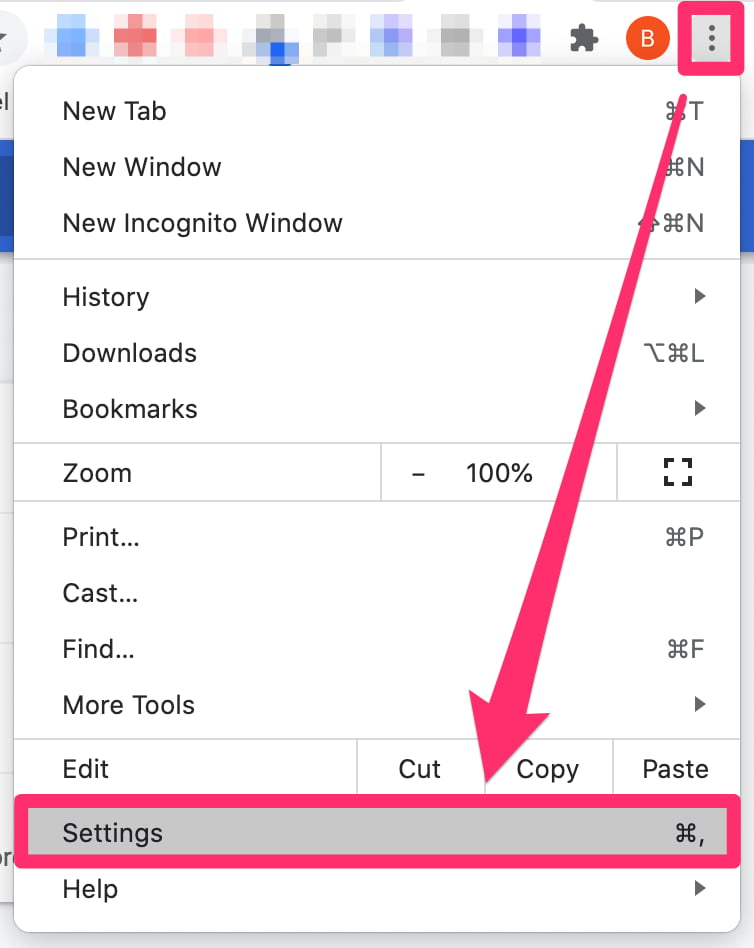
- On the top-right corner of your web browser, click the ellipsis (3-dotted icon), then click Settings.
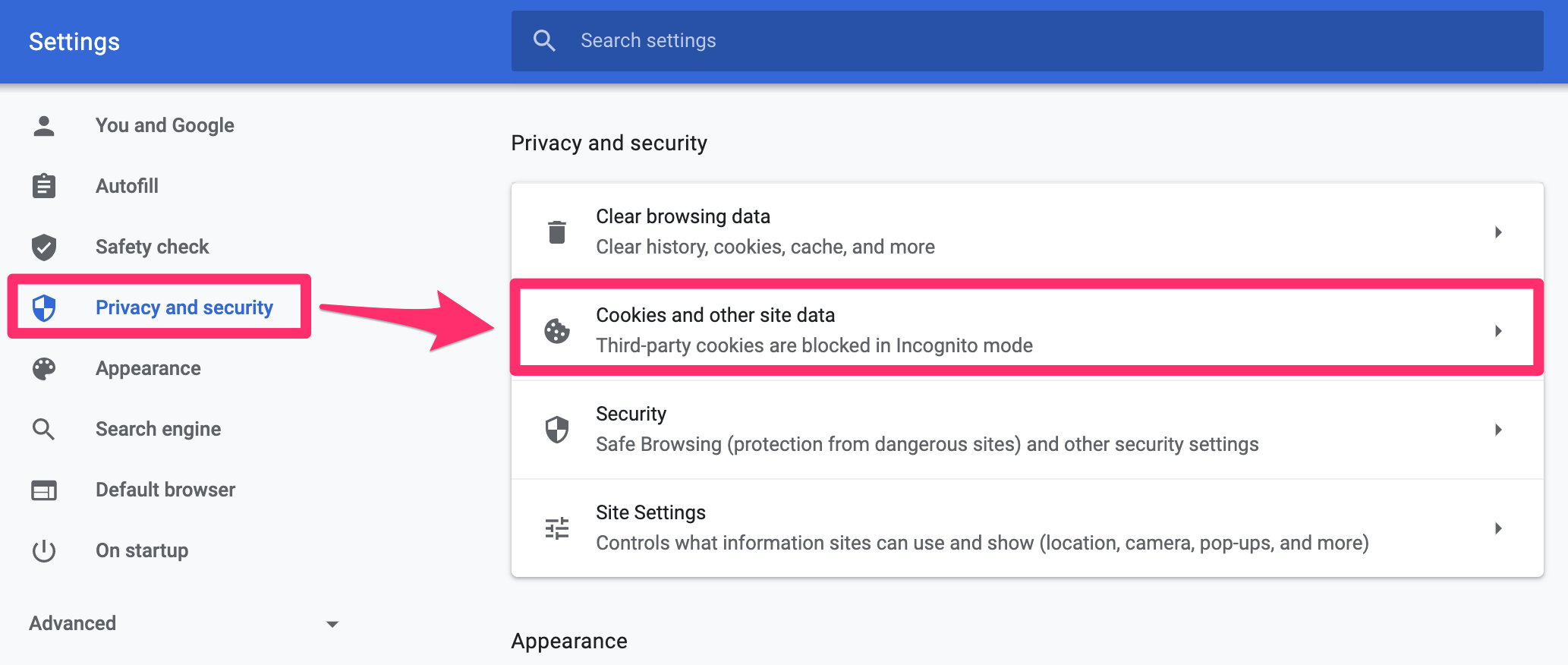
- Click Privacy and security, then click Cookies and other site data.
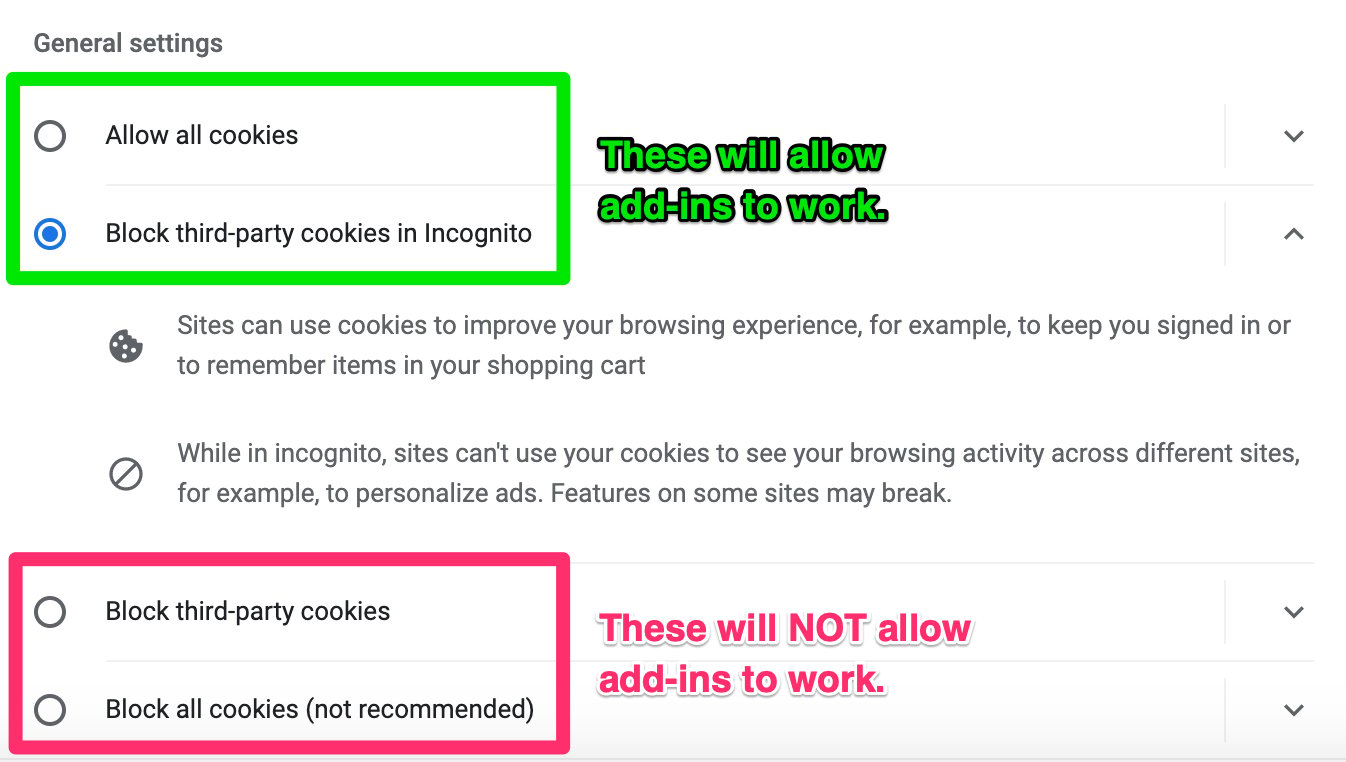
- Make sure your cookie settings are either Allow all cookies or Block third-party cookies in Incognito. If they are set to Block third-party cookies or Block all cookies (not recommended), then Affinity’s Outlook add-in will not work.
Desktop App — Missing or Disabled Add-in icon (for Windows/PC)
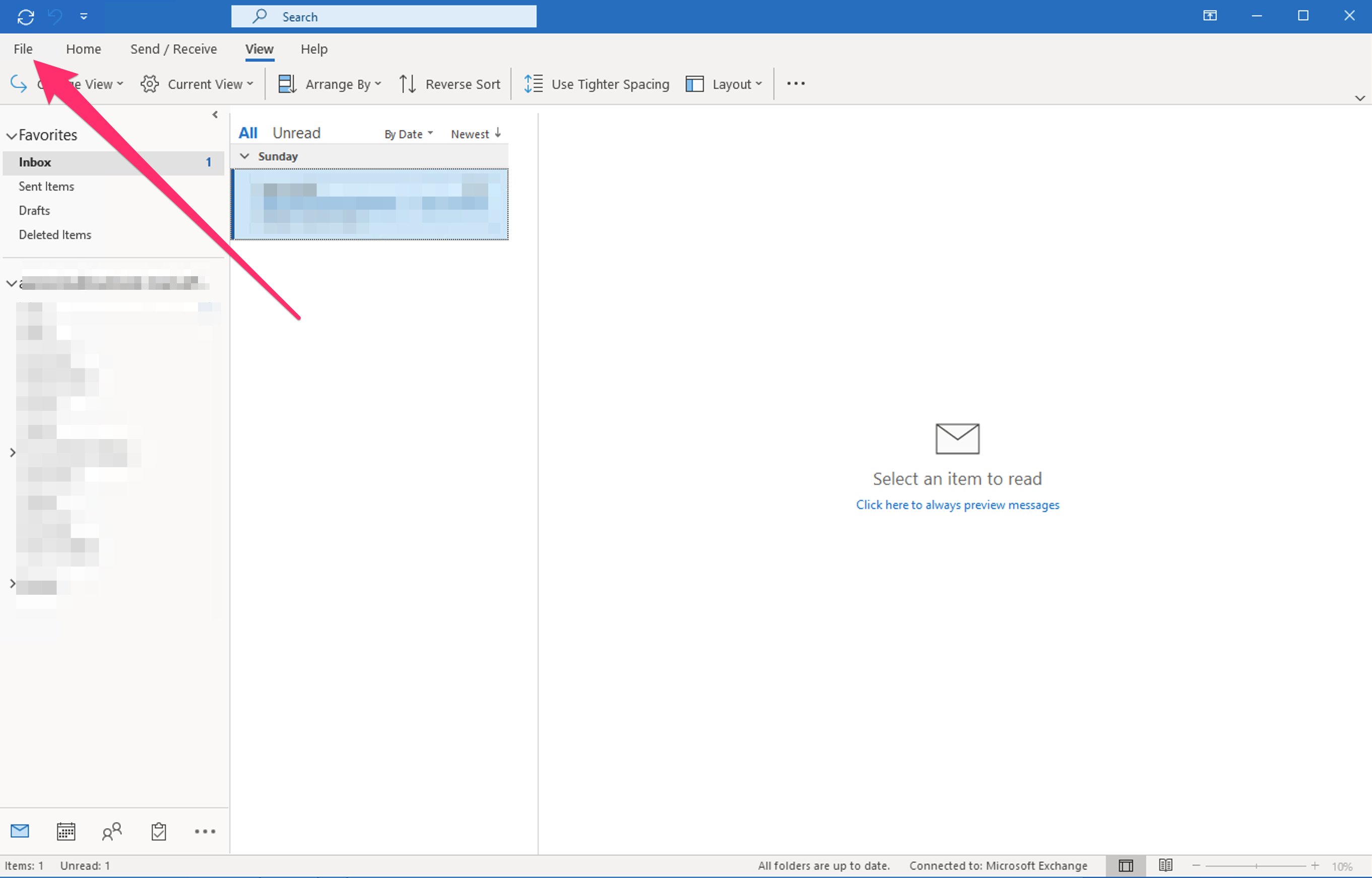
- Click File to open additional options.
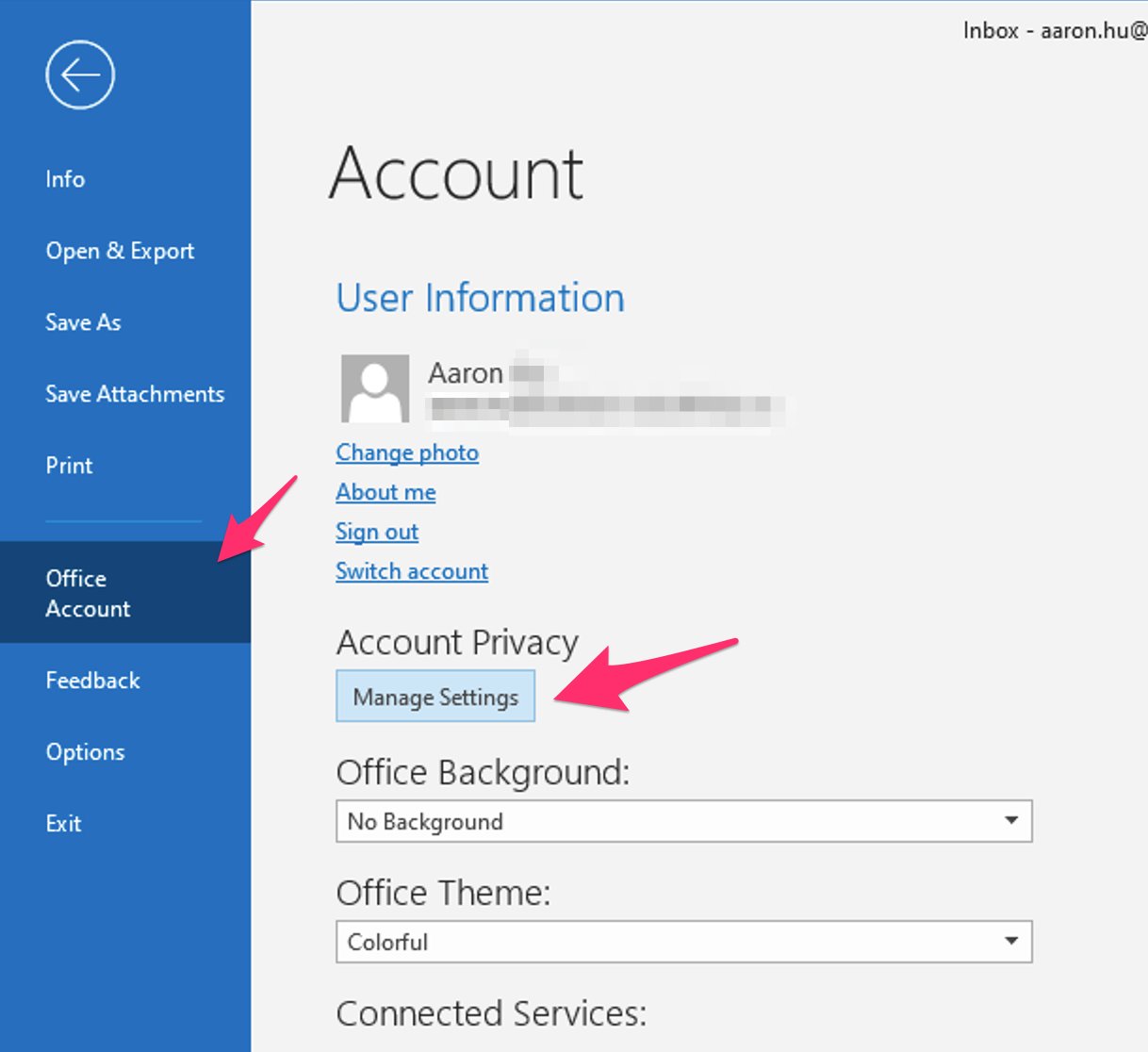
- Select Office Account, and select Manage Settings.
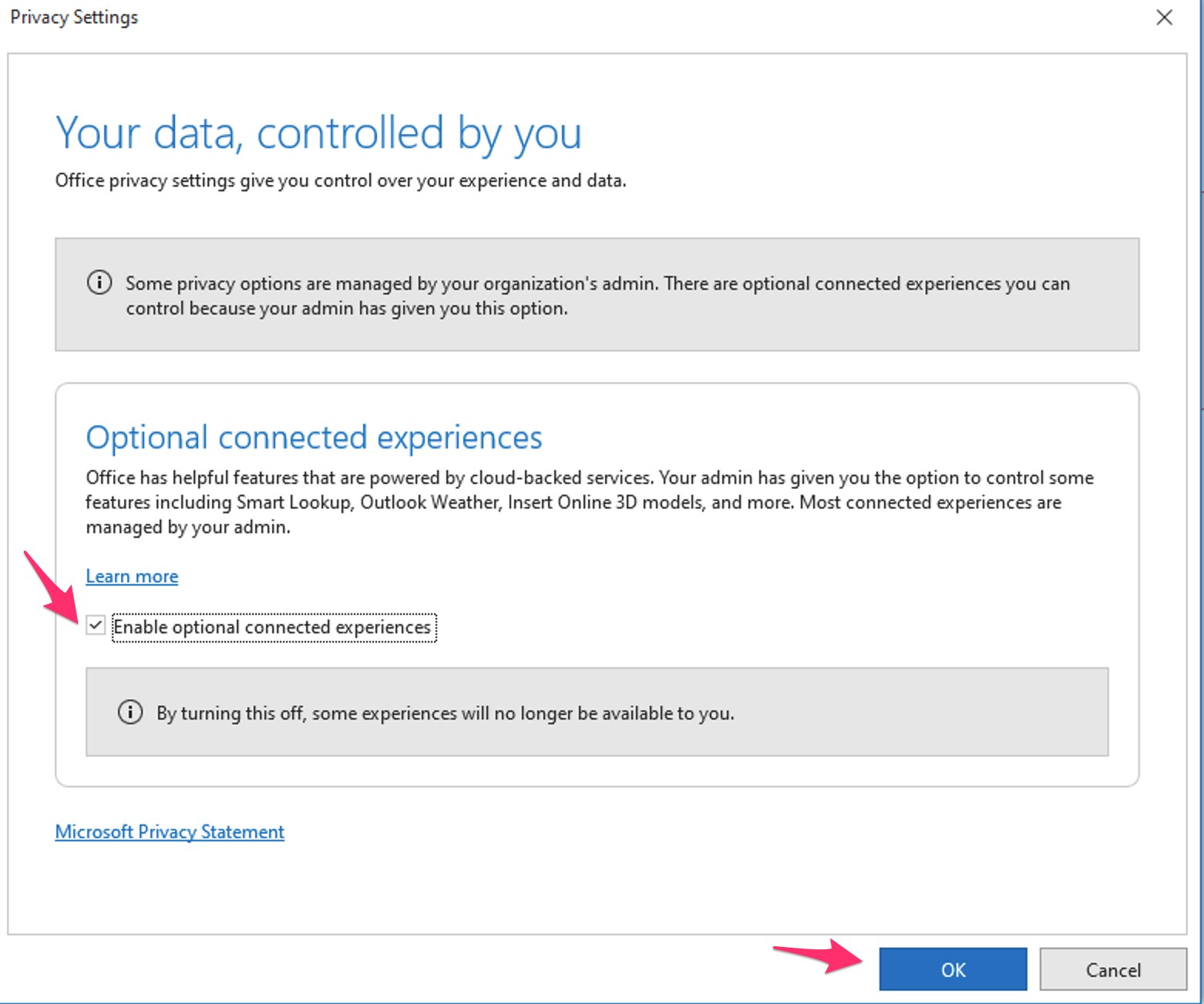
- Check the box for Enable optional connected experiences, then click OK and restart Outlook.
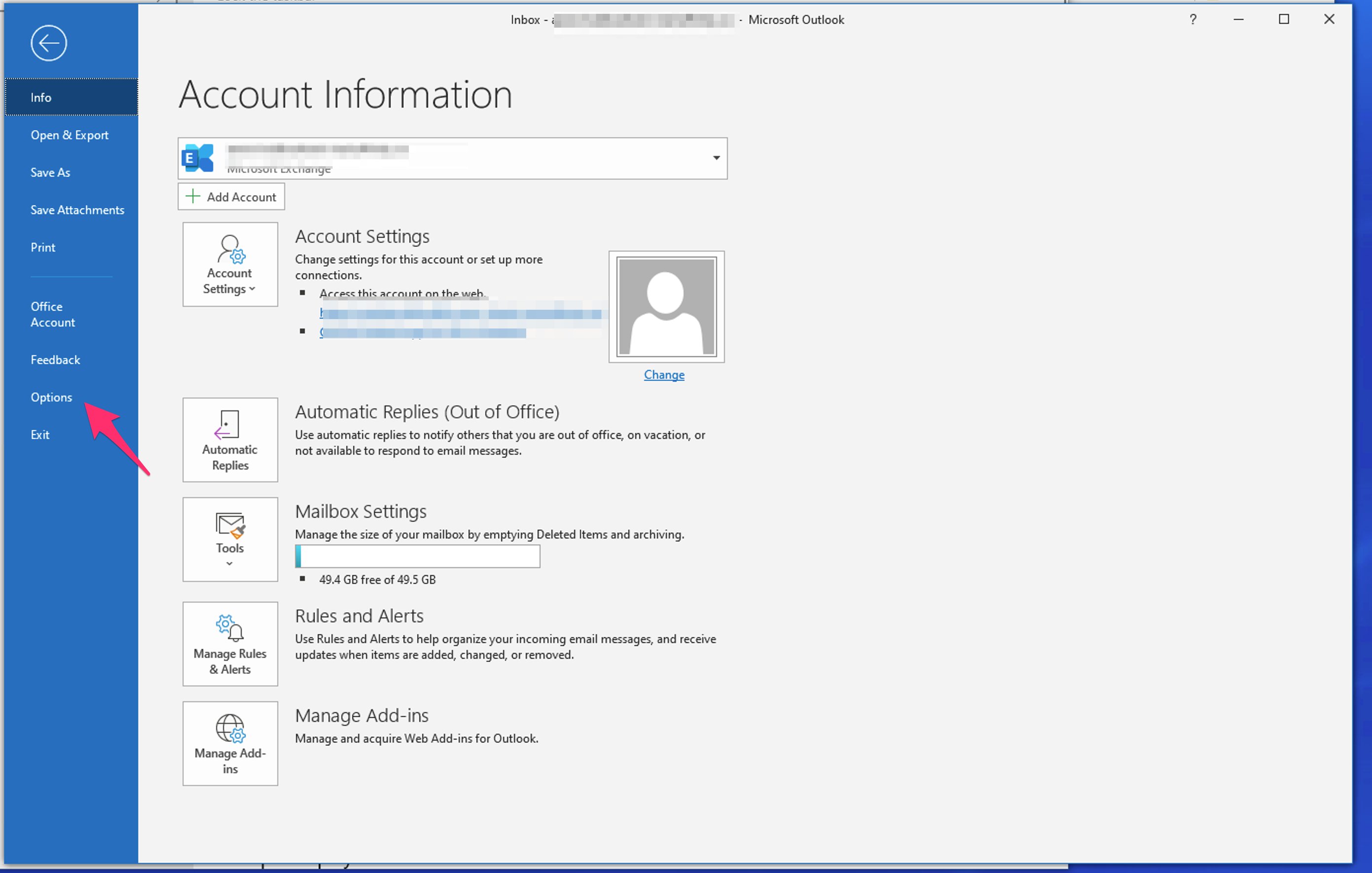
- If you still do not see the add-in appear after restarting, open your Office Options menu and go to File > Options.
- Select Customize Ribbon (1), then select All Commands (2). Then, click Add-ins (3) and click Add>> (4) to add the Add-ins icon to your Ribbon (menu bar).
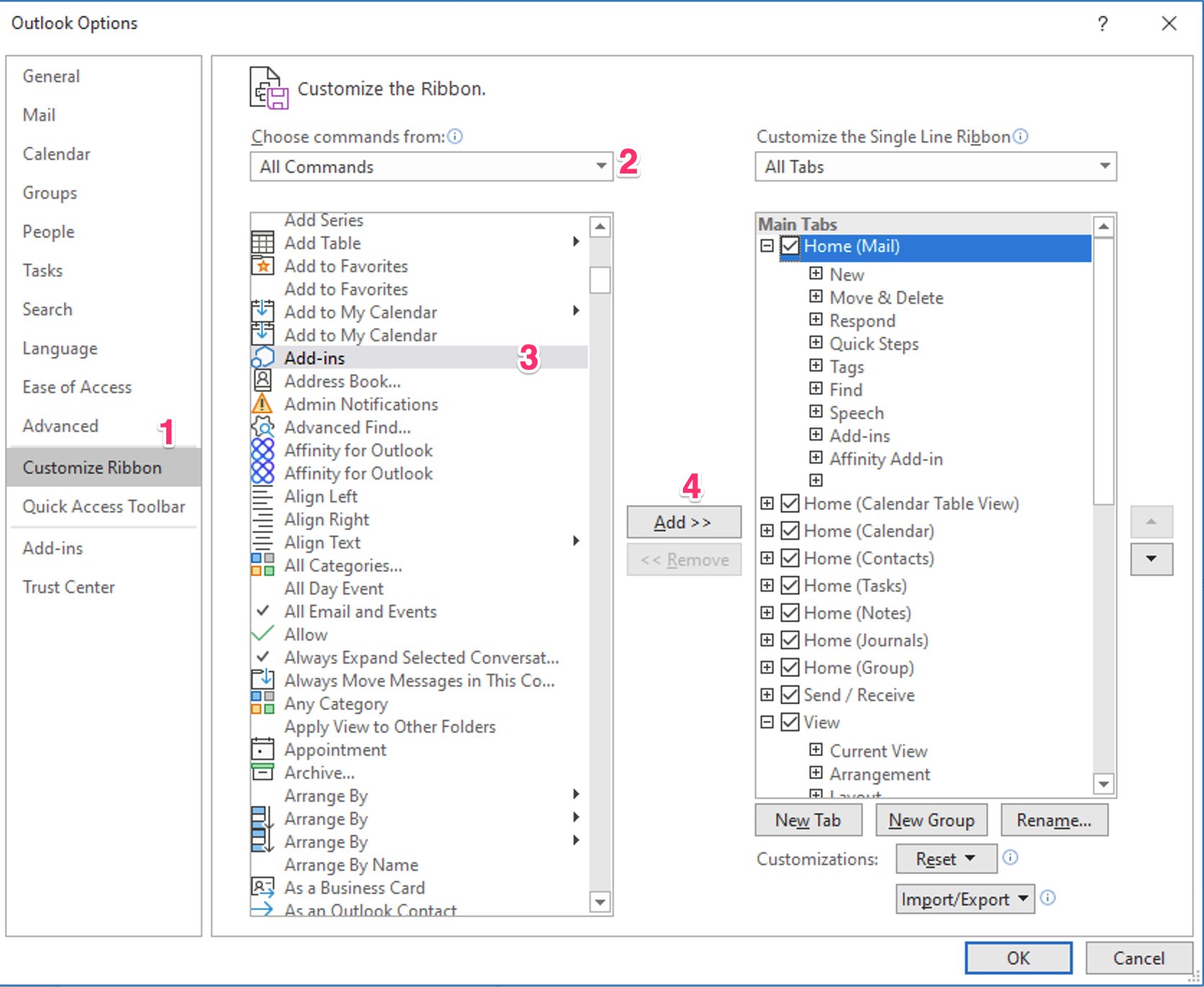
- Click OK to save your changes.
Desktop App — Missing or Disabled Add-in icon (for Mac)
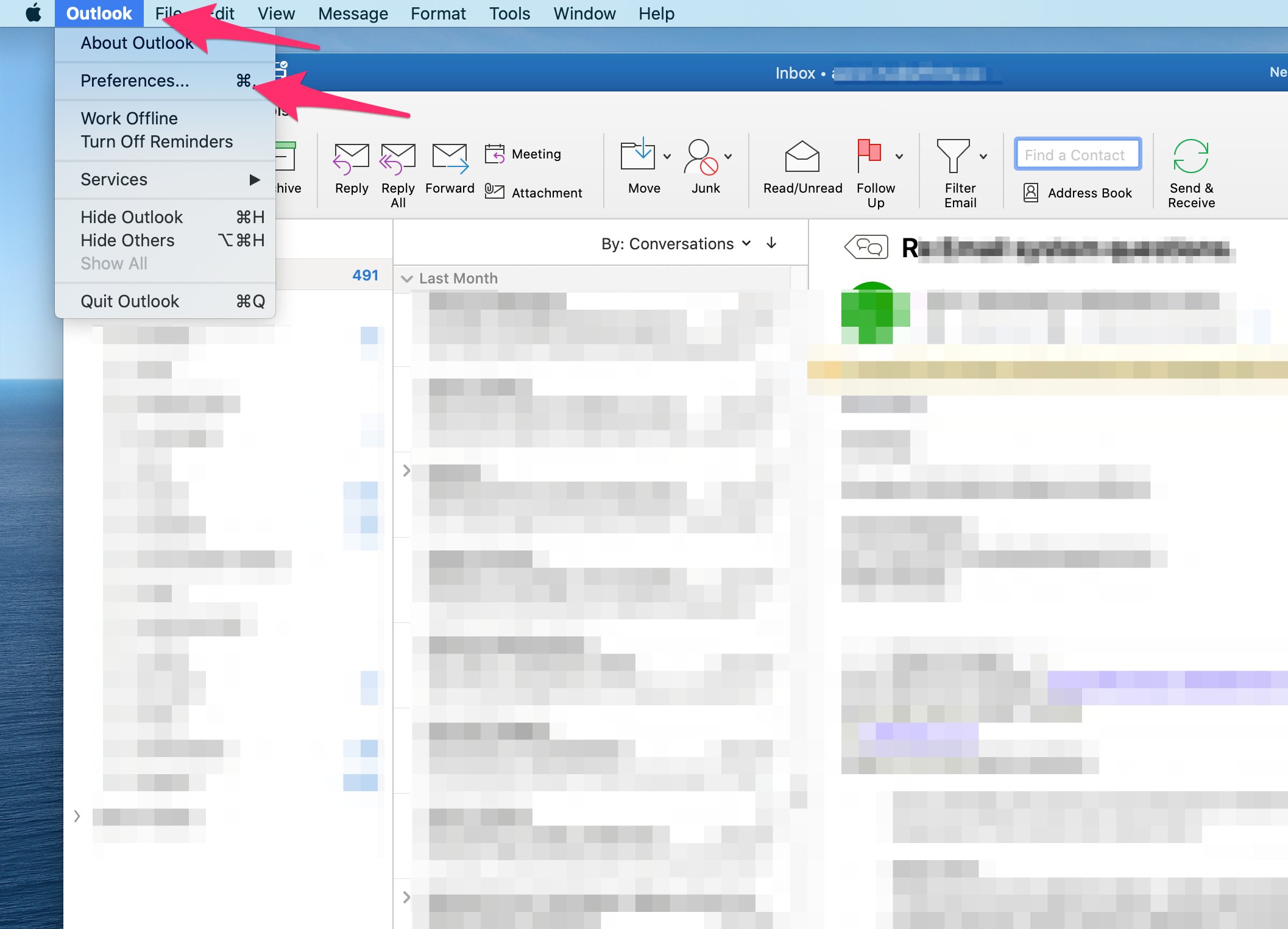
- Click Outlook on the top left corner, then click Preferences.
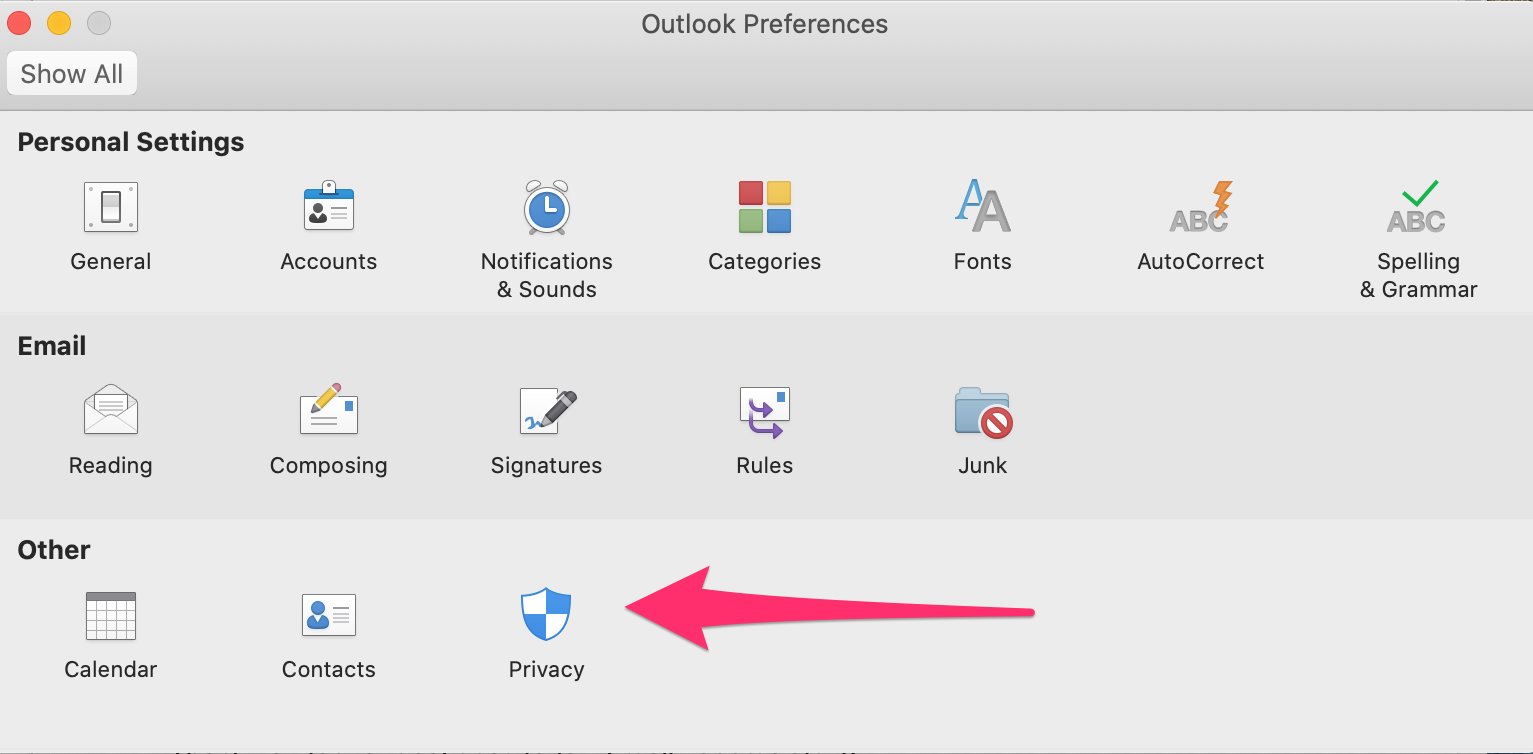
- Click on Privacy.
- Click Manage Connected Experiences.
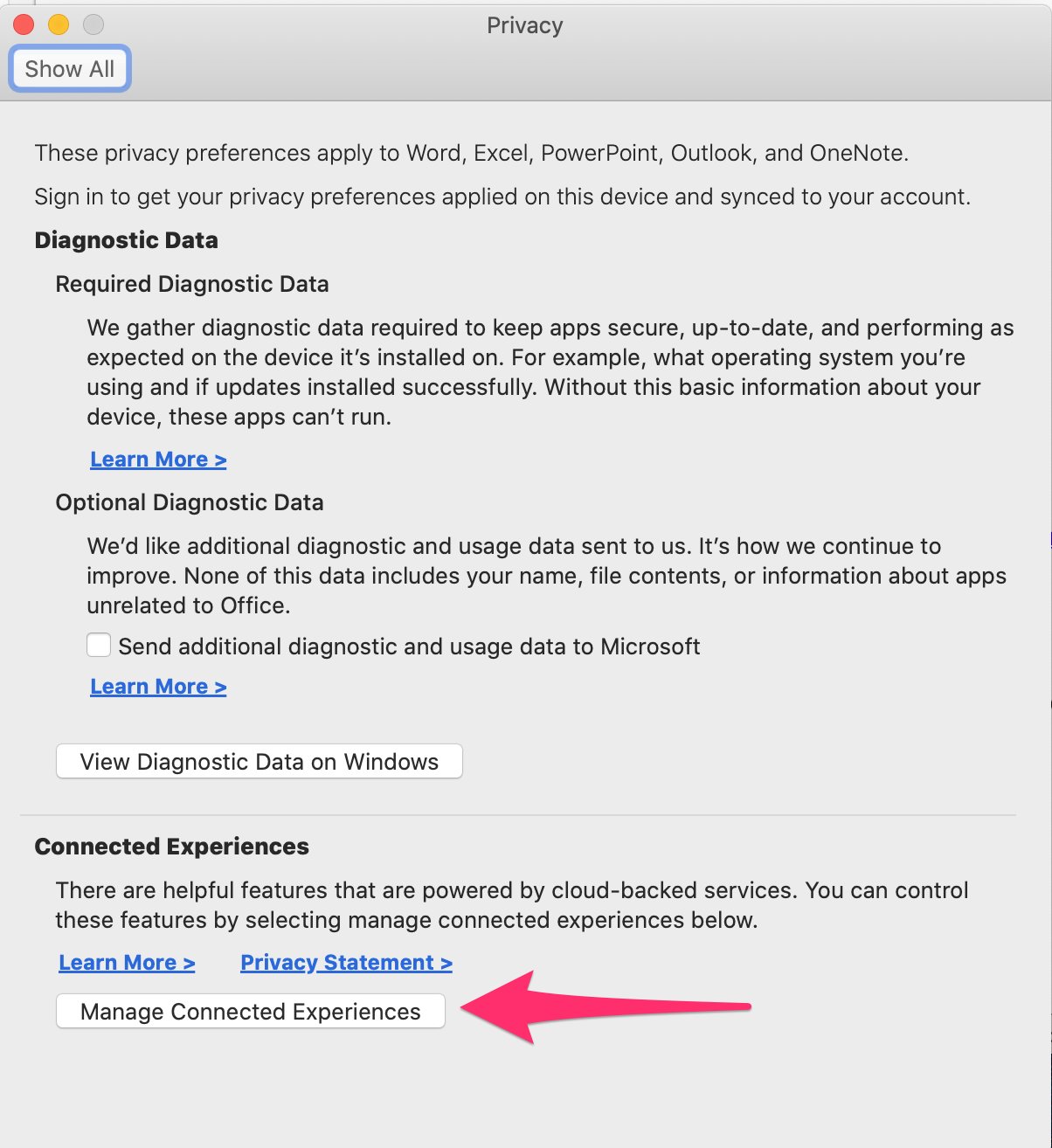
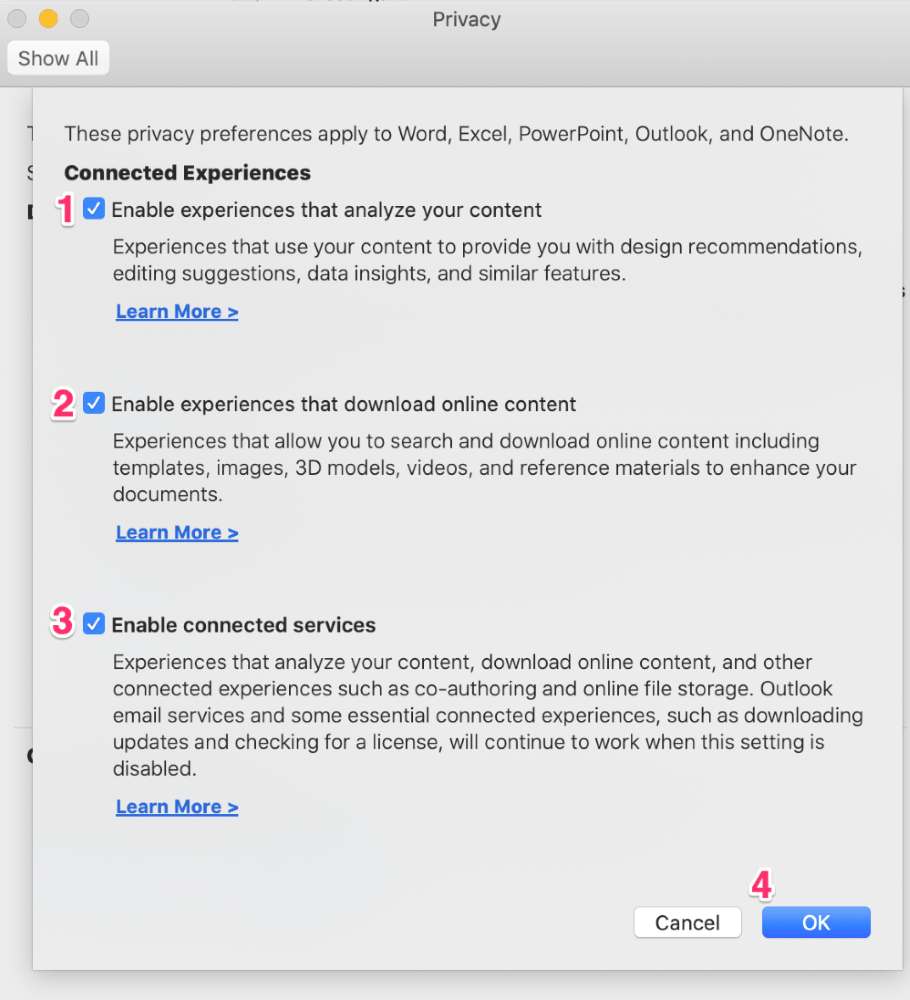
- Ensure all checkboxes are enabled, then click OK. You may need to restart Outlook to apply these changes.