Reference — lookup information.
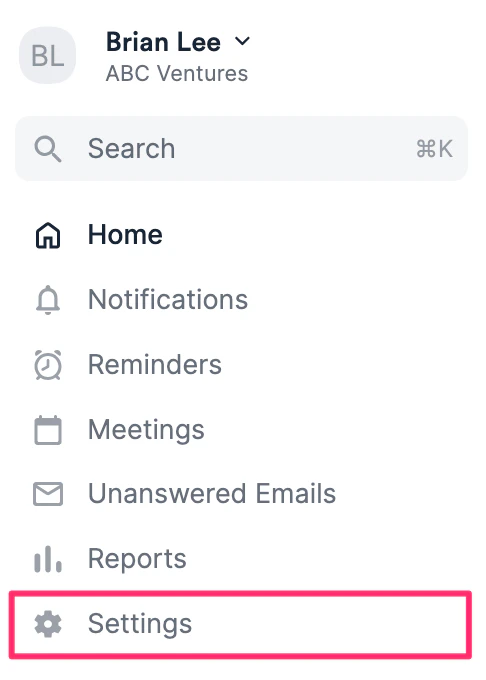
- Once you’ve checked the prerequisites (check out the section titled “Prerequisites” within this article: Getting started with native integrations in Affinity) and enabled proper access to Slack, click Settings on the left-side of your screen.
- Click on the Integrations tab, then click on Slack.

- These are the three integrations you can set up from here. Jump to the relevant Slack integration to learn more:
- Affinity Notes from a List to a Slack Channel
- Affinity Organization Notes to a Slack Channel
- All Affinity Notes into a Slack Channel
- These are the two integrations you can set up by following this article: Set up automations between Affinity and Slack. Jump to the relevant section to learn more:
- Send notes from Slack to Affinity
- Affinity Field Updates to a Slack Channel
Affinity Notes from a List to a Slack Channel
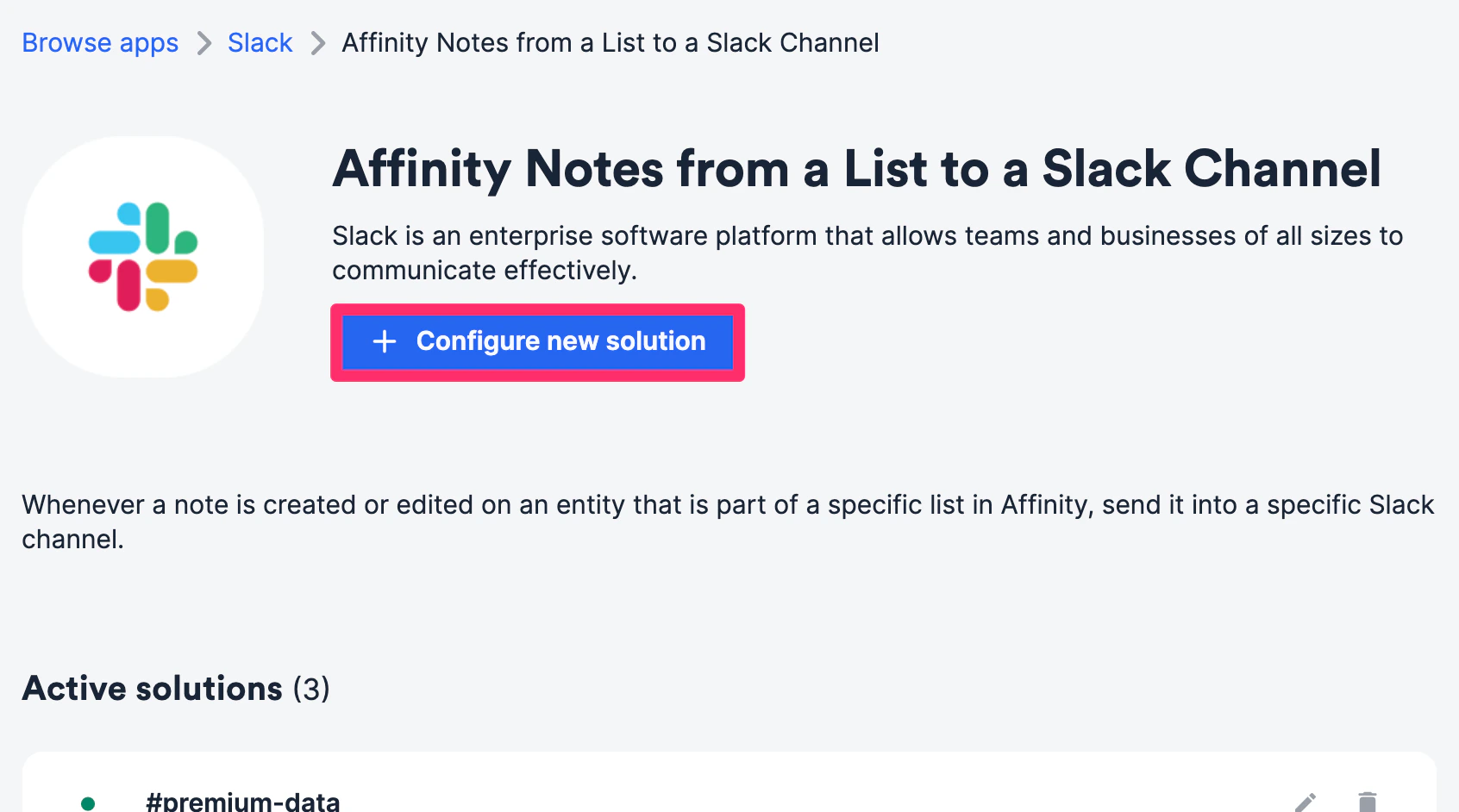
For any private/shared notes that you (the person setting up the integration) add or have access to (whether it’s yours or those of your team members) for the list entries within a specific list, they will be pushed into the designated Slack channel of your choice. Note: For this integration, threaded replies within notes will not be sent as notifications to the designated Slack channel.- Within the Affinity Notes from a List to a Slack Channel integration, click Select.

- Click Configure new solution.
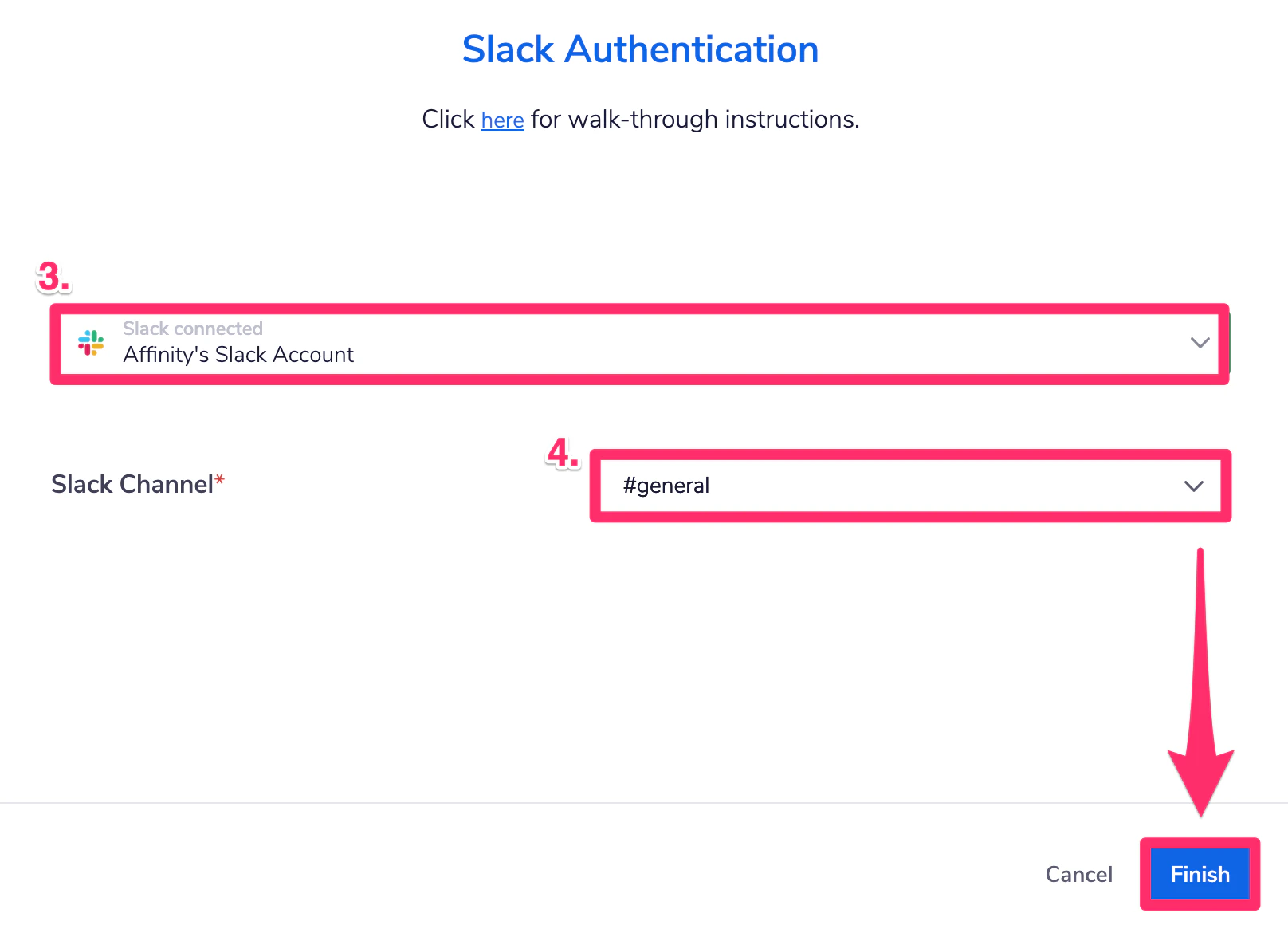
- Authenticate your Slack account.
- Select which Affinity list you will sync from.
- Select which Slack channel you’d like to push the notes into. Create a new Slack channel dedicated to these notes if you’d like. 1.
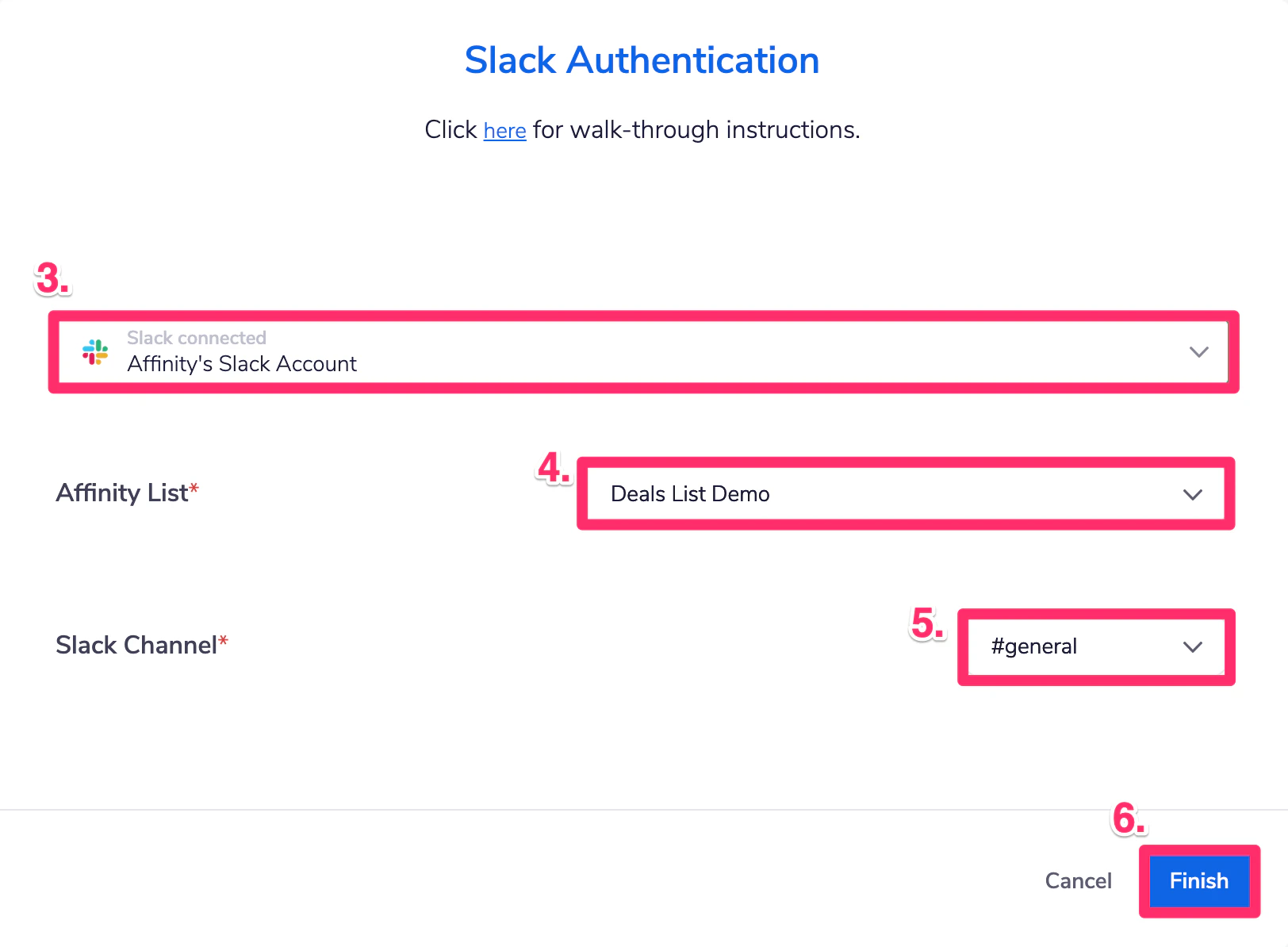
- Click Finish and you’re all set! Now, any notes added to the list entries in that specific list will also be pushed to the designated Slack channel.
Affinity Organization Notes to a Slack Channel
For any private/shared notes that you (the person setting up the integration) add or have access to (whether it’s yours or those of your team members) for a specific organization, they will be pushed into the designated Slack channel of your choice. Note: For this integration, threaded replies within notes will not be sent as notifications to the designated Slack channel.- Within the Affinity Organization Notes to a Slack Channel integration, click Select.
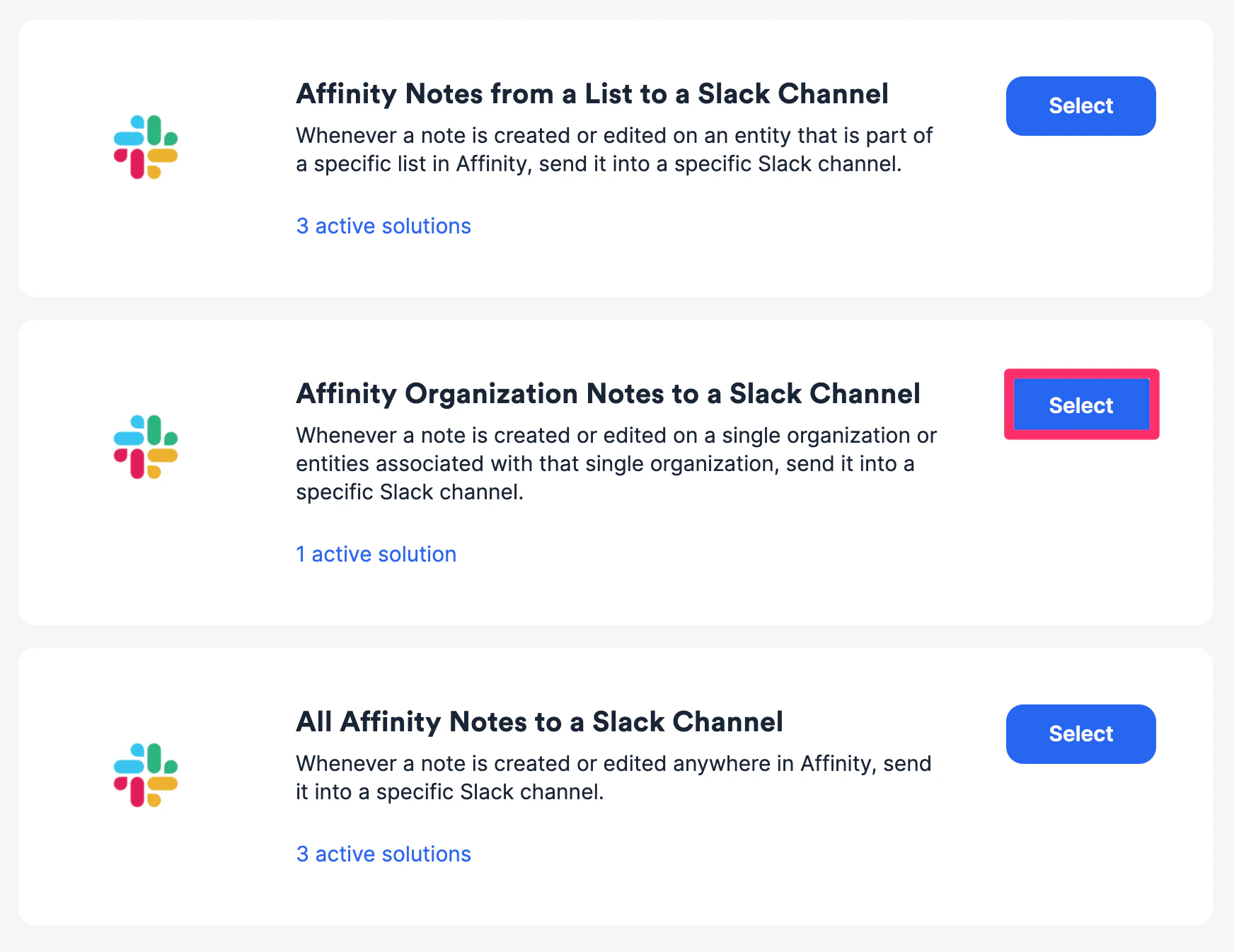
- Click Configure new solution.

- Authenticate your Slack account, then click Finish.
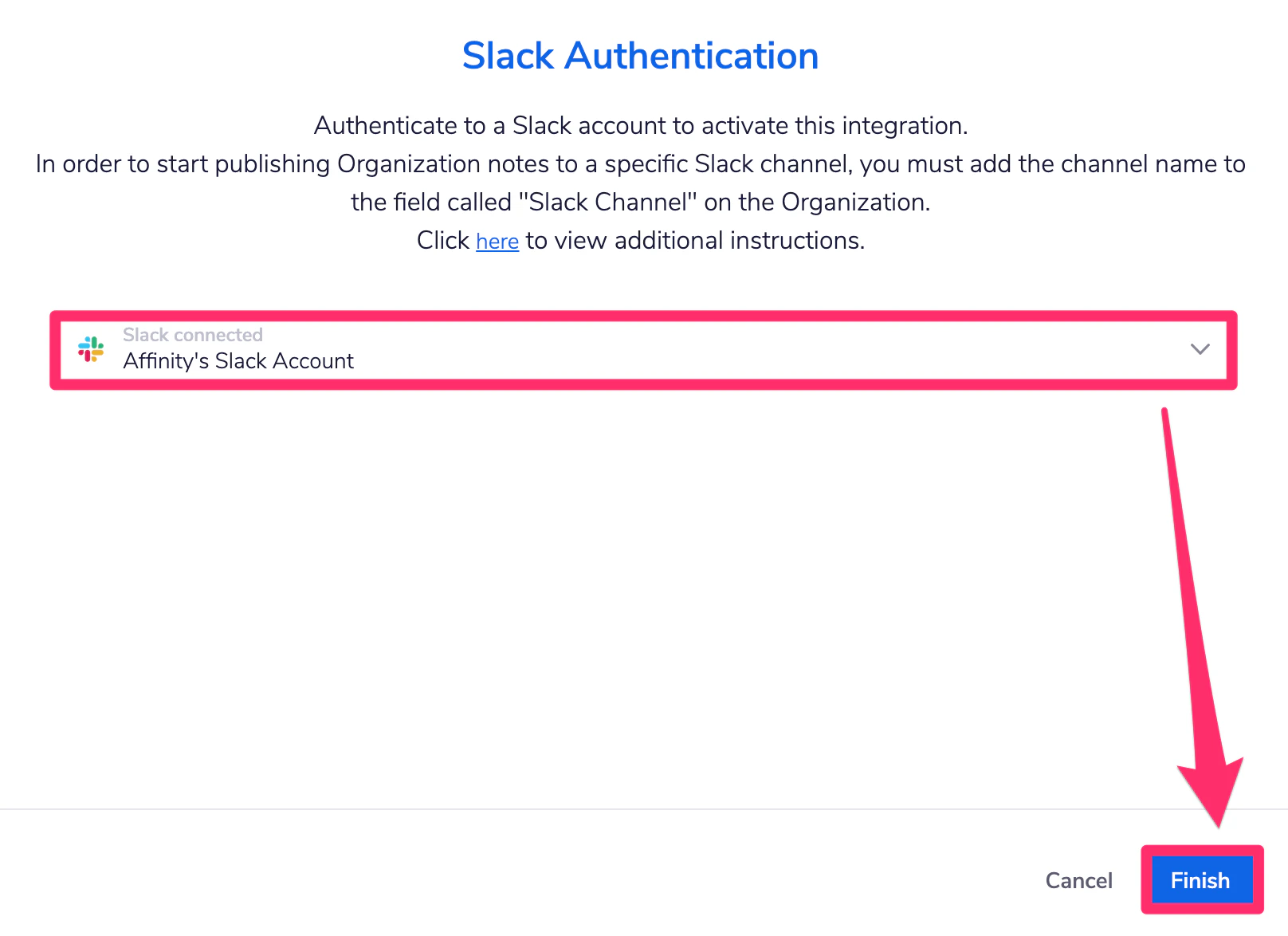
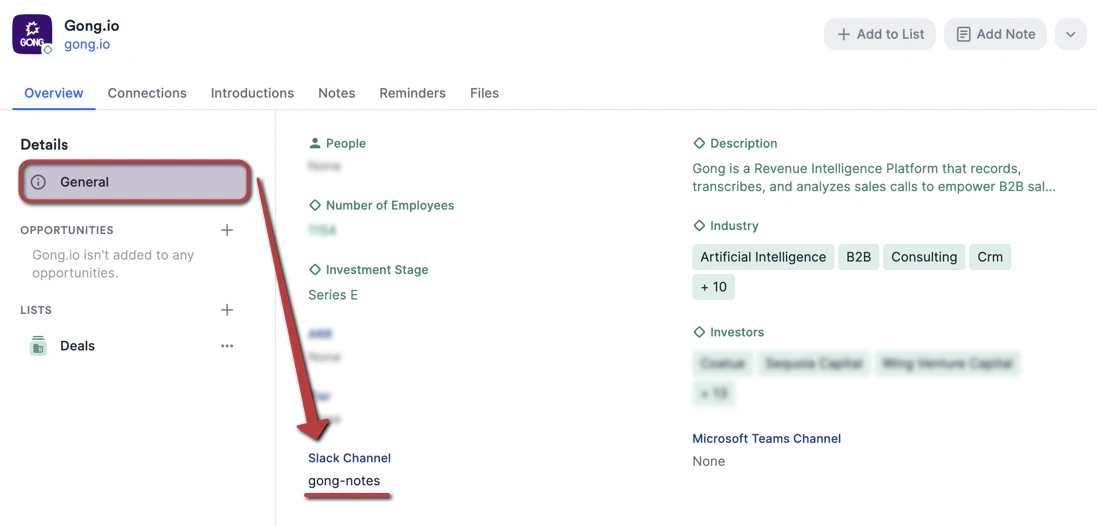
- Go to a specific organization’s profile page (e.g. Gong). You will see that Affinity automatically created a custom global field titled Slack Channel under the General tab.
- Fill out the name of the Slack channel (e.g. gong-notes) where the notes will be pushed to and you’re all set!
All Affinity Notes into a Slack Channel
For all private/shared notes (including auto-generated notes if you have Affinity Notetaker enabled) that you add or have access to, they will be pushed into the designated Slack channel of your choice.- Note: For this integration, threaded replies within a note will also be sent as notifications to the designated Slack channel.
- Within the All Affinity Notes to a Slack Channel integration, click Select.
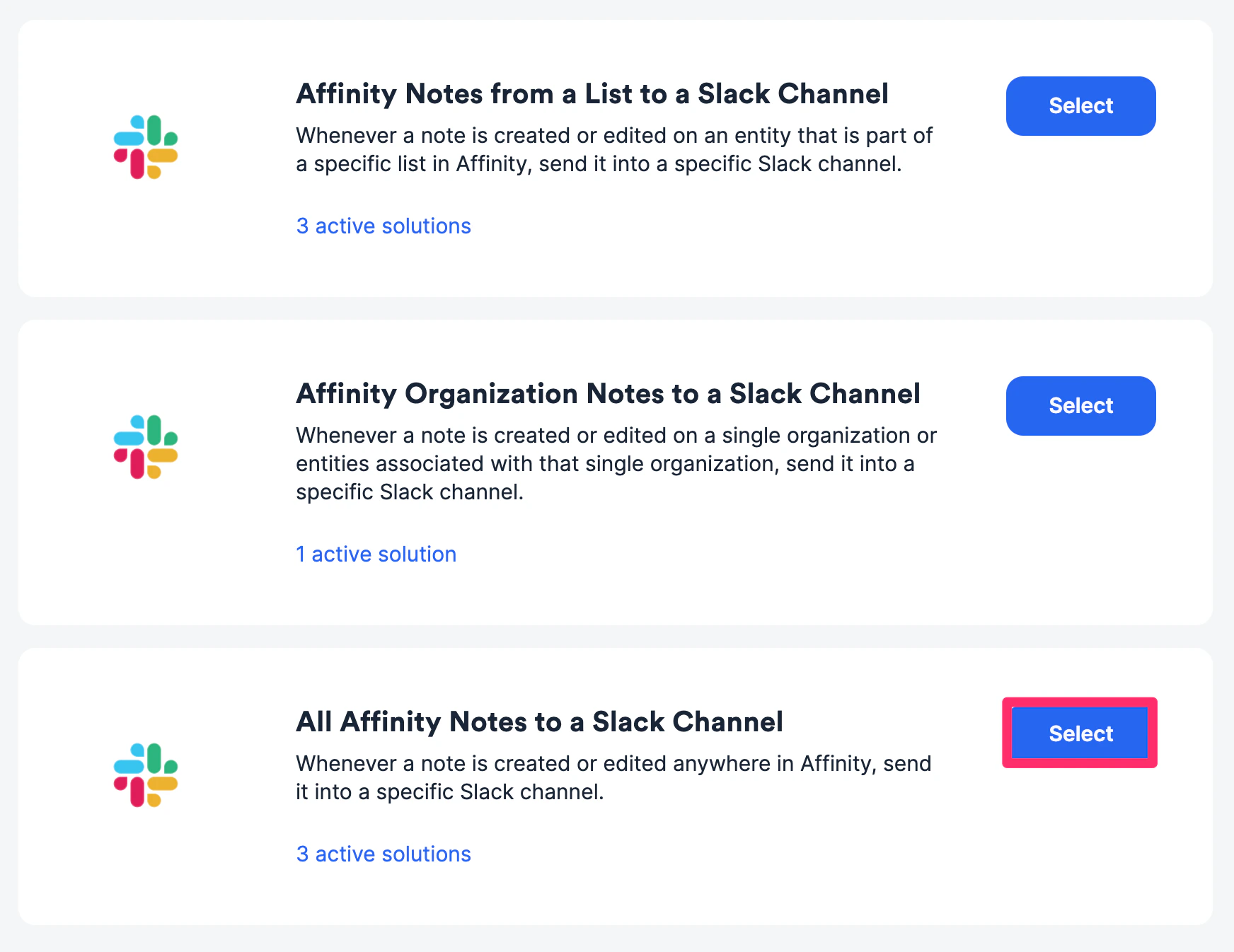
- Click Configure new solution.

- Authenticate your Slack account.
- Select which Slack channel you’d like to push the notes into, or create a new Slack channel dedicated to these notes if you’d like.
- Once you select the channel, click Finish and you’re all set!