Reference — lookup information.
Note : This video contains the old navigation bar on the top, whereas the current navigation bar now lies on the left side of your screen. While the remaining content is still the same, rest assured that we will be updating our videos accordingly.
How to set up a status report for a Buy-Side project
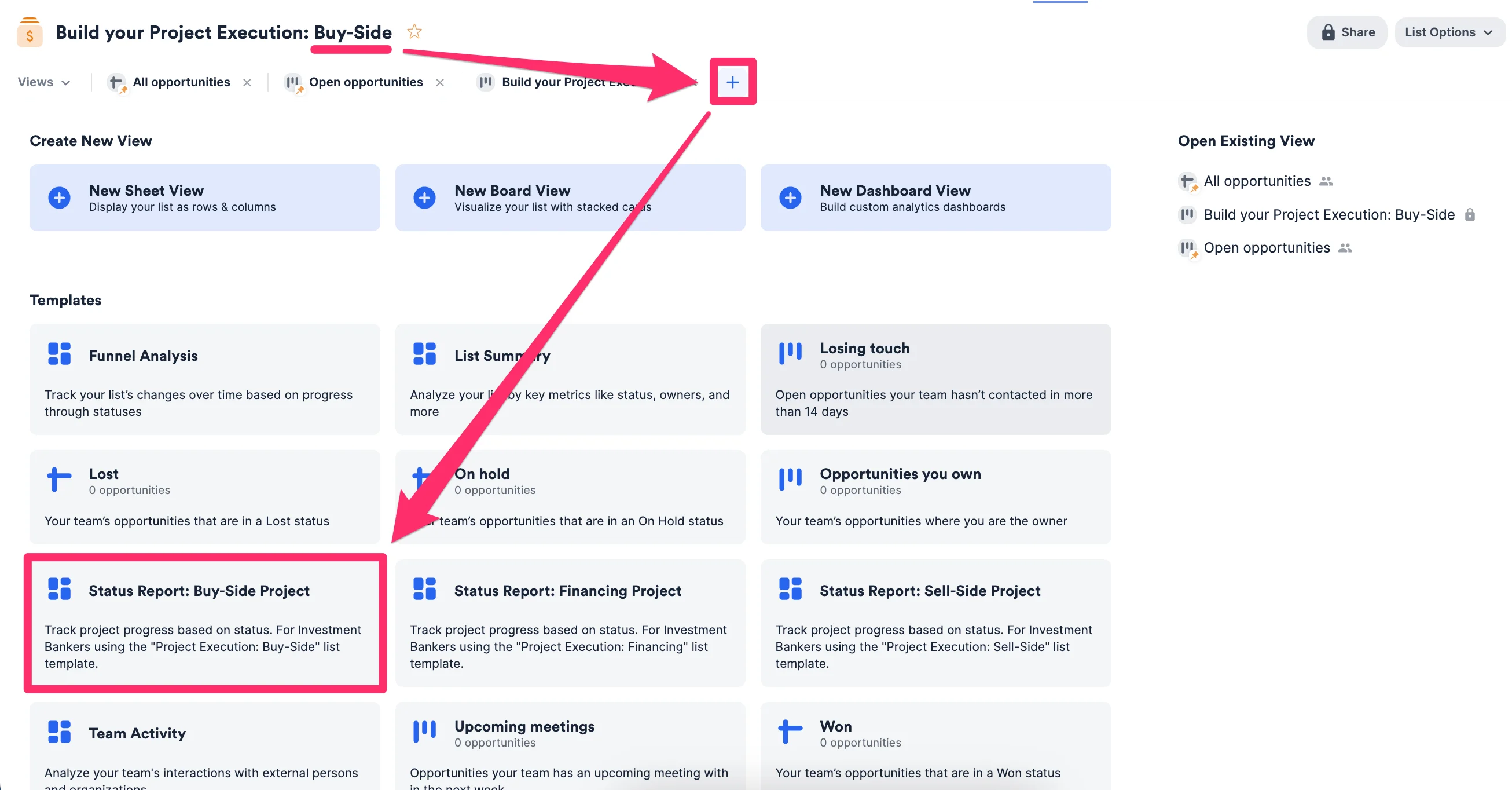
- First, click into the list that was created from the Project Execution: Buy-Side list template.
- Then, click the + icon as shown below and click the Status Report: Buy-Side Project option Tracking template option to create a new dashboard view. Then, click the + icon as shown below and click the Status Report: Buy-Side Project option Tracking template option to create a new dashboard view.
- Once the dashboard view is generated, you will immediately see different visualization tiles and metrics based on the data within this list.
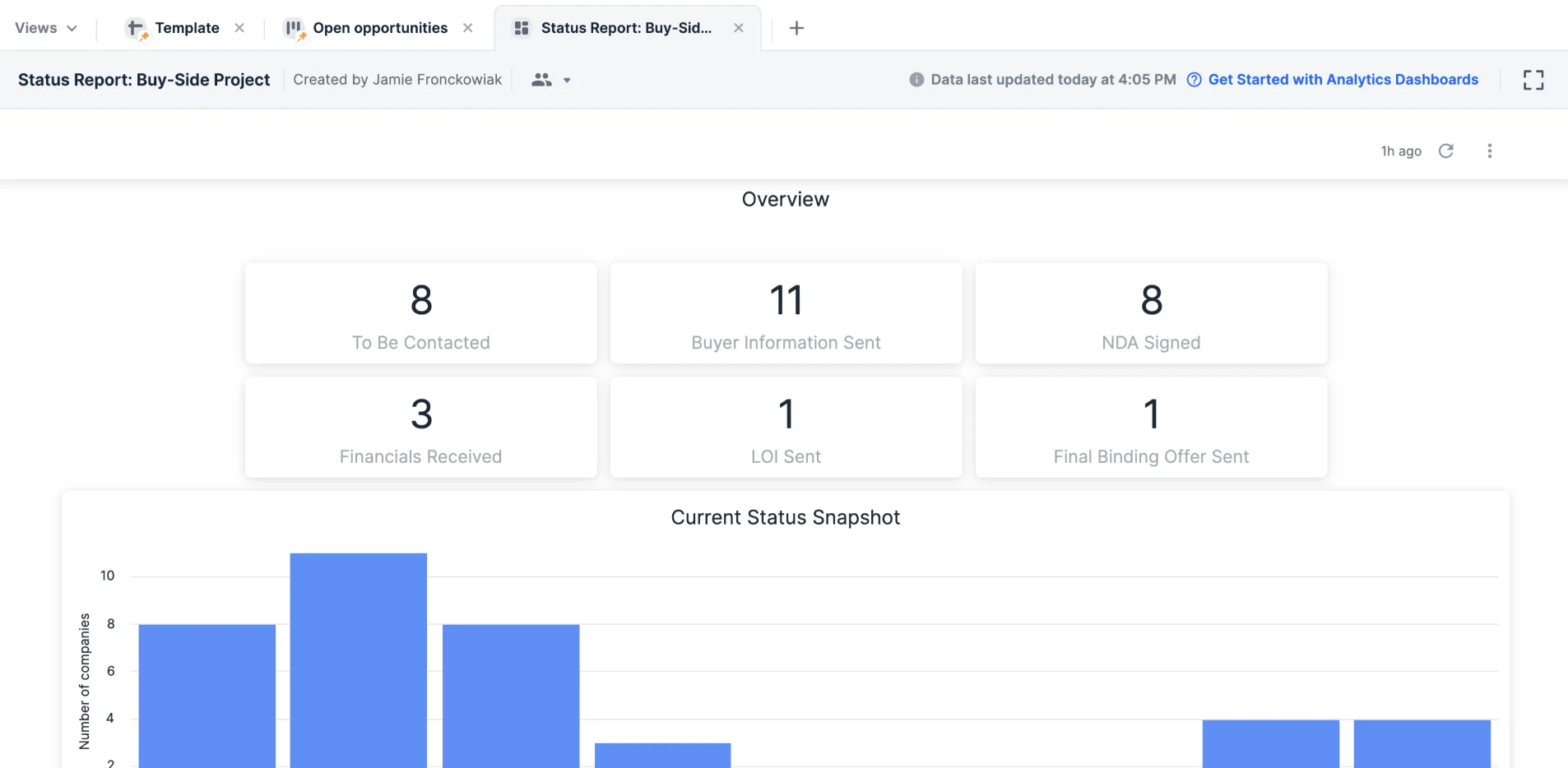
- From here, jump to the section “How to analyze and edit the underlying data for these status reports” to learn more about the underlying data behind these visualization tiles and metrics.
How to set up a status report for a Sell-Side project
- First, click into the list that was created from the Project Execution: Sell-Side list template.
- Then, click the + icon as shown below and click the Status Report: Sell-Side Project optionTracking template option to create a new dashboard view.
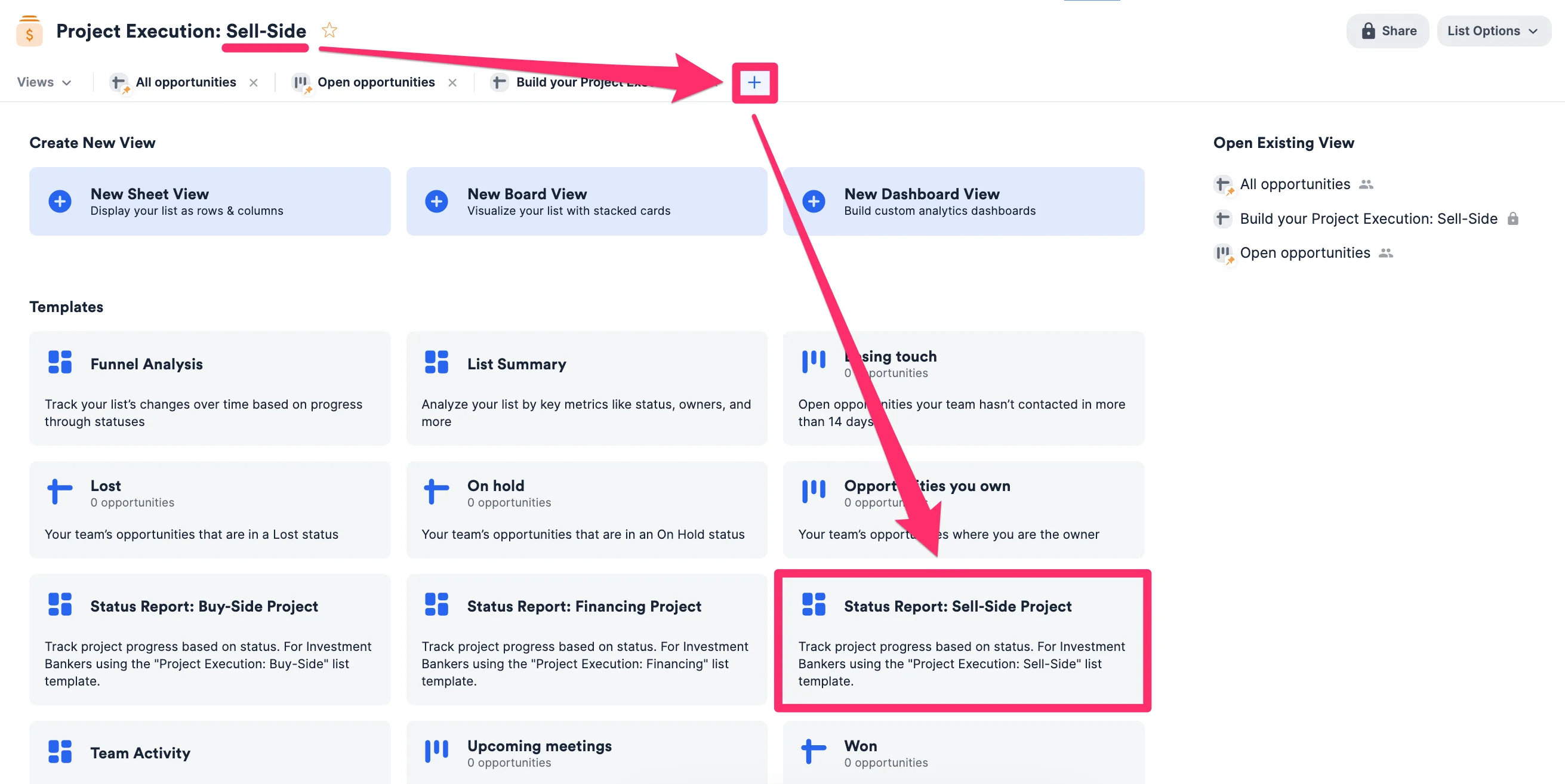
- Once the dashboard view is generated, you will immediately see different visualization tiles and metrics based on the data within this list.
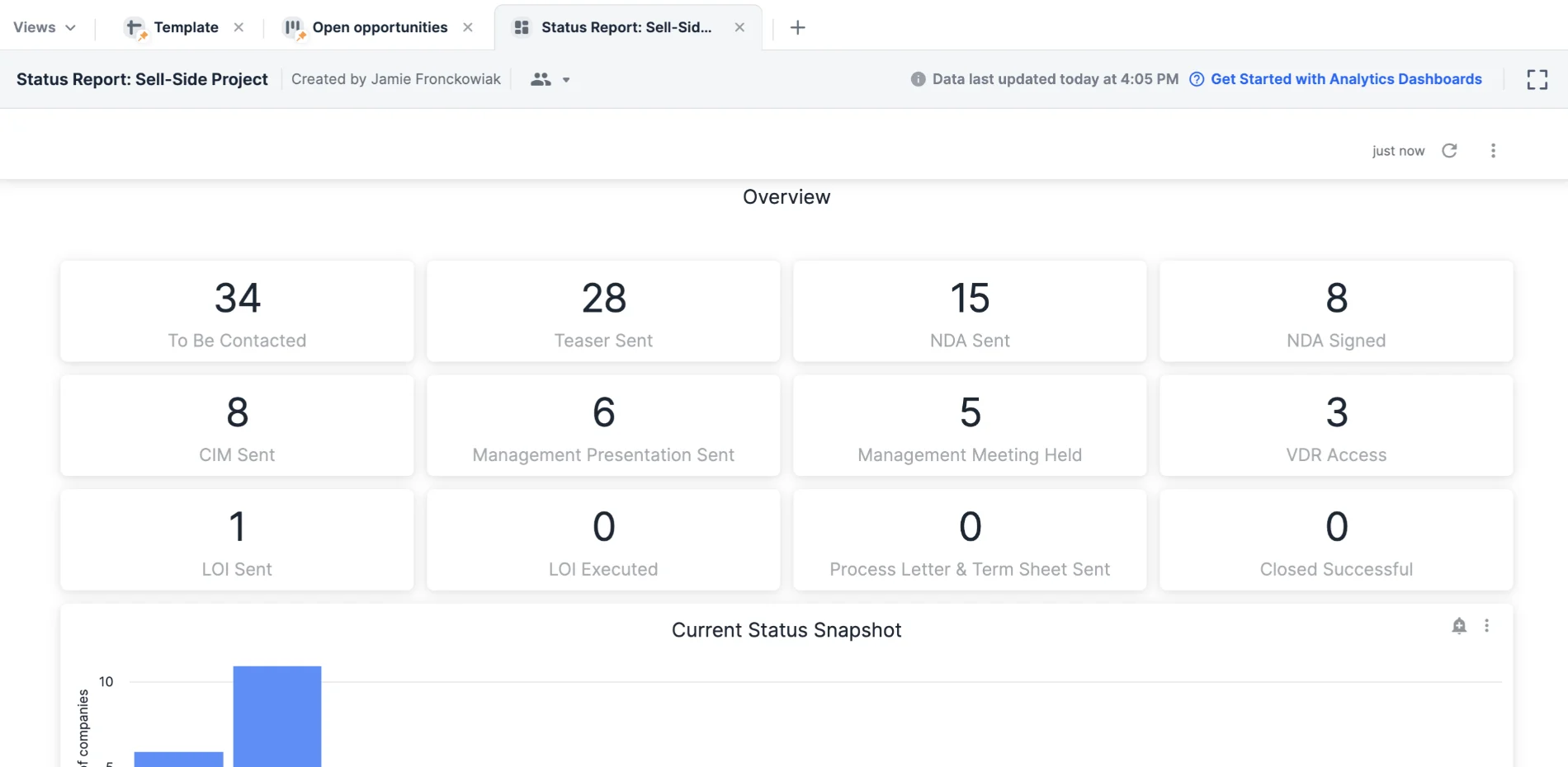
- From here, jump to the section “How to analyze and edit the underlying data for these status reports” to learn more about the underlying data behind these visualization tiles and metrics.
How to set up a status report for a Financing project
- First, click into the list that was created from the Project Execution: Financing list template.
- Then, click the + icon as shown below and click the Status Report: Financing Project optionTracking template option to create a new dashboard view.
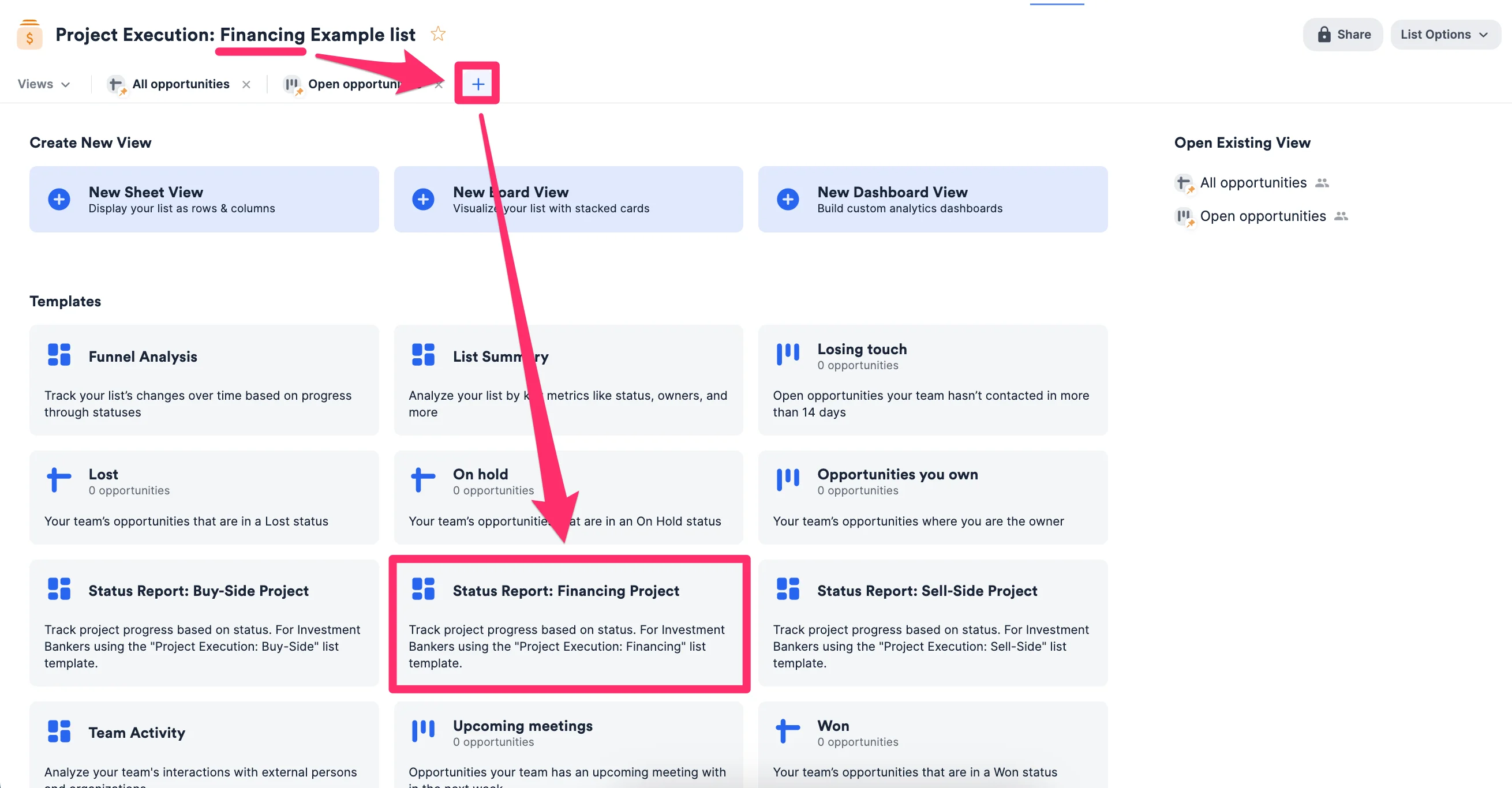
- Once the dashboard view is generated, you will immediately see different visualization tiles and metrics based on the data within this list.
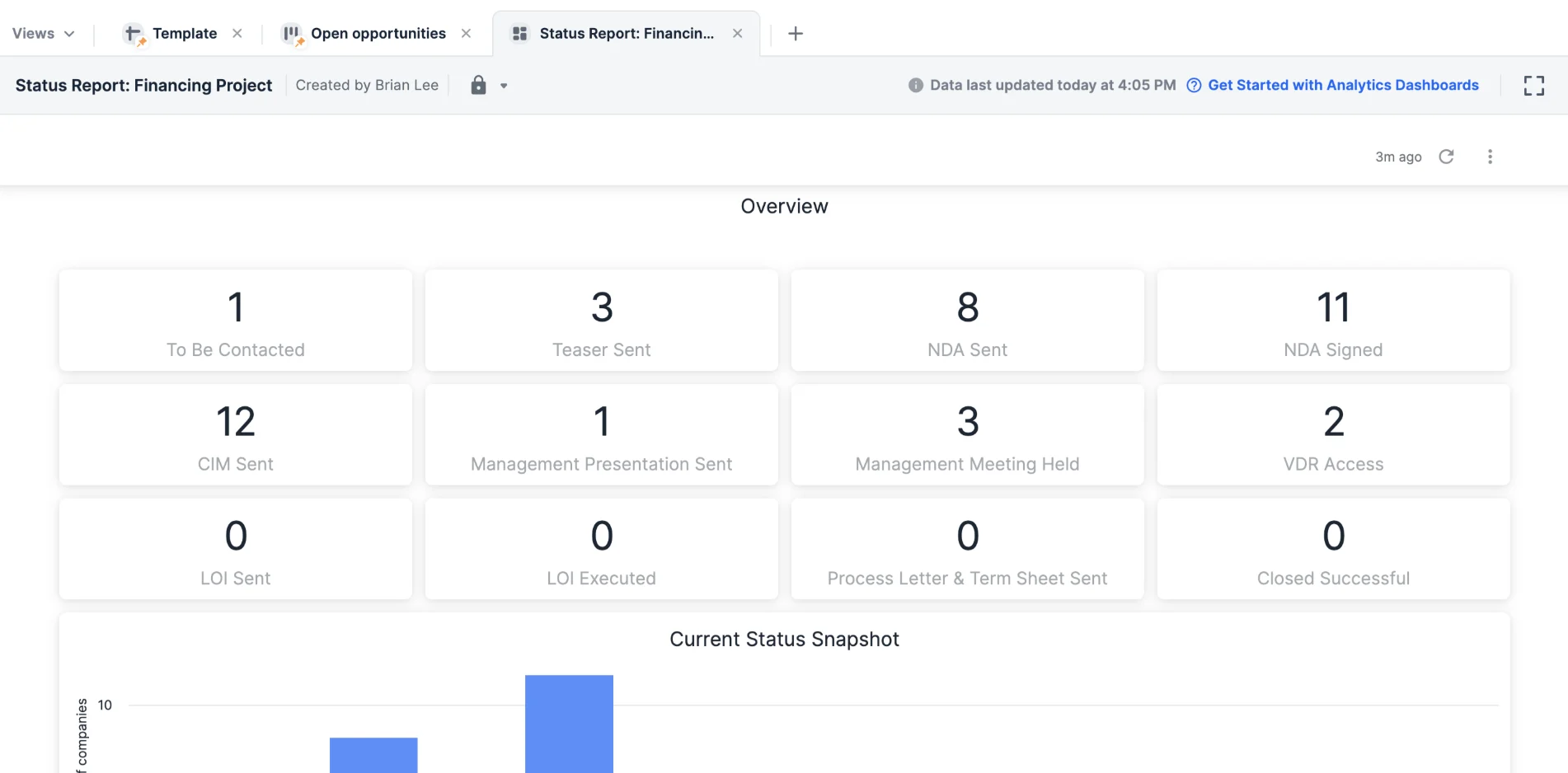
- From here, jump to the section “How to analyze and edit the underlying data for these status reports” to learn more about the underlying data behind these visualization tiles and metrics.
How to analyze and edit the underlying data for these status reports
- Want to understand how certain visualization tiles were generated? Click the ellipsis (3-dotted icon) on the top-right corner of the visualization tile you want to dig deeper into, then click Explore from here.
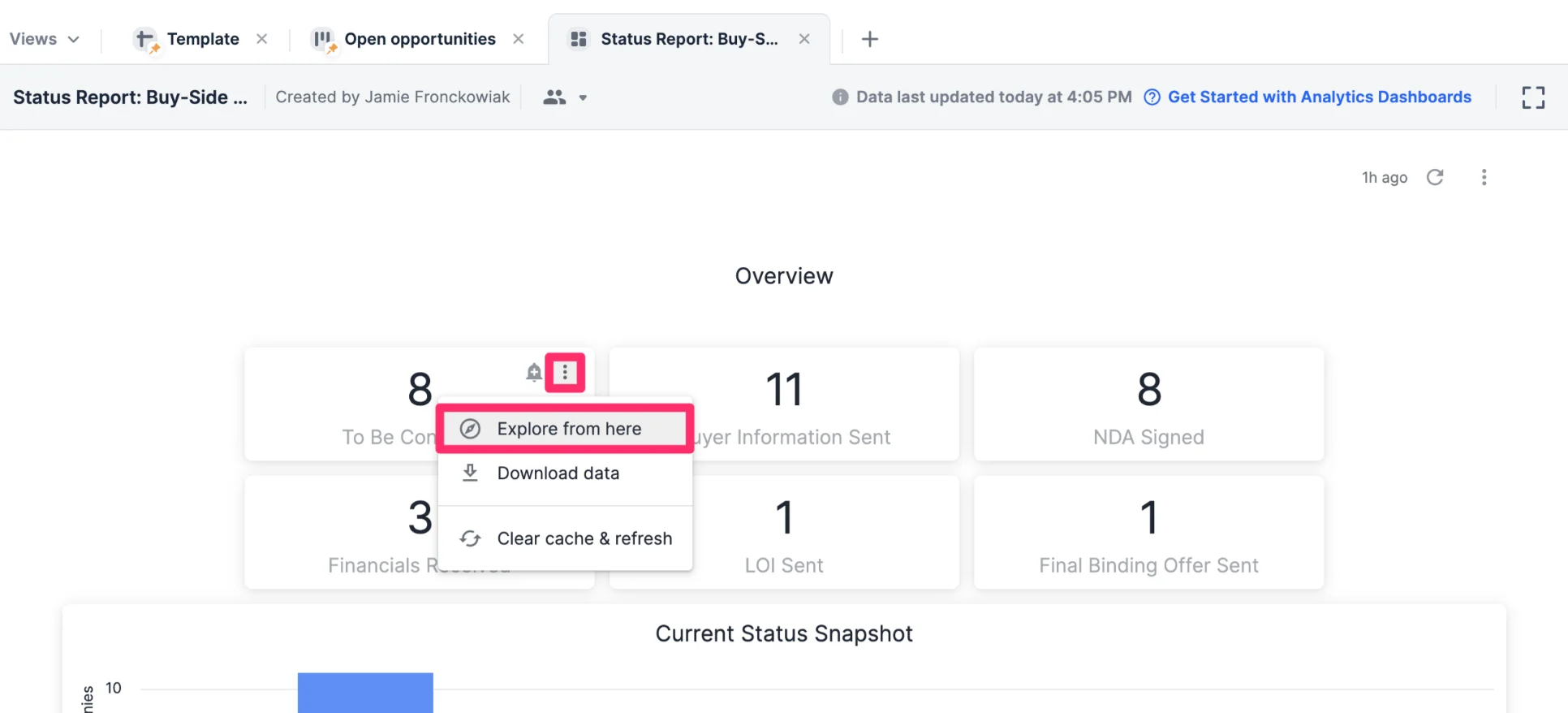
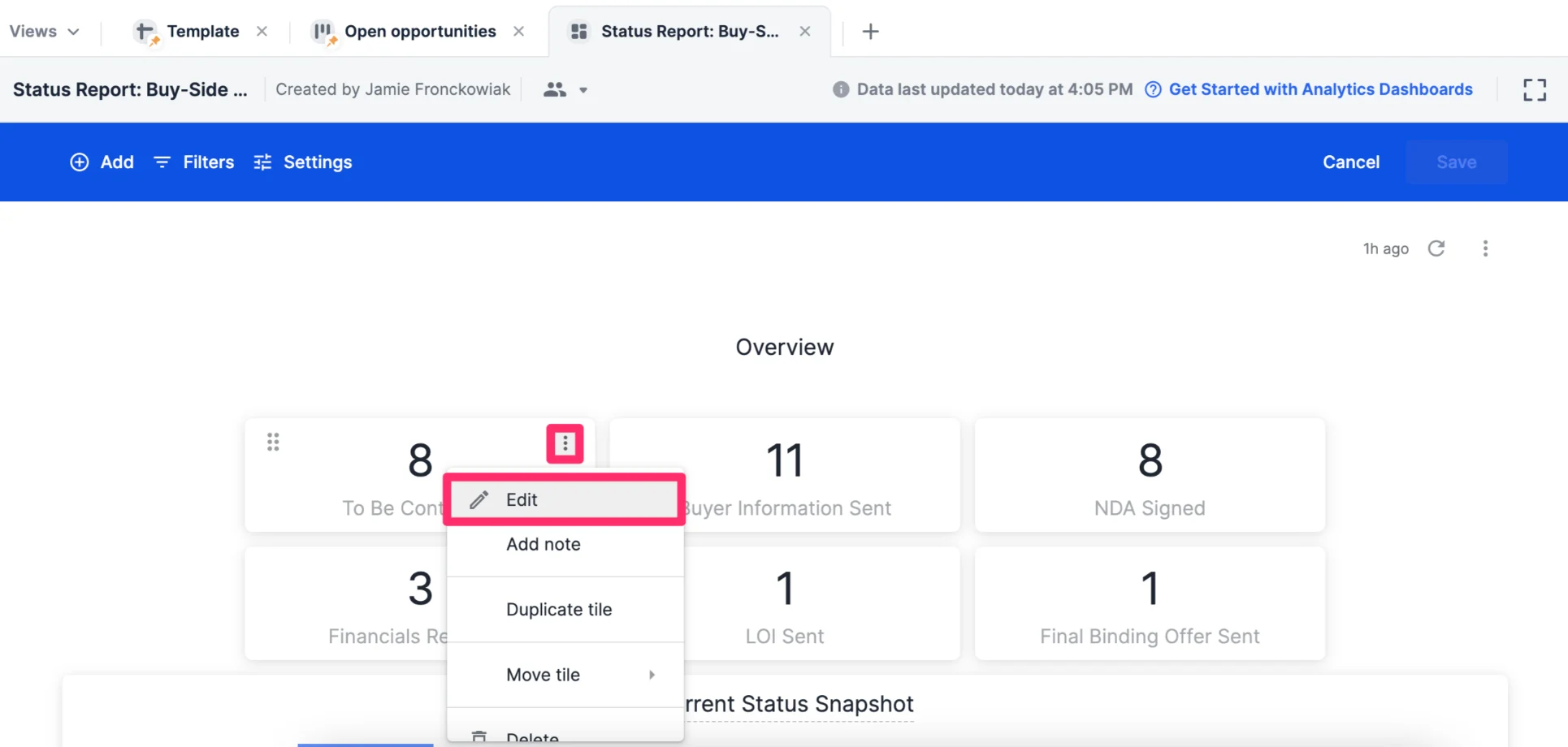
- If you’d like to change the data fields being used for certain visualization tiles, click the ellipsis (3-dotted icon) on the top-right corner, then click Edit dashboard.
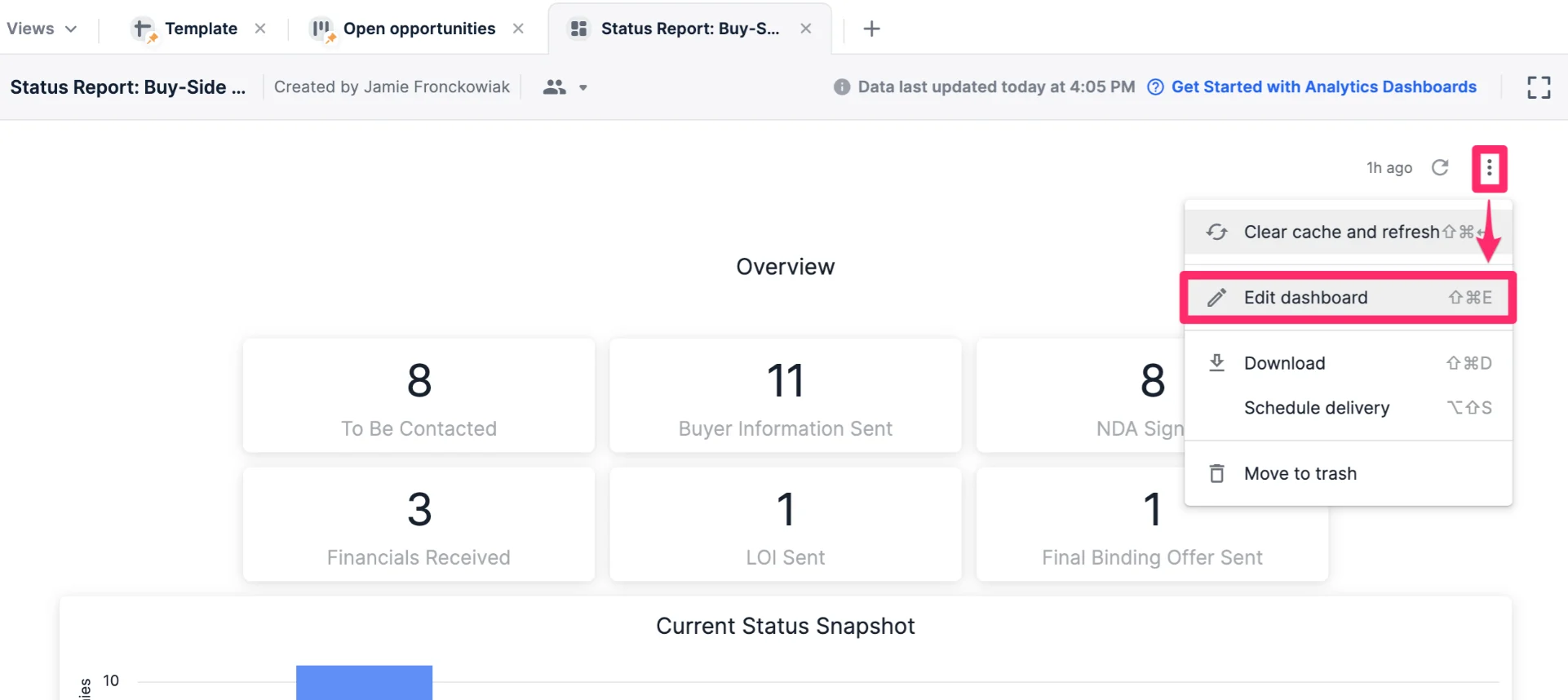
- Then, click the ellipsis (3-dotted icon) on the top-right corner of the visualization tile you want to dig deeper into, then click Edit.