

Reference — lookup information.
- Please note that Basic Reporting is a legacy feature that is no longer available for new customers.
- For those on the Scale, Advanced, and Enterprise tiers, you can leverage advanced reporting features with Affinity Analytics.
- For those on the Essential tier, we highly suggest upgrading to the Scale, Advanced, or Enterprise tiers to leverage Affinity Analytics.
Example
- Please note, you can only generate forecast reports using opportunity-type lists, not people-type or organization-type lists.
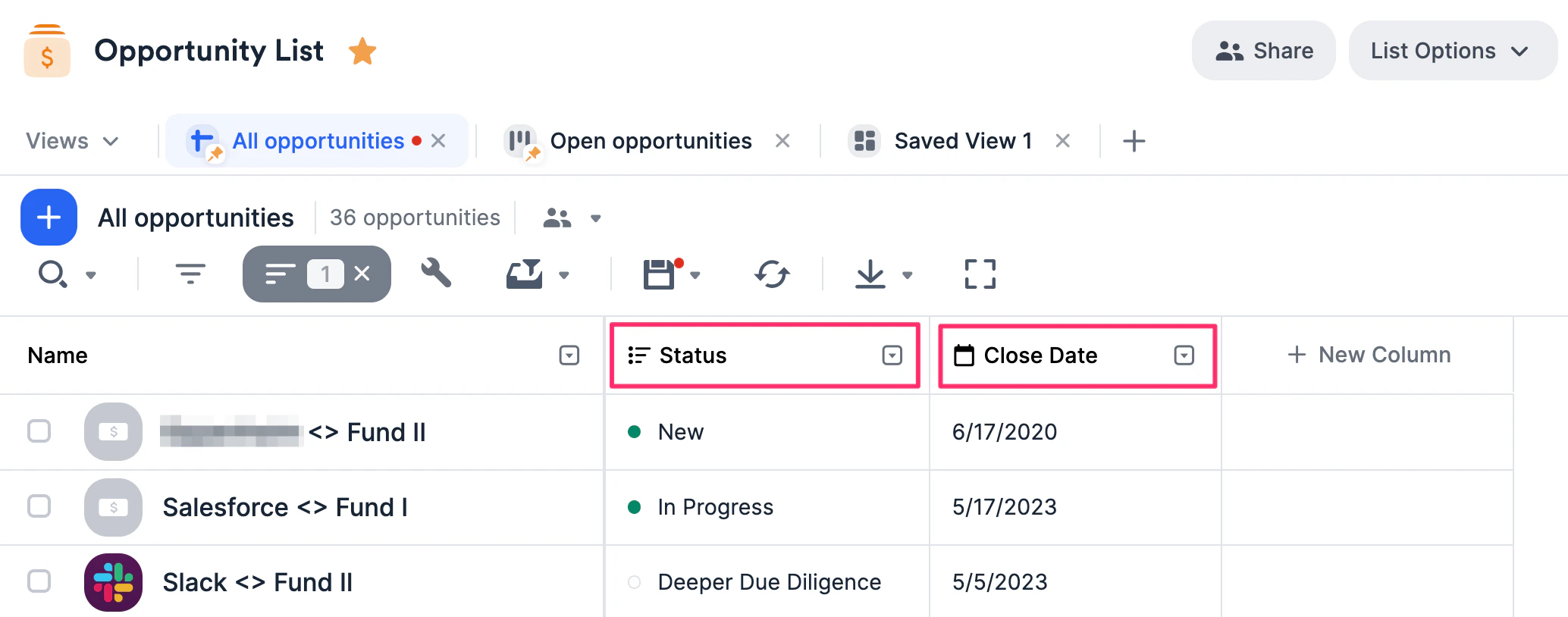
- Make sure you have both the default Status and Close Date columns filled out to successfully generate a Forecast Report.
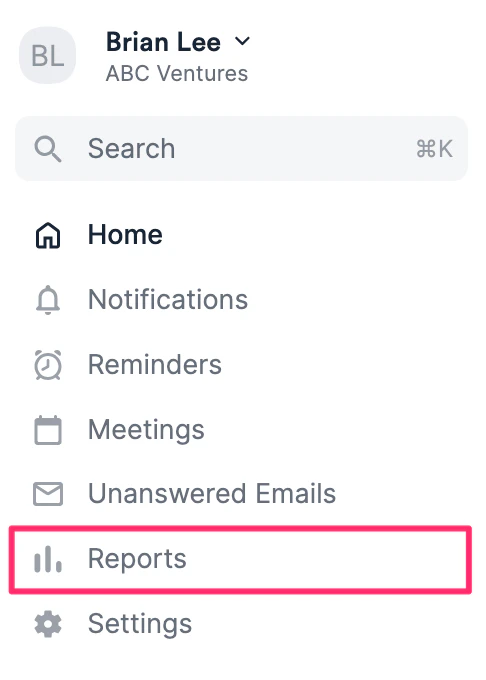
- Then, click the Reports tab on your global navigation bar.
- Select Forecast this quarter.
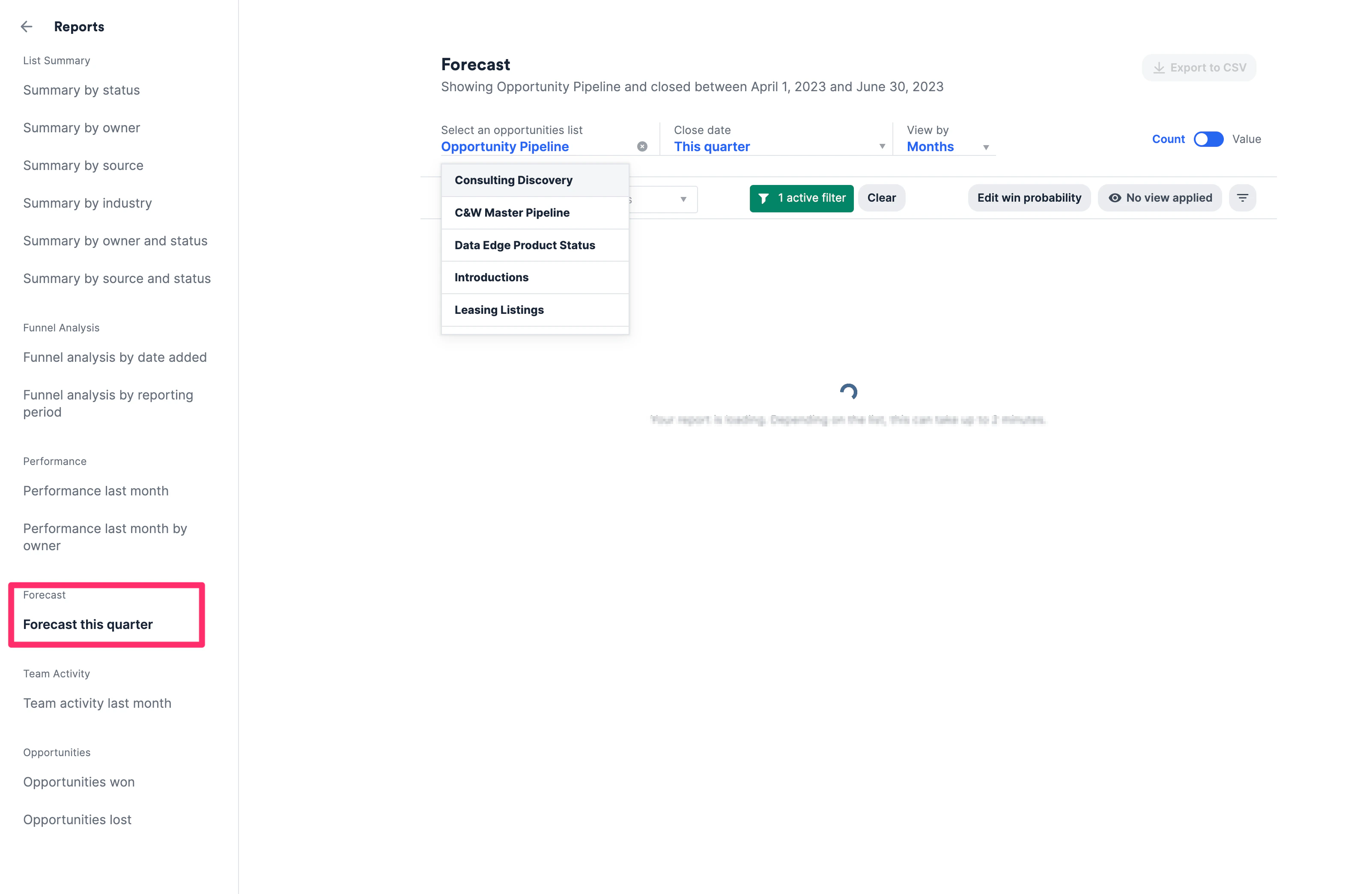
- Select an opportunity-type list and specify a period of time for the Close date to view the Forecast report.
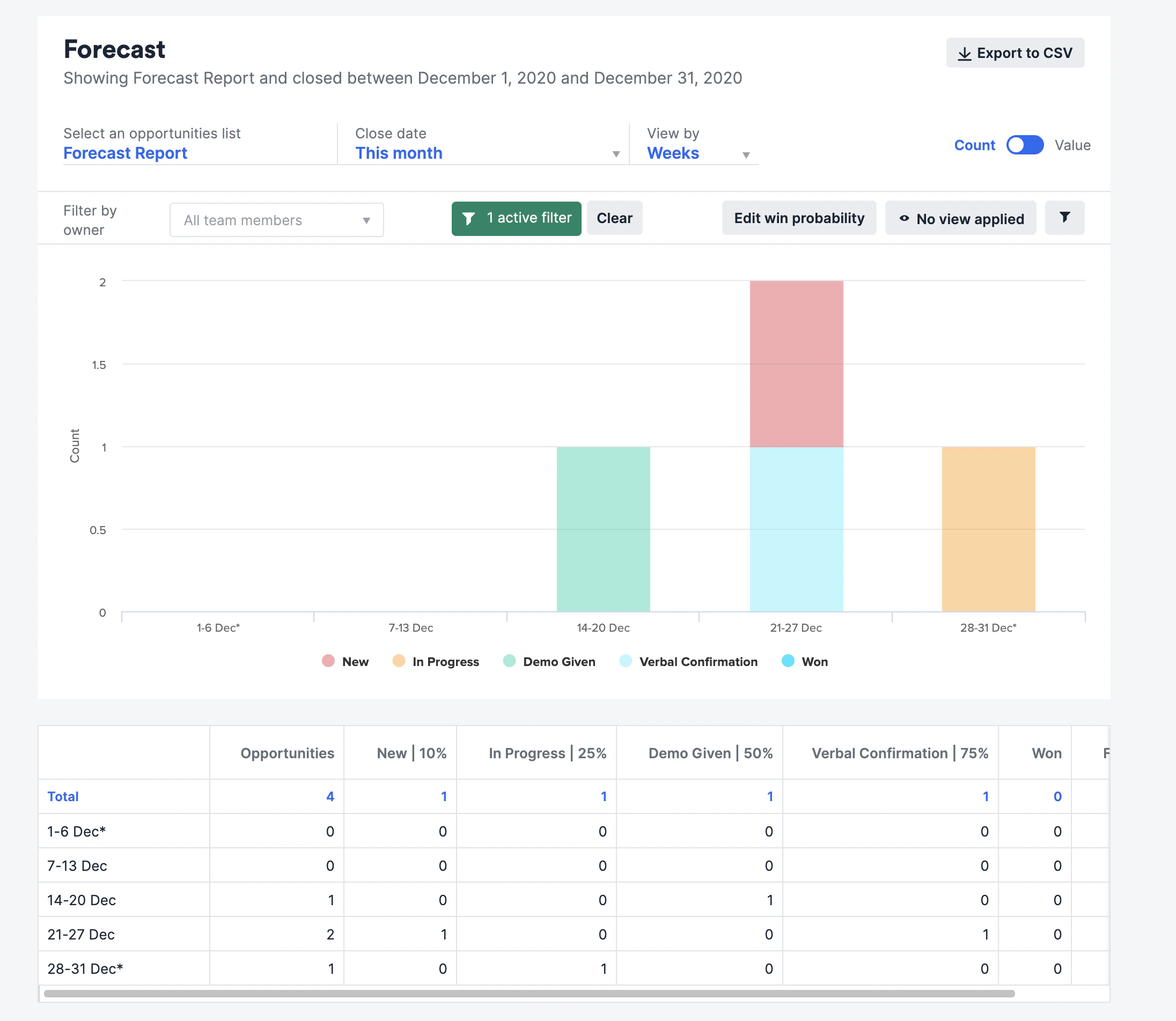
How probabilities are calculated into the Forecast Report
- Expected Revenue = win probability * amount
- The win probability will range from 0 to 1.
- The win probability of Won statuses is always 1.
- Example: Imagine there’s a 50% chance for deals in the “Due Diligence” status to close.
- If you have 2 deals in that status (Deal #1 is going for $100k while Deal #2 is going for $50k), your estimated revenue next month would be $75k.