

How-to — task-oriented recipe.
Why use Affinity Notetaker and not other note-taking tools?
- Affinity’s Notetaker has been optimized for private capital and dealmaking, while other notetaking tools tend to be focused more on sales workflows.
- Affinity’s Notetaker integrates directly with Salesforce, which will help streamline your team’s workflows and ensure that Salesforce remains the source of truth and a repository for your meeting notes.
- Affinity has contracts in place to ensure that customer data will not be used to train AI models.
Does Affinity Notetaker support multiple languages?
- Yes. However, please note the differences when it comes to transcripts versus meeting notes:
- Transcripts: Affinity Notetaker will generate the transcripts in English, French, German, Japanese, Portuguese, or Spanish.
- The language used the most during the meeting will be the language used to generate the transcript.
- If multiple languages are spoken during the meeting, the less frequently used language(s) will not be transcribed.
- Meeting notes: Affinity Notetaker will only generate the meeting notes in English at this time, even for calls where the spoken language is French, German, Japanese, Portuguese, or Spanish.
- Transcripts: Affinity Notetaker will generate the transcripts in English, French, German, Japanese, Portuguese, or Spanish.
Prerequisites for Zoom users
- Your organization’s Zoom admin must first approve of the Affinity app in the Zoom App Marketplace.

- Otherwise, you will come across this message: You cannot authorize Affinity Notetaker
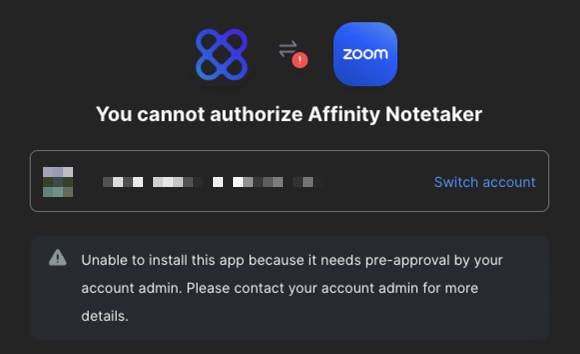
- Once your Zoom admin approves of the Affinity app, Zoom will require the following setting to be enabled for each person using Affinity Notetaker to allow meeting bots to transcribe calls:
- Go to your Zoom Settings on the web app, not the desktop app.
- Then, click the Recording tab.
- Turn on the toggle next to Record to computer files.
- Last but not least, click the on relevant checkboxes under Who can request host permission to record? based on your preferences.
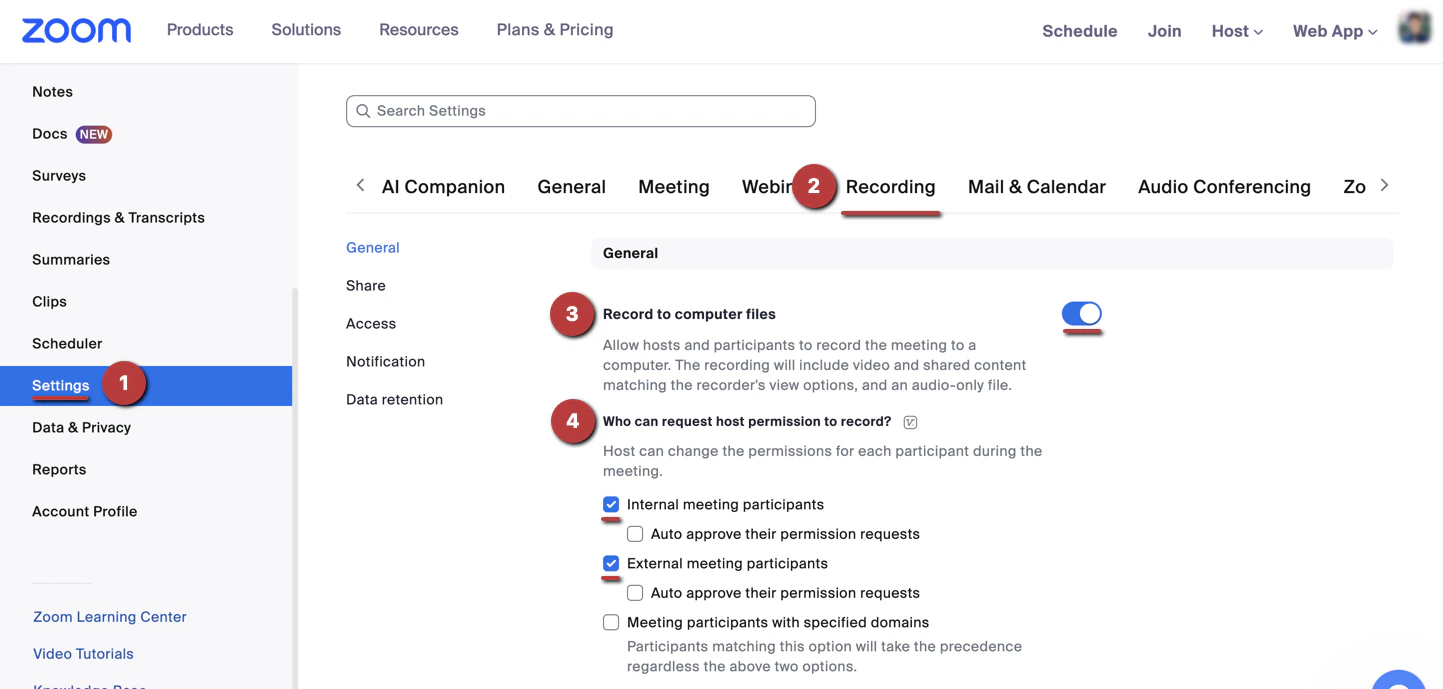
- This can be done on an individual basis by each user, or the Zoom admin can turn it on for all users across the team.
- If your security team allows for this option, you can also check the boxes for “Auto approve their permission requests” for internal and/or external meeting participants. This option can be particularly helpful for your team members (e.g. Executive Assistants) who are not Affinity users, but set up many meetings for you and other team members who are Affinity users and have Affinity Notetaker enabled. Please note that they will still need to join the meeting in order for the auto-approval to take place.
- Note: This only applies to Zoom meetings in which you are the host of. Affinity Notetaker may not be able to join a Zoom meeting if another internal or external is the host and they either do not join the meeting or do not set this up from their end.
How to set up Affinity Notetaker
- Affinity Notetaker is only compatible with the following platforms:
- Zoom (both web app and desktop app) - The meeting host is required to join the meeting in order for Affinity Notetaker to record/transcribe. If the meeting host is an Affinity user and connects with Zoom (see Step 3a below), then they will not need to join the meeting.
- Microsoft Teams - The meeting host does not need to join the meeting in order for Affinity Notetaker to record/transcribe.
- Google Meet - The meeting host does not need to join the meeting in order for Affinity Notetaker to record/transcribe.
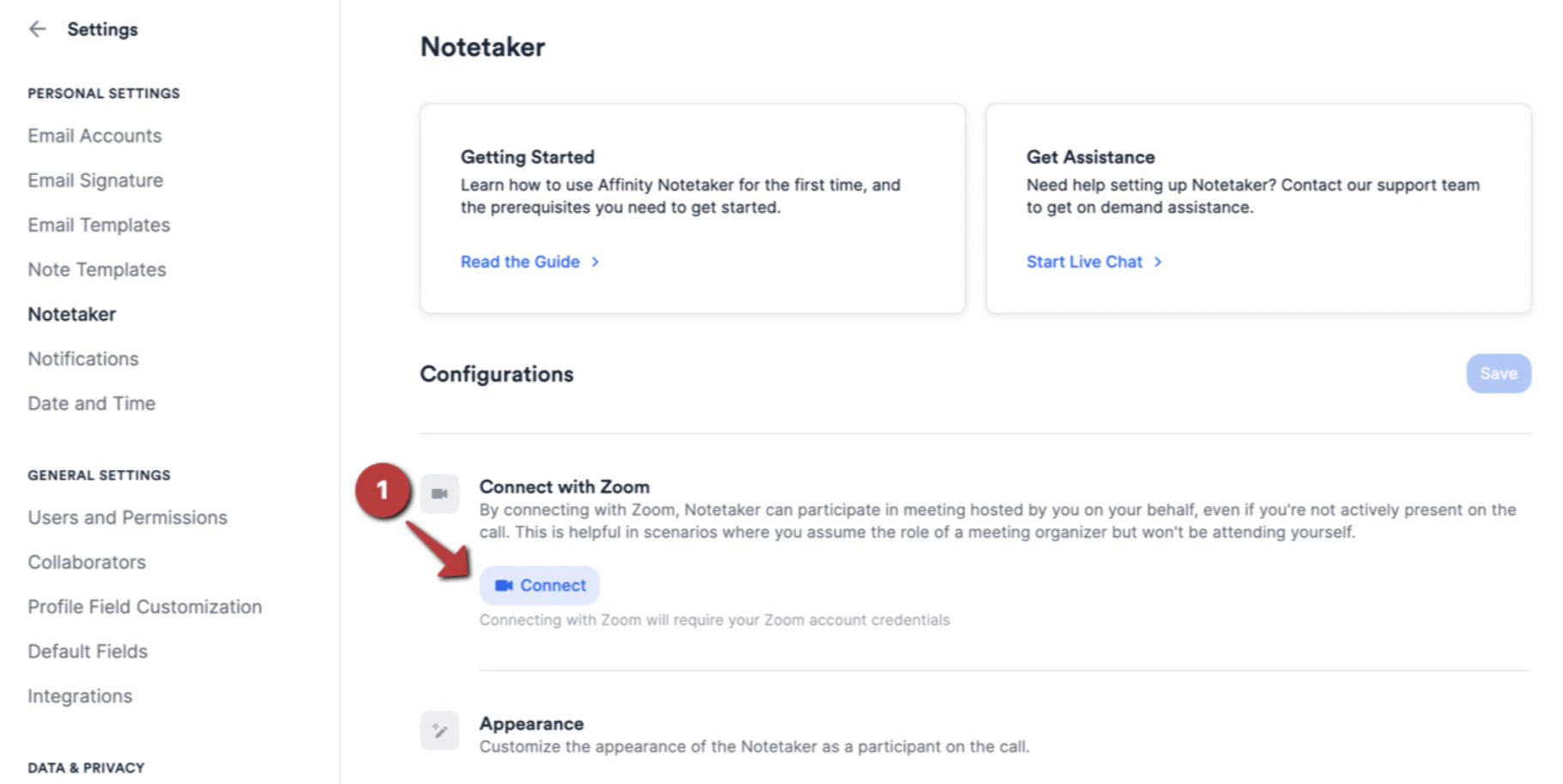
- Login to your Affinity Instance, click on Settings to access your Notetaker settings.
- Connect with Zoom - For Zoom users only, you can connect Affinity with your Zoom account to make sure that your Affinity Notetaker (or any of your colleague’s Affinity Notetakers) can join, transcribe, and summarize Zoom meetings that you’re the host of, even if you do not join.
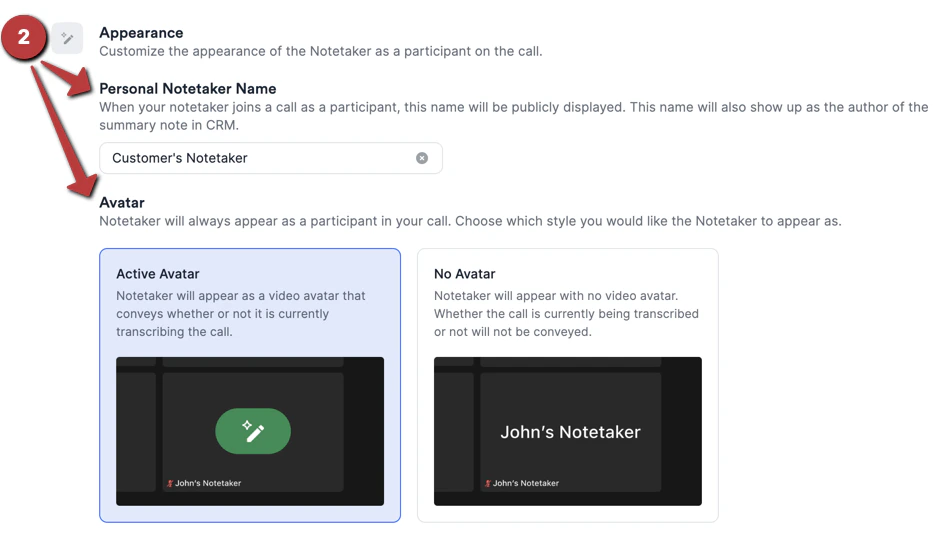
- Appearance - Customize your Notetaker’s name and decide whether to display an Active Avatar or No Avatar when your Notetaker is in a meeting.
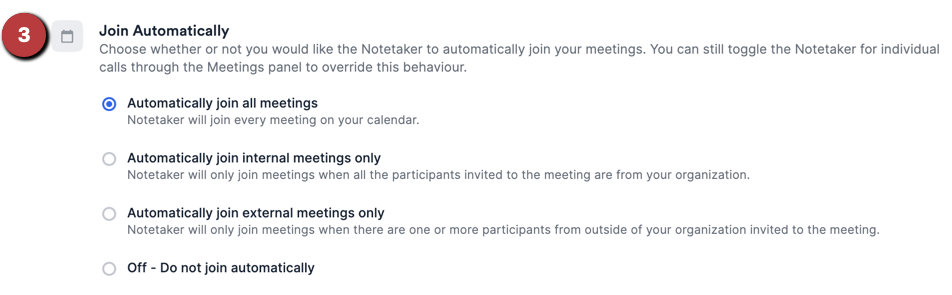
- Join Automatically - Set up automatic scheduling so that your Notetaker joins your meetings by default - whether it’s for all meetings, only internal meetings, or only external meetings. This will apply to all future meetings that meet the criteria for the option you have chosen. Once you click Notetaker on the left-side, you can customize the following sections:
- Finally, click Save to save any changes you made.
How to sync Meeting Notes to Salesforce
- Login to your Affinity Instance as an Admin and navigate to your Salesforce settings
- Edit the Account and Contact Enrichment section
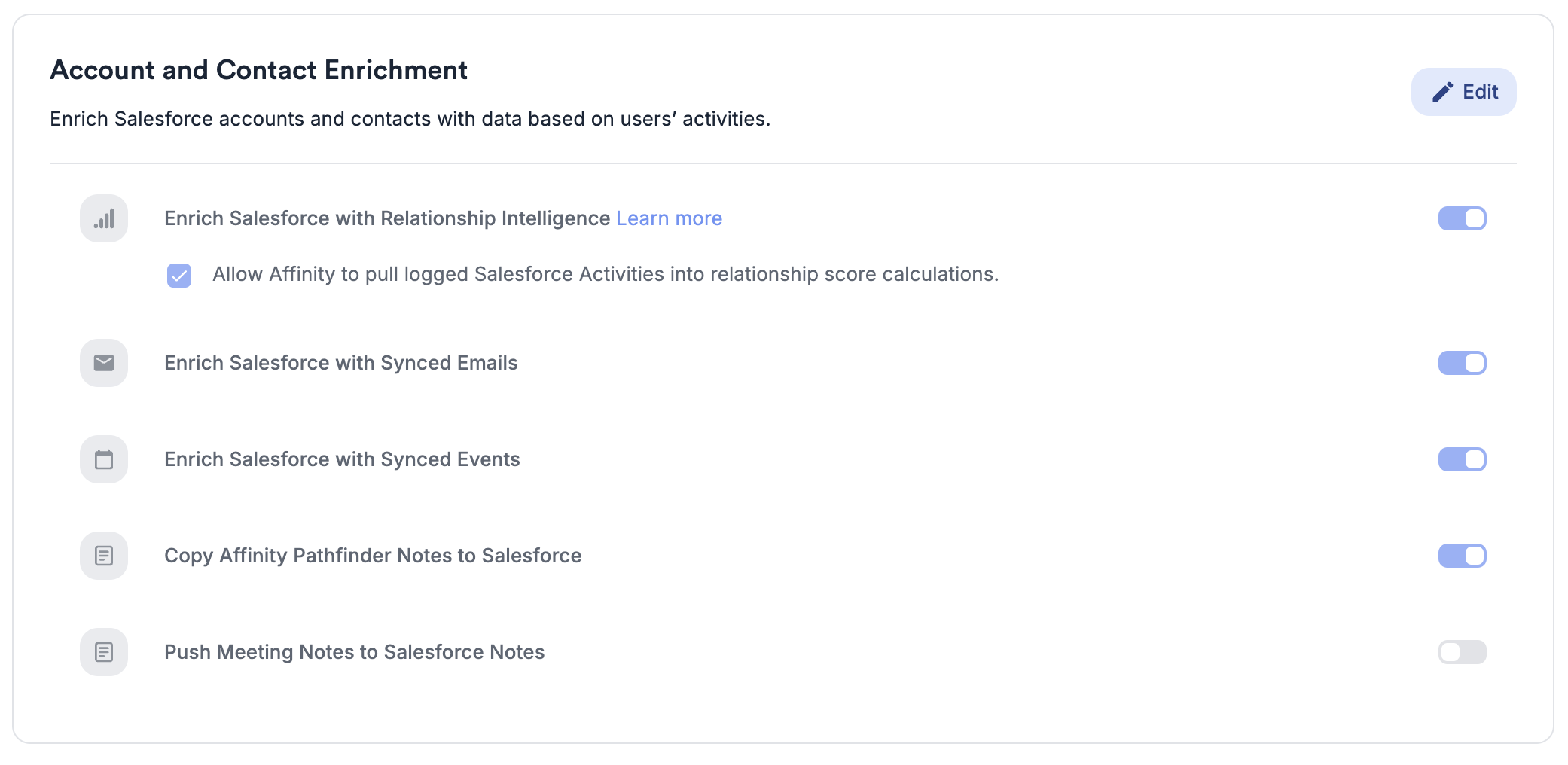
- Enable the Push Meeting Notes to Salesforce Notes Option.
- Will only be visible to meeting participants. Sharing settings can be changed on individual notes once in Salesforce
- Will contain the Meeting Summary and Transcript
- Will be linked to any Account present on the call and be visible in each Account’s Note section
- Will be visible in the user’s Notes section
- Changes made to the note in Salesforce or in Affinity will not affect each other.
- Internal Meeting Notes will not be pushed to Salesforce
How to use Affinity Notetaker
- Now that you’ve set up Affinity Notetaker, it will join the meeting based on your settings selection
- If multiple users have an Affinity Notetaker join the same meeting, only one Notetaker joins. If the meeting organizer is an Affinity user at your firm who turned Notetaker on for the meeting, their Notetaker joins and they’re the author of the meeting note. Otherwise, Affinity picks one of the users who turned it on.
- Affinity Notetaker will join the call at the scheduled start time (or instantly if the meeting has already started).
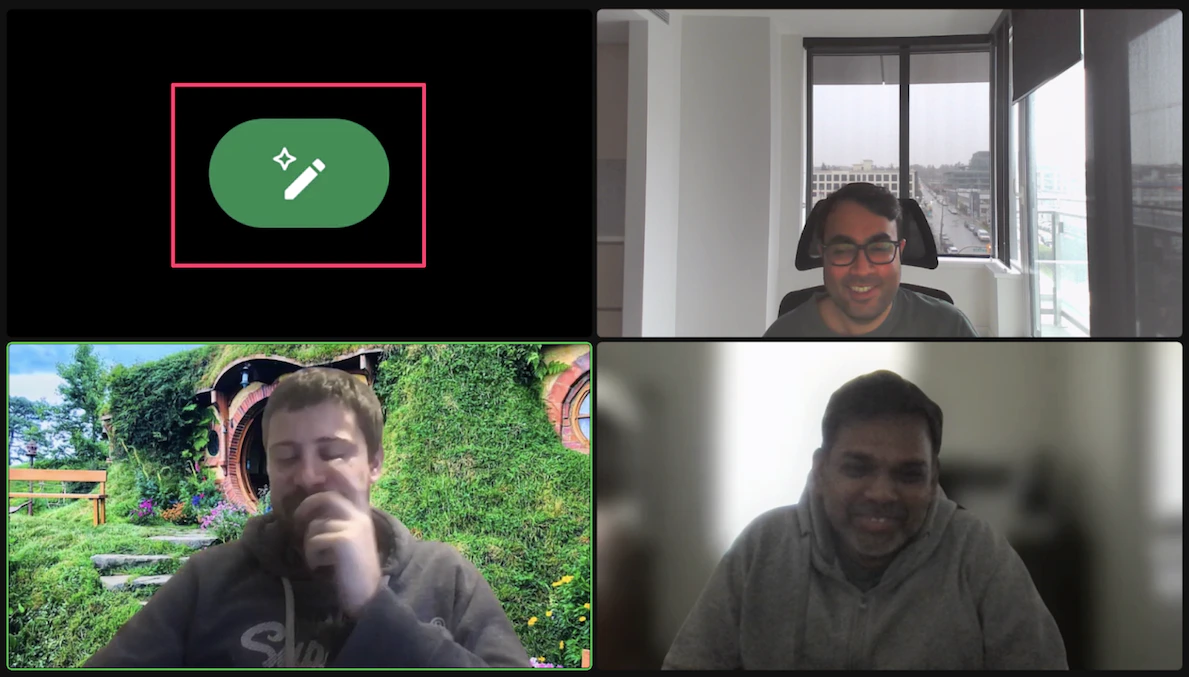
- On the call, you will see a participant under your Notetaker name transcribing and summarizing the meeting for you. This participant is a bot and will not interact with the other participants. When the Notetaker is active and transcribing, you will see a green image (see below).
- Once your meeting ends, you and your team members will receive an email with a detailed meeting summarization which includes the following: Agenda, Key Highlights, Next Steps, and Summary.
- The meeting note can be found on in the Affinity Chrome Extension or Email Extensions Note: Individual transcripts generated by Affinity Notetaker cannot be edited or deleted at this time. Admins can, however, stop Affinity retaining transcripts at all using the Transcript retention setting — see How to set up and use Affinity Notetaker.
Important Callouts
- Affinity Notetaker will only transcribe external meetings that go on for 5 minutes or longer.
- Affinity Notetaker will not be able to join meetings where a meeting room (e.g. Zoom Rooms) is set to be the meeting host.
Frequently Asked Questions
1. Where can I expect to see the transcript and meeting notes?- The meeting notes and transcript can be found on the Affinity Activity timeline in Salesforce and in inbox and browser extensions on company and participant profiles. If being synced to Salesforce as well, it can be found in the Notes section of the Account Page. 2. My meeting started later than scheduled, will this affect the Notetaker?
- The Notetaker will attempt to join the call at the scheduled start time. If the meeting starts late, the Notetaker waits for 15 minutes before leaving the meeting if no one has joined yet. 3. My meeting started earlier than scheduled. Can I get the Notetaker to join?
- No 4. Can I edit the meeting notes generated by the Notetaker?
- Yes, the generated meeting note is editable like any other note in Affinity. However, only the user who added the Notetaker can edit the note. 5. How long will it take to have the transcript and summary available after my meeting ends?
- You should expect to receive an email with a summary and transcript available within a few minutes after the end of your meeting. 6. What permissions are applied on the meeting note?
- In Salesforce, only meeting participants can see the meeting note 7. What happens when multiple participants in a meeting all invite their own Notetakers?
- Only one Affinity Notetaker (per organization) will join any given meeting. 8. What happens when there are 2 or more meeting links in the calendar invite? Which one will the Affinity Notetaker to join?
- Affinity Notetaker will join the meeting link found in the Location field of the calendar invite. 9. If Affinity Notetaker was initially kicked out of the meeting, is it possible to bring it back into the same meeting?
- No 10. Is there a meeting time limit for Affinity Notetaker?
- No, Affinity Notetaker will stay on for the meeting’s intended duration. 11. Will Affinity Notetaker join meetings/waiting rooms even if no one has joined?
- If there is no waiting room: 15 minutes
- If there is a waiting room: Google Meet 10 minutes, Zoom 20 minutes, Microsoft Teams 20 minutes