How-to — task-oriented recipe.
Overview
- What are Sync Only seats?
- Who can access and purchase Sync Only seats?
- Can Sync Only seats convert to Full Access seats?
- How to set up Sync Only seats
- How to invite and manage Sync Only users
What are Sync Only seats?
- Sync Only seats are for team members who don’t need to use or access your Affinity CRM account, but would like to sync their communications data to enhance the relationship intelligence insights for their team members with access to the Affinity CRM.
- Sync Only seats are common across Senior Executive roles.
Who can access and purchase Sync Only seats?
- All Affinity CRM customers can access and purchase Sync Only seats, regardless of their subscription tier.
- Requirement: A minimum of 5 Sync Only seats must be purchased initially, with the ability to purchase more Sync Only seats afterwards at any time.
- Interested in purchasing Sync Only seats? Please reach out to your Affinity point of contact or support@affinity.co.
Can Sync Only seats convert to Full Access seats?
- Yes, to convert a Sync Only seat into a Full Access seat, please reach out to us at support@affinity.co with their first name, last name, and email address.
How to set up Sync Only seats
- First, make sure your admin and IT team have set up Impersonation Accounts (for Gmail users) and Client Credentials (for Office365 users). Click on one of the two options below based on whether you’re using Gmail or Office365.
- Gmail users: Setting up Impersonation for Google accounts
- Office365 users: Setting up Microsoft Graph Client Credentials for Microsoft accountsNote: Exchange (On-Premise) users are not supported at this time.
- Next, you must provide ownership verification for your organization’s domain (see Domain Verification Guide for Sync Only users).
- Last but not least, make sure that your account role matches the following below based on your subscription tier:
- Enterprise tier: By default, only Enterprise Admins will be able to set the privacy preferences for Sync Only users.
- Enterprise Admins have the option to extend user permissions management to Admins and/or Standard users by clicking Edit Permissions (see the section titled ” What permissions can the Enterprise Admin change” within Account Level Permissions)
- Essential, Scale and, Advanced tiers: Only Admins will be able to set the privacy preferences for Sync Only users.
- Enterprise tier: By default, only Enterprise Admins will be able to set the privacy preferences for Sync Only users.
How to invite and manage Sync Only users
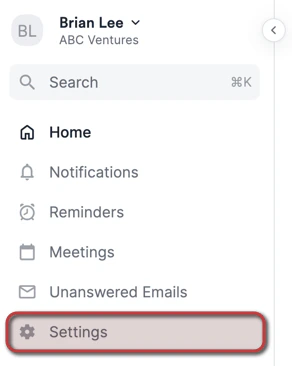
- Now that you have set up access to Sync Only seats, click on Settings on the left side of your screen to start sending out invites.
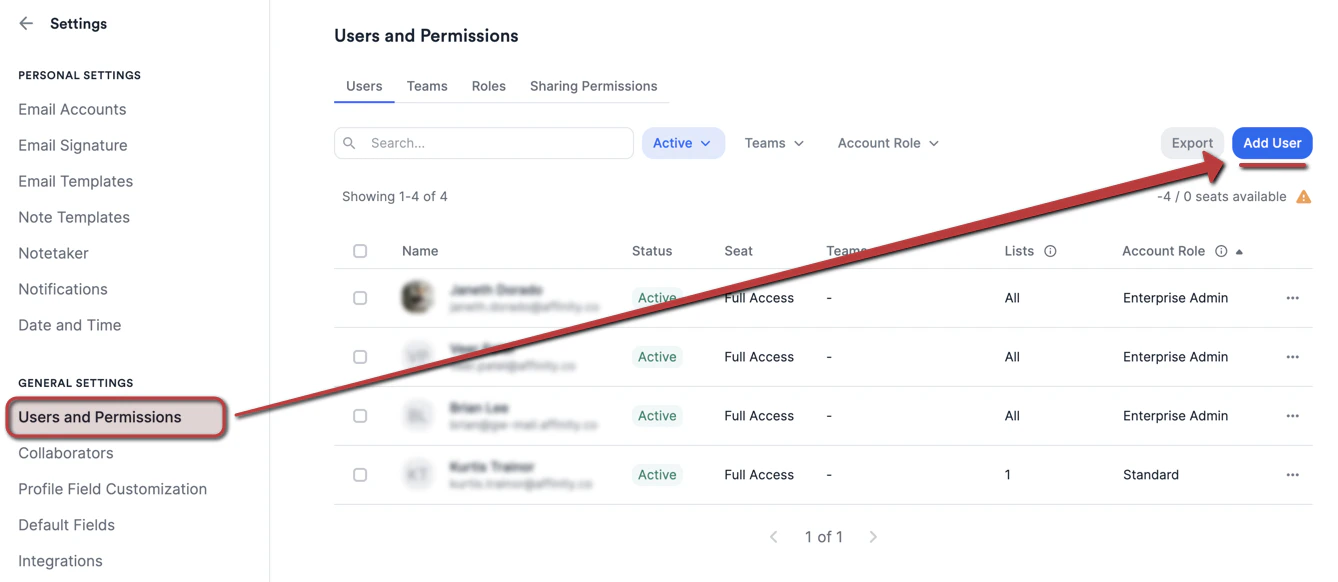
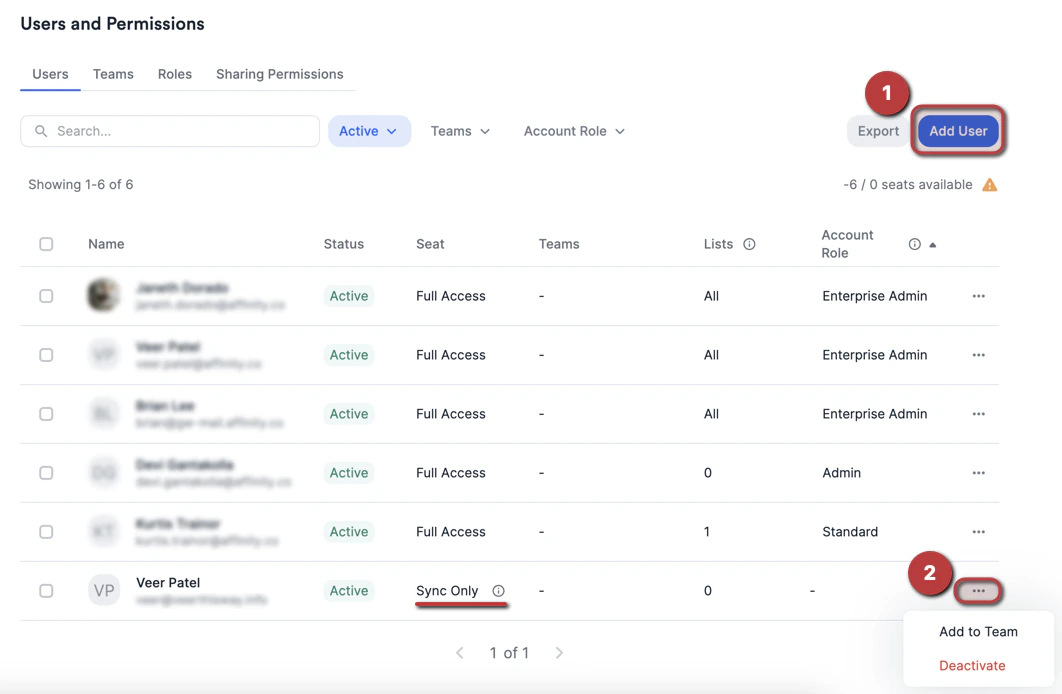
- Click Users and Permissions, then click the Add user button on the top-right corner.
- Select Sync Only for the seat type, then enter the user’s full name and email address, assign them to a team (if they’re on the Enterprise tier), and select their privacy preference for their synced emails and meetings.
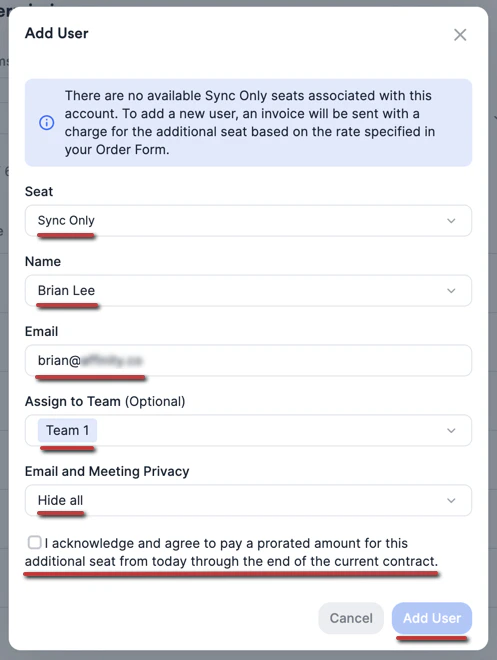
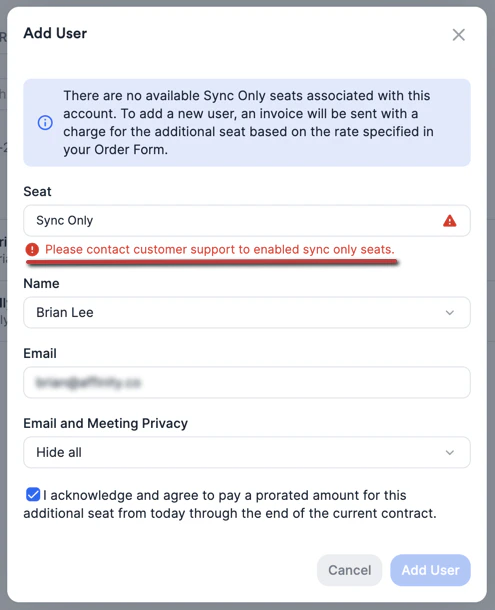
- If you have already reached seat capacity for your subscription, you must click the checkbox acknowledging that you will pay a prorated amount for the additional seat (see Getting started with billing in Affinity).
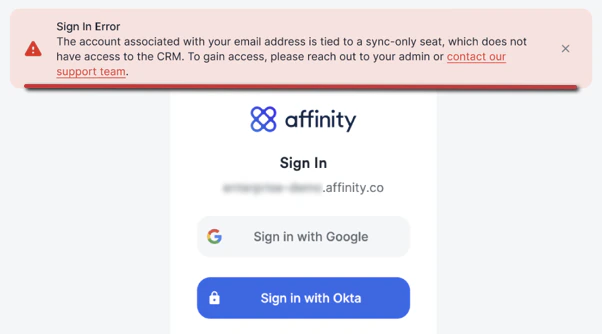
- Once they are added, the syncing process will begin. Please note that it may take up to 24 hours based on how much data they have). Rest assured that your team member won’t be accessing the CRM - they will simply see a screen that looks like this:
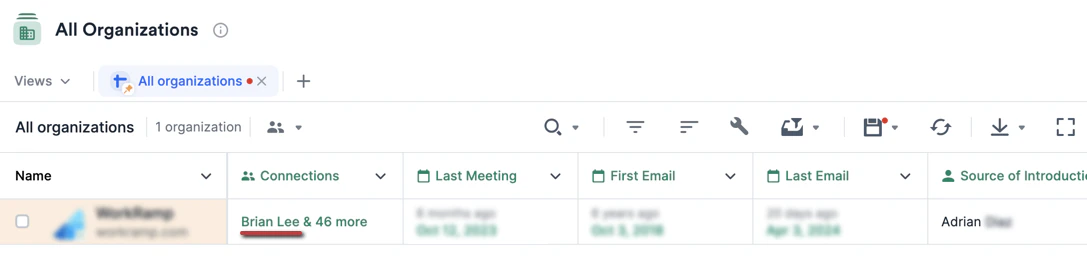
- After 24 hours, you may see new people and organizations appear in your All People and All Organizations directories based on the Sync Only user’s synced communications data. You will see the Sync Only user appear in the Connections field, providing you and your team members (who have access to the CRM) now with even more historical context and relationship intelligence insights.
- Back on the Users and Permissions tab, you can add more team members as Sync Only users or deactivate them accordingly.
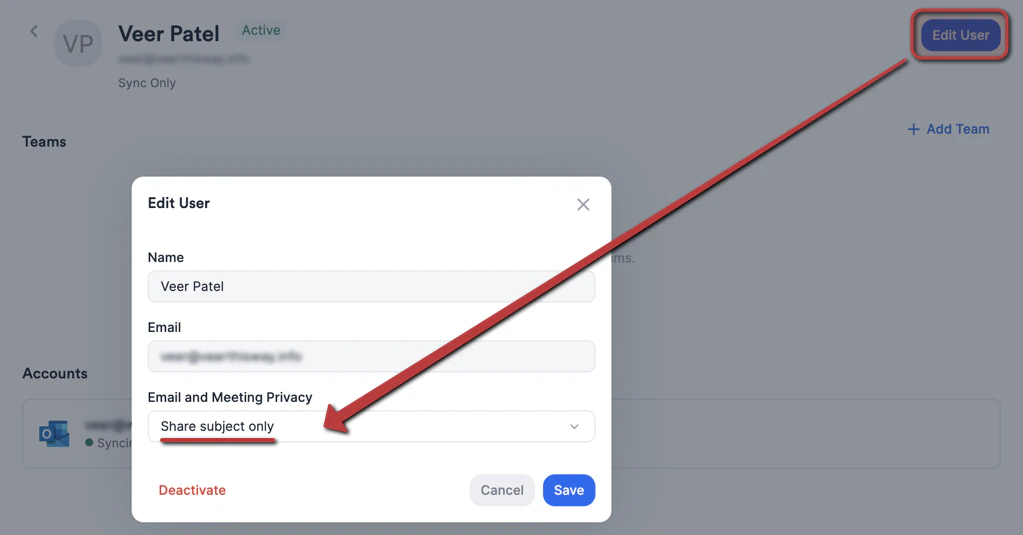
- Last but not least, you can click on each Sync Only user’s name, then click Edit User on the top-right corner to change their Email and Meeting Privacy preference.