

Troubleshooting — fix for a specific issue.
Prerequisites
- You must be on the Scale, Advanced or Enterprise tier, and fully syncing your email/calendar data.
- Your email account must either be Gmail or Microsoft Office 365. Affinity Notetaker is not available for Microsoft Exchange (On-Prem) users due to technical limitations related to Exchange calendars.
- Affinity Notetaker is only compatible for virtual meetings held on Zoom, Google Meet, and Microsoft Teams.
Reasons why Affinity Notetaker may not be able to join a meeting
- If you are in a 1:1 meeting, please make sure that the contact has a profile already created within Affinity, otherwise, they will not be identified as an external and Notetaker will not join.
- If you are in a event with multiple external attendees, at least one of them must have a profile created within Affinity.
- Affinity Notetaker can only join meetings that are fully synced into Affinity. Meeting would need 2.5 hours to fully sync into Affinity, or after edited. Please create the meeting ahead of time.
- Affinity Notetaker will not be able to join meetings where a meeting room (e.g. Zoom Rooms) is set to be the meeting host.
- We highly suggest designating an individual to be the meeting host, not a meeting room.
- If there are two or more team members from the same organization (with Affinity Notetaker enabled) join a meeting, only one of their Affinity Notetakers (at random selection) will be allowed to join the meeting.
- In other words, only one Affinity Notetaker (per organization) can join any given meeting.
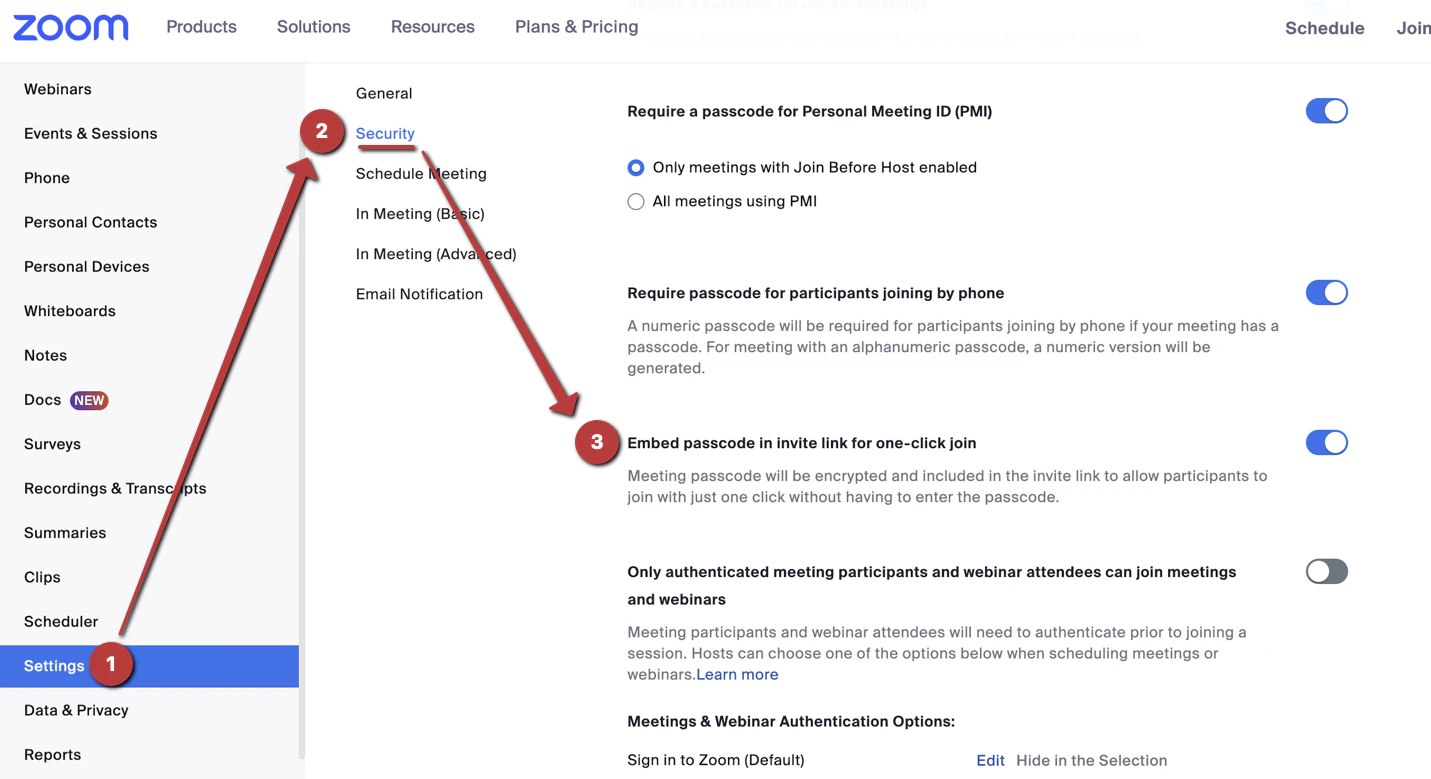
- Affinity Notetaker may not be able to join Zoom meetings where a passcode is present, but not embedded in the invite link.
- To resolve this issue, go to your Zoom Settings on the web app, then click the Security tab, and toggle on Embed passcode in invite link for one-click join.
Reasons why Affinity Notetaker may not be able to generate a transcript/meeting note
In all of these situations, users will get an email indicating that Affinity Notetaker could not generate a transcript/meeting note:- The meeting lasted less than 5 minutes.
- Affinity Notetaker was kicked out of the call by the Meeting Host.
- Audio issues (noisy background, muffled audio, or the audio was too low).
- The host did not allow Notetaker to join the meeting (declined permission when prompted).
- The meeting was scheduled or rescheduled less than 2.5 hours ahead of time.
- The meeting time or meeting link was changed on the calendar event.
- We suggest changing the meeting time at least 2.5 hours in advance for Affinity to register the update. If it’s a last minute change, you can sometimes manually toggle off and toggle back on Notetaker to make it join immediately.
- We suggest leaving the original meeting link as is.
- If you change a meeting time and notetaker attempts to join the older meeting time, then notetaker will not be able to join the newer meeting time as it did not get enough time to process the meeting change. In order to get notetaker to join in this case, please create a new meeting.
- Notetaker operates best when it has 30 mins to 2.5 hours in between scheduling or any changes to the schedule.
- For Zoom calls:
- The meeting host denied permission for Affinity Notetaker from recording the meeting. The Notetaker will appear as Inactive on the call in this case. Should you decide later within the meeting that you’d like the Notetaker to join the call, simply click the toggle back on within the Meetings tab.
- There was no assigned meeting host, or the meeting host didn’t join the call to allow Affinity Notetaker to record the meeting. The Notetaker will appear as Inactive on the call in this case. You can also ask them to set up Local Recording on their end moving forward (see Step 2 in How to set up Affinity Notetaker).
- The beginning of the meeting was silent for too long (no one spoke).
- Affinity Notetaker currently only accepts the following direct meeting URLs:
- Zoom
- Google Meet
- Microsoft Teams