

Troubleshooting — fix for a specific issue.
Inaccurate data
- If you just made changes to specific field values that would affect your dashboard view(s), please wait as Affinity Analytics refreshes the underlying data once every 1-2.5 hours.
- If you notice any inaccurate data with your dashboard view(s) even after the underlying data has been refreshed, please email us at support@affinity.co with screenshots and/or screen recordings so that we can provide the best resolution in a timely manner.
401 Error: You are not authenticated to view this page
- Right click anywhere on the screen, then click Inspect.
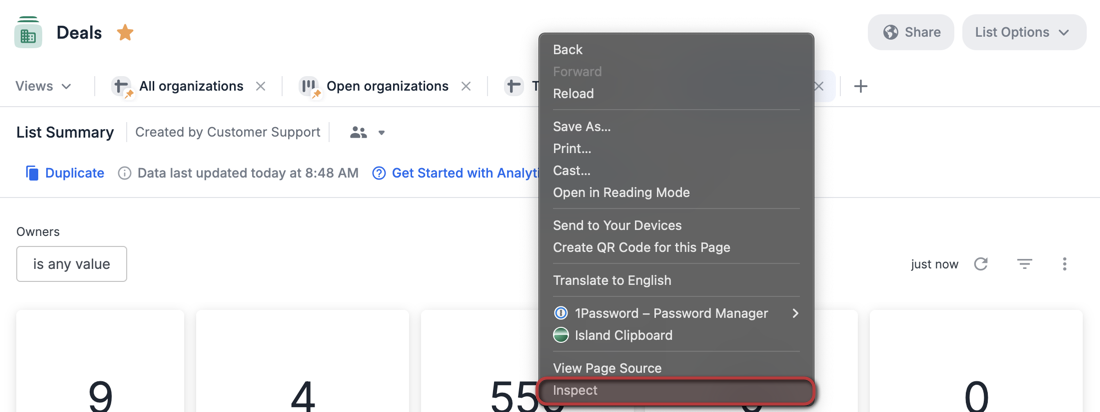
- Click on the Application tab, then right-click on each option under Local storage and click Clear for each option. In this example, you would click Clear three times because there are three options shown.

- Repeat Step 2 for each option under Session storage and Cookies.

- Now, save any changes on the tabs in your web browser, then quit your web browser and reopen it.
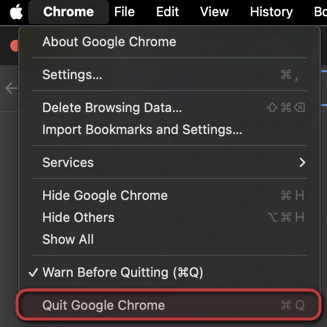
- Go back to your dashboard view and you should see it start loading successfully. If you’re still encountering the 401 Error, please contact us at support@affinity.co and we’d be happy to help.
Model not found
If you run into this issue, it may most likely be that our backend is still taking time to digest and display all your data. This is especially common for first-time users who just had Affinity Analytics turned on for their account.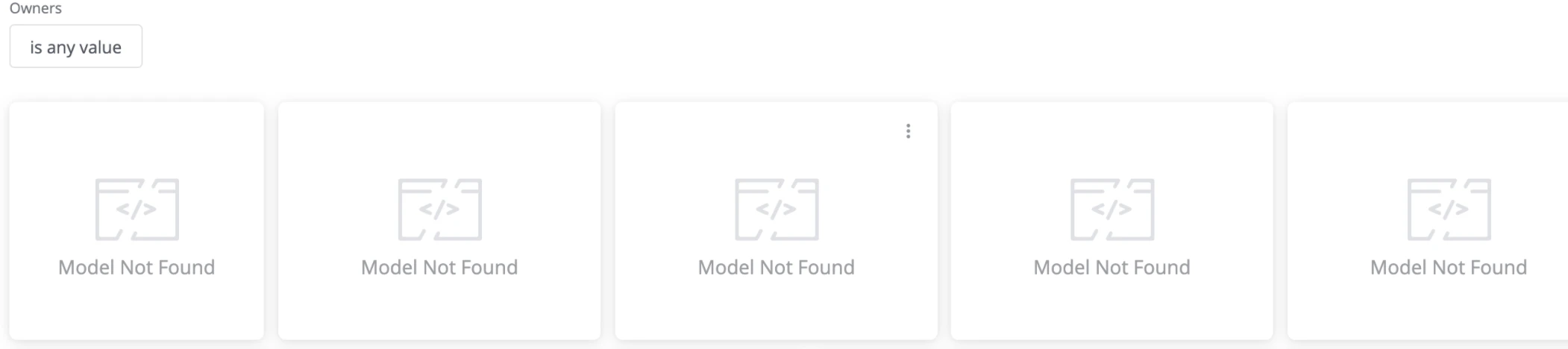
- Simply reach out to us at support@affinity.co, and we will provide you with an email update once our backend process is complete.
Could not find the model or view requested
If you run into this issue, you may most likely be editing two or more different dashboard views at the same time.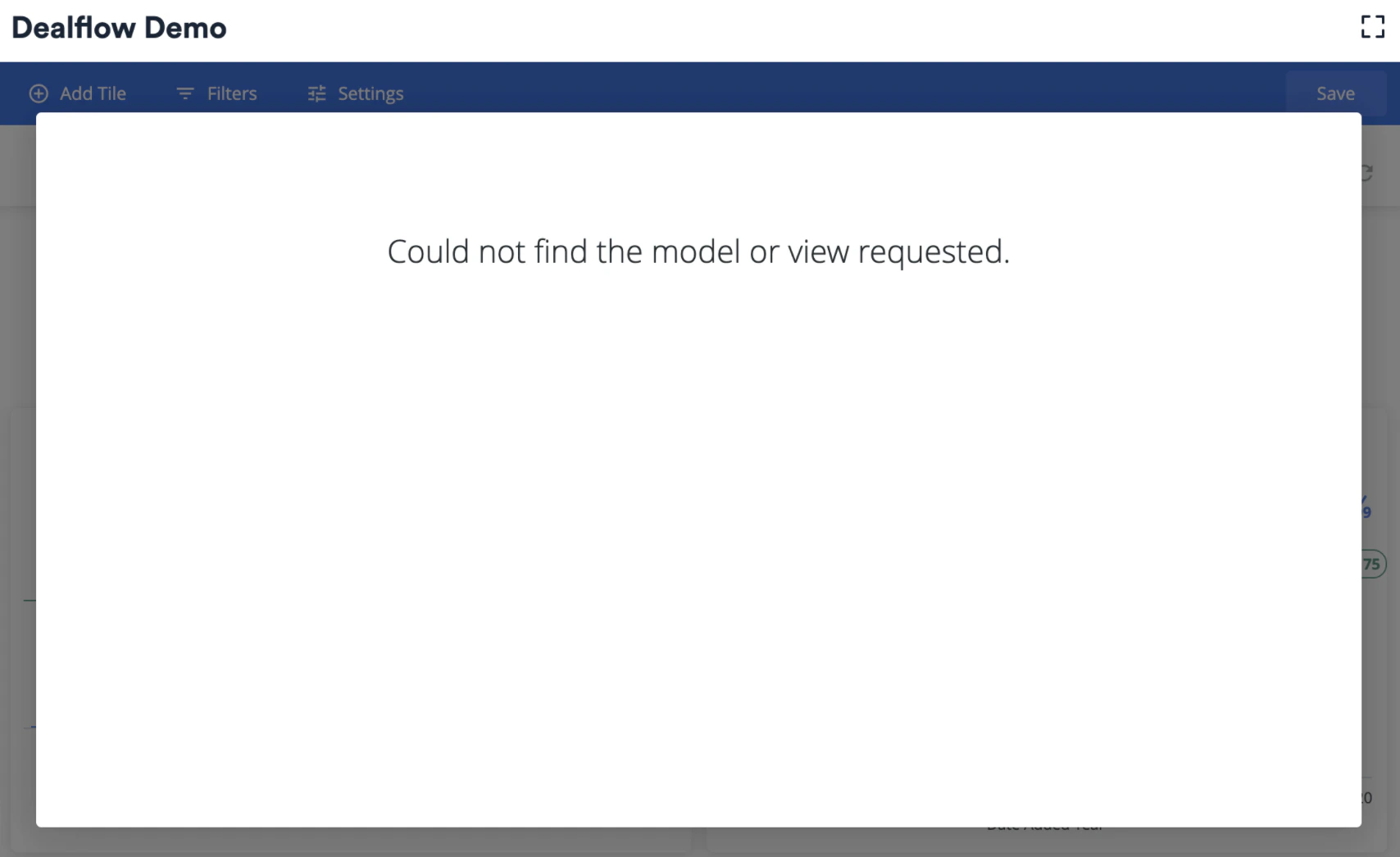
- Simply save the previous dashboard views you were editing and close them out, then refresh the webpage for the most recently visited dashboard view to see if that helps.
- If it still doesn’t work, reach out to us at support@affinity.co and we’d be happy to help.
Uh oh. Your save failed, please try again
If you run into this issue, you may most likely have left the dashboard view open on your web browser for more than 24 hours.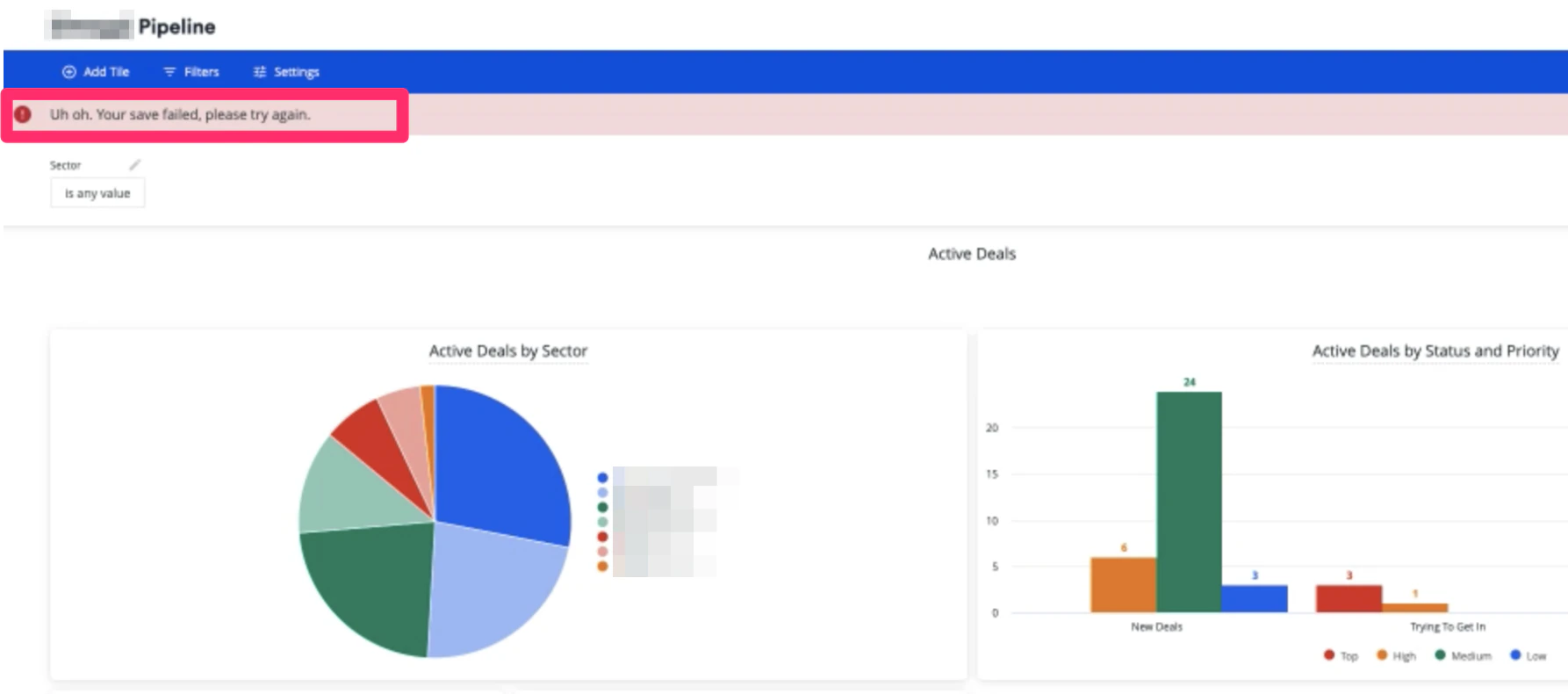
- Though you may be able to edit the dashboard view and its tiles, saving any changes you made may fail.
- Since you cannot save the changes, please make sure to refresh your webpage whenever you are about to make changes to a dashboard view that was left open for a while.
Something went wrong
If you run into this issue, you may most likely not have permissions to access some/all tiles for that specific dashboard view because the person who created the tiles sourced them from another list that you may not have access to.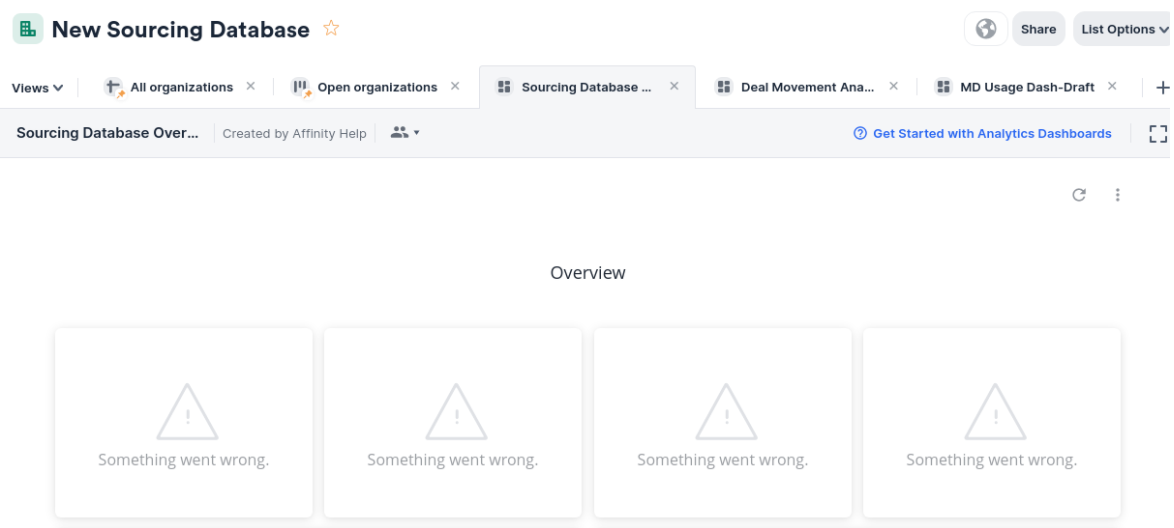
- To view the tiles, you can ask the creator of the dashboard view to go into Edit mode and check which list(s) the tiles are being sourced from.
- The creator of the dashboard view can then click into those lists and see whether you have access to them or not by clicking on the Share button.
- If the creator of the dashboard view is the list owner/list admin for any of these lists, they can add you to these lists. Otherwise, they would need to ask the list owner to add you.
NULL Values
- NULL appears in some visualization tables when the fields being used are empty and do not have data.
- Simply add values to these fields for their respective list entries to reduce/eliminate the number of NULL values.

- If they are meant to remain empty, you can also filter out the NULL values.
