

How-to — task-oriented recipe.
How to export a dashboard view (one-time)
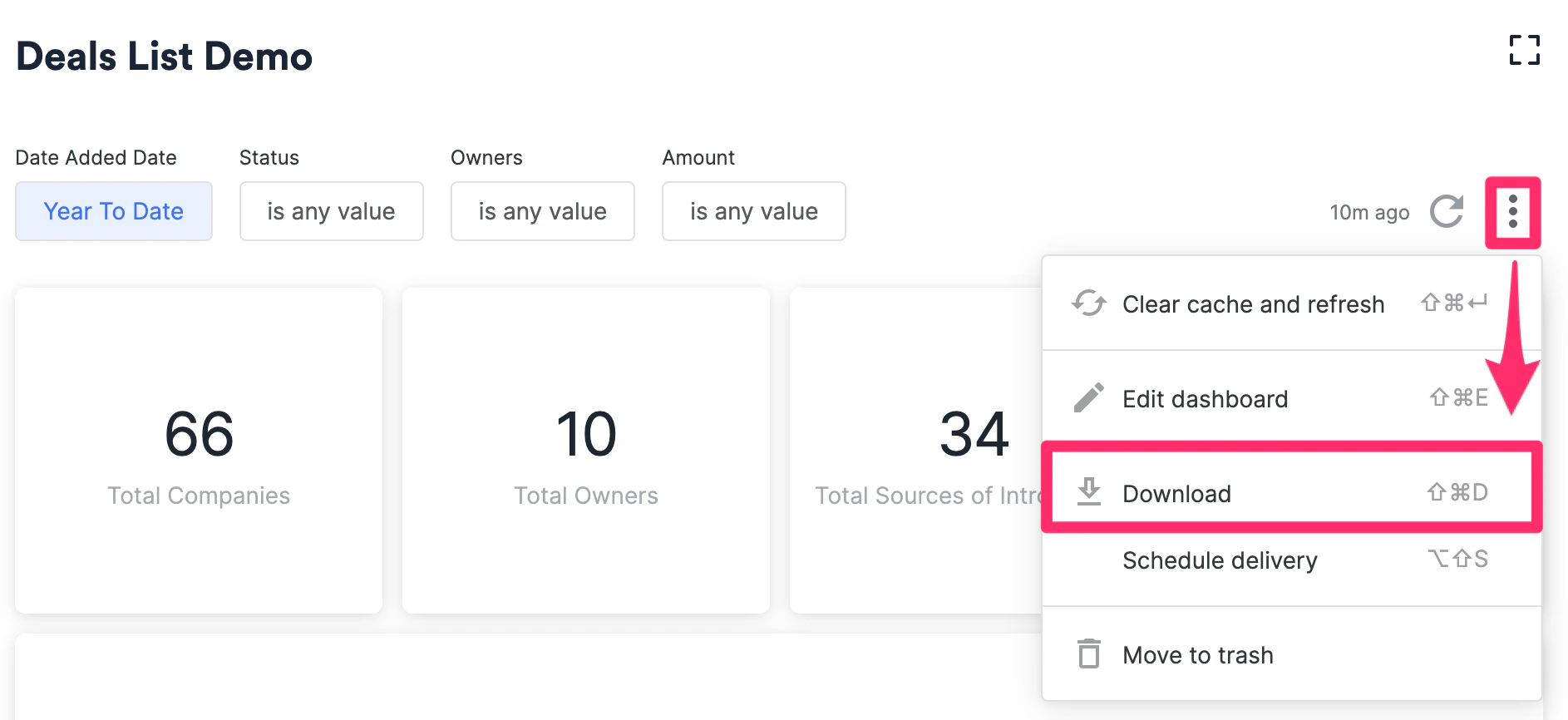
Once you’ve built out a dashboard, you can download it as a PDF or CSV and send it to others outside of your team Affinity account.- Click the ellipsis (3-dotted icon), then click Download.
- Select one of two formats: PDF or CSV.
- The PDF format will display the visuals as is.
- The CSV format will consist of multiple CSV files containing the quantitative values shown in each visualization tile.
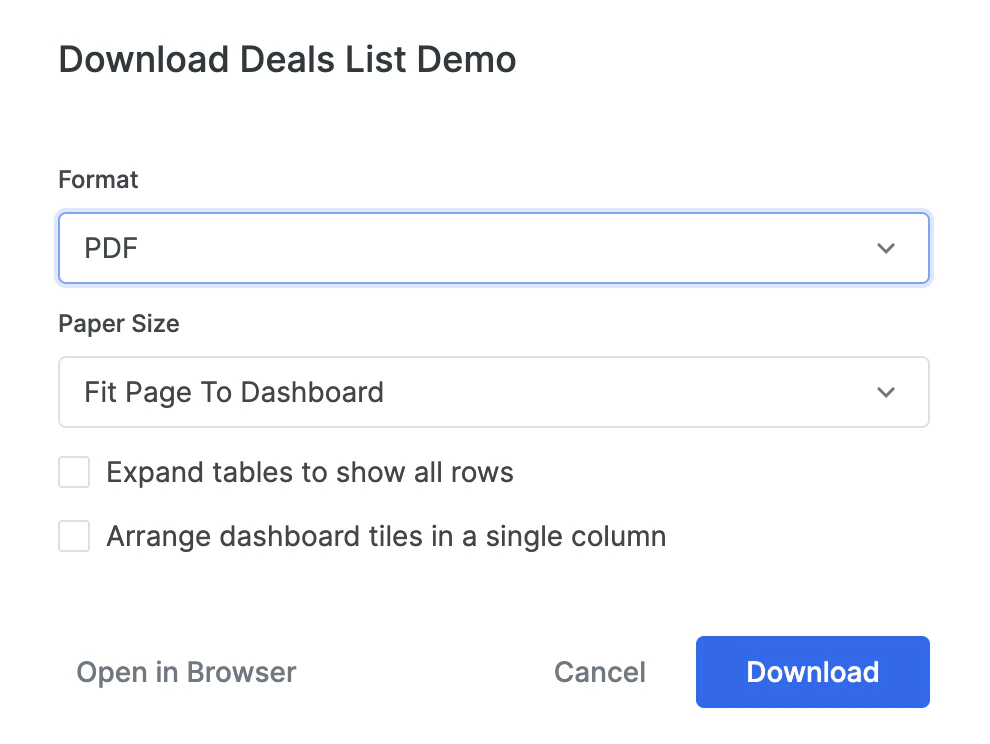
- If you choose the PDF format, select a Paper Size. If you have a long dashboard with many tiles, we would highly suggest sticking with Fit Page To Dashboard.
- You can additionally choose to expand tables to show all rows and not just a few.
- You can additionally choose to arrange dashboard tiles in a single column.
- You can click Open in Browser to see a preview of the PDF before choosing to download it.
- Once you approve of the PDF, click Download.
- If you choose the CSV format, simply click Download.
How to email a dashboard view to yourself/others (one-time and recurring)
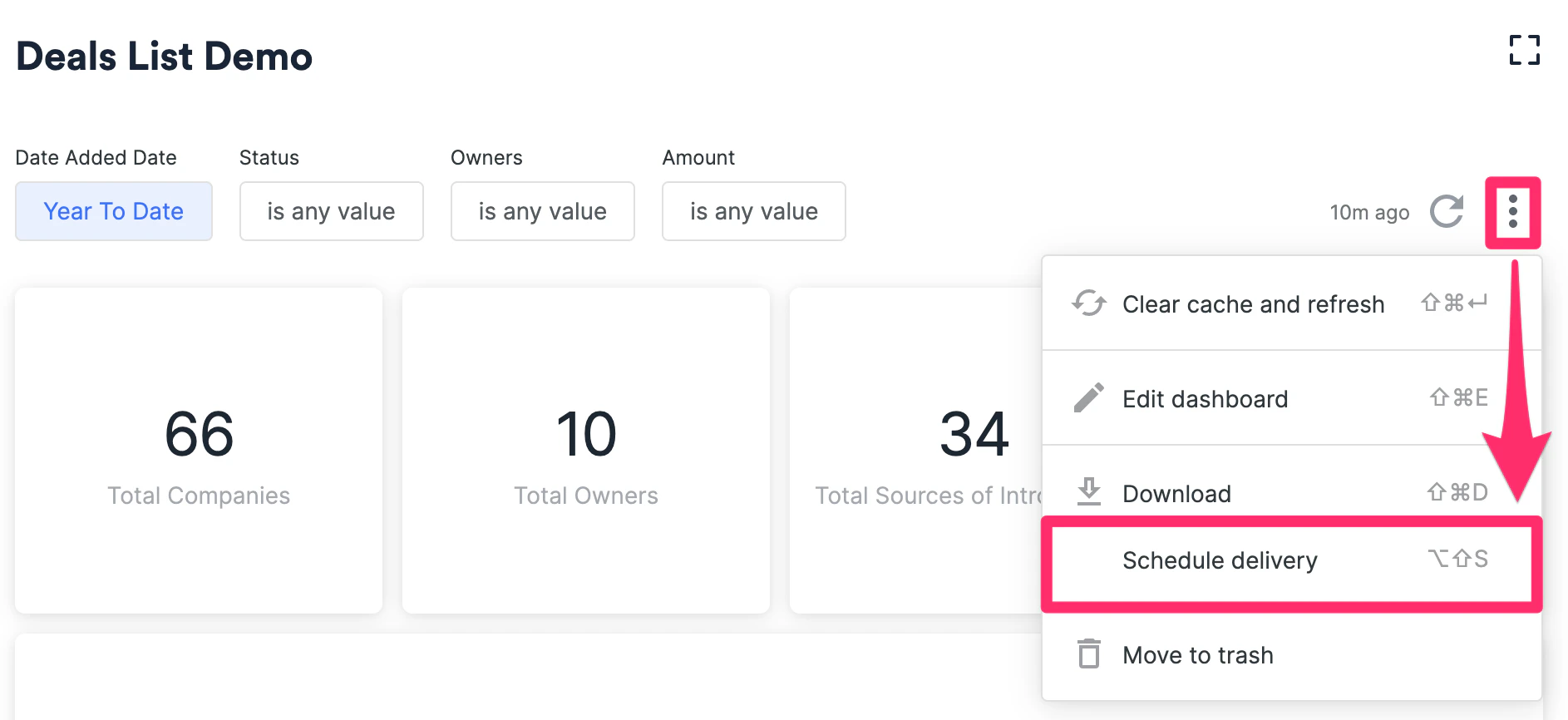
If you’d like to send out certain dashboards to yourself/others on a frequent basis, you can set it up so that you receive automated emails on a recurring basis.- Click the ellipsis (3-dotted icon), then click Schedule delivery.
- Select your preferred Recurrence and Time.
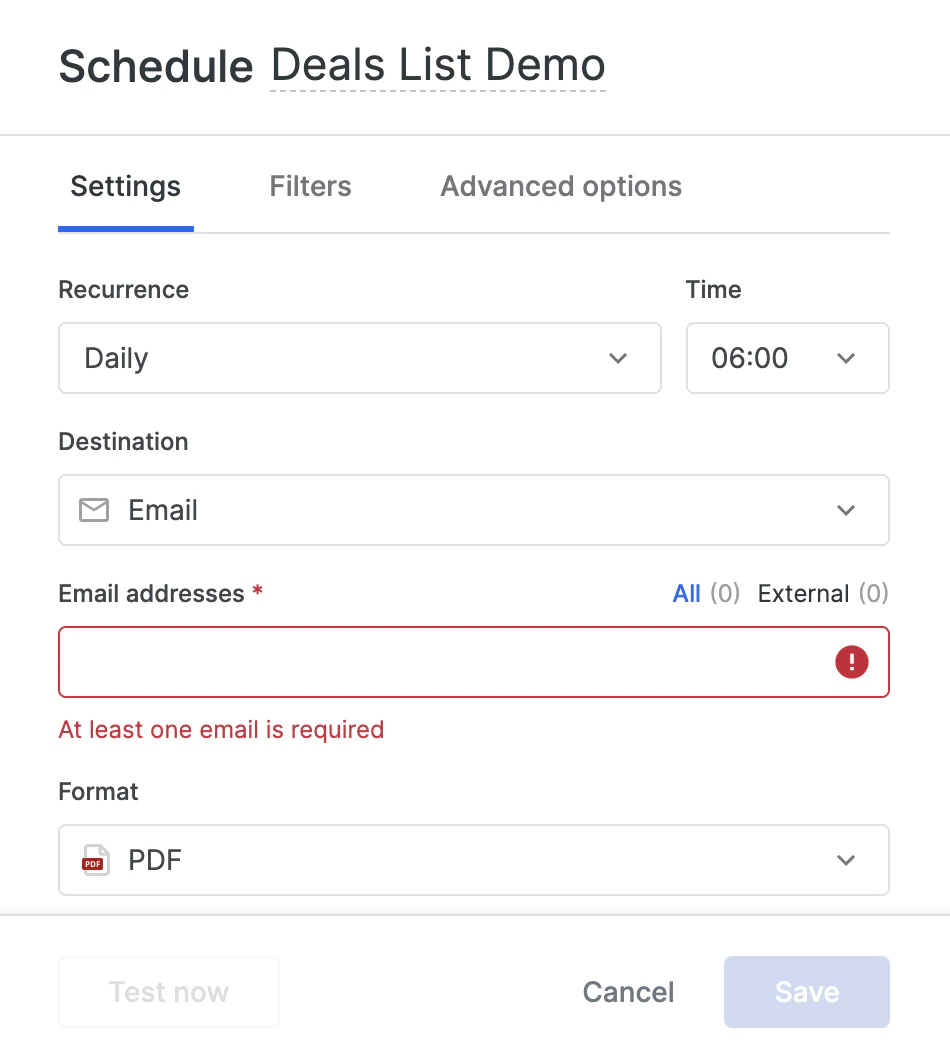
- Select one of three formats: PDF, PNG, or CSV.
- The PDF format will display the visuals as is.
- The PNG format will display the visuals as is.
- The CSV format will consist of multiple CSV files containing the quantitative values shown in each visualization tile.
- Click Save and you’re all set!