How-to — task-oriented recipe.
How to set up your email signature in Affinity
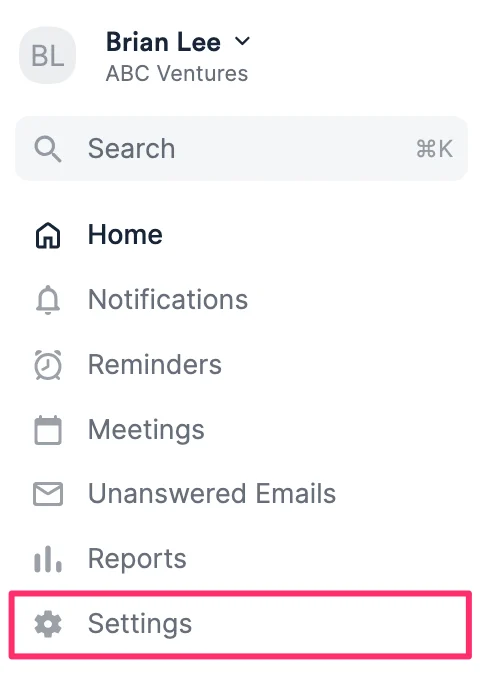
- Click **Settings **on the left side panel.
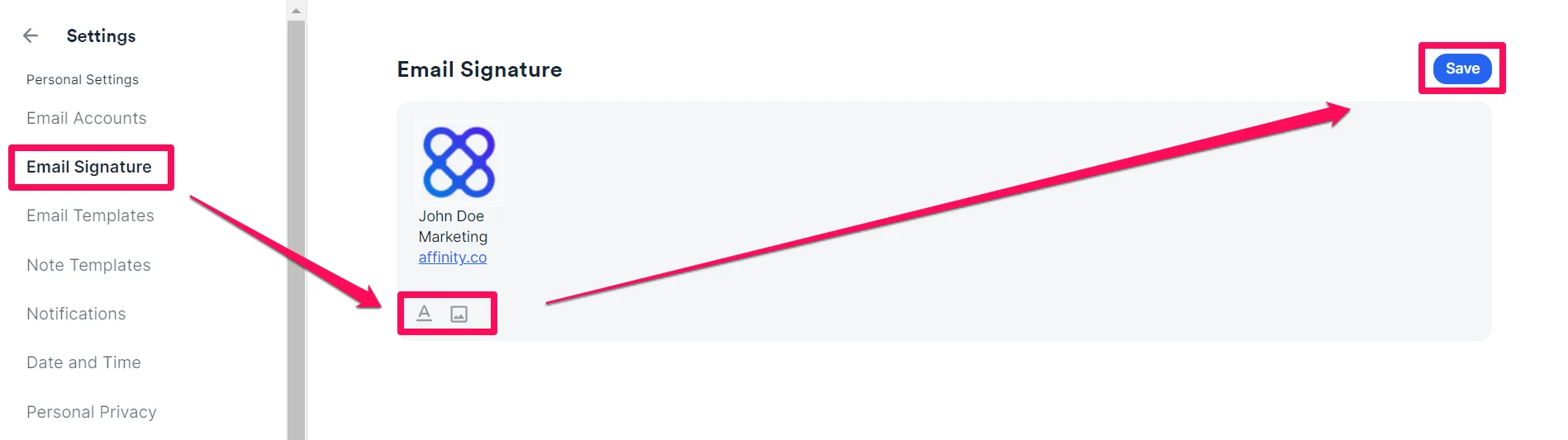
- Click the Email Signatures tab.
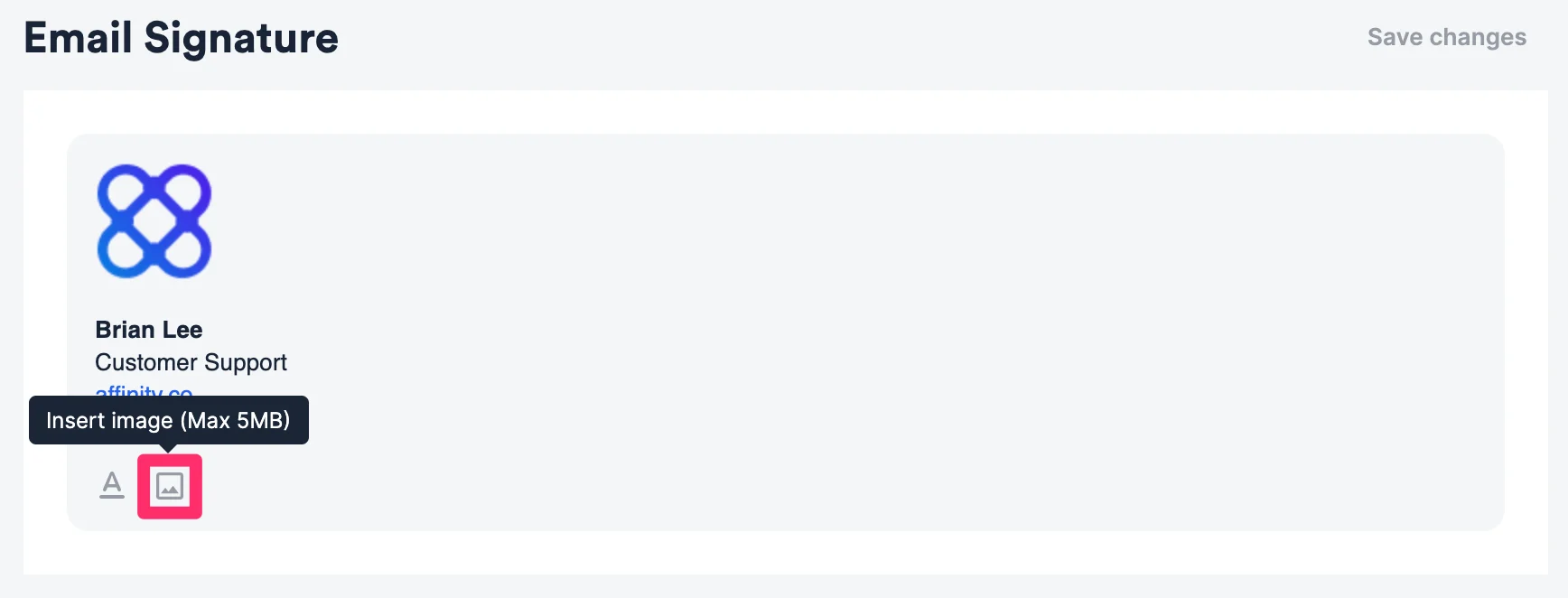
- Type in your email signature and customize it by adding rich-text formatting and/or an image.
- Finally, click Save changes.
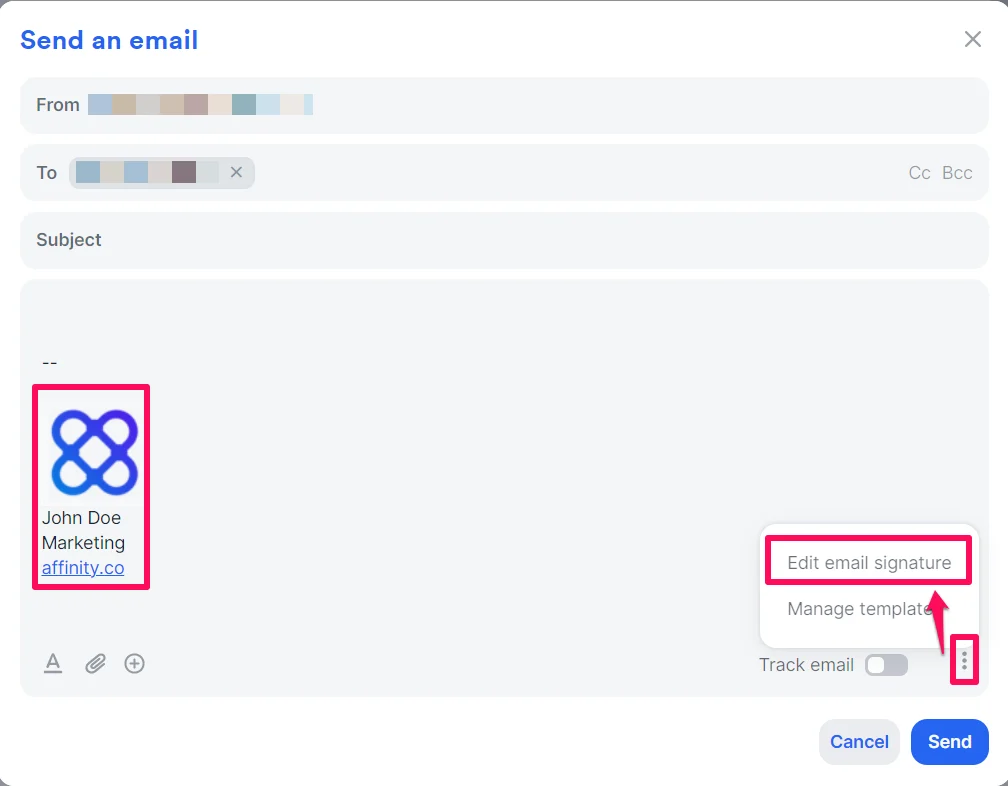
- Now, you will see your email signature whenever composing an email or using an email template within Affinity.
- Feel free to click the ellipsis (3-dotted) icon to edit your email signature or quickly access your email templates.
Things to note
- The maximum image size supported for an image is 5MB.
- All images will be downsized and maintain aspect ratio to 300px on the longest side (height or width).
- You cannot paste an existing email signature with images directly into Affinity. You have to re-upload the image directly by clicking on the Image icon (see below).