

Reference — lookup information.
Overview
- What are Relationship Strengths in Affinity?
- Types of Connections in Affinity
- Degrees of Connections in Affinity
- Viewing Connections on a contact’s profile page
- Viewing Connections within a list
- Can you export Connections and Relationship Strengths from Affinity?
What are Relationship Strengths in Affinity?
A relationship strength is a numerical score given to your connections that ranges from 10 (weak) - 100 (strong). Relationship strengths are calculated based on the recency and frequency of interactions between two individuals. The scores are also ranked by different colored bars.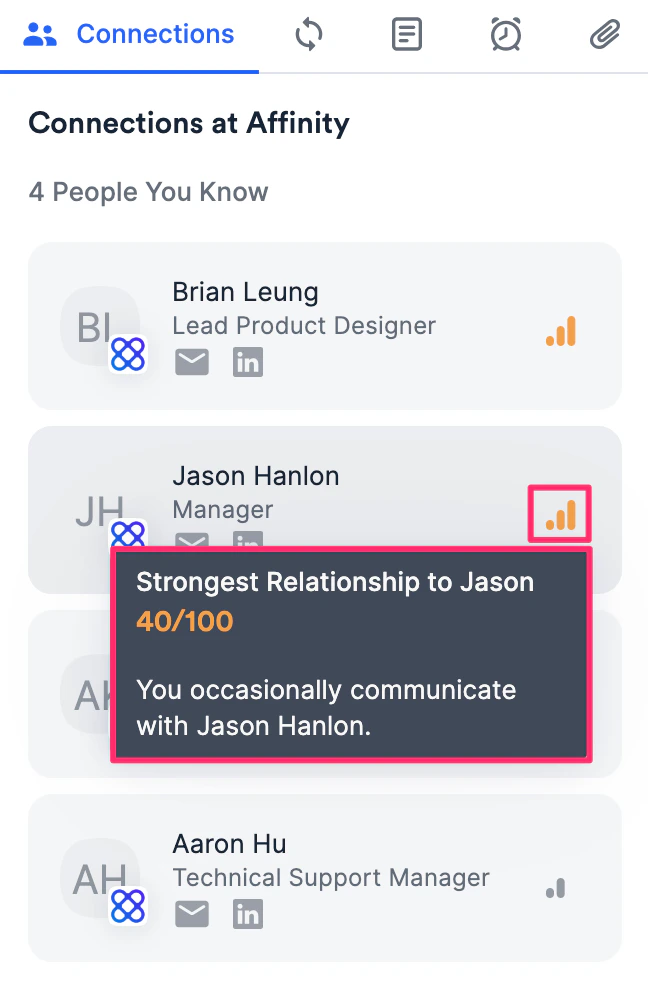
- Green bars represent strong connections
- Orange bars represent average connections
- Gray bars represent weak connections
How often do Connections and Relationship Strengths update?
- Relationship Intelligence calculations run every 6 hours. A new interaction won’t change a score the moment it happens — expect it to be reflected at the next calculation.
- The first sync takes longer. When you sign in and sync for the first time, allow up to 24 hours for your connections to appear at all.
- Manually logged interactions count too, not just synced email and calendar activity — which is why logging a call or a LinkedIn conversation strengthens the relationship the same way a synced meeting does.
- The score isn’t configurable. You can’t choose which emails, meetings, or activities feed it, or weight them differently. It’s computed by Affinity’s relationship intelligence engine from the interaction data it collects.
Using Affinity for Salesforce? The same 6-hour calculation applies, and the outbound sync to Salesforce runs within the hour after strengths are recalculated — so allow up to 7 hours end to end.
Types of Connections in Affinity
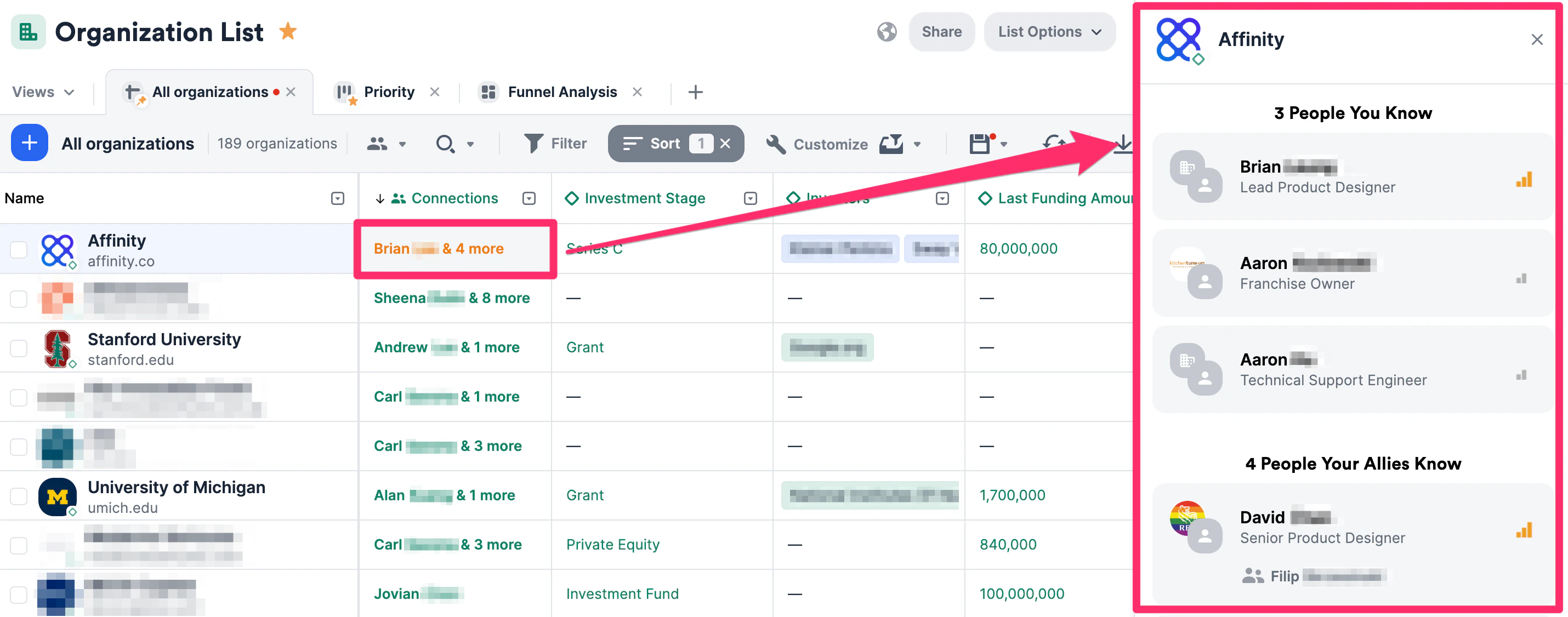
- People You Know - These are the people you have directly communicated with.
- People Your Allies Know - These are the people that your allies have directly communicated with (see Getting started with Affinity Alliances).
- People Added Manually - These are the people that are manually associated within your Affinity instance.
- Inferred Connections - These are the people that you/your team can potentially get introduced to based on previous shared work experience.
- Inferred Connections appear on organization profiles and on people’s profiles — including the profiles of bridge contacts. They do not appear on opportunities, or on internal user profiles.
- Inferred Connections will only be available for those on the Scale, Advanced, and Enterprise tiers. If you’re interested in upgrading to one of these new tiers, please reach out to your Affinity point of contact or support@affinity.co.
Degrees of Connections in Affinity
Powered by Affinity’s relationship intelligence, you will be able to quickly see your 1st and 2nd degree connections with a person or organization:- 1st Degree - Someone you directly know and have communicated with.
- 2nd Degree - Someone who knows one of your 1st degree connections, but you don’t directly know.
Viewing Connections on a contact’s profile page
- Click the Connections tab to see your/your team members’ connections with that contact.
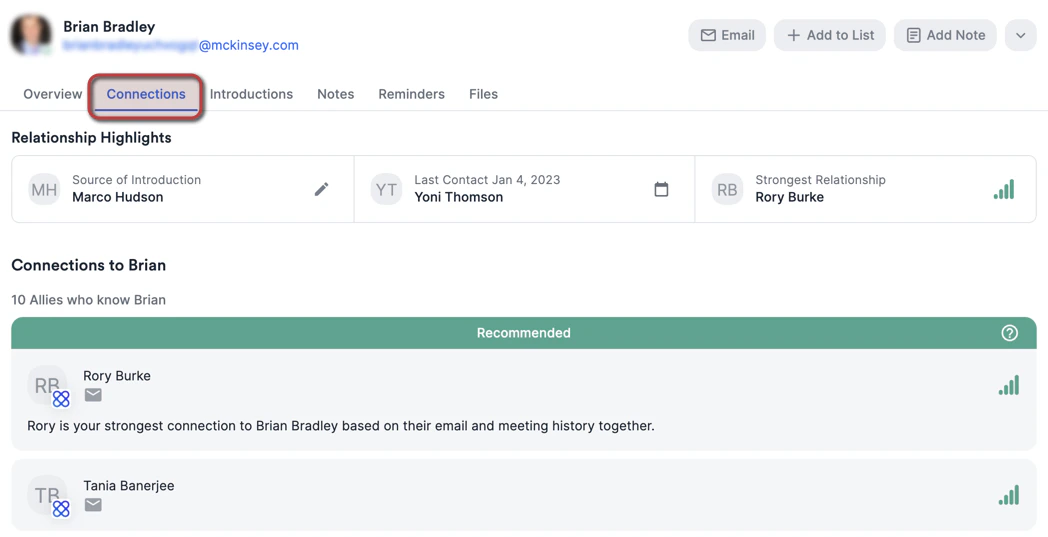
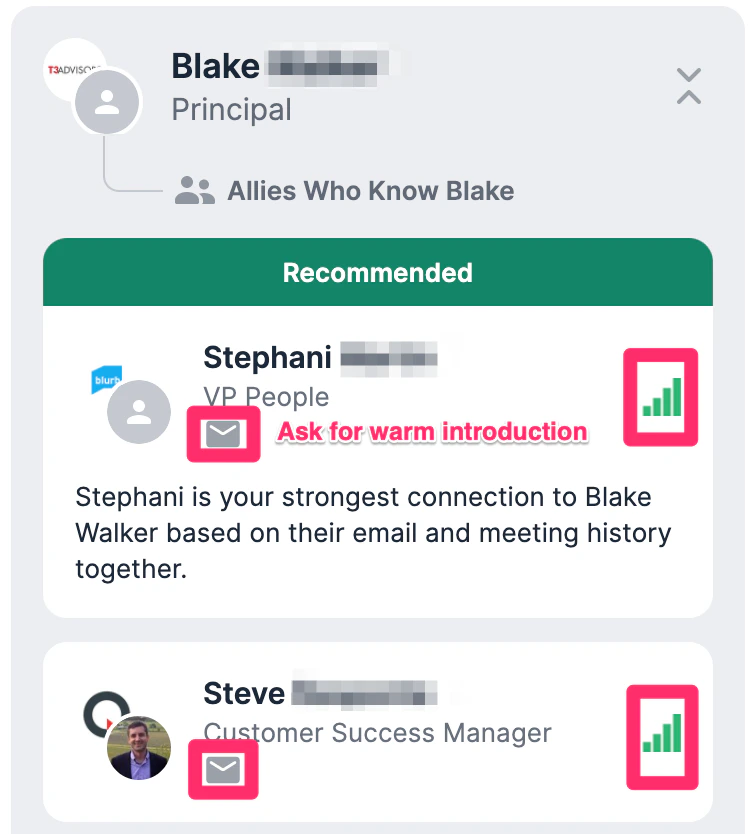
- Click on each contact to see everyone that can provide you with a warm introduction to that contact.
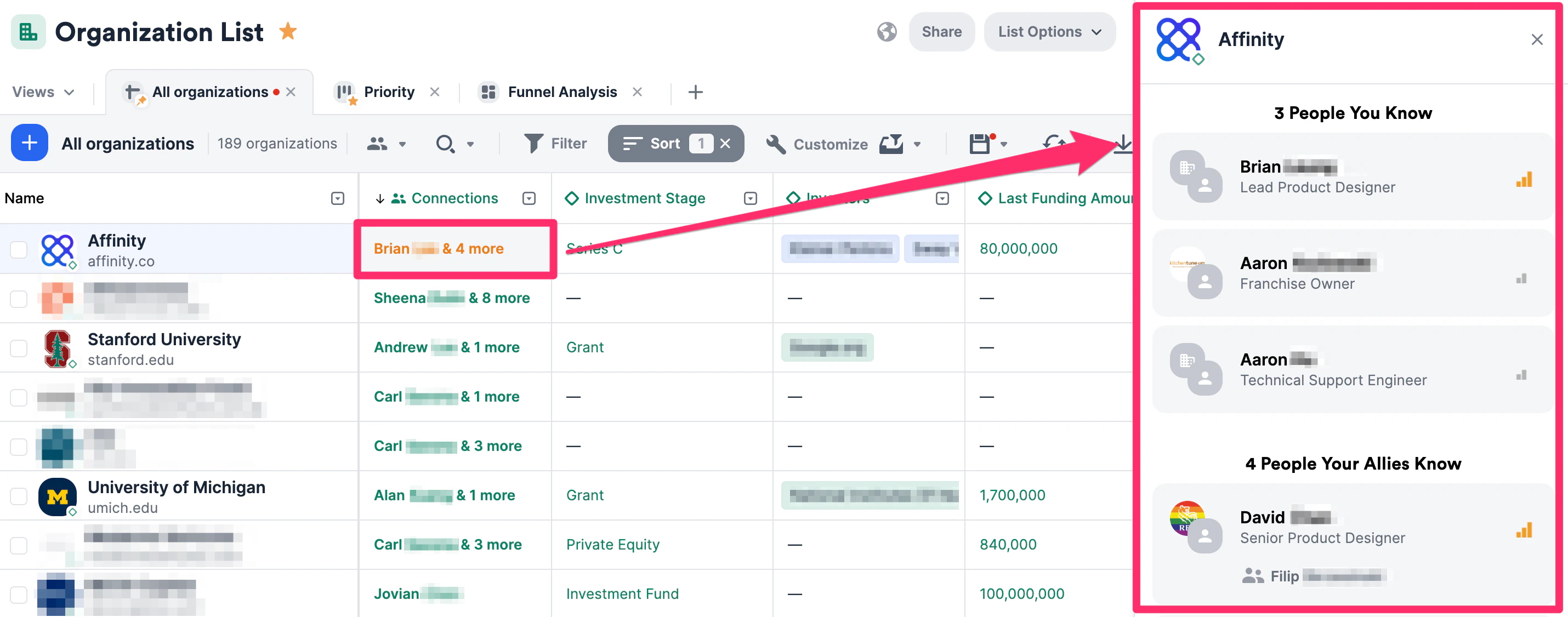
Viewing Connections within a list
- Click any cell within the Connections column to see your connections to that contact. The Connections sidebar will slide out from the right side of the screen.
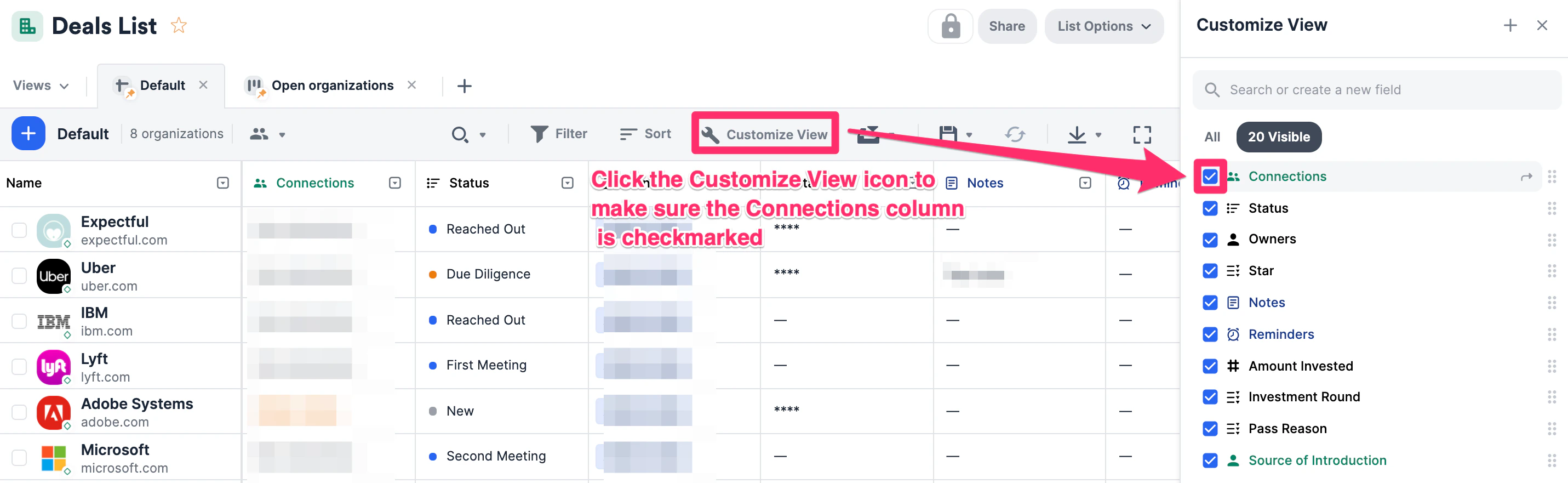
- If you cannot find the Connections column, click the Customize View icon to make sure it’s checked and on display.
Can you export Connections and Relationship Strengths from Affinity?
- Connections and Relationship Strengths can not be exported directly from the Affinity CRM.
- However, you can leverage the Affinity API - Relationship Strengths endpoint to access the data outside of the CRM.
- You can also leverage the Affinity API to get the strongest relationship strength connection to an organization on a list.