

How-to — task-oriented recipe.
Who can add and view notes in Affinity?
- Only internal Users with full access to the Affinity CRM can add and view notes from fellow team members.
- External Collaborators cannot add and view notes, but can add comments to specific list entries within the saved views they’ve been given access to.
When to use comments vs notes in Affinity
- We suggest using comments for quick Q&A regarding a given list entry and for conversations with external Collaborators.
- We suggest using notes for adding important information that should be viewed within the context of your team’s relationship with the given entity.
Create notes from the global navigation sidebar
- Click + Add New on the bottom-left corner to quickly create a note for a person, organization, or opportunity.
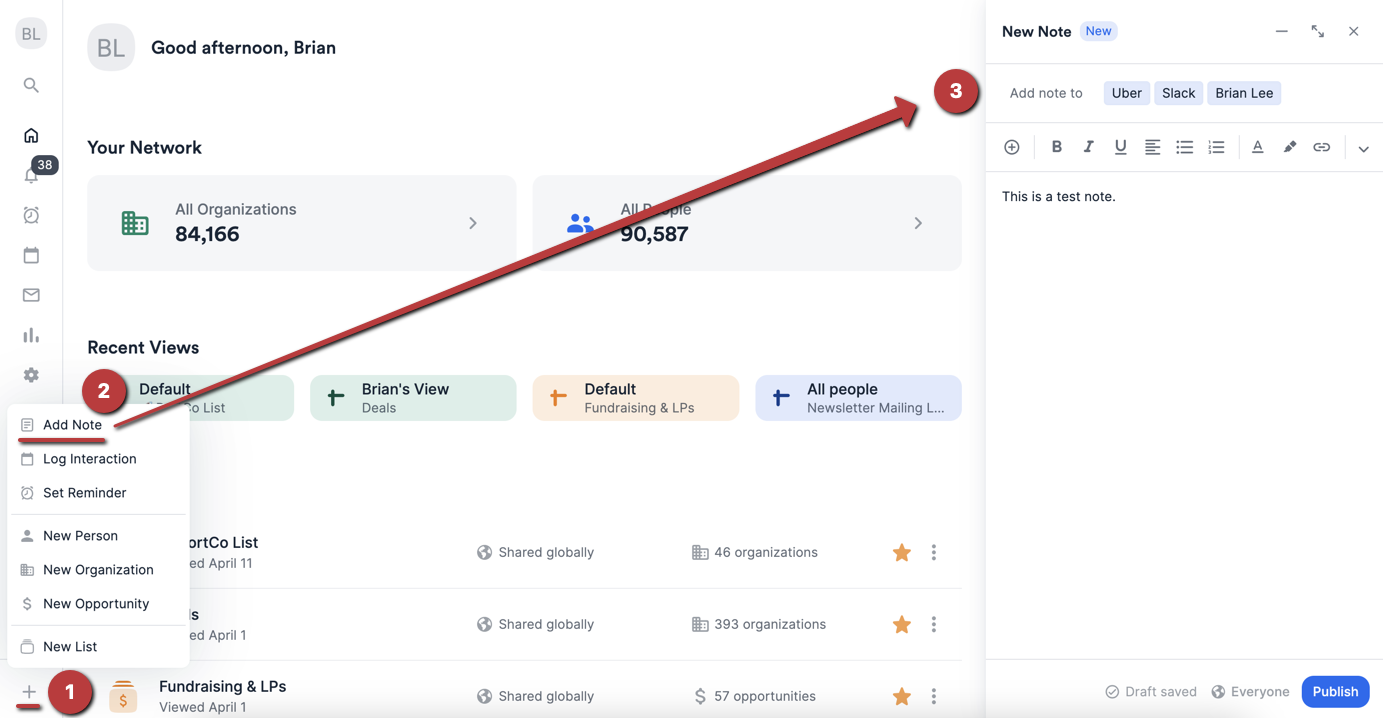
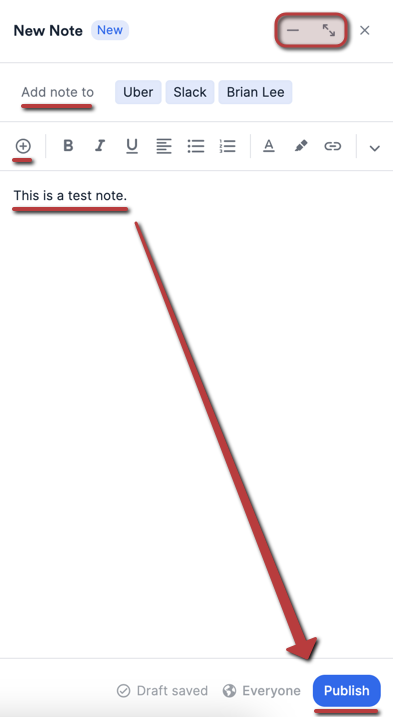
- Here are the main actions you can take on the notes sidebar:
- Easily navigate across different pages and product areas without needing to minimize your note, but if you’d like, you can click the Minimize icon on the-top-right corner to temporarily store it as a draft.
- You can tag multiple people, organizations, and opportunities to a regular note.
- You can quickly insert a note template that you created.
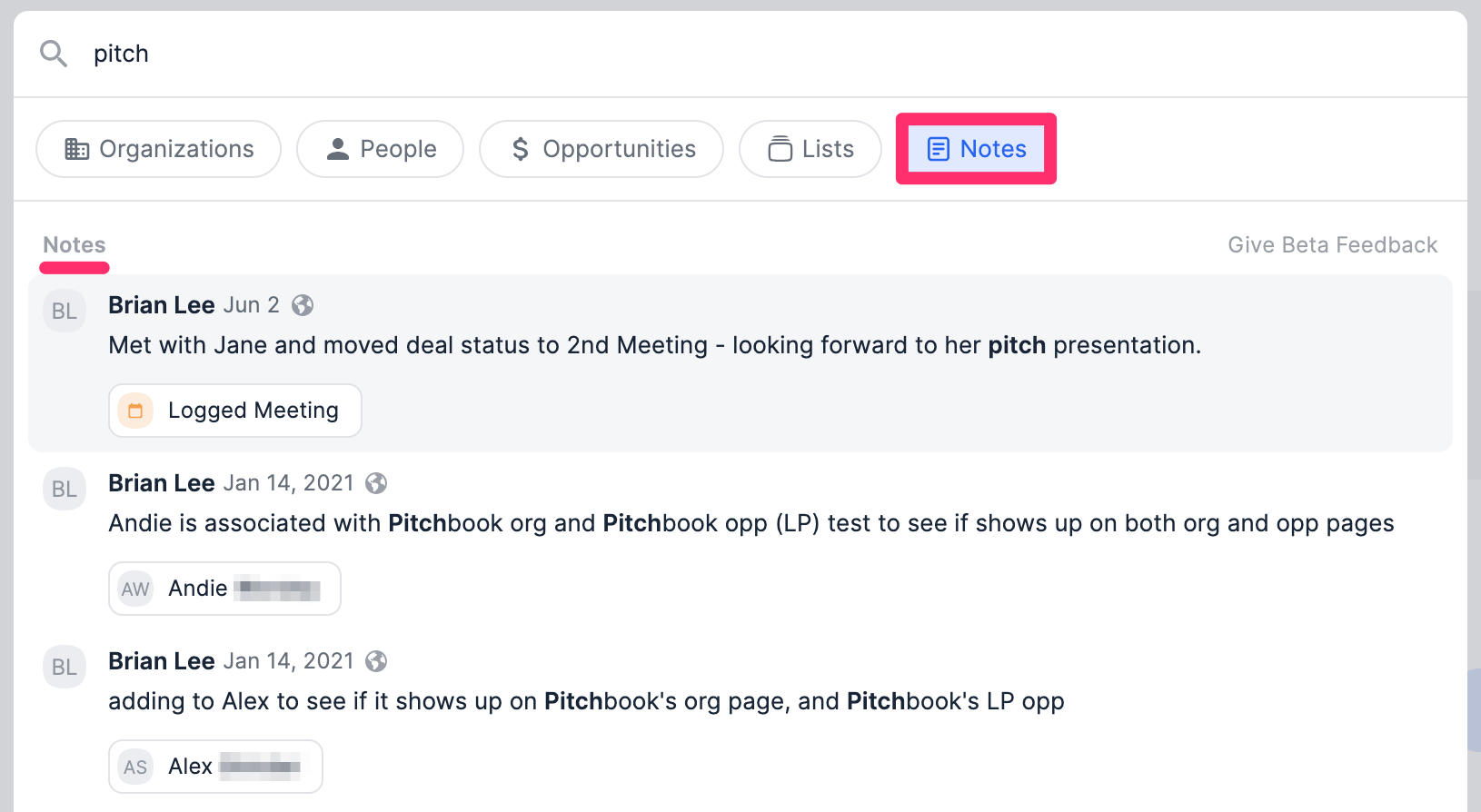
- Last but not least, you can click on the Notes pill within the search bar to search for notes across your entire account that match your keyword.
Create and view notes on a profile page
Whether it’s the profile page of a person, organization, or opportunity, the mechanics are the same.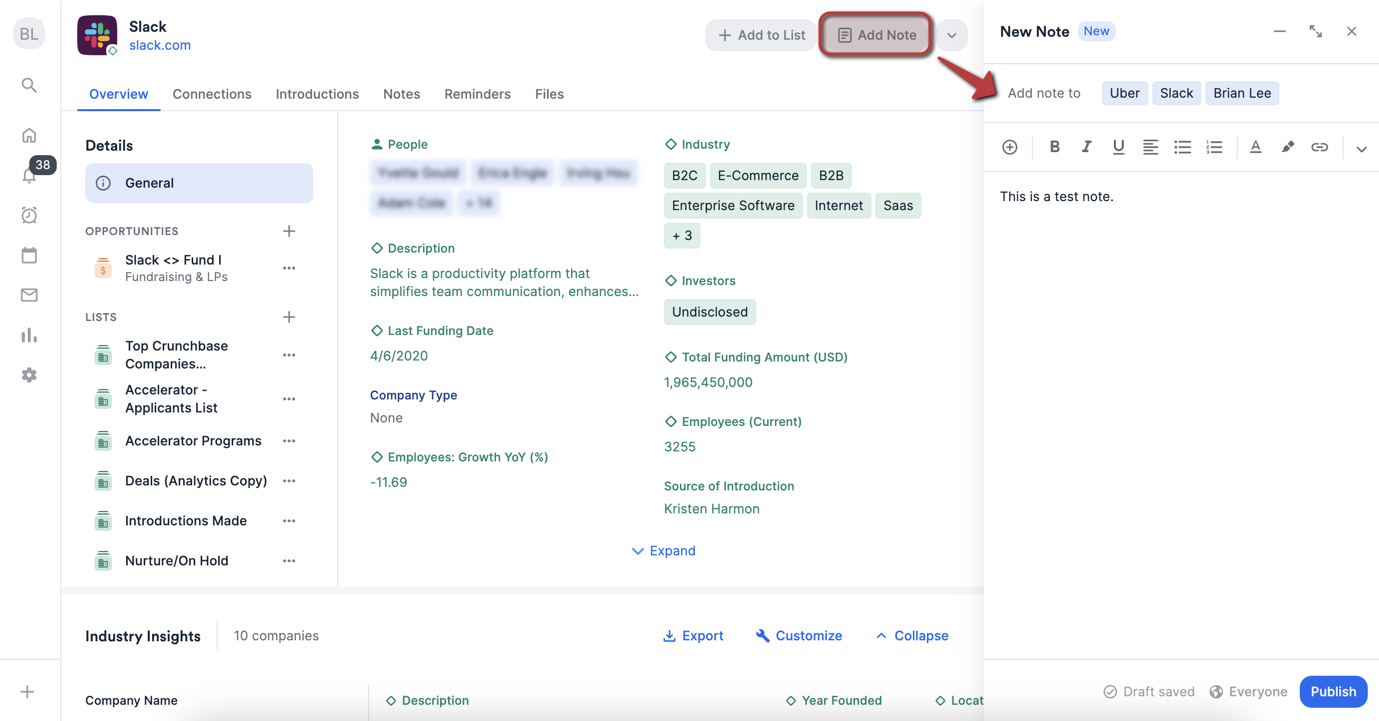
- Click into any profile page, then click Add Note. You can tag multiple people, organizations, and opportunities to a regular note. If something you want to tag doesn’t exist in Affinity yet, the picker offers Create person, Create organization and Create opportunity above the search results — create it inline and carry on writing. Anything created that way is kept even if you later discard the note, and a restricted opportunity keeps its restricted flag and sharing limits.
- Type out the note, using @ mentions to notify your team members as well.
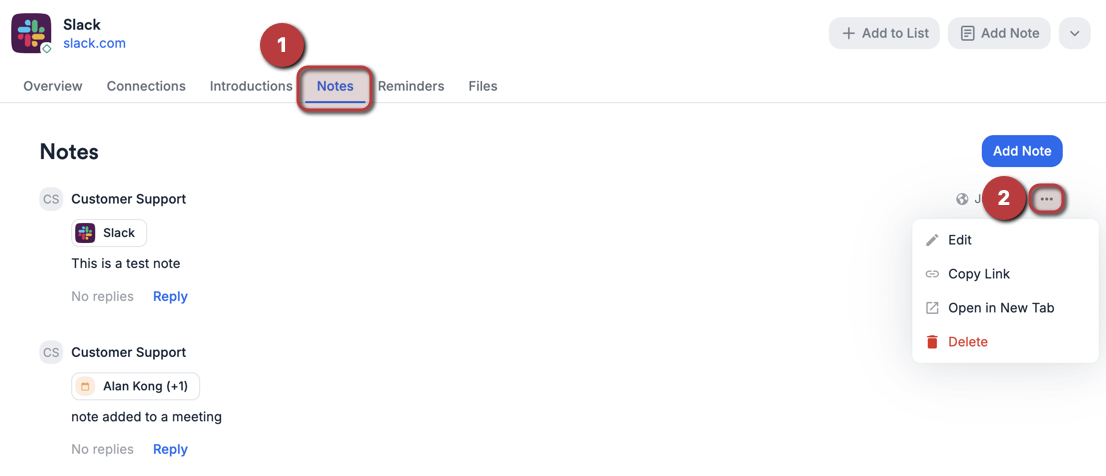
- Click the Notes tab on the left to see the history of all notes that were added to that contact. You can also click the 3-dotted icon next to each note to either Edit, Copy Link, Open in New Tab, or Delete.
Create and view notes within a list
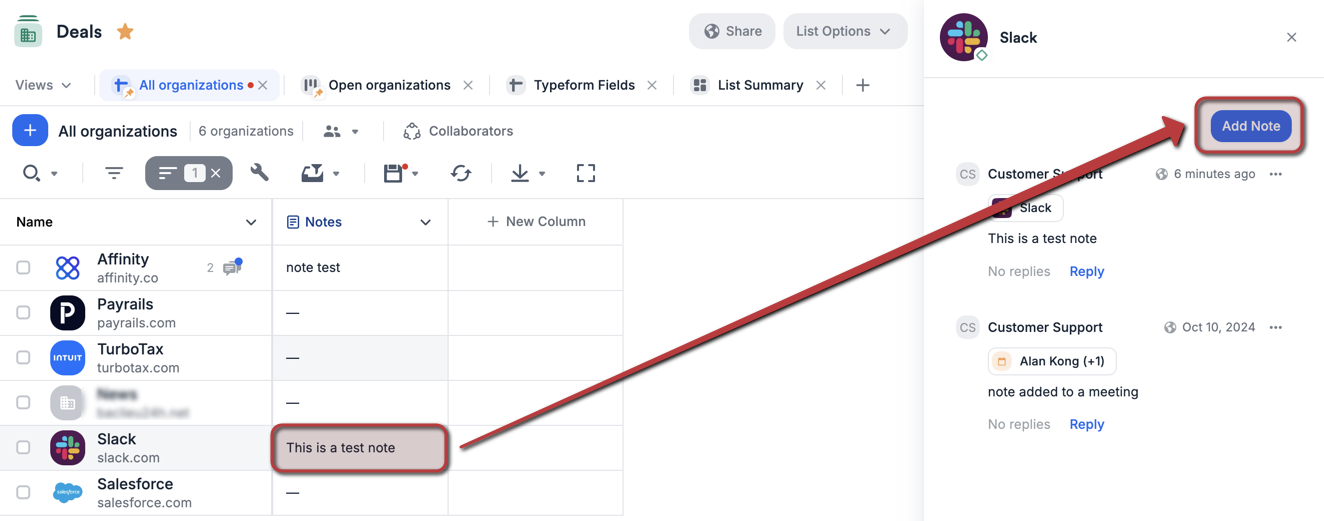
- Click on a cell within the Notes column, then click Add Note to see the sidebar appear on the right.
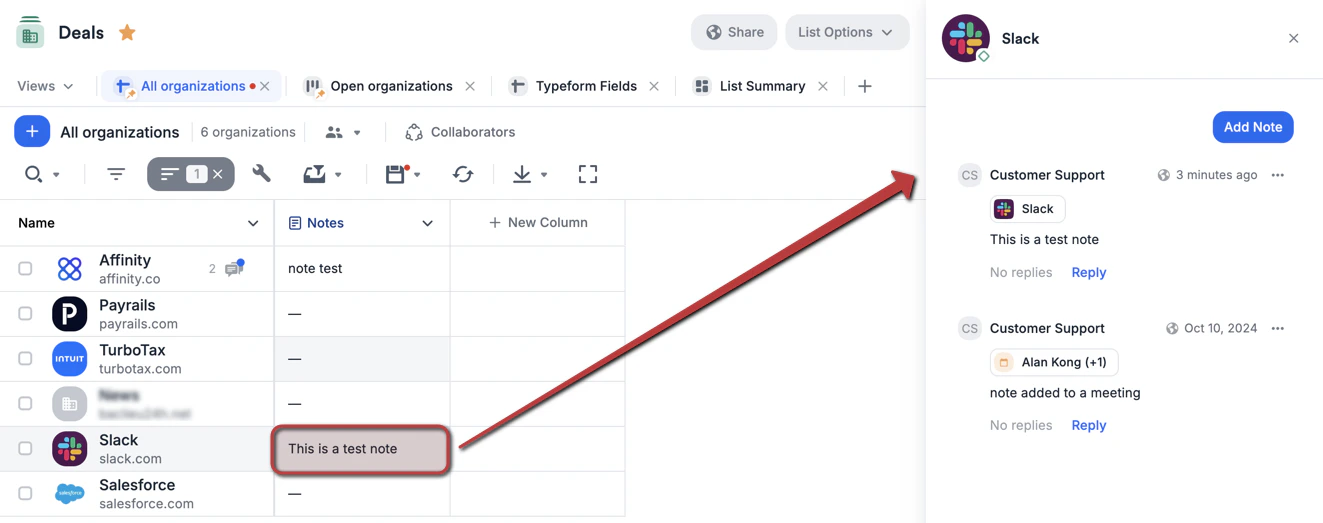
- You can also see all the notes that you and your team members have added to that specific entity. This includes logged interactions and notes attached to synced meetings.
Create private and/or team-specific notes (Enterprise only)
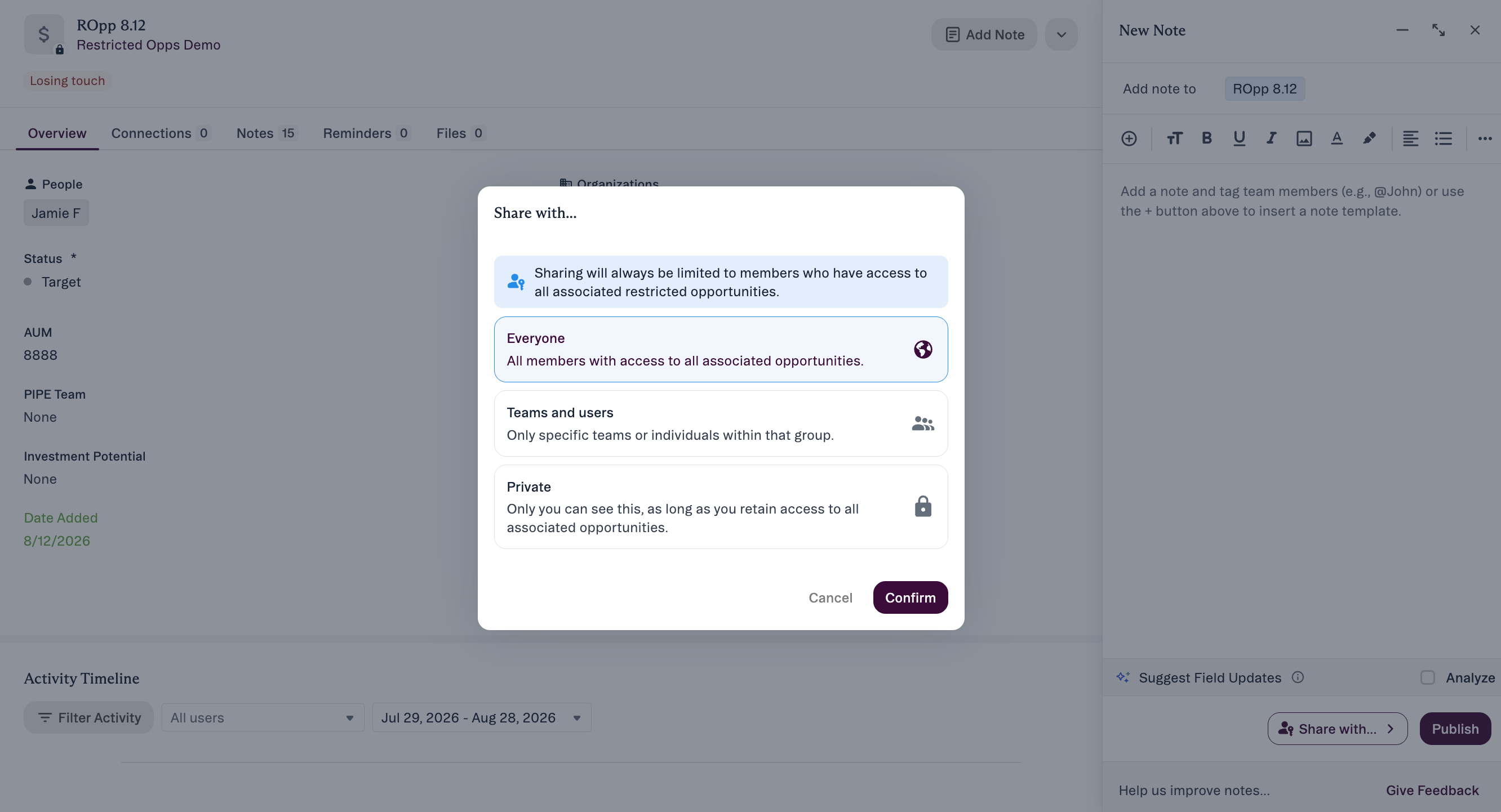
If your team is on the Enterprise tier, only the Enterprise Admin will be able to set your note sharing options. This includes the ability to now create private notes or team-specific notes.- After adding your note in the text box, click Share with… to view your sharing options. This button will also appear when adding a note on a profile page.
- Then, choose a specific sharing option. Not all options may appear based on what the Enterprise Admin has turned on/off in Settings.
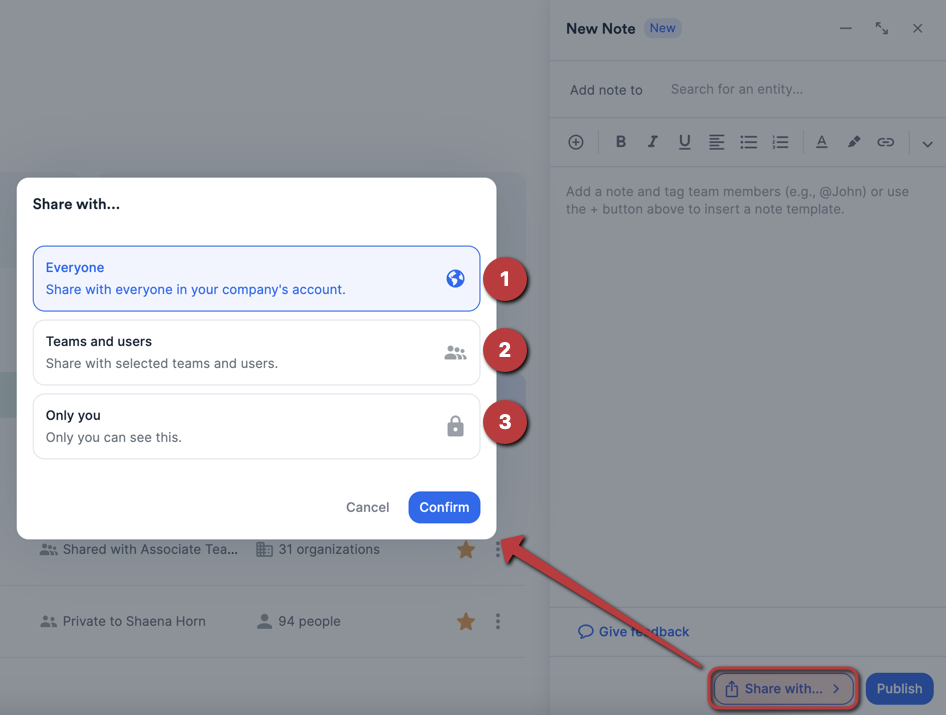
- If any of the three options are not visible to you, please speak to your Enterprise Admin to add the option.
- Everyone - shares your note with everyone in your account, regardless of what team they’re on.
- Teams and users - lets you select which team(s) or individuals can view your note.
- Private - makes the note visible only to you.
Notes linked to a restricted opportunity. When a note, file, or reminder is linked to one or more restricted opportunities, your sharing choices are unchanged — Everyone, Teams and users, or Private — but the content is only visible to people who have access to all of the restricted opportunities it’s associated with. Affinity states this in the sharing picker: “Sharing will always be limited to members who have access to all associated restricted opportunities.” See Restricted Opportunities.
What happens to the notes attached to synced meetings if the synced meetings get deleted?
- Synced meetings can be deleted when a user is deactivated/removed, but if there is a note attached, it will be detached and converted to a regular note.
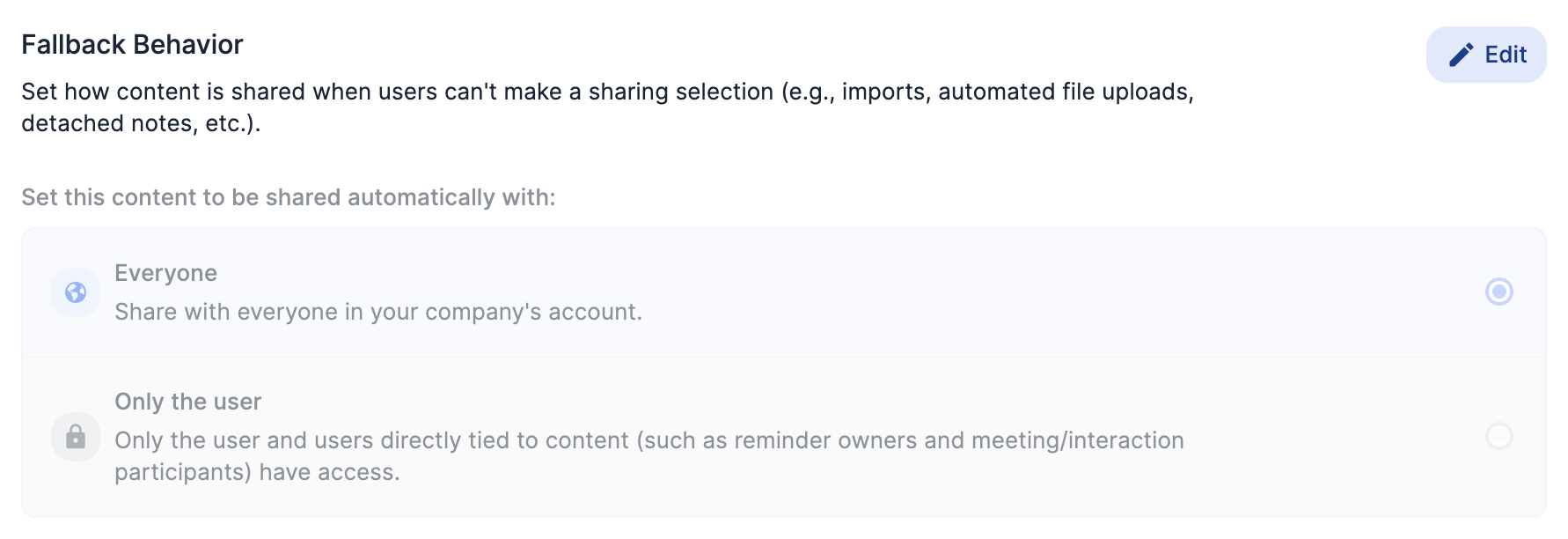
- If you’re on the Enterprise tier, then the sharing permission that was previously set for the note attached to the synced meeting will default to what is currently set in the Fallback Behavior.
Important Callouts
- Users can only have 1 draft at a time for notes created from the global navigation sidebar.
- Notes added to a person’s profile page will also show up on the profile pages of the organizations and opportunities the person is associated with.
- Notes added to an organization’s profile page will NOT show up on the profile pages of the people or the opportunities the organization is associated with.
- Notes added to an opportunity’s profile page will NOT show up on the profile pages of the people or the opportunities the opportunity is associated with.
- You can only edit/delete the notes you have created. You cannot edit/delete notes that your team members have created.