

Viewing Company Data in Search Results
As of January 2026, search results show company data even for companies not yet in your network. When you click on a company from search results, you’ll see: For org-relevant companies (companies in your firm’s network):- Full enrichment data including Affinity Data, Dealroom, Crunchbase, and PitchBook (based on your subscriptions)
- Full interaction history with your firm
- Can add to Lists, create Opportunities, add Notes
- Affinity Data (industry, location, description, investors)
- Dealroom data (based on your subscription tier)
- Note: Crunchbase and PitchBook data excluded due to licensing restrictions
Searching on the global navigation bar
- Shortcut for Search: Press Alt + K on PC keyboards or Command + K on Mac keyboards to immediately access the search bar.
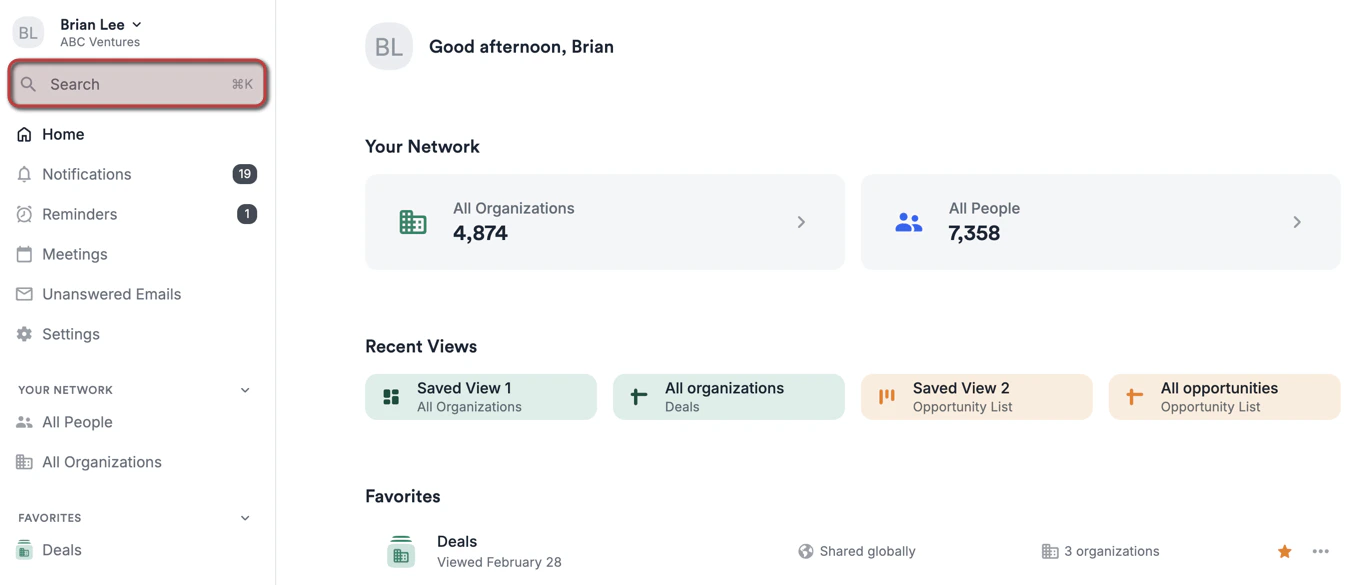
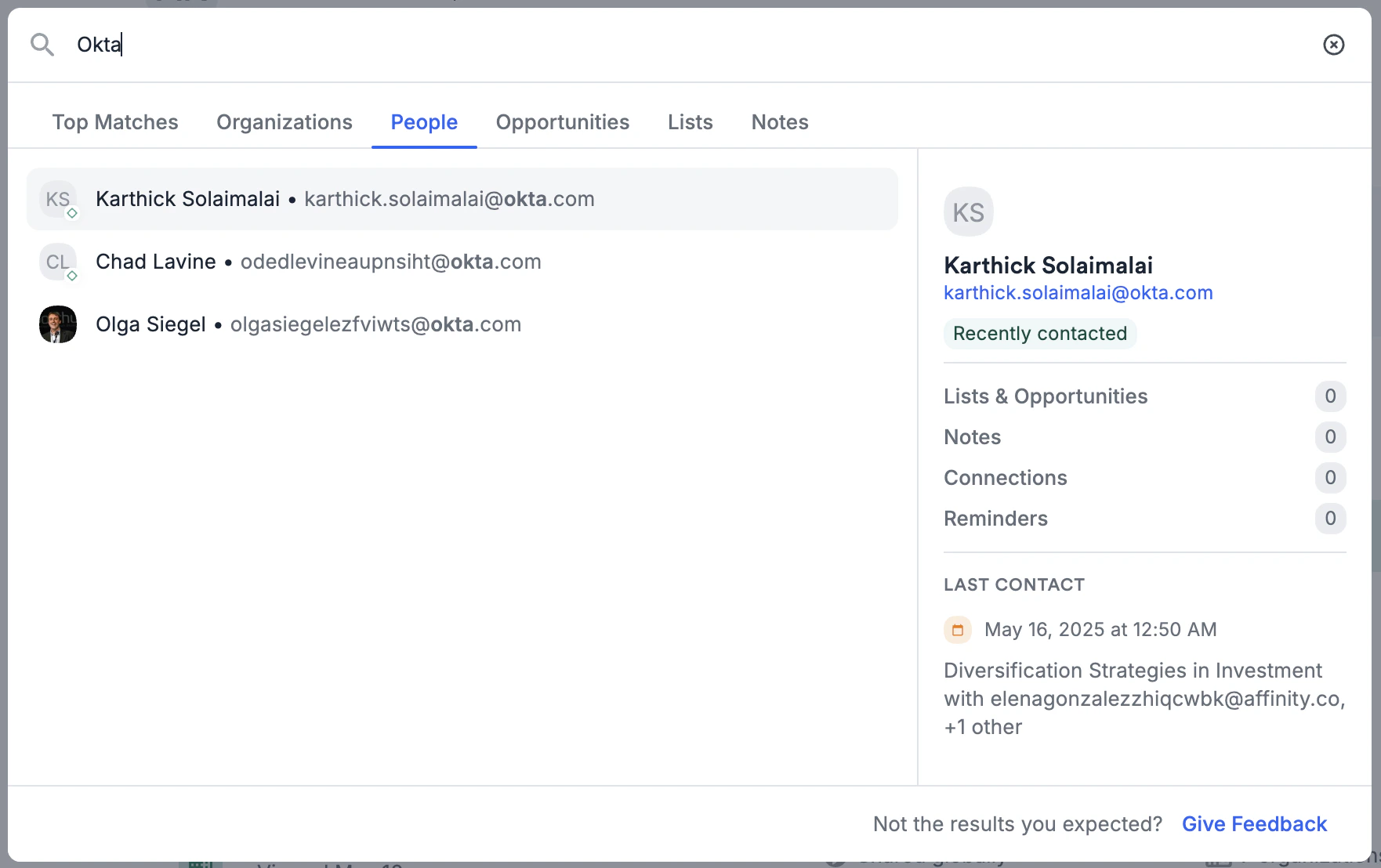
- Affinity will now show your recent search history for quicker access to previously visited profiles or lists. On hover over a search result, you’ll see a quick preview of the result, including the number of associated Lists and Opportunities, Notes, Connections, and Reminders. You’ll also see Last Contact and a contact recency badge for Organization, People and Opportunity results.
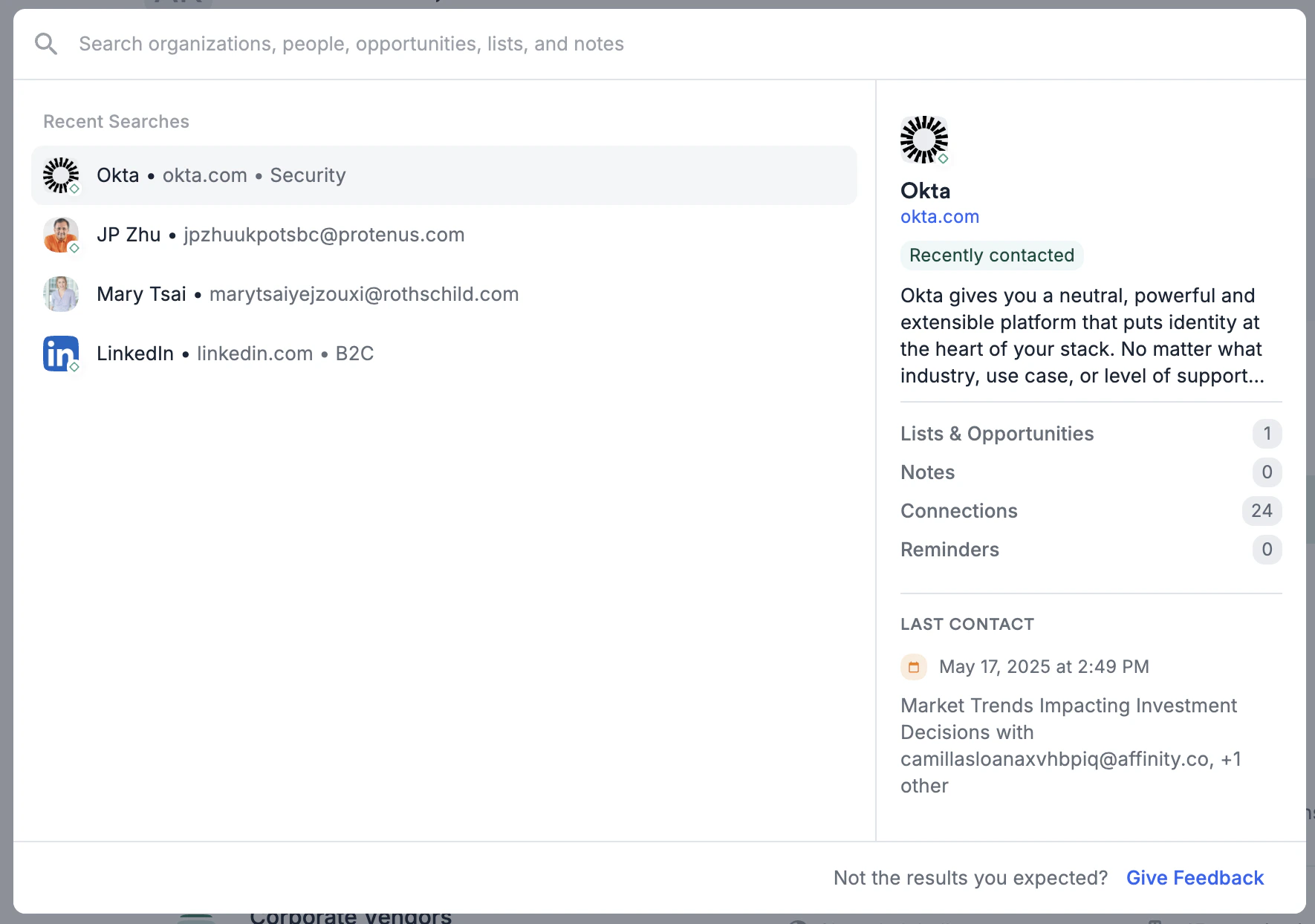
- As soon as you start typing, you’ll notice the Top Matches section appear, with 10 of the most relevant search results, followed by up to 5 Note matches.
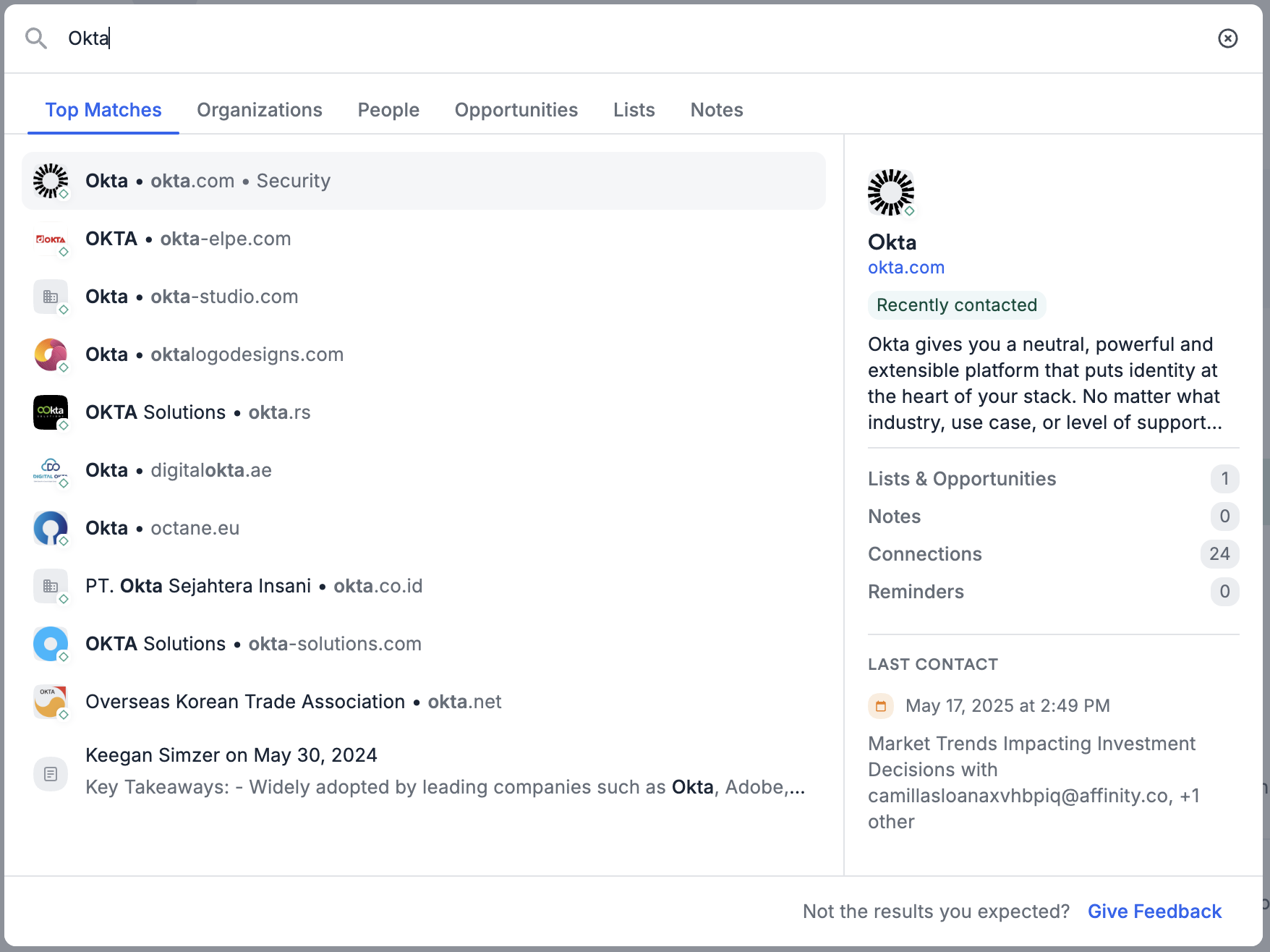
- To narrow your search to a specific type of entity or list, you can click on the following search tabs to see the top 10 search results for a given type. To view additional search results beyond the top 10 search results, click See More.
- Organizations: With details including - Company description, Profile tab counts (Lists, Notes, Connections, Reminders), Last Contact and contact recency badge.
- People: With details including - Person job title, Profile tab counts (Lists, Notes, Connections, Reminders), Last Contact and contact recency badge.
- Opportunities: With details inclcuding - Owner(s), Status, Profile tab counts (Notes, Connections, Reminders), Last Contact and contact recency badge. Note: Some opportunities may have an orange ”$” badge on the bottom-right corner - this indicates that the opportunity has an organization associated with it and is meant to help you quickly differentiate which opportunities have an organization associated with it from those that do not.
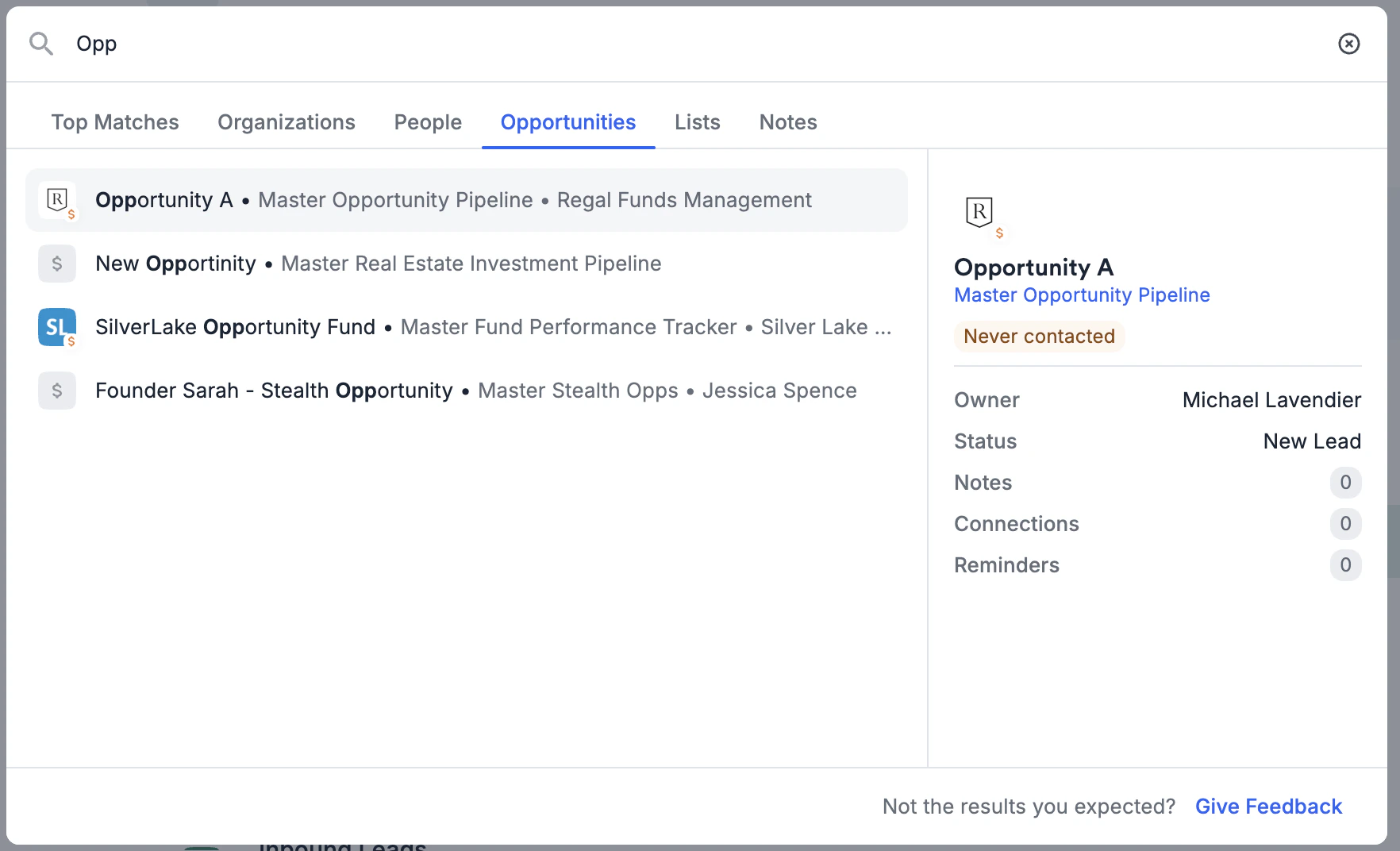
- Note: Some opportunities may have an orange ”$” badge on the bottom-right corner - this indicates that the opportunity has an organization associated with it and is meant to help you quickly differentiate which opportunities have an organization associated with it from those that do not.
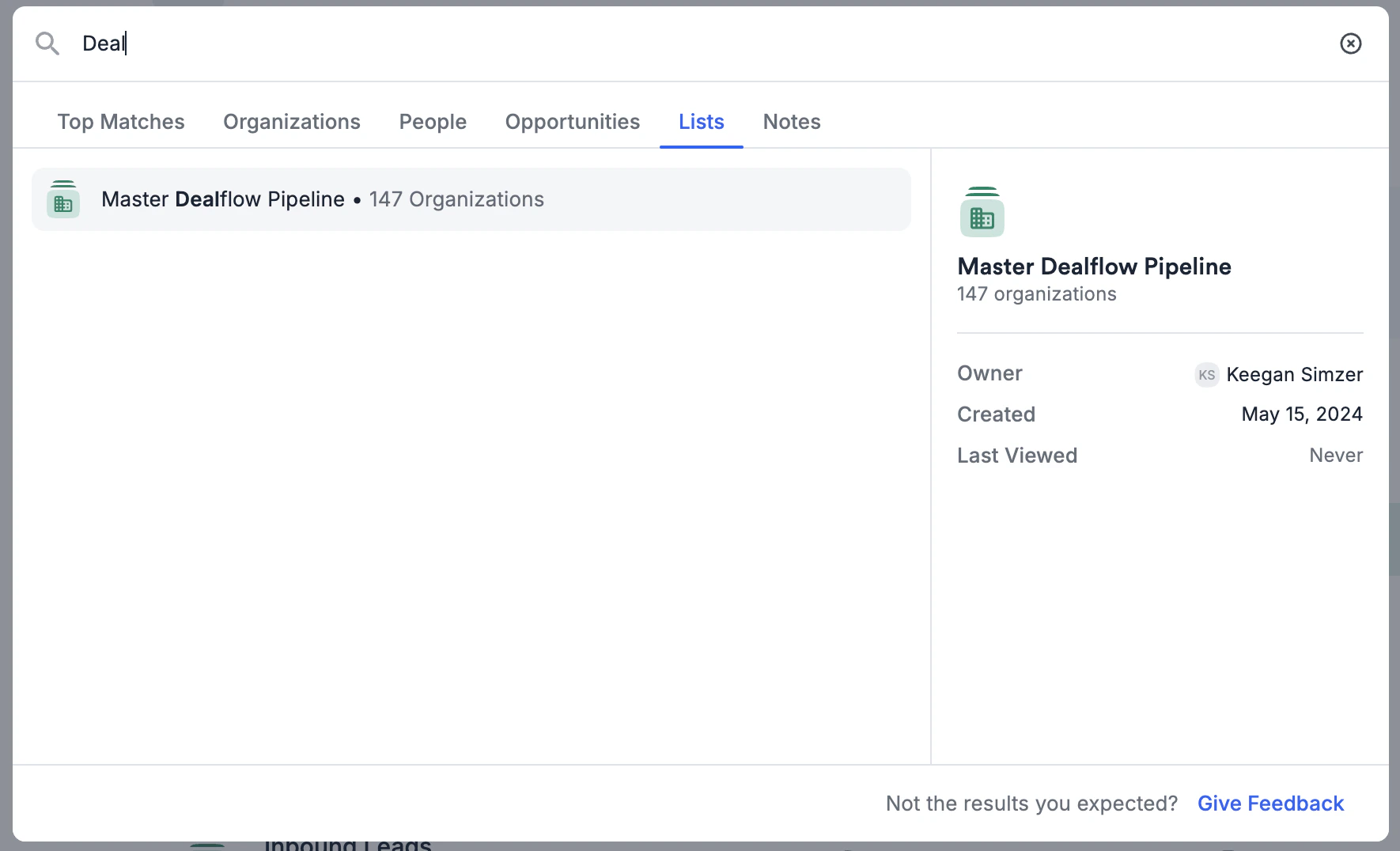
- Lists: With details including - Owner, Created Date, Last Viewed Date.
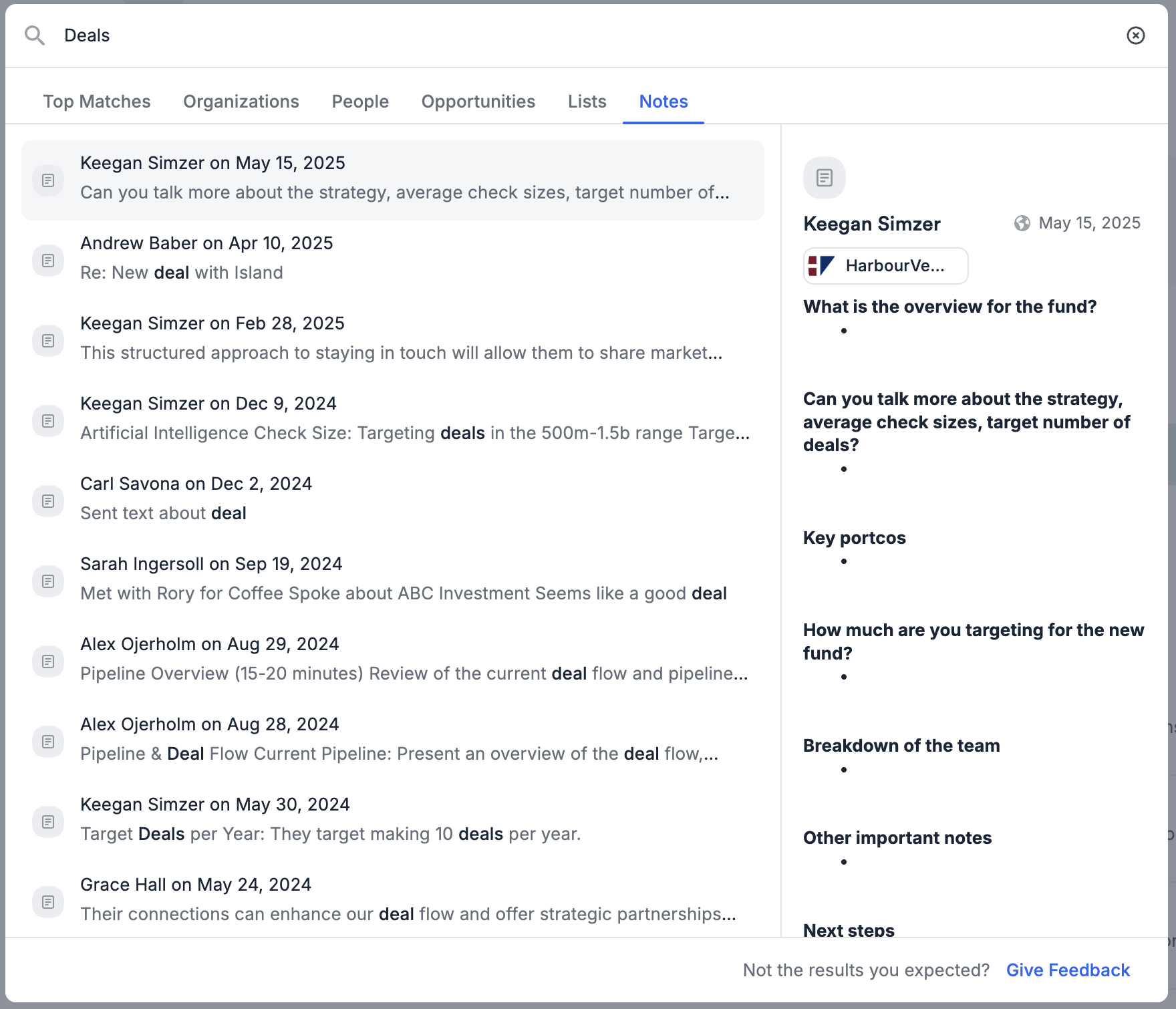
- Notes: With details including - Associations and full scrollable text of the note.
- Organizations: With details including - Company description, Profile tab counts (Lists, Notes, Connections, Reminders), Last Contact and contact recency badge.
- Never contacted: No calls, meetings, emails or messages have been synced or logged.
- Losing touch: No calls, meetings, emails or messages have been synced or logged in more than 3 months.
- Recently contacted: A call, meeting, email or message has been synced or logged in the past 30 days.
Searching within a list
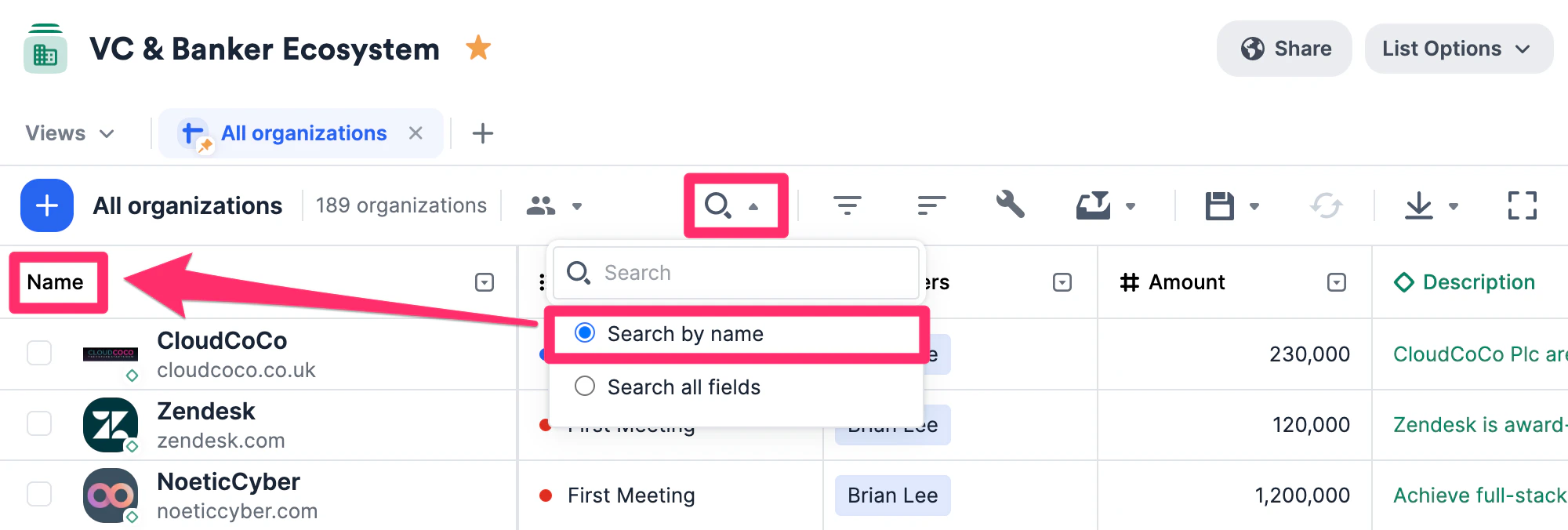
Search within a list, either by name or through all available fields on display.- Search by name.
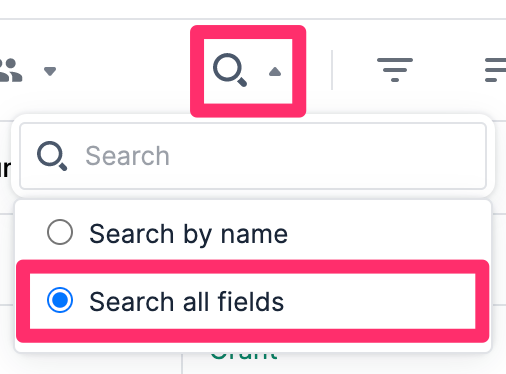
- Or, search through all available fields by keyword.
- Highlighted cells will appear if they match the keyword - this is especially helpful for searching for specific notes within a list.
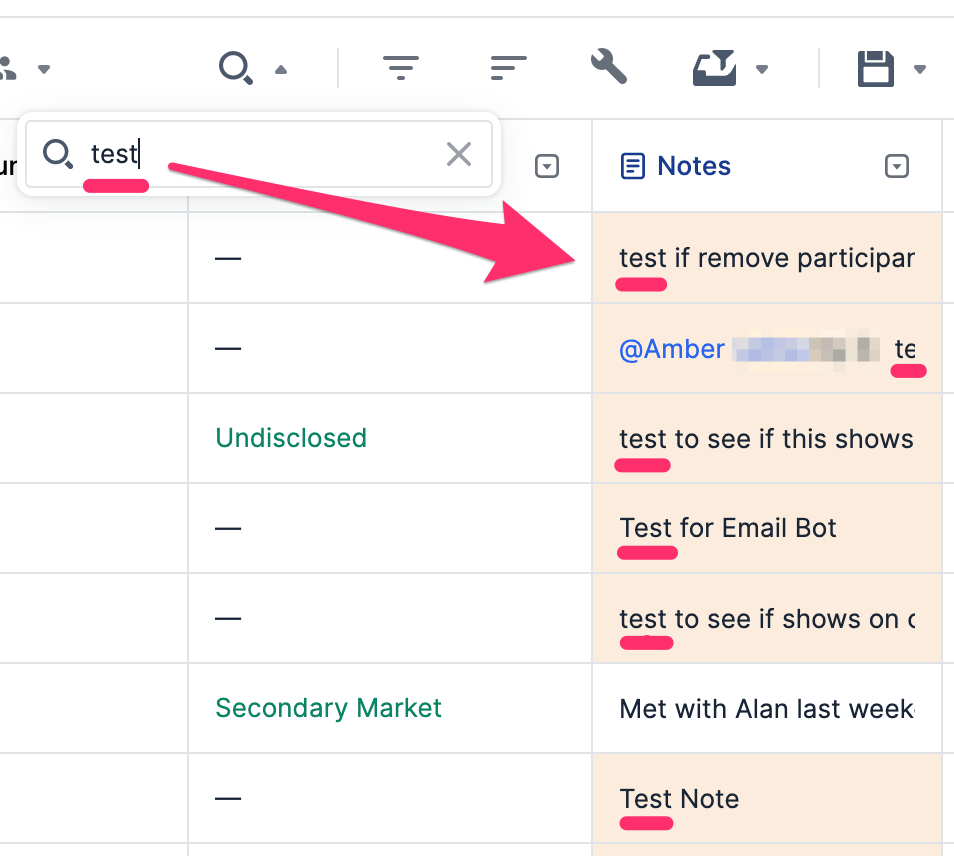
- Highlighted cells will appear if they match the keyword - this is especially helpful for searching for specific notes within a list.
Searching within a list (new Lists)
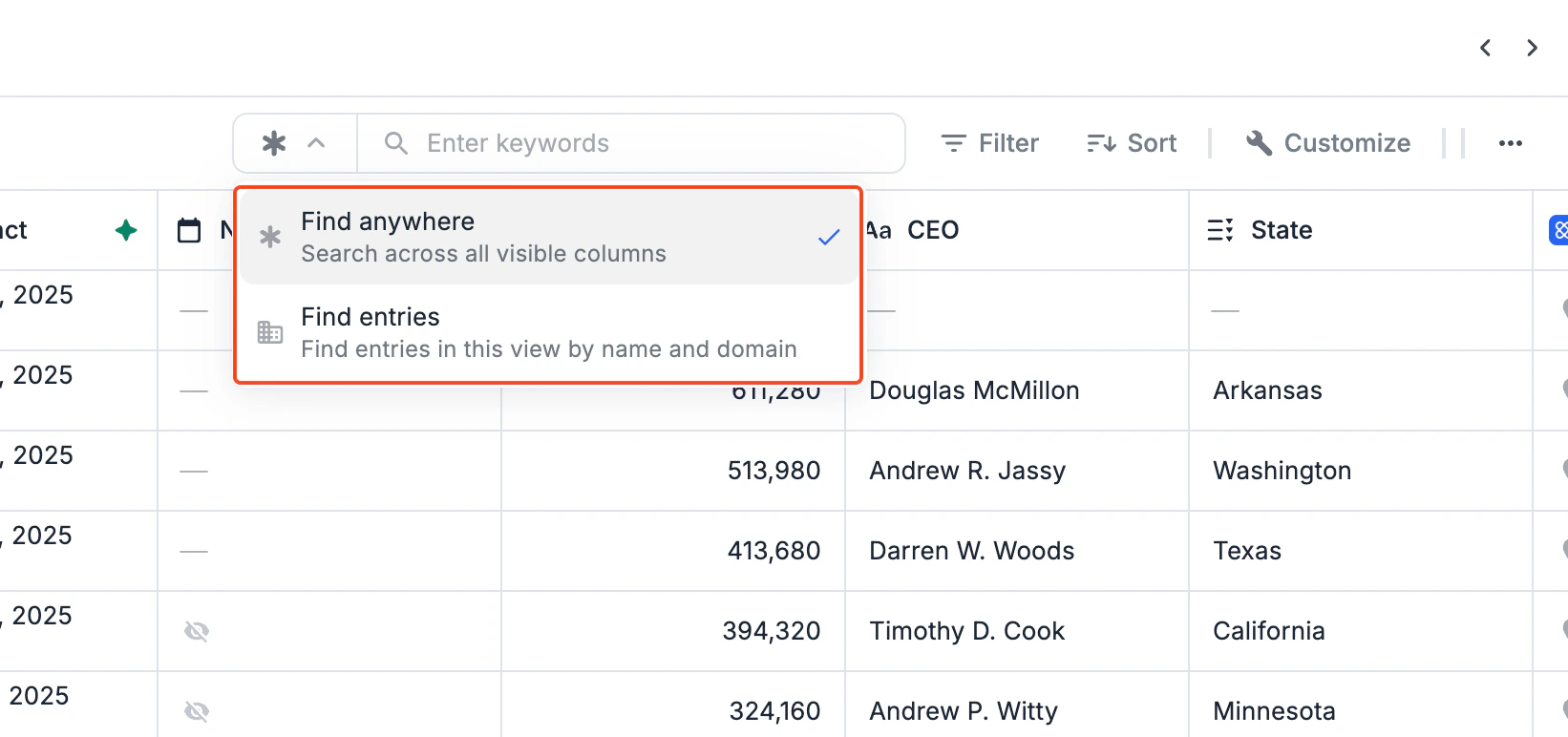
The new Lists experience offers enhanced Find in View functionality with improved performance and highlighting. Two Search Scopes: Find Anywhere (Default):- Searches across all visible columns in your current view
- Includes entry names, domains, and all field values
- Use when you’re looking for keywords that could appear in multiple fields
- Searches only entity names and domains
- Focused search for finding specific companies or people by name
- Use when you know the exact name of who/what you’re looking for
-
Click the Search icon in the toolbar
-
Click the Search icon in the toolbar
- Choose your search scope: Find Anywhere or Find Entries
- Type at least 3 characters into the search bar
- The list automatically filters to show only matching entries
- Matching cells are highlighted in yellow
- For Notes fields: Matching notes are highlighted (improvement over Classic Lists)
- Click the X to clear search and return to full view
- Case-insensitive search
- Minimum 3 characters required
- Searches first 100 visible fields only
- Hidden columns are not searched
- Word-level matching: “health” finds “healthcare”, but “care” does not
- Your underlying filters remain unchanged when searching
Can you search for specific notes in Affinity?
- Yes, you can search for certain notes by keywords in the two following areas:
- Within the global search bar (see Step 4 above in the section titled “Searching on the global navigation bar”).
- Within the context of a list (see Step 3 above in the section titled “Searching within a list”).