

How-to — task-oriented recipe.
Who can access Industry Insights?
Interested in upgrading to the Advanced or Enterprise tiers? Please reach out to your Affinity point of contact or support@affinity.co.
Where do I access Industry Insights? How do I use it?
- If you’re on either the Advanced or Enterprise tier, you can click into any organization’s profile page to see the new Industry Insights section appear just below the Details section.
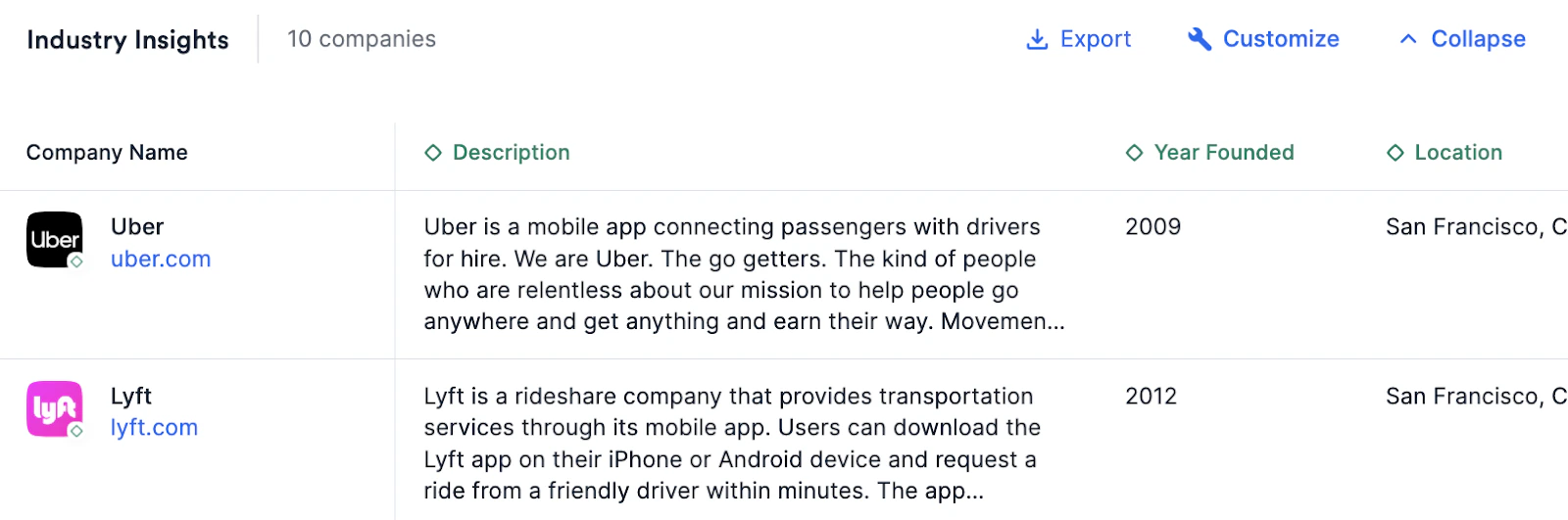
- You’ll see up to 10 other organizations that either compete directly with the organization that you’re viewing or operate within the same market. These results are updated periodically based on the available data.
- Don’t see any organizations appear? Simply click Analyze.
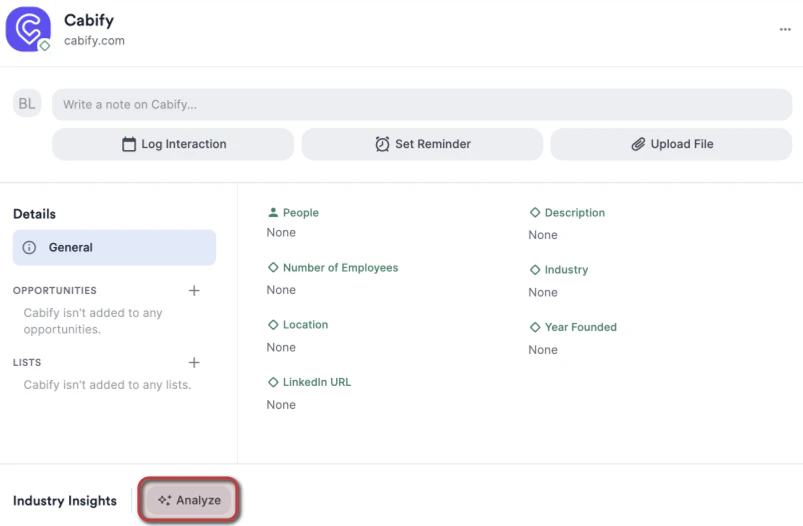
- If there are other organizations that compete in the same market/industry, you should now see a list of organizations appear.
- If you have Affinity’s Pathfinder Chrome Extension downloaded, enter any organization’s website and you’ll be able to access the new Industry Insights tab.

- To provide more context for each organization, the following Affinity Data fields will be displayed by default:
- Description
- Location
- Year Founded
- Investment Stage
- Last Funding Amount
- Total Funding Amount
- Investors
- Number of Employees
- However, you can customize the view and order of the fields by clicking the Customize button. Changing the view will only apply to you, not your team members.
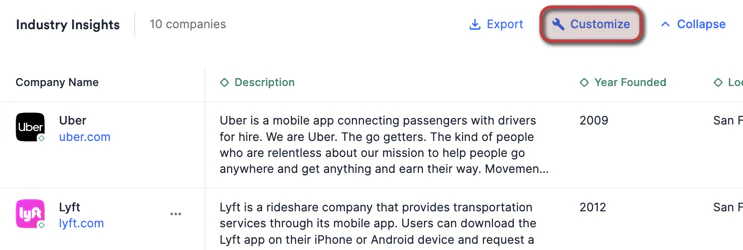
- If you/your team has made any field value edits, they will appear accordingly.
- Note: Those who have paid for Pitchbook credits will also be able to display Pitchbook fields in this table.
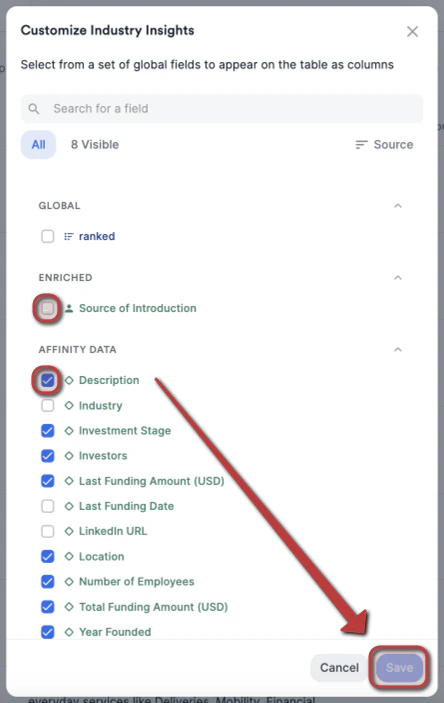
- Check and/or uncheck the fields based on your preferences, then click Save. This will update the view just for you, not your team members.
- Note: Any changes you make to the fields selected (and their ordering) while on an organization’s profile page will carry over to other organization profile pages moving forward (including the view from the Pathfinder Chrome extension).
- Note: Any changes you make to the fields selected (and their ordering) while on an organization’s profile page will carry over to other organization profile pages moving forward (including the view from the Pathfinder Chrome extension).
- You can also export these insights as a CSV file to share with others who aren’t using Affinity.
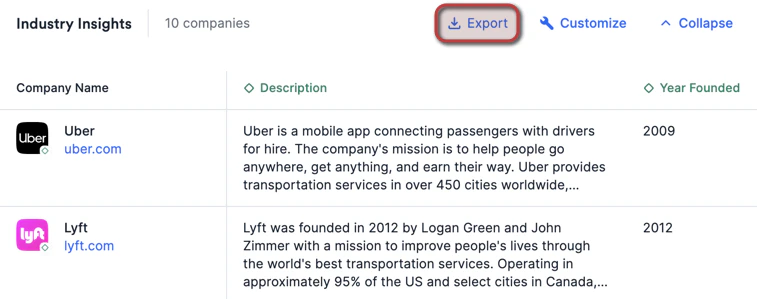
- Note: If you have Crunchbase fields on display, they will not be exported. Please use the Affinity Data field equivalents instead.
Should I use Industry Insights as a sourcing tool?
- Industry Insights is not meant to be used as an efficient sourcing tool, since the generated results can include public companies, not just startups.
Important Callouts
- Industry Insights is not available on the Outlook add-in at this time, but will be available for our Outlook users by early April 2024.
- All the information found within Industry Insights can be exported into a CSV file and shared with other team members or external partners.
- Affinity will periodically update the generated list of organizations based on the available data.
- Notes and Reminders will not be available for display on Industry Insights at this time.
- Location-type fields (single or multiple value) and any fields that support multiple values cannot be used to sort the table at this time.
- Formula-type fields cannot be used for display on the table at this time.
- If you change an organization’s name or domain, then the existing industry insights for that organization will no longer be available.