

How-to — task-oriented recipe.
Overview
Use Find in View to quickly locate specific records within your current list view without changing your filters. The search functionality helps you navigate large datasets, verify information, and jump to specific entries using either comprehensive cross-field search or focused name-based lookup.Prerequisites
- A list in New Lists — the default Lists experience for every customer
- At least 3 characters in your search term
- Visible columns in your current view (search only covers visible fields)
Steps
What You Can Search:- Entry names (company/person names)
- Domains (company URLs)
- People: First name, last name, full name, or email address
- Companies: Name or URL
- All text in visible Text, Notes, and custom text fields
- Data in Date-type fields
- Connections field
- Reminders field
- Lists field
- Opportunities field
- Any hidden columns
Step 1: Open the Find in View Search
- Navigate to any list in the New Lists experience
- Click Find in the toolbar
- The search bar opens inline in the toolbar, with a scope selector to its left

Step 2: Choose Your Search Scope
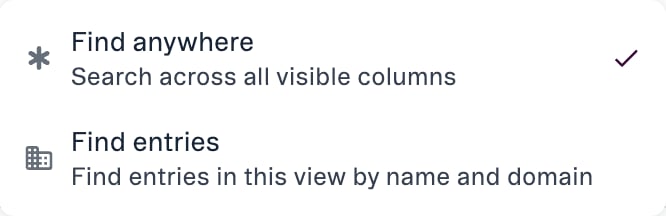
- Searches across all visible columns in your current view
- Includes entry names, domains, and field values
- Use when: You’re looking for keywords that could appear in multiple fields
- Searches only entity names and domains
- Focused search for finding specific companies or people
- Use when: You know the exact name of who/what you’re looking for
Step 3: Enter Your Search Term
- Type at least 3 characters into the search bar
- Search is case-insensitive
- Partial word matches are supported:
- “Health” will find “Healthcare”
- “Healthcare” will find “Healthcare”
- “care” will NOT find “Healthcare” (must match from word start)
Step 4: Review Search Results
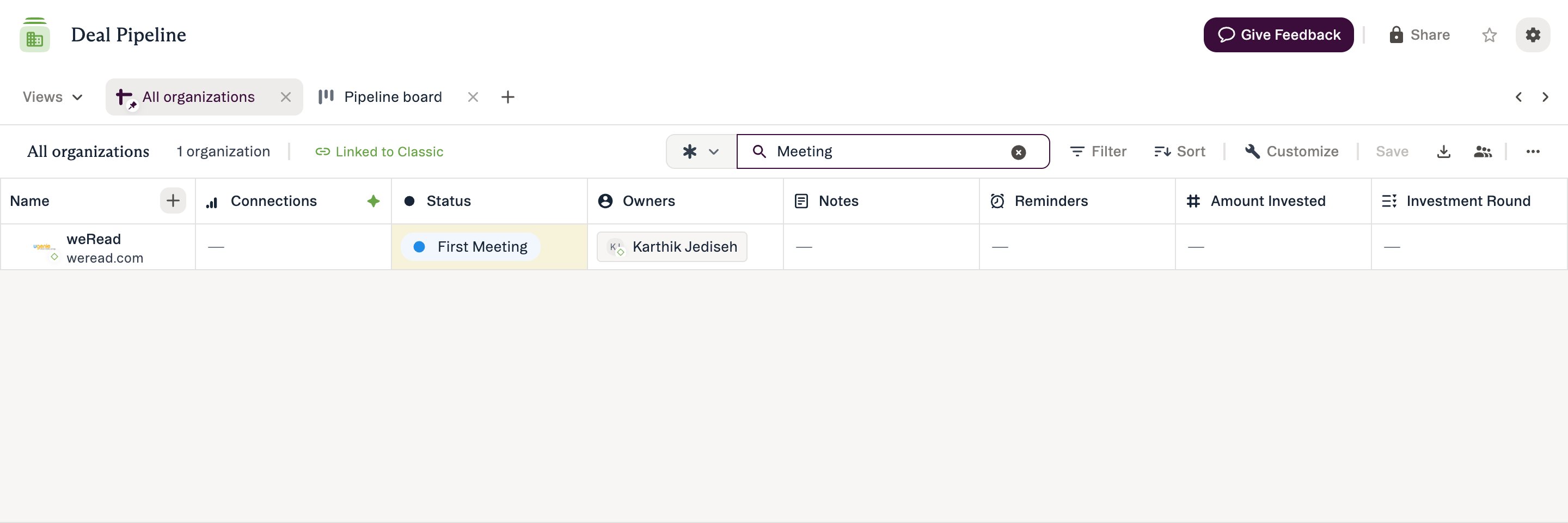
- The list automatically filters to show only matching entries
- Matching cells are highlighted in yellow
- For Notes fields: Matching notes are highlighted (new improvement over Classic Lists)
- Navigate through results using arrow keys or scrolling
Step 5: Exit Search
- Click the X in the search bar to clear and return to full view
- Pressing
Escdoes not close the search bar or clear the term — use the X - Your underlying filters remain unchanged
Expected Outcome
- The list displays only entries matching your search term
- Yellow highlights show where matches were found
- You can click directly into highlighted cells or entries to take action
- Original view filters and configuration remain intact when you clear the search
When to Use This
Find in View is most valuable when you need to quickly locate specific records within your current filtered view without changing the underlying filter logic. Below are the most common use cases. Quick Record Lookup Rapidly find a specific company or person within your current view. Examples:- “I’m looking at my Q4 pipeline and need to quickly find the ‘Acme Corp’ deal to update it.”
- → Use Entries Search scope to search by company name
- “I have 200 companies in my Series B view and need to find the one I met with yesterday - I remember they’re based in Austin.”
- → Use Anywhere Search to search for “Austin” across all visible columns
- Find records mentioning specific terms in any visible field.
- “I want to find all companies in my current view that mention ‘artificial intelligence’ anywhere - in notes, descriptions, or custom fields.”
- → Use Anywhere Search to search across all visible columns
- “I’m looking for deals where we discussed ‘pricing’ in our notes or custom fields.”
- → Use Anywhere Search with search term “pricing”
- Quickly verify if specific information exists in your current view.
- “I want to check if we have any companies with ‘healthcare’ in any of their fields before I add a new entry.”
- → Use Anywhere Search to search for “healthcare”
- “Did I already add ‘TechStart Inc’ to this list?”
- → Use Entries Search to search by company name
- Navigate efficiently through large datasets without scrolling.
- “I have 500 companies in my sourcing list and need to jump to companies mentioning ‘biotech’.”
- → Use Anywhere Search to highlight all matching records
- “I’m reviewing my portfolio and need to quickly jump between companies whose names I know.”
- → Use Entries Search with sequential searches
- Search within an already-filtered context.
- “I’ve filtered to show only ‘San Francisco’ companies with ‘Active’ status. Now I want to find which ones mention ‘enterprise sales’ in their notes.”
- → Apply your filters first, then use Anywhere Search to search within that filtered set
- “I’m looking at my Q1 closes. Which ones have ‘legal review’ mentioned anywhere?”
- → Use Anywhere Search while maintaining your existing filters
- You want to locate specific records without changing your view
- You need temporary highlighting of matching records
- You’re doing ad-hoc exploration within a filtered view
- You need persistent filtering that others can see
- You want to combine multiple conditions with AND/OR logic
- You’re creating a saved view for repeated use
- Use Entries Search when you know the company/person name for fastest results
- Use Anywhere Search when exploring what data exists across all fields
- Use Anywhere Search to search within notes (Classic Lists couldn’t highlight note matches)
- Use distinctive terms for better precision
- Remember word-level matching: Search “health” not “care” to find “healthcare”
- Apply filters first to reduce dataset size, then search within filtered results
- Minimum 3 characters prevents overly broad searches
- Find in View searches only the first 100 fields in a view
- Hidden columns are not searched (only visible columns)
- For very large lists, consider filtering first to improve search performance