> ## Documentation Index
> Fetch the complete documentation index at: https://support.affinity.co/llms.txt
> Use this file to discover all available pages before exploring further.
# List Setup, Management and Clean-up with Claude
**Category:** CRM Updates **Complexity:** Medium **Time to value:** A few minutes to build a new list with suggested fields and populate it with prospects; cleanup time for an import depends on how messy the source data is.
**Overview:** This lets you build a new Affinity list from scratch with Claude's help on fields, populate it with relevant contacts already in your network, clean up a messy external contact list before importing it, and audit an existing list for duplicates and missing data, all in plain language instead of manual list configuration or spreadsheet wrangling.
*Note: the examples below come from a demo Affinity environment used in an office hours session, so specific list names, contacts, and data points are illustrative, not real customer data.*
## What you can do
* Build a new list from scratch, with Claude reading what fields already exist and suggesting ones you might have missed
* Populate a new or existing list with prospects pulled from contacts already in your Affinity network, based on plain-language criteria
* Get help formatting and cleaning a messy contact spreadsheet before importing it into Affinity
* Audit an existing list for duplicates, missing contact information, and stale or blank fields
* Check for duplicates before adding new companies to a list, and log a note on the existing record instead of creating a duplicate
### Prerequisites
* Affinity MCP connected in Claude (or another MCP client)
* For imports: the messy source file (uploaded directly, or as a Google Drive link), plus, if you want the cleanup to match Affinity's expectations closely, Affinity's official CSV import template for the record type and Affinity's help article on formatting imports, given to Claude as context in the same conversation
* Affinity's native import feature for the final step of actually bringing a cleaned file in; Claude prepares the file, it doesn't submit the import itself
One thing worth knowing upfront: Claude can't currently merge duplicate records, and it can't write a file directly into Google Drive or Affinity. It can flag duplicates, reformat data, and stage a cleaned file for you, but merging existing records and completing the import both still happen in Affinity itself.
## Use case 1: Build a new list with suggested fields
**When to use it:** You're starting a brand-new tracking list (a prospective investor list, a new pipeline, and so on) and aren't sure what fields to include beyond the obvious ones.
**How to do it:** Open Claude with the Affinity MCP connected and ask:
"I'd like to create a new \[people/company] list titled \[list name]. I would like to track \[field], \[field], and \[field]. But before we create this list, are there any other fields you think I should add?"
Claude reads what fields already exist in Affinity, flagging ones that are already available as auto-enriched fields so you don't recreate them, and suggests additional fields based on what you named. Once you confirm which suggestions to add, Claude creates the list and confirms which fields it added versus which already existed.
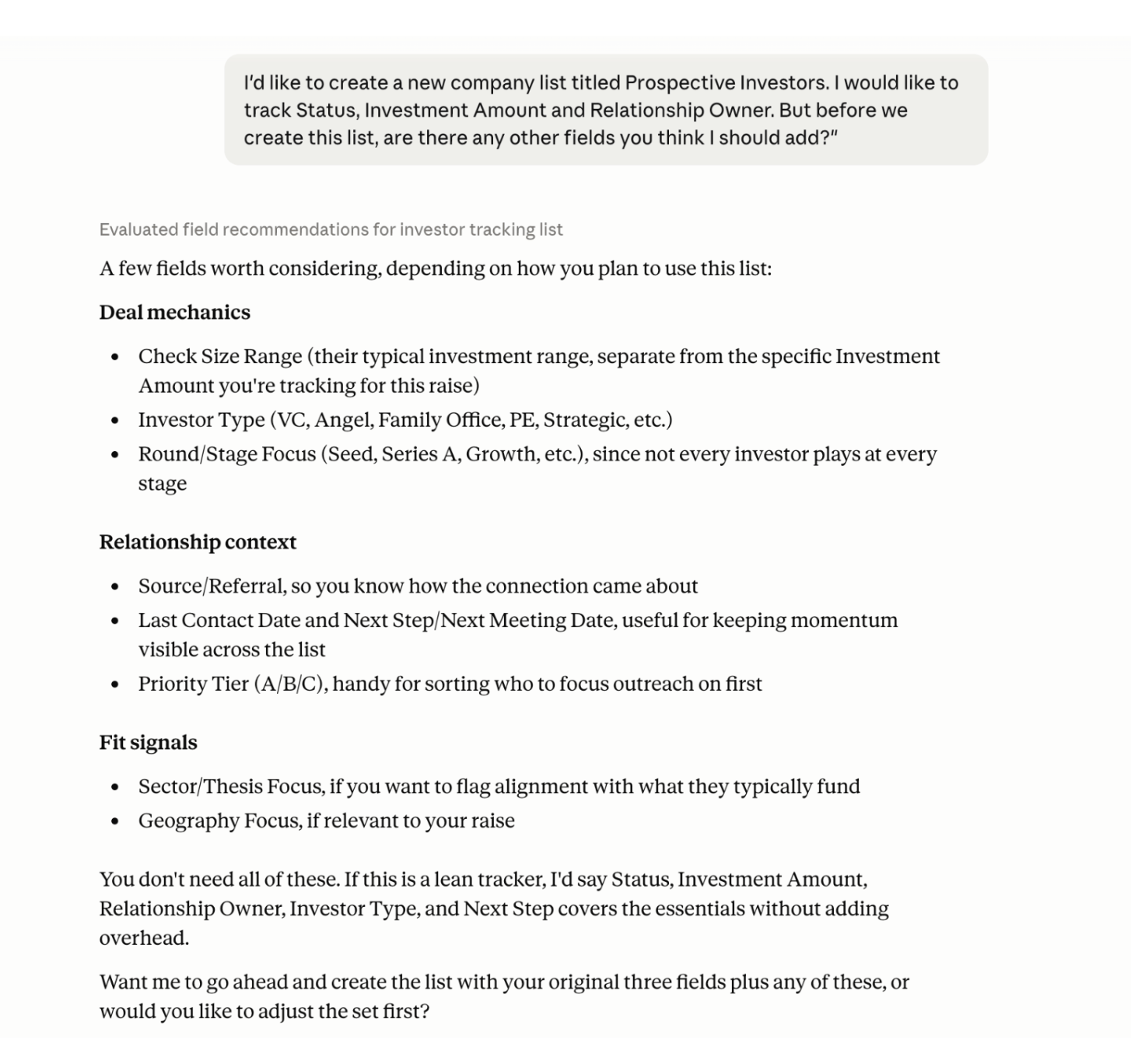 **Note:** fields Claude creates that are specific to this list (not global Affinity fields) won't automatically appear in your table view. You'll need to select them to add them to the view yourself once the list exists.
## Use case 2: Populate a new list using plain-language criteria
**When to use it:** You have a new list but no records in it yet, and want Claude to surface relevant contacts already in your network rather than starting from zero.
**How to do it:** In the same conversation, ask:
"Can you add \[number] prospective \[investors/contacts] to the list? I'm looking for \[criteria, e.g. based in a certain location or interested in a certain industry]."
Claude searches contacts already in your Affinity data using this criteria as a semantic search, adds matching records to the list, and explains its reasoning for each one so you can validate the fit. You can follow up in the same conversation to set yourself (or someone else) as the relationship owner across all of them, or to set other fields like priority.
**Note:** fields Claude creates that are specific to this list (not global Affinity fields) won't automatically appear in your table view. You'll need to select them to add them to the view yourself once the list exists.
## Use case 2: Populate a new list using plain-language criteria
**When to use it:** You have a new list but no records in it yet, and want Claude to surface relevant contacts already in your network rather than starting from zero.
**How to do it:** In the same conversation, ask:
"Can you add \[number] prospective \[investors/contacts] to the list? I'm looking for \[criteria, e.g. based in a certain location or interested in a certain industry]."
Claude searches contacts already in your Affinity data using this criteria as a semantic search, adds matching records to the list, and explains its reasoning for each one so you can validate the fit. You can follow up in the same conversation to set yourself (or someone else) as the relationship owner across all of them, or to set other fields like priority.
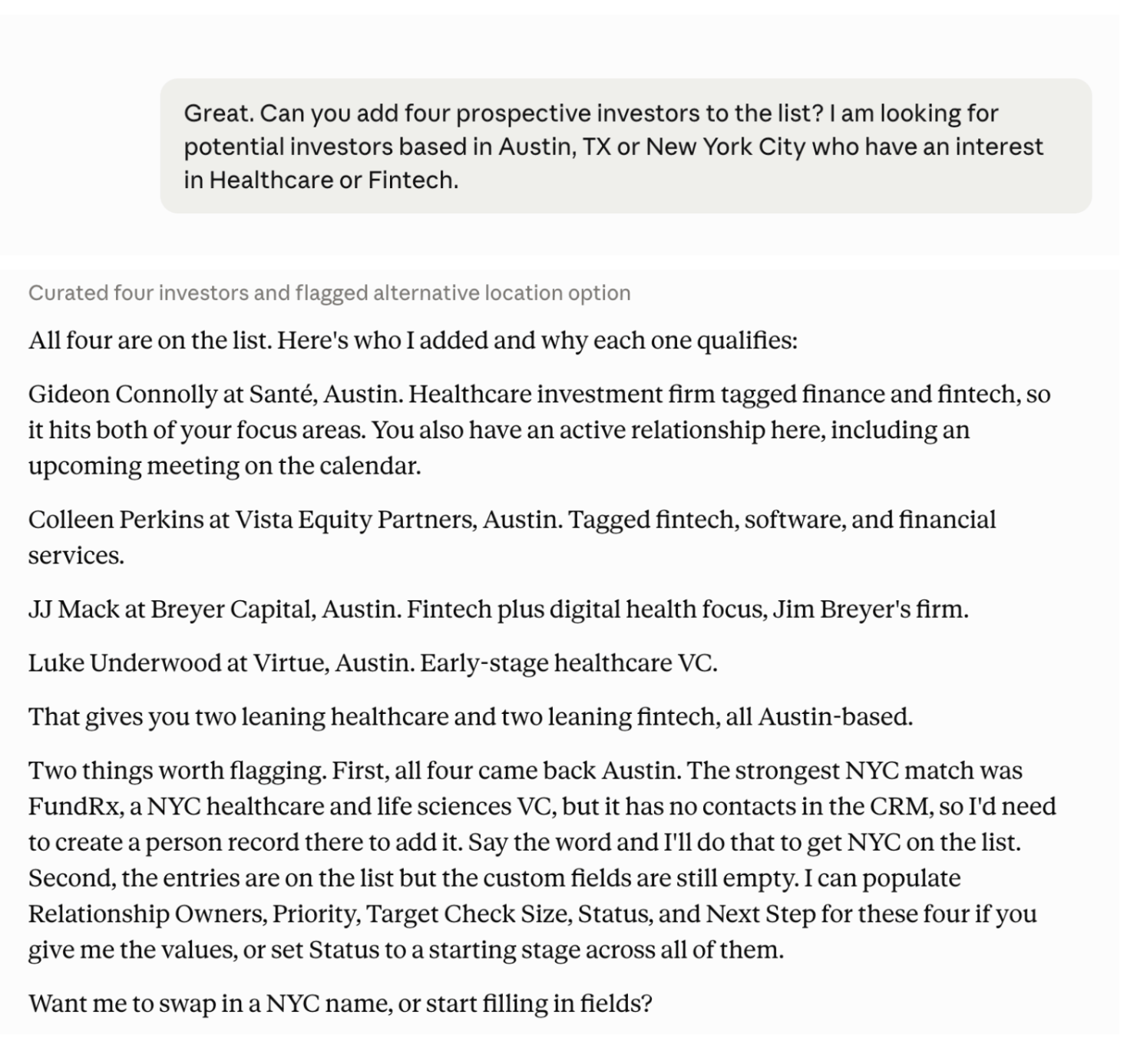 **Tip:** in this workflow, Claude searches your existing Affinity data only, not the open web, unless you specifically ask it to look outside Affinity.
## Use case 3: Add a small list of contacts one by one
**When to use it:** You met a handful of people, for example at a conference, and want them in Affinity quickly without a full import.
**How to do it:** Ask:
"Add these contacts to \[list name]: \[name, company, email, and any other details, for each person]."
Claude adds these one at a time using the Create People tool rather than in bulk. This works well for around 10-15 contacts, but gets slow for anything larger. For bigger lists, use the cleanup and import approach in use case 4 instead.
## Use case 4: Clean up a messy list before importing
**When to use it:** You have a spreadsheet of contacts, exported from somewhere else or just kept informally, and it's too inconsistent (missing fields, mismatched formatting) to import into Affinity as-is.
**How to do it:** Give Claude the messy file (upload it, or share a Google Drive link), along with, if you have them, Affinity's official CSV import template for the record type and Affinity's help article on formatting imports. Then ask:
"I need help formatting this CSV for import into Affinity. Please flag any fields with incomplete or missing information for me to review, don't make assumptions. Also suggest new columns based on the data in my spreadsheet, and tell me what type each new column should be."
Claude produces a cleaned CSV, plus a separate file listing everything that needs manual review (missing emails, missing names, missing companies, and so on). From there, you can either fix the flagged items yourself, or ask Claude to walk you through each one, in which case it'll ask whether to make its best guess, leave the field blank, or take the correct information from you directly. Once the file is ready, bring it into Affinity using the native import feature, where you'll map the columns; since most of the formatting work is already done, this step goes quickly.
**Note:** Claude only has the data already in Affinity, plus whatever you give it directly in the conversation. It doesn't have built-in knowledge of Affinity's import formatting requirements, so naming the template and help article explicitly, rather than assuming Claude already knows the format, is what makes this work well.
### Use case 5: Audit an existing list
**When to use it:** You have a list that's been around a while and hasn't been well-maintained, and want a quick read on what's wrong with it before deciding how to fix it.
**How to do it:** Ask:
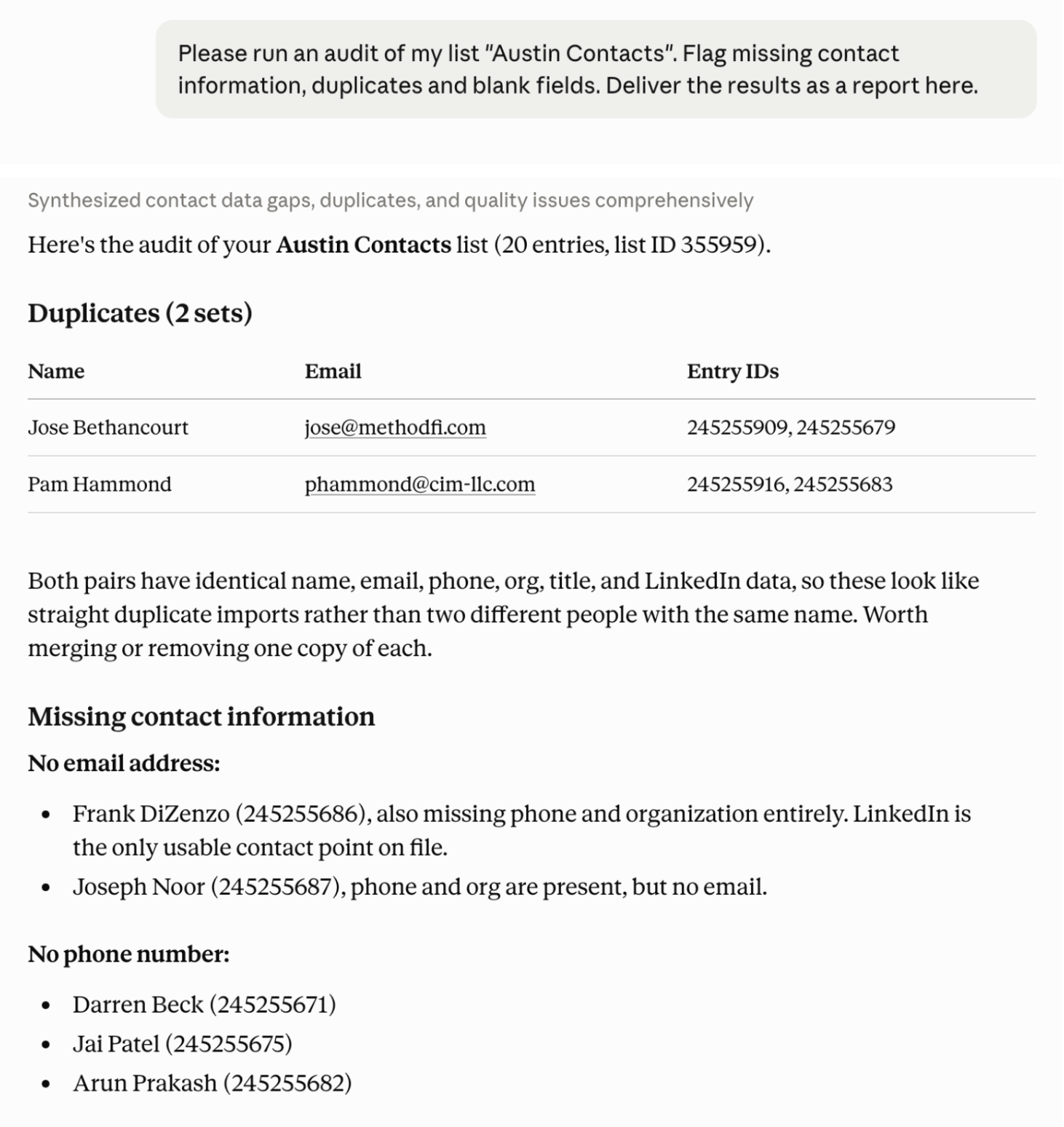
"Run an audit of my list, \[list name]. Flag missing contact information, duplicates, and blank fields. Deliver the results as a report in chat."
Claude reviews the list and reports back on: duplicate entries (the same record added to the list twice), missing contact information such as email or phone, and blank or stale-looking fields, for example every record still sitting on a default status long after the list was created, or several records with no owner assigned. From there, you can fix things manually in Affinity, or hand Claude the missing information directly and have it populate the list for you.
**Tip:** in this workflow, Claude searches your existing Affinity data only, not the open web, unless you specifically ask it to look outside Affinity.
## Use case 3: Add a small list of contacts one by one
**When to use it:** You met a handful of people, for example at a conference, and want them in Affinity quickly without a full import.
**How to do it:** Ask:
"Add these contacts to \[list name]: \[name, company, email, and any other details, for each person]."
Claude adds these one at a time using the Create People tool rather than in bulk. This works well for around 10-15 contacts, but gets slow for anything larger. For bigger lists, use the cleanup and import approach in use case 4 instead.
## Use case 4: Clean up a messy list before importing
**When to use it:** You have a spreadsheet of contacts, exported from somewhere else or just kept informally, and it's too inconsistent (missing fields, mismatched formatting) to import into Affinity as-is.
**How to do it:** Give Claude the messy file (upload it, or share a Google Drive link), along with, if you have them, Affinity's official CSV import template for the record type and Affinity's help article on formatting imports. Then ask:
"I need help formatting this CSV for import into Affinity. Please flag any fields with incomplete or missing information for me to review, don't make assumptions. Also suggest new columns based on the data in my spreadsheet, and tell me what type each new column should be."
Claude produces a cleaned CSV, plus a separate file listing everything that needs manual review (missing emails, missing names, missing companies, and so on). From there, you can either fix the flagged items yourself, or ask Claude to walk you through each one, in which case it'll ask whether to make its best guess, leave the field blank, or take the correct information from you directly. Once the file is ready, bring it into Affinity using the native import feature, where you'll map the columns; since most of the formatting work is already done, this step goes quickly.
**Note:** Claude only has the data already in Affinity, plus whatever you give it directly in the conversation. It doesn't have built-in knowledge of Affinity's import formatting requirements, so naming the template and help article explicitly, rather than assuming Claude already knows the format, is what makes this work well.
### Use case 5: Audit an existing list
**When to use it:** You have a list that's been around a while and hasn't been well-maintained, and want a quick read on what's wrong with it before deciding how to fix it.
**How to do it:** Ask:
"Run an audit of my list, \[list name]. Flag missing contact information, duplicates, and blank fields. Deliver the results as a report in chat."
Claude reviews the list and reports back on: duplicate entries (the same record added to the list twice), missing contact information such as email or phone, and blank or stale-looking fields, for example every record still sitting on a default status long after the list was created, or several records with no owner assigned. From there, you can fix things manually in Affinity, or hand Claude the missing information directly and have it populate the list for you.
 ## Use case 6: Avoid creating duplicates when adding to a list
**When to use it:** You have a batch of companies to add to a list that likely already overlaps with your existing pipeline, and want to avoid creating duplicate records.
**How to do it:** Ask:
"I want to add these companies to \[list name]: \[company names]. Check for any duplicates first and tell me before you add anything."
Claude checks for existing matches and flags them before adding anything new. For any duplicate it finds, you can tell it to log a note on the existing record instead of creating a new one.
### Tips for getting better results
* If you already have a list going and aren't sure what else to track, ask Claude directly. It can read what fields already exist and suggest ones you're missing, rather than you having to think of everything upfront.
* For imports, hand Claude the source file plus any formatting reference you have. Claude only knows what's in Affinity and what you give it in the conversation, not Affinity's import requirements or your personal formatting preferences, unless you spell them out.
* If you're organizing contacts across different relationship types (investment banks, VC firms, family offices, and so on), the general recommendation is one master list with tags and saved views per type, rather than a separate list for each type. Reach for a new list only when there's a distinct workflow or outcome you're tracking through to completion.
* For anything you'll do repeatedly, like a recurring cleanup or a weekly import, save the prompt or turn it into a Claude skill or project rather than re-describing the task from scratch every time.
## **Use case 7: Create new records from deal flow**
**When to use it:** A new lead comes in, by email, at a meeting, or forwarded from a colleague, and you want it in Affinity and on your active pipeline right away, rather than letting it sit until you get around to entering it manually.
**How to do it:** Ask, pasting in whatever you have:
"Create an Affinity record for \[company], based on this: \[paste email or description]. Add them to my \[active pipeline list name]."
Claude pulls the company name and domain out of whatever you pasted (and a contact's name and email too, if a person is mentioned), creates the record, and adds the company to the list you named, all in one step. This works the same way whether you paste a plain description or a forwarded email verbatim, Claude is reading the text either way, not the format it arrived in.
**Note:** creating a record this way doesn't automatically check for an existing match first. If there's a real chance the company or contact is already in Affinity, ask Claude to check before creating (see Troubleshooting below), otherwise you can end up with two records for the same company.
**Variations:**
* **Create contact and company together:** mention both in the same prompt, for example "add \[person] as a contact at \[company], and add \[company] to the list." Claude creates the company, creates the person, and links them, rather than you having to do this in two separate steps.
* **Create from a forwarded email:** paste the full forwarded email instead of a summary. Claude reads whatever's in the message the same way it reads a typed description.
* **Create from a pitch deck:** if the deck is attached directly in your conversation with Claude, Claude can read it and pull out the company name, domain, and other details to create the record from, the same as it would from pasted text. One limitation worth knowing: Claude can't upload that deck file into Affinity itself, so you'll get the record with the extracted fields, not the deck attached as a file on the company. If the deck is already stored in Affinity as a file, Claude can also read it directly from there via the MCP.
### **Tips for getting better results**
* If you already have a list going and aren't sure what else to track, ask Claude directly. It can read what fields already exist and suggest ones you're missing, rather than you having to think of everything upfront.
* For imports, hand Claude the source file plus any formatting reference you have. Claude only knows what's in Affinity and what you give it in the conversation, not Affinity's import requirements or your personal formatting preferences, unless you spell them out.
* If you're organizing contacts across different relationship types (investment banks, VC firms, family offices, and so on), the general recommendation is one master list with tags and saved views per type, rather than a separate list for each type. Reach for a new list only when there's a distinct workflow or outcome you're tracking through to completion.
* For anything you'll do repeatedly, like a recurring cleanup or a weekly import, save the prompt or turn it into a Claude skill or project rather than re-describing the task from scratch every time.
## Troubleshooting & FAQ
**Can Claude merge duplicate records for me?** Not yet. Claude can flag duplicates during an audit or before an import, but merging isn't currently a capability of the MCP. Use Affinity's native duplicate merge tool instead, which matches on things like website or email domain and supports bulk merges.
**Why didn't Claude already know how to format my CSV?** Claude only works from what's actually in Affinity, plus whatever context you give it in the conversation. It doesn't have built-in knowledge of your formatting preferences or Affinity's import requirements, so hand it a reference, like Affinity's CSV template or a help article on formatting imports, directly. A preloaded import-cleanup skill for this has been discussed internally, but didn't exist as of this session.
**Should I create a separate list for each type of organization I track?** Generally no. The recommendation is one master list with tags and saved views for each category, and reserving a new list for cases where you're tracking a distinct workflow through to an outcome, like a new opportunity pipeline.
**Can Claude add records from a general web search instead of just from Affinity?** In this workflow, no. It searched only the contacts already in Affinity. Pulling from a third-party or web source is technically possible but wasn't what was demonstrated here, so ask explicitly if that's what you want.
## Related topics
- [Tutorial 11: Data Quality — Clean, Merge, and Maintain](/s/article/Tutorial-11-data-quality-clean-merge-and-maintain.md)
- [Prompts for Affinity MCP (Claude, ChatGPT & other tools)](/s/article/Prompts-for-Affinity-MCP.md)
- [Tutorial 0.1: Set Up Your Account](/s/article/Tutorial-0-1-set-up-your-account.md)
- [Saved Views in New Lists Reference](/s/article/Saved-views-in-new-lists-reference.md)
- [Getting Started with Affinity MCP](/s/article/Getting-started-with-Affinity-MCP.md)
- [Cleaning Up Your Data Before Importing Into Affinity](/s/article/Cleaning-up-your-data-before-importing-into-Affinity.md)
- [On-demand Pipeline Dashboard and Reports with Claude](/s/article/on-demand-pipeline-dashboard-and-reports.md)
- [How to quickly audit and update stale deals in your pipeline](/s/article/How-to-quickly-audit-and-update-stale-deals-in-your-pipeline.md)
- [How to manage your pipeline efficiently using saved views](/s/article/How-to-manage-your-pipeline-efficiently-using-saved-views.md)
## Use case 6: Avoid creating duplicates when adding to a list
**When to use it:** You have a batch of companies to add to a list that likely already overlaps with your existing pipeline, and want to avoid creating duplicate records.
**How to do it:** Ask:
"I want to add these companies to \[list name]: \[company names]. Check for any duplicates first and tell me before you add anything."
Claude checks for existing matches and flags them before adding anything new. For any duplicate it finds, you can tell it to log a note on the existing record instead of creating a new one.
### Tips for getting better results
* If you already have a list going and aren't sure what else to track, ask Claude directly. It can read what fields already exist and suggest ones you're missing, rather than you having to think of everything upfront.
* For imports, hand Claude the source file plus any formatting reference you have. Claude only knows what's in Affinity and what you give it in the conversation, not Affinity's import requirements or your personal formatting preferences, unless you spell them out.
* If you're organizing contacts across different relationship types (investment banks, VC firms, family offices, and so on), the general recommendation is one master list with tags and saved views per type, rather than a separate list for each type. Reach for a new list only when there's a distinct workflow or outcome you're tracking through to completion.
* For anything you'll do repeatedly, like a recurring cleanup or a weekly import, save the prompt or turn it into a Claude skill or project rather than re-describing the task from scratch every time.
## **Use case 7: Create new records from deal flow**
**When to use it:** A new lead comes in, by email, at a meeting, or forwarded from a colleague, and you want it in Affinity and on your active pipeline right away, rather than letting it sit until you get around to entering it manually.
**How to do it:** Ask, pasting in whatever you have:
"Create an Affinity record for \[company], based on this: \[paste email or description]. Add them to my \[active pipeline list name]."
Claude pulls the company name and domain out of whatever you pasted (and a contact's name and email too, if a person is mentioned), creates the record, and adds the company to the list you named, all in one step. This works the same way whether you paste a plain description or a forwarded email verbatim, Claude is reading the text either way, not the format it arrived in.
**Note:** creating a record this way doesn't automatically check for an existing match first. If there's a real chance the company or contact is already in Affinity, ask Claude to check before creating (see Troubleshooting below), otherwise you can end up with two records for the same company.
**Variations:**
* **Create contact and company together:** mention both in the same prompt, for example "add \[person] as a contact at \[company], and add \[company] to the list." Claude creates the company, creates the person, and links them, rather than you having to do this in two separate steps.
* **Create from a forwarded email:** paste the full forwarded email instead of a summary. Claude reads whatever's in the message the same way it reads a typed description.
* **Create from a pitch deck:** if the deck is attached directly in your conversation with Claude, Claude can read it and pull out the company name, domain, and other details to create the record from, the same as it would from pasted text. One limitation worth knowing: Claude can't upload that deck file into Affinity itself, so you'll get the record with the extracted fields, not the deck attached as a file on the company. If the deck is already stored in Affinity as a file, Claude can also read it directly from there via the MCP.
### **Tips for getting better results**
* If you already have a list going and aren't sure what else to track, ask Claude directly. It can read what fields already exist and suggest ones you're missing, rather than you having to think of everything upfront.
* For imports, hand Claude the source file plus any formatting reference you have. Claude only knows what's in Affinity and what you give it in the conversation, not Affinity's import requirements or your personal formatting preferences, unless you spell them out.
* If you're organizing contacts across different relationship types (investment banks, VC firms, family offices, and so on), the general recommendation is one master list with tags and saved views per type, rather than a separate list for each type. Reach for a new list only when there's a distinct workflow or outcome you're tracking through to completion.
* For anything you'll do repeatedly, like a recurring cleanup or a weekly import, save the prompt or turn it into a Claude skill or project rather than re-describing the task from scratch every time.
## Troubleshooting & FAQ
**Can Claude merge duplicate records for me?** Not yet. Claude can flag duplicates during an audit or before an import, but merging isn't currently a capability of the MCP. Use Affinity's native duplicate merge tool instead, which matches on things like website or email domain and supports bulk merges.
**Why didn't Claude already know how to format my CSV?** Claude only works from what's actually in Affinity, plus whatever context you give it in the conversation. It doesn't have built-in knowledge of your formatting preferences or Affinity's import requirements, so hand it a reference, like Affinity's CSV template or a help article on formatting imports, directly. A preloaded import-cleanup skill for this has been discussed internally, but didn't exist as of this session.
**Should I create a separate list for each type of organization I track?** Generally no. The recommendation is one master list with tags and saved views for each category, and reserving a new list for cases where you're tracking a distinct workflow through to an outcome, like a new opportunity pipeline.
**Can Claude add records from a general web search instead of just from Affinity?** In this workflow, no. It searched only the contacts already in Affinity. Pulling from a third-party or web source is technically possible but wasn't what was demonstrated here, so ask explicitly if that's what you want.
## Related topics
- [Tutorial 11: Data Quality — Clean, Merge, and Maintain](/s/article/Tutorial-11-data-quality-clean-merge-and-maintain.md)
- [Prompts for Affinity MCP (Claude, ChatGPT & other tools)](/s/article/Prompts-for-Affinity-MCP.md)
- [Tutorial 0.1: Set Up Your Account](/s/article/Tutorial-0-1-set-up-your-account.md)
- [Saved Views in New Lists Reference](/s/article/Saved-views-in-new-lists-reference.md)
- [Getting Started with Affinity MCP](/s/article/Getting-started-with-Affinity-MCP.md)
- [Cleaning Up Your Data Before Importing Into Affinity](/s/article/Cleaning-up-your-data-before-importing-into-Affinity.md)
- [On-demand Pipeline Dashboard and Reports with Claude](/s/article/on-demand-pipeline-dashboard-and-reports.md)
- [How to quickly audit and update stale deals in your pipeline](/s/article/How-to-quickly-audit-and-update-stale-deals-in-your-pipeline.md)
- [How to manage your pipeline efficiently using saved views](/s/article/How-to-manage-your-pipeline-efficiently-using-saved-views.md)