> ## Documentation Index
> Fetch the complete documentation index at: https://support.affinity.co/llms.txt
> Use this file to discover all available pages before exploring further.
# What Is An Alliance Group
> Help center reference
**Advanced** — power-user technique.
With [Affinity Alliances](/s/article/Getting-started-with-Affinity-Alliances), you can make allies with one individual at a time. However, you can also join an **Alliance Group** to collectively share your network with everyone in that group while also gaining access to everyone else's network within that group.
* **Example**: Many investment firms form Alliance Groups with their portfolio founders and executives so that they can all gain shared access to one another's networks.
## How do I create an Alliance Group?
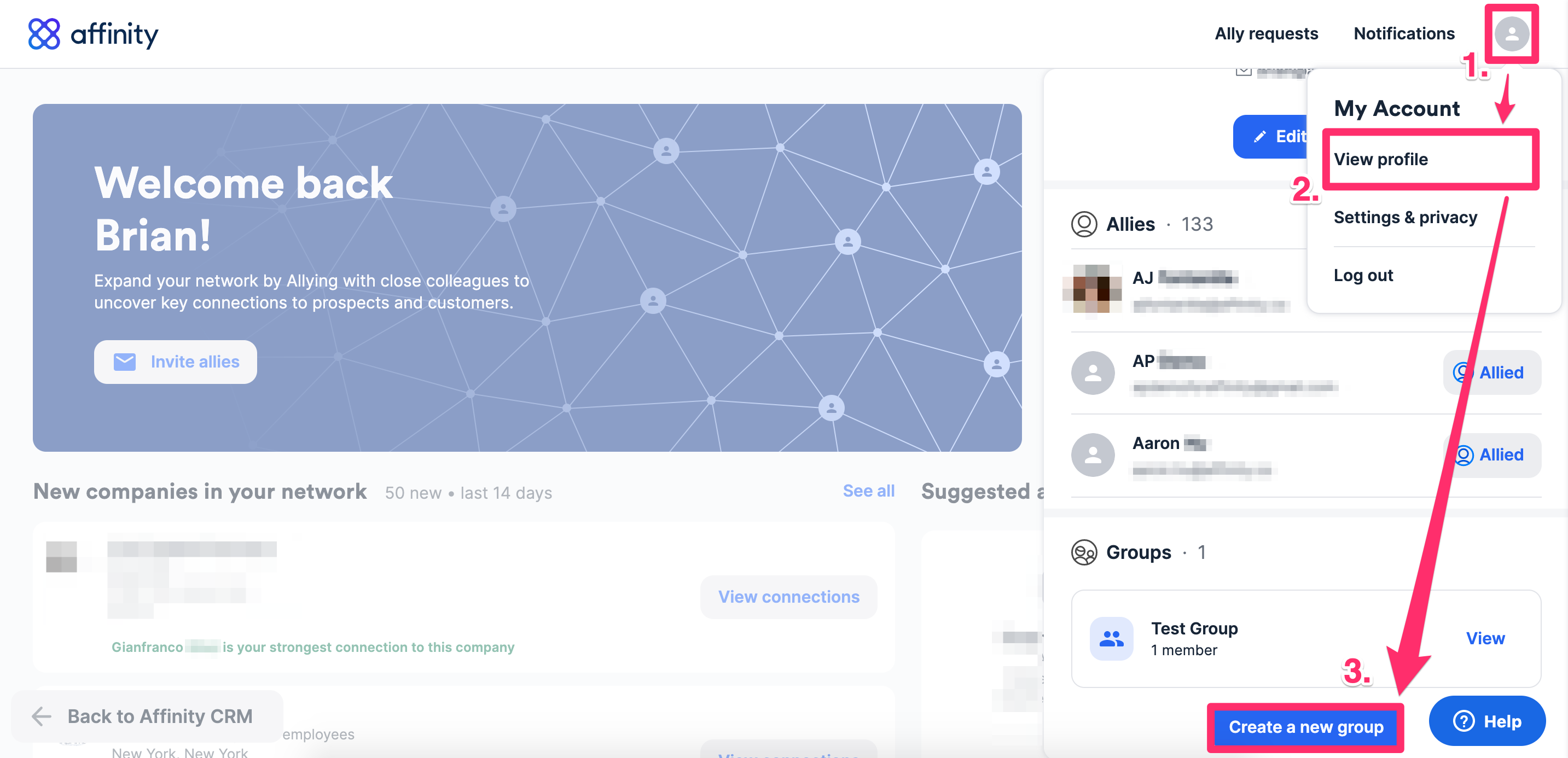
1. Click your **Profile** icon on the top-right corner.
2. Click **View profile**.
3. Scroll down, then click **Create a new group**.
 Alternatively, you can do the following:
1. Click the **blue arrow**.
Alternatively, you can do the following:
1. Click the **blue arrow**.
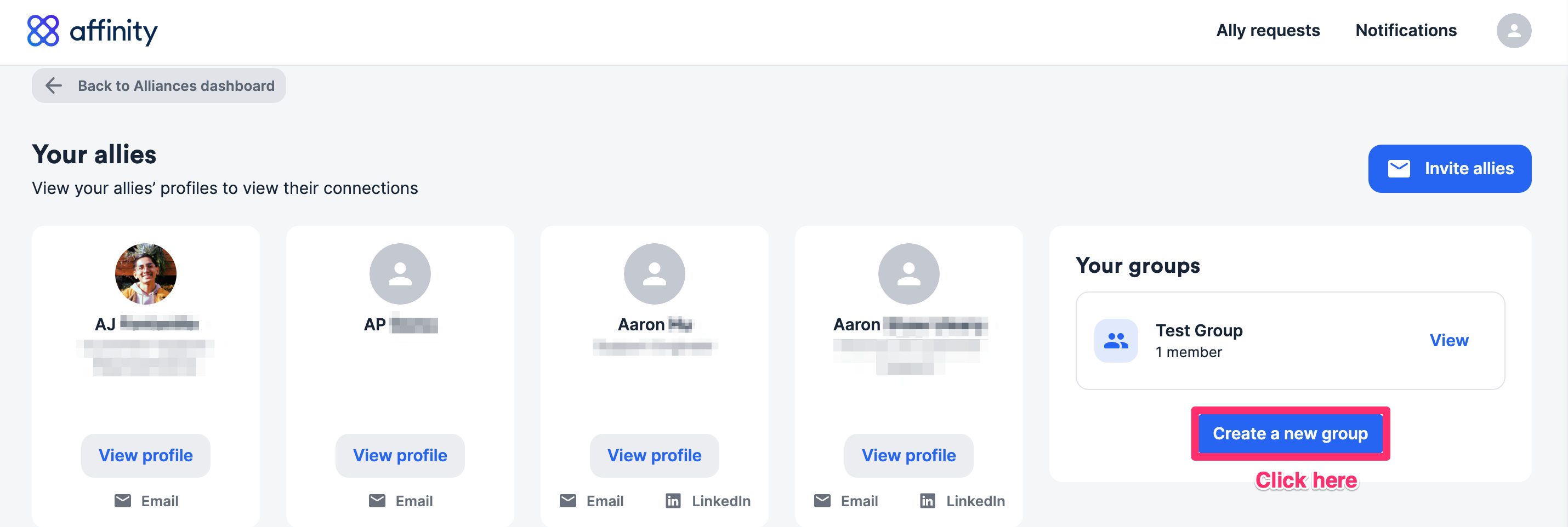
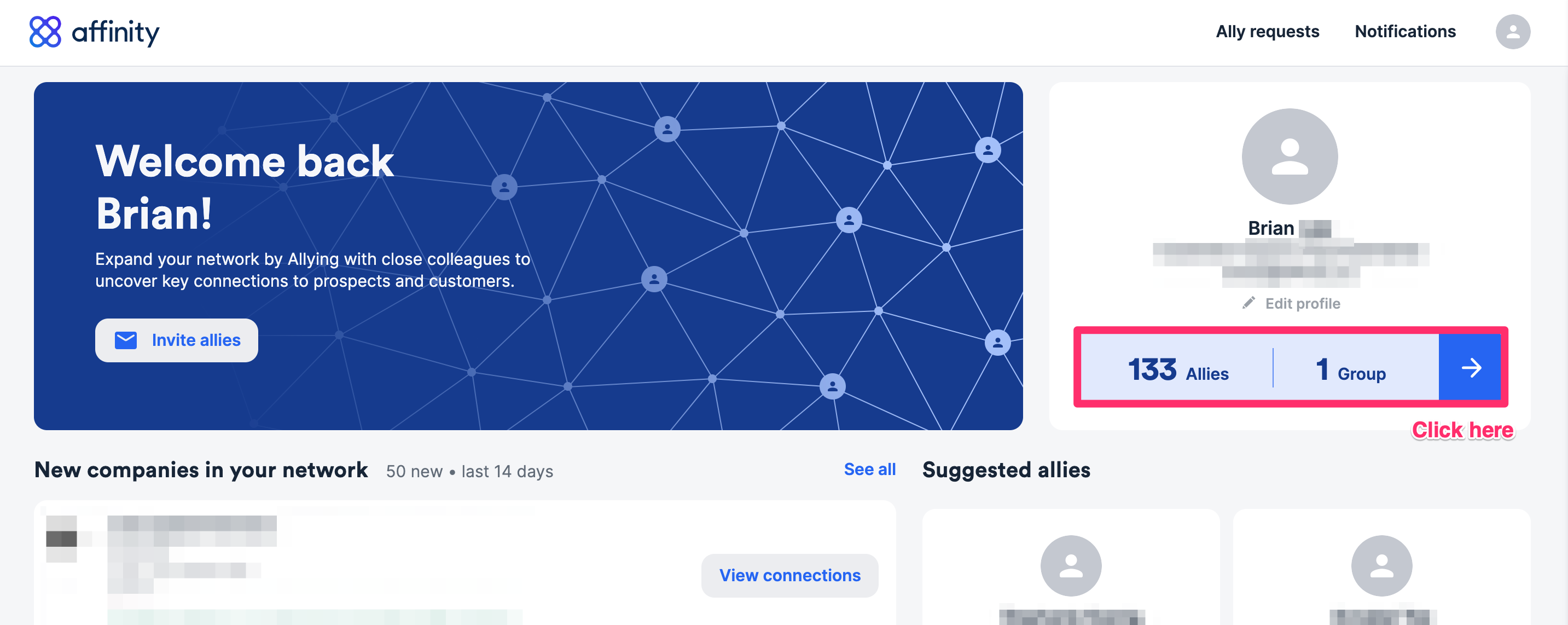 2. Then, click **Create a new group**.
 ## How can I invite members to an Alliance Group?
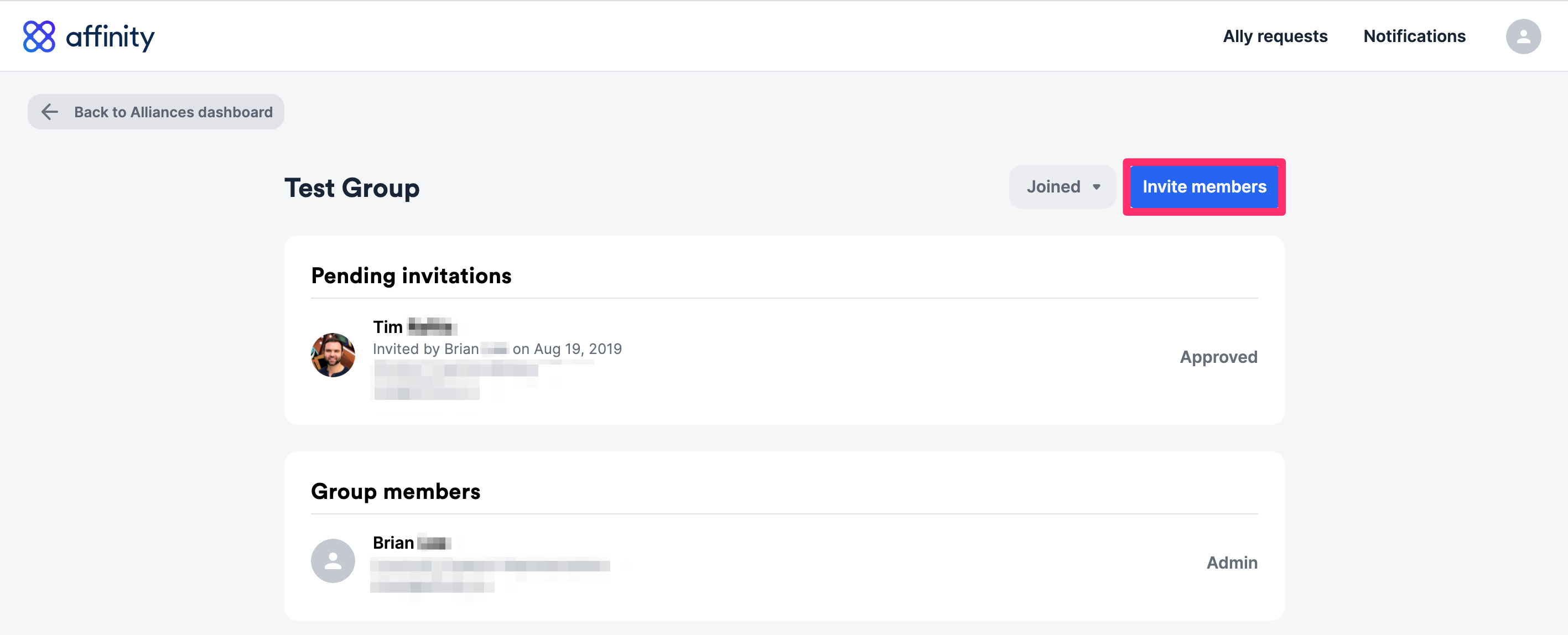
Anyone already within the group can invite people into the group, but only the **admin** of the group can ultimately approve of who gets added. To send invites, please follow the steps below:
1. Click the **blue arrow**.
## How can I invite members to an Alliance Group?
Anyone already within the group can invite people into the group, but only the **admin** of the group can ultimately approve of who gets added. To send invites, please follow the steps below:
1. Click the **blue arrow**.
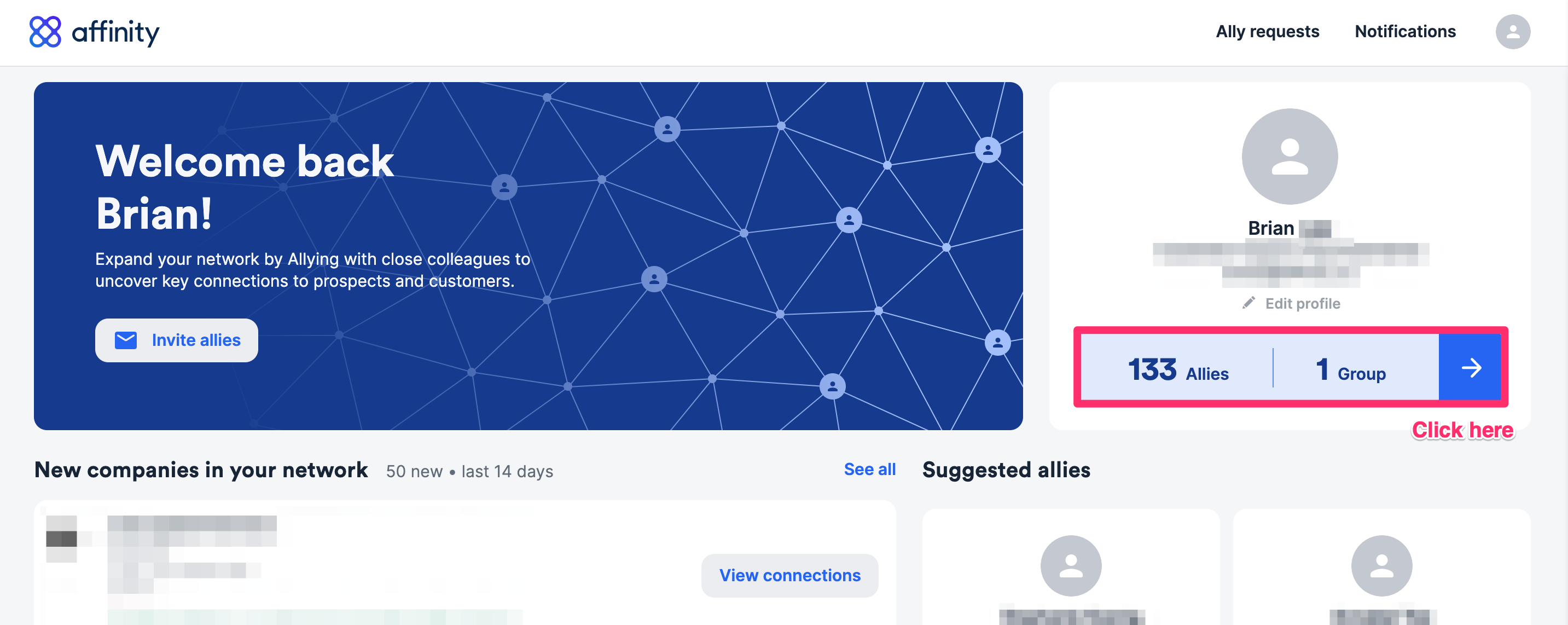 2. Click the **View** button within the Alliance Group.
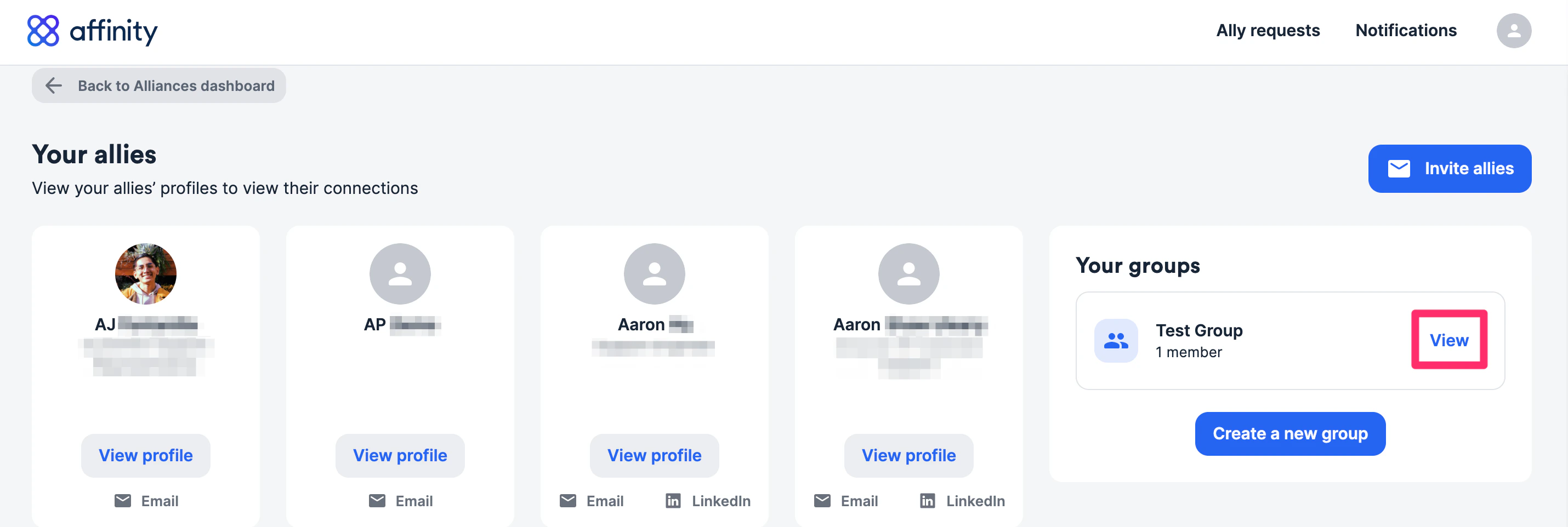 3. Click **Invite members**. You can invite anyone with a valid Gmail or Microsoft email account.
 ## How many degrees of connections are made with Alliances?
With [Affinity Alliances](/s/article/Getting-started-with-Affinity-Alliances) and Alliance Groups, you can see up to the following degrees of connections:
* **1st degree connections** - People or Allies whom you have directly communicated with.
* **2nd degree connections** - People whom your 1st degree connections have directly communicated with (but you have not). We currently do not support **3rd degree connections** - people whom your 2nd degree connections have directly communicated with (but you have not).
## How do I leave an Alliance Group?
1. Click the **blue arrow**.
## How many degrees of connections are made with Alliances?
With [Affinity Alliances](/s/article/Getting-started-with-Affinity-Alliances) and Alliance Groups, you can see up to the following degrees of connections:
* **1st degree connections** - People or Allies whom you have directly communicated with.
* **2nd degree connections** - People whom your 1st degree connections have directly communicated with (but you have not). We currently do not support **3rd degree connections** - people whom your 2nd degree connections have directly communicated with (but you have not).
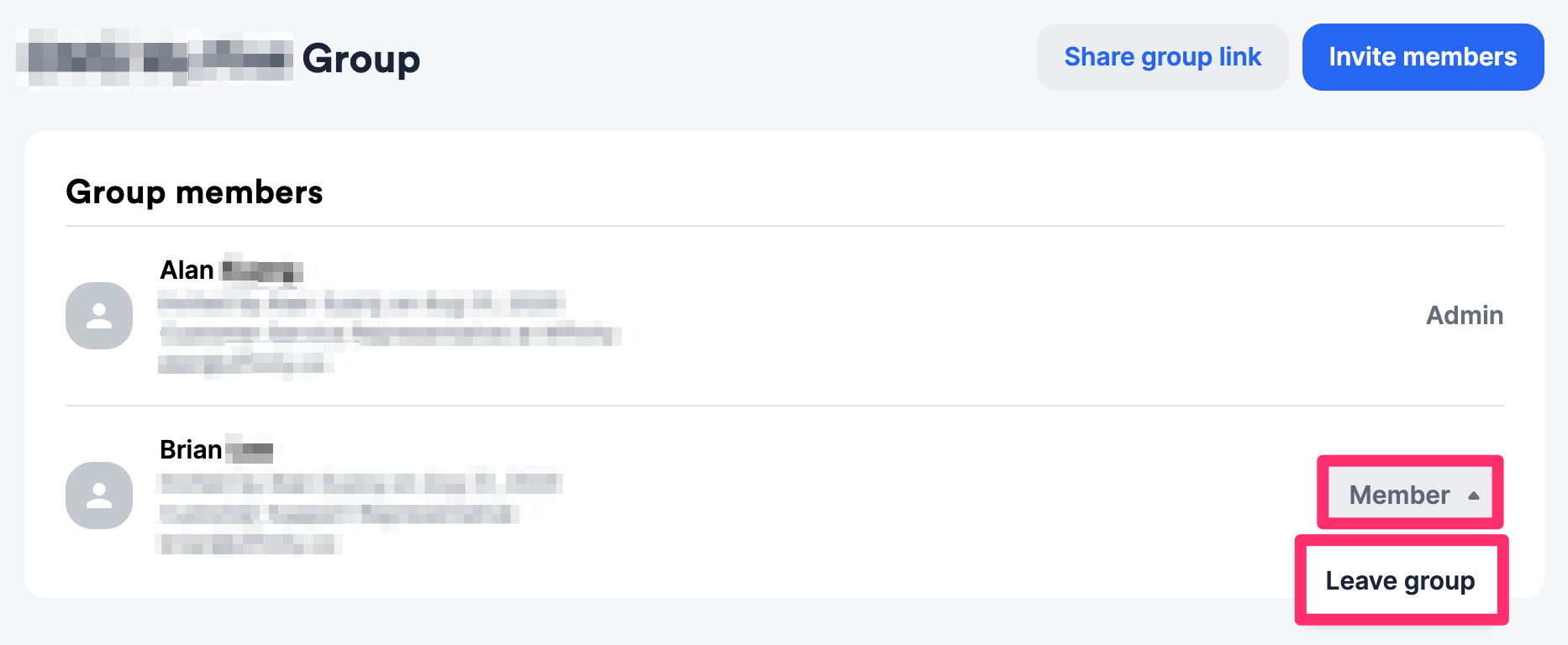
## How do I leave an Alliance Group?
1. Click the **blue arrow**.
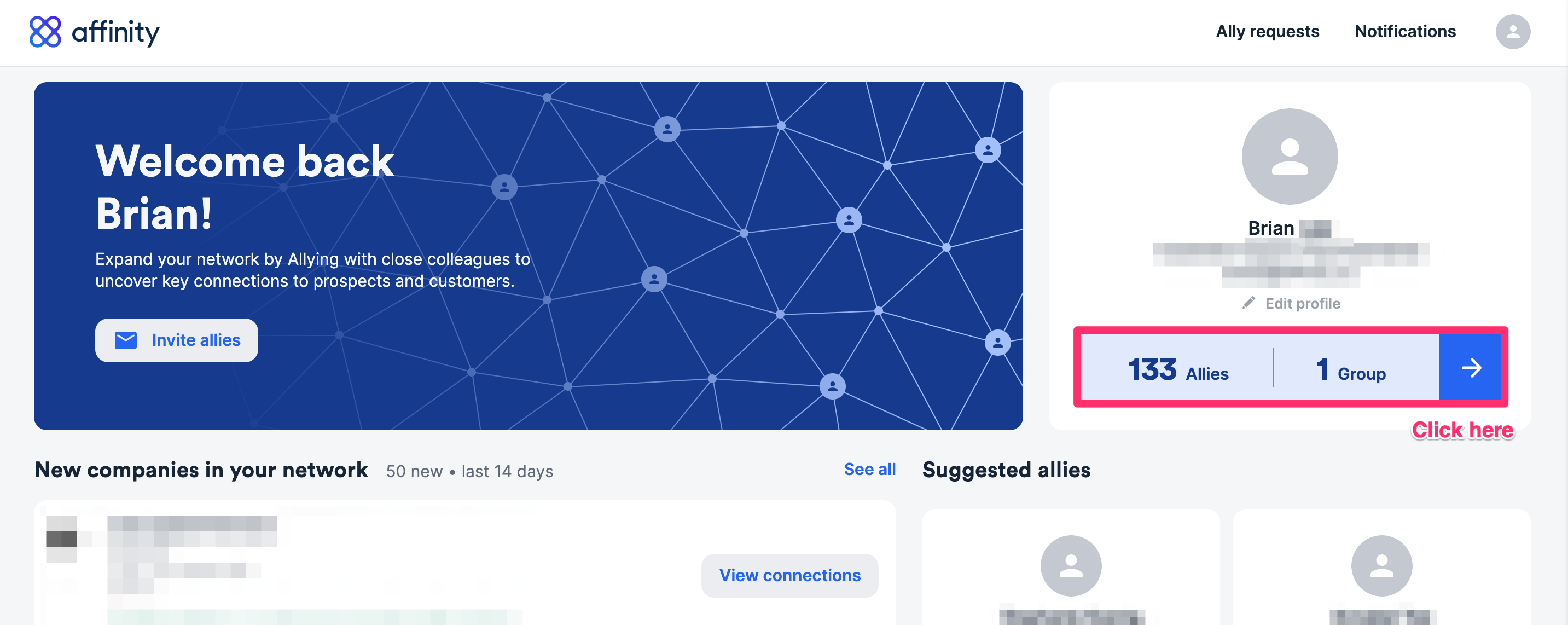 2. Click the **View** button within the Alliance Group.
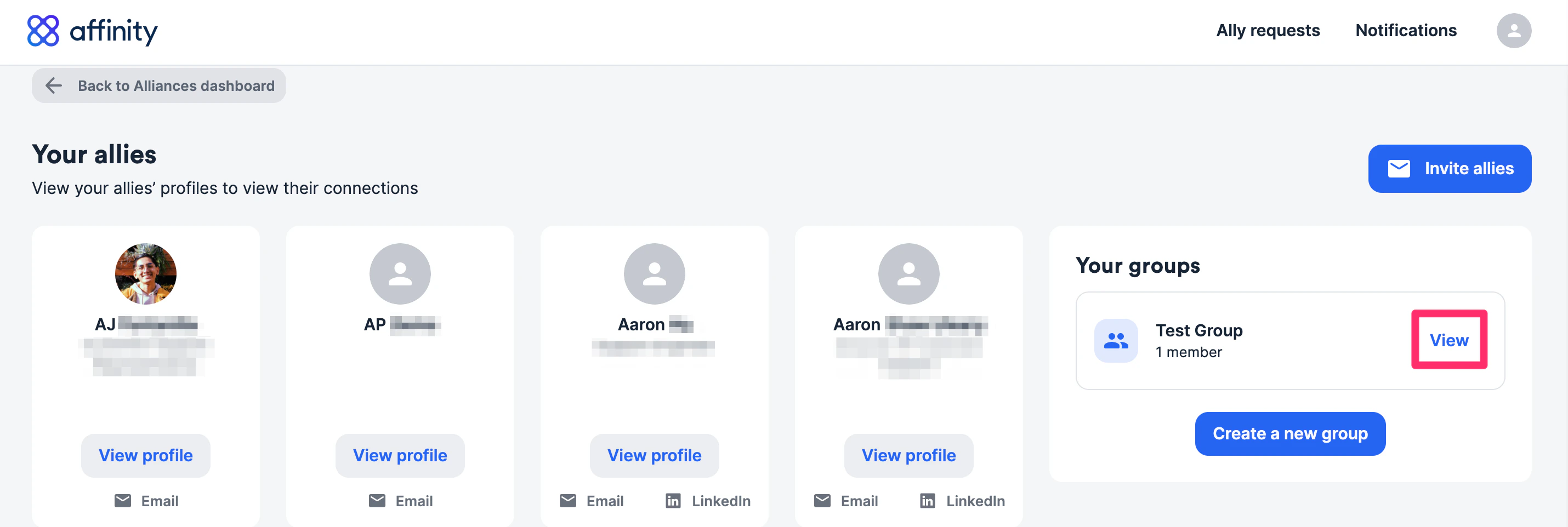 3. Click **Member** next to your name, then click **Leave group**.
 {/* */}