> ## Documentation Index
> Fetch the complete documentation index at: https://support.affinity.co/llms.txt
> Use this file to discover all available pages before exploring further.
# Viewing Your Data Import History
> Settings → Manage Imports tab; view all imports, download error CSVs, fix and re-import.
**How-to** — task-oriented recipe.
After importing your data into Affinity, you will receive an email stating that your import has been completed! However, you may find that sometimes there are some rows or cells that may have been skipped due to numerous reasons such as improper data formatting, typos, and more.
**Note**: This video contains the old navigation bar on the top, whereas the current navigation bar now lies on the left side of your screen. While the remaining content is still the same, rest assured that we will be updating our videos accordingly.
To view your data import history and identify any skipped rows/cells:
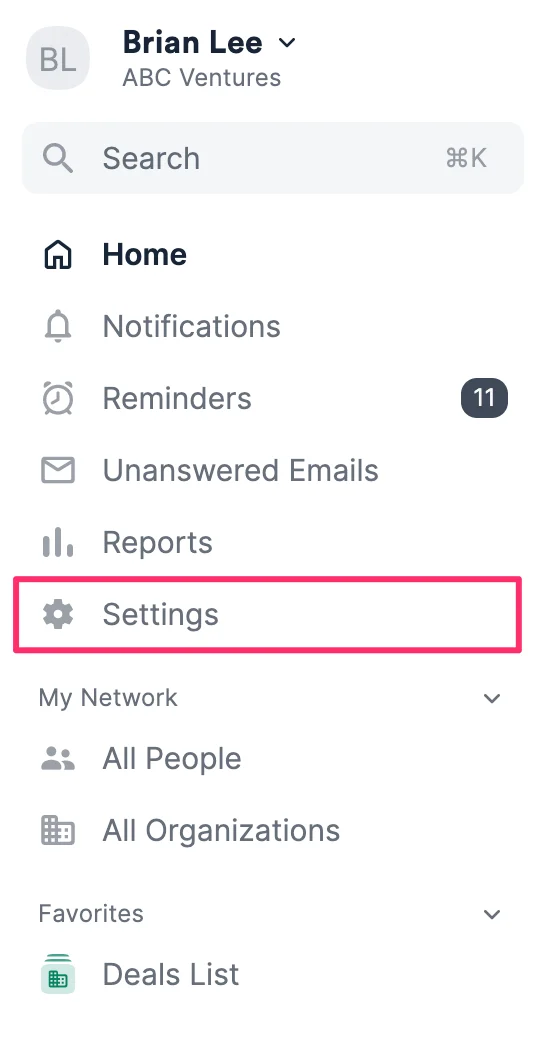
1. Click **Settings** on the left-side of your screen.
 2. Then, click the **Manage Imports** tab to view all your data imports.
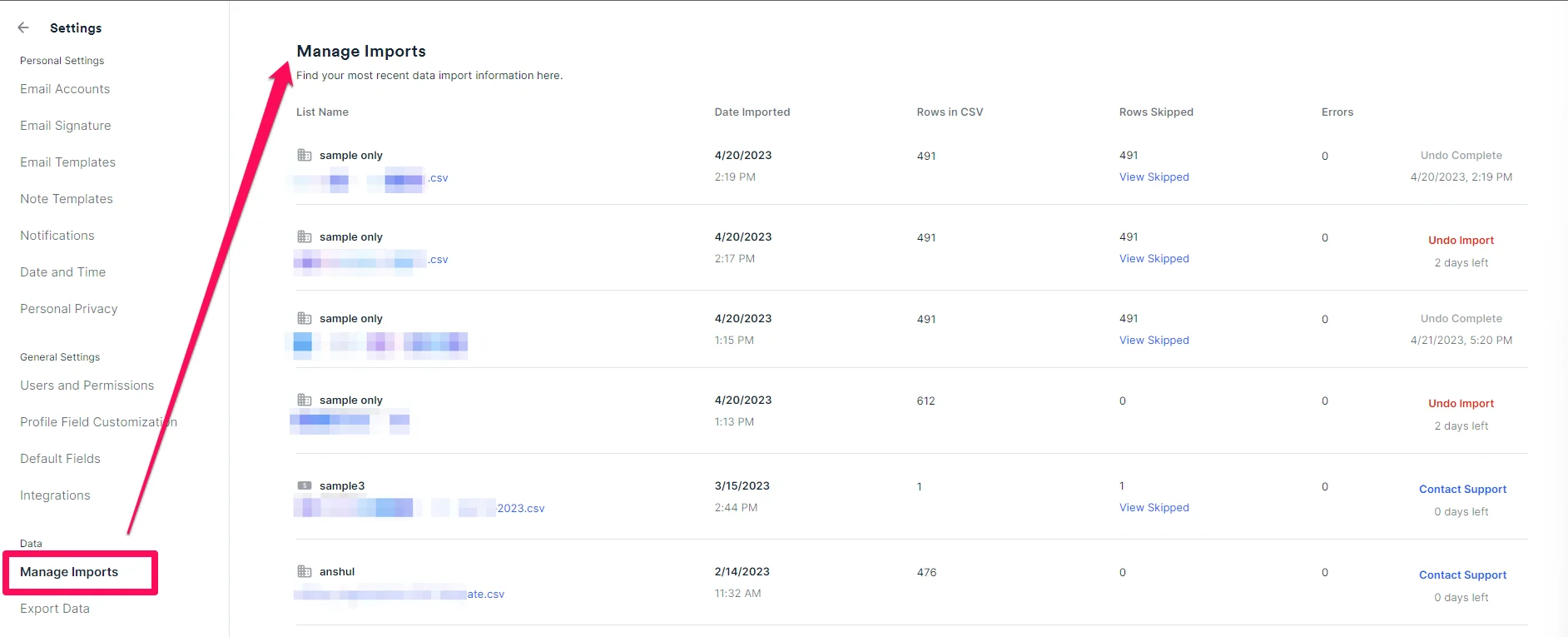 3. You can download CSV files of rows skipped or errors for each import by clicking on **View Skipped** or **View Errors** where relevant.
1. **Rows Skipped** provides you with a CSV file showing the rows that were skipped and the reasons why.
2. **Errors** provide you with a CSV file showing the specific cells that were skipped and the reasons why.
4. From there, you can make direct changes within the CSV files you just downloaded, then use it to conduct another quick import.
5. If you want to undo your import, **do not delete** your list - instead, follow the steps in this article: [How to undo imports in Affinity](/s/article/How-to-undo-imports-in-Affinity).
3. You can download CSV files of rows skipped or errors for each import by clicking on **View Skipped** or **View Errors** where relevant.
1. **Rows Skipped** provides you with a CSV file showing the rows that were skipped and the reasons why.
2. **Errors** provide you with a CSV file showing the specific cells that were skipped and the reasons why.
4. From there, you can make direct changes within the CSV files you just downloaded, then use it to conduct another quick import.
5. If you want to undo your import, **do not delete** your list - instead, follow the steps in this article: [How to undo imports in Affinity](/s/article/How-to-undo-imports-in-Affinity).