> ## Documentation Index
> Fetch the complete documentation index at: https://support.affinity.co/llms.txt
> Use this file to discover all available pages before exploring further.
# Unique fields provided by default in Affinity lists
> Help center reference
**Reference** — lookup information.
While you can create new custom fields within your Affinity lists, there are unique fields provided by default that should be used as they are connected to other important features. Check out the unique fields based on the list type below.
## Unique fields in people lists
* **Amount**
* This field is used to show total amounts for each status option from the **Status** field in board views.
* **Owners**
* This field is used for creating status triggers and reminder triggers.
* This field can only be filled with internal users (team members) on your Affinity account. External contacts cannot be added to this field.
* **Status**
* This field is used for creating status triggers, opportunity triggers, and reminder triggers.
* This field also affects the enriched field: **Time in Current Status\***
* You can also click on a cell under the Status field to see how long a list entry has been in that current status.
* You can also use **Time in Current Status\*** for [Affinity Analytics — Funnel Analysis Reports](/s/article/Affinity-Analytics-Funnel-Analysis-Reports).
* **Notes**
* All the notes associated with a person will carry over to the organizations and opportunities they're also associated with.
* **Reminders**
* All the reminders associated with a person will carry over to the organizations and opportunities they're also associated with.
* **Organizations\***
* This field is enriched and auto-updated as Affinity auto-creates contacts over time, but can be manually edited as well.
* All the notes and reminders associated with a person will carry over to the organizations they're also associated with.
* All the email/calendar activities between you/your team and the people associated with a given organization will appear on the organization's Activity Timeline.
* **Opportunities**
* This field displays all Opportunities that a person is directly associated with via the *People* field of an Opportunity.
* You can click on the cell within the Opportunities field to navigate directly to the Opportunity's profile.
* This field is read-only and is automatically updated as new associations are created.
* **Source of Introduction\***
* This field is enriched and auto-updated, but can be manually edited as well.
* Click on the cell for one of the list entries to see the specific interaction that Affinity has determined to be the earliest point of communication between you/your team and that person.
\* Enriched fields are auto-populated by Affinity and are highly suggested for use in your lists ([learn more](/s/article/Enriched-Global-and-List-specific-Fields)). Before creating any new custom fields, please review all the available enriched fields and [Affinity Data](/s/article/Affinity-Data) fields to avoid creating duplicate fields.
## Unique fields in organization lists
* **Amount**
* This field is used to show total amounts for each status option from the **Status** field in board views.
* **Owners**
* This field is used for creating status triggers and reminder triggers.
* This field can only be filled with internal users (team members) on your Affinity account. External contacts cannot be added to this field.
* **Status**
* This field is used for creating status triggers, opportunity triggers, and reminder triggers.
* This field also affects the enriched field: **Time in Current Status\***
* You can also click on a cell under the Status field to see how long a list entry has been in that current status.
* You can also use **Time in Current Status\*** for [Affinity Analytics — Funnel Analysis Reports](/s/article/Affinity-Analytics-Funnel-Analysis-Reports).
* **Notes**
* All the notes associated with a person will carry over to the organizations they're also associated with.
* You can still add notes directly to organizations themselves.
* **Reminders**
* All the reminders associated with a person will carry over to the organizations they're also associated with.
* You can still set reminders directly for organizations themselves.
* **People\***
* All the notes and reminders associated with a person will carry over to the organizations and opportunities they're also associated with.
* All the email/calendar activities between you/your team and the people associated with a given organization will appear on the organization's Activity Timeline and affect enriched fields like **First Email\***, **First Meeting\***, **Last Email\***, **Last Meeting\***, **Last Contact\***, and **Next Meeting\***.
* **Opportunities**
* This field displays all Opportunities that an organization is directly associated with via the *Organization* field of an Opportunity.
* You can click on the cell within the Opportunities field to navigate directly to the Opportunity's profile.
* This field is read-only and is automatically updated as new associations are created.
* **Source of Introduction\***
* This field is enriched and auto-updated, but can be manually edited as well.
* Click on the cell for one of the list entries to see the specific interaction that Affinity has determined to be the earliest point of communication between you/your team and that organization.
\* Enriched fields are auto-populated by Affinity and are highly suggested for use in your lists ([learn more](/s/article/Enriched-Global-and-List-specific-Fields)). Before creating any new custom fields, please review all the available enriched fields and [Affinity Data](/s/article/Affinity-Data) fields to avoid creating duplicate fields.
## Unique fields in opportunity lists
* **AUM**
* This field is used to show total amounts for each status option from the **Status** field in board views.
* **Close Date**
* This field will be auto-updated when an opportunity gets updated to any status option within the "Won" category of the **Status** field.
* This field can be used for [Affinity Analytics — Funnel Analysis Reports](/s/article/Affinity-Analytics-Funnel-Analysis-Reports).
* **Owners**
* This field is used for creating status triggers and reminder triggers.
* This field can only be filled with internal users (team members) on your Affinity account. External contacts cannot be added to this field.
* **Status**
* **Only for opportunity lists**: You can assign win probabilities (%) to each status option within the **Status** field, which can then be used to track weighted averages with Affinity Analytics ([learn more](/s/article/How-to-create-probability-adjusted-values-for-forecasting-with-Affinity-Analytics)).
* This field is used for creating status triggers, opportunity triggers, and reminder triggers.
* This field also affects the enriched field: **Time in Current Status\***
* You can also click on a cell under the Status field to see how long a list entry has been in that current status.
* You can also use **Time in Current Status\*** for [Affinity Analytics — Funnel Analysis Reports](/s/article/Affinity-Analytics-Funnel-Analysis-Reports).
* **People**
* All the notes and reminders associated with a person will carry over to the opportunities they're also associated with.
* All the email/calendar activities between you/your team and the people associated with a given opportunity will appear on the opportunity's Activity Timeline and affect enriched fields like **First Email\***, **First Meeting\***, **Last Email\***, **Last Meeting\***, **Last Contact\***, and **Next Meeting\***.
* **Organizations**
* If there is **exactly one organization** associated with a given opportunity, Affinity will surface all the enriched data for that organization (if available) for that opportunity in the opportunity list.
* If there are zero, two, or more organizations associated with a given opportunity, Affinity will **not** surface any enriched data from any organization for that opportunity in the opportunity list.
* **Notes**
* All the notes associated with a person will carry over to the opportunities they're also associated with.
* You can still add notes directly to opportunities themselves.
* **Reminders**
* All the reminders associated with a person will carry over to the opportunities they're also associated with.
* You can still set reminders directly for opportunities themselves.
\* Enriched fields are auto-populated by Affinity and are highly suggested for use in your lists ([learn more](/s/article/Enriched-Global-and-List-specific-Fields)). Before creating any new custom fields, please review all the available enriched fields and [Affinity Data](/s/article/Affinity-Data) fields to avoid creating duplicate fields.
## Reasons why you may not see some of these unique fields
* Another team member on your account may have renamed one of these unique fields.
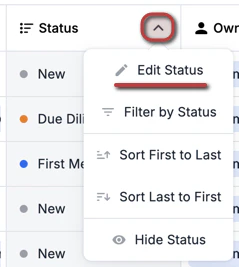
* Example: Renaming the **Status** field by clicking the dropdown, then clicking **Edit Status**.
 * The unique field may simply be hidden from the saved view you're currently viewing.
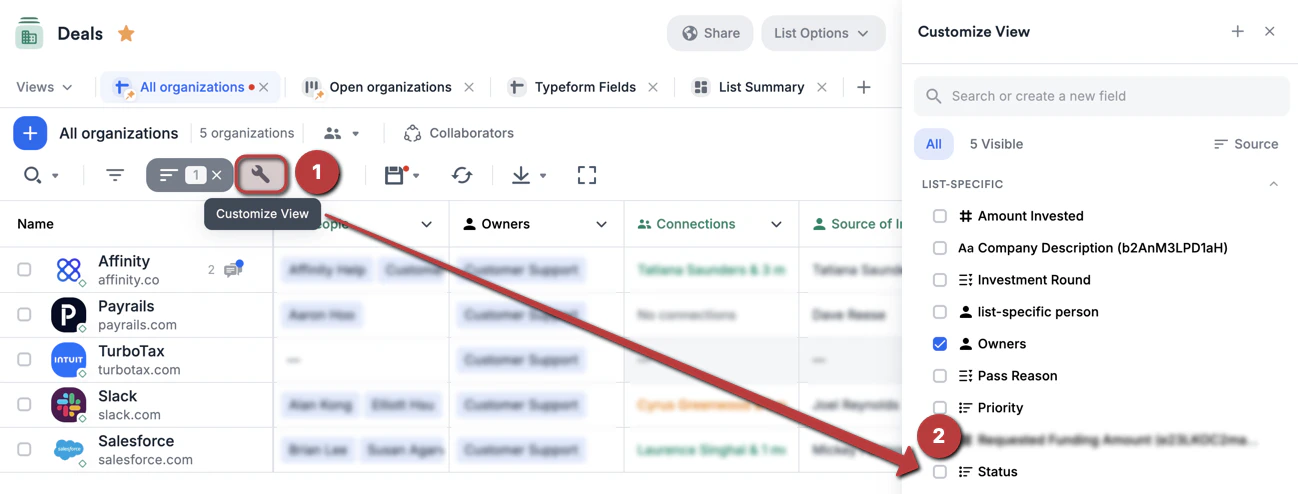
* Example: Don't see the **Status** field? Click on **Customize View** to see whether or not the **Status** field is checkmarked.
* The unique field may simply be hidden from the saved view you're currently viewing.
* Example: Don't see the **Status** field? Click on **Customize View** to see whether or not the **Status** field is checkmarked.