> ## Documentation Index
> Fetch the complete documentation index at: https://support.affinity.co/llms.txt
> Use this file to discover all available pages before exploring further.
# Set up & configure your agents
> Turn agents on and off — at the org level (admin) and for yourself.
Affinity Ascend agents work on a simple promise: an agent **suggests**, you **review**, and **you approve**. Nothing is written to your CRM until you approve it, and an agent only ever sees and changes what your own account already can. Setting one up is mostly about turning it on and deciding who it's available to.
## How configuration works
There are **two levels of control**:
* **Admin (org level).** An admin enables or disables **Ascend Agents** for the whole organization at **Settings → Automations & AI → Affinity AI**. This gates whether agents are available to the org at all.
* **Per-user Monitoring.** Once agents are enabled for the org, **each member turns Monitoring on or off for each background agent** on the **Ascend → Agents** tab. Only the two background agents — **Meeting Prep** and **Data Update** — have a Monitoring toggle. **Warm Intro** runs on demand from Chat (no toggle), and **Document Synthesis** is **coming soon** (a visible card with no toggle yet).
Finer per-agent configuration — what an agent watches, auto-apply, templates — is **coming later**.
## Where agents live
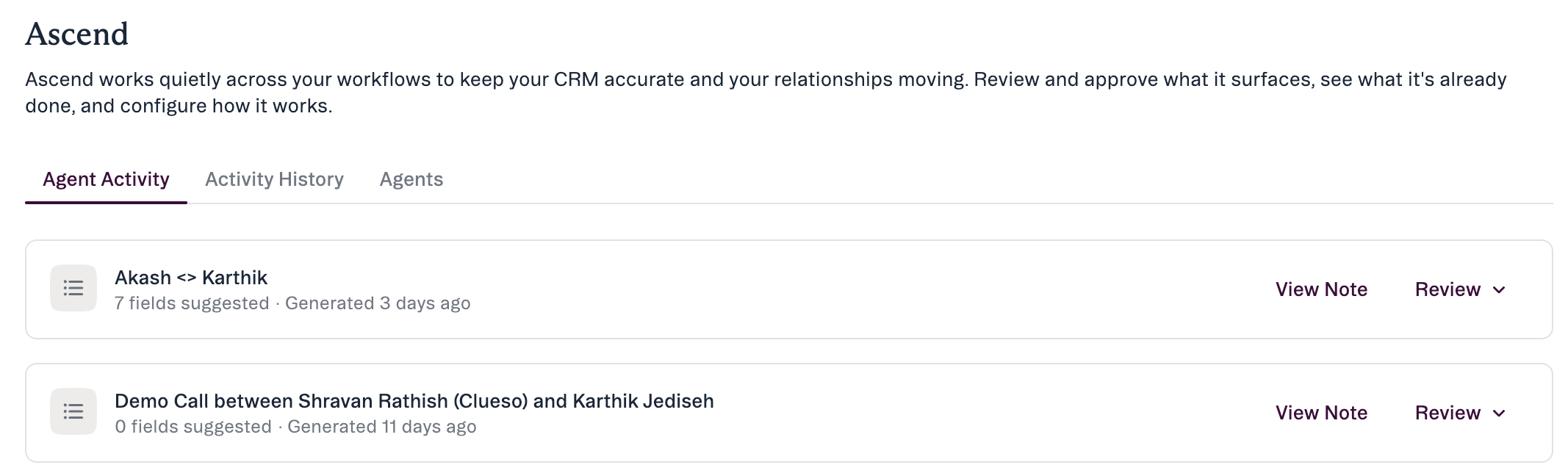
Once enabled, agents appear under **Ascend** in the left navigation (a separate top-level item from Chat). The Ascend area has **Agent Activity**, **Activity History**, and **Agents** tabs.
 ## Who can use agents
Agents are available on **Scale, Advanced, and Enterprise**. How each runs differs:
* **Meeting Prep** — a **background agent**. Turn it on with the **Monitoring** toggle in **Ascend → Agents**.
* **Data Update** — a **background agent**. Turn it on with the **Monitoring** toggle in **Ascend → Agents**.
* **Warm Intro** — runs **on demand from Chat** (no toggle). Also available as the `affinity-warm-intro` MCP skill.
* **Document Synthesis** — **coming soon**. You'll see its card, but it isn't functional at launch and has no toggle yet.
**Notetaker** moves to **Scale and above** at launch (previously Advanced and above). It's the primary source for the Data Update agent's post-meeting suggestions. Notetaker feeds the agents but isn't part of Ascend.
## Turn agents on (admin, org level)
## Who can use agents
Agents are available on **Scale, Advanced, and Enterprise**. How each runs differs:
* **Meeting Prep** — a **background agent**. Turn it on with the **Monitoring** toggle in **Ascend → Agents**.
* **Data Update** — a **background agent**. Turn it on with the **Monitoring** toggle in **Ascend → Agents**.
* **Warm Intro** — runs **on demand from Chat** (no toggle). Also available as the `affinity-warm-intro` MCP skill.
* **Document Synthesis** — **coming soon**. You'll see its card, but it isn't functional at launch and has no toggle yet.
**Notetaker** moves to **Scale and above** at launch (previously Advanced and above). It's the primary source for the Data Update agent's post-meeting suggestions. Notetaker feeds the agents but isn't part of Ascend.
## Turn agents on (admin, org level)
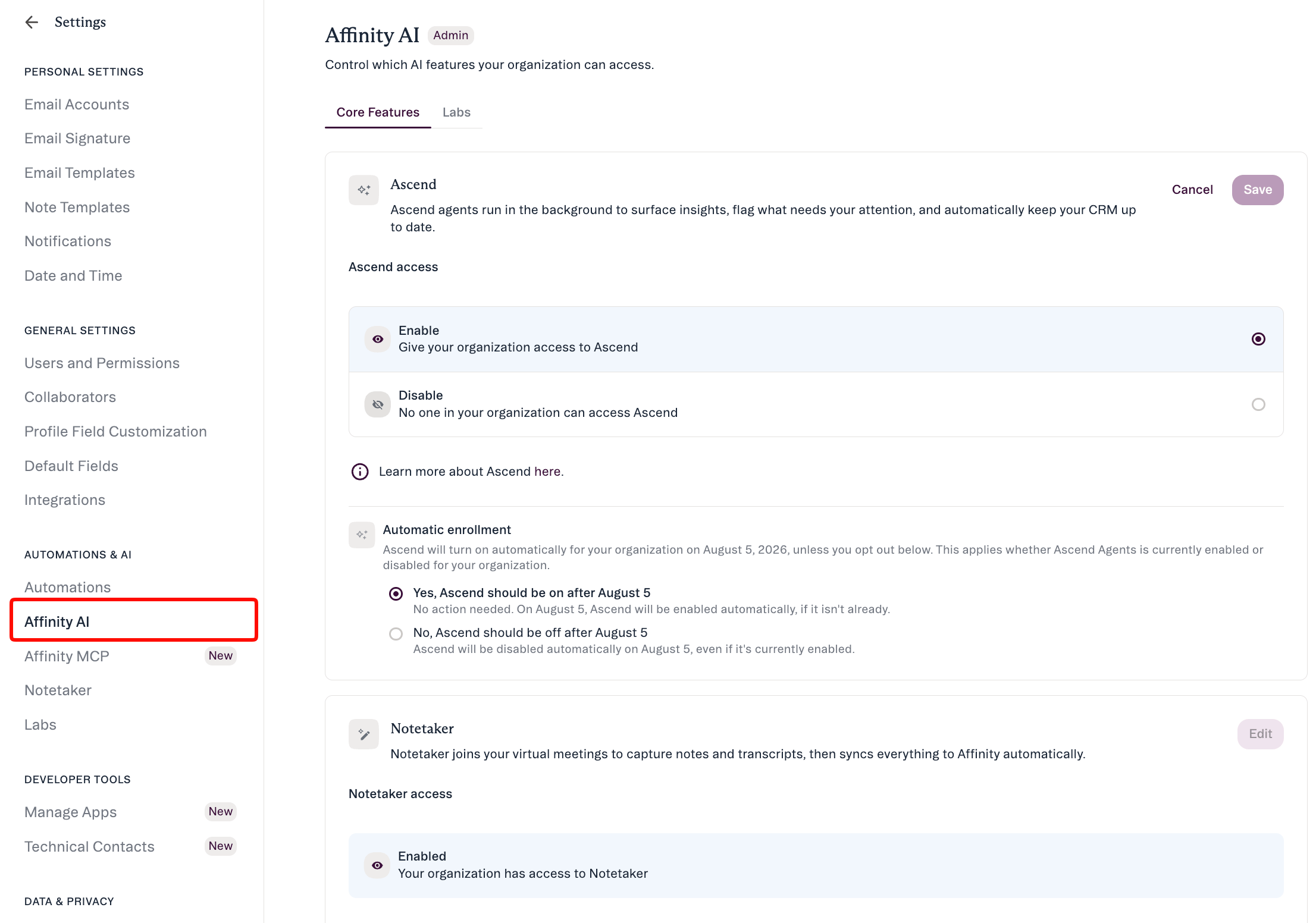 1. An **admin** opens **Settings → Automations & AI → Affinity AI**. This page is titled **Affinity AI**, carries an **Admin** badge, and has **Core Features** and **Labs** tabs.
2. On the **Ascend Agents** card, click **Edit** and use the **Enable / Disable** control. (Other cards on this page control **Notetaker**, **AI Chat**, and **Industry Insights**.)
3. Enabled agents become available to members. Each member then turns **Monitoring** on for the background agents they want in **Ascend → Agents**.
## Turn Monitoring on or off for yourself (per-user)
1. An **admin** opens **Settings → Automations & AI → Affinity AI**. This page is titled **Affinity AI**, carries an **Admin** badge, and has **Core Features** and **Labs** tabs.
2. On the **Ascend Agents** card, click **Edit** and use the **Enable / Disable** control. (Other cards on this page control **Notetaker**, **AI Chat**, and **Industry Insights**.)
3. Enabled agents become available to members. Each member then turns **Monitoring** on for the background agents they want in **Ascend → Agents**.
## Turn Monitoring on or off for yourself (per-user)
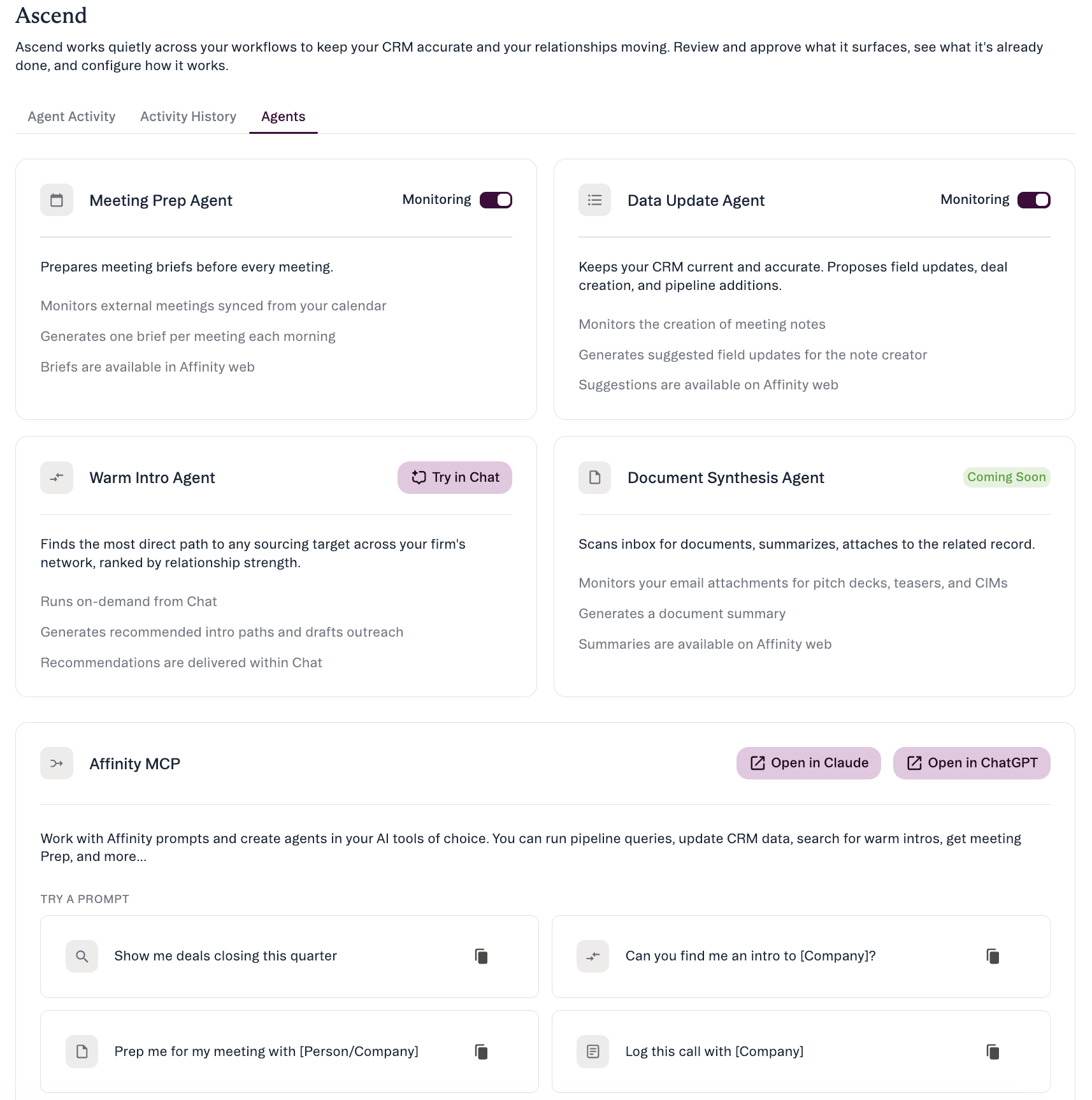 1. Open **Ascend** in the left navigation and go to the **Agents** tab.
2. Use the **Monitoring** toggle next to each background agent (**Meeting Prep** and **Data Update**) to turn it on or off for your own account. Turning Monitoring off stops that agent for you only. Warm Intro has no toggle (it runs on demand from Chat); Document Synthesis is coming soon.
3. Turn Monitoring back on at any time from the same tab; queued suggestions stay available for review.
## Beyond launch
Finer per-behavior controls are **rolling out over time**: **what an agent watches** (specific lists, pipelines, or your inbox); an opt-in **auto-apply** for low-risk, clear-cut cases (review-everything is the default today); **context/templates**; **notifications**; and **natural-language configuration**. When auto-apply arrives, default to review-everything while you build trust, and only move specific cases to auto-apply once you've watched the agent get them right repeatedly.
## Admin vs. user controls
* **Admins** set org-wide availability — whether **Ascend Agents** are enabled for the organization — on the **Affinity AI** page (**Settings → Automations & AI → Affinity AI**).
* **Users** turn **Monitoring** on or off for the background agents (Meeting Prep, Data Update) on the **Ascend → Agents** tab, and review and apply their own suggestions.
## Common questions
* **Will turning agents on change anything immediately?** No. An agent starts *preparing* suggestions; nothing reaches your CRM until you approve it. (Optional auto-apply is a later addition.)
* **Can I turn an agent off?** Yes — an admin for the whole org at **Settings → Automations & AI → Affinity AI**, and each member via the **Monitoring** toggle on **Ascend → Agents**. Only Meeting Prep and Data Update have a Monitoring toggle.
* **How do I use Warm Intro?** Ask for it in Chat — it runs on demand, so there's no toggle.
* **Do I need a specific plan?** Yes — agents require Scale, Advanced, or Enterprise. Notetaker, the source for the Data Update agent's suggestions, requires Scale and above.
## If something's not working
| If you see… | What it means |
| -------------------------------------------------------------- | ----------------------------------------------------------------------------------------------------------------------------------------------------------------------------- |
| You don't see agents in the Ascend area | Ascend Agents may not be enabled for your org — ask your admin to enable them at Settings → Automations & AI → Affinity AI, and confirm your plan is eligible. |
| Agents are on but you see no suggestions | No qualifying activity yet (for example, no meeting note has been created), or your plan/agent isn't eligible. |
| You don't see Document Synthesis working | It's coming soon — the card is visible but the agent isn't functional at launch and has no toggle yet. |
| The Data Update agent isn't producing post-meeting suggestions | Confirm Monitoring is on for it in Ascend → Agents; a meeting note must be created and attached to the meeting first; confirm your plan includes Notetaker (Scale and above). |
***
*Affinity AI can make mistakes. Review each suggestion before approving it.*
## Related topics
- [Tutorial 0.1: Set Up Your Account](/s/article/Tutorial-0-1-set-up-your-account.md)
- [Getting Started with Affinity MCP](/s/article/Getting-started-with-Affinity-MCP.md)
- [How to configure notification settings](/s/article/How-to-set-up-email-and-web-app-notifications-for-Affinity-2.md)
- [Connect AI Tools to Affinity with MCP](/s/article/Tutorial-MCP-connect-ai-tools-to-affinity.md)
- [How to securely set up third-party integrations](/s/article/How-to-securely-set-up-third-party-integrations.md)
- [How To Set Up Status Triggers](/s/article/How-to-set-up-Status-Triggers.md)
- [How To Set Up Opportunity Triggers](/s/article/How-to-set-up-Opportunity-Triggers.md)
- [Manage AI Settings (Admin Guide)](/s/article/Manage-AI-Settings.md)
- [How To Install Affinity For Salesforce](/s/article/How-to-install-Affinity-for-Salesforce.md)
1. Open **Ascend** in the left navigation and go to the **Agents** tab.
2. Use the **Monitoring** toggle next to each background agent (**Meeting Prep** and **Data Update**) to turn it on or off for your own account. Turning Monitoring off stops that agent for you only. Warm Intro has no toggle (it runs on demand from Chat); Document Synthesis is coming soon.
3. Turn Monitoring back on at any time from the same tab; queued suggestions stay available for review.
## Beyond launch
Finer per-behavior controls are **rolling out over time**: **what an agent watches** (specific lists, pipelines, or your inbox); an opt-in **auto-apply** for low-risk, clear-cut cases (review-everything is the default today); **context/templates**; **notifications**; and **natural-language configuration**. When auto-apply arrives, default to review-everything while you build trust, and only move specific cases to auto-apply once you've watched the agent get them right repeatedly.
## Admin vs. user controls
* **Admins** set org-wide availability — whether **Ascend Agents** are enabled for the organization — on the **Affinity AI** page (**Settings → Automations & AI → Affinity AI**).
* **Users** turn **Monitoring** on or off for the background agents (Meeting Prep, Data Update) on the **Ascend → Agents** tab, and review and apply their own suggestions.
## Common questions
* **Will turning agents on change anything immediately?** No. An agent starts *preparing* suggestions; nothing reaches your CRM until you approve it. (Optional auto-apply is a later addition.)
* **Can I turn an agent off?** Yes — an admin for the whole org at **Settings → Automations & AI → Affinity AI**, and each member via the **Monitoring** toggle on **Ascend → Agents**. Only Meeting Prep and Data Update have a Monitoring toggle.
* **How do I use Warm Intro?** Ask for it in Chat — it runs on demand, so there's no toggle.
* **Do I need a specific plan?** Yes — agents require Scale, Advanced, or Enterprise. Notetaker, the source for the Data Update agent's suggestions, requires Scale and above.
## If something's not working
| If you see… | What it means |
| -------------------------------------------------------------- | ----------------------------------------------------------------------------------------------------------------------------------------------------------------------------- |
| You don't see agents in the Ascend area | Ascend Agents may not be enabled for your org — ask your admin to enable them at Settings → Automations & AI → Affinity AI, and confirm your plan is eligible. |
| Agents are on but you see no suggestions | No qualifying activity yet (for example, no meeting note has been created), or your plan/agent isn't eligible. |
| You don't see Document Synthesis working | It's coming soon — the card is visible but the agent isn't functional at launch and has no toggle yet. |
| The Data Update agent isn't producing post-meeting suggestions | Confirm Monitoring is on for it in Ascend → Agents; a meeting note must be created and attached to the meeting first; confirm your plan includes Notetaker (Scale and above). |
***
*Affinity AI can make mistakes. Review each suggestion before approving it.*
## Related topics
- [Tutorial 0.1: Set Up Your Account](/s/article/Tutorial-0-1-set-up-your-account.md)
- [Getting Started with Affinity MCP](/s/article/Getting-started-with-Affinity-MCP.md)
- [How to configure notification settings](/s/article/How-to-set-up-email-and-web-app-notifications-for-Affinity-2.md)
- [Connect AI Tools to Affinity with MCP](/s/article/Tutorial-MCP-connect-ai-tools-to-affinity.md)
- [How to securely set up third-party integrations](/s/article/How-to-securely-set-up-third-party-integrations.md)
- [How To Set Up Status Triggers](/s/article/How-to-set-up-Status-Triggers.md)
- [How To Set Up Opportunity Triggers](/s/article/How-to-set-up-Opportunity-Triggers.md)
- [Manage AI Settings (Admin Guide)](/s/article/Manage-AI-Settings.md)
- [How To Install Affinity For Salesforce](/s/article/How-to-install-Affinity-for-Salesforce.md)