> ## Documentation Index
> Fetch the complete documentation index at: https://support.affinity.co/llms.txt
> Use this file to discover all available pages before exploring further.
# Review & approve an agent's suggestions
> Review what an Affinity AI agent prepared and decide what reaches your CRM.
Affinity Ascend agents do the prep work, but you stay in control of your data. An agent **suggests** changes; you **review** them; you **apply** the ones you want. Nothing is written to your CRM until you apply it — the same human-in-the-loop trust model shared by every agent.
This review happens on the **Agent Activity** tab. This article applies to every Ascend agent, so once you learn the flow you know it everywhere.
## Where suggestions appear
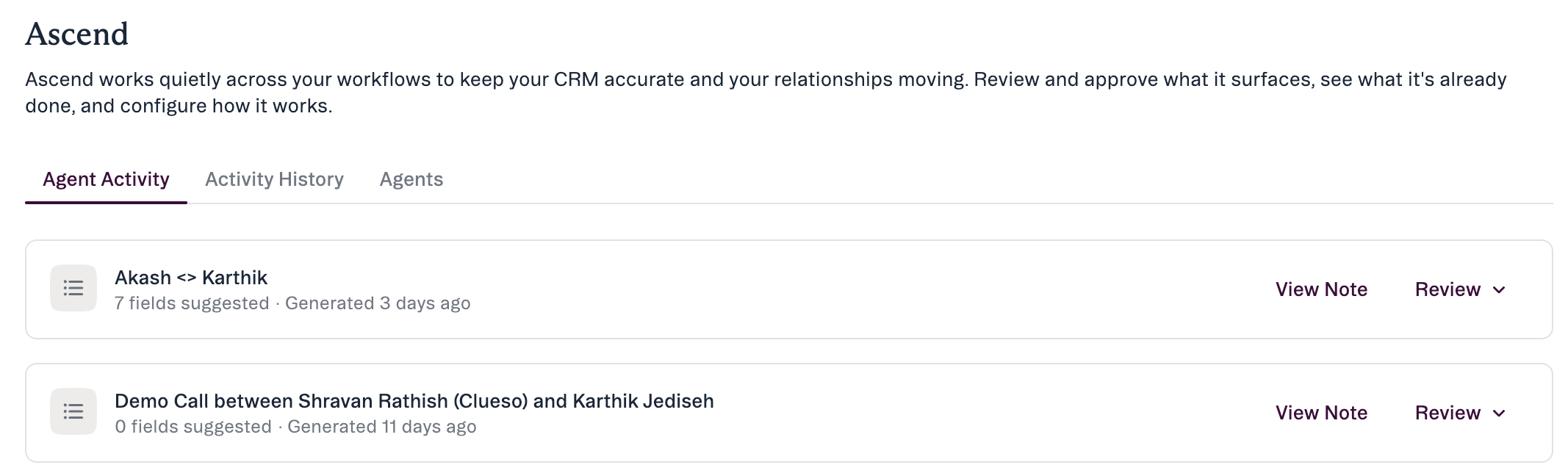 The Ascend area has three tabs:
* **Agent Activity** — the queue of suggestions waiting for your review.
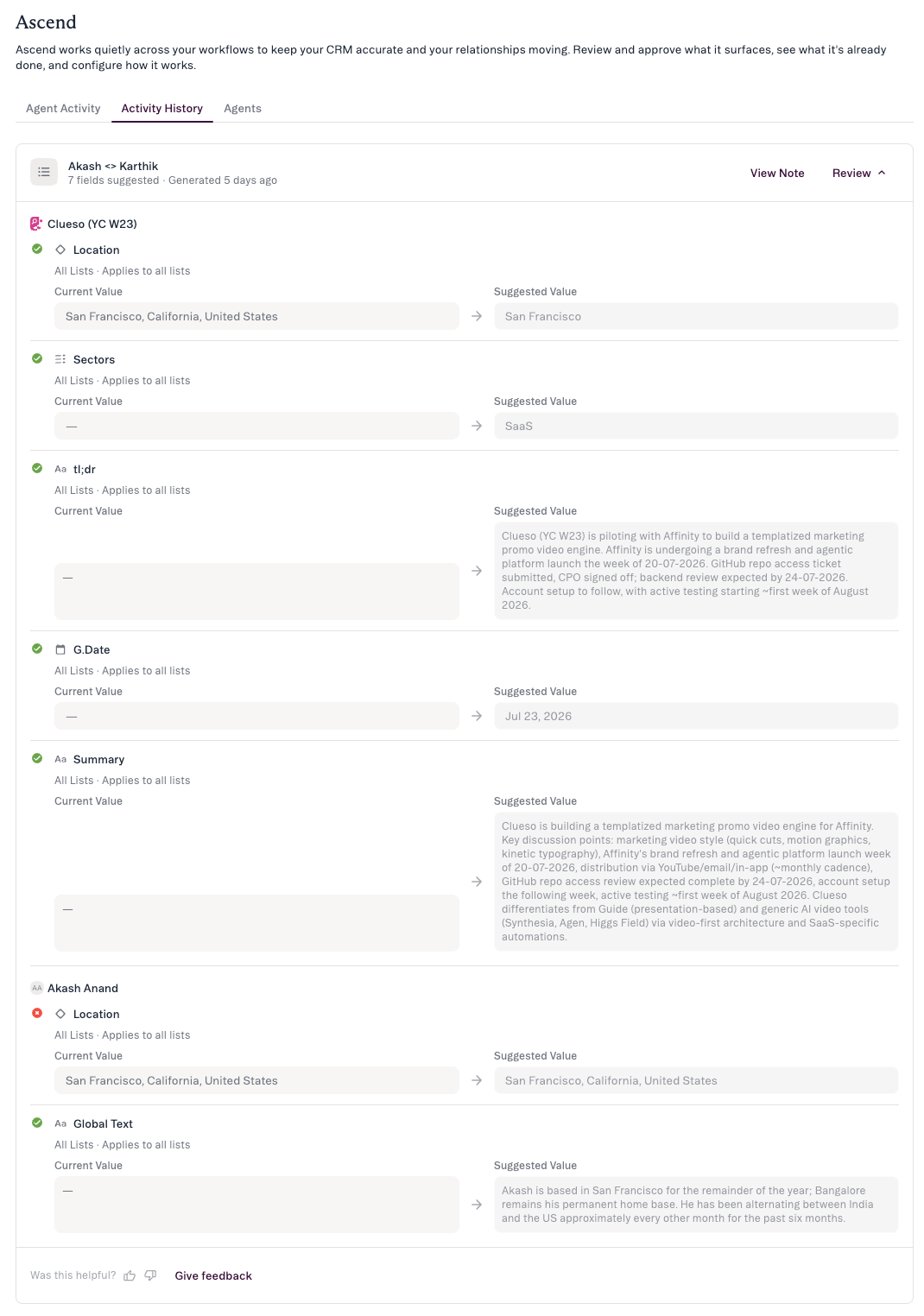
* **Activity History** — a read-only log of what the agent has already done (applied fields with a green check, skipped with a gray minus, each showing Previous → Suggested).
* **Agents** — agent details and status.
Open **Ascend** (left nav) and go to **Agent Activity**. Suggestions are grouped by the record they affect — the **Data Update** agent posts one set of Suggested Field Updates per meeting, sent to the person who created the meeting note.
## Anatomy of a suggestion
The Ascend area has three tabs:
* **Agent Activity** — the queue of suggestions waiting for your review.
* **Activity History** — a read-only log of what the agent has already done (applied fields with a green check, skipped with a gray minus, each showing Previous → Suggested).
* **Agents** — agent details and status.
Open **Ascend** (left nav) and go to **Agent Activity**. Suggestions are grouped by the record they affect — the **Data Update** agent posts one set of Suggested Field Updates per meeting, sent to the person who created the meeting note.
## Anatomy of a suggestion
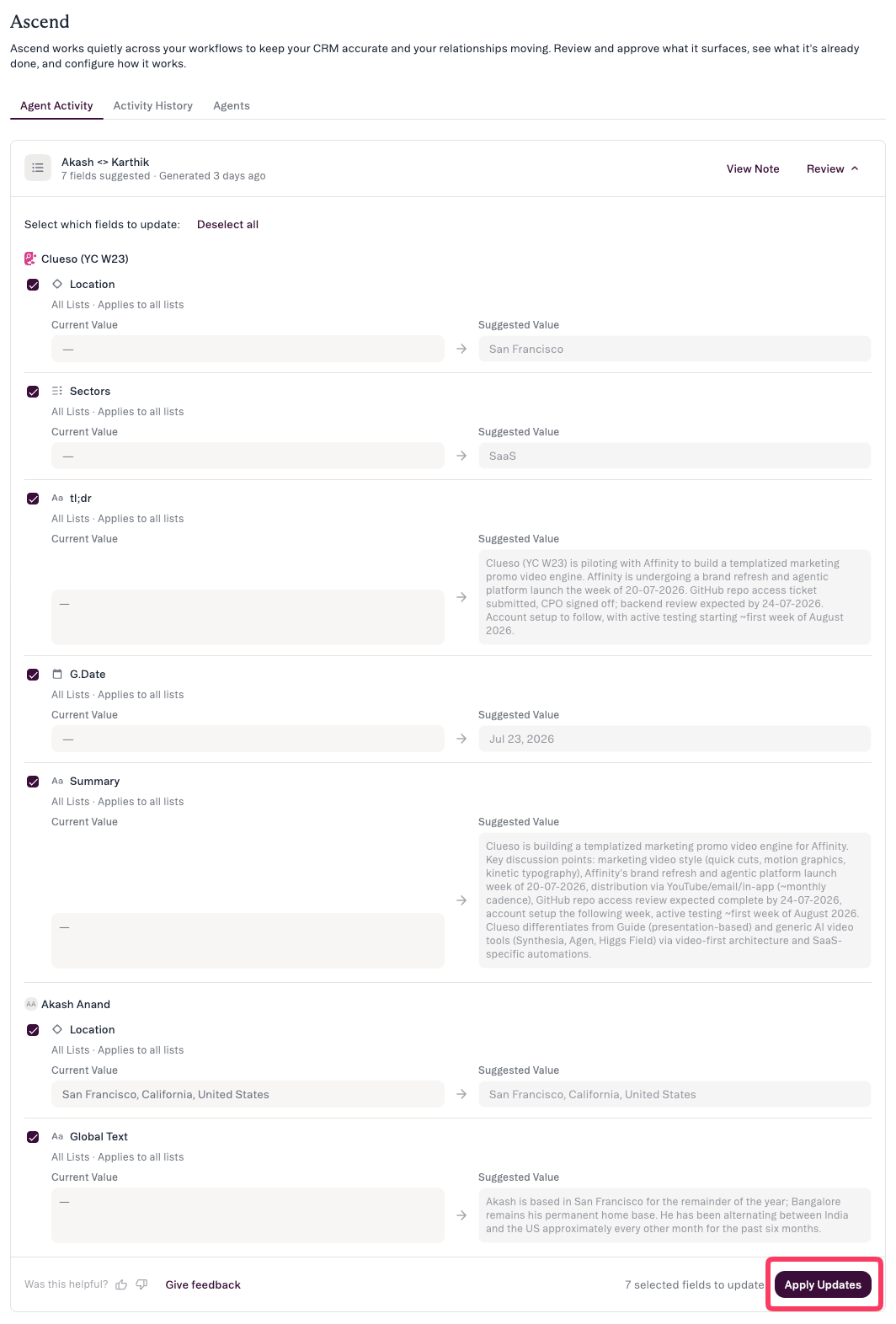 Expand **Review** on an item to see the full detail. Each proposed field shows:
* **Field** — the field the agent proposes to update, with its **scope** (a global field or a list-specific field — any field you can edit).
* **Current Value** — what's on the record now, with when it was last updated.
* **Suggested Value** — what the agent suggests changing it to.
Each field carries a **checkbox**; use the individual checkboxes or **Select all** to choose what to apply.
These come from the **Data Update** agent, which reads a meeting note and proposes updates — usually within a minute of the note being created. Only fields you can already edit are eligible (global or list-specific), dropdown suggestions match your real existing options, and each is labeled **stated** (explicitly said in the note) vs **inferred**. Anything ambiguous, unresolvable, or already correct is filtered out before it reaches this queue.
## Apply all, some, or none
At launch you **apply or skip** each field (editing or overriding a suggested value before applying comes after launch).
* **Apply all** — use **Select all**, then **Apply Updates**.
* **Apply some** — check only the fields you want, then **Apply Updates**.
* **Apply none** — leave everything unchecked. Nothing is written.
Anything you leave unchecked is **skipped**.
## What happens after you apply
Expand **Review** on an item to see the full detail. Each proposed field shows:
* **Field** — the field the agent proposes to update, with its **scope** (a global field or a list-specific field — any field you can edit).
* **Current Value** — what's on the record now, with when it was last updated.
* **Suggested Value** — what the agent suggests changing it to.
Each field carries a **checkbox**; use the individual checkboxes or **Select all** to choose what to apply.
These come from the **Data Update** agent, which reads a meeting note and proposes updates — usually within a minute of the note being created. Only fields you can already edit are eligible (global or list-specific), dropdown suggestions match your real existing options, and each is labeled **stated** (explicitly said in the note) vs **inferred**. Anything ambiguous, unresolvable, or already correct is filtered out before it reaches this queue.
## Apply all, some, or none
At launch you **apply or skip** each field (editing or overriding a suggested value before applying comes after launch).
* **Apply all** — use **Select all**, then **Apply Updates**.
* **Apply some** — check only the fields you want, then **Apply Updates**.
* **Apply none** — leave everything unchecked. Nothing is written.
Anything you leave unchecked is **skipped**.
## What happens after you apply
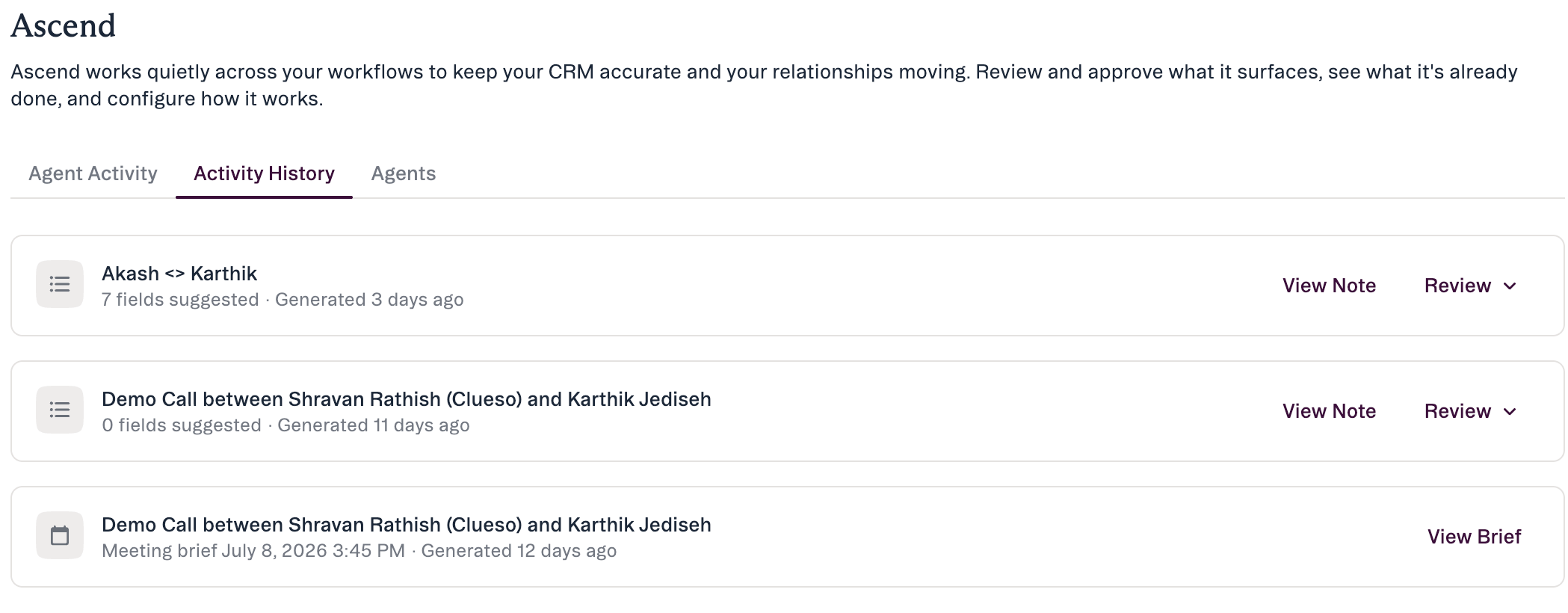 When you click **Apply Updates**, the checked fields are written to the record and appear like any other edit, visible to your team. Until you apply, nothing is written. After you act on a set, it moves from **Agent Activity** to **Activity History**, where it's read-only — applied fields show a green check, skipped a gray minus, each with Previous → Suggested. If you applied something in error, fix it the normal way by editing the record.
 ## Getting access
* **Plan tiers.** Ascend agents are available on **Scale**, **Advanced**, and **Enterprise**.
* **Org enablement.** An admin enables or disables **Ascend Agents** for the org at **Settings → Automations & AI → Affinity AI**. Once that's on, each user turns **Monitoring** on or off for each background agent (Meeting Prep and Data Update) on the **Ascend → Agents** tab.
If you expect suggestions and see none, Ascend Agents may not be enabled for your org, Monitoring may be off for the agent, your plan may not be eligible, or the agent simply hasn't had qualifying work yet.
## How to stay in control
* **Nothing is automatic.** An agent never writes to your CRM, and never sends email or outreach, without your explicit approval.
* **You only ever see what's yours to act on.** An agent can only see and change what your own account already can; suggestions come to you as the person who should review them.
* **You can turn an agent off.** An admin at **Settings → Automations & AI → Affinity AI**, or each user via the **Monitoring** toggle on **Ascend → Agents**.
## Common questions
* **Will it change anything on its own?** No. Nothing is written to the CRM until you click **Apply Updates**.
* **What if I do nothing?** Unreviewed suggestions stay on **Agent Activity** — they are never auto-applied.
* **Can I edit a suggested value before applying?** Not at launch — you apply or skip fields as-is for now.
* **The suggestion is wrong — what do I do?** Leave it unchecked, so it's skipped when you **Apply Updates**.
* **Why don't I see any suggestions?** Ascend Agents may not be enabled for your org, Monitoring may be off, the agent may be unavailable on your plan, or it hasn't had qualifying work yet.
## If something looks off
| If you see… | What to do |
| -------------------------------------------------------------- | ------------------------------------------------------------------------------------------------------------------------------------------------------------------------------------------------------------ |
| A suggestion for the wrong record | Leave its fields unchecked so they're skipped; open the source link to confirm the mismatch. |
| An **inferred** suggestion (not explicitly stated in the note) | Open the source (**View Meeting Note**) before applying — verify the suggested value against the record. |
| A field you can't edit | A teammate with edit access needs to apply that part. |
| No suggestions at all | The agent may not have had qualifying work, Monitoring may be off in Ascend → Agents, or Ascend Agents may not be enabled for your org — check with your admin at Settings → Automations & AI → Affinity AI. |
***
*Affinity AI can make mistakes. Review each suggestion before approving it.*
## Related topics
- [Affinity Ascend agents — Overview](/s/article/Affinity-Ascend-agents-overview.md)
- [Pipeline catch-up with AI Chat](/s/article/Pipeline-catch-up-with-AI-Chat.md)
- [Working with Affinity agents](/s/article/Working-with-Affinity-agents.md)
- [Meeting Prep & Data Update](/s/article/Meeting-Prep-and-Data-Update.md)
- [Enabling Affinity Ascend — An Admin's Guide](/s/article/Enabling-Affinity-Ascend.md)
- [Getting your meeting notes into Affinity](/s/article/Getting-your-meeting-notes-into-Affinity.md)
- [Set up & configure your agents](/s/article/Set-up-and-configure-your-agents.md)
- [Troubleshooting Affinity Ascend agents](/s/article/Troubleshooting-Affinity-Ascend-agents.md)
- [Meeting Prep & Data Update with Ascend](/s/article/Meeting-Prep-and-Data-Update-tutorial.md)
## Getting access
* **Plan tiers.** Ascend agents are available on **Scale**, **Advanced**, and **Enterprise**.
* **Org enablement.** An admin enables or disables **Ascend Agents** for the org at **Settings → Automations & AI → Affinity AI**. Once that's on, each user turns **Monitoring** on or off for each background agent (Meeting Prep and Data Update) on the **Ascend → Agents** tab.
If you expect suggestions and see none, Ascend Agents may not be enabled for your org, Monitoring may be off for the agent, your plan may not be eligible, or the agent simply hasn't had qualifying work yet.
## How to stay in control
* **Nothing is automatic.** An agent never writes to your CRM, and never sends email or outreach, without your explicit approval.
* **You only ever see what's yours to act on.** An agent can only see and change what your own account already can; suggestions come to you as the person who should review them.
* **You can turn an agent off.** An admin at **Settings → Automations & AI → Affinity AI**, or each user via the **Monitoring** toggle on **Ascend → Agents**.
## Common questions
* **Will it change anything on its own?** No. Nothing is written to the CRM until you click **Apply Updates**.
* **What if I do nothing?** Unreviewed suggestions stay on **Agent Activity** — they are never auto-applied.
* **Can I edit a suggested value before applying?** Not at launch — you apply or skip fields as-is for now.
* **The suggestion is wrong — what do I do?** Leave it unchecked, so it's skipped when you **Apply Updates**.
* **Why don't I see any suggestions?** Ascend Agents may not be enabled for your org, Monitoring may be off, the agent may be unavailable on your plan, or it hasn't had qualifying work yet.
## If something looks off
| If you see… | What to do |
| -------------------------------------------------------------- | ------------------------------------------------------------------------------------------------------------------------------------------------------------------------------------------------------------ |
| A suggestion for the wrong record | Leave its fields unchecked so they're skipped; open the source link to confirm the mismatch. |
| An **inferred** suggestion (not explicitly stated in the note) | Open the source (**View Meeting Note**) before applying — verify the suggested value against the record. |
| A field you can't edit | A teammate with edit access needs to apply that part. |
| No suggestions at all | The agent may not have had qualifying work, Monitoring may be off in Ascend → Agents, or Ascend Agents may not be enabled for your org — check with your admin at Settings → Automations & AI → Affinity AI. |
***
*Affinity AI can make mistakes. Review each suggestion before approving it.*
## Related topics
- [Affinity Ascend agents — Overview](/s/article/Affinity-Ascend-agents-overview.md)
- [Pipeline catch-up with AI Chat](/s/article/Pipeline-catch-up-with-AI-Chat.md)
- [Working with Affinity agents](/s/article/Working-with-Affinity-agents.md)
- [Meeting Prep & Data Update](/s/article/Meeting-Prep-and-Data-Update.md)
- [Enabling Affinity Ascend — An Admin's Guide](/s/article/Enabling-Affinity-Ascend.md)
- [Getting your meeting notes into Affinity](/s/article/Getting-your-meeting-notes-into-Affinity.md)
- [Set up & configure your agents](/s/article/Set-up-and-configure-your-agents.md)
- [Troubleshooting Affinity Ascend agents](/s/article/Troubleshooting-Affinity-Ascend-agents.md)
- [Meeting Prep & Data Update with Ascend](/s/article/Meeting-Prep-and-Data-Update-tutorial.md)