> ## Documentation Index
> Fetch the complete documentation index at: https://support.affinity.co/llms.txt
> Use this file to discover all available pages before exploring further.
# Overview Of The Global Navigation Bar And Homepage In Affinity
> Help center reference
**Reference** — lookup information.
Now that you've signed in and started [syncing your email/calendar data](/s/article/Syncing-data-into-Affinity), we'll guide you through the main Affinity product areas that you may find most helpful.
## The global navigation bar
We're excited to introduce a more streamlined navigation experience so you can access what you need more quickly.
 **Personal Avatar**: Access Alliances, Tracked Emails, Affinity Support, Keyboard Shortcuts, Dark Mode, and Settings from here.
 **Alliances**: Make allies and share networks to find warm leads and introductions (see [Getting started with Affinity Alliances](/s/article/Getting-started-with-Affinity-Alliances)).
**Tracked Emails**: Track click, open, and response rates for emails sent through Affinity (see [How to track emails sent through Affinity](/s/article/How-to-track-emails-sent-through-Affinity)).
**Affinity Support**: Quickly access the Getting Started section of our Help Center. You can also send an email or live chat with Affinity Support.
**Keyboard Shortcuts**: Learn how to take actions in Affinity more quickly with keyboard shortcuts (see [Keyboard Shortcuts](/s/article/Keyboard-Shortcuts)).
**Change theme**: Turn on Dark Mode for Affinity (see [How to turn on Dark Mode in Affinity](/s/article/How-to-turn-on-Dark-Mode-in-Affinity)).
**Settings**: Customize your email signature, date/time zone preferences, personal privacy settings, and more (see [Navigating your settings in Affinity](/s/article/Navigating-your-settings-in-Affinity)).
**Collapse / Expand**: When viewing product areas like lists and profiles, you can collapse the sidebar for more horizontal screen space.
**Alliances**: Make allies and share networks to find warm leads and introductions (see [Getting started with Affinity Alliances](/s/article/Getting-started-with-Affinity-Alliances)).
**Tracked Emails**: Track click, open, and response rates for emails sent through Affinity (see [How to track emails sent through Affinity](/s/article/How-to-track-emails-sent-through-Affinity)).
**Affinity Support**: Quickly access the Getting Started section of our Help Center. You can also send an email or live chat with Affinity Support.
**Keyboard Shortcuts**: Learn how to take actions in Affinity more quickly with keyboard shortcuts (see [Keyboard Shortcuts](/s/article/Keyboard-Shortcuts)).
**Change theme**: Turn on Dark Mode for Affinity (see [How to turn on Dark Mode in Affinity](/s/article/How-to-turn-on-Dark-Mode-in-Affinity)).
**Settings**: Customize your email signature, date/time zone preferences, personal privacy settings, and more (see [Navigating your settings in Affinity](/s/article/Navigating-your-settings-in-Affinity)).
**Collapse / Expand**: When viewing product areas like lists and profiles, you can collapse the sidebar for more horizontal screen space.
 **Search**: Search for people, organizations, opportunities, and lists (see [Conducting searches in Affinity](/s/article/Conducting-searches-in-Affinity)).
**Home**: Access your All Organizations and All People directories, favorite lists, and all other lists (see section titled "Navigating Affinity's Home Page" just below).
**Notifications**: View all notifications related to reminders, unanswered emails, @ mentions in notes, and more.
**Chat (in Beta)**: Use Affinity AI to help with common use cases such as meeting prep and company queries.
**Notes**: Notes Center is your one-stop destination for all your notes transcribed by Affinity Notetaker, imported from other sources (such as Granola) as well as the ones you created in Affinity.
**Reminders**: Create and view all reminders to keep track of upcoming tasks (see [How to set reminders in Affinity](/s/article/How-to-set-reminders-in-Affinity)).
**Meetings**: View all your synced calendar meetings, quickly access relevant profile pages, and join virtual meetings (see [How to access your meetings directly within Affinity](/s/article/How-to-access-your-meetings-directly-within-Affinity)).
**Unanswered Emails**: See the emails you've sent/received that require a follow-up ([Overview of Unanswered Emails](/s/article/Overview-of-Unanswered-Emails)).
**Reports**: Use Basic Reporting to generate reports based on the various lists you have created (see [Getting started with Basic Reporting](/s/article/Analytics-dashboards)).
* **Note**: Basic Reporting is only available for our legacy customers. For those on the **Scale**, **Advanced**, and **Enterprise** tiers, we highly suggest leveraging [Affinity Analytics](/s/article/Getting-started-with-Affinity-Analytics)' advanced reporting features instead.
**Settings**: Customize your email signature, date/time zone preferences, personal privacy settings, and more (see [Navigating your settings in Affinity](/s/article/Navigating-your-settings-in-Affinity)).
**+ Add New**: Create [reminders](/s/article/How-to-set-reminders-in-Affinity), [lists](/s/article/How-to-create-a-new-list-in-Affinity), [notes](/s/article/How-to-add-and-view-notes-in-Affinity), [logged interactions](/s/article/How-to-log-interactions-into-Affinity), or new [entities](/s/article/How-to-manually-create-a-new-entity-in-Affinity) (people, organizations, or opportunities).
Note: You cannot create an [opportunity](/s/article/Lists) until you have created an opportunity list.
## Navigating Affinity's Home Page
**Your Network**: Access your [All People and All Organizations directories](/s/article/All-people-and-all-organizations), which consist of your/your team members' collective networks.
**Search**: Search for people, organizations, opportunities, and lists (see [Conducting searches in Affinity](/s/article/Conducting-searches-in-Affinity)).
**Home**: Access your All Organizations and All People directories, favorite lists, and all other lists (see section titled "Navigating Affinity's Home Page" just below).
**Notifications**: View all notifications related to reminders, unanswered emails, @ mentions in notes, and more.
**Chat (in Beta)**: Use Affinity AI to help with common use cases such as meeting prep and company queries.
**Notes**: Notes Center is your one-stop destination for all your notes transcribed by Affinity Notetaker, imported from other sources (such as Granola) as well as the ones you created in Affinity.
**Reminders**: Create and view all reminders to keep track of upcoming tasks (see [How to set reminders in Affinity](/s/article/How-to-set-reminders-in-Affinity)).
**Meetings**: View all your synced calendar meetings, quickly access relevant profile pages, and join virtual meetings (see [How to access your meetings directly within Affinity](/s/article/How-to-access-your-meetings-directly-within-Affinity)).
**Unanswered Emails**: See the emails you've sent/received that require a follow-up ([Overview of Unanswered Emails](/s/article/Overview-of-Unanswered-Emails)).
**Reports**: Use Basic Reporting to generate reports based on the various lists you have created (see [Getting started with Basic Reporting](/s/article/Analytics-dashboards)).
* **Note**: Basic Reporting is only available for our legacy customers. For those on the **Scale**, **Advanced**, and **Enterprise** tiers, we highly suggest leveraging [Affinity Analytics](/s/article/Getting-started-with-Affinity-Analytics)' advanced reporting features instead.
**Settings**: Customize your email signature, date/time zone preferences, personal privacy settings, and more (see [Navigating your settings in Affinity](/s/article/Navigating-your-settings-in-Affinity)).
**+ Add New**: Create [reminders](/s/article/How-to-set-reminders-in-Affinity), [lists](/s/article/How-to-create-a-new-list-in-Affinity), [notes](/s/article/How-to-add-and-view-notes-in-Affinity), [logged interactions](/s/article/How-to-log-interactions-into-Affinity), or new [entities](/s/article/How-to-manually-create-a-new-entity-in-Affinity) (people, organizations, or opportunities).
Note: You cannot create an [opportunity](/s/article/Lists) until you have created an opportunity list.
## Navigating Affinity's Home Page
**Your Network**: Access your [All People and All Organizations directories](/s/article/All-people-and-all-organizations), which consist of your/your team members' collective networks.
 **Recent Views**: Access your most recently visited [saved views](/s/article/How-to-create-and-use-saved-views-in-new-lists).
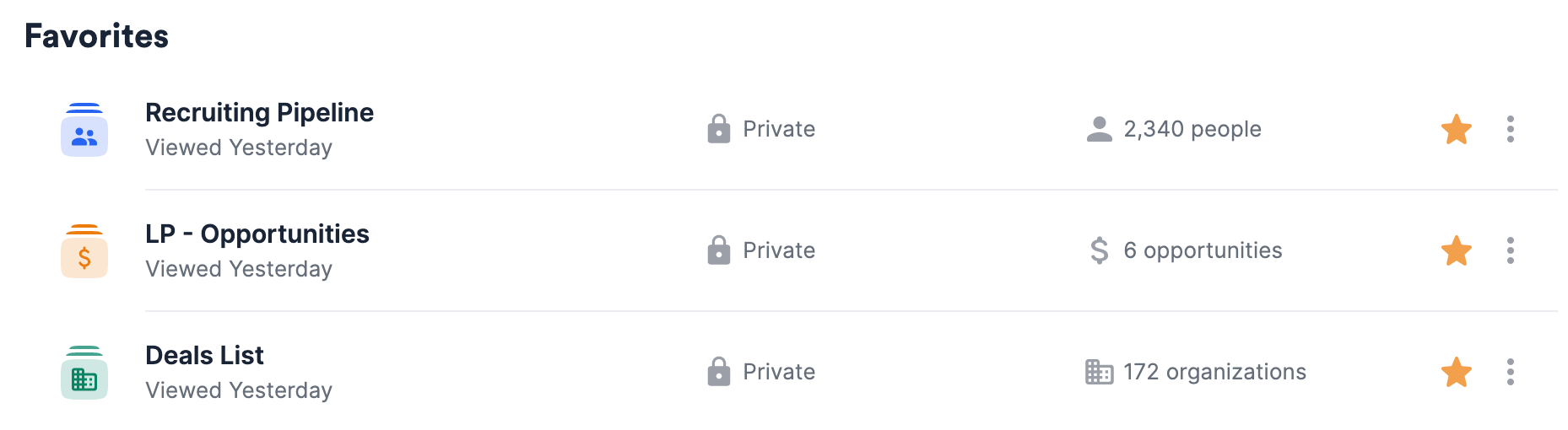
 **Favorites**: Determine your favorite lists for immediate access on the global navigation bar.
1. Click the **Star** icon to [favorite or unfavorite a list](/s/article/How-to-favorite-lists).
2. Click the **ellipsis (3-dotted icon)** to move it to **My Hidden Lists**.
**Favorites**: Determine your favorite lists for immediate access on the global navigation bar.
1. Click the **Star** icon to [favorite or unfavorite a list](/s/article/How-to-favorite-lists).
2. Click the **ellipsis (3-dotted icon)** to move it to **My Hidden Lists**.
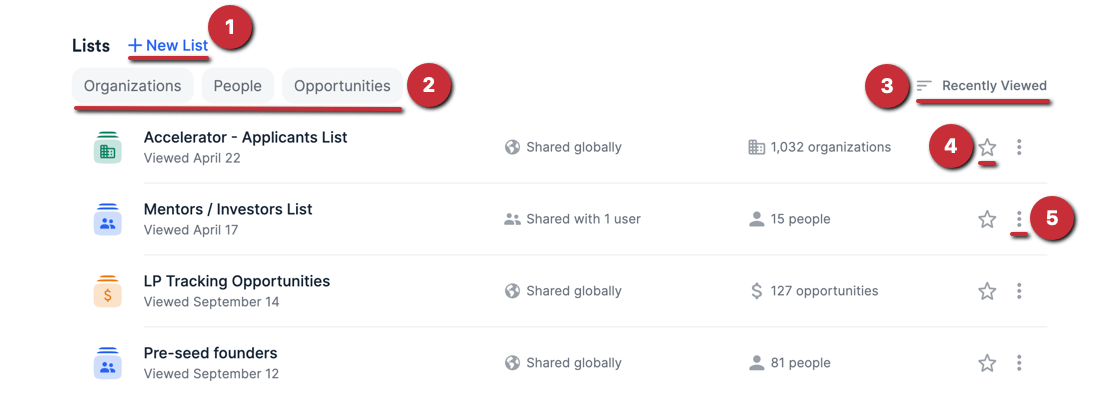
 **Lists**: Access all the private/shared lists you have access to. Here are the actions you can take:
1. Click on **+ New List** to [create a new list](/s/article/How-to-create-a-new-list-in-Affinity).
2. Click on the **Organizations**, **People**, or **Opportunities** filters to quickly filter by list-type.
3. Click on the **sort** button to the right to sort the lists by the following options:
* Recently Viewed
* Name A to Z / Name Z to A
* Created (Newest) / Created (Oldest)
4. Click the **star** icon to favorite a list.
5. Click the **ellipsis (3-dotted icon)** to move it to **My Hidden Lists**.
**Lists**: Access all the private/shared lists you have access to. Here are the actions you can take:
1. Click on **+ New List** to [create a new list](/s/article/How-to-create-a-new-list-in-Affinity).
2. Click on the **Organizations**, **People**, or **Opportunities** filters to quickly filter by list-type.
3. Click on the **sort** button to the right to sort the lists by the following options:
* Recently Viewed
* Name A to Z / Name Z to A
* Created (Newest) / Created (Oldest)
4. Click the **star** icon to favorite a list.
5. Click the **ellipsis (3-dotted icon)** to move it to **My Hidden Lists**.
 **My Hidden Lists**: All of your hidden lists will be at the very bottom of the home page to minimize unnecessary scrolling. From here, we'll dive deeper into directories - your/your team's shared network of contacts: [All People and All Organizations directories](/s/article/All-people-and-all-organizations).
 {/* */}