> ## Documentation Index
> Fetch the complete documentation index at: https://support.affinity.co/llms.txt
> Use this file to discover all available pages before exploring further.
# Microsoft Troubleshooting Need Admin Approval Or Approval Required
> Help center reference: Microsoft Troubleshooting Need Admin Approval Or Approval Required
**Troubleshooting** — fix for a specific issue.
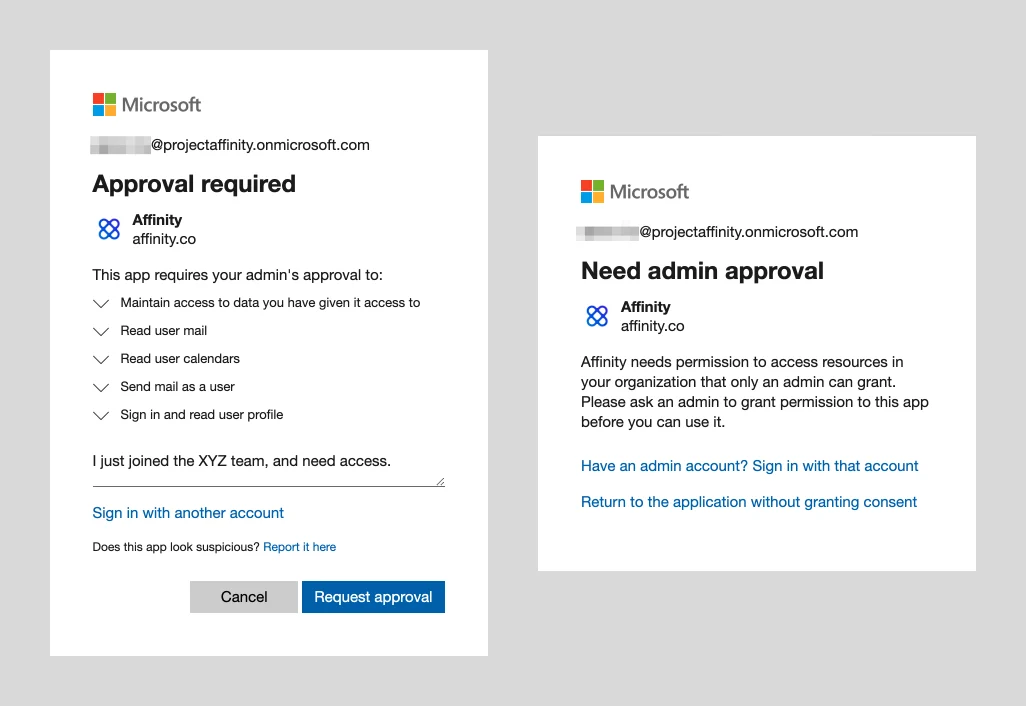
When signing into Affinity, you may get the message "Approval Required" or "Need Admin Approval" - below are two examples of what you would see.
 ## Why am I seeing this?
Your IT team may have set up additional security measures for your Microsoft 365 account. You would need to loop in your Azure (Office365) Global Admin to assist with approving the request.
## Azure Global Admin Approval
1. After contacting your IT admin, your Azure Global Admin must take the following steps.
2. As the **Azure Global Admin**, you can use any of the "Request approval" invite links sent by your team members to start.
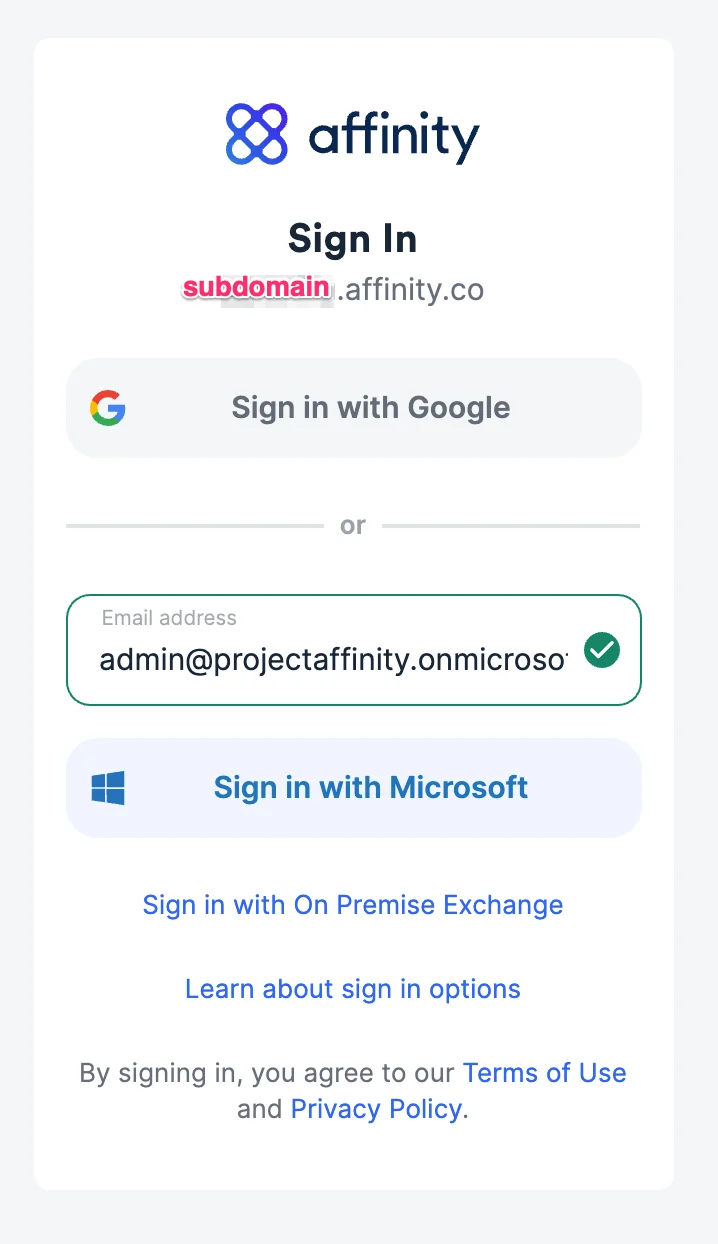
3. Fill out your email address, then click **Sign in with Microsoft**.
## Why am I seeing this?
Your IT team may have set up additional security measures for your Microsoft 365 account. You would need to loop in your Azure (Office365) Global Admin to assist with approving the request.
## Azure Global Admin Approval
1. After contacting your IT admin, your Azure Global Admin must take the following steps.
2. As the **Azure Global Admin**, you can use any of the "Request approval" invite links sent by your team members to start.
3. Fill out your email address, then click **Sign in with Microsoft**.
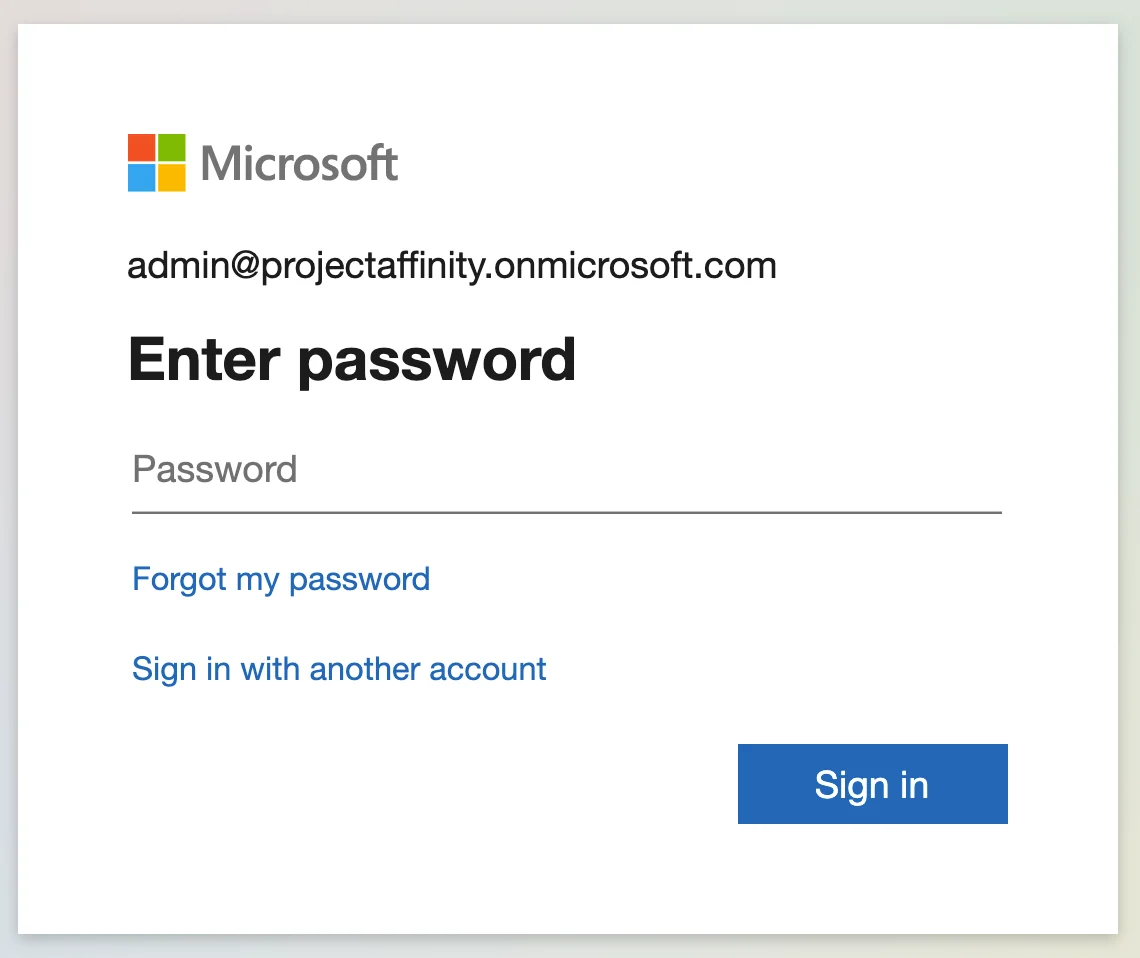
 4. You will be redirected to Microsoft to authenticate using your email credentials.
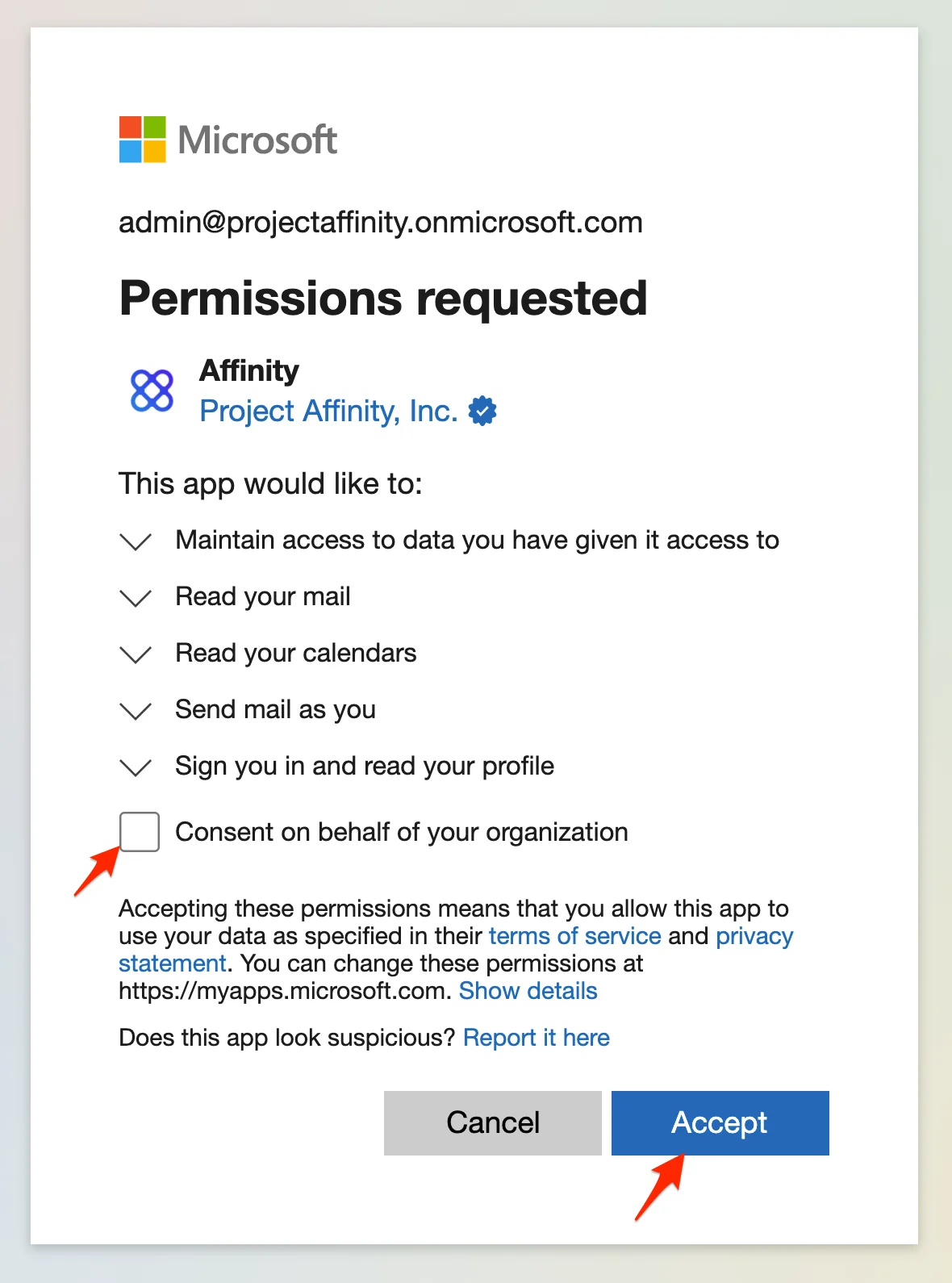
 5. After authentication, you can provide consent to your team member to Affinity by clicking the **check box**, then clicking **Accept** (your consent page may look different than the image below). This will also add Affinity to your Azure Enterprise Application list (if you're not an invited user, no worries if you come across an error message). You may be an error message if you're a user of Affinity, this is expected, but you can still proceed.
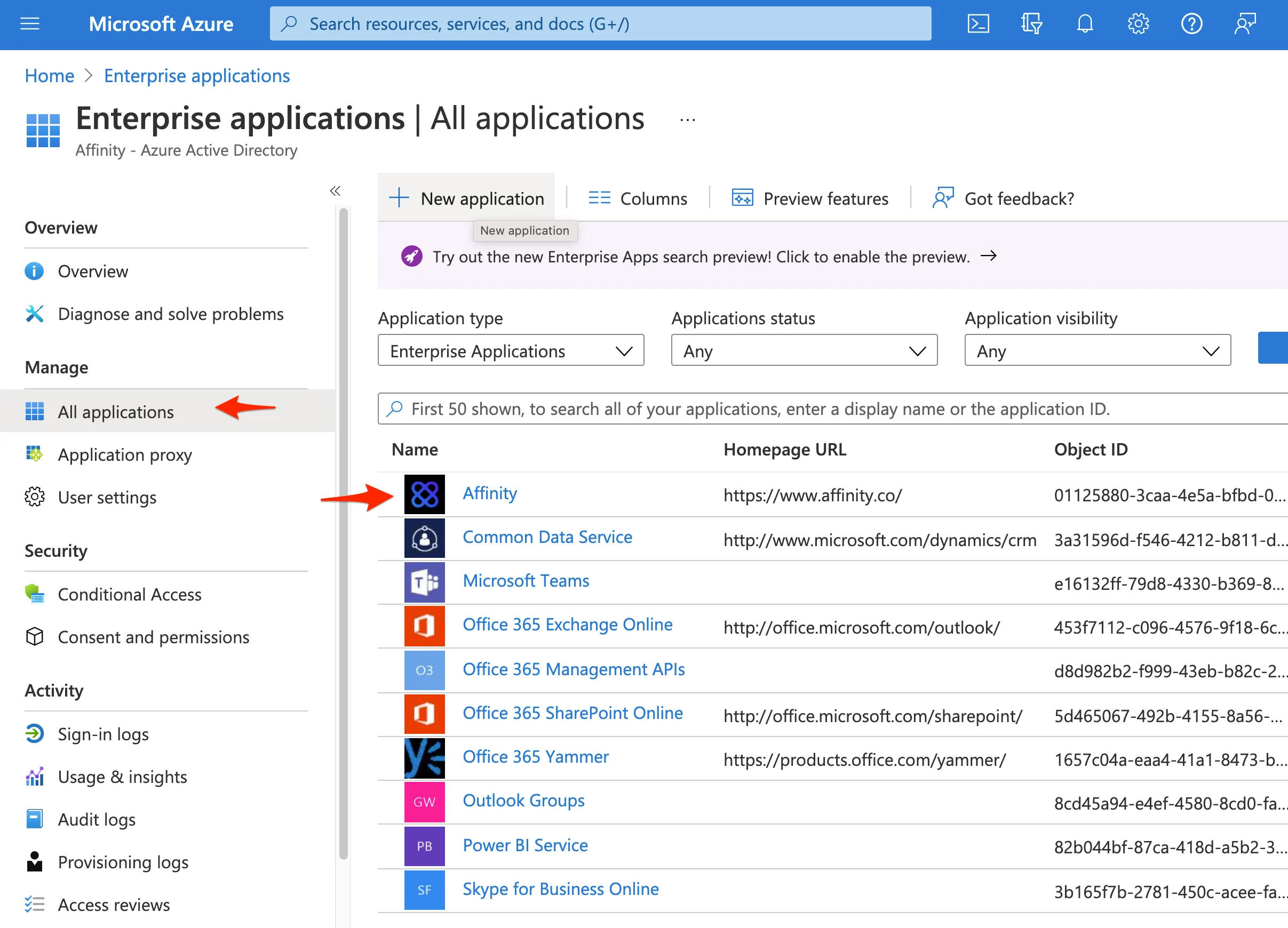
 6. After you have consented to the permissions. You can log into your Azure AD to configure specific users to have access to Affinity. Visit Azure Portal at [https://portal.azure.com/](https://portal.azure.com/), you will now see **Affinity** appear under **All applications**.
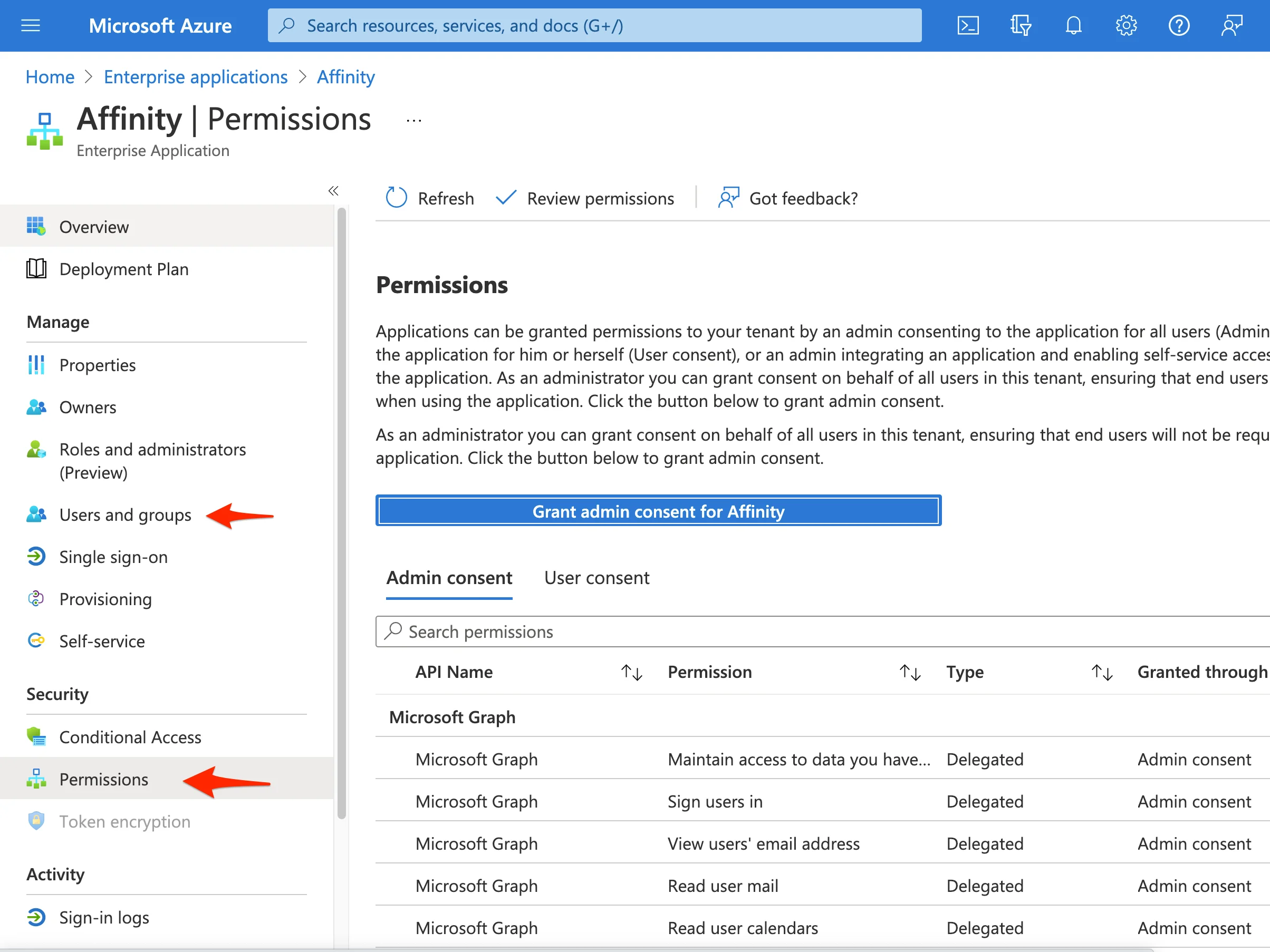
 7. By clicking on **Users and Groups**, you will be able to assign specific users or groups to have access to Affinity. As an optional step, you can click the **Permissions** tab and click on **Grant admin consent for Affinity**, thus not needing users to have to accept their permissions separately.
 ## Related topics
- [How To Integrate Affinity With Microsoft Teams](/s/article/How-to-integrate-Affinity-with-Microsoft-Teams.md)
- [Welcome To Affinity For Slack](/s/article/Welcome-to-Affinity-for-Slack.md)
- [Troubleshooting Sign In For Microsoft Exchange On Premise](/s/article/Troubleshooting-sign-in-for-Microsoft-Exchange-On-Premise.md)
- [Affinity Automation Updates To Slack And Send Note To Affinity](/s/article/Affinity-automation-updates-to-Slack-and-Send-note-to-Affinity.md)
- [How to securely set up third-party integrations](/s/article/How-to-securely-set-up-third-party-integrations.md)
## Related topics
- [How To Integrate Affinity With Microsoft Teams](/s/article/How-to-integrate-Affinity-with-Microsoft-Teams.md)
- [Welcome To Affinity For Slack](/s/article/Welcome-to-Affinity-for-Slack.md)
- [Troubleshooting Sign In For Microsoft Exchange On Premise](/s/article/Troubleshooting-sign-in-for-Microsoft-Exchange-On-Premise.md)
- [Affinity Automation Updates To Slack And Send Note To Affinity](/s/article/Affinity-automation-updates-to-Slack-and-Send-note-to-Affinity.md)
- [How to securely set up third-party integrations](/s/article/How-to-securely-set-up-third-party-integrations.md)