> ## Documentation Index
> Fetch the complete documentation index at: https://support.affinity.co/llms.txt
> Use this file to discover all available pages before exploring further.
# Meeting Prep & Data Update
> What the Meeting Prep and Data Update agents do around your meetings, and how you stay in control.
Two Affinity agents handle the work around every meeting. The **Meeting Prep agent** builds a pre-meeting brief for each external meeting. The **Data Update agent** reads the meeting note afterward and suggests the CRM updates that follow from it. Both run in the background, so you don't have to drive each step. As with every Affinity agent, **they suggest; you approve.** Nothing reaches your CRM until you say so.
## Getting access and turning it on
* Available on **Scale, Advanced, or Enterprise**. At launch (**July 22**) Ascend is **off until an admin turns it on**; from **August 5** it's on by default for organizations that haven't opted out.
* Turning the agents on or off is an **admin, org-level control** at **Settings → Automations & AI → Affinity AI** (the **Ascend Agents** card). In addition, each user can enable or disable individual agents — Meeting Prep and Data Update — on the **Ascend → Agents** tab.
* Affinity **Notetaker** — the primary source for post-meeting updates — is available on **Scale, Advanced, or Enterprise**.
## The Meeting Prep agent — a pre-meeting brief
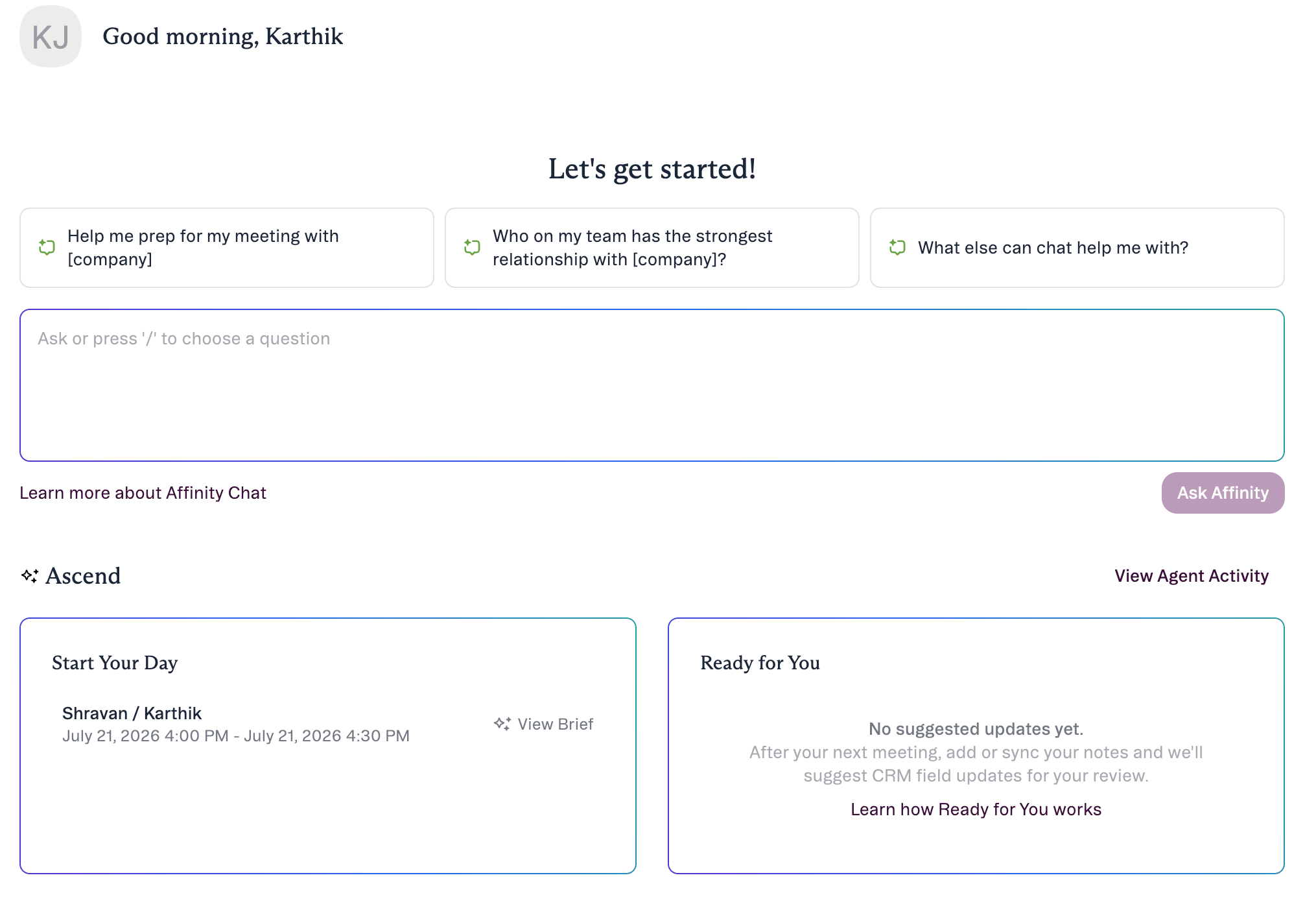 * The Meeting Prep agent scans your calendar and prepares a brief for your **external** meetings.
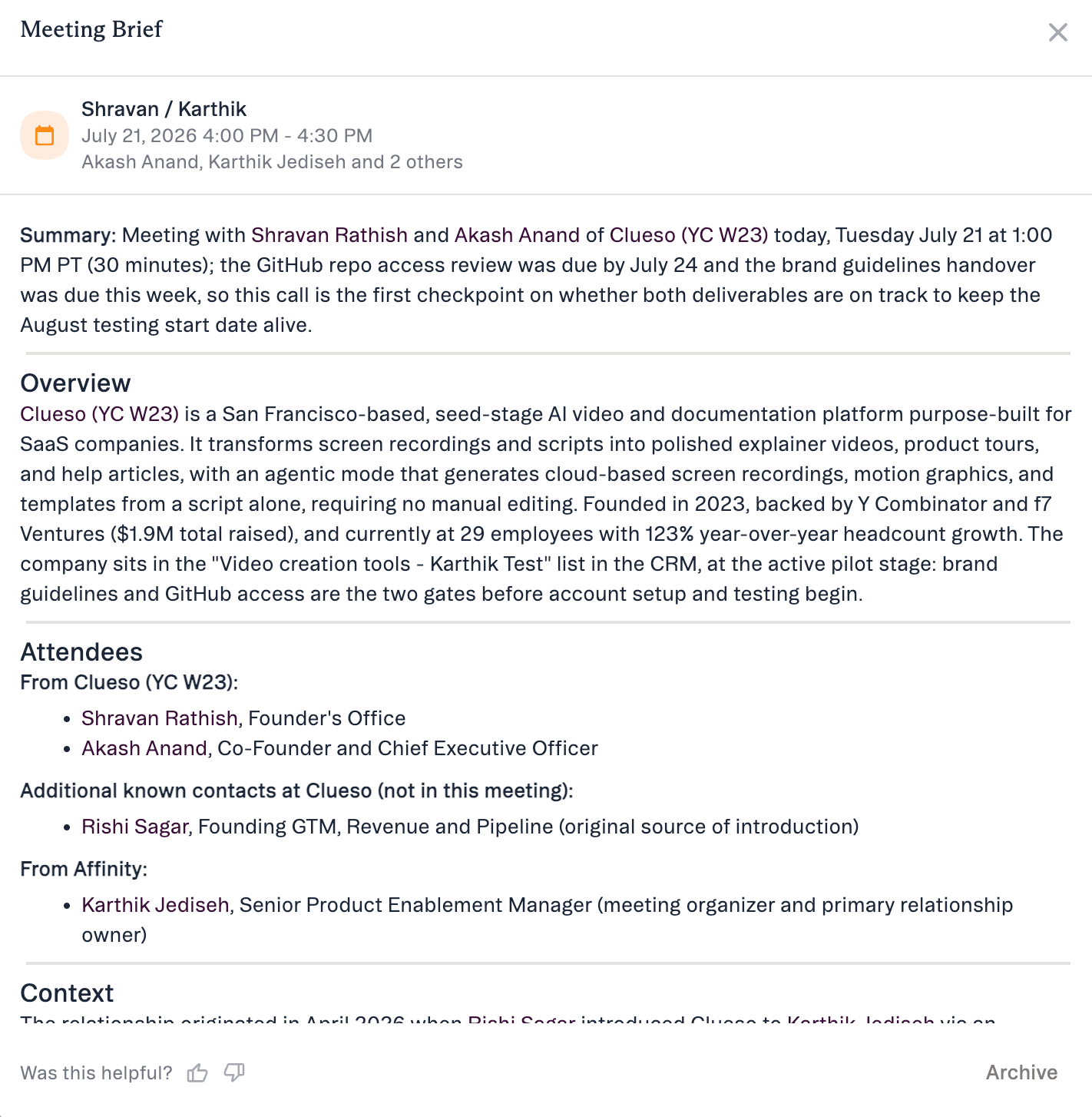
* Each brief pulls from your Affinity data: relationship history, the last interaction and how recent it was, who on your team is engaged, deal and pipeline context, and recent news on the company.
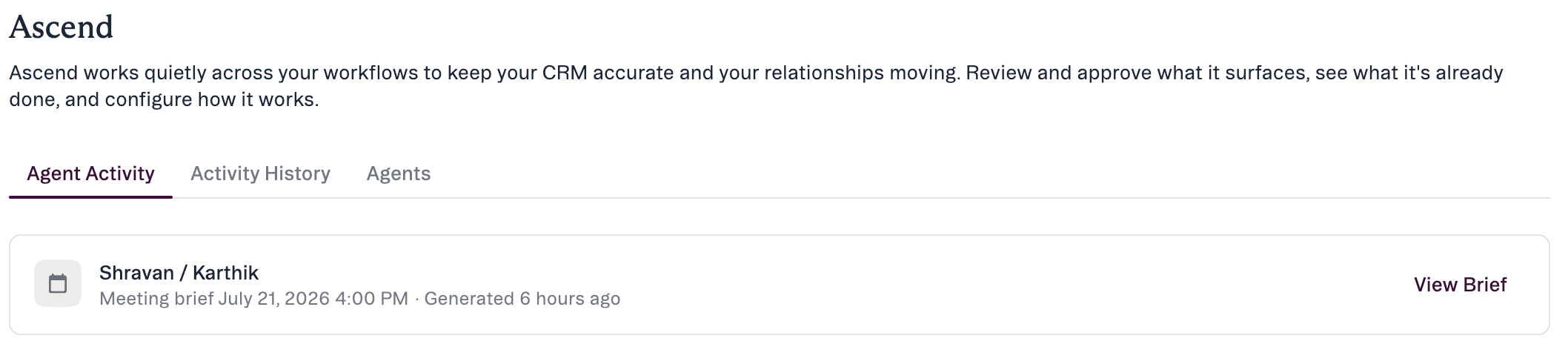
* Briefs are generated overnight and ready each morning by **7:00 AM in your local time zone**. A brief surfaces **in-app on the Affinity home page** — in the **“Start your day” / “Ready for you”** modules — and in the **Ascend Agent Activity** feed. It appears in **Affinity on the web** (not email, Slack, or mobile). Open it with **View Brief**.
* The Meeting Prep agent scans your calendar and prepares a brief for your **external** meetings.
* Each brief pulls from your Affinity data: relationship history, the last interaction and how recent it was, who on your team is engaged, deal and pipeline context, and recent news on the company.
* Briefs are generated overnight and ready each morning by **7:00 AM in your local time zone**. A brief surfaces **in-app on the Affinity home page** — in the **“Start your day” / “Ready for you”** modules — and in the **Ascend Agent Activity** feed. It appears in **Affinity on the web** (not email, Slack, or mobile). Open it with **View Brief**.
 - Opening a brief brings up the **Meeting Brief** modal, which summarizes the person and relationship context and has two actions: **Add as note** — turn the brief into a note (it appears in Agent Activity as **View Note**; use this if you don't have Affinity Notetaker, which otherwise creates that note automatically after the meeting) — and **Archive**, which keeps the brief in Agent Activity until you archive it, then moves it to Activity History.
 * You get the same context you'd get by asking AI Chat *“help me prep for my meeting with…,”* prepared for you in advance so you don't have to ask.
## The Data Update agent — suggested field updates
The **Data Update agent** keeps your CRM current. At launch it works from your **meeting notes**.
* Once a **meeting note** is created (Affinity Notetaker does this automatically; Granola or another integrated notetaker also works — see *Does it need a notetaker?* below), the agent reads the note and proposes CRM updates — usually in **under a minute**. At launch it triggers on meeting-note creation only.
* You get the same context you'd get by asking AI Chat *“help me prep for my meeting with…,”* prepared for you in advance so you don't have to ask.
## The Data Update agent — suggested field updates
The **Data Update agent** keeps your CRM current. At launch it works from your **meeting notes**.
* Once a **meeting note** is created (Affinity Notetaker does this automatically; Granola or another integrated notetaker also works — see *Does it need a notetaker?* below), the agent reads the note and proposes CRM updates — usually in **under a minute**. At launch it triggers on meeting-note creation only.
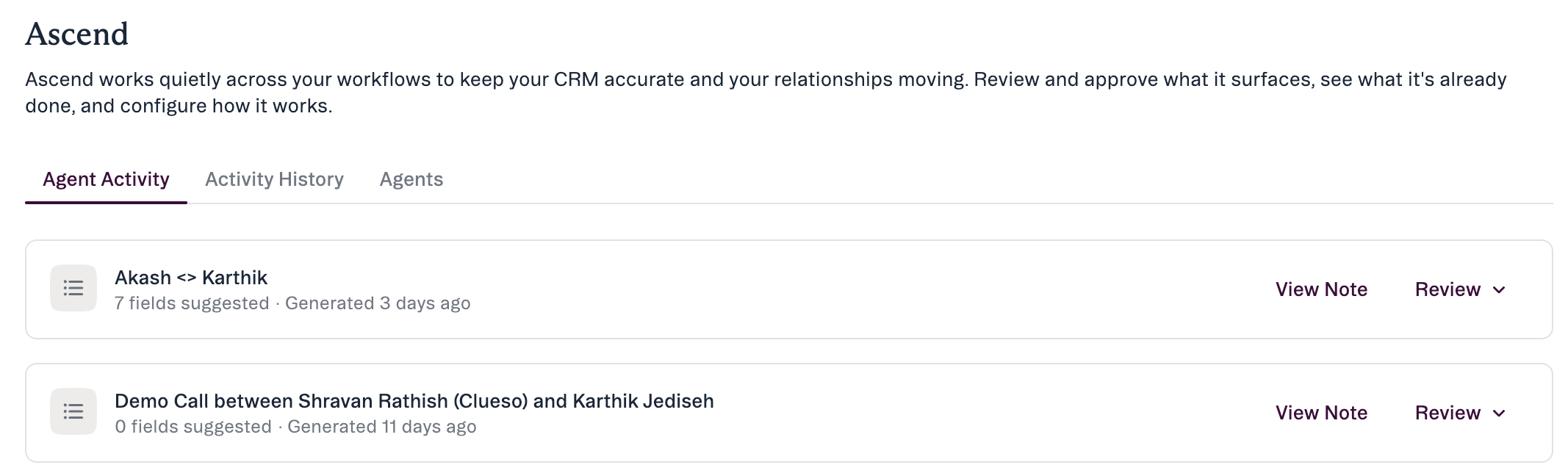 * In the Agent Activity item, expand **Review**. Each row shows the **field**, its **scope** (“All Lists” or a specific list), the **Current Value** (with its last-updated date), and the **Suggested Value**. The source is the linked **View Note**.
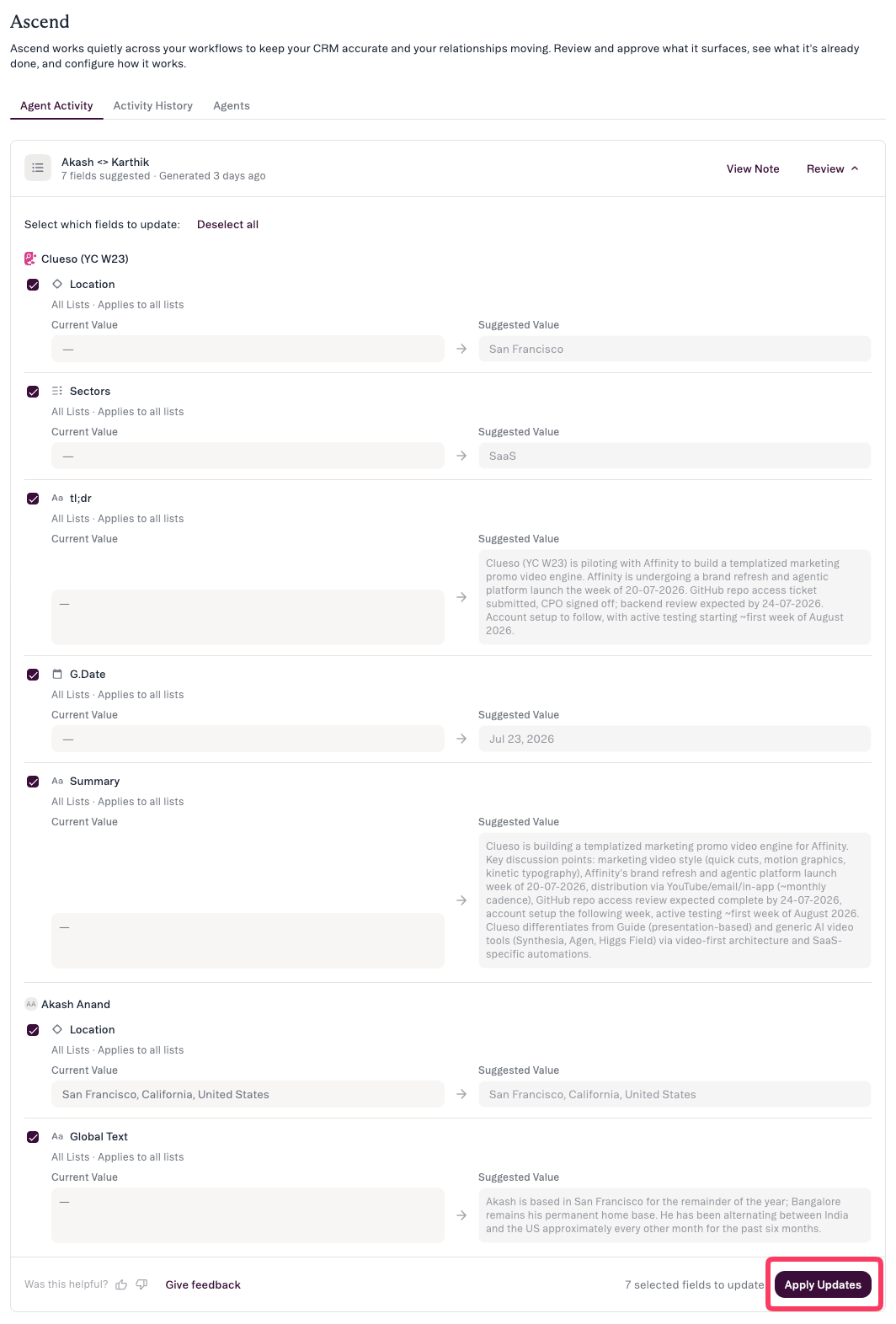 * Select which fields to update via **checkboxes** (or **Select all**), then click **Apply Updates**. Leave a checkbox unchecked to skip that field. Up to **10 suggestions** can appear per entity.
* It can suggest updates to **any editable field — global or list-specific** — including dropdowns and **Ranked Dropdown fields (Status, Stage, Priority)**; for multi-value fields it **appends** rather than overwriting. (This is a step up from the Labs version of Suggested Field Updates, which only covered a subset of fields.)
* Nothing is written to the CRM until you click **Apply Updates**. Editing a suggested value before applying is not available at launch.
## How the suggestions are made
When a meeting note is created, the Data Update agent picks it up automatically (new notes on external meetings). It works out which companies, people, and opportunities the note is about — from the note's associations, or the meeting's external attendees as a fallback — and which lists they're on.
A single meeting can produce suggestions for several records at once. It works from the records **linked to the meeting** — not other companies merely *mentioned* in the note (covering mentioned companies is planned for after launch). It then looks only at the **fields you can already edit**, reads the note against them, and proposes values it can support — labeling each **stated** (explicitly said) vs **inferred**.
Dropdown suggestions must match your real existing options; sensitive fields like job title are only suggested when explicitly stated; and it skips anything ambiguous, unresolvable, or already correct. **Nothing is written automatically.**
*In one line: the agent reads your meeting notes, matches what was said against the editable fields you already have, proposes updates with a reason, and waits for you to approve.*
## Where they live
* Select which fields to update via **checkboxes** (or **Select all**), then click **Apply Updates**. Leave a checkbox unchecked to skip that field. Up to **10 suggestions** can appear per entity.
* It can suggest updates to **any editable field — global or list-specific** — including dropdowns and **Ranked Dropdown fields (Status, Stage, Priority)**; for multi-value fields it **appends** rather than overwriting. (This is a step up from the Labs version of Suggested Field Updates, which only covered a subset of fields.)
* Nothing is written to the CRM until you click **Apply Updates**. Editing a suggested value before applying is not available at launch.
## How the suggestions are made
When a meeting note is created, the Data Update agent picks it up automatically (new notes on external meetings). It works out which companies, people, and opportunities the note is about — from the note's associations, or the meeting's external attendees as a fallback — and which lists they're on.
A single meeting can produce suggestions for several records at once. It works from the records **linked to the meeting** — not other companies merely *mentioned* in the note (covering mentioned companies is planned for after launch). It then looks only at the **fields you can already edit**, reads the note against them, and proposes values it can support — labeling each **stated** (explicitly said) vs **inferred**.
Dropdown suggestions must match your real existing options; sensitive fields like job title are only suggested when explicitly stated; and it skips anything ambiguous, unresolvable, or already correct. **Nothing is written automatically.**
*In one line: the agent reads your meeting notes, matches what was said against the editable fields you already have, proposes updates with a reason, and waits for you to approve.*
## Where they live
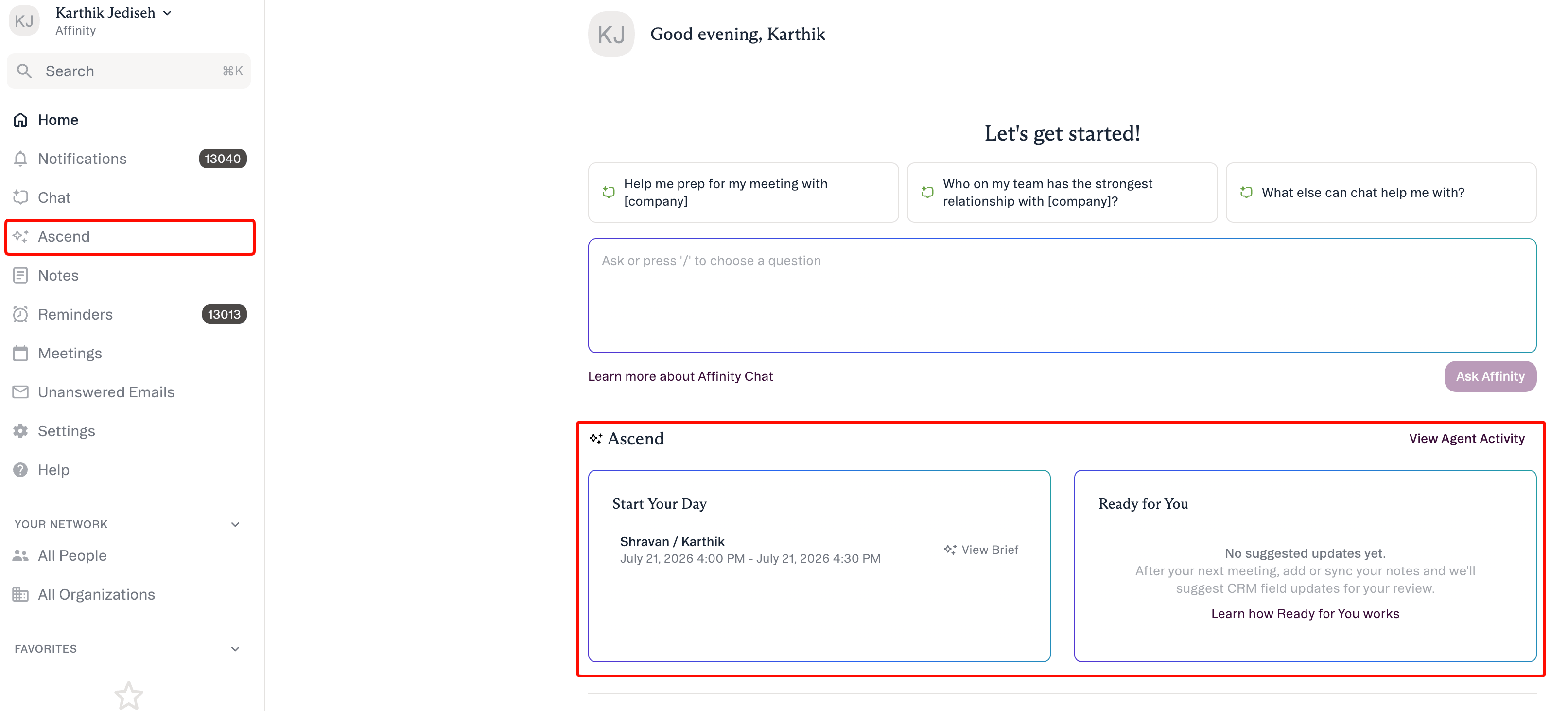 * Find both agents under **Ascend** in the left nav and on the home page. Agent names appear on the **Agents** tab.
* **Agent Activity** — the queue of briefs and suggestions waiting for review. **Activity History** — what the agents have already done (applied vs skipped, with Previous → Suggested). **Agents** — turn each agent on or off (each is a background **Monitoring** agent).
* Note: **Notetaker** feeds these agents but isn't part of Ascend.
## How to stay in control
* **Review before it's real.** Updates wait in **Agent Activity** until you act — see [Review & approve an agent's suggestions](/s/article/Review-and-approve-agent-suggestions).
* **It shows its work.** Every suggestion names the field, its scope, and the Current → Suggested value, and links to the source via **View Meeting Note**.
* **Quality-filtered.** Low-quality, ambiguous, or already-correct suggestions are filtered out before they reach you, and no more than **10** appear per entity.
* **It won't overwrite newer data.** If a field's value has changed since the suggestion was generated, that suggestion is **rejected on apply**.
* **It won't fire your automations at launch.** Applying a Suggested Field Update does **not** trigger Status/Stage automations at launch.
* **It respects your permissions.** Each agent only sees and changes what your account already can.
## Common questions
* **Does it need a notetaker?** It works from your **meeting note**, so a note has to exist. **Affinity Notetaker is the primary source** — it takes the note and attaches it to the meeting automatically. Granola and other integrations also work, but historically they attach notes to the **person/company record only**, not the meeting — and the agent triggers off the **meeting** note (so those won't trigger updates). See [Getting your meeting notes into Affinity](/s/article/Getting-your-meeting-notes-into-Affinity).
* **Will it change my pipeline automatically?** No. Updates queue for your approval; nothing applies on its own.
* **Where do the pre-meeting briefs show up?** In-app on the **“Start your day” / “Ready for you”** homepage modules and the **Ascend Agent Activity** feed. **Affinity web only.** Open one with **View Brief**.
* **What if it suggests the wrong value?** Leave its checkbox unchecked so it isn't applied. Editing a suggested value before applying comes after launch.
* **How is this different from the Labs “Suggested Field Updates”?** The agent version covers **every editable field, including list-specific fields and dropdowns**; the Labs version only covered a subset.
* **Which meetings does it cover?** **External** meetings (internal meetings are excluded at launch).
***
*Affinity AI can make mistakes. Review each suggestion before approving it.*
## Related topics
- [Meeting Prep & Data Update with Ascend](/s/article/Meeting-Prep-and-Data-Update-tutorial.md)
- [Meeting Preparation with AI Chat](/s/article/Meeting-preparation-with-AI-chat.md)
- [Affinity Ascend agents — Overview](/s/article/Affinity-Ascend-agents-overview.md)
- [Affinity MCP Skills — the 5 prepackaged capabilities](/s/article/Affinity-MCP-skills.md)
- [Affinity AI Chat Overview](/s/article/Affinity-AI-chat-overview.md)
- [Troubleshooting Affinity Ascend agents](/s/article/Troubleshooting-Affinity-Ascend-agents.md)
- [AI & MCP](/s/article/AI-and-MCP.md)
- [Getting your meeting notes into Affinity](/s/article/Getting-your-meeting-notes-into-Affinity.md)
- [How to prepare for investor meetings using targeted search](/s/article/How-to-prepare-for-investor-meetings-using-targeted-search.md)
* Find both agents under **Ascend** in the left nav and on the home page. Agent names appear on the **Agents** tab.
* **Agent Activity** — the queue of briefs and suggestions waiting for review. **Activity History** — what the agents have already done (applied vs skipped, with Previous → Suggested). **Agents** — turn each agent on or off (each is a background **Monitoring** agent).
* Note: **Notetaker** feeds these agents but isn't part of Ascend.
## How to stay in control
* **Review before it's real.** Updates wait in **Agent Activity** until you act — see [Review & approve an agent's suggestions](/s/article/Review-and-approve-agent-suggestions).
* **It shows its work.** Every suggestion names the field, its scope, and the Current → Suggested value, and links to the source via **View Meeting Note**.
* **Quality-filtered.** Low-quality, ambiguous, or already-correct suggestions are filtered out before they reach you, and no more than **10** appear per entity.
* **It won't overwrite newer data.** If a field's value has changed since the suggestion was generated, that suggestion is **rejected on apply**.
* **It won't fire your automations at launch.** Applying a Suggested Field Update does **not** trigger Status/Stage automations at launch.
* **It respects your permissions.** Each agent only sees and changes what your account already can.
## Common questions
* **Does it need a notetaker?** It works from your **meeting note**, so a note has to exist. **Affinity Notetaker is the primary source** — it takes the note and attaches it to the meeting automatically. Granola and other integrations also work, but historically they attach notes to the **person/company record only**, not the meeting — and the agent triggers off the **meeting** note (so those won't trigger updates). See [Getting your meeting notes into Affinity](/s/article/Getting-your-meeting-notes-into-Affinity).
* **Will it change my pipeline automatically?** No. Updates queue for your approval; nothing applies on its own.
* **Where do the pre-meeting briefs show up?** In-app on the **“Start your day” / “Ready for you”** homepage modules and the **Ascend Agent Activity** feed. **Affinity web only.** Open one with **View Brief**.
* **What if it suggests the wrong value?** Leave its checkbox unchecked so it isn't applied. Editing a suggested value before applying comes after launch.
* **How is this different from the Labs “Suggested Field Updates”?** The agent version covers **every editable field, including list-specific fields and dropdowns**; the Labs version only covered a subset.
* **Which meetings does it cover?** **External** meetings (internal meetings are excluded at launch).
***
*Affinity AI can make mistakes. Review each suggestion before approving it.*
## Related topics
- [Meeting Prep & Data Update with Ascend](/s/article/Meeting-Prep-and-Data-Update-tutorial.md)
- [Meeting Preparation with AI Chat](/s/article/Meeting-preparation-with-AI-chat.md)
- [Affinity Ascend agents — Overview](/s/article/Affinity-Ascend-agents-overview.md)
- [Affinity MCP Skills — the 5 prepackaged capabilities](/s/article/Affinity-MCP-skills.md)
- [Affinity AI Chat Overview](/s/article/Affinity-AI-chat-overview.md)
- [Troubleshooting Affinity Ascend agents](/s/article/Troubleshooting-Affinity-Ascend-agents.md)
- [AI & MCP](/s/article/AI-and-MCP.md)
- [Getting your meeting notes into Affinity](/s/article/Getting-your-meeting-notes-into-Affinity.md)
- [How to prepare for investor meetings using targeted search](/s/article/How-to-prepare-for-investor-meetings-using-targeted-search.md)