> ## Documentation Index
> Fetch the complete documentation index at: https://support.affinity.co/llms.txt
> Use this file to discover all available pages before exploring further.
# Meeting Prep & Data Update with Ascend
> Go from a finished meeting to a fully updated record, reviewing every change before it touches your CRM.
Two Affinity agents work around your meetings. The **Meeting Prep agent** builds a pre-meeting brief for each external meeting so you walk in with context. The **Data Update agent** reads the meeting note afterward and drafts the CRM updates that follow — so your job shrinks to **reviewing and approving**. Both are part of **Affinity Ascend**, under **Ascend** in the left navigation and on your home page.
This tutorial walks the full path: prepare with the brief, have the meeting, let Data Update propose field updates from the note, and apply the ones you agree with.
## Before you start: prerequisites
1. **Your calendar is connected to Affinity.** The agent works from your synced external meetings.
2. **Affinity Notetaker is turned on.** It takes the note **and** attaches it to the meeting automatically, which is what triggers the suggested updates. Available on **Scale, Advanced, or Enterprise**.
3. **The Meeting Prep and Data Update agents are enabled.** At launch (July 22) an **admin** turns Ascend on for the org at **Settings → Automations & AI → Affinity AI** (the **Ascend Agents** card); from **August 5** it's on by default unless the org opted out. Once the org is enabled, each user can turn individual agents on or off on the **Ascend → Agents** tab (each a background **Monitoring** agent).
## Step 1 — Before the meeting: open your brief
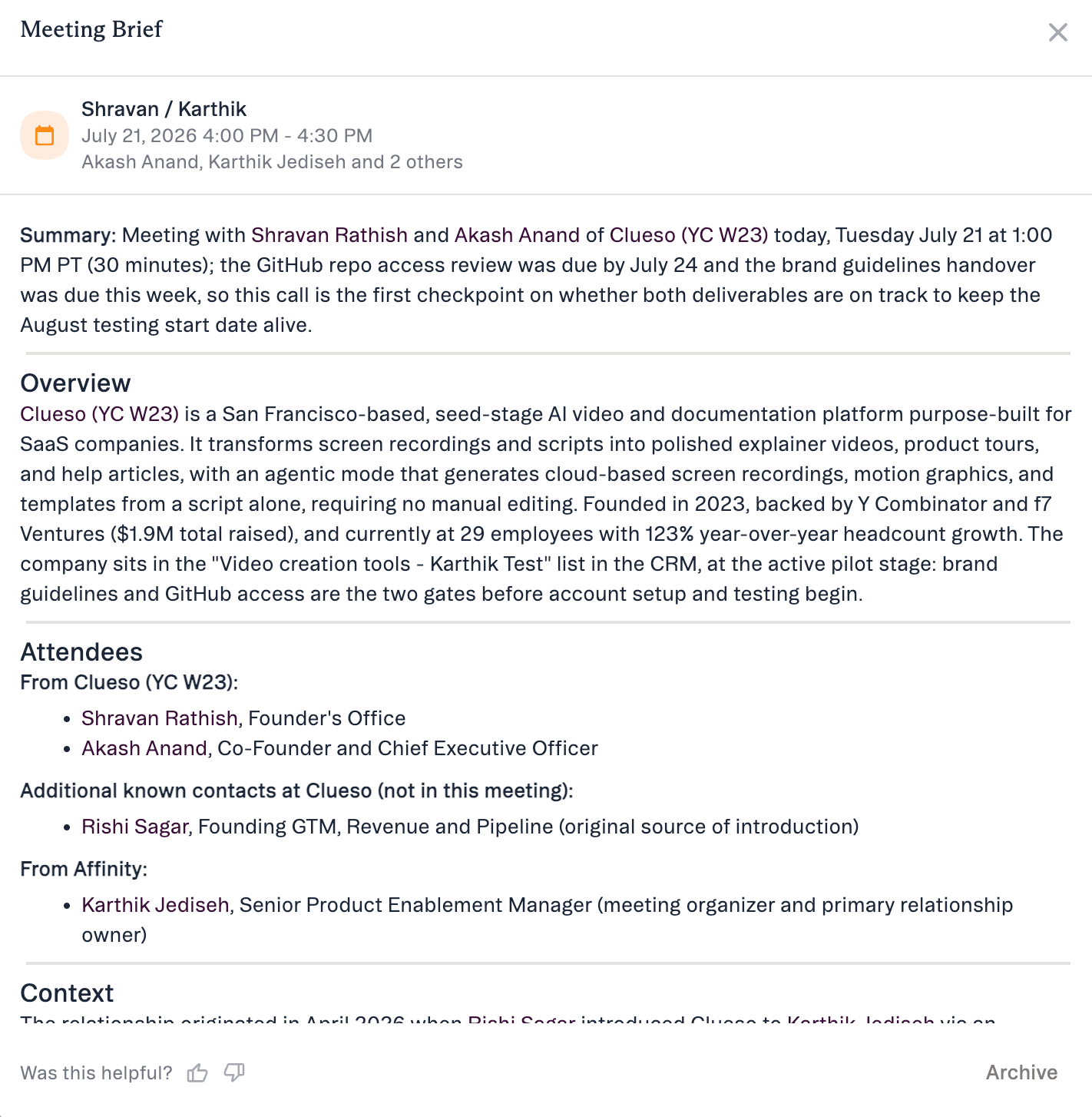
The **Meeting Prep agent** prepares a brief for your **external** meetings that pulls together relationship history, the last interaction and how recent it was, who else on your team is engaged, deal/pipeline context, and recent company news.
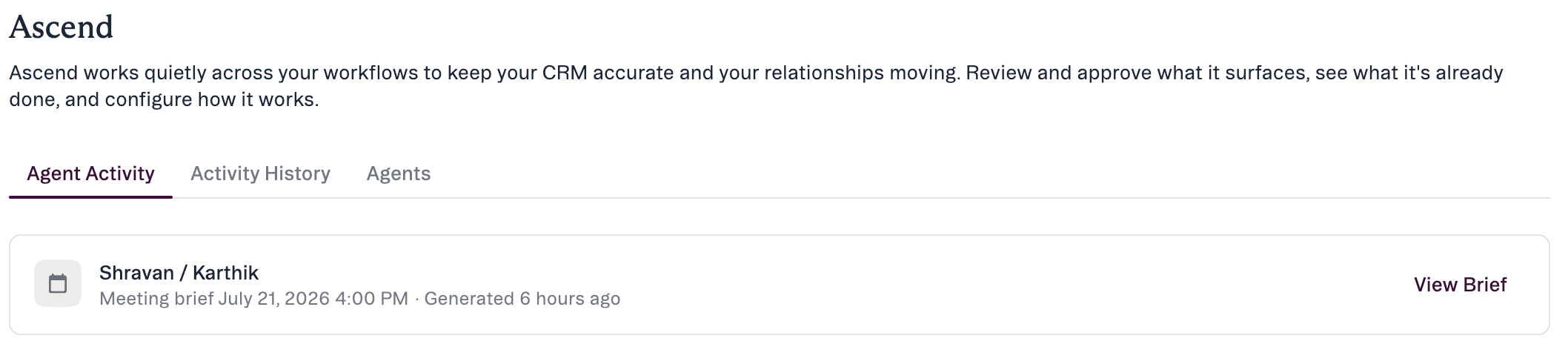
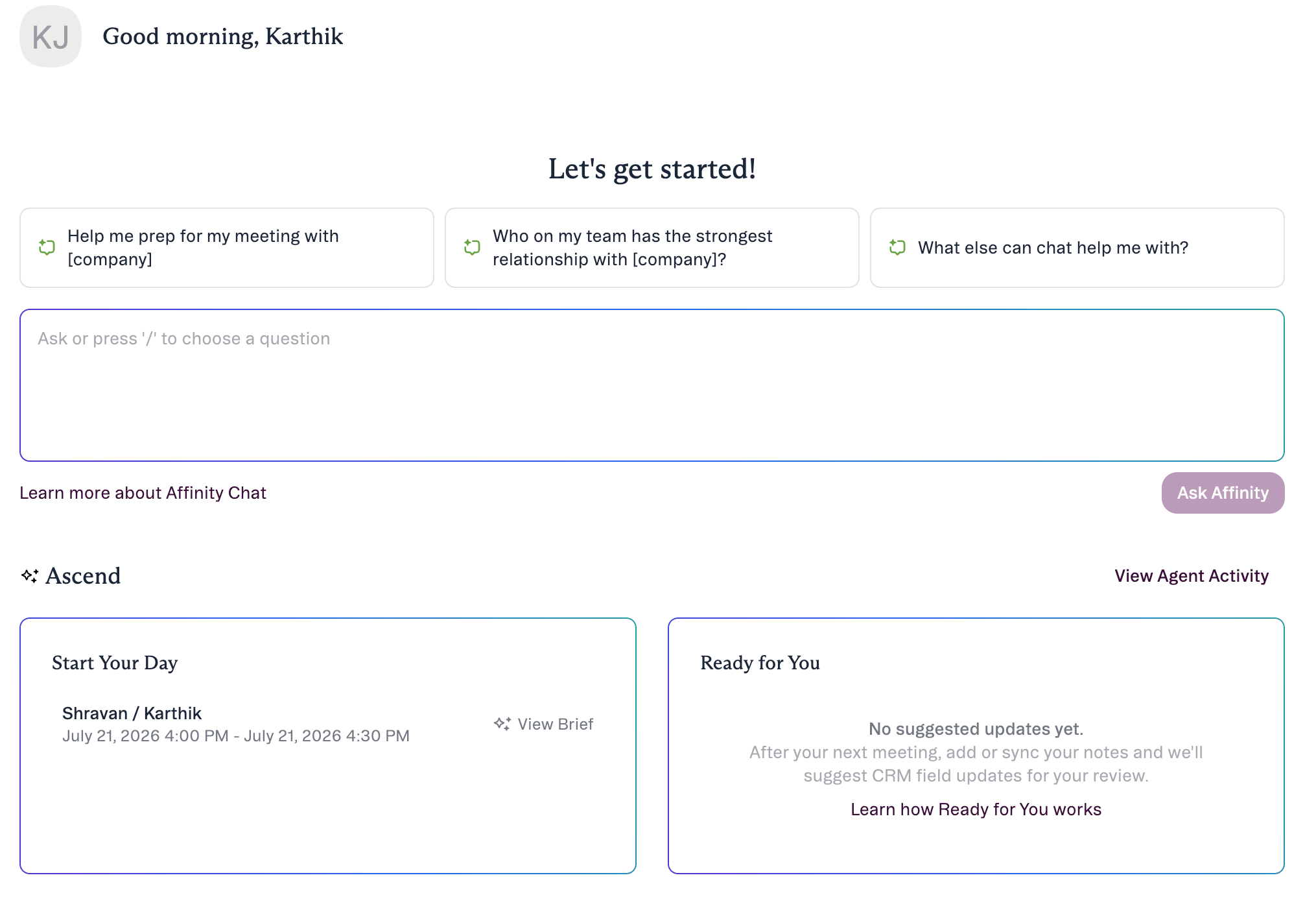 Briefs are generated overnight and ready each morning by **7:00 AM in your local time zone**, in-app on the Affinity home page (**“Start your day” / “Ready for you”**) and in the **Ascend Agent Activity** feed — **Affinity on the web** only (not email, Slack, or mobile). Open it with **View Brief**, which brings up the **Meeting Brief** modal. Read it before you join.
 The Meeting Brief modal has two actions: **Add as note** (turn the brief into a note — it appears in Agent Activity as **View Note**; use this if you don't have Affinity Notetaker, which otherwise creates that note automatically) and **Archive** (keeps the brief in Agent Activity until you archive it, then moves it to Activity History).
 ## Step 2 — Have the meeting (a note gets created)
With **Affinity Notetaker** on, it captures the meeting note and attaches it to the meeting automatically. That attachment is the trigger: when a **meeting note is created**, the **Data Update agent** reviews the context and prepares suggested field updates in the background, usually in **under a minute**. External meetings only; you get **one suggestion set per meeting**, delivered to the note's creator.
## Step 2 — Have the meeting (a note gets created)
With **Affinity Notetaker** on, it captures the meeting note and attaches it to the meeting automatically. That attachment is the trigger: when a **meeting note is created**, the **Data Update agent** reviews the context and prepares suggested field updates in the background, usually in **under a minute**. External meetings only; you get **one suggestion set per meeting**, delivered to the note's creator.
 **What it looks at:** the agent works out which companies, people, and opportunities the note is about (from the note's associations, or the meeting's external attendees as a fallback), then considers only the **fields you can already edit**. It proposes values the note supports — labeling each **stated** vs **inferred**, matching dropdowns to your real options — and drops anything ambiguous, unresolvable, or already correct. It covers records **linked to the meeting**, not other companies merely *mentioned* (that's coming after launch).
**Using Granola or another notetaker?** Affinity Notetaker is the most reliable trigger because it attaches the note to the meeting. Granola and others historically attach notes to the **person or company record only — not the meeting**, so those notes won't trigger suggested updates. See [Getting your meeting notes into Affinity](/s/article/Getting-your-meeting-notes-into-Affinity).
## Step 3 — Open the suggestions
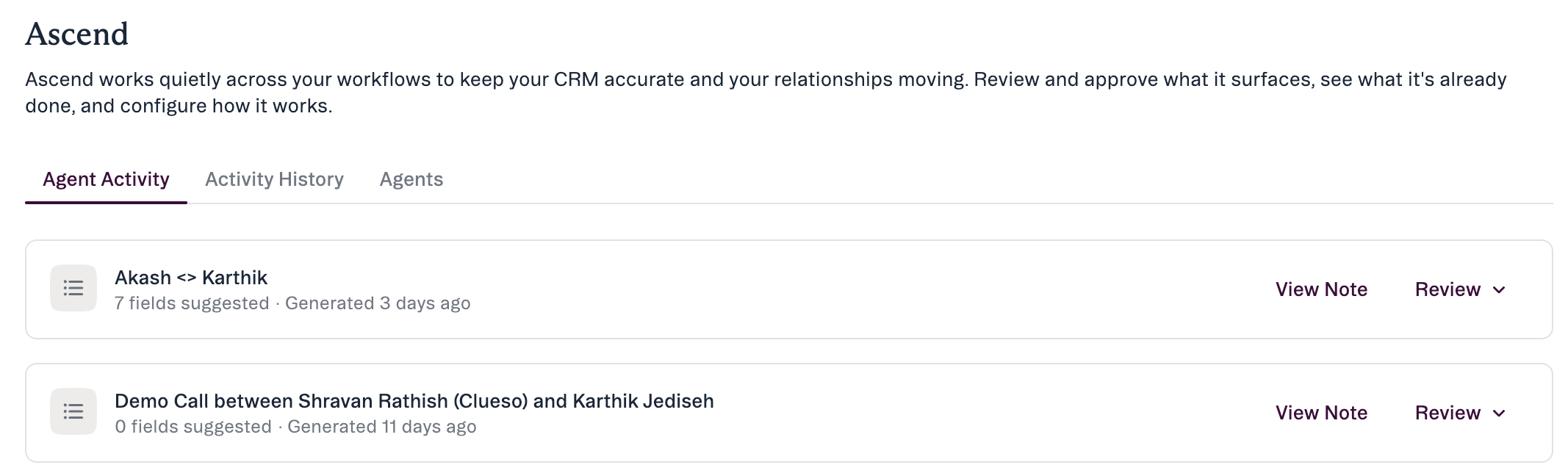
Go to the **Agent Activity** feed and expand **Review** on the Data Update agent's item for that meeting
**What it looks at:** the agent works out which companies, people, and opportunities the note is about (from the note's associations, or the meeting's external attendees as a fallback), then considers only the **fields you can already edit**. It proposes values the note supports — labeling each **stated** vs **inferred**, matching dropdowns to your real options — and drops anything ambiguous, unresolvable, or already correct. It covers records **linked to the meeting**, not other companies merely *mentioned* (that's coming after launch).
**Using Granola or another notetaker?** Affinity Notetaker is the most reliable trigger because it attaches the note to the meeting. Granola and others historically attach notes to the **person or company record only — not the meeting**, so those notes won't trigger suggested updates. See [Getting your meeting notes into Affinity](/s/article/Getting-your-meeting-notes-into-Affinity).
## Step 3 — Open the suggestions
Go to the **Agent Activity** feed and expand **Review** on the Data Update agent's item for that meeting
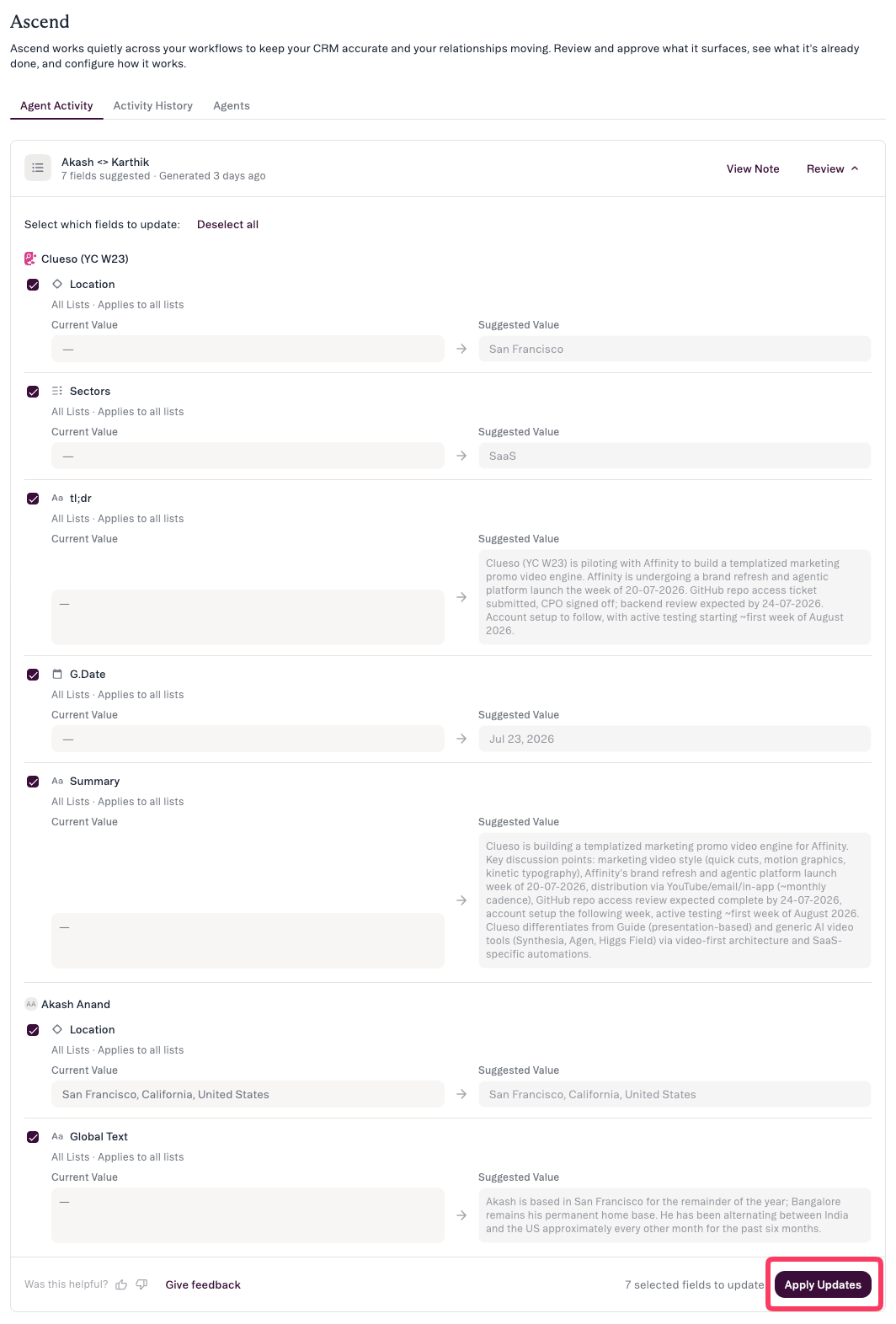 Each row shows the **field**, its **scope**, the **Current Value** (with its last-updated date), and the **Suggested Value**. The source is the linked **View Meeting Note**. Suggestions cover **any editable field** — global or list-specific, up to **10 per entity**.
## Step 4 — Review each change
With **Review** expanded, check the Current → Suggested value for each field, and open **View Note** to confirm it against the note:
* **Stage move** — does it match how the call went?
* **Next step** — correct owner and action?
* **Deal size** — confirm against what was actually said.
## Step 5 — Select the fields and apply
Nothing is written until you click **Apply Updates**.
* **Apply all** — **Select all**, then **Apply Updates**.
* **Apply some** — check only the fields you agree with.
* **Apply none** — leave all boxes unchecked.
Leave a checkbox unchecked to **skip** that field. At launch you cannot **edit** a suggested value before applying (that comes later). Applying does **not** trigger Status/Stage automations at launch, and if a field's value changed since the suggestion was generated, that suggestion is **rejected on apply** so it won't overwrite the newer value.
## When it's not perfect
* **Suggested the wrong stage?** Leave its checkbox unchecked and apply the rest.
* **A figure looks wrong?** Open **View Note** and verify before applying — it's still AI.
* **No suggestions appeared?** The meeting may not have had enough context, the note may have attached to a record instead of the meeting (see the Granola tip in Step 2), or the agent may be off — check **Ascend → Agents**.
* **Wrong company on the item?** Leave it unchecked; open **View Note** to see what it matched on.
## Common questions
* **Will it change anything on its own?** No. Nothing is written until you click **Apply Updates**.
* **Who sees the suggestions?** The suggestion set goes to the **note's creator**. The agent only sees and changes what your account can already access.
* **I use Granola — why don't I get suggestions?** Suggestions trigger when a note is attached to the **meeting**; Granola attaches to the person/company record instead. See [Getting your meeting notes into Affinity](/s/article/Getting-your-meeting-notes-into-Affinity).
* **How do I get access?** GA on **Scale / Advanced / Enterprise**. An admin enables Ascend at **Settings → Automations & AI → Affinity AI**; each user toggles the agents on the **Ascend → Agents** tab.
***
*Affinity AI can make mistakes. Review each suggestion before approving it.*
## Related topics
- [Meeting Prep & Data Update](/s/article/Meeting-Prep-and-Data-Update.md)
- [Affinity Ascend agents — Overview](/s/article/Affinity-Ascend-agents-overview.md)
- [Enabling Affinity Ascend — An Admin's Guide](/s/article/Enabling-Affinity-Ascend.md)
- [Meeting Preparation with AI Chat](/s/article/Meeting-preparation-with-AI-chat.md)
- [Troubleshooting Affinity Ascend agents](/s/article/Troubleshooting-Affinity-Ascend-agents.md)
- [Getting your meeting notes into Affinity](/s/article/Getting-your-meeting-notes-into-Affinity.md)
- [Working with Affinity agents](/s/article/Working-with-Affinity-agents.md)
- [Set up & configure your agents](/s/article/Set-up-and-configure-your-agents.md)
- [Review & approve an agent's suggestions](/s/article/Review-and-approve-agent-suggestions.md)
Each row shows the **field**, its **scope**, the **Current Value** (with its last-updated date), and the **Suggested Value**. The source is the linked **View Meeting Note**. Suggestions cover **any editable field** — global or list-specific, up to **10 per entity**.
## Step 4 — Review each change
With **Review** expanded, check the Current → Suggested value for each field, and open **View Note** to confirm it against the note:
* **Stage move** — does it match how the call went?
* **Next step** — correct owner and action?
* **Deal size** — confirm against what was actually said.
## Step 5 — Select the fields and apply
Nothing is written until you click **Apply Updates**.
* **Apply all** — **Select all**, then **Apply Updates**.
* **Apply some** — check only the fields you agree with.
* **Apply none** — leave all boxes unchecked.
Leave a checkbox unchecked to **skip** that field. At launch you cannot **edit** a suggested value before applying (that comes later). Applying does **not** trigger Status/Stage automations at launch, and if a field's value changed since the suggestion was generated, that suggestion is **rejected on apply** so it won't overwrite the newer value.
## When it's not perfect
* **Suggested the wrong stage?** Leave its checkbox unchecked and apply the rest.
* **A figure looks wrong?** Open **View Note** and verify before applying — it's still AI.
* **No suggestions appeared?** The meeting may not have had enough context, the note may have attached to a record instead of the meeting (see the Granola tip in Step 2), or the agent may be off — check **Ascend → Agents**.
* **Wrong company on the item?** Leave it unchecked; open **View Note** to see what it matched on.
## Common questions
* **Will it change anything on its own?** No. Nothing is written until you click **Apply Updates**.
* **Who sees the suggestions?** The suggestion set goes to the **note's creator**. The agent only sees and changes what your account can already access.
* **I use Granola — why don't I get suggestions?** Suggestions trigger when a note is attached to the **meeting**; Granola attaches to the person/company record instead. See [Getting your meeting notes into Affinity](/s/article/Getting-your-meeting-notes-into-Affinity).
* **How do I get access?** GA on **Scale / Advanced / Enterprise**. An admin enables Ascend at **Settings → Automations & AI → Affinity AI**; each user toggles the agents on the **Ascend → Agents** tab.
***
*Affinity AI can make mistakes. Review each suggestion before approving it.*
## Related topics
- [Meeting Prep & Data Update](/s/article/Meeting-Prep-and-Data-Update.md)
- [Affinity Ascend agents — Overview](/s/article/Affinity-Ascend-agents-overview.md)
- [Enabling Affinity Ascend — An Admin's Guide](/s/article/Enabling-Affinity-Ascend.md)
- [Meeting Preparation with AI Chat](/s/article/Meeting-preparation-with-AI-chat.md)
- [Troubleshooting Affinity Ascend agents](/s/article/Troubleshooting-Affinity-Ascend-agents.md)
- [Getting your meeting notes into Affinity](/s/article/Getting-your-meeting-notes-into-Affinity.md)
- [Working with Affinity agents](/s/article/Working-with-Affinity-agents.md)
- [Set up & configure your agents](/s/article/Set-up-and-configure-your-agents.md)
- [Review & approve an agent's suggestions](/s/article/Review-and-approve-agent-suggestions.md)