> ## Documentation Index
> Fetch the complete documentation index at: https://support.affinity.co/llms.txt
> Use this file to discover all available pages before exploring further.
# Manage AI Settings (Admin Guide)
> Admin walkthrough for the Affinity AI Settings page — control which AI and experimental Labs features are available across your organization.
**Reference** — comprehensive feature documentation.
The Affinity AI Settings page gives permitted users self-serve control over which AI and experimental Labs features are available to their organization. Instead of contacting your CSM to enable or disable specific AI capabilities, permitted users can manage feature access directly from Settings, with changes taking effect immediately for all users in the account.
## What you can control
* **Core AI features:** Notetaker, Industry Insights, and AI Chat (enable/disable for entire org)
* **Labs program access:** Turn the Labs experimental program on or off for your organization
* **Specific Labs features:** When Labs is enabled, control which experimental features are accessible
* **Labs defaults:** Set whether newly released Labs features are enabled or disabled by default
* **Notetaker admin settings:** Configure internal meeting notes and meeting note language (relocated from Notetaker Settings)
## Who this is for
Account admins and Operations users at firms who manage their team's Affinity usage and need to ensure compliance with internal policies on AI tool usage.
**All settings are org-wide.** Access is either on or off for the entire account. Role-, team-, or user-level controls are not available.
## Who can access this page
**Default access:**
* **Enterprise Admins** (always have access, cannot be removed)
* **Admins** (have access by default, can be removed)
**Customizable access:**
Admins can grant Standard users access via the **"Manage Affinity AI feature access"** permission on the Users and Permissions page.
### How to check your access
1. Navigate to **Settings**.
2. Look for **Affinity AI** in the left sidebar.
3. If you see it, you have permission.
4. If not, contact your Enterprise Admin to request access.
**Enterprise Admin access is permanent** and cannot be revoked.
## How to access Affinity AI Settings
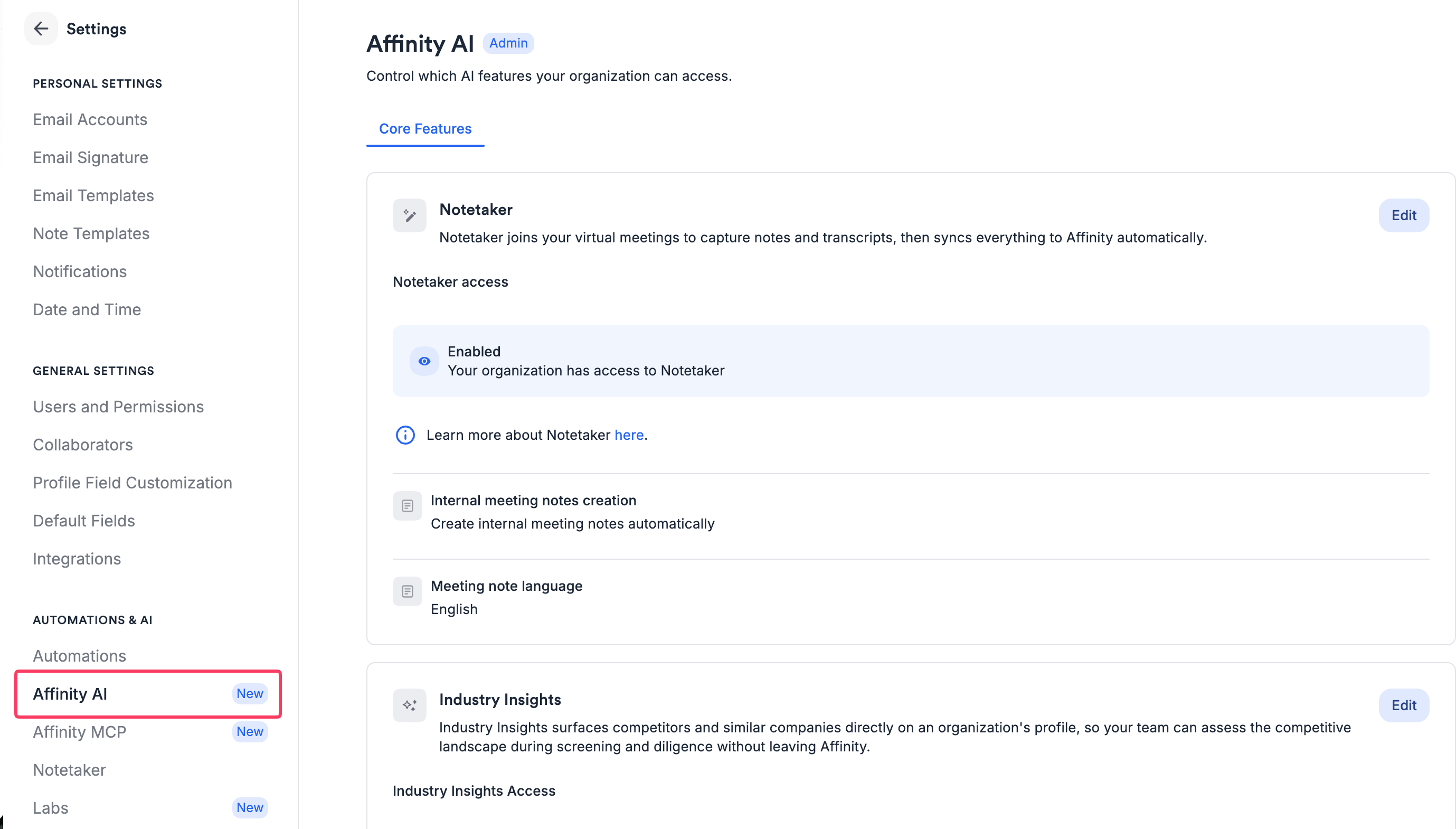 1. Log into the Affinity web app.
2. Click your profile icon (top right).
3. Select **Settings**.
4. In the left sidebar, click **Affinity AI**.
This page is available in the web app. In Affinity for Salesforce (A4S), you can manage Notetaker access and admin settings instead.
## Managing Core AI features
**Core AI features** are generally available Affinity AI capabilities (not experimental).
### Features you can control
**Notetaker:**
* AI-powered meeting transcription and summaries
* Automatically joins meetings and generates notes
* Integrates with Zoom and other meeting platforms
**Industry Insights:**
* AI-generated industry news and company updates
* Appears on company profiles
* Summarizes relevant market developments
**AI Chat:**
* Conversational AI interface to query your CRM
* Available in Affinity web app
* Natural language queries for meeting prep, pipeline, company search
### How to enable or disable Core AI features
From the **Affinity AI Settings** page:
1. Locate the **Core AI Features** section.
2. Find the feature you want to enable or disable.
3. Toggle the switch (blue = enabled, gray = disabled).
4. Click **Save** at the top or bottom of the page.
5. Changes apply immediately to all users.
**When you disable a Core AI feature:**
* Feature is no longer visible in the UI for any user in your account
* Users cannot access that feature's functionality
* Feature-specific settings pages are hidden (e.g., Notetaker Settings page)
* Data previously created by the feature is preserved (e.g., meeting notes already generated)
**When you enable a Core AI feature:**
* Feature becomes visible and accessible to all users immediately
* Feature-specific settings pages appear in Settings
* Users can begin using the feature right away
### Notetaker admin settings
These settings have moved from the Notetaker Settings page to Affinity AI Settings:
**Create internal meeting notes:**
* When enabled: Notetaker generates notes for internal Affinity meetings (meetings where all participants are from your organization)
* When disabled: Notetaker only generates notes for external meetings
* Default: Enabled
**Meeting note language:**
* Set the language for AI-generated meeting notes
* Options: English, Spanish, French, German, etc.
* Default: English
Individual user Notetaker preferences (Zoom connection, join automatically, appearance) remain on the Notetaker Settings page.
## Managing Labs access
**Labs** is Affinity's experimental AI features program. Features in Labs are in trial/beta phase and may graduate to Core AI features or be retired based on feedback.
### Enabling or disabling Labs
From the **Affinity AI Settings** page:
1. Locate the **Labs** section.
2. Toggle the Labs program switch.
3. Click **Save**.
**When Labs is enabled:**
* Labs Settings page appears in Settings for all users
* Users can toggle individual Labs features on/off for their personal experience
* Permitted users can control which specific Labs features are accessible
**When Labs is disabled:**
* Labs Settings page is hidden from all users
* All Labs features become inaccessible
* Your Labs configuration is preserved (if you re-enable later, settings are restored)
### Controlling specific Labs features
When Labs is enabled, you can control which features are accessible.
**Available Labs features:**
* **Note Summaries** — AI-generated summaries of notes
* **Recent News on Profiles** — Company news on profile pages
* **File Analyzer** — AI analysis of pitch decks and documents
* **Suggest Field Updates from Notes** — AI-suggested field values from note content
**How to manage:**
1. Ensure Labs is **enabled** (if disabled, individual feature controls are hidden).
2. In the Labs features list, toggle specific features on or off.
3. Click **Save**.
4. Enabled features appear on the Labs Settings page for users to toggle personally.
5. Disabled features do not appear on the Labs Settings page and are inaccessible to all users.
Individual users can toggle Labs features for their own personal experience via the Labs Settings page (if the feature is enabled at the org level). User personal preferences do not affect other users.
### Setting defaults for new Labs features
Control whether newly released Labs features are automatically enabled or disabled for your org.
From the **Affinity AI Settings** page:
1. In the Labs section, find **Default state for new Labs features**.
2. Select:
* **Enabled** — New Labs features are automatically accessible when released.
* **Disabled** — New Labs features require you to manually enable them.
3. Click **Save**.
**Choose "Enabled" if:**
* Your team wants early access to experimental features
* You trust Affinity's Labs development process
* You prefer to evaluate features as they release
**Choose "Disabled" if:**
* Your firm is risk-averse about experimental features
* You prefer to manually review new capabilities before rollout
* You have strict policies requiring pre-approval of new tools
**Default:** Enabled (new Labs features are on by default).
## Affinity AI Settings vs Labs Settings
Understanding the difference between admin controls and user preferences:
| | Affinity AI Settings | Labs Settings |
| --------------------------- | ---------------------------------------------------------------------------------------- | -------------------------------------------------------------------------------------- |
| **Who can see it** | Permitted users only (Enterprise Admins and Admins by default) | All users in the account (only when Labs is enabled by admin) |
| **Who controls visibility** | Configured via "Manage Affinity AI feature access" permission | Gated by permitted users — Labs must be enabled first |
| **What users can do** | Enable/disable AI features for entire org; configure admin settings; control Labs access | Toggle individual Labs features on/off for themselves personally |
| **Scope of control** | Org-wide | Per-user (personal preference only) |
| **Which features appear** | All Affinity AI features available to the org | Only Labs features enabled by admin on AI Settings page |
| **Purpose** | Give admins centralized control over AI capabilities available in org | Give users personal control; generate signal on feature value for graduation decisions |
### Example workflow
1. **Admin** enables Labs and turns on Note Summaries + File Analyzer (but not Recent News).
2. **All users** see Labs Settings page with only Note Summaries and File Analyzer.
3. **Individual user** disables Note Summaries for their own account (personal preference).
4. **Other users** are not affected — they still see Note Summaries.
5. **Admin** later disables File Analyzer — it disappears for all users immediately.
## Managing permissions
How to grant Standard users access to Affinity AI Settings:
1. Navigate to **Settings → Users and Permissions**.
2. Find the **Manage Affinity AI feature access** permission.
3. By default: Enabled for Enterprise Admin and Admin.
4. **To add Standard users:**
* Click the permission row to expand.
* Check the box for **Standard** role.
* Click **Save**.
5. Standard users can now access the Affinity AI Settings page.
**To remove Admin access (but keep Enterprise Admin):**
* Uncheck the **Admin** role.
* Enterprise Admin permission cannot be removed.
**Why grant Standard users access:**
* Your Operations lead manages tool configuration but isn't an Admin.
* Standard users need visibility into what AI features are enabled.
## Frequently asked questions
**Q: What happens when I disable a Core AI feature?**
The feature is no longer visible or accessible to any user in your account. Changes take effect immediately after you click Save. Data previously created by the feature (e.g., existing meeting notes from Notetaker) is preserved.
**Q: What happens to my Labs configuration if I turn Labs off and then back on?**
Your previous configuration is fully restored. If you had specific Labs features enabled or disabled before turning Labs off, those settings are preserved exactly as you left them. Turning Labs off is treated as a pause, not a reset.
**Q: Can I control access for individual users or teams?**
Not in this release. All settings on the Affinity AI Settings page are org-wide — access is either on or off for the entire account. Role-, team-, or user-level controls are not available at this time.
**Q: What happens to the Labs Settings page if I disable Labs?**
When you disable Labs access, the Labs Settings page is hidden from all users in your account. When you re-enable Labs, the page reappears and all user personal preferences are restored.
**Q: Will this affect the Notetaker Settings page?**
Notetaker admin settings (create internal meeting notes, set meeting note language) have moved to the Affinity AI Settings page. Individual user Notetaker preferences (Zoom connection, join automatically, appearance) remain on the Notetaker Settings page. If you disable Notetaker at the org level, the Notetaker Settings page will be hidden for all users.
**Q: I'm an A4S customer — does this apply to me?**
Admin AI Settings in A4S gives Admins the ability to control Notetaker access and manage its Admin settings.
**Q: Can I enable Labs but disable all Labs features?**
Yes. You can enable Labs for your organization (making the Labs Settings page visible to users) without requiring any individual Labs feature to be active. This represents an "opted in" state where users have access to the Labs page but no experimental features are currently available. This is useful if you want users to see that Labs exists without giving them access to specific features yet.
**Q: What if new Labs features are released while my default is set to "Disabled"?**
New Labs features will not be automatically accessible to your users. You'll need to manually enable each new feature from the Affinity AI Settings page when you're ready for your team to access it.
**Q: What if I navigate away from the page without saving?**
If you've made changes, you'll see a confirmation modal asking if you want to discard your unsaved changes. If you haven't made any changes, you can navigate away without any warning.
## Troubleshooting
### I can't find the Affinity AI Settings page
**Check:**
1. You have the **"Manage Affinity AI feature access"** permission.
**Solution:**
* If you're an Admin or Standard user and don't see the page, contact your Enterprise Admin to check permission settings in **Users and Permissions**.
* Enterprise Admins always have access and cannot be removed from this permission.
### Changes I made aren't taking effect
**Check:**
1. You clicked **Save** after making changes.
2. No error message appeared when saving.
3. Page refreshed or confirmation appeared.
**Solution:**
* Try refreshing the page to see if changes were applied.
* If the issue persists, contact [support@affinity.co](mailto:support@affinity.co).
### Users are still seeing a feature I disabled
**Check:**
1. You clicked Save after disabling the feature.
2. Users have refreshed their browser or logged out/in.
3. You disabled the correct feature (check feature name and description).
**Solution:**
* Ask users to refresh their browser or clear cache.
* Verify the feature is showing as disabled in your Affinity AI Settings page.
* Changes are org-wide and immediate — if users still see it after refresh, contact [support@affinity.co](mailto:support@affinity.co).
### I enabled Labs but users don't see the Labs Settings page
**Check:**
1. Labs is enabled in your Affinity AI Settings page.
2. At least one Labs feature is enabled (or Labs can be enabled with no features).
3. Users are on web app (not A4S).
4. Users have refreshed their browser.
**Solution:**
* Verify Labs toggle shows as enabled and saved.
* Ask users to navigate to **Settings → Labs** to check if page appears.
* If issue persists, contact [support@affinity.co](mailto:support@affinity.co).
1. Log into the Affinity web app.
2. Click your profile icon (top right).
3. Select **Settings**.
4. In the left sidebar, click **Affinity AI**.
This page is available in the web app. In Affinity for Salesforce (A4S), you can manage Notetaker access and admin settings instead.
## Managing Core AI features
**Core AI features** are generally available Affinity AI capabilities (not experimental).
### Features you can control
**Notetaker:**
* AI-powered meeting transcription and summaries
* Automatically joins meetings and generates notes
* Integrates with Zoom and other meeting platforms
**Industry Insights:**
* AI-generated industry news and company updates
* Appears on company profiles
* Summarizes relevant market developments
**AI Chat:**
* Conversational AI interface to query your CRM
* Available in Affinity web app
* Natural language queries for meeting prep, pipeline, company search
### How to enable or disable Core AI features
From the **Affinity AI Settings** page:
1. Locate the **Core AI Features** section.
2. Find the feature you want to enable or disable.
3. Toggle the switch (blue = enabled, gray = disabled).
4. Click **Save** at the top or bottom of the page.
5. Changes apply immediately to all users.
**When you disable a Core AI feature:**
* Feature is no longer visible in the UI for any user in your account
* Users cannot access that feature's functionality
* Feature-specific settings pages are hidden (e.g., Notetaker Settings page)
* Data previously created by the feature is preserved (e.g., meeting notes already generated)
**When you enable a Core AI feature:**
* Feature becomes visible and accessible to all users immediately
* Feature-specific settings pages appear in Settings
* Users can begin using the feature right away
### Notetaker admin settings
These settings have moved from the Notetaker Settings page to Affinity AI Settings:
**Create internal meeting notes:**
* When enabled: Notetaker generates notes for internal Affinity meetings (meetings where all participants are from your organization)
* When disabled: Notetaker only generates notes for external meetings
* Default: Enabled
**Meeting note language:**
* Set the language for AI-generated meeting notes
* Options: English, Spanish, French, German, etc.
* Default: English
Individual user Notetaker preferences (Zoom connection, join automatically, appearance) remain on the Notetaker Settings page.
## Managing Labs access
**Labs** is Affinity's experimental AI features program. Features in Labs are in trial/beta phase and may graduate to Core AI features or be retired based on feedback.
### Enabling or disabling Labs
From the **Affinity AI Settings** page:
1. Locate the **Labs** section.
2. Toggle the Labs program switch.
3. Click **Save**.
**When Labs is enabled:**
* Labs Settings page appears in Settings for all users
* Users can toggle individual Labs features on/off for their personal experience
* Permitted users can control which specific Labs features are accessible
**When Labs is disabled:**
* Labs Settings page is hidden from all users
* All Labs features become inaccessible
* Your Labs configuration is preserved (if you re-enable later, settings are restored)
### Controlling specific Labs features
When Labs is enabled, you can control which features are accessible.
**Available Labs features:**
* **Note Summaries** — AI-generated summaries of notes
* **Recent News on Profiles** — Company news on profile pages
* **File Analyzer** — AI analysis of pitch decks and documents
* **Suggest Field Updates from Notes** — AI-suggested field values from note content
**How to manage:**
1. Ensure Labs is **enabled** (if disabled, individual feature controls are hidden).
2. In the Labs features list, toggle specific features on or off.
3. Click **Save**.
4. Enabled features appear on the Labs Settings page for users to toggle personally.
5. Disabled features do not appear on the Labs Settings page and are inaccessible to all users.
Individual users can toggle Labs features for their own personal experience via the Labs Settings page (if the feature is enabled at the org level). User personal preferences do not affect other users.
### Setting defaults for new Labs features
Control whether newly released Labs features are automatically enabled or disabled for your org.
From the **Affinity AI Settings** page:
1. In the Labs section, find **Default state for new Labs features**.
2. Select:
* **Enabled** — New Labs features are automatically accessible when released.
* **Disabled** — New Labs features require you to manually enable them.
3. Click **Save**.
**Choose "Enabled" if:**
* Your team wants early access to experimental features
* You trust Affinity's Labs development process
* You prefer to evaluate features as they release
**Choose "Disabled" if:**
* Your firm is risk-averse about experimental features
* You prefer to manually review new capabilities before rollout
* You have strict policies requiring pre-approval of new tools
**Default:** Enabled (new Labs features are on by default).
## Affinity AI Settings vs Labs Settings
Understanding the difference between admin controls and user preferences:
| | Affinity AI Settings | Labs Settings |
| --------------------------- | ---------------------------------------------------------------------------------------- | -------------------------------------------------------------------------------------- |
| **Who can see it** | Permitted users only (Enterprise Admins and Admins by default) | All users in the account (only when Labs is enabled by admin) |
| **Who controls visibility** | Configured via "Manage Affinity AI feature access" permission | Gated by permitted users — Labs must be enabled first |
| **What users can do** | Enable/disable AI features for entire org; configure admin settings; control Labs access | Toggle individual Labs features on/off for themselves personally |
| **Scope of control** | Org-wide | Per-user (personal preference only) |
| **Which features appear** | All Affinity AI features available to the org | Only Labs features enabled by admin on AI Settings page |
| **Purpose** | Give admins centralized control over AI capabilities available in org | Give users personal control; generate signal on feature value for graduation decisions |
### Example workflow
1. **Admin** enables Labs and turns on Note Summaries + File Analyzer (but not Recent News).
2. **All users** see Labs Settings page with only Note Summaries and File Analyzer.
3. **Individual user** disables Note Summaries for their own account (personal preference).
4. **Other users** are not affected — they still see Note Summaries.
5. **Admin** later disables File Analyzer — it disappears for all users immediately.
## Managing permissions
How to grant Standard users access to Affinity AI Settings:
1. Navigate to **Settings → Users and Permissions**.
2. Find the **Manage Affinity AI feature access** permission.
3. By default: Enabled for Enterprise Admin and Admin.
4. **To add Standard users:**
* Click the permission row to expand.
* Check the box for **Standard** role.
* Click **Save**.
5. Standard users can now access the Affinity AI Settings page.
**To remove Admin access (but keep Enterprise Admin):**
* Uncheck the **Admin** role.
* Enterprise Admin permission cannot be removed.
**Why grant Standard users access:**
* Your Operations lead manages tool configuration but isn't an Admin.
* Standard users need visibility into what AI features are enabled.
## Frequently asked questions
**Q: What happens when I disable a Core AI feature?**
The feature is no longer visible or accessible to any user in your account. Changes take effect immediately after you click Save. Data previously created by the feature (e.g., existing meeting notes from Notetaker) is preserved.
**Q: What happens to my Labs configuration if I turn Labs off and then back on?**
Your previous configuration is fully restored. If you had specific Labs features enabled or disabled before turning Labs off, those settings are preserved exactly as you left them. Turning Labs off is treated as a pause, not a reset.
**Q: Can I control access for individual users or teams?**
Not in this release. All settings on the Affinity AI Settings page are org-wide — access is either on or off for the entire account. Role-, team-, or user-level controls are not available at this time.
**Q: What happens to the Labs Settings page if I disable Labs?**
When you disable Labs access, the Labs Settings page is hidden from all users in your account. When you re-enable Labs, the page reappears and all user personal preferences are restored.
**Q: Will this affect the Notetaker Settings page?**
Notetaker admin settings (create internal meeting notes, set meeting note language) have moved to the Affinity AI Settings page. Individual user Notetaker preferences (Zoom connection, join automatically, appearance) remain on the Notetaker Settings page. If you disable Notetaker at the org level, the Notetaker Settings page will be hidden for all users.
**Q: I'm an A4S customer — does this apply to me?**
Admin AI Settings in A4S gives Admins the ability to control Notetaker access and manage its Admin settings.
**Q: Can I enable Labs but disable all Labs features?**
Yes. You can enable Labs for your organization (making the Labs Settings page visible to users) without requiring any individual Labs feature to be active. This represents an "opted in" state where users have access to the Labs page but no experimental features are currently available. This is useful if you want users to see that Labs exists without giving them access to specific features yet.
**Q: What if new Labs features are released while my default is set to "Disabled"?**
New Labs features will not be automatically accessible to your users. You'll need to manually enable each new feature from the Affinity AI Settings page when you're ready for your team to access it.
**Q: What if I navigate away from the page without saving?**
If you've made changes, you'll see a confirmation modal asking if you want to discard your unsaved changes. If you haven't made any changes, you can navigate away without any warning.
## Troubleshooting
### I can't find the Affinity AI Settings page
**Check:**
1. You have the **"Manage Affinity AI feature access"** permission.
**Solution:**
* If you're an Admin or Standard user and don't see the page, contact your Enterprise Admin to check permission settings in **Users and Permissions**.
* Enterprise Admins always have access and cannot be removed from this permission.
### Changes I made aren't taking effect
**Check:**
1. You clicked **Save** after making changes.
2. No error message appeared when saving.
3. Page refreshed or confirmation appeared.
**Solution:**
* Try refreshing the page to see if changes were applied.
* If the issue persists, contact [support@affinity.co](mailto:support@affinity.co).
### Users are still seeing a feature I disabled
**Check:**
1. You clicked Save after disabling the feature.
2. Users have refreshed their browser or logged out/in.
3. You disabled the correct feature (check feature name and description).
**Solution:**
* Ask users to refresh their browser or clear cache.
* Verify the feature is showing as disabled in your Affinity AI Settings page.
* Changes are org-wide and immediate — if users still see it after refresh, contact [support@affinity.co](mailto:support@affinity.co).
### I enabled Labs but users don't see the Labs Settings page
**Check:**
1. Labs is enabled in your Affinity AI Settings page.
2. At least one Labs feature is enabled (or Labs can be enabled with no features).
3. Users are on web app (not A4S).
4. Users have refreshed their browser.
**Solution:**
* Verify Labs toggle shows as enabled and saved.
* Ask users to navigate to **Settings → Labs** to check if page appears.
* If issue persists, contact [support@affinity.co](mailto:support@affinity.co).