> ## Documentation Index
> Fetch the complete documentation index at: https://support.affinity.co/llms.txt
> Use this file to discover all available pages before exploring further.
# How to update dropdown options for dropdown type fields
> Help center reference
**How-to** — task-oriented recipe.
As your workflow evolves, you may need to update your dropdown-type fields by adding, editing, or removing dropdown options. Here's everything you need to know.
**Who can update dropdown options for** **[global fields](/s/article/Enriched-Global-and-List-specific-Fields)?**
* Admins at the Account Level (see [Account Level Permissions](/s/article/Account-level-permissions)). Global fields will be available to all users.
**Who can update dropdown options for** **[list-specific fields](/s/article/Enriched-Global-and-List-specific-Fields)?**
* List Admins and the List Owner for each given list (see [List Level Permissions](/s/article/List-Level-Permissions)). List-specific fields are only available to those with access to that specific list.
## How to update dropdown options
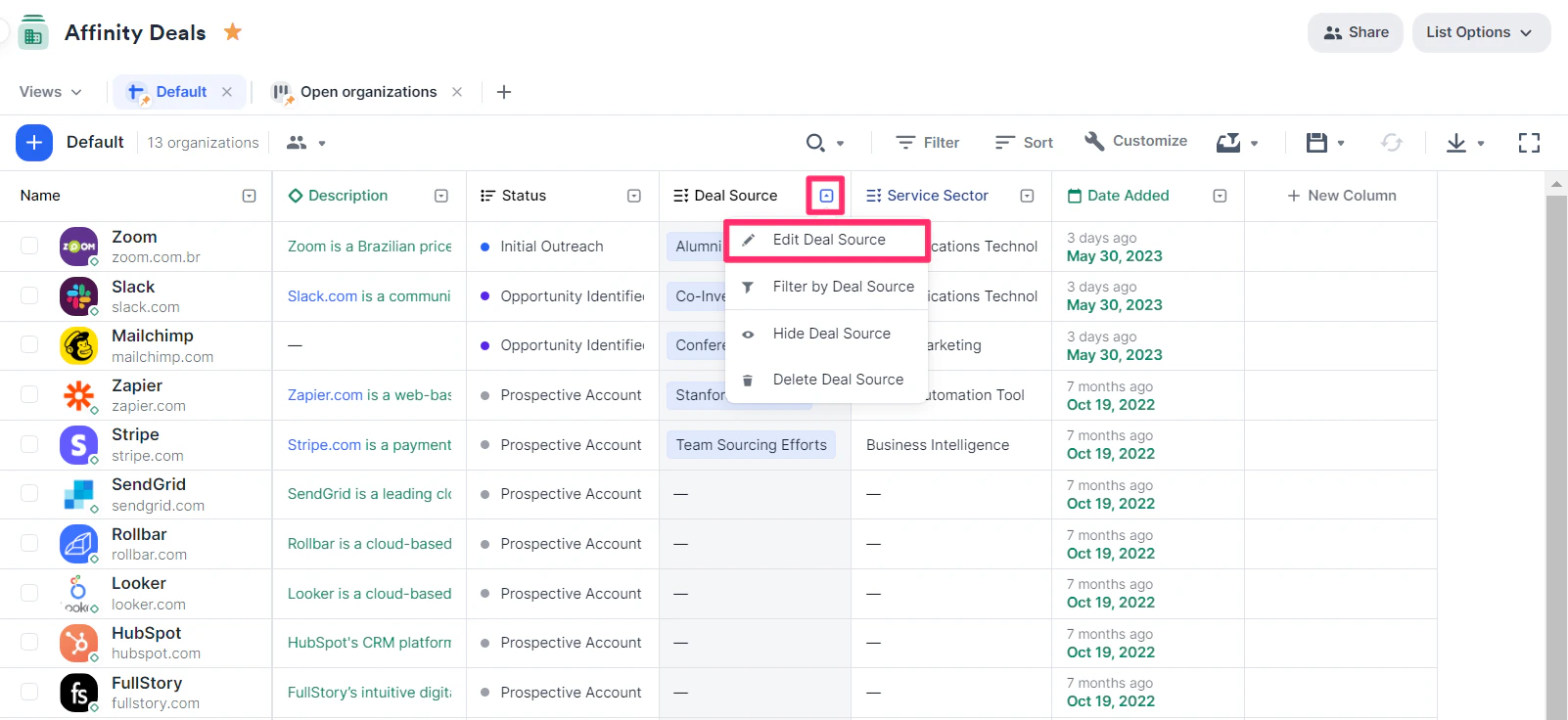
1. Click the dropdown arrow next to the column you wish to update, then click **Edit \[column name]**.
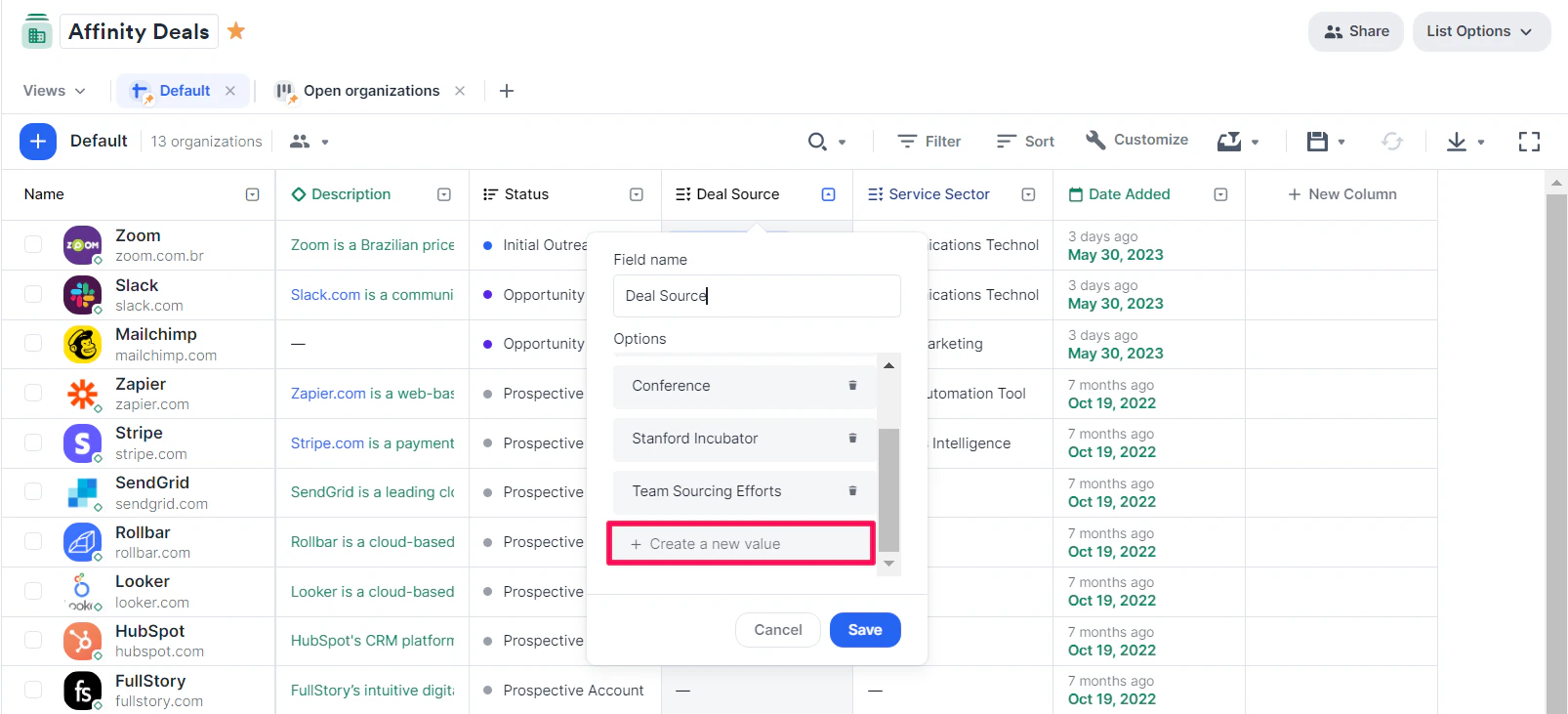
 2. **To add a new dropdown option**: Click on **+ Create a new value**.
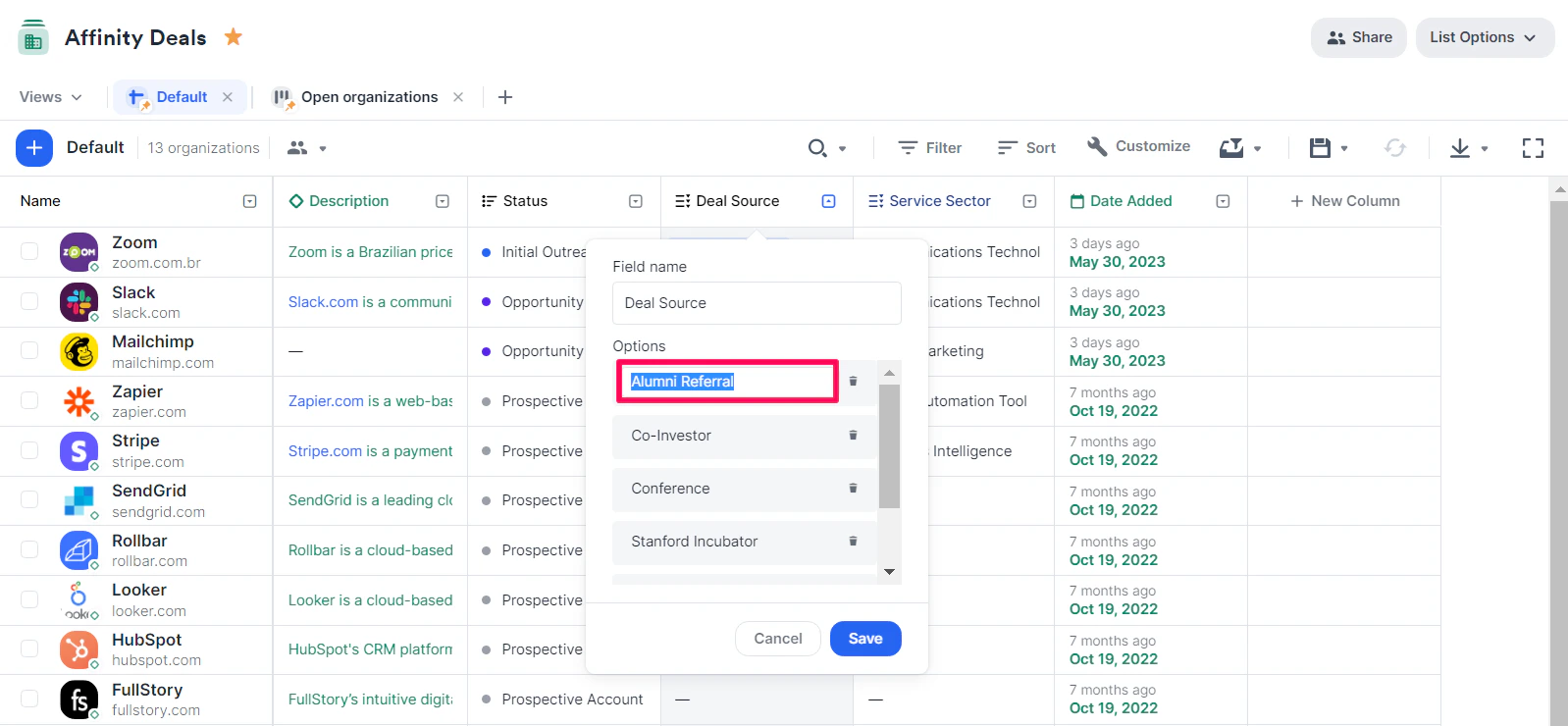
 3. To edit an existing dropdown option: Click on the dropdown option you wish to edit/rename.
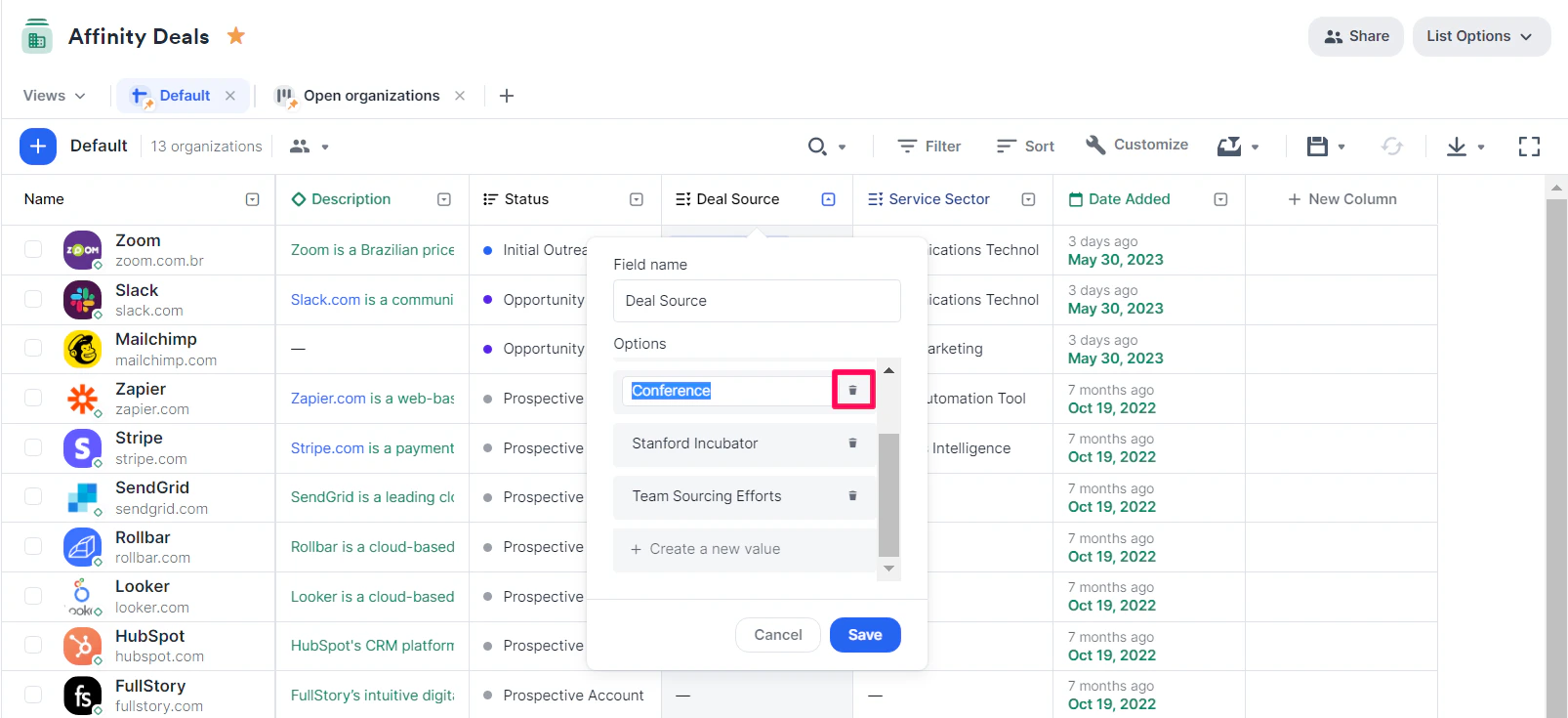
 4. **To remove an existing dropdown option**: Click on the **Trash** icon beside the dropdown option you wish to remove.
 5. **To merge two existing dropdown options**: Rename one of the dropdown options to the same name as the other. By doing so, we'll auto-update all cells including the previous dropdown option.
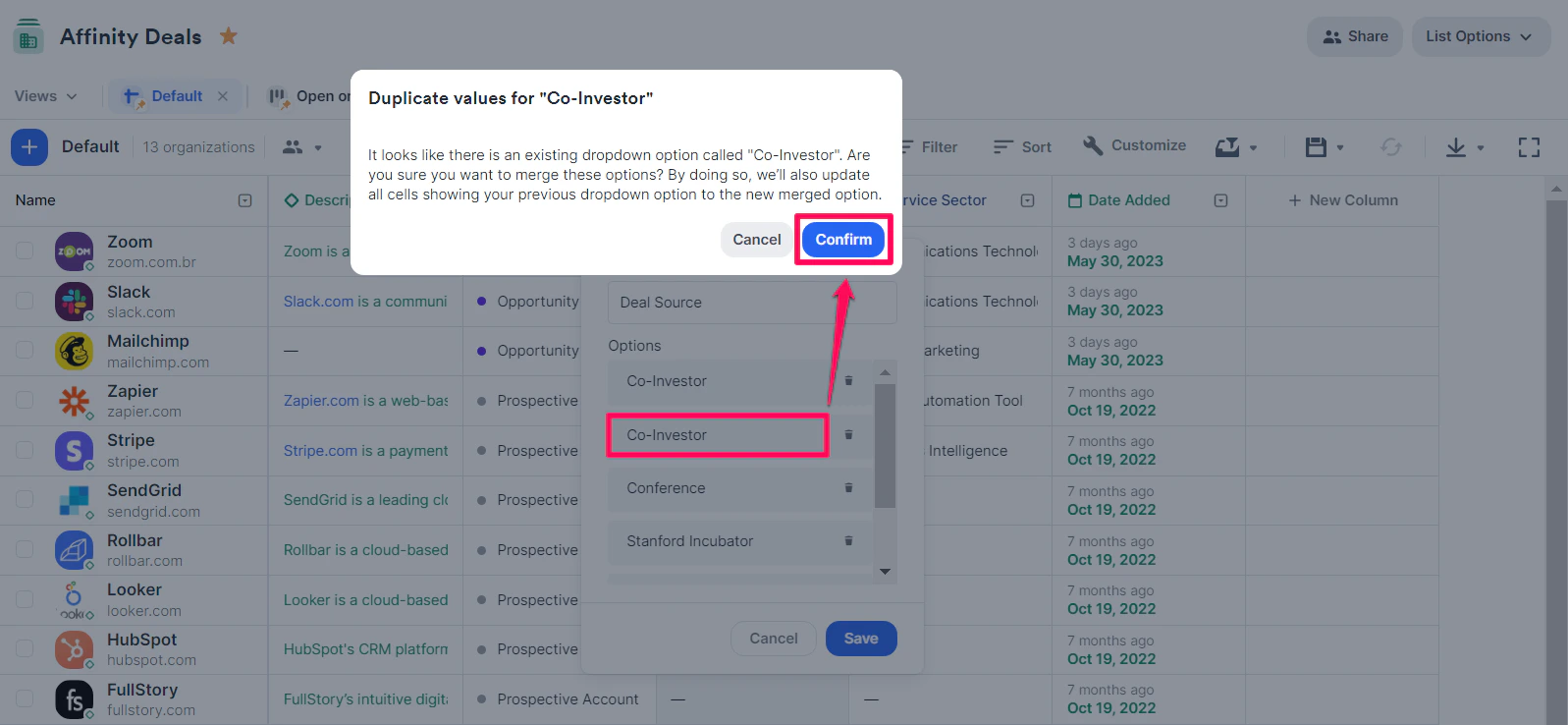 6. Click **Save**.
{/* */}
6. Click **Save**.
{/* */}