> ## Documentation Index
> Fetch the complete documentation index at: https://support.affinity.co/llms.txt
> Use this file to discover all available pages before exploring further.
# How To Track Last Status Before Lost Or Passed Using Affinity Analytics
> Help center reference
**Advanced** — power-user technique.
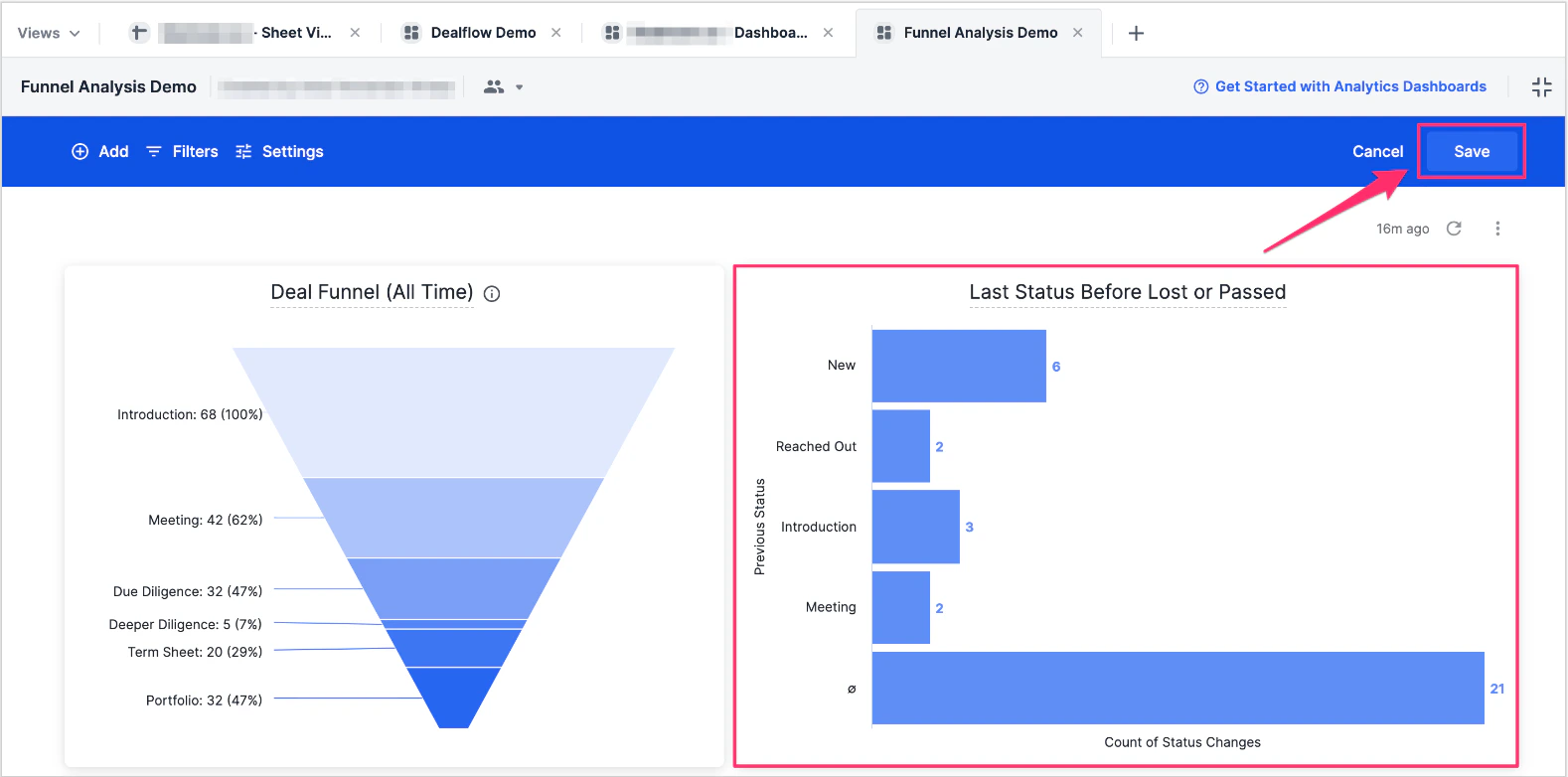
For deals/list entries that have been **Lost** or **Passed** on by you/your team, you can leverage Affinity Analytics to better understand how far into the pipeline they progressed to before moving to **Lost** or **Passed**.
**Note**: This video contains the old navigation bar on the top, whereas the current navigation bar now lies on the left side of your screen. While the remaining content is still the same, rest assured that we will be updating our videos accordingly. You can also follow this step-by-step guide below:
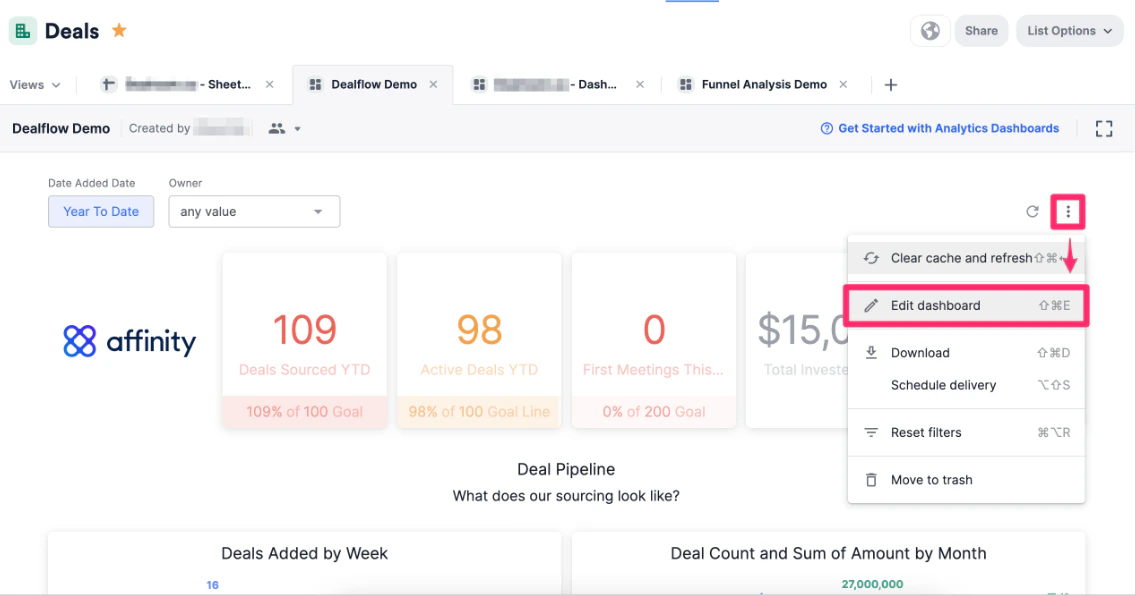
1. On the dashboard view you'd like to track this data in, click the ellipsis (3 dotted icon), then click **Edit dashboard**.
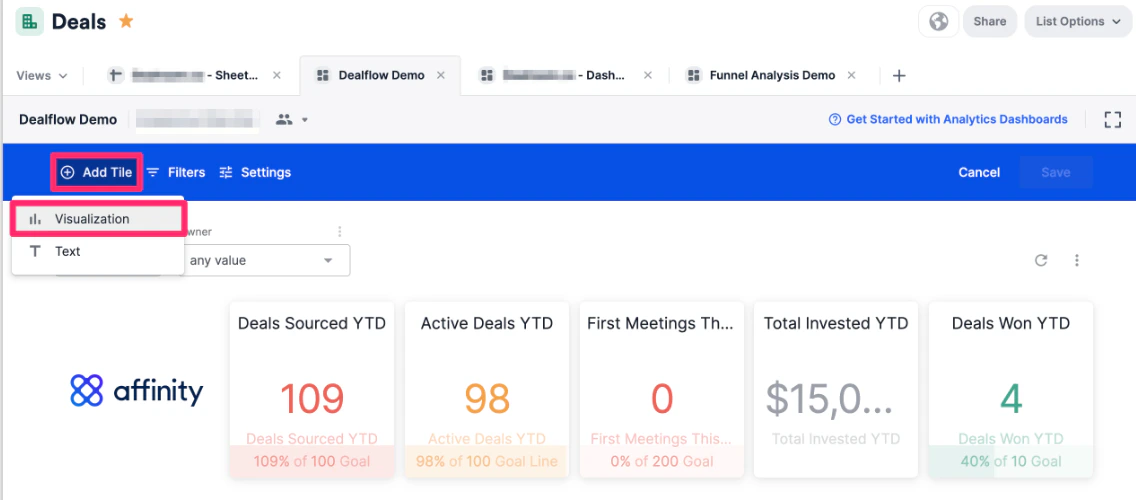
 2. Click **Add tile**, then choose **Visualization**.
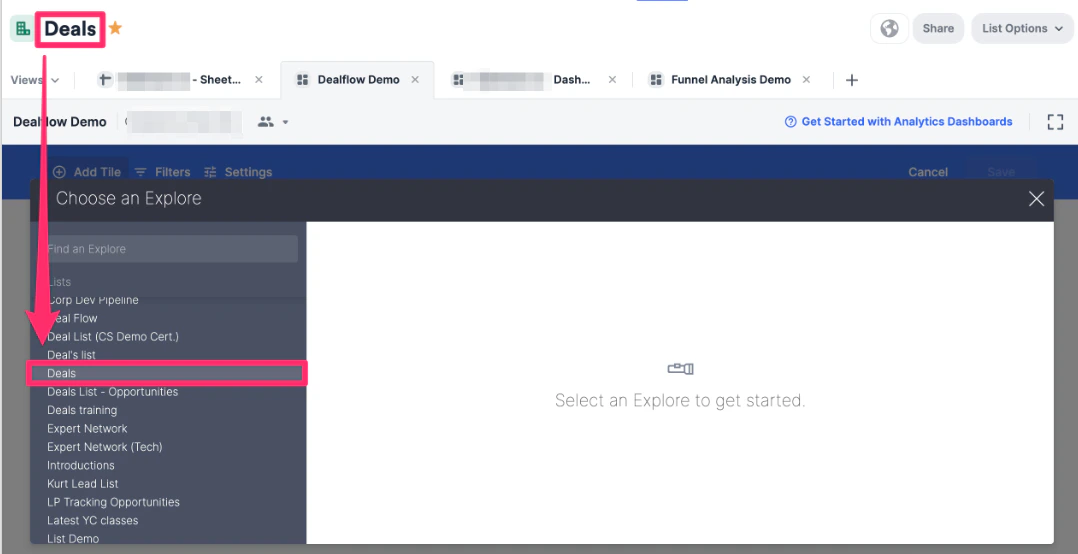
 3. Choose the list or data source for your funnel. We highly recommend that you choose the list you're currently on.
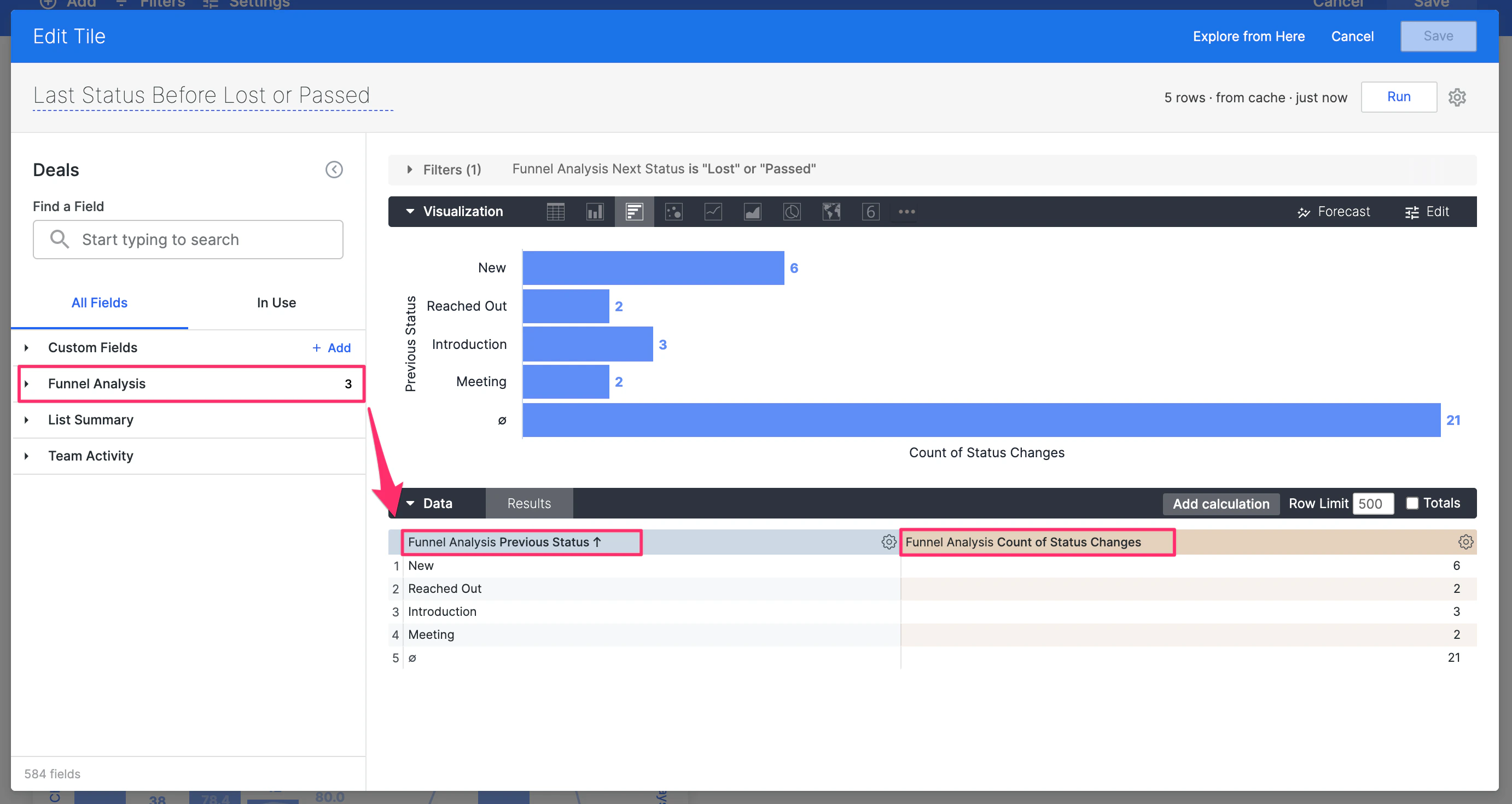
 4. Now, select **Previous Status** as the dimension and **Count of Status Changes** as the measure.
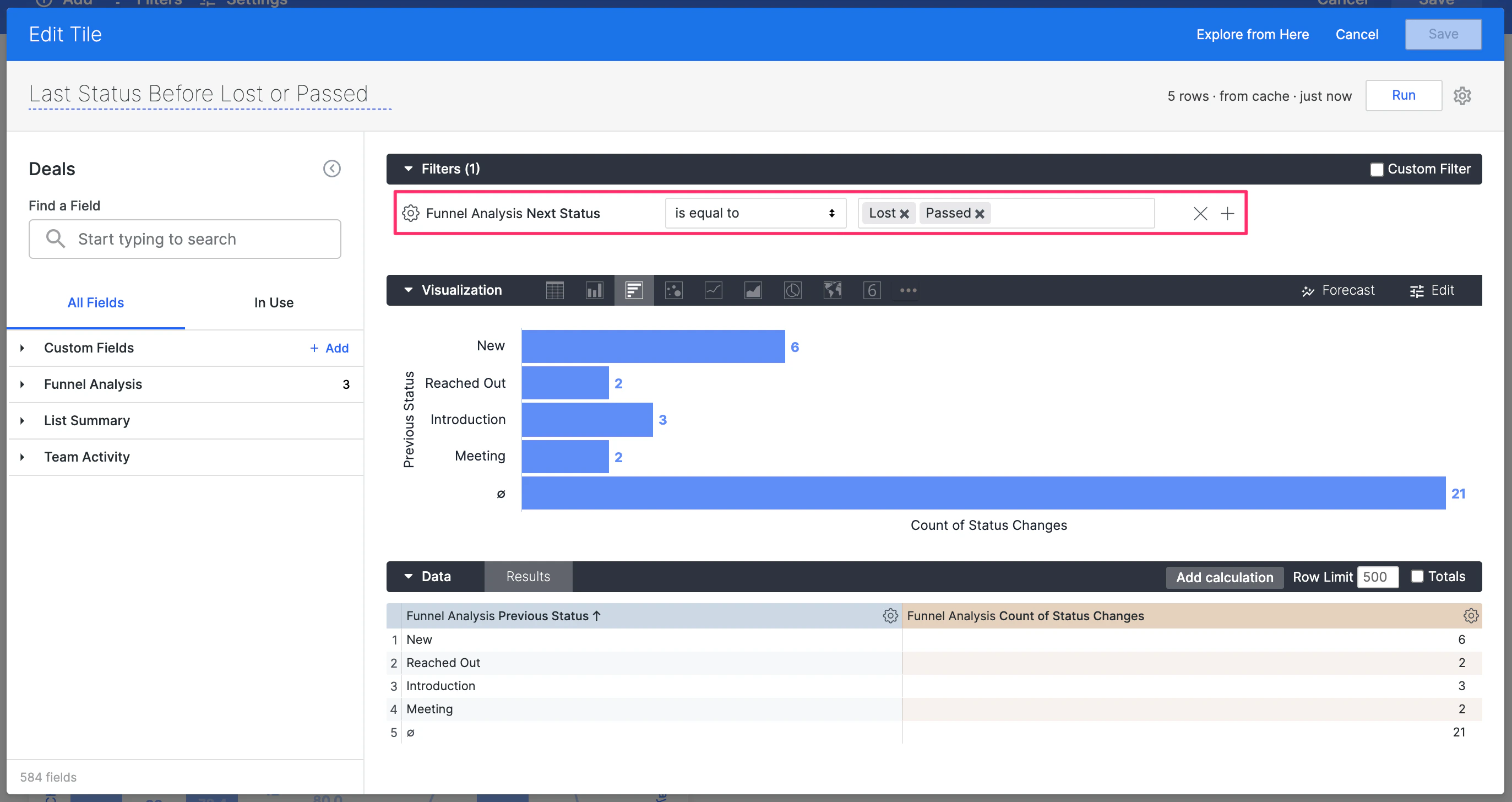
 5. Next, apply a filter on **Next Status** for all the statuses that are within the **Lost** or **On Hold** categories. This will narrow down the filters to those deals that have been lost or passed by you/your team.
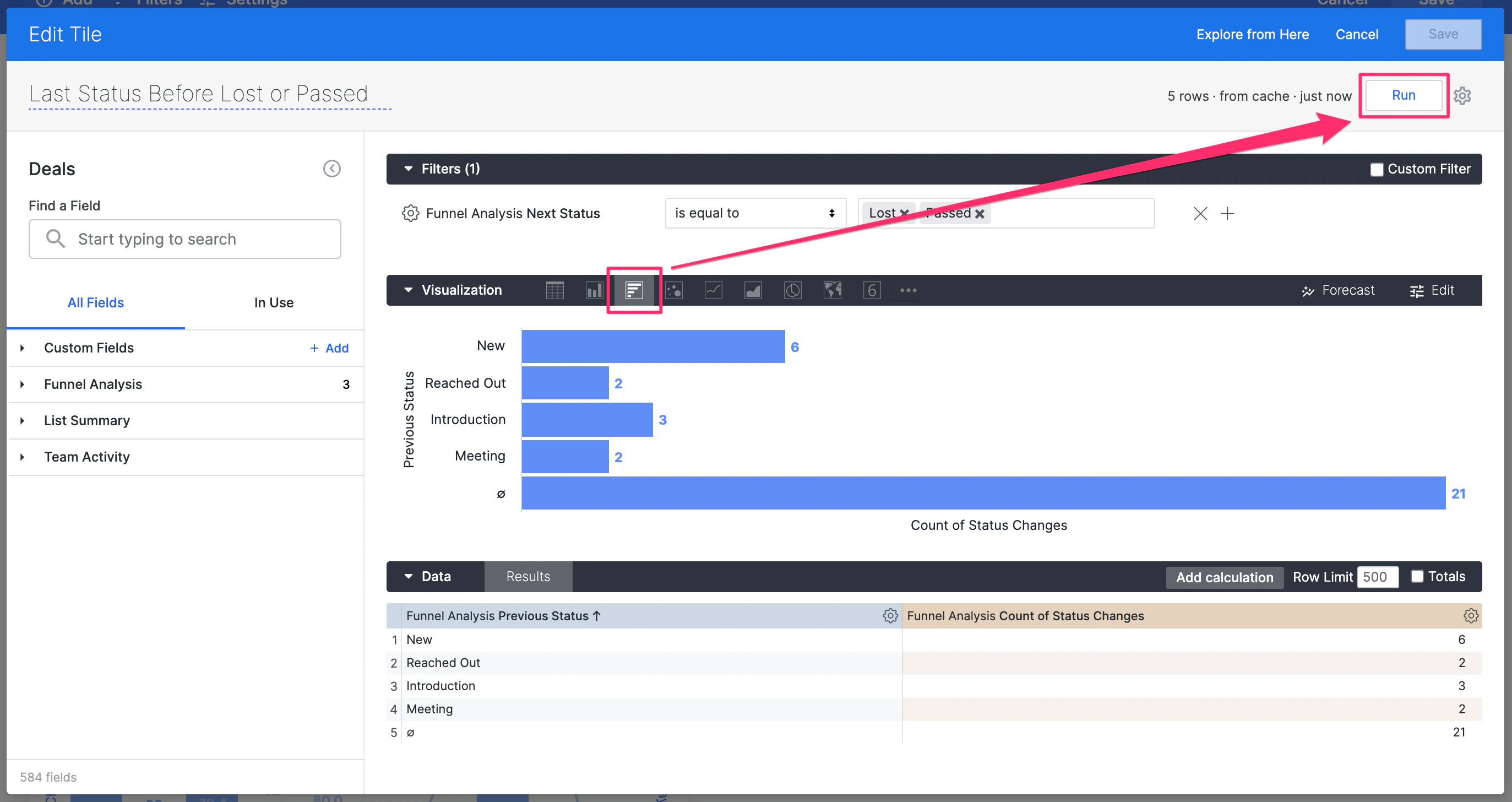
 6. Make sure the visualization style is **Bar Chart**, then click **Run**, then click **Save** on the top-right corner and you're all set.
 7. Now, you/your team will be able to understand which stage of the pipeline you're losing or passing on the most deals, and make changes accordingly. Click **Save** one more time to save the changes you made to the entire dashboard view, and you're all set.