> ## Documentation Index
> Fetch the complete documentation index at: https://support.affinity.co/llms.txt
> Use this file to discover all available pages before exploring further.
# How To Track Introductions In Affinity
> Help center reference
**How-to** — task-oriented recipe.
In this article, we'll go over the two main ways to track introductions in Affinity:
## Source of Introduction
Considered to be the very first introduction made between you/your team and a person or organization, the **Source of Introduction** can be found in two places:
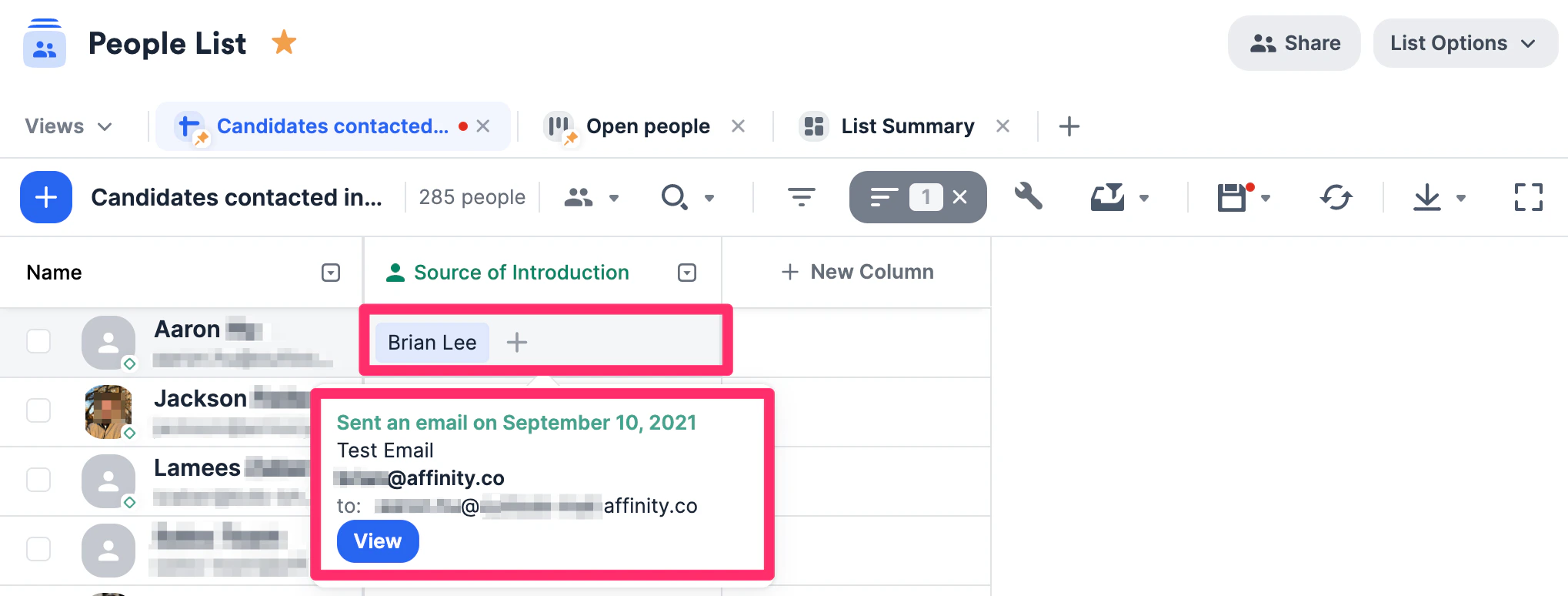
1. On people lists and organization lists, through the **Source of Introduction** column. Clicking on each cell will show you the interaction that Affinity considered to be the introduction.
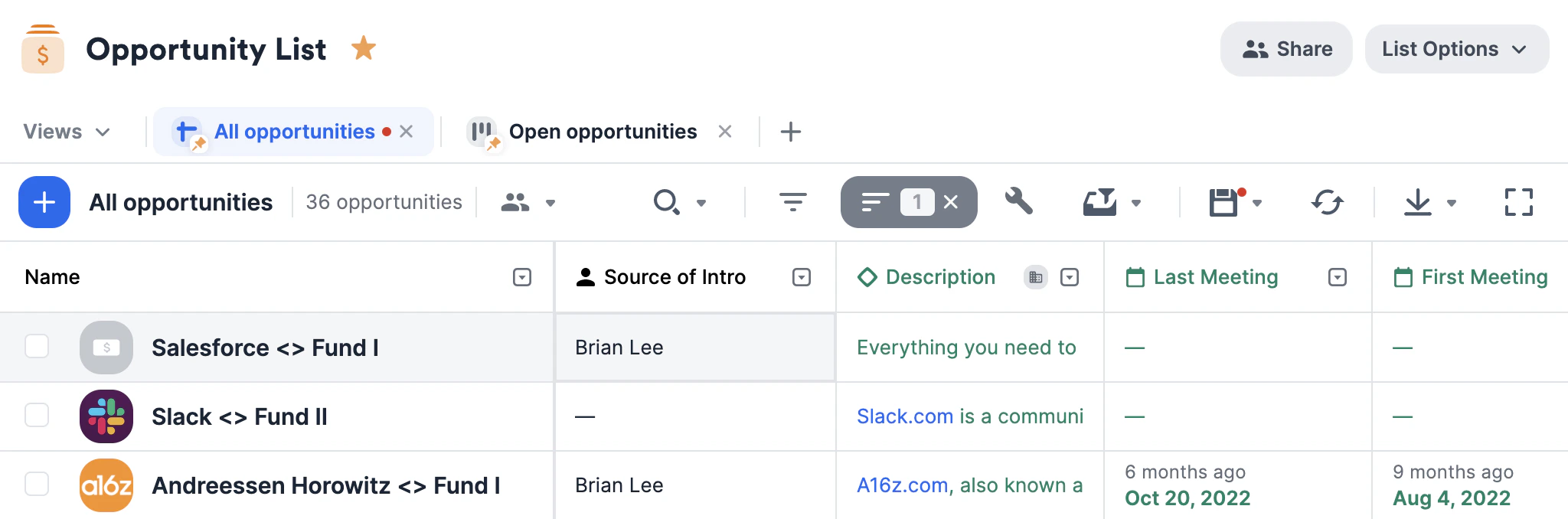
 **Note**: The **Source of Introduction** column will not be available in opportunity lists by default. However, you can choose to manually create a **Source of Introduction** field in each opportunity list as you best see fit.
 2. On a profile page, within the **Connections** tab.
**Note**: The **Source of Introduction** field will not be available in opportunity profile pages.
2. On a profile page, within the **Connections** tab.
**Note**: The **Source of Introduction** field will not be available in opportunity profile pages.
 ## How to understand Source of Introduction
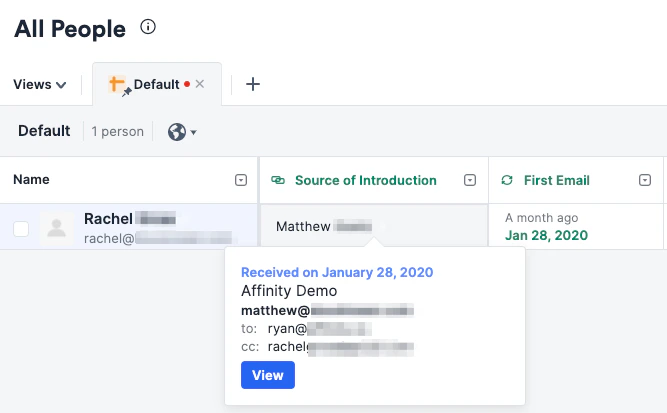 When it comes to me (Ryan) and my team's relationship to Rachel (an external contact), Matthew (another external contact) is the **Source of Introduction** since me/my team's first interaction with Rachel was made possible by Matthew. Matthew has introduced me/my team to Rachel by way of CC'ing Rachel in the email thread on January 28, 2020.
## How does Affinity determine the Source of Introduction?
In order to calculate the Source of Introduction, we look at the **First Email** and pick:
* The **sender** who appears in the **From** field (this is the most common case).
* If we are unable to create a contact in Affinity for the **sender** (because we couldn't find a full name for example) or if the **sender** is the entity in question (Rachel), then we pick an internal teammate who appears in the **To** field.
* If not in the **To** field, then we pick an internal teammate in the **CC** field.
* If there are no internal teammates, we pick an external contact in the **To** field if one exists.
* If not in the **To** field, then we pick an external contact in the **CC** field.
If the Source of Introduction has been calculated incorrectly, feel free to double-click the cell and change it to the correct person. Just know that we may not be able to tie a past email thread to this individual in the same way we do for the other introductions we have auto-determined, your edit becomes the source of truth moving forward.
## Introductions Made
More holistically, you can track all introductions made by your team and all introductions made to your team. You can find this information in two areas:
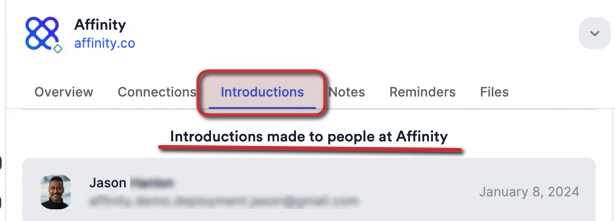
1. On the **Introductions** tab found in people and organization profile pages (not on opportunity profile pages).
When it comes to me (Ryan) and my team's relationship to Rachel (an external contact), Matthew (another external contact) is the **Source of Introduction** since me/my team's first interaction with Rachel was made possible by Matthew. Matthew has introduced me/my team to Rachel by way of CC'ing Rachel in the email thread on January 28, 2020.
## How does Affinity determine the Source of Introduction?
In order to calculate the Source of Introduction, we look at the **First Email** and pick:
* The **sender** who appears in the **From** field (this is the most common case).
* If we are unable to create a contact in Affinity for the **sender** (because we couldn't find a full name for example) or if the **sender** is the entity in question (Rachel), then we pick an internal teammate who appears in the **To** field.
* If not in the **To** field, then we pick an internal teammate in the **CC** field.
* If there are no internal teammates, we pick an external contact in the **To** field if one exists.
* If not in the **To** field, then we pick an external contact in the **CC** field.
If the Source of Introduction has been calculated incorrectly, feel free to double-click the cell and change it to the correct person. Just know that we may not be able to tie a past email thread to this individual in the same way we do for the other introductions we have auto-determined, your edit becomes the source of truth moving forward.
## Introductions Made
More holistically, you can track all introductions made by your team and all introductions made to your team. You can find this information in two areas:
1. On the **Introductions** tab found in people and organization profile pages (not on opportunity profile pages).
 2. By **exporting all introductions in view** in any one of these areas:
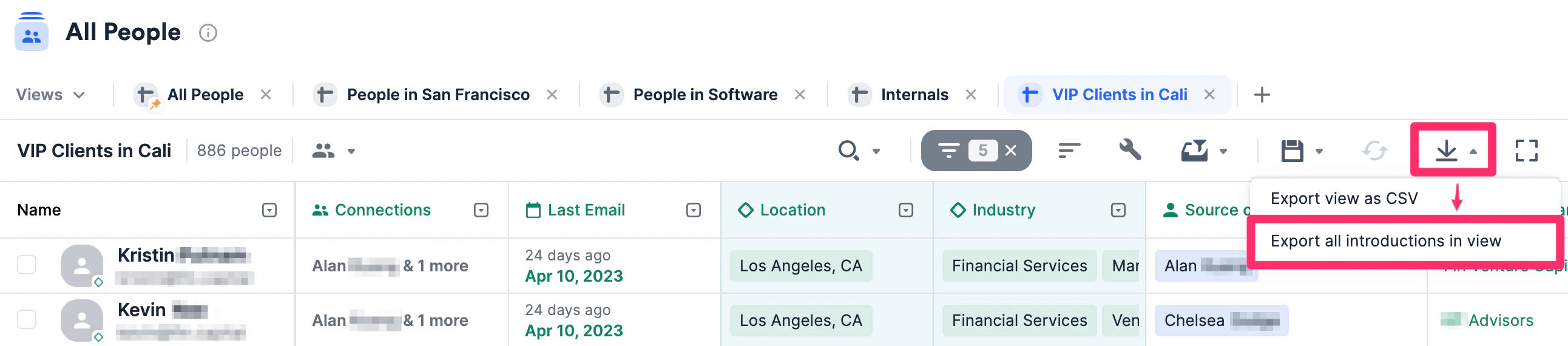 * All Organizations Directory
* All People Directory
* Any organization list
* Any people list
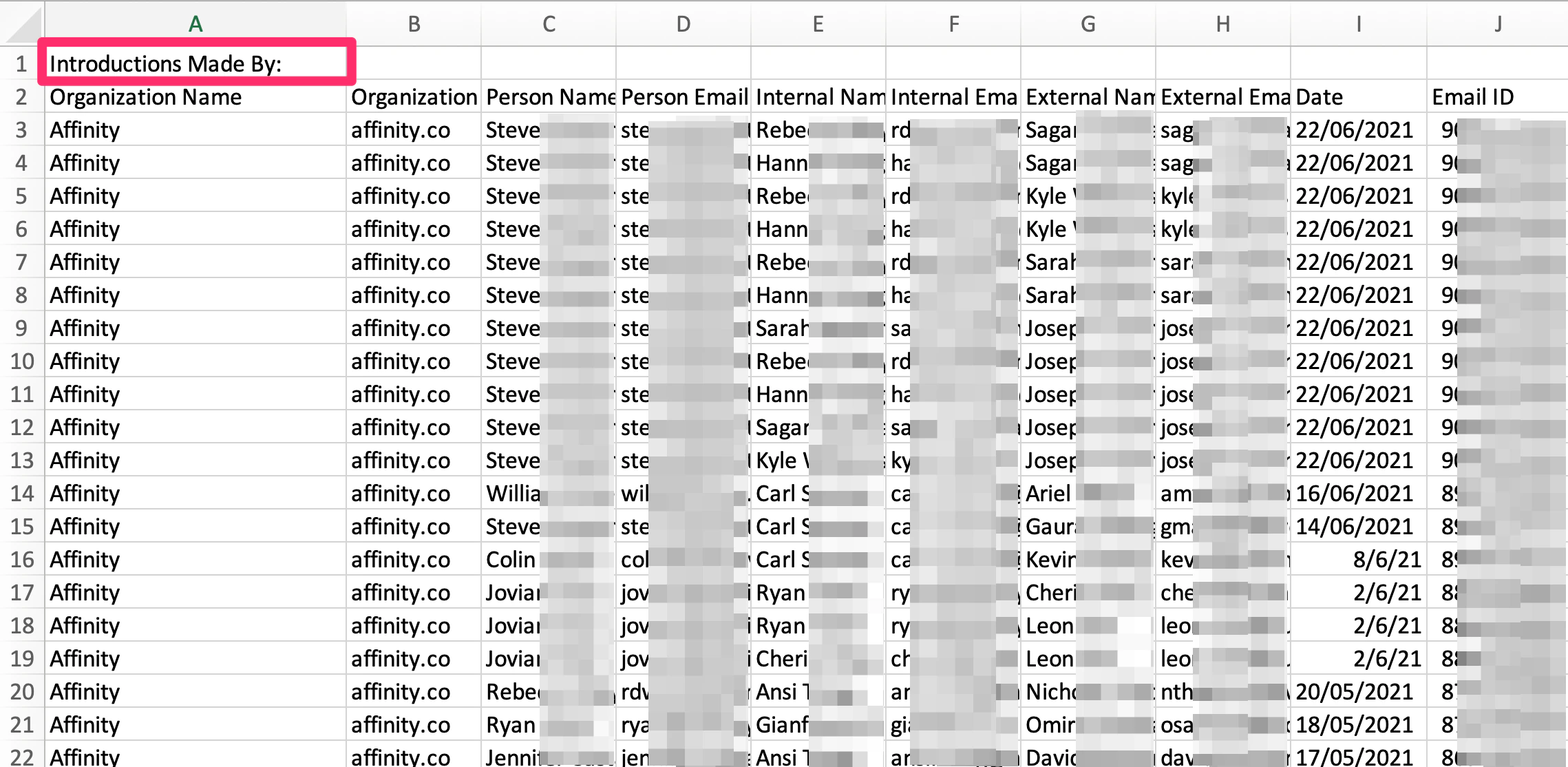
When you export a CSV file of introductions, you'll notice there are two parts to the CSV file:
1. The first part begins with **Row 1 - Introductions Made By**.
* All Organizations Directory
* All People Directory
* Any organization list
* Any people list
When you export a CSV file of introductions, you'll notice there are two parts to the CSV file:
1. The first part begins with **Row 1 - Introductions Made By**.
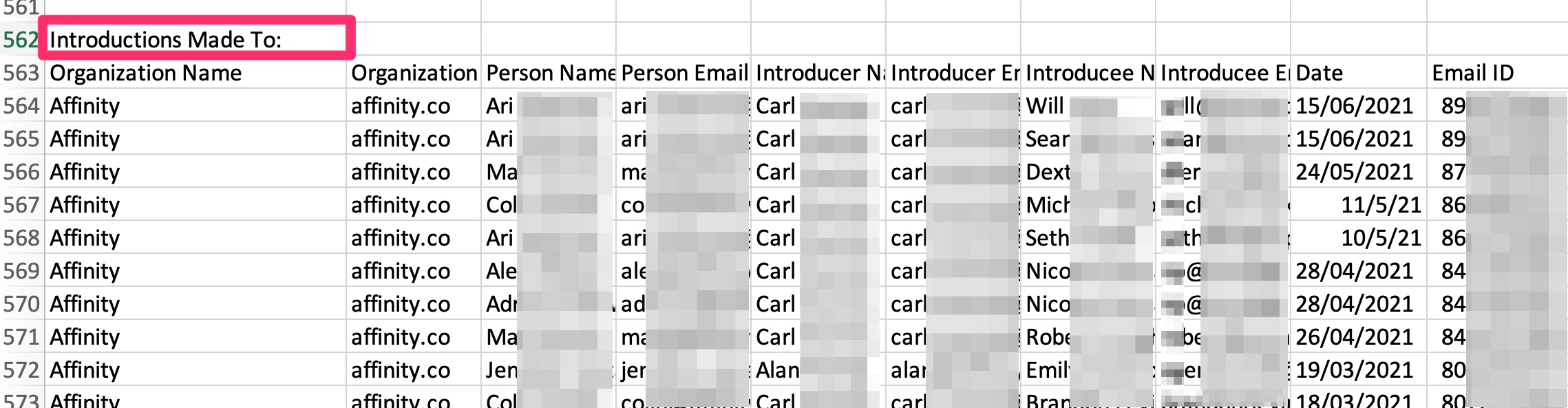
 2. The second part begins somewhere in the middle of the CSV file depending on how many introductions are made by in the first part above (e.g. **Row 562 - Introductions Made To**).
 ## How does Affinity determine if an interaction is an introduction?
We look at email subjects and email bodies to figure out whether an email is a formal introduction, who the people being introduced are, and by whom. To ensure that introductory emails are caught by Affinity, you can simply introduce one person (Alice) to another (Bob) by:
* Titling the email subject as "**Intro: Alice \<> Bob**"
* The email cannot be calendar-related such as an invitation or calendar update.
* At least 1 recipient must be external (not from your company/ have the same domain)
* The email must be the first email in the thread (not a reply or a forward)
* The word "intro" or "introduction" must be in the email subject
* "Please meet" or "to introduce you to" or "adding" or "connect you with/to" in the email body
* Making sure Alice and Bob are in the **To/CC** fields
* Both their first names should be somewhere in the subject or body
There are still some rare edge cases where this won't work, but will cover most cases.
## Affinity Analytics - Introductions Summary Reports
If you have access to [Affinity Analytics](/s/article/Getting-started-with-Affinity-Analytics), you can leverage our new [Introductions Summary Reports template](/s/article/Affinity-Analytics-Introductions-Summary-Reports) to quantify the number of introductions you/your team has made, showcase the value of your network, and drive lasting relationships with your limited partners/founders.
## How does Affinity determine if an interaction is an introduction?
We look at email subjects and email bodies to figure out whether an email is a formal introduction, who the people being introduced are, and by whom. To ensure that introductory emails are caught by Affinity, you can simply introduce one person (Alice) to another (Bob) by:
* Titling the email subject as "**Intro: Alice \<> Bob**"
* The email cannot be calendar-related such as an invitation or calendar update.
* At least 1 recipient must be external (not from your company/ have the same domain)
* The email must be the first email in the thread (not a reply or a forward)
* The word "intro" or "introduction" must be in the email subject
* "Please meet" or "to introduce you to" or "adding" or "connect you with/to" in the email body
* Making sure Alice and Bob are in the **To/CC** fields
* Both their first names should be somewhere in the subject or body
There are still some rare edge cases where this won't work, but will cover most cases.
## Affinity Analytics - Introductions Summary Reports
If you have access to [Affinity Analytics](/s/article/Getting-started-with-Affinity-Analytics), you can leverage our new [Introductions Summary Reports template](/s/article/Affinity-Analytics-Introductions-Summary-Reports) to quantify the number of introductions you/your team has made, showcase the value of your network, and drive lasting relationships with your limited partners/founders.