> ## Documentation Index
> Fetch the complete documentation index at: https://support.affinity.co/llms.txt
> Use this file to discover all available pages before exploring further.
# How to share lists in Affinity
> Help center reference
**How-to** — task-oriented recipe.
All lists are to set private by default when created. To share a list with specific users or with all users, follow the steps below.
### How to share a list with specific users
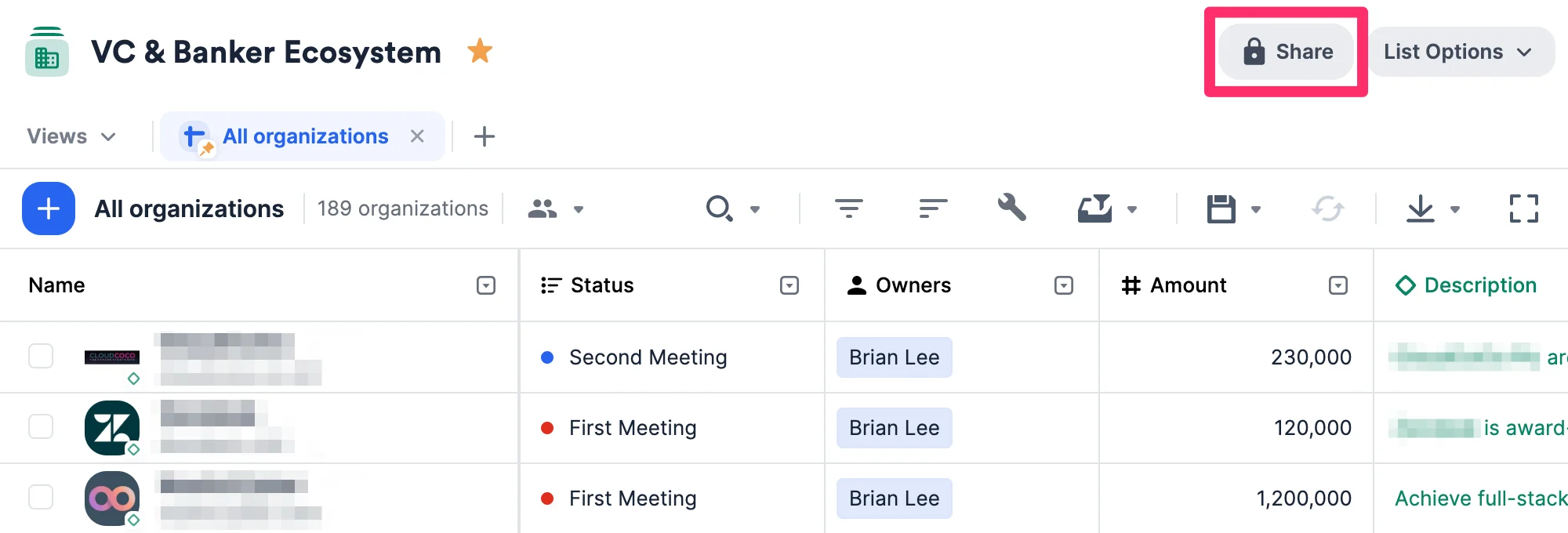
1. Click on the list you wish to share with team members, then click the **Share** button.
**Note**: You must be the list owner or a list admin for this list to share it with other users.
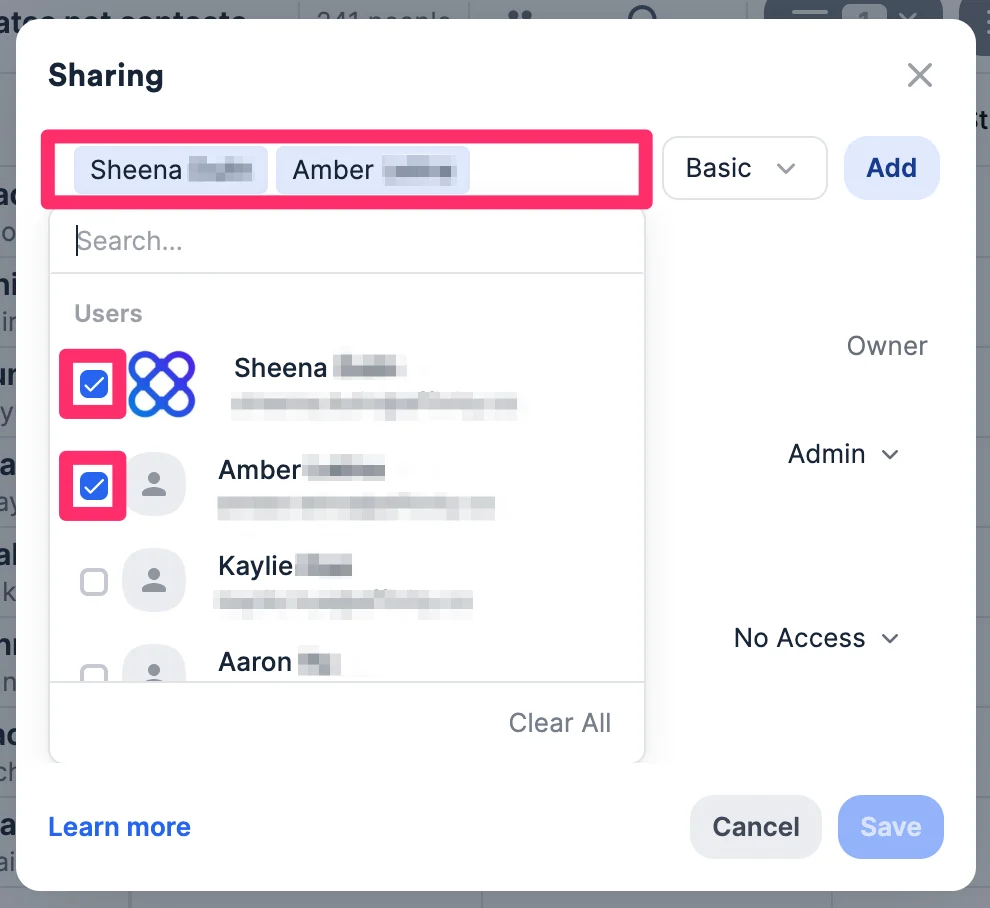
 2. Share this list with **specific users** by using the search bar and clicking the checkbox next to their names.
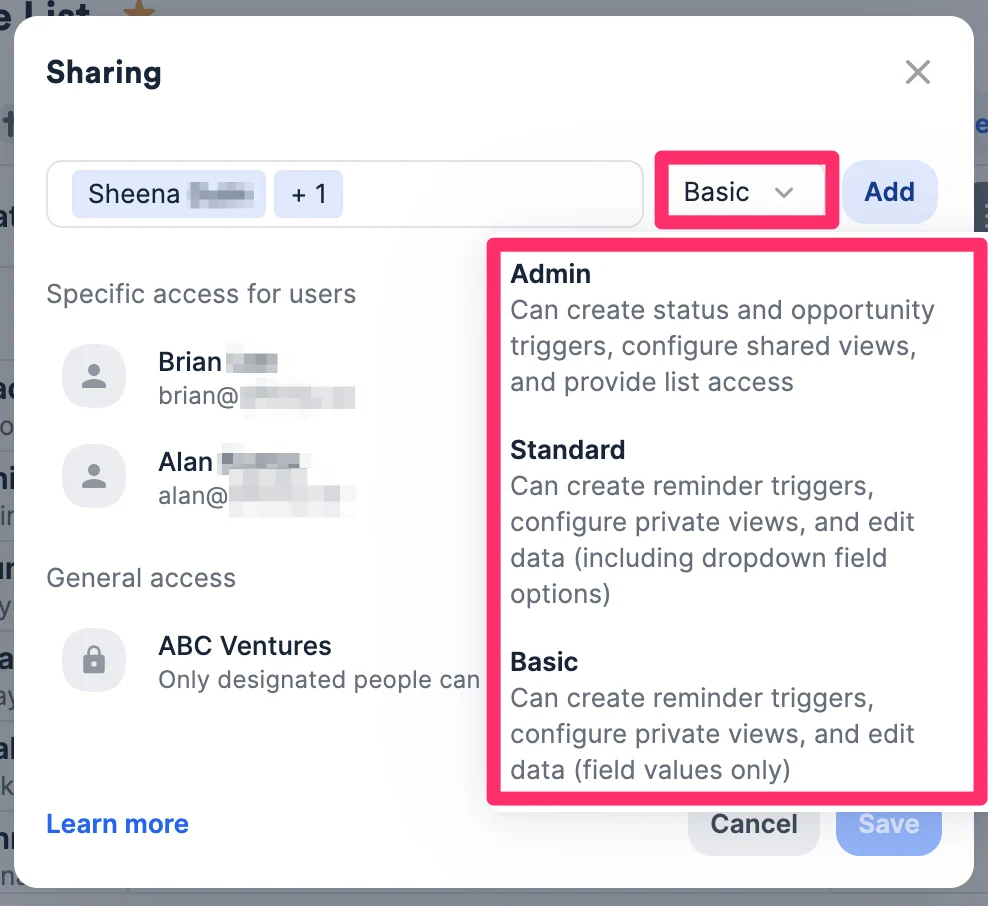
 3. Then, select the list level permission you'd like to assign to these specific users (see [List Level Permissions](/s/article/List-Level-Permissions)) - you have 3 options to choose from: 1.
* **Admin**: List Admins can create status and opportunity triggers, configure shared views, and provide list access. 2.
* **Standard**: Standard users within a given list can create reminder triggers, configure their private views, and edit data (field values **and** dropdown field options). 3.
* **Basic**: Basic users within a given list can create reminder triggers, configure their private views, and edit data (field values only).
3. Then, select the list level permission you'd like to assign to these specific users (see [List Level Permissions](/s/article/List-Level-Permissions)) - you have 3 options to choose from: 1.
* **Admin**: List Admins can create status and opportunity triggers, configure shared views, and provide list access. 2.
* **Standard**: Standard users within a given list can create reminder triggers, configure their private views, and edit data (field values **and** dropdown field options). 3.
* **Basic**: Basic users within a given list can create reminder triggers, configure their private views, and edit data (field values only).
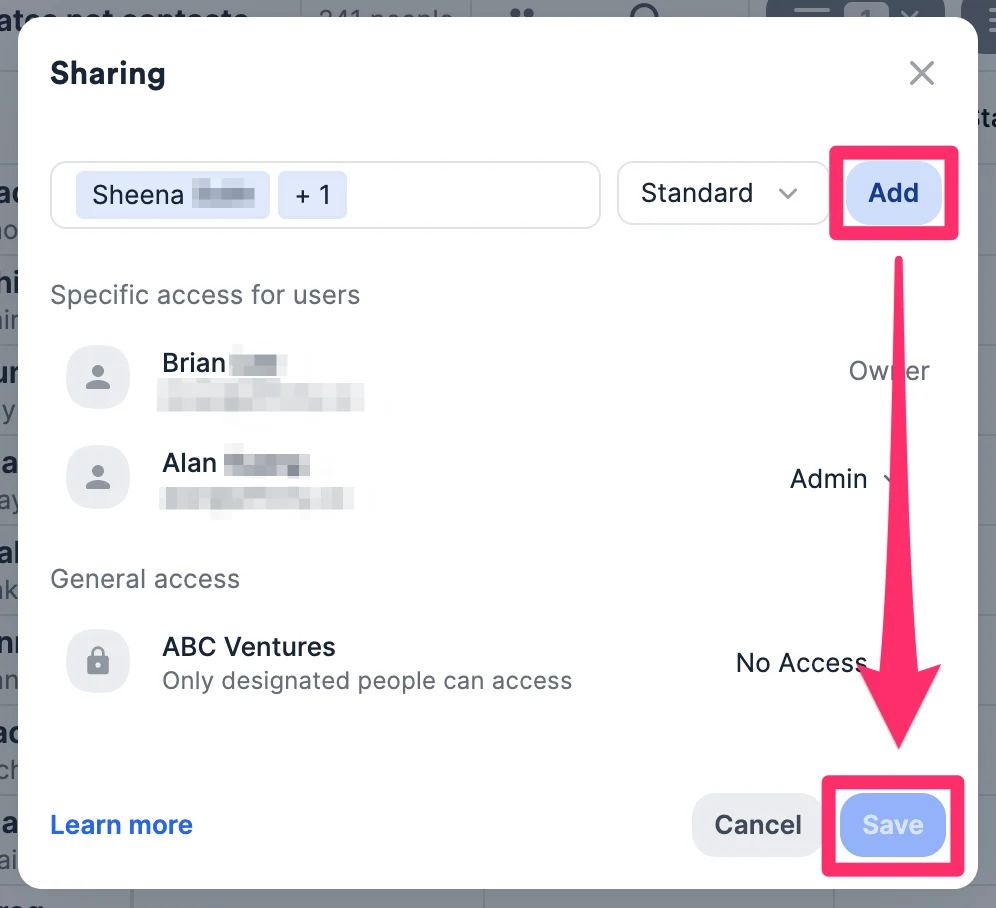
 4. Click **Add**, then click **Save**.
 ### How to share a list with all users
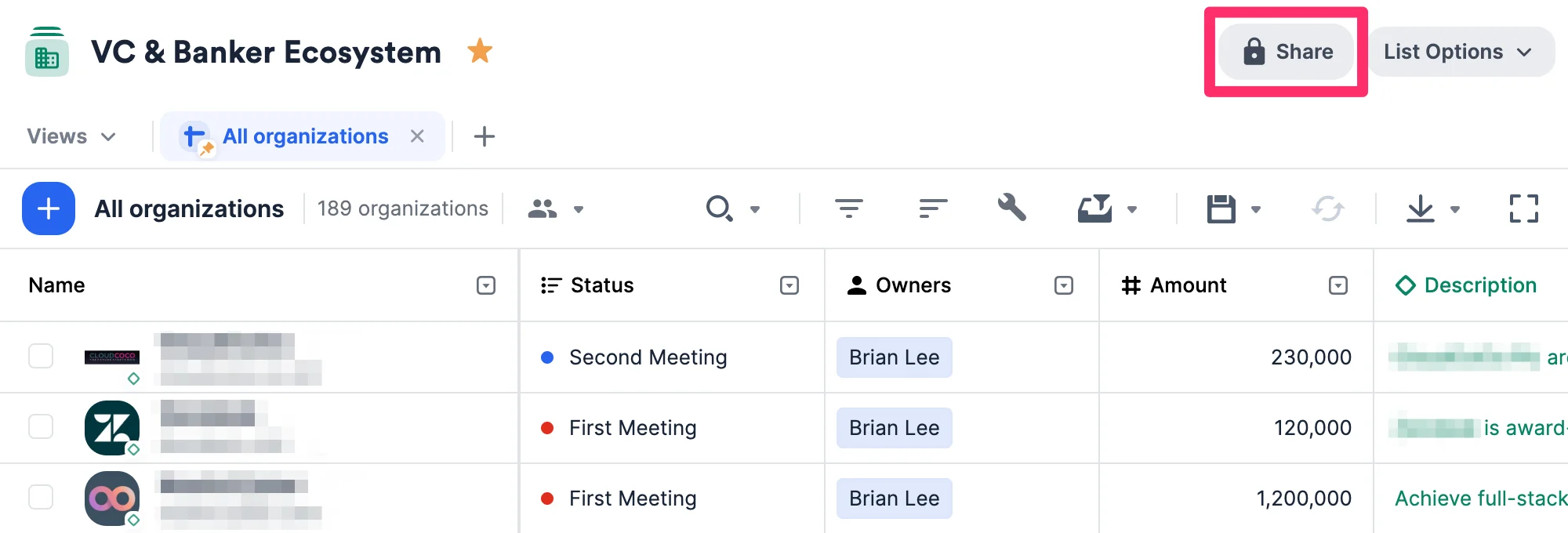
1. Click on the list you wish to share, then click the **Share** button.
**Note**: You must be the list owner or a list admin for this list to share it with other users.
### How to share a list with all users
1. Click on the list you wish to share, then click the **Share** button.
**Note**: You must be the list owner or a list admin for this list to share it with other users.
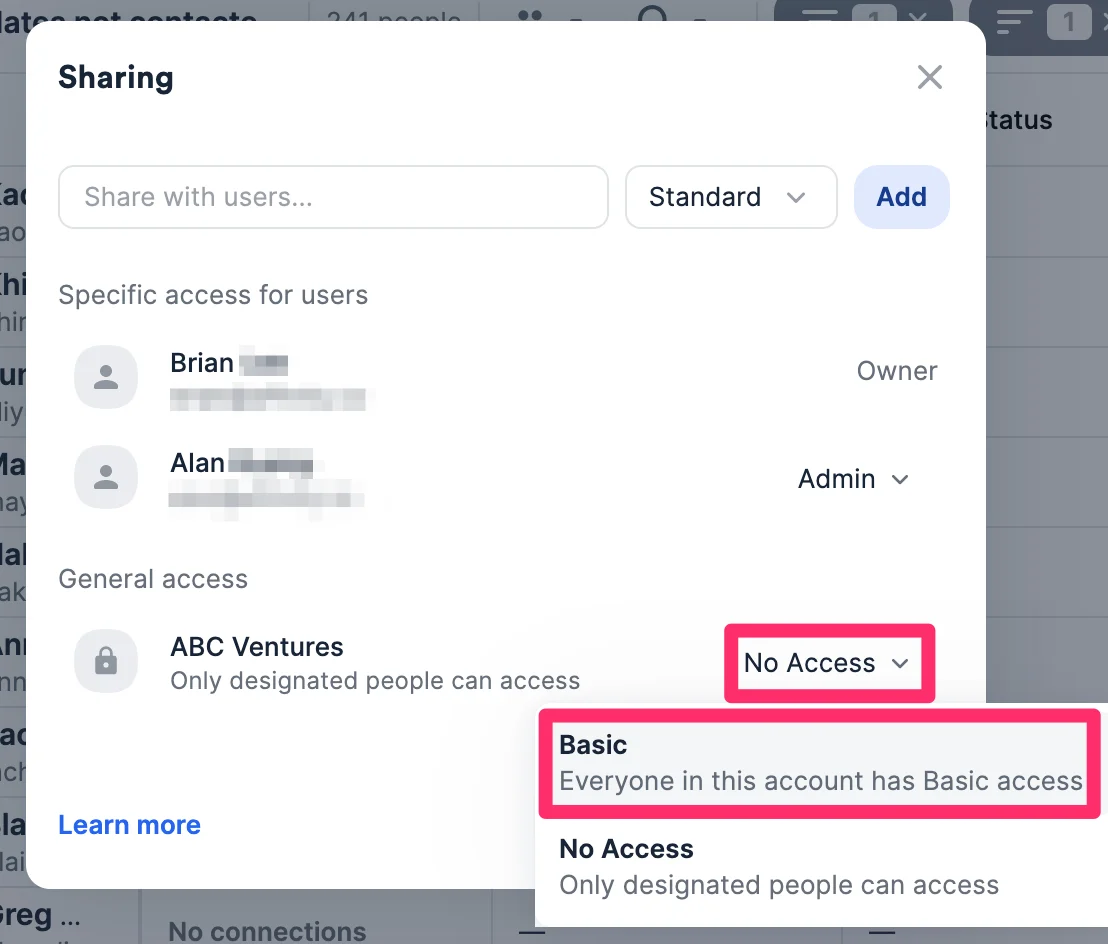
 2. Within the **General access** section, click the dropdown and select **Basic**. This means all users on the account will be able to create reminder triggers, configure their private views, and edit data (field values only) - see [List Level Permissions](/s/article/List-Level-Permissions).
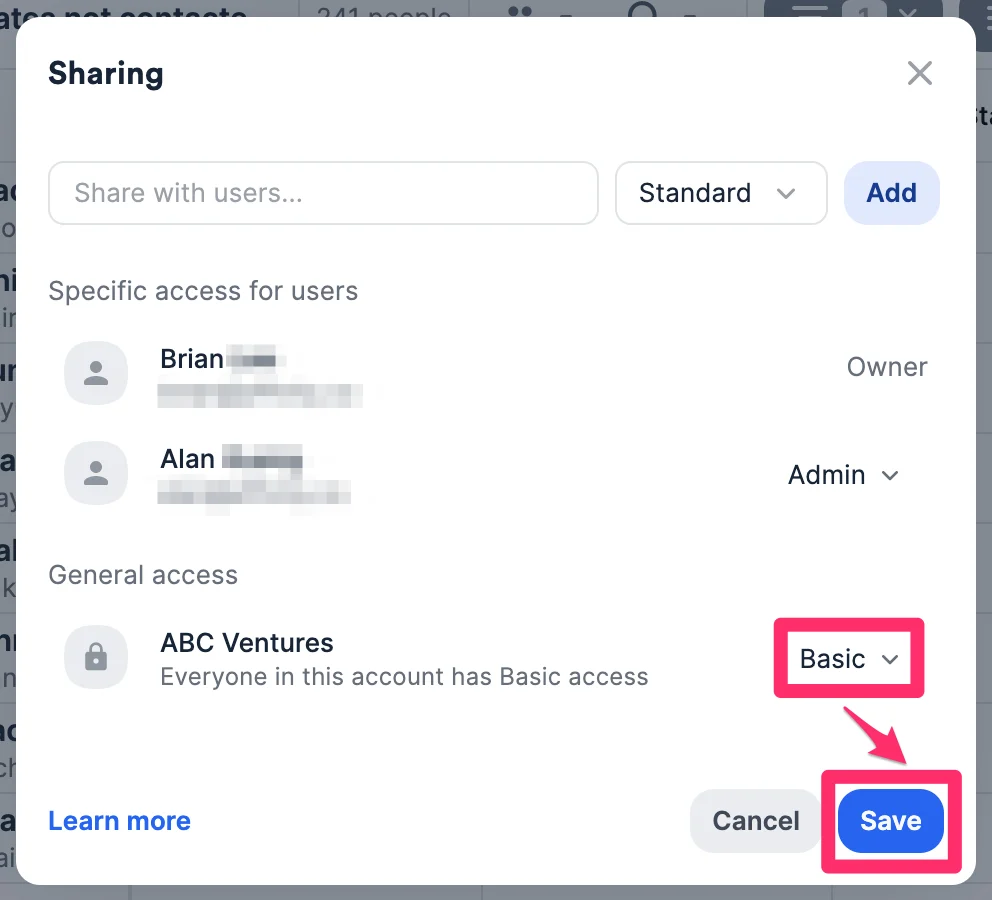
 3. Then, click **Save**.
 ### What if you are on the Enterprise tier?
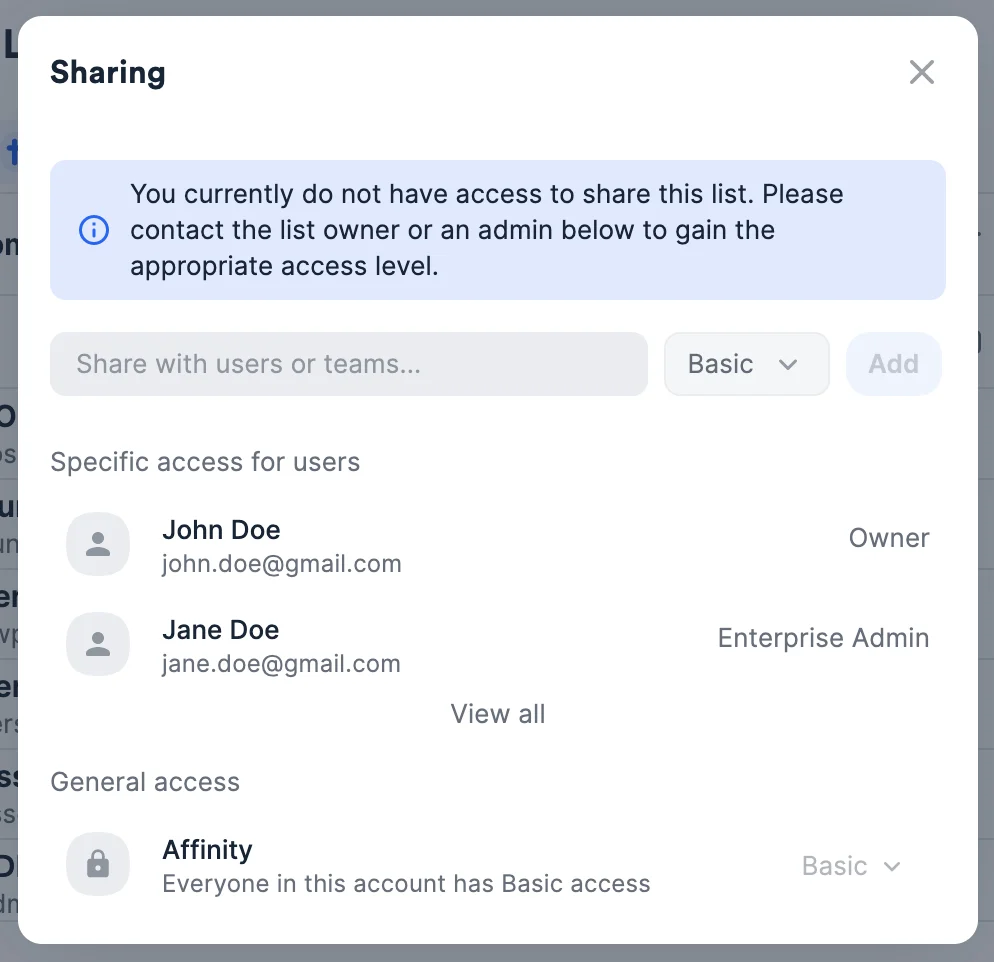
1. If you're on the **Enterprise** tier, but are not an **Enterprise Admin**:
* You must ask the **Enterprise Admin** to add you to a team. Once you're on a team, you will be able to share the lists you have created with your team members.
* You will still be able to share the lists you have created with specific users by using the search bar.
### What if you are on the Enterprise tier?
1. If you're on the **Enterprise** tier, but are not an **Enterprise Admin**:
* You must ask the **Enterprise Admin** to add you to a team. Once you're on a team, you will be able to share the lists you have created with your team members.
* You will still be able to share the lists you have created with specific users by using the search bar.
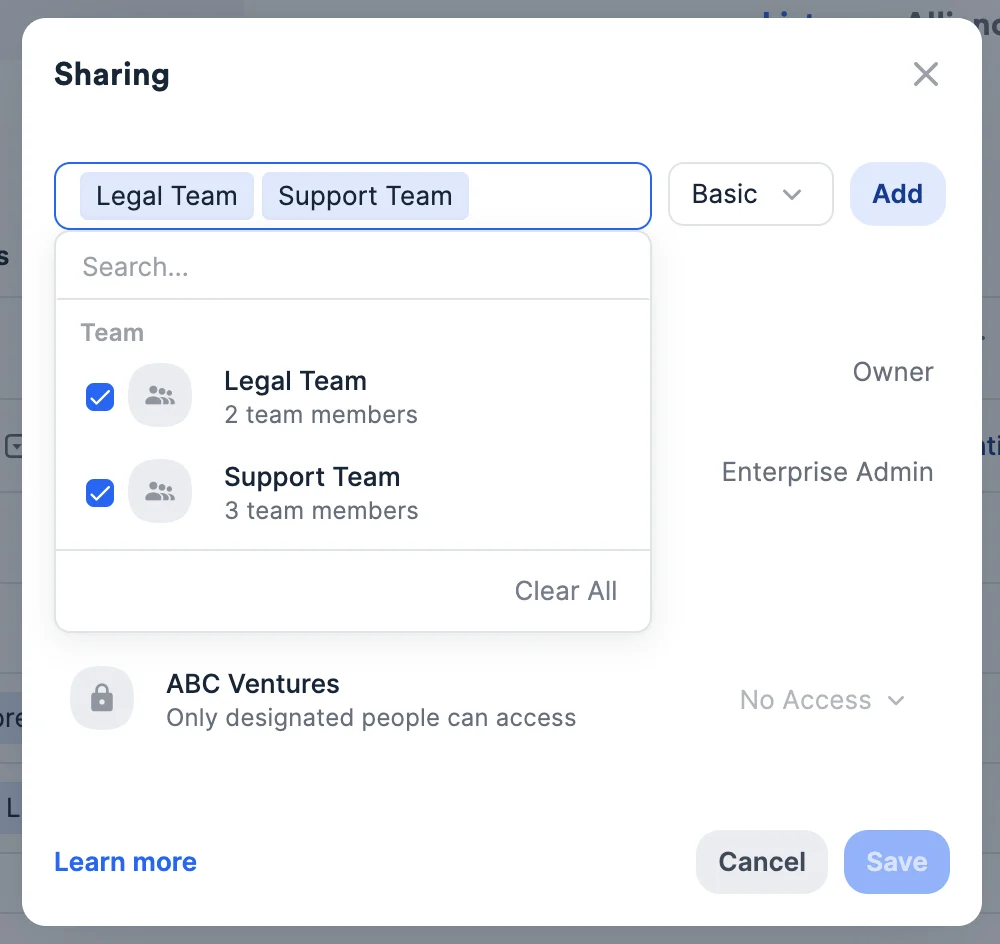
 2. If you're on the **Enterprise** tier, and you are an **Enterprise Admin**:
* You can share lists with multiple teams at the same time.
* You can access all private lists created by other users.
* Learn more about Enterprise Admin permissions at the list level (see [List Level Permissions](/s/article/List-Level-Permissions)).
2. If you're on the **Enterprise** tier, and you are an **Enterprise Admin**:
* You can share lists with multiple teams at the same time.
* You can access all private lists created by other users.
* Learn more about Enterprise Admin permissions at the list level (see [List Level Permissions](/s/article/List-Level-Permissions)).
 {/* */}