> ## Documentation Index
> Fetch the complete documentation index at: https://support.affinity.co/llms.txt
> Use this file to discover all available pages before exploring further.
# How to configure notification settings
> Help center reference
**How-to** — task-oriented recipe.
Never miss an update by setting up email and web app notifications for certain activities like unanswered emails, reminders, and more.
## How to set up email and web app notifications
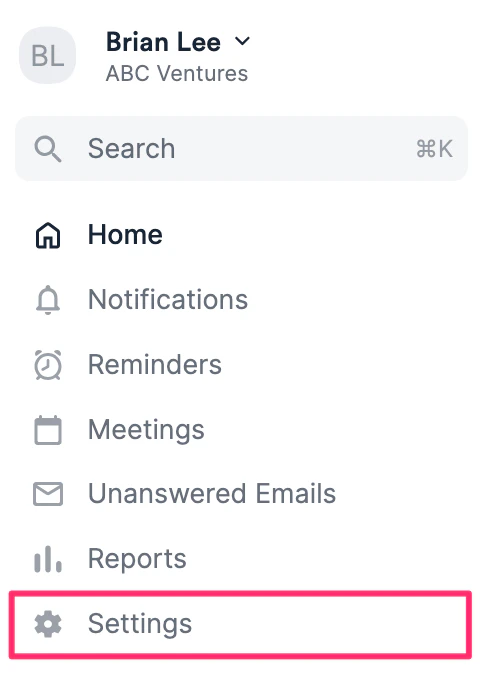
1. Click on **Settings** on the left-side of your screen.
 * Click the **Notifications** tab to see the activities you can turn on/off notifications for.
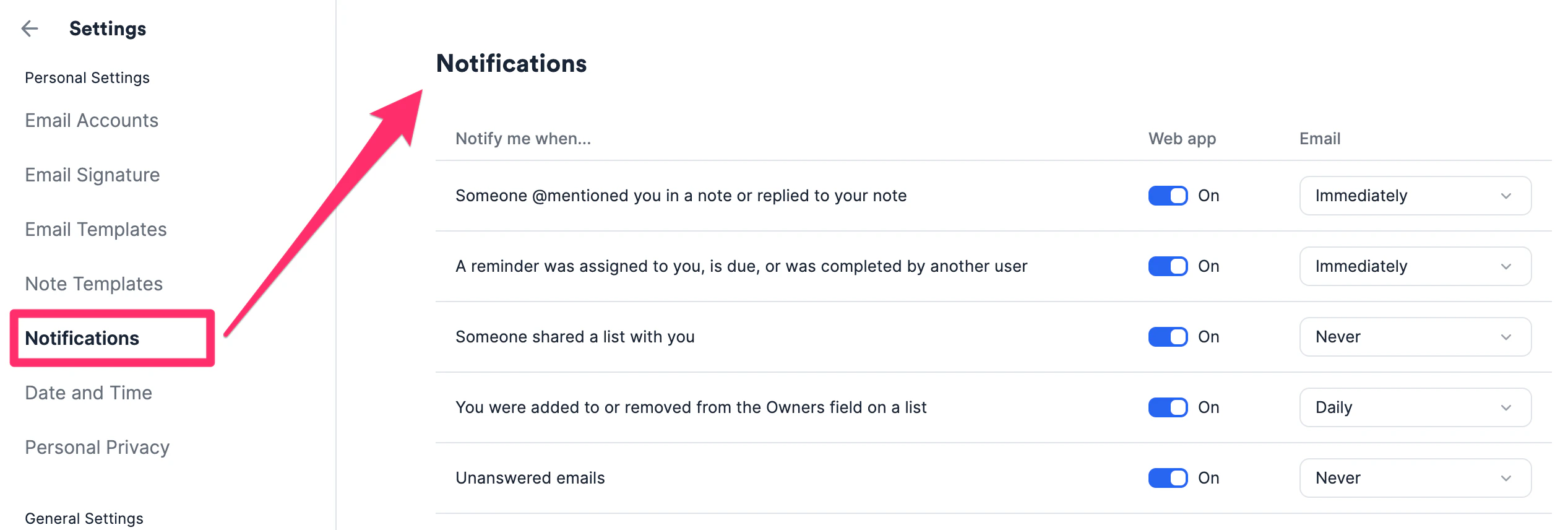 * When a team member @ mentions you on a note or replies to your note.
* When a reminder is assigned to you, is overdue, or was completed by another team member.
* Overdue reminders will be sent to you on a **Daily** basis, not **Immediately** (even if you set it up as **Immediately**).
* When a team member shares a list with you.
* When you're added to or removed from the **Owners** field on any list.
* When you have unanswered emails.
* You will have three options to choose from (4 options for **Notes** and **Reminders**) when it comes to email notification frequency:
* **Weekly** - only for **Notes** and **Reminders**. an email will be sent to you around 4 PM every Friday based on your [time zone preference](/s/article/How-to-change-your-date-and-time-preferences).
* **Daily** - an email will be sent to you around 7 AM every day based on your [time zone preference](/s/article/How-to-change-your-date-and-time-preferences).
* **Immediately** - an email will be sent to you immediately.
* **Never** - no email will be sent to you.
**Note**: If you need to switch where you receive email notifications moving forward, please make sure this new email address is signed in and syncing under the **Email Accounts** tab. Then, email us at [support@affinity.co](mailto:support@affinity.co) requesting to change your primary email address to the new email address. 4. Web app notifications will trigger immediately, regardless of what cadence you have set for your email notifications.
* When a team member @ mentions you on a note or replies to your note.
* When a reminder is assigned to you, is overdue, or was completed by another team member.
* Overdue reminders will be sent to you on a **Daily** basis, not **Immediately** (even if you set it up as **Immediately**).
* When a team member shares a list with you.
* When you're added to or removed from the **Owners** field on any list.
* When you have unanswered emails.
* You will have three options to choose from (4 options for **Notes** and **Reminders**) when it comes to email notification frequency:
* **Weekly** - only for **Notes** and **Reminders**. an email will be sent to you around 4 PM every Friday based on your [time zone preference](/s/article/How-to-change-your-date-and-time-preferences).
* **Daily** - an email will be sent to you around 7 AM every day based on your [time zone preference](/s/article/How-to-change-your-date-and-time-preferences).
* **Immediately** - an email will be sent to you immediately.
* **Never** - no email will be sent to you.
**Note**: If you need to switch where you receive email notifications moving forward, please make sure this new email address is signed in and syncing under the **Email Accounts** tab. Then, email us at [support@affinity.co](mailto:support@affinity.co) requesting to change your primary email address to the new email address. 4. Web app notifications will trigger immediately, regardless of what cadence you have set for your email notifications.
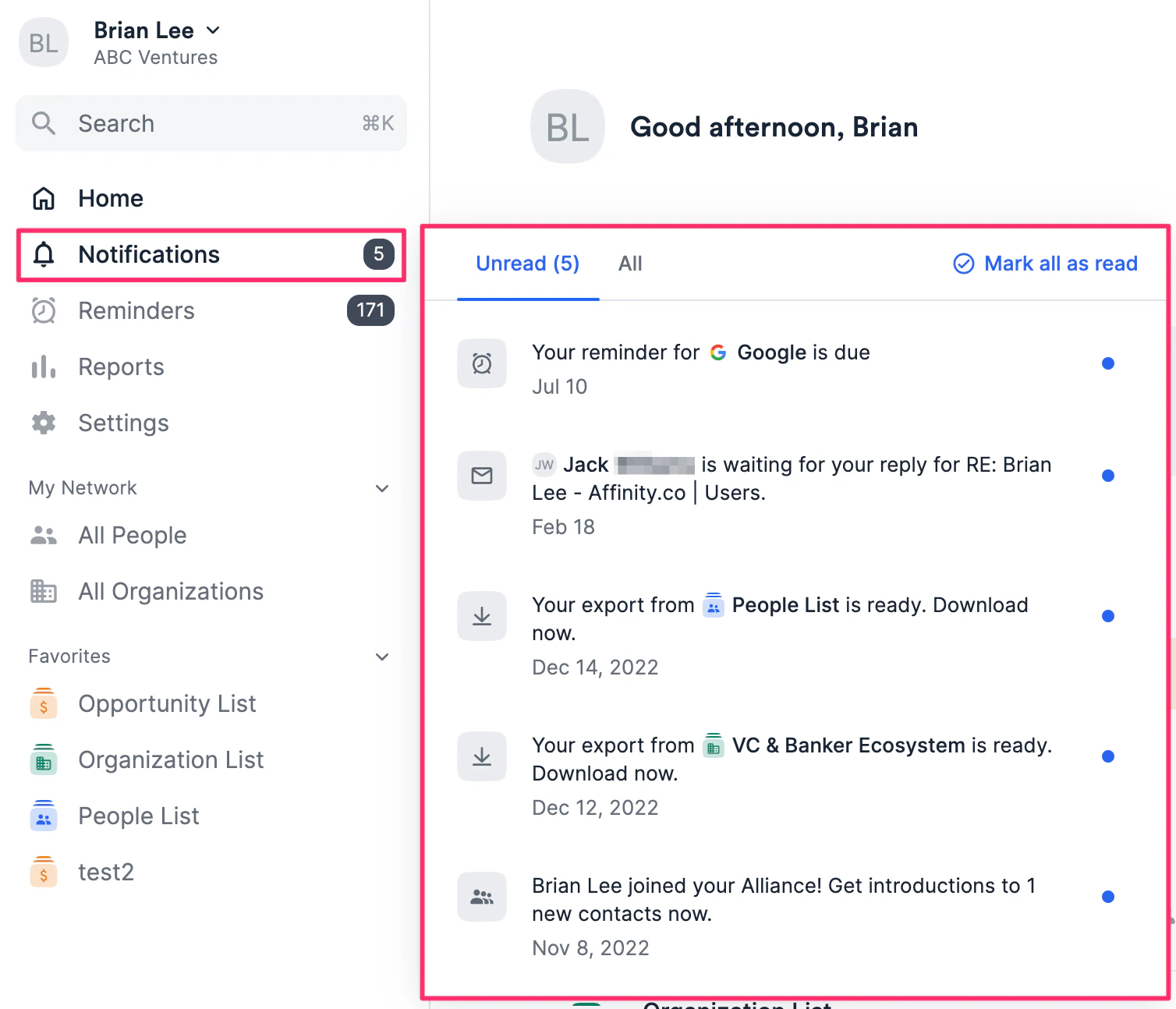 ### Frequently Asked Questions
**What will the weekly email digest include for Notes and Reminders?**
* For **Notes**: Notes that you have been tagged in and replies to your notes
* For **Reminders**:
* Reminders overdue for you in the past 7 days (that have not been completed)
* Reminders assigned to you in the past 7 days (that have not been completed)
**Can you select more than one email notification option?**
* No, you can only choose one option at a time.
{/* */}
### Frequently Asked Questions
**What will the weekly email digest include for Notes and Reminders?**
* For **Notes**: Notes that you have been tagged in and replies to your notes
* For **Reminders**:
* Reminders overdue for you in the past 7 days (that have not been completed)
* Reminders assigned to you in the past 7 days (that have not been completed)
**Can you select more than one email notification option?**
* No, you can only choose one option at a time.
{/* */}