> ## Documentation Index
> Fetch the complete documentation index at: https://support.affinity.co/llms.txt
> Use this file to discover all available pages before exploring further.
# How To Set Up Affinity For Salesforce
> Help center reference
**How-to** — task-oriented recipe.
Once you're done with the [installation process](/s/article/How-to-install-Affinity-for-Salesforce), we'll go over the set up process below for Salesforce and Affinity instances in chronological order.
## Create custom fields in your Salesforce instance
You have the ability to enrich account and contact records in your Salesforce instance with dozens of Affinity Data fields, which contain important information about companies and individuals. To enable this, you'll need to create custom fields in Salesforce for each Affinity field that you'll want to sync.
### Part 1 - Creating custom fields for Account objects
1. First, review the list of Affinity Data fields and how you can create their equivalents in Salesforce: [Creating custom Salesforce fields based on Affinity Data fields](/s/article/Creating-custom-Salesforce-fields-based-on-Affinity-Data-fields)
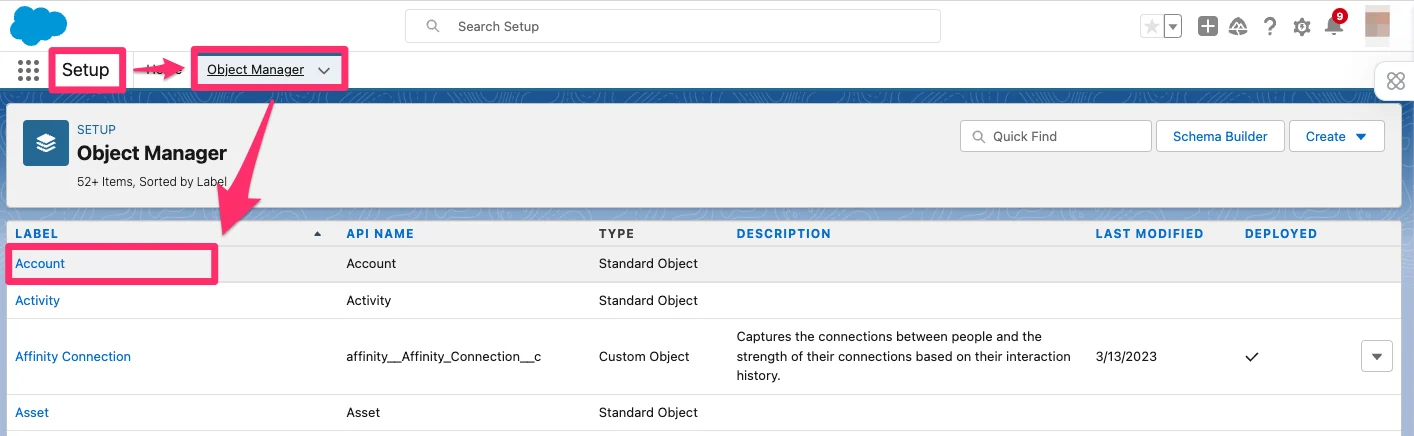
2. When you're ready to start creating these custom fields, go to Salesforce **Setup**. Then, click on the **Object Manager** tab and click the **Account** object.
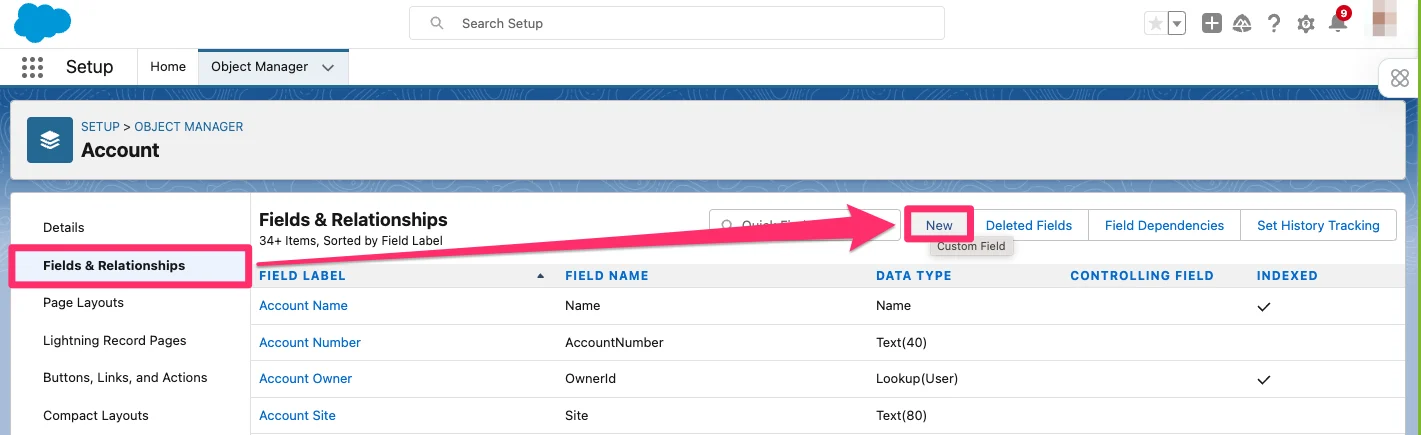
 3. Now, click on the **Fields and Relationships** tab, then click **New** to create a custom field.
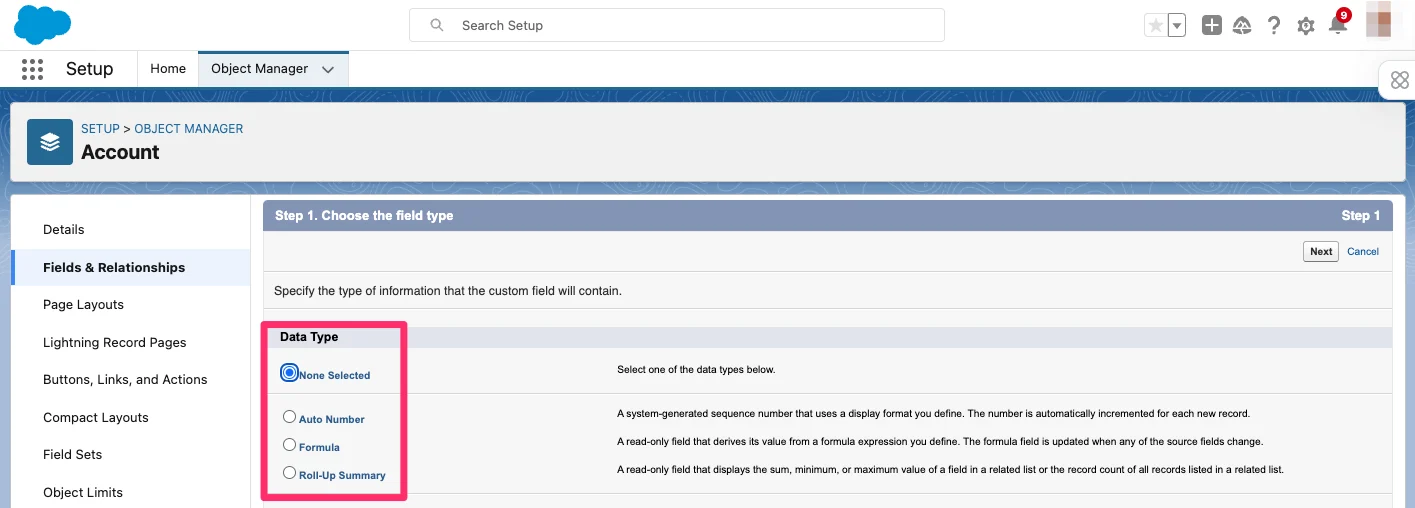
 4. Choose the **Data Type** that is most relevant based on the Affinity Data field you are choosing, then click **Next**.
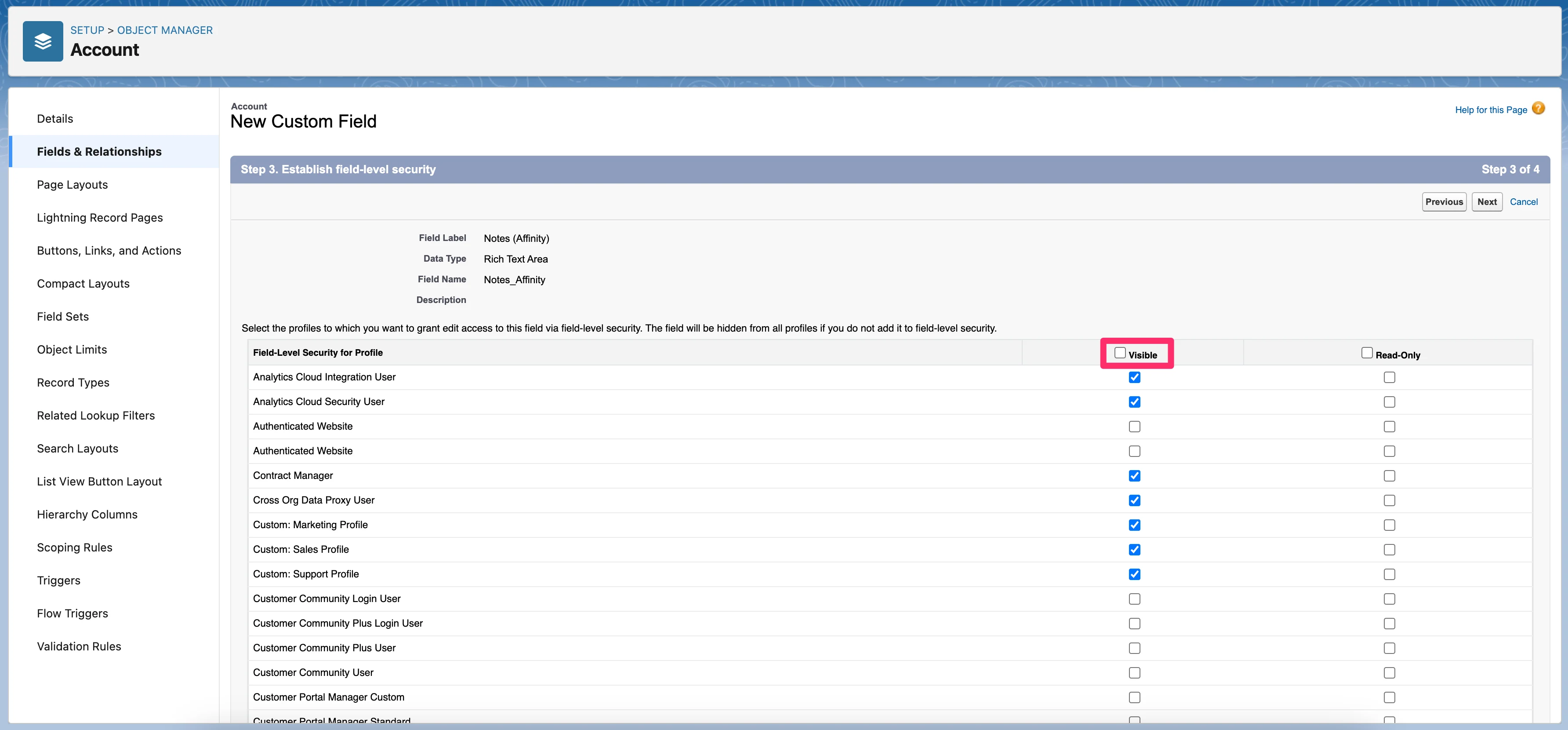
 5. Now, click the checkbox next to **Visible** to make sure all available profiles have access to this field. You can also click the checkbox next to **Read-Only** if you'd like to prevent users from making edits to this field. Then, click **Next**.
 6. Repeat as necessary for each field that you want to sync.
### Part 2 - Creating custom fields for Contact objects
Repeat steps 1-6 above, but for **Contacts** this time.
## Disable the "Send through External Email Services" feature
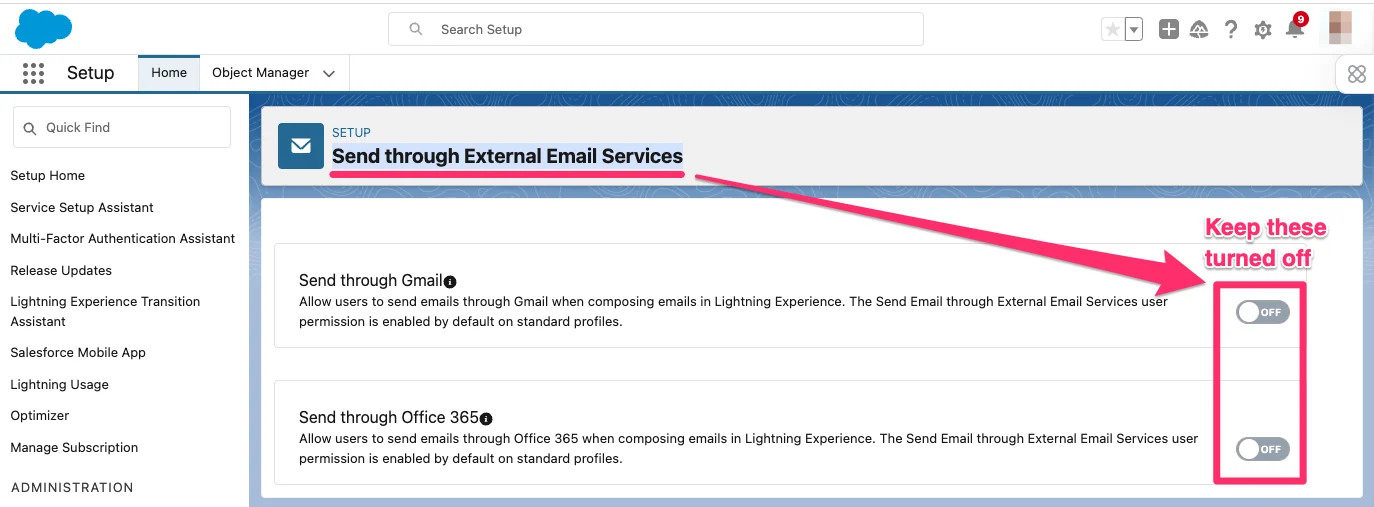
If your organization sends emails through the Salesforce email composer, then your Salesforce admin may have enabled the **Send through External Email Services** feature. This needs to be disabled moving forward, given that it would create duplicate activities alongside enrichment by Affinity for Salesforce.
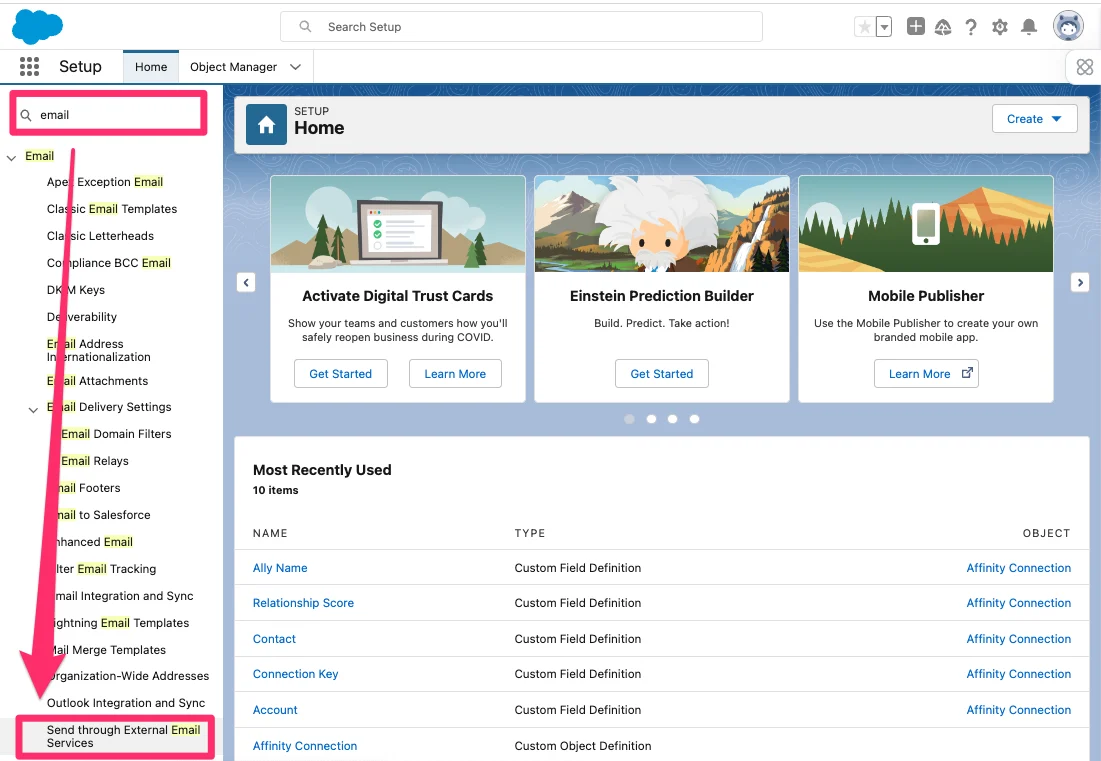
1. Type "email" in the search bar and click the **Send through External Email Services** tab on the left-side navigation.
6. Repeat as necessary for each field that you want to sync.
### Part 2 - Creating custom fields for Contact objects
Repeat steps 1-6 above, but for **Contacts** this time.
## Disable the "Send through External Email Services" feature
If your organization sends emails through the Salesforce email composer, then your Salesforce admin may have enabled the **Send through External Email Services** feature. This needs to be disabled moving forward, given that it would create duplicate activities alongside enrichment by Affinity for Salesforce.
1. Type "email" in the search bar and click the **Send through External Email Services** tab on the left-side navigation.
 2. Verify that the settings for Gmail and/or Office 365 are turned off.
 ## Set up Affinity for Salesforce in Affinity
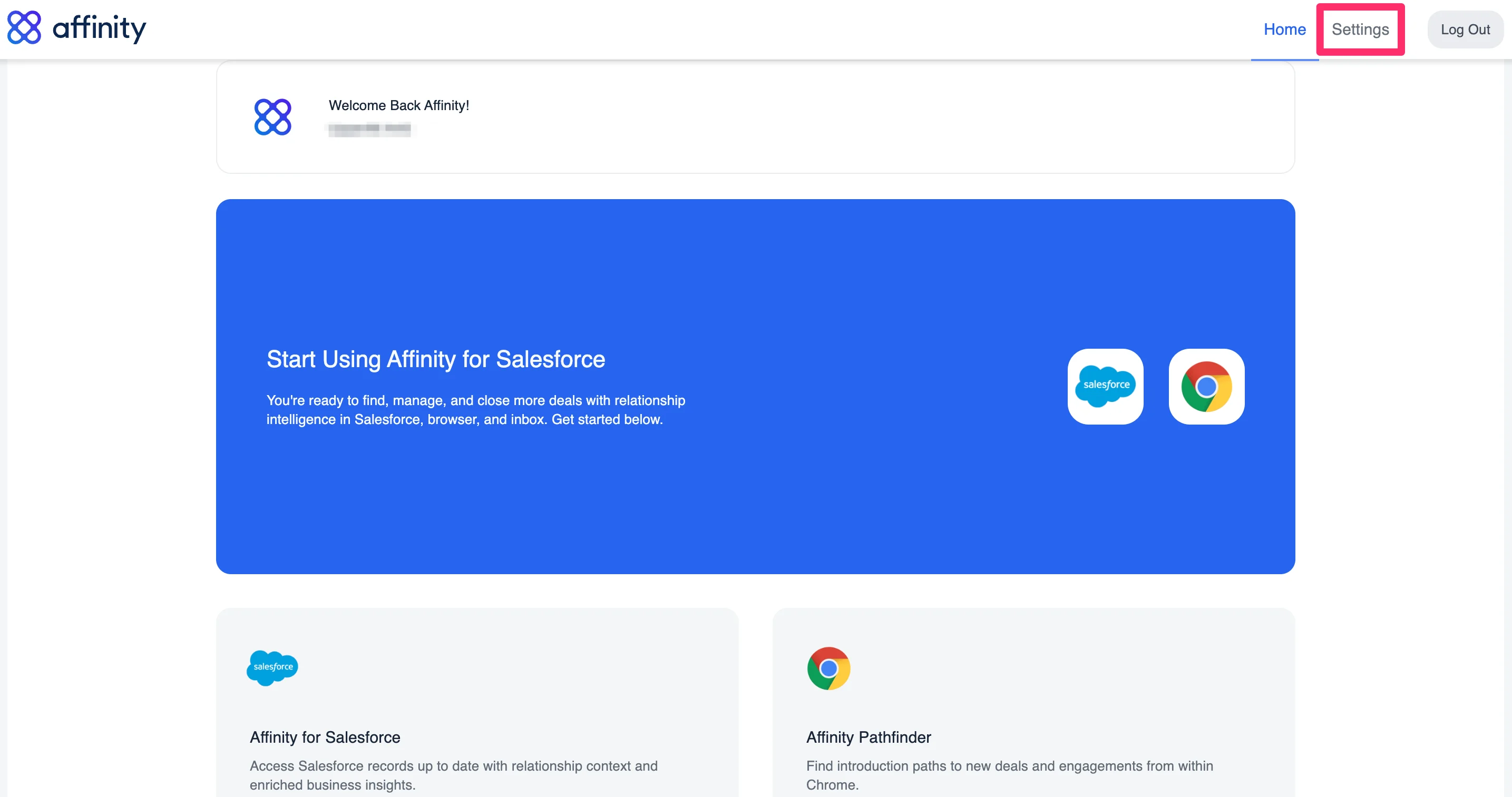
1. Sign into your Affinity instance, then click on **Settings** in the top-right corner.
## Set up Affinity for Salesforce in Affinity
1. Sign into your Affinity instance, then click on **Settings** in the top-right corner.
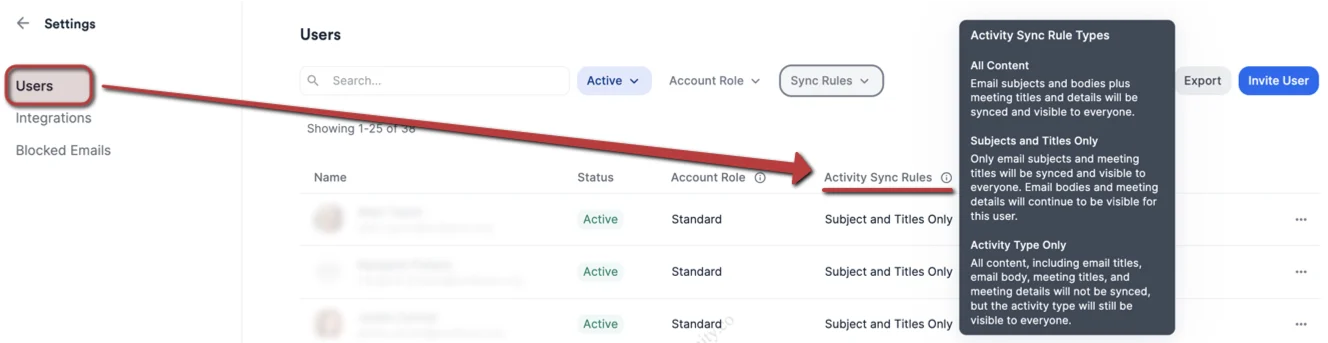
 2. From there, click on the **Users** tab on the left to invite users and set up their Activity Sync Rules.
* **Important Callout**: If you'd like to connect email aliases for any of your users, please reach out to your Affinity point of contact **before** sending out the invite.
* **Important Callout**: If you'd like to add Limited Seats (i.e. no access to the [Affinity Pathfinder Chrome extension](/s/article/Chrome-extension), [Affinity for Outlook add-in](/s/article/Affinity-for-Salesforce-How-to-use-Affinity-s-Outlook-add-in), or the Affinity components inside your Salesforce instance), please follow this guide: [Domain Verification Guide for Sync Only seats (Affinity CRM) and Limited seats (Affinity for Salesforce)](/s/article/Domain-Verification-Guide-for-Sync-Only-users)
2. From there, click on the **Users** tab on the left to invite users and set up their Activity Sync Rules.
* **Important Callout**: If you'd like to connect email aliases for any of your users, please reach out to your Affinity point of contact **before** sending out the invite.
* **Important Callout**: If you'd like to add Limited Seats (i.e. no access to the [Affinity Pathfinder Chrome extension](/s/article/Chrome-extension), [Affinity for Outlook add-in](/s/article/Affinity-for-Salesforce-How-to-use-Affinity-s-Outlook-add-in), or the Affinity components inside your Salesforce instance), please follow this guide: [Domain Verification Guide for Sync Only seats (Affinity CRM) and Limited seats (Affinity for Salesforce)](/s/article/Domain-Verification-Guide-for-Sync-Only-users)
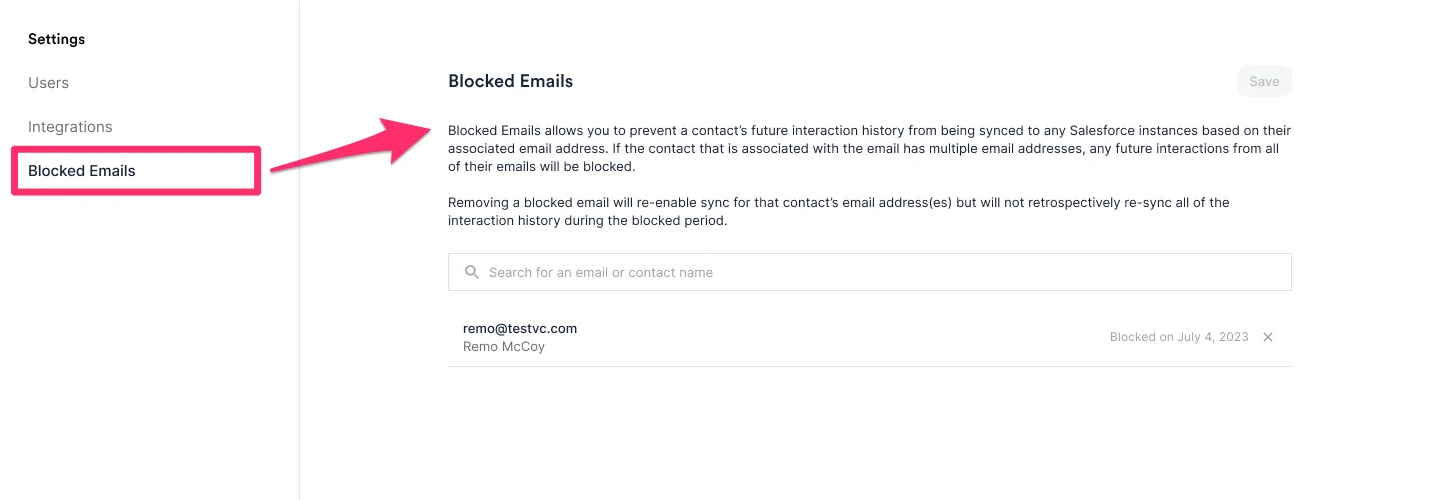
 3. You can also click on the **Blocked Emails** tab and add contacts here whose interactions you would like to prevent from syncing to Salesforce moving forward.
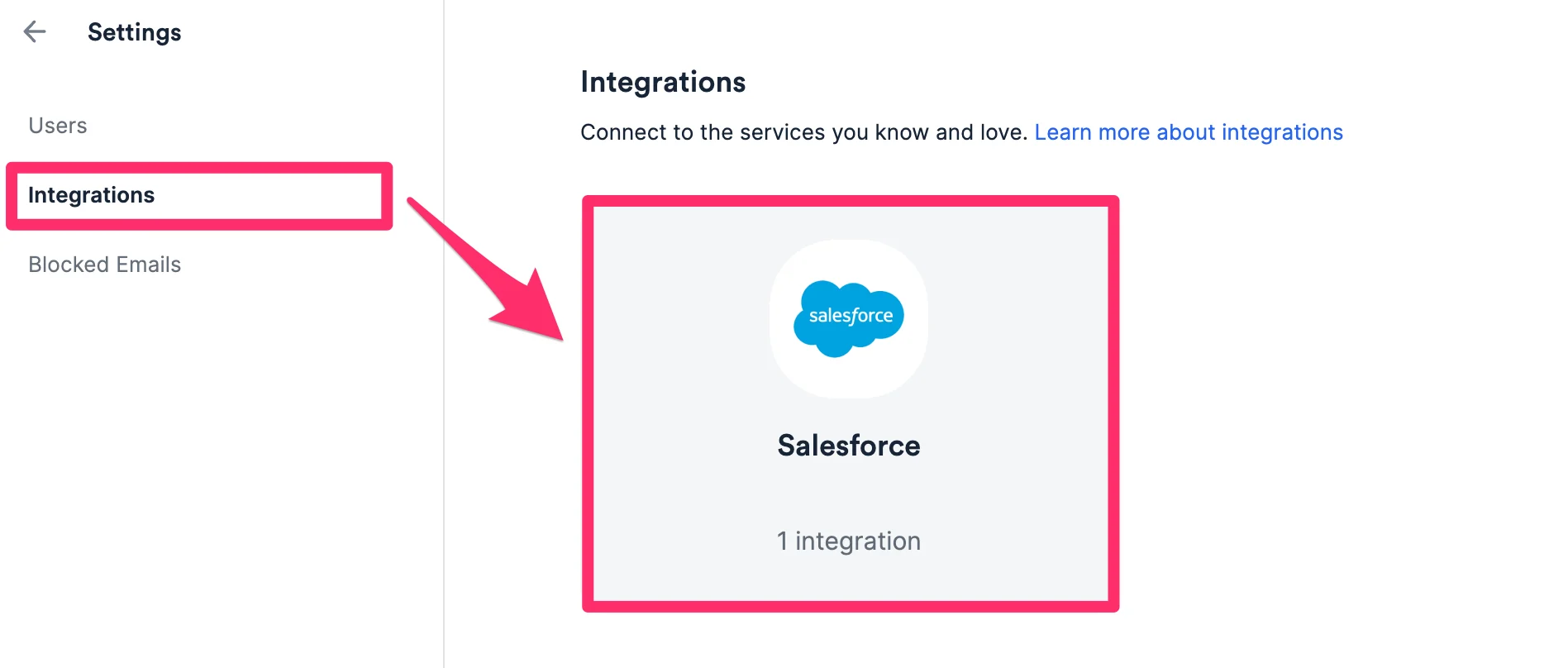
 4. Once you've added all the emails you'd like to hide communications for, click on the **Integrations** tab on the left, then click on **Salesforce**.
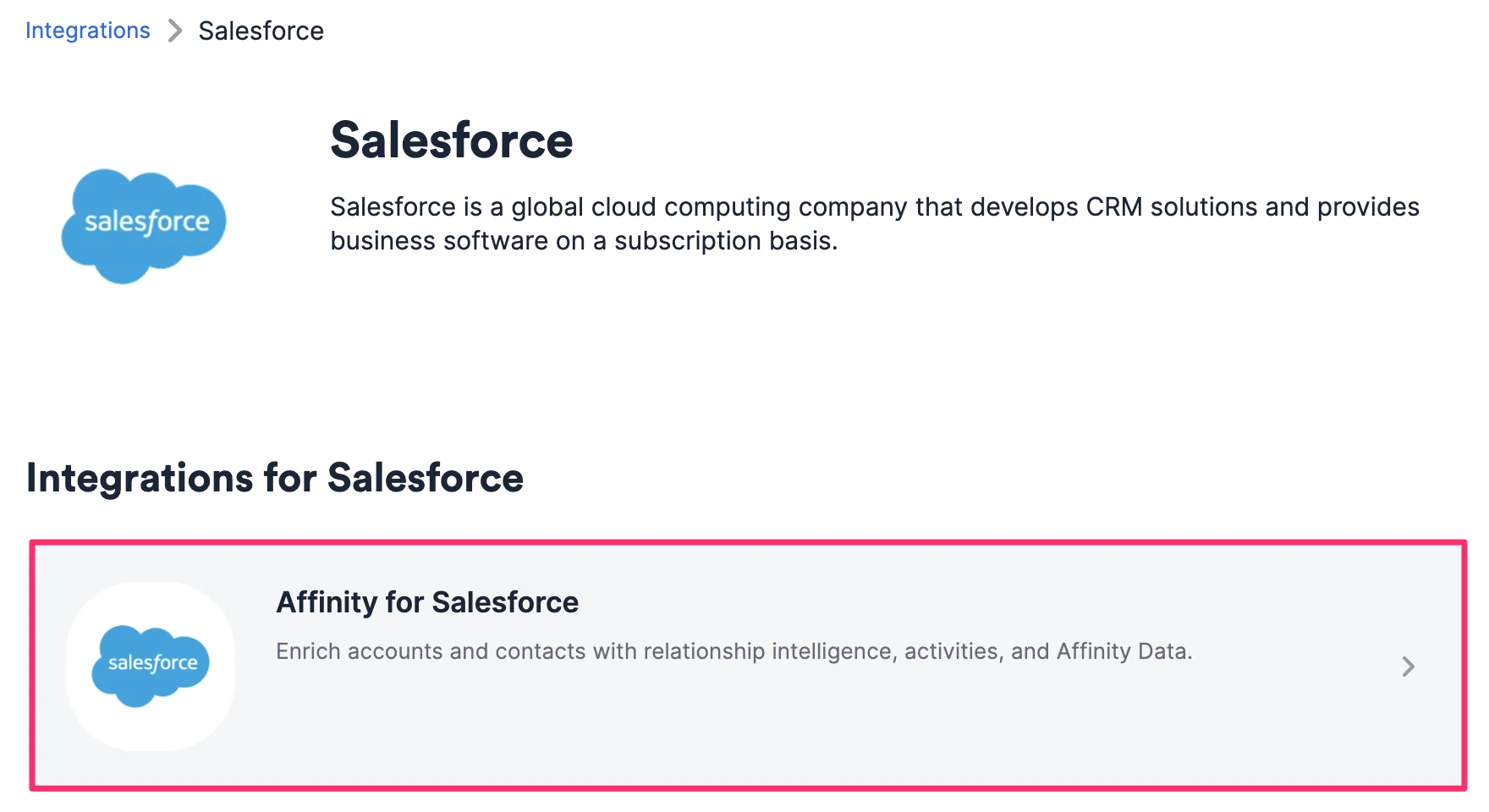
 5. Click on **Affinity for Salesforce** to get started with the set up process.
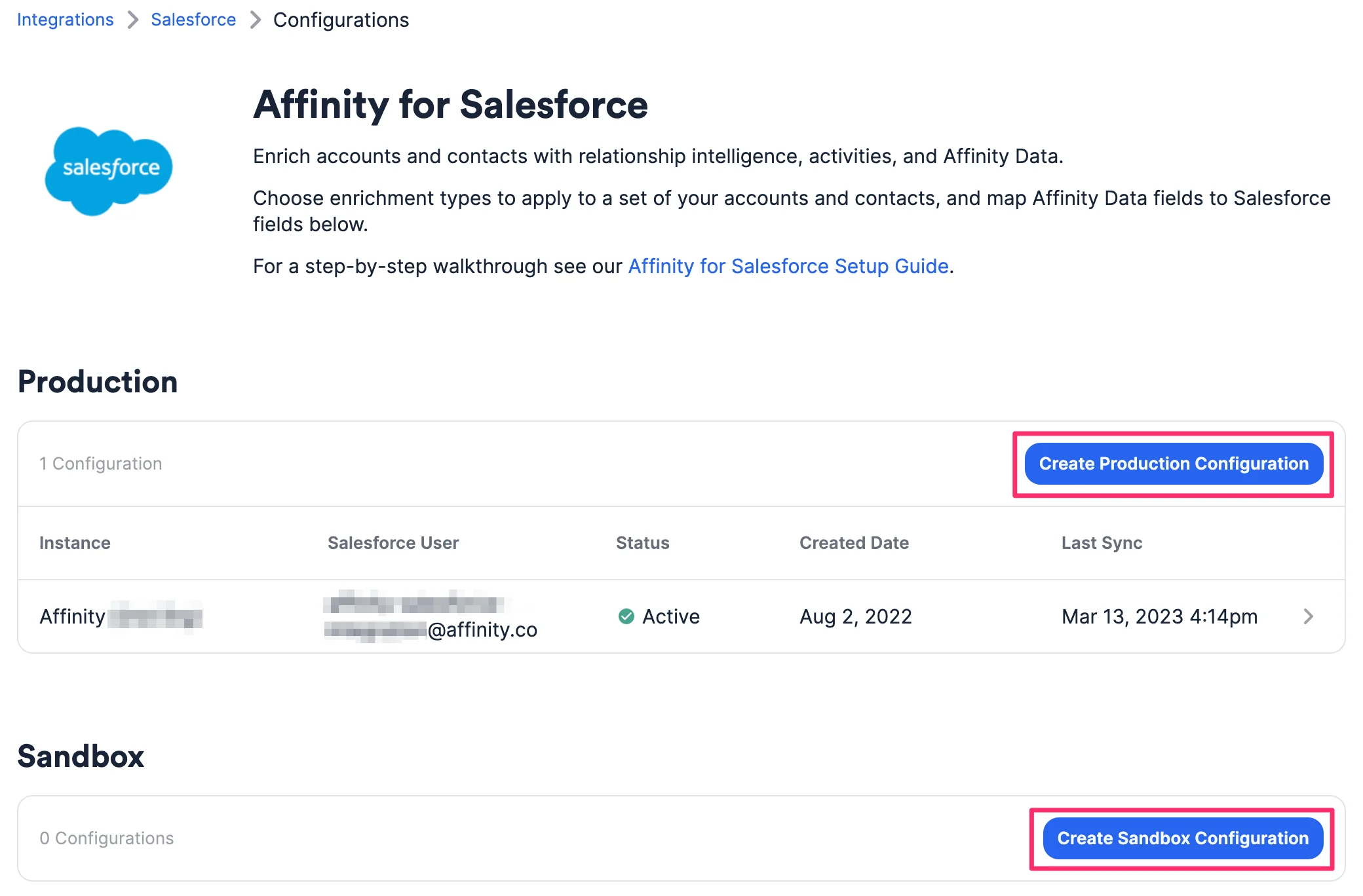
 6. You'll see that you can connect Affinity to both Production and Sandbox versions of your Salesforce instances by clicking one of the relevant buttons: **Create Production Configuration** or **Create Sandbox Configuration**.
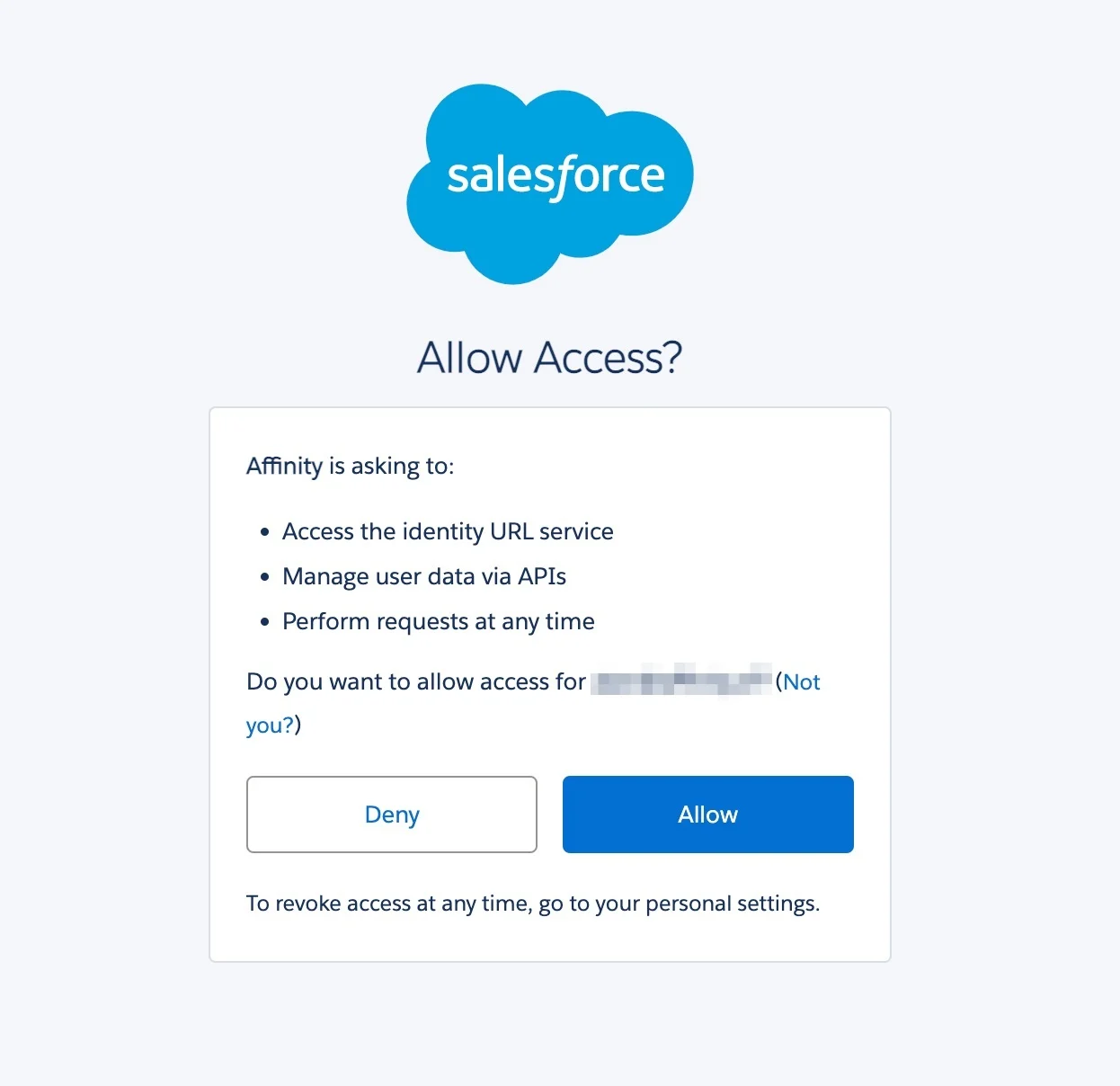
 7. You will see a webpage titled **Allow Access?**, where you can click **Allow** to continue.
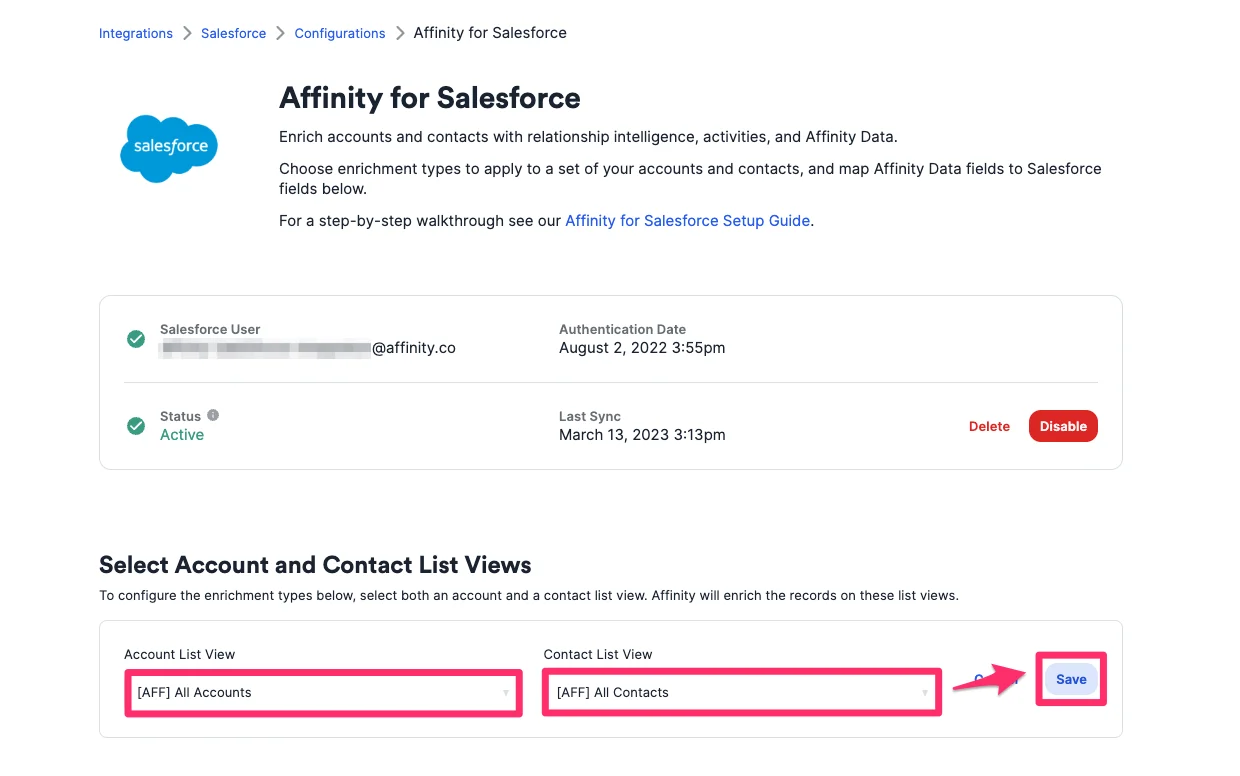
 8. Once you've connected your Salesforce instance, go to the section titled **Select Account and Contact List Views** and select the account list view and contact list view you'd like to enrich with Affinity Data, then click **Save**.
 9. **Set up Enrichment Types**
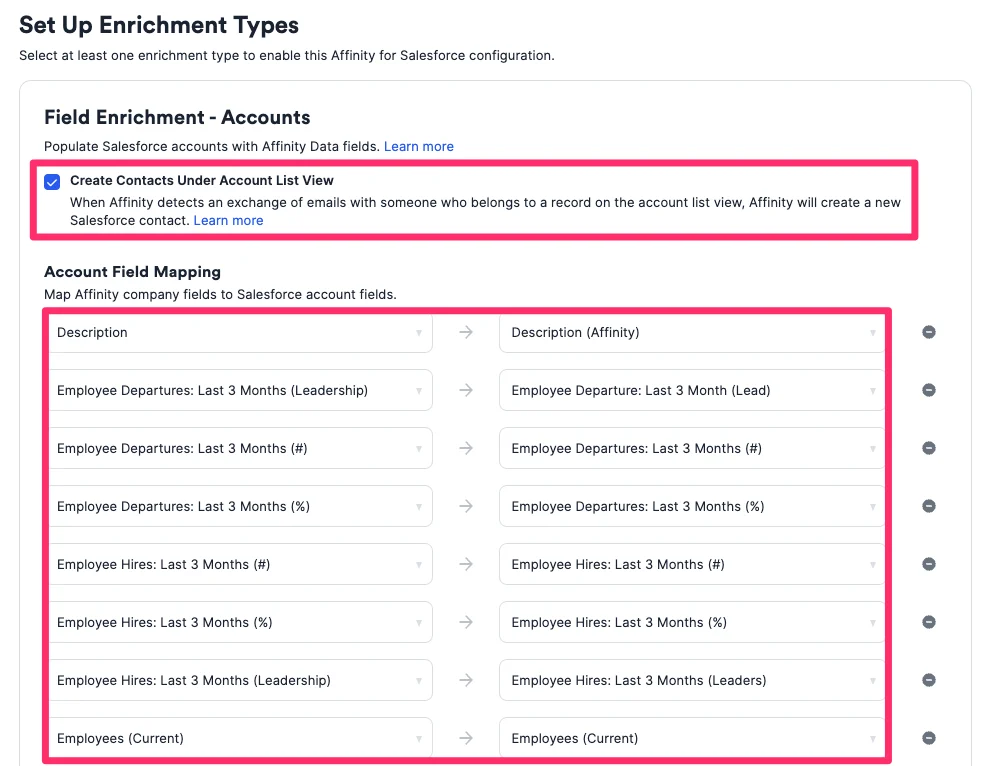
* **Field Enrichment - Accounts**: Click the **Edit** button, then click the checkbox to **Create Contacts Under Account List View** - this will help auto-create contacts on Salesforce based on your email interactions. Then, map the [custom Salesforce fields](/s/article/Creating-custom-Salesforce-fields-based-on-Affinity-Data-fields) you already created for your account objects to the Affinity Data fields.
9. **Set up Enrichment Types**
* **Field Enrichment - Accounts**: Click the **Edit** button, then click the checkbox to **Create Contacts Under Account List View** - this will help auto-create contacts on Salesforce based on your email interactions. Then, map the [custom Salesforce fields](/s/article/Creating-custom-Salesforce-fields-based-on-Affinity-Data-fields) you already created for your account objects to the Affinity Data fields.
 * Repeat Step 8.1, but for **Field Enrichment - Contacts** this time.
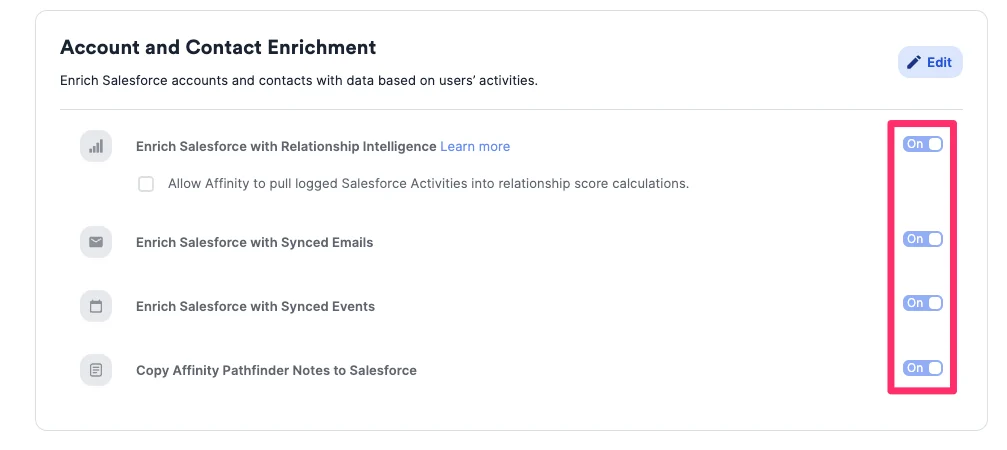
* **Account and Contact Enrichment**: Select the enrichment options for your Salesforce instance. Most users will have all of these enabled. Additionally, you can also check the box to **Allow Affinity to pull logged Salesforce Activities into relationship score calculations**.
* **Note**: If you're using another tool to sync email/calendar data, you can leave the toggles off for those two options. Otherwise, we highly suggest having all enrichment options toggled on for maximum benefit.
* Repeat Step 8.1, but for **Field Enrichment - Contacts** this time.
* **Account and Contact Enrichment**: Select the enrichment options for your Salesforce instance. Most users will have all of these enabled. Additionally, you can also check the box to **Allow Affinity to pull logged Salesforce Activities into relationship score calculations**.
* **Note**: If you're using another tool to sync email/calendar data, you can leave the toggles off for those two options. Otherwise, we highly suggest having all enrichment options toggled on for maximum benefit.
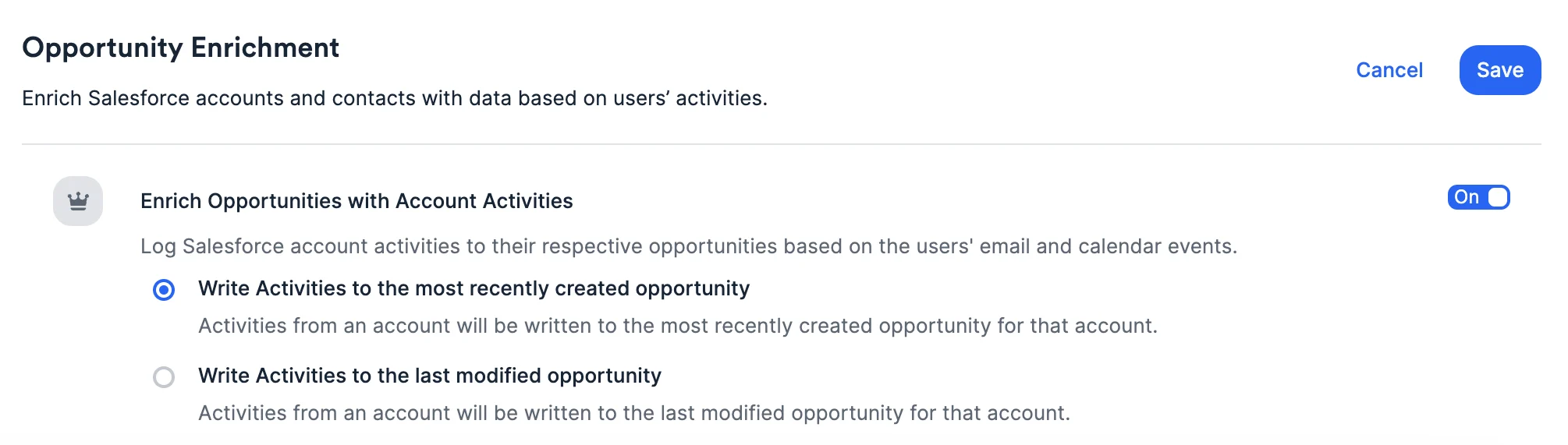
 * **Opportunity Enrichment**: Click **Edit** to toggle on enrichment for your Salesforce opportunities.
 5. You can choose to either enrich the **most recently created** opportunity or the **last modified** opportunity. Finally, click **Save** and you're all set.
 ## Set up page layouts in your Salesforce instance
### Part 1 - Setting up page layouts for Account objects
1. Go to **Setup**, then click **Object Manager**, then click **Account**.
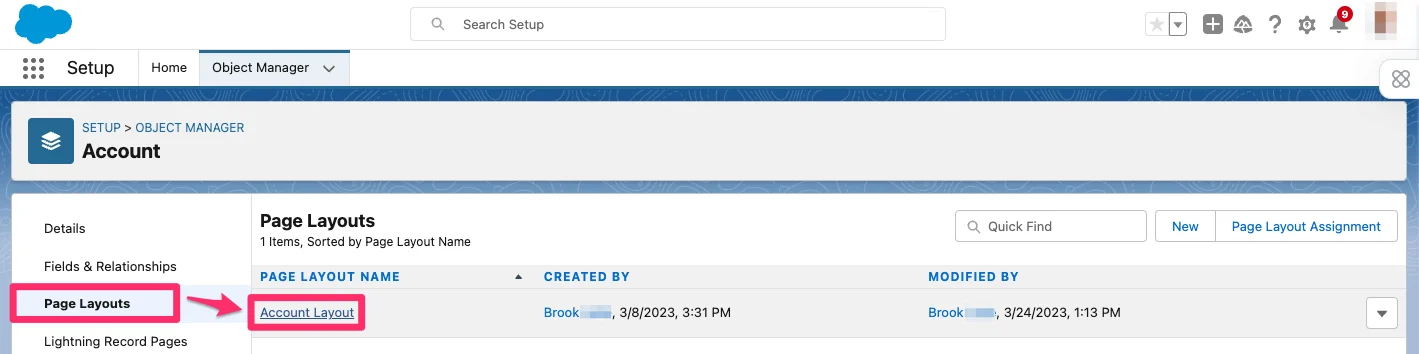
2. In the **Account** object, click the **Page Layouts** tab on the left sidebar, then click **Account Layout**.
## Set up page layouts in your Salesforce instance
### Part 1 - Setting up page layouts for Account objects
1. Go to **Setup**, then click **Object Manager**, then click **Account**.
2. In the **Account** object, click the **Page Layouts** tab on the left sidebar, then click **Account Layout**.
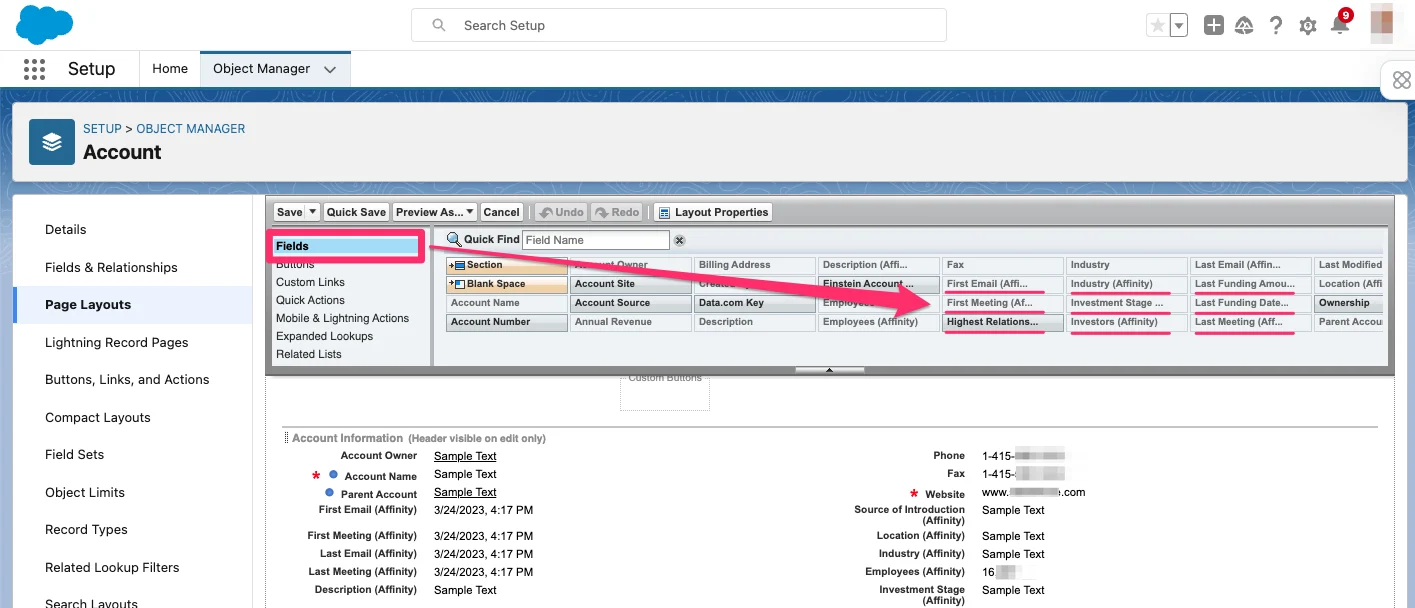
 3. Create a new section within the **Account Layout** so that you can place the custom Salesforce fields you previously created into this new section.
4. Within the **Fields** tab, you'll see the custom Salesforce fields you recently created. Drag-and-drop these fields onto this new section.
3. Create a new section within the **Account Layout** so that you can place the custom Salesforce fields you previously created into this new section.
4. Within the **Fields** tab, you'll see the custom Salesforce fields you recently created. Drag-and-drop these fields onto this new section.
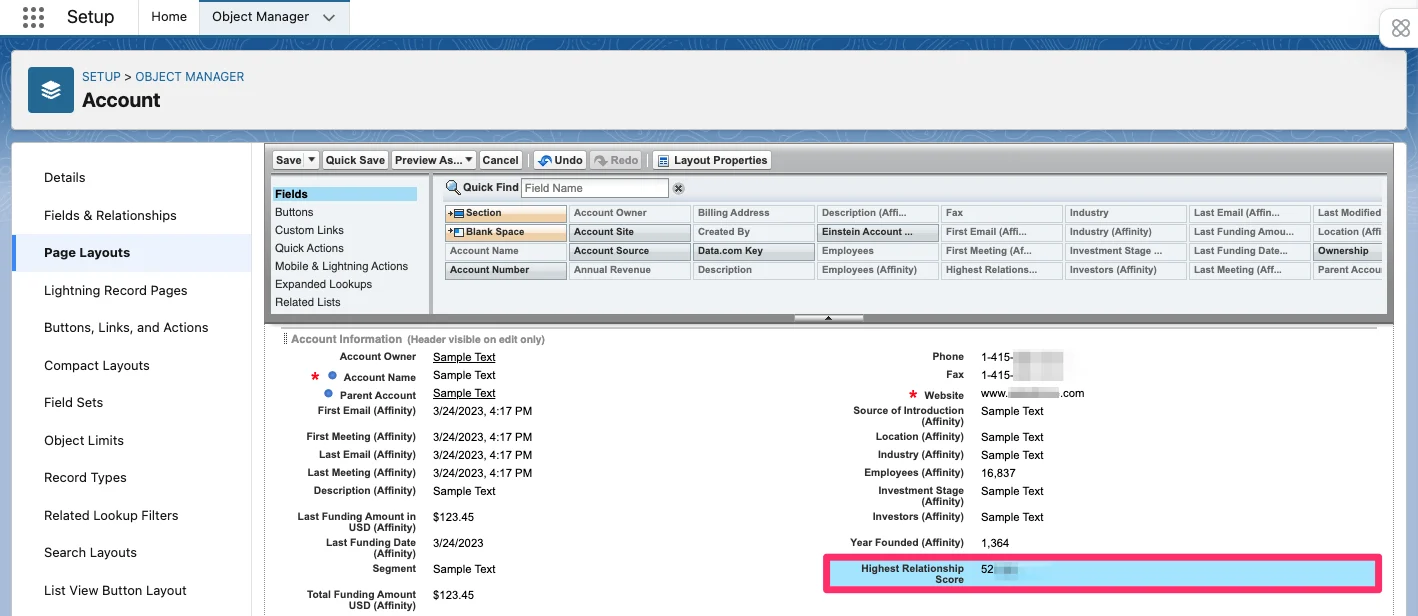
 5. You'll also notice the **Highest Relationship Score** provided by Affinity, which didn't appear during the Field Mapping process in the previous section.
* We highly suggest leveraging the **Highest Relationship Score** in your **Account Layout** so that you and your team members can easily tell the strengths of your/your team's relationships with your accounts and contacts.
5. You'll also notice the **Highest Relationship Score** provided by Affinity, which didn't appear during the Field Mapping process in the previous section.
* We highly suggest leveraging the **Highest Relationship Score** in your **Account Layout** so that you and your team members can easily tell the strengths of your/your team's relationships with your accounts and contacts.
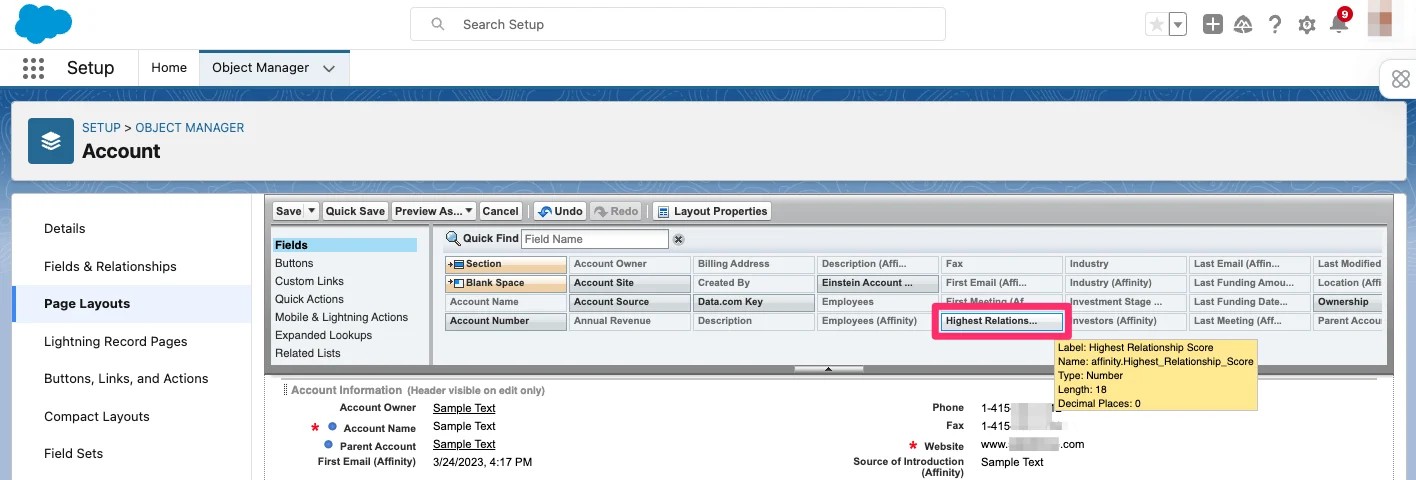 * Drag and drop the **Highest Relationship Score** field into the desired section.
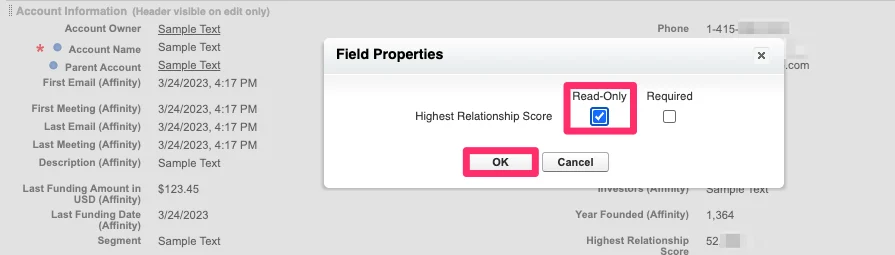
 * To prevent accidental edits to the **Highest Relationship Score** values, click on the **Edit** icon and check the box for **Read Only**.
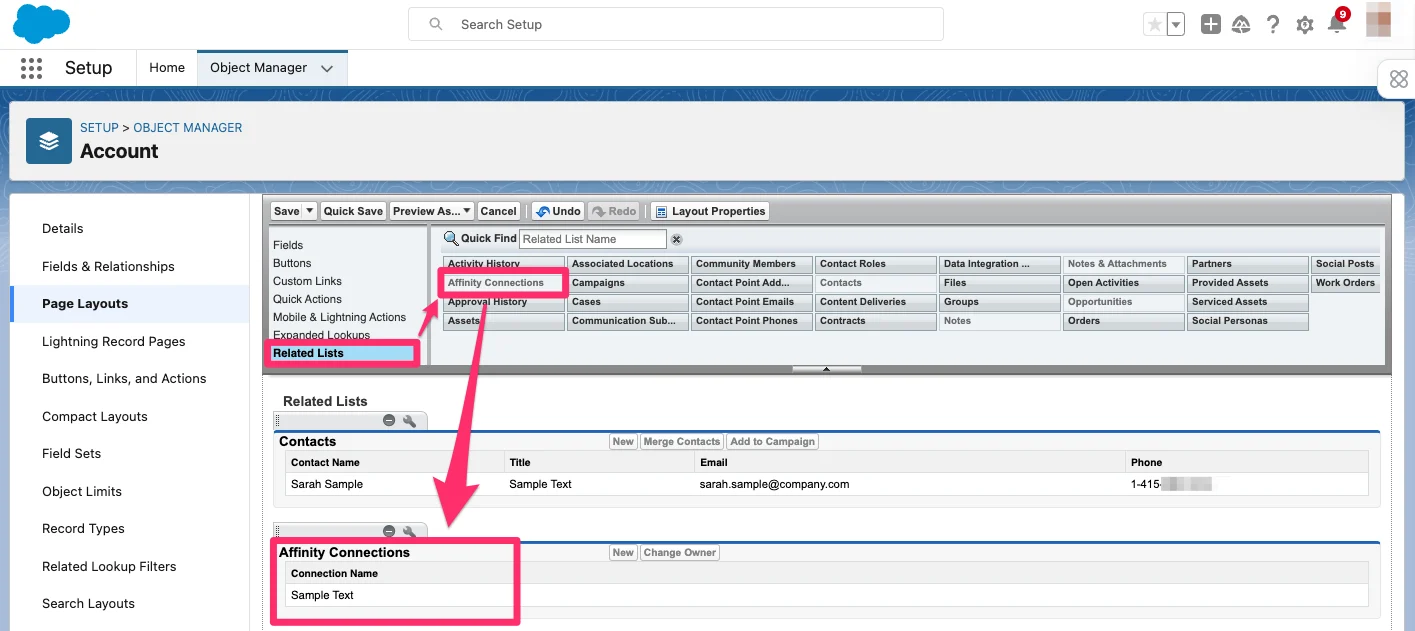
 6. Scroll down to the **Related Lists** tab, where you'll find the custom object **Affinity Connections** that you can drag-and-drop under **Related Lists**.
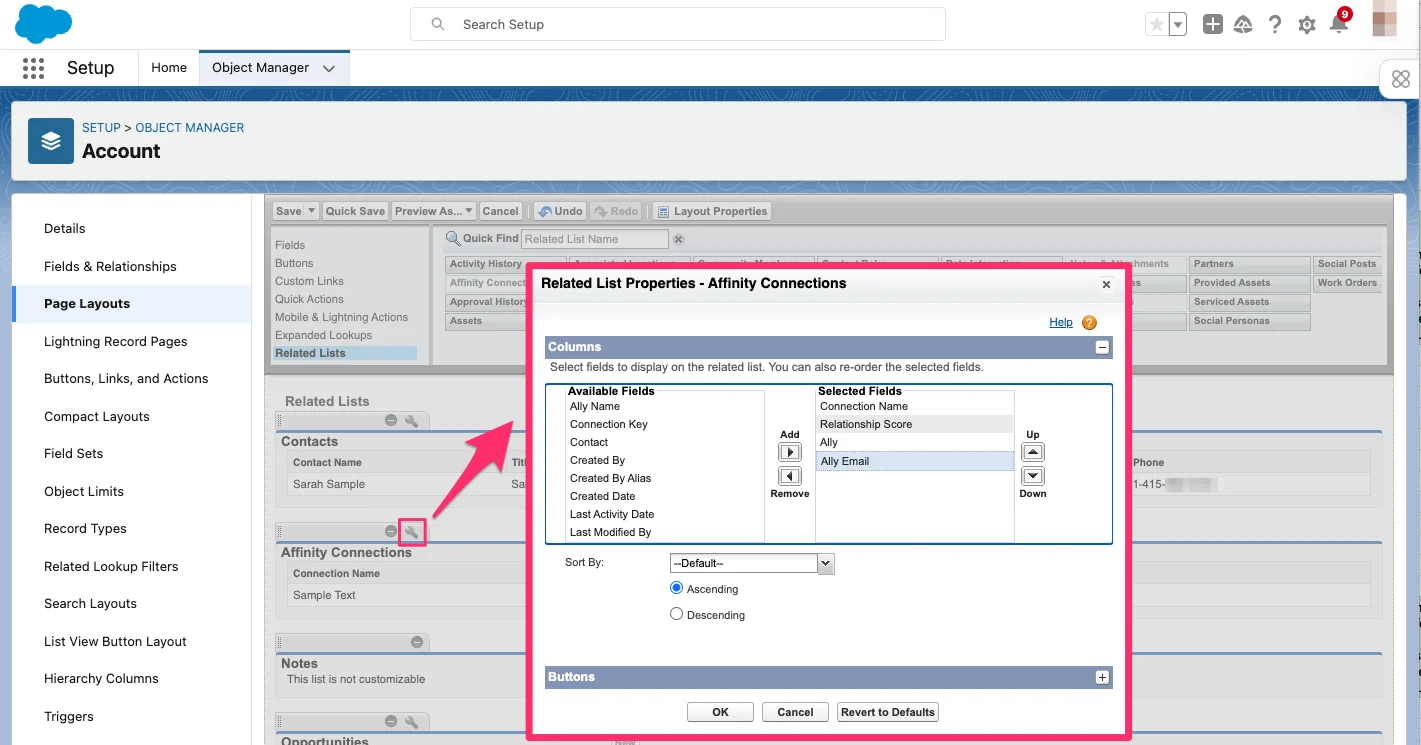
 7. Click the **Edit** icon next to **Affinity Connections**, which will allow you to select which Affinity fields to show and which field to sort by.
 ### Part 2 - Setting up page layouts for Contact objects
Repeat steps 1-7 above, but for **Contacts** this time. Now that you're done setting up your Salesforce and Affinity instances, let's see how you and your team members can put Affinity for Salesforce into practice (see [How to use Affinity for Salesforce](/s/article/How-to-use-Affinity-for-Salesforce)).
### Part 2 - Setting up page layouts for Contact objects
Repeat steps 1-7 above, but for **Contacts** this time. Now that you're done setting up your Salesforce and Affinity instances, let's see how you and your team members can put Affinity for Salesforce into practice (see [How to use Affinity for Salesforce](/s/article/How-to-use-Affinity-for-Salesforce)).