> ## Documentation Index
> Fetch the complete documentation index at: https://support.affinity.co/llms.txt
> Use this file to discover all available pages before exploring further.
# How To Send Emails And File Attachments Through Affinity
> Help center reference
**How-to** — task-oriented recipe.
Minimize the need for constant platform-switching by easily sending emails and file attachments to others through Affinity. While this article covers how to send emails one-by-one, you can also send personalized emails to multiple contacts all at once using Affinity's [bulk email feature](/s/article/How-to-send-personalized-bulk-emails-within-Affinity).
**Note**: Apostrophes (') are **not** supported in email addresses.
### How to send emails and file attachments through Affinity
1. Click into the relevant person's profile page, then click on the **Email** button.
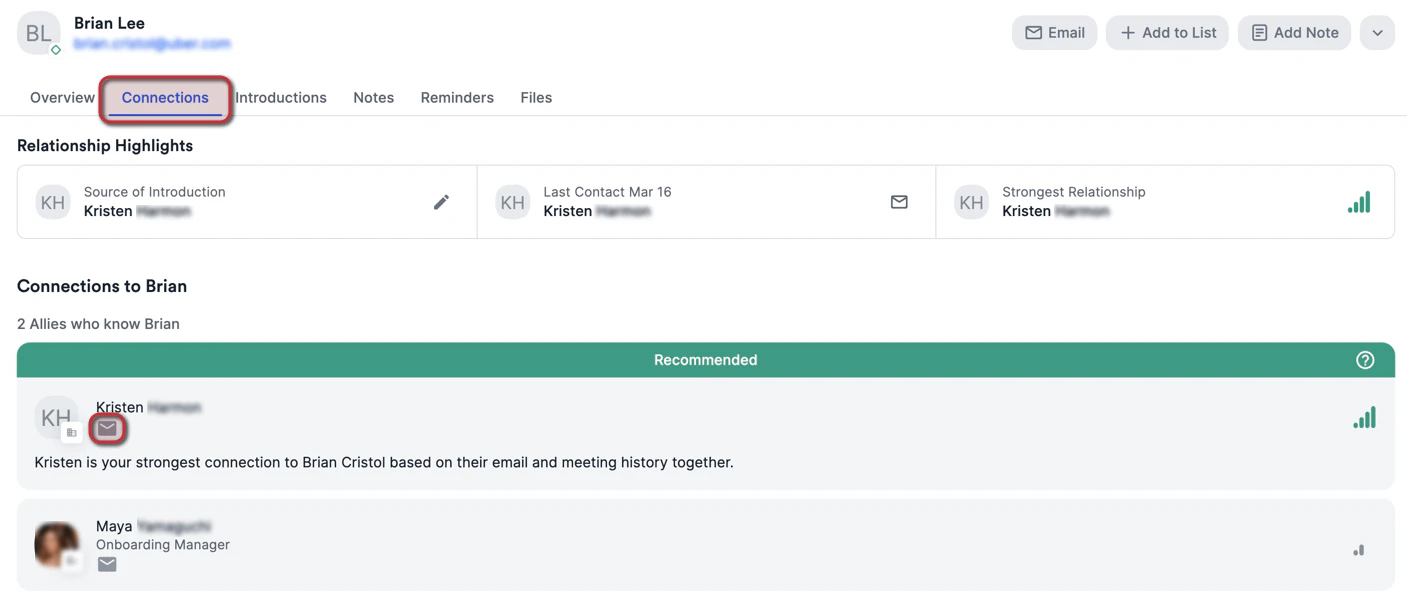
 2. You can also click on the **Connections** tab to send emails and ask your allies for warm introductions to a particular individual.
 3. There are multiple features you can leverage within the Email Composer:
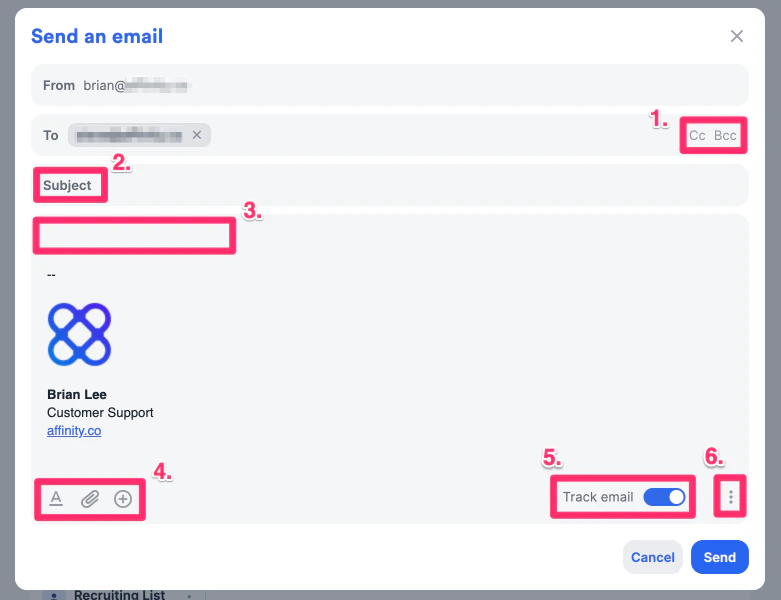 1. Add other people to the **CC** and **BCC** lines as needed.
2. Add an email subject.
3. Type in content for the email body.
4. Make your email body stand out by **using rich-text formatting**, **attaching relevant files**, and **inserting dynamic fields or** [**pre-saved email templates**](/s/article/How-to-create-use-Email-Templates-within-Affinity) as needed.
* Make sure your files are one of our [supported file types within Affinity](/s/article/Supported-File-Types-for-Upload).
* For Gmail users, the file size limit is **20MB**.
* For Outlook users, the file size limit is **2.5MB**.
5. [Track your emails](/s/article/How-to-track-emails-sent-through-Affinity) for open, click, and response rates.
6. Create or edit your [email signature within Affinity](/s/article/How-to-set-up-your-email-signature-in-Affinity) and [manage your email templates](/s/article/How-to-create-use-Email-Templates-within-Affinity).
7. Once you're done, click **Send**.
1. Add other people to the **CC** and **BCC** lines as needed.
2. Add an email subject.
3. Type in content for the email body.
4. Make your email body stand out by **using rich-text formatting**, **attaching relevant files**, and **inserting dynamic fields or** [**pre-saved email templates**](/s/article/How-to-create-use-Email-Templates-within-Affinity) as needed.
* Make sure your files are one of our [supported file types within Affinity](/s/article/Supported-File-Types-for-Upload).
* For Gmail users, the file size limit is **20MB**.
* For Outlook users, the file size limit is **2.5MB**.
5. [Track your emails](/s/article/How-to-track-emails-sent-through-Affinity) for open, click, and response rates.
6. Create or edit your [email signature within Affinity](/s/article/How-to-set-up-your-email-signature-in-Affinity) and [manage your email templates](/s/article/How-to-create-use-Email-Templates-within-Affinity).
7. Once you're done, click **Send**.