> ## Documentation Index
> Fetch the complete documentation index at: https://support.affinity.co/llms.txt
> Use this file to discover all available pages before exploring further.
# How To Prevent Syncing Your Personal Calendar Data
> Help center reference: How To Prevent Syncing Your Personal Calendar Data
**How-to** — task-oriented recipe.
If you're syncing your work email account with Affinity, but have it set up so that your work calendar also has **edit** access to your personal calendar data, then your personal calendar data may be syncing into Affinity as well depending on when you/your team created your Affinity account:
## If your Affinity account was created before March 8, 2024
If you/your team created an Affinity CRM account **before March 8, 2024**, and your work calendar has **edit** access to your personal calendar data, then it is most likely that your personal calendar data is syncing into Affinity is well.
### Gmail users: How to stop syncing/remove your personal calendar data
Gmail users have two options available:
1. **Option 1** - You can reach out to us at [support@affinity.co](mailto:support@affinity.co) and request that you and your entire team would only like to sync your primary calendar data. Please note that this will be applied to all users and not just yourself.
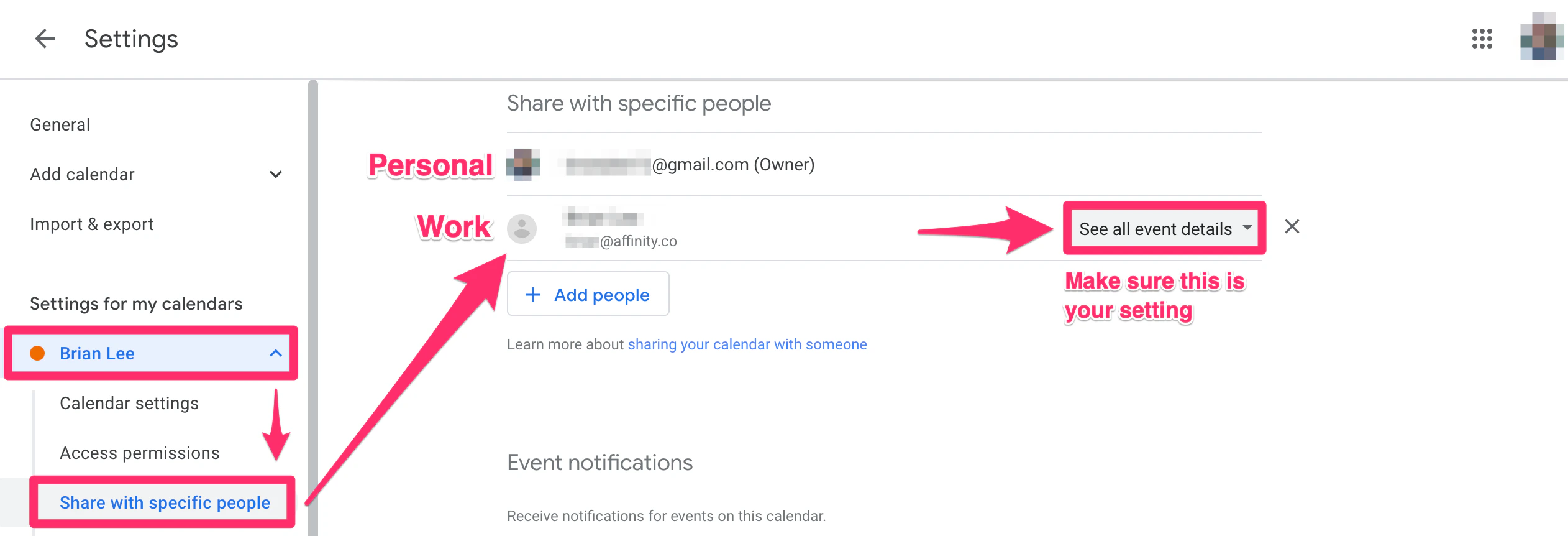
2. **Option 2** - You can individually change your personal calendar settings if other team members don't want to comply with **Option 1** above. If you choose **Option 2**, follow these steps below:
1. Go to your **personal** calendar's **Settings**.
 2. Then, under the **Settings for my calendars** tab, click the dropdown for your **personal** email account.
3. Then, click **Share with specific people** and make sure the preference is set to **See all event details**, not **Make changes to events**.
2. Then, under the **Settings for my calendars** tab, click the dropdown for your **personal** email account.
3. Then, click **Share with specific people** and make sure the preference is set to **See all event details**, not **Make changes to events**.
 4. Your personal calendar events should disappear from Affinity within the next 2-3 days.
5. After 2-3 days, click into an external contact's profile page to see that your personal calendar data should now be removed accordingly.
6. If you still notice your personal calendar data surfacing on profile pages, send an email to [support@affinity.co](mailto:support@affinity.co) with examples and we'd be happy to take a deeper look.
### Outlook users: How to stop syncing/remove your personal calendar data
1. Outlook users have two options available:
1. **Option 1** - You can reach out to us at [support@affinity.co](mailto:support@affinity.co) and request that you and your entire team would only like to sync your primary calendar data. Please note that this will be applied to all users and not just yourself.
2. **Option 2** - Since Outlook users **cannot** simply change their calendar settings to prevent syncing their personal calendar data, they will have to completely remove access to their work calendar by going to their personal calendar's settings.
2. If you still notice your personal calendar data surfacing on profile pages, send an email to [support@affinity.co](mailto:support@affinity.co) with examples and we'd be happy to take a deeper look.
## If your Affinity account was created on/after March 8, 2024
* If you/your team created an Affinity CRM account **on/after March 8, 2024**, and your work calendar has **edit** access to your personal calendar data, Affinity has set the new default so that it only syncs your primary (work) calendar data moving forward. No further action is required on your end.
* However, if you were initially invited to join your team's Affinity account with your personal email account, then synced your work email account afterwards, please reach out to us at [support@affinity.co](mailto:support@affinity.co) so that we can change the primary account from your personal account to your work account.
4. Your personal calendar events should disappear from Affinity within the next 2-3 days.
5. After 2-3 days, click into an external contact's profile page to see that your personal calendar data should now be removed accordingly.
6. If you still notice your personal calendar data surfacing on profile pages, send an email to [support@affinity.co](mailto:support@affinity.co) with examples and we'd be happy to take a deeper look.
### Outlook users: How to stop syncing/remove your personal calendar data
1. Outlook users have two options available:
1. **Option 1** - You can reach out to us at [support@affinity.co](mailto:support@affinity.co) and request that you and your entire team would only like to sync your primary calendar data. Please note that this will be applied to all users and not just yourself.
2. **Option 2** - Since Outlook users **cannot** simply change their calendar settings to prevent syncing their personal calendar data, they will have to completely remove access to their work calendar by going to their personal calendar's settings.
2. If you still notice your personal calendar data surfacing on profile pages, send an email to [support@affinity.co](mailto:support@affinity.co) with examples and we'd be happy to take a deeper look.
## If your Affinity account was created on/after March 8, 2024
* If you/your team created an Affinity CRM account **on/after March 8, 2024**, and your work calendar has **edit** access to your personal calendar data, Affinity has set the new default so that it only syncs your primary (work) calendar data moving forward. No further action is required on your end.
* However, if you were initially invited to join your team's Affinity account with your personal email account, then synced your work email account afterwards, please reach out to us at [support@affinity.co](mailto:support@affinity.co) so that we can change the primary account from your personal account to your work account.