> ## Documentation Index
> Fetch the complete documentation index at: https://support.affinity.co/llms.txt
> Use this file to discover all available pages before exploring further.
# How To Log Interactions Into Affinity
> Help center reference
**How-to** — task-oriented recipe.
For any interactions not captured in your email or calendar (i.e. Linkedin, WhatsApp, text messages, or unscheduled calls/meetings), you can manually log them in Affinity to ensure:
* These interactions enrich the context of your/your team's communication history with people, organizations, and opportunities.
* These interactions improve the relationship strengths you have with your connections.
## How to log interactions into Affinity
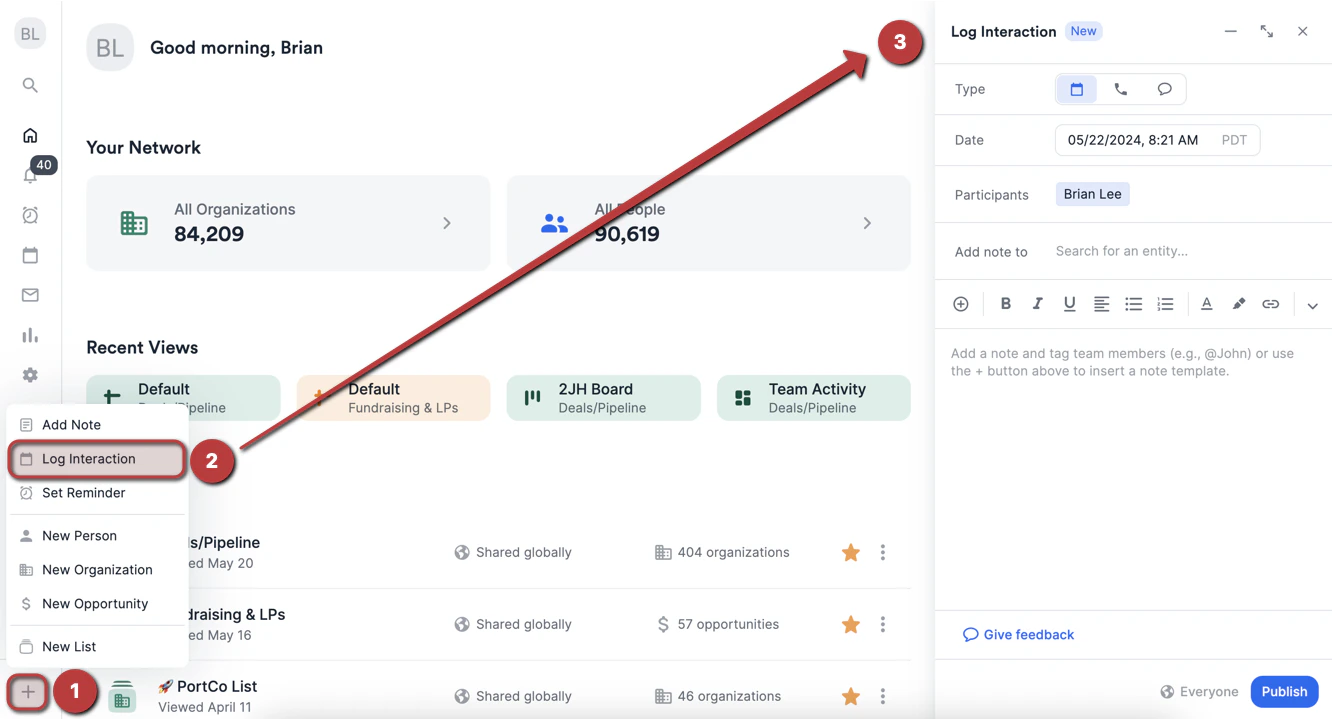
1. You can log an interaction by clicking **+ Add New** on the bottom-left corner of the global navigation sidebar.
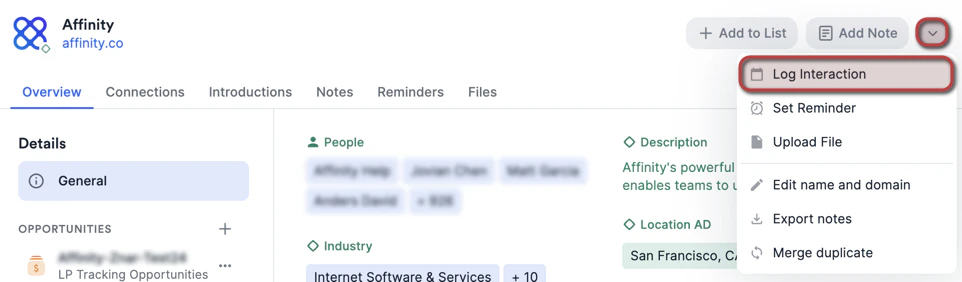
 2. You can also log an interaction on a contact's profile page by clicking the dropdown arrow, then clicking **Log Interaction**.
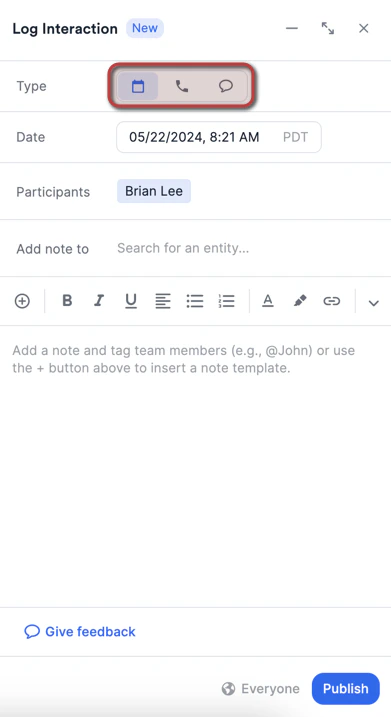
 3. Once you click **Log Interaction**, you can choose one of three interaction types: **Meeting**, **Call**, or **Message**.
* Choosing **Meeting** or **Call** will enrich the **Last Meeting** and **Last Contact** columns.
* Choosing **Message** will only enrich the **Last Contact** column.
3. Once you click **Log Interaction**, you can choose one of three interaction types: **Meeting**, **Call**, or **Message**.
* Choosing **Meeting** or **Call** will enrich the **Last Meeting** and **Last Contact** columns.
* Choosing **Message** will only enrich the **Last Contact** column.
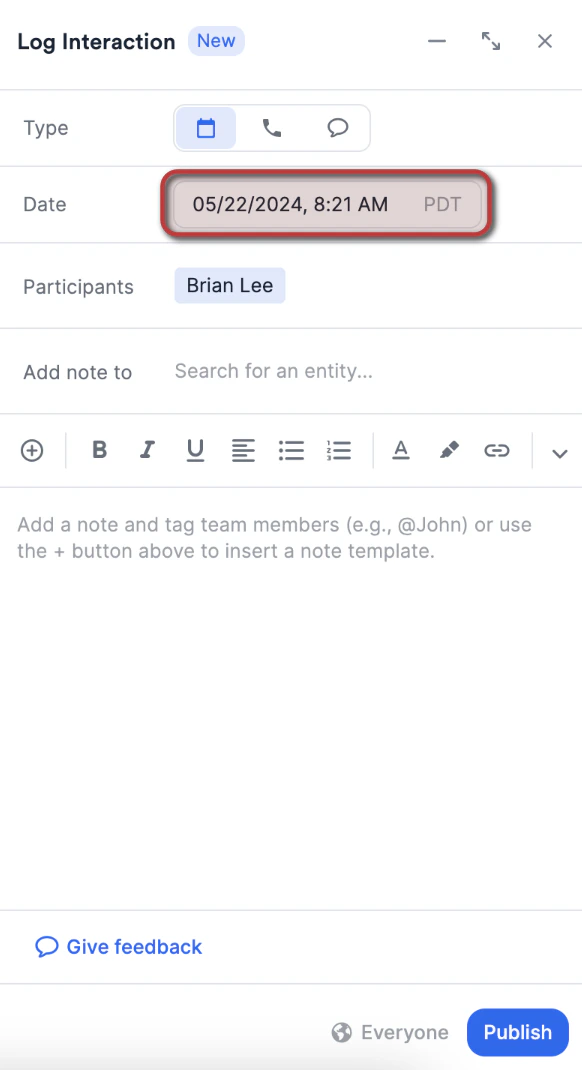
 4. Then, specify the date and time in which the interaction took place.
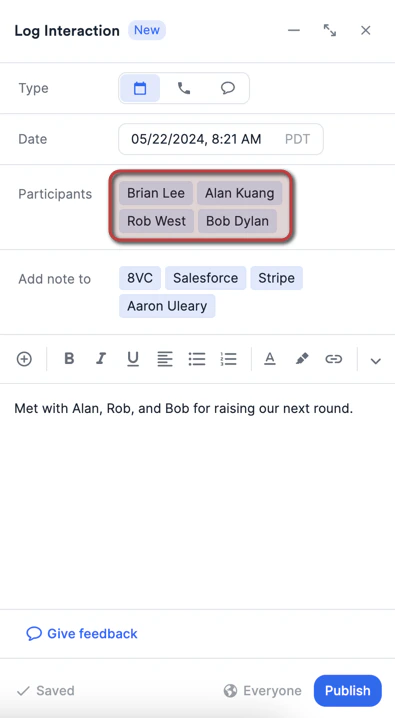
 5. Then, add the relevant people you have interacted with in the "**Participants**" field. This will **not** notify the participants in any way, they are simply being tagged as part of the interaction. **Note**: For the participants in this field, this interaction will get treated as a **meeting** when clicking into any of their profile pages and viewing the **Activity Timeline**.
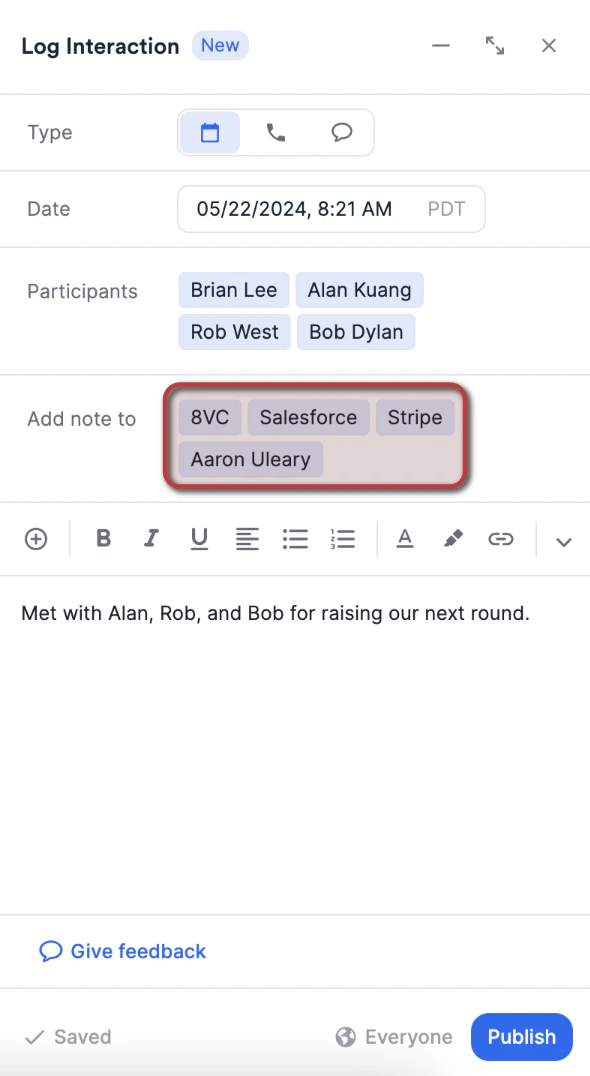
 6. Then, add any other people, organizations, and opportunities you have spoken about in the "**Add note to**" field just below. This will **not** notify the entities in any way, they are simply being tagged as part of the interaction. **Note**: For the entities in this field, this interaction will get treated as a **regular note** when clicking into any of their profile pages.
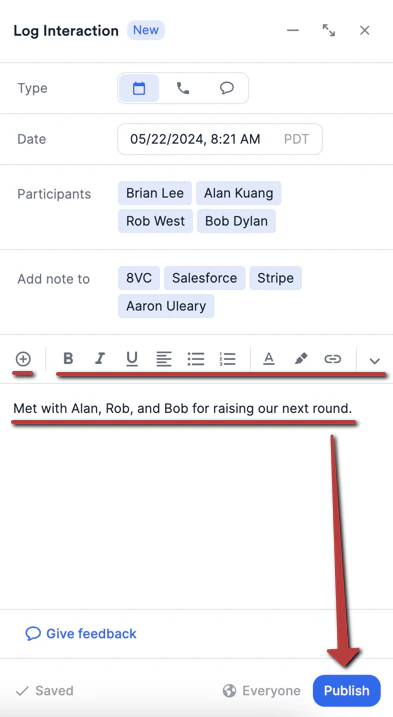
 7. Last but not least, write out your note with [rich text formatting](/s/article/Rich-text-formatting-for-notes-within-Affinity) and/or [note templates](/s/article/How-to-create-use-Note-Templates-within-Affinity), then click **Publish**.
 ## What happens to the notes attached to logged interactions if the logged interactions get deleted?
* Logged interactions can be deleted, but if there is a note attached, it will be detached and converted to a regular note (see [How to create/view notes in Affinity](/s/article/How-to-add-and-view-notes-in-Affinity)).
* Any meeting participants previously associated with the logged interaction will remain associated as it gets converted to a regular note.
* Any people, organizations, or opportunities previously associated with the logged interaction will remain associated as it gets converted to a regular note.
* If you're on the **Enterprise tier**, then the sharing permission that was previously set for the note attached to the logged interaction will default to what is currently set in the **Fallback Behavior** (check out the section titled "What content types can the Enterprise Admin adjust sharing options for?" within this article: [Enterprise Permissions (Enterprise only)](/s/article/Enterprise-permissions-enterprise-only).
## What happens to the notes attached to logged interactions if the logged interactions get deleted?
* Logged interactions can be deleted, but if there is a note attached, it will be detached and converted to a regular note (see [How to create/view notes in Affinity](/s/article/How-to-add-and-view-notes-in-Affinity)).
* Any meeting participants previously associated with the logged interaction will remain associated as it gets converted to a regular note.
* Any people, organizations, or opportunities previously associated with the logged interaction will remain associated as it gets converted to a regular note.
* If you're on the **Enterprise tier**, then the sharing permission that was previously set for the note attached to the logged interaction will default to what is currently set in the **Fallback Behavior** (check out the section titled "What content types can the Enterprise Admin adjust sharing options for?" within this article: [Enterprise Permissions (Enterprise only)](/s/article/Enterprise-permissions-enterprise-only).
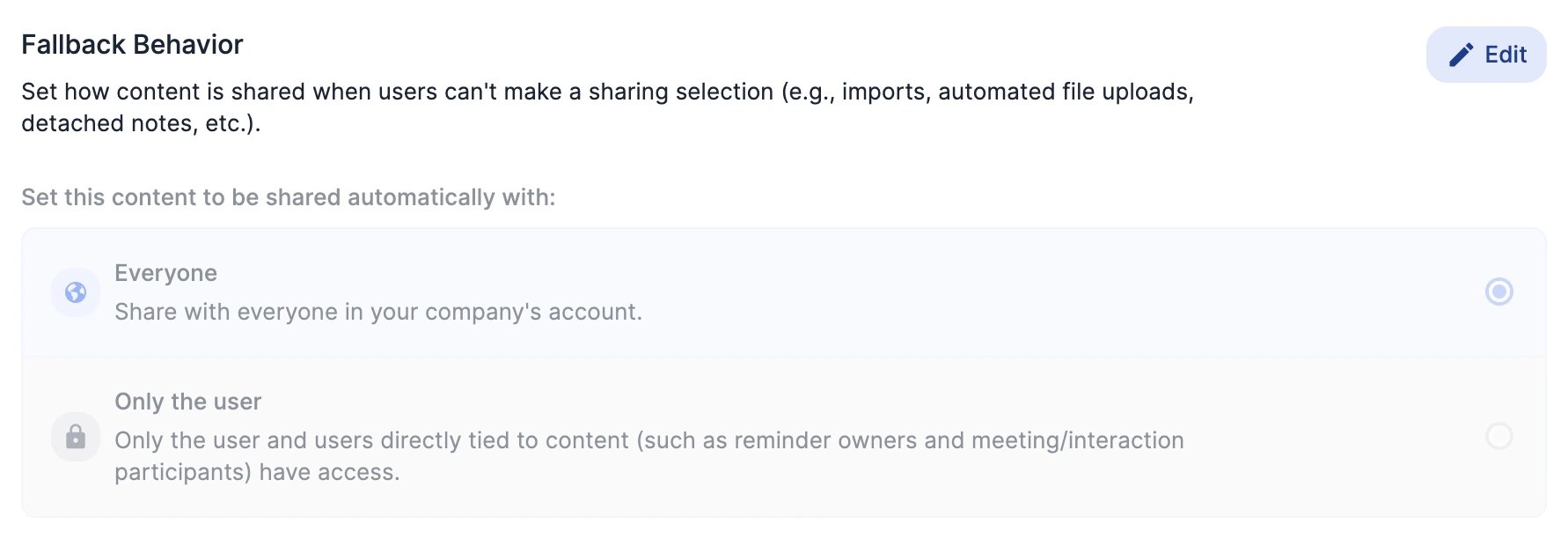 * If the **Fallback Behavior** is set to **Only the user**, then only the user who added the note will be able to view the note. So if the user gets deactivated/removed from their Affinity account, then the note will not be accessible to any other user on the account. To change the sharing permission, please reach out to [support@affinity.co](mailto:support@affinity.co) with the following:
* The **Name** of the deactivated/removed user you'd like to change sharing permissions for.
* Which content type(s) you'd like to change sharing permissions for: **Notes**, **Reminders**, **Files**, **Logged Interactions**, **Meeting Notes**
* The sharing permission you'd like to change to: **Everyone**, **Only Teams/Users**, **Only the user**
## Important Callouts
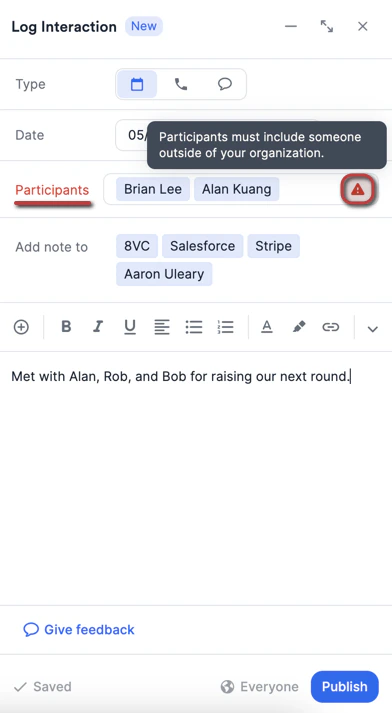
* You must add at least one external contact (someone outside of your team) to log the interaction. Affinity does not surface interactions that take place only amongst internal contacts (team members).
**Example**: In the screenshot above, Alan Kuang (my team member using Affinity) and I (Brian Lee) are the only participants, which leads to the error message when attempting to click **Publish**.
* If the **Fallback Behavior** is set to **Only the user**, then only the user who added the note will be able to view the note. So if the user gets deactivated/removed from their Affinity account, then the note will not be accessible to any other user on the account. To change the sharing permission, please reach out to [support@affinity.co](mailto:support@affinity.co) with the following:
* The **Name** of the deactivated/removed user you'd like to change sharing permissions for.
* Which content type(s) you'd like to change sharing permissions for: **Notes**, **Reminders**, **Files**, **Logged Interactions**, **Meeting Notes**
* The sharing permission you'd like to change to: **Everyone**, **Only Teams/Users**, **Only the user**
## Important Callouts
* You must add at least one external contact (someone outside of your team) to log the interaction. Affinity does not surface interactions that take place only amongst internal contacts (team members).
**Example**: In the screenshot above, Alan Kuang (my team member using Affinity) and I (Brian Lee) are the only participants, which leads to the error message when attempting to click **Publish**.
 * Users can only have **1 draft** at a time for logged interactions created from the global navigation sidebar.
* The draft persists until a user **deletes it** or **clears their local storage:**
* This means that users can close their session and return to the minimized draft, or open a new tab and see the same draft.
* **If users clear their local storage, Affinity will not be able to recover the draft.**
* Users can only have **1 draft** at a time for logged interactions created from the global navigation sidebar.
* The draft persists until a user **deletes it** or **clears their local storage:**
* This means that users can close their session and return to the minimized draft, or open a new tab and see the same draft.
* **If users clear their local storage, Affinity will not be able to recover the draft.**