> ## Documentation Index
> Fetch the complete documentation index at: https://support.affinity.co/llms.txt
> Use this file to discover all available pages before exploring further.
# How To Invite Manage Collaborators In Affinity
> Help center reference: How To Invite Manage Collaborators In Affinity
**How-to** — task-oriented recipe.
We're excited to introduce **Collaborator seats** to the Affinity CRM, which will allow you to invite board members, advisors, limited partners, founders, and other trusted individuals outside of your company to have read-only access to specified Affinity list views and stay updated on your firm's activities.
## Overview
* Who can access and purchase Collaborator seats?
* What Collaborators can and cannot do
* Who can invite/remove Collaborators from your account?
* Who can share/remove access to saved views for Collaborators?
* How to invite Collaborators and share access to saved views
* Option A - Share access directly from a sheet view within a list
* Option B - Share access by going to Settings
* How to remove access to specific saved views for Collaborators
* Option A - Remove access directly from a sheet view within a list
* Option B - Remove access by going to Settings
* How to remove Collaborators from your account
* Can Collaborator seats convert to Full Access seats?
* Important Callouts
## Who can access and purchase Collaborator seats?
* All Affinity customers will be able to purchase Collaborator seats as an add-on, regardless of which subscription tier you're on. Here are the 4 different options available:
* **Option 1** - 5 Collaborator seats
* **Option 2** - 25 Collaborator seats
* **Option 3** - 100 Collaborator seats
* **Option 4** - Unlimited
* Interested in purchasing Collaborator seats? Please reach out to your Affinity point of contact or [support@affinity.co](mailto:support@affinity.co).
## What Collaborators can and cannot do
Collaborators **can** do the following:
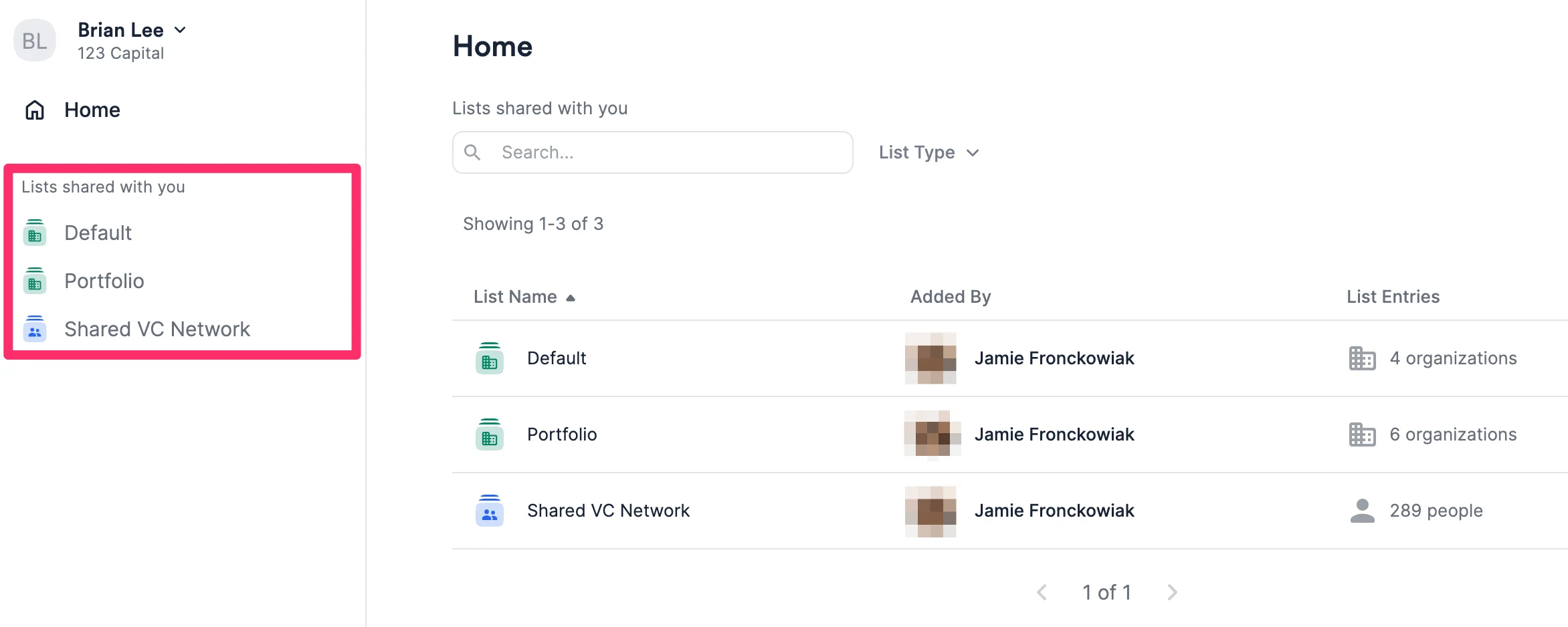
* Access the specific sheet views that they've been given access to.
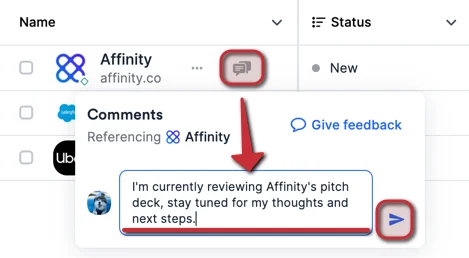
 * Add comments within the sheet views to have discussions about certain list entries.
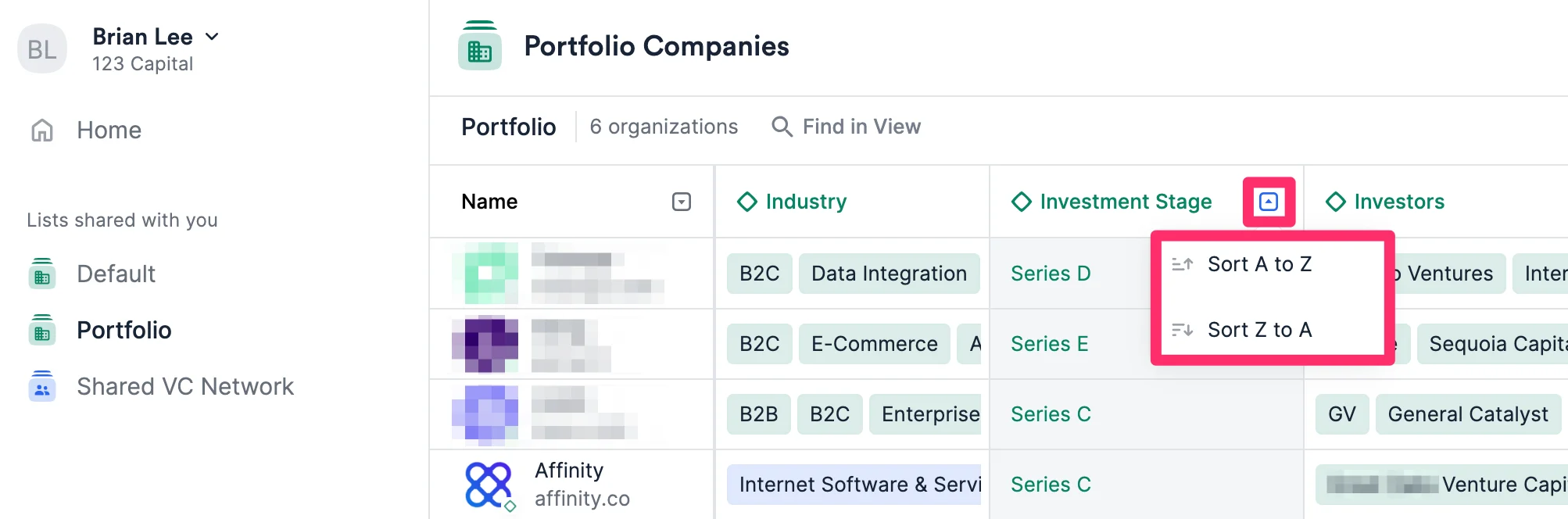
 * Sort within the sheet views that they've been given access to.
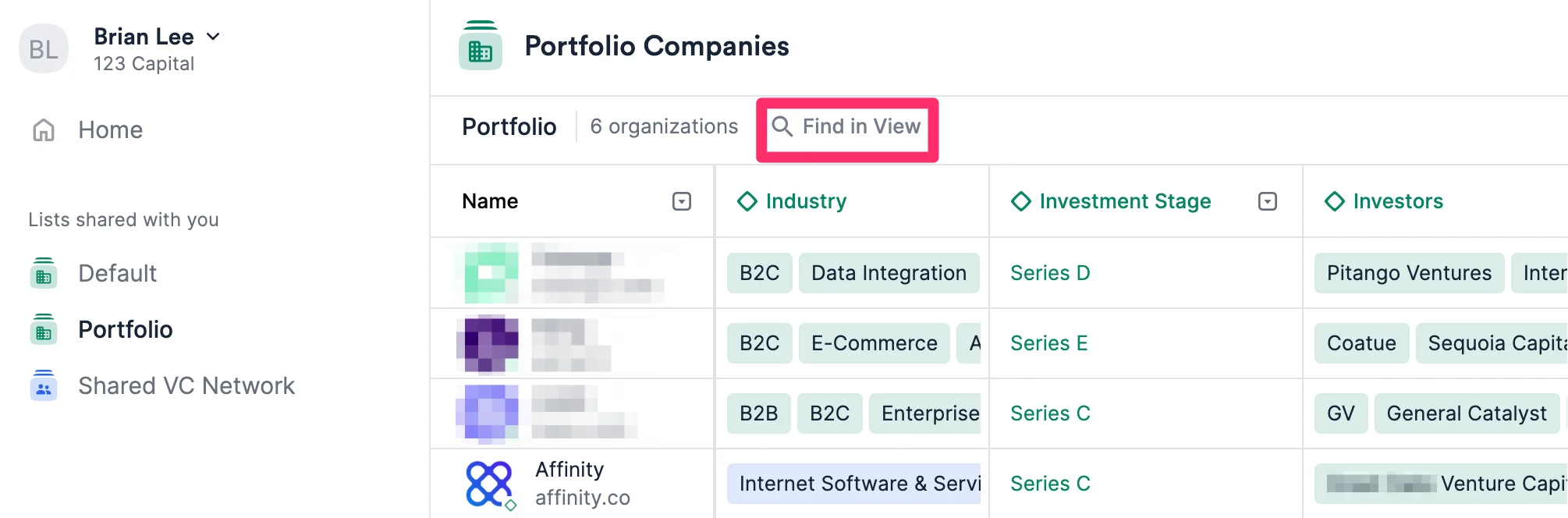
 * Search within the sheet views that they've been given access to. You can search by **Name** or by **keyword (across all fields on display)**. Collaborators **cannot** do the following:
 * Edit the configuration (filtering, adding, removing, or repositioning columns) of the sheet views that they've been given access to.
* Edit the field values within the sheet views that they've been given access to.
* Expand certain columns that show more information upon clicking (e.g. **Connections**, **Notes**, and **Reminders**).
* View the email addresses of individuals in a people list (if given access to a sheet view within a people list).
* Access the All People or All Organizations directories.
* Access any other sheet views or any other lists that they have **not** been given access to.
* Access any board views.
* Access any profile pages.
* Access Notifications, Reminders, Unanswered Emails, Reports, or Settings (basically everything else).
* Access Affinity's mobile app or extensions (Pathfinder and Outlook).
## Who can invite/remove Collaborators from your account?
Please note that only certain account roles will be able to invite/remove Collaborators from your Affinity CRM account:
* **Essential**, **Scale**, and **Advanced** tiers: Only **Admins** at the account level.
* **Enterprise** tier: Only **Enterprise Admins** and **Admins** at the account level.
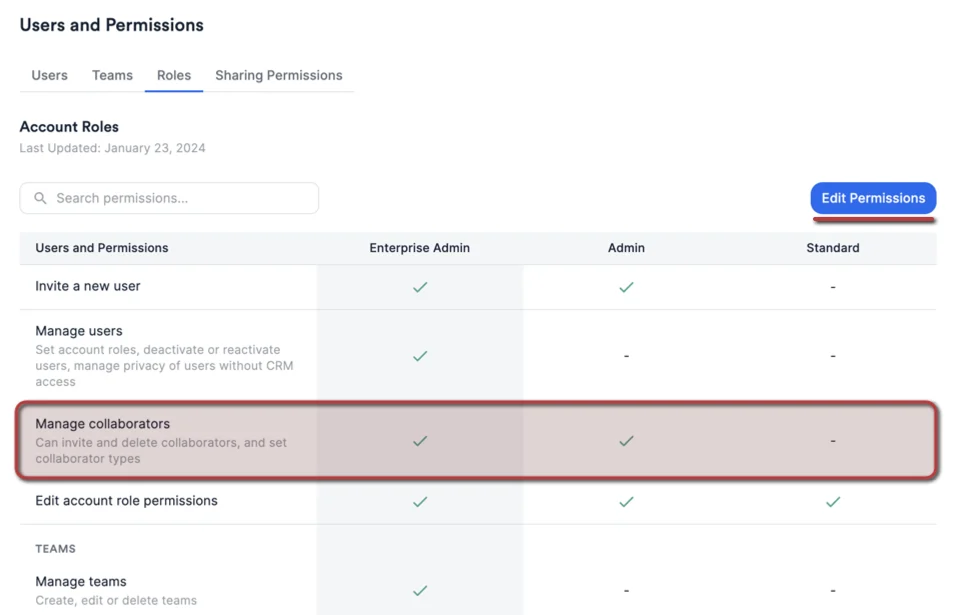
* However, **Enterprise Admins** can change which account roles have these permissions by clicking **Edit Permissions** (see the section titled "What permissions can the Enterprise Admin change" in [Account Level Permissions](/s/article/Account-level-permissions)) and either:
* Edit the configuration (filtering, adding, removing, or repositioning columns) of the sheet views that they've been given access to.
* Edit the field values within the sheet views that they've been given access to.
* Expand certain columns that show more information upon clicking (e.g. **Connections**, **Notes**, and **Reminders**).
* View the email addresses of individuals in a people list (if given access to a sheet view within a people list).
* Access the All People or All Organizations directories.
* Access any other sheet views or any other lists that they have **not** been given access to.
* Access any board views.
* Access any profile pages.
* Access Notifications, Reminders, Unanswered Emails, Reports, or Settings (basically everything else).
* Access Affinity's mobile app or extensions (Pathfinder and Outlook).
## Who can invite/remove Collaborators from your account?
Please note that only certain account roles will be able to invite/remove Collaborators from your Affinity CRM account:
* **Essential**, **Scale**, and **Advanced** tiers: Only **Admins** at the account level.
* **Enterprise** tier: Only **Enterprise Admins** and **Admins** at the account level.
* However, **Enterprise Admins** can change which account roles have these permissions by clicking **Edit Permissions** (see the section titled "What permissions can the Enterprise Admin change" in [Account Level Permissions](/s/article/Account-level-permissions)) and either:
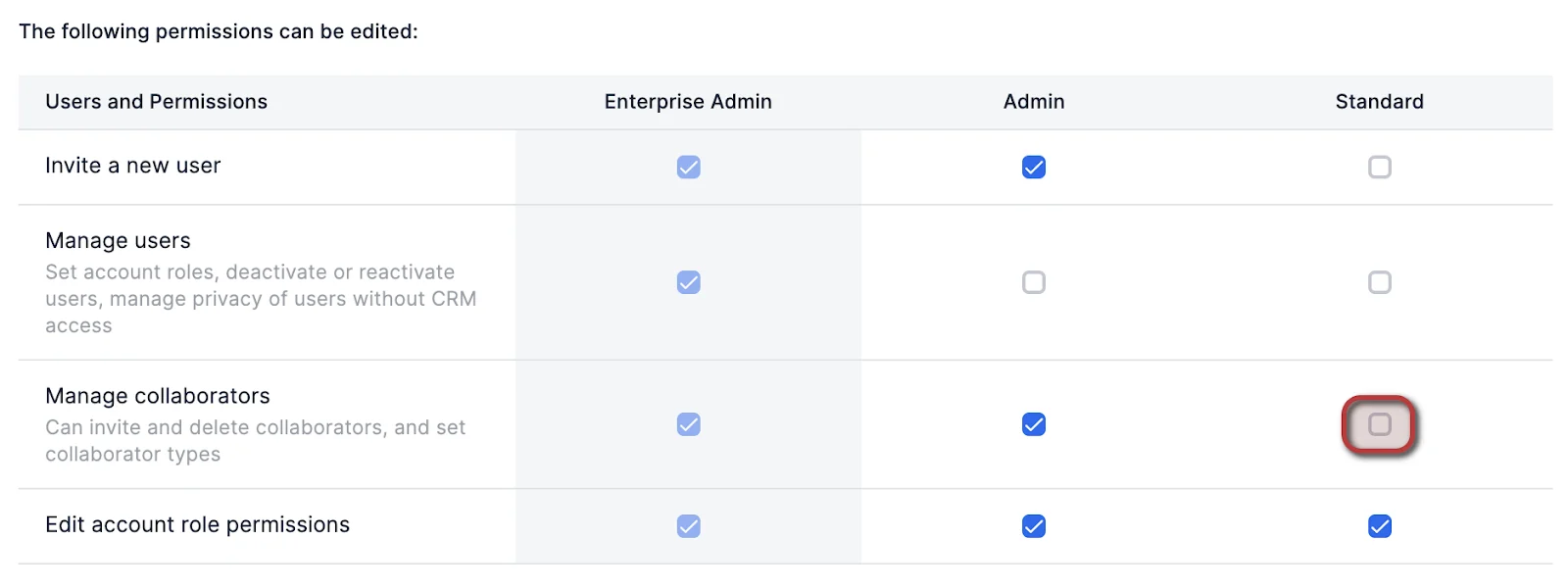
 * Option 1: Opening up permissions to **Standard** users as well by clicking the checkbox.
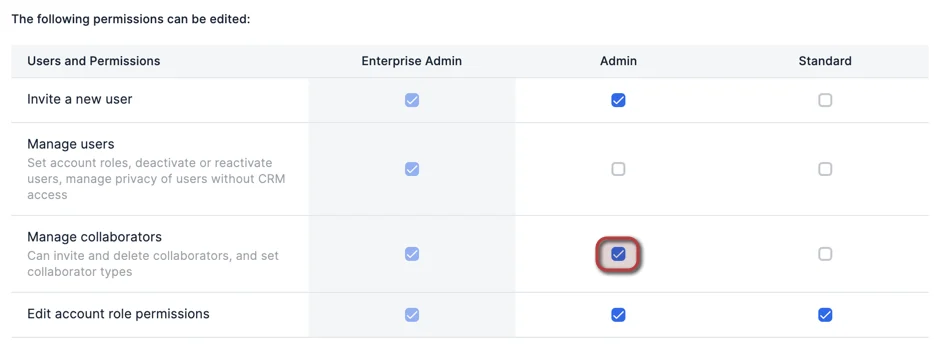
 * Option 2: Closing up permissions given by default to **Admin** users by clicking on the checkbox so that it becomes empty. This means that only **Enterprise Admins** will have these permissions moving forward.
 ## Who can share/remove access to saved views for Collaborators?
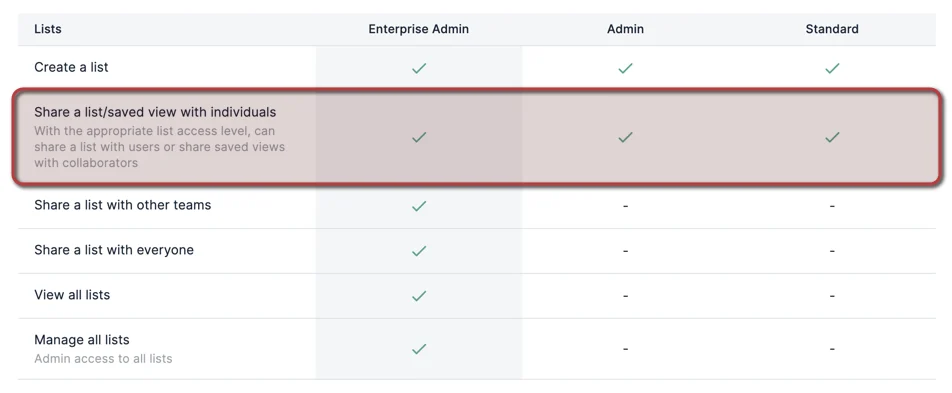
Regardless of your subscription tier, all account roles will be able to share/remove access to saved views for Collaborators as long as they have access to the given list(s) that these saved views live in.
## Who can share/remove access to saved views for Collaborators?
Regardless of your subscription tier, all account roles will be able to share/remove access to saved views for Collaborators as long as they have access to the given list(s) that these saved views live in.
 ## How to invite Collaborators and share access to saved views
If you meet the criteria within the section titled (see the section titled "What permissions can the Enterprise Admin change?" in [Account Level Permissions](/s/article/Account-level-permissions)), follow these steps below to invite a Collaborator or share access to saved views:
### **Option A - Share access directly from a sheet view within a list**
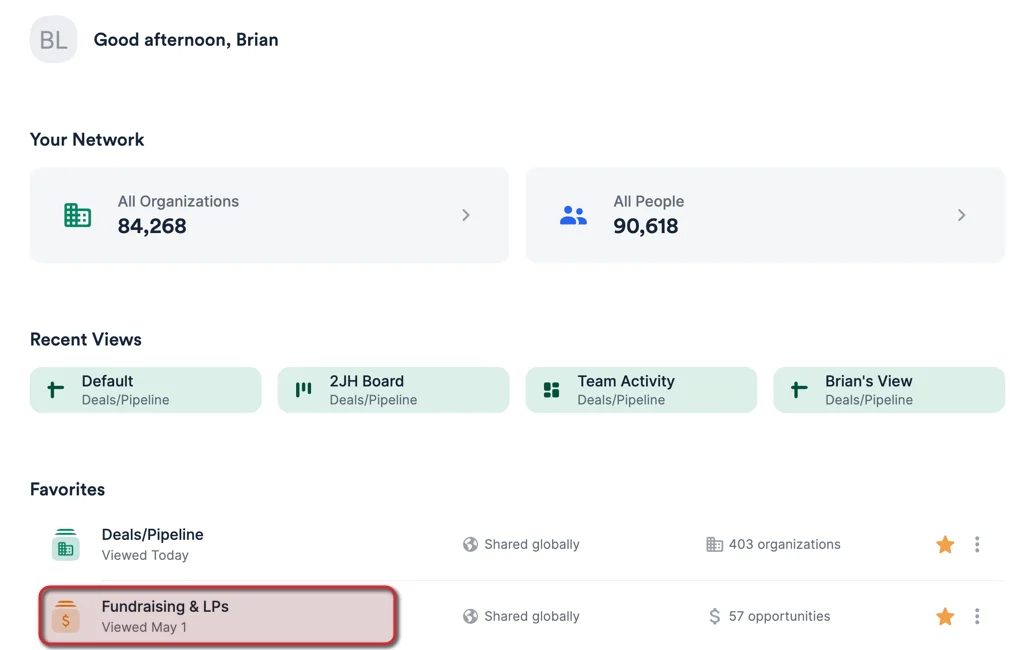
1. Click into the list that contains the sheet view you'd like to share with a Collaborator.
## How to invite Collaborators and share access to saved views
If you meet the criteria within the section titled (see the section titled "What permissions can the Enterprise Admin change?" in [Account Level Permissions](/s/article/Account-level-permissions)), follow these steps below to invite a Collaborator or share access to saved views:
### **Option A - Share access directly from a sheet view within a list**
1. Click into the list that contains the sheet view you'd like to share with a Collaborator.
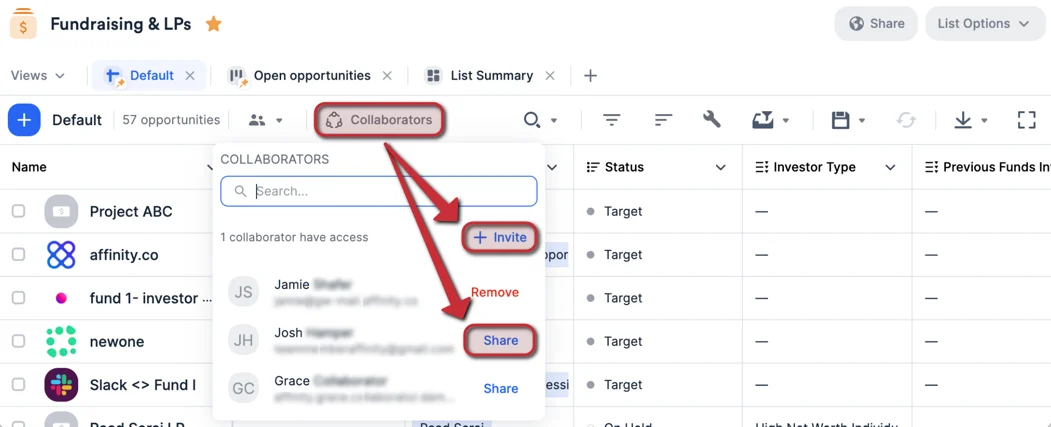
 2. Click the **Collaborators** button within the sheet view to either:
1. Click **+ Invite** if the external contact isn't a Collaborator yet
2. Or click **Share** if the external contact is already a Collaborator
2. Click the **Collaborators** button within the sheet view to either:
1. Click **+ Invite** if the external contact isn't a Collaborator yet
2. Or click **Share** if the external contact is already a Collaborator
 ### **Option B - Share access by going to Settings**
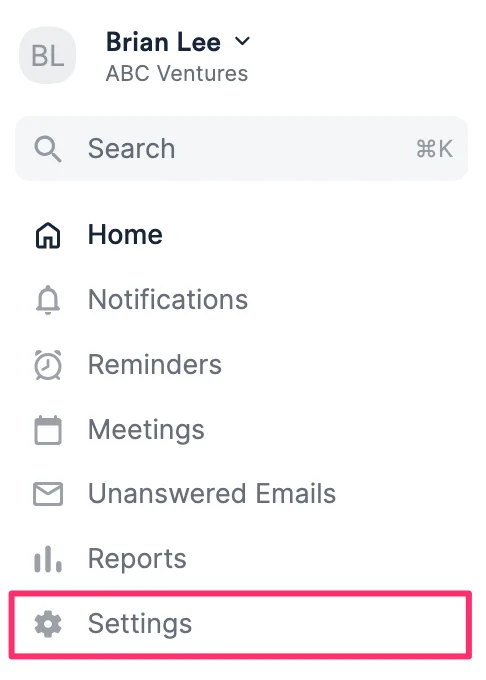
1. Click **Settings** on the global navigation bar.
### **Option B - Share access by going to Settings**
1. Click **Settings** on the global navigation bar.
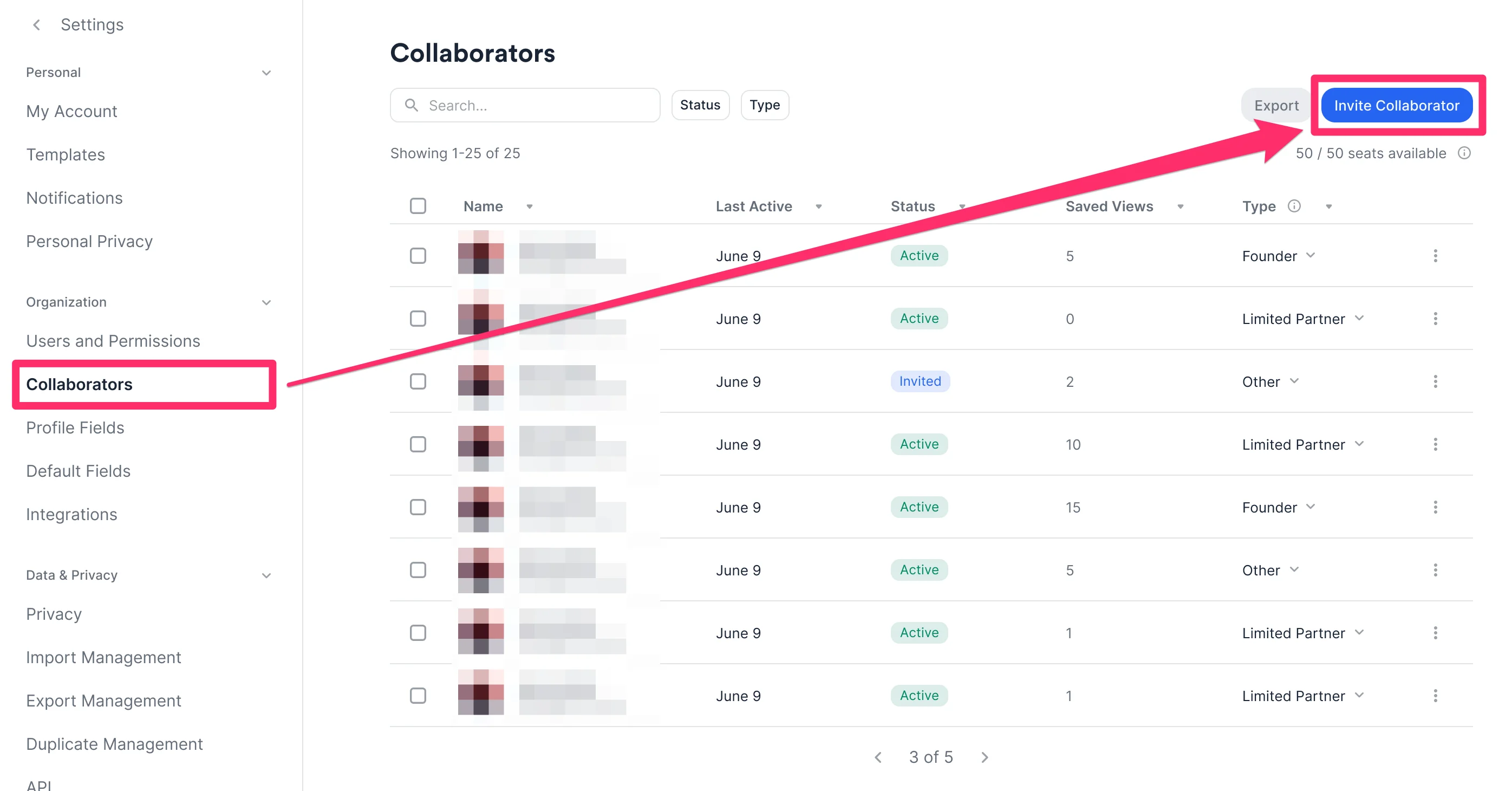
 2. Then, click the **Collaborators** tab and click **Invite Collaborator** on the top-right corner.
 3. Fill out the **Name**, **Email Address**, and **Collaborator Type** fields, then add the specific **saved views** you'd like to give them read-only access to (only sheet views are allowed). See the section titled "Types of saved views within a list" in [Getting started with lists in Affinity](/s/article/Lists).
1. You **cannot** invite team members as collaborators, you can only invite people outside of your company.
2. Choosing one option over another for the **Collaborator Type** field will not change the collaborator's experience in any way - this is simply to help you/your team understand why certain collaborators have been invited.
3. Fill out the **Name**, **Email Address**, and **Collaborator Type** fields, then add the specific **saved views** you'd like to give them read-only access to (only sheet views are allowed). See the section titled "Types of saved views within a list" in [Getting started with lists in Affinity](/s/article/Lists).
1. You **cannot** invite team members as collaborators, you can only invite people outside of your company.
2. Choosing one option over another for the **Collaborator Type** field will not change the collaborator's experience in any way - this is simply to help you/your team understand why certain collaborators have been invited.
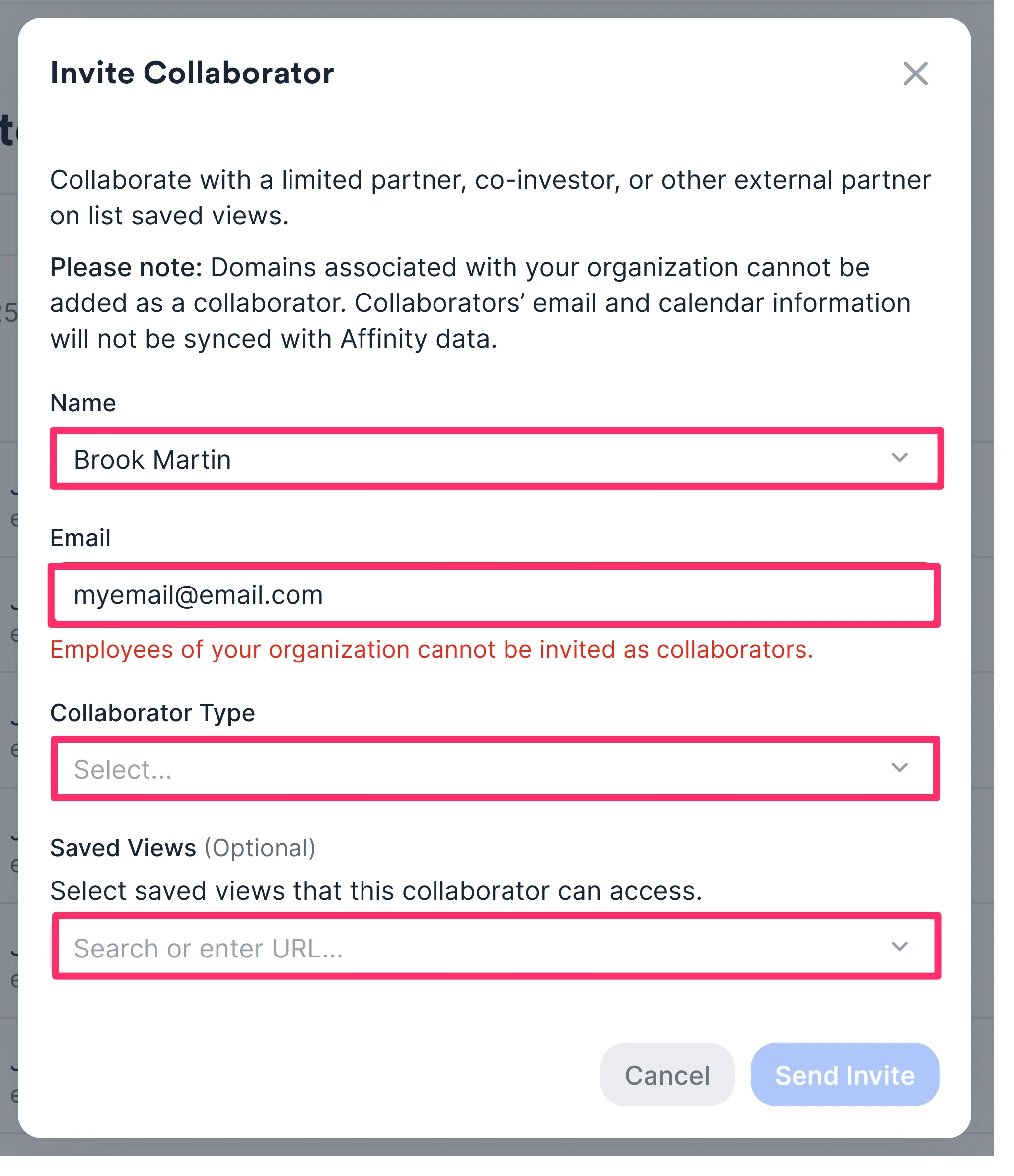 3. If you still get an error message stating, **"Employees of your organization cannot be invited as collaborators."**, then it may be that the user's profile has an email address whose domain matches that of your organization's (therefore still considering them your team member).
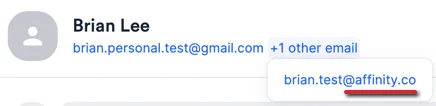 4. To remove that email address from that profile page, click the **3-dotted icon** on the top-right corner, then click **Edit name and email**. Once doing so, you can successfully send out the invite.
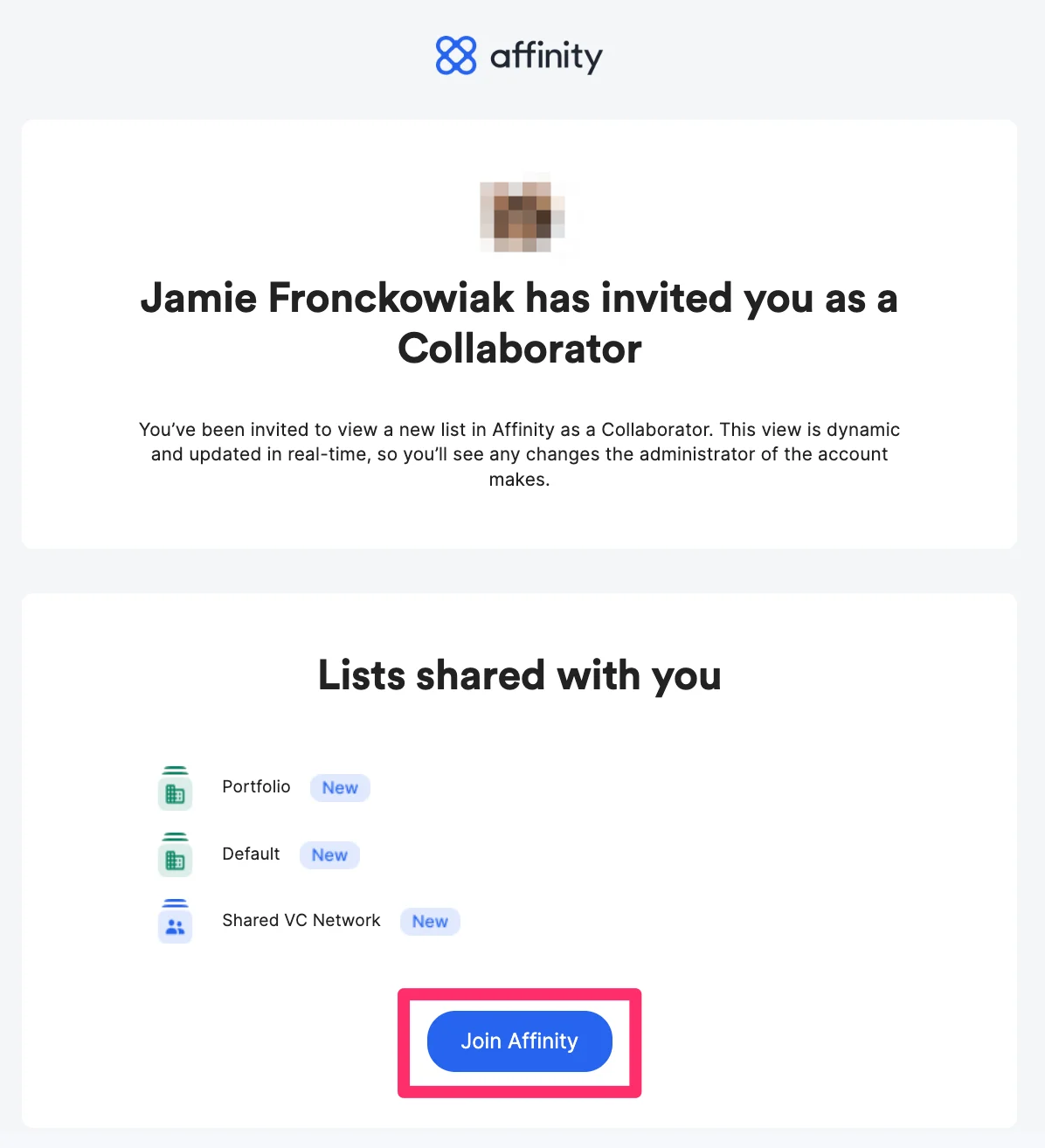
5. The collaborator will receive an email from Affinity where they can click **Join Affinity**.
4. To remove that email address from that profile page, click the **3-dotted icon** on the top-right corner, then click **Edit name and email**. Once doing so, you can successfully send out the invite.
5. The collaborator will receive an email from Affinity where they can click **Join Affinity**.
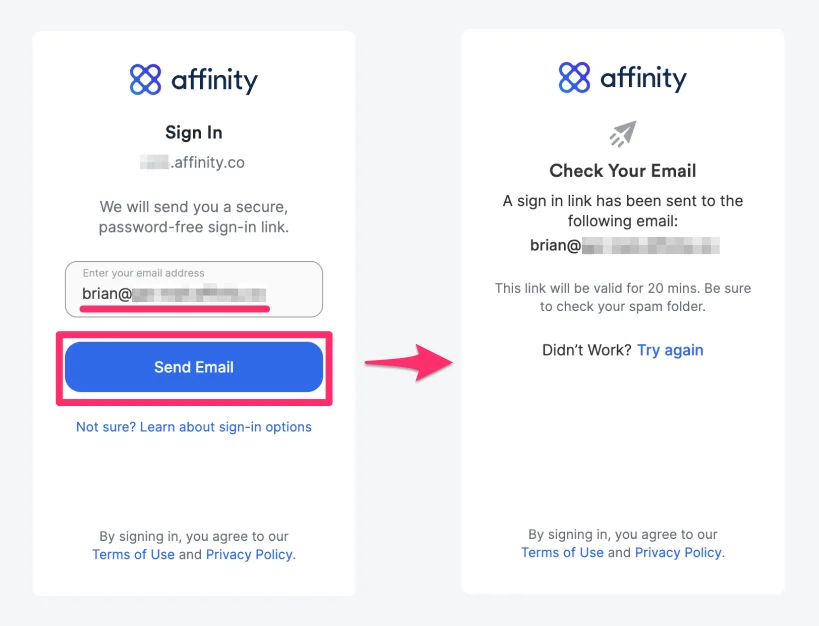
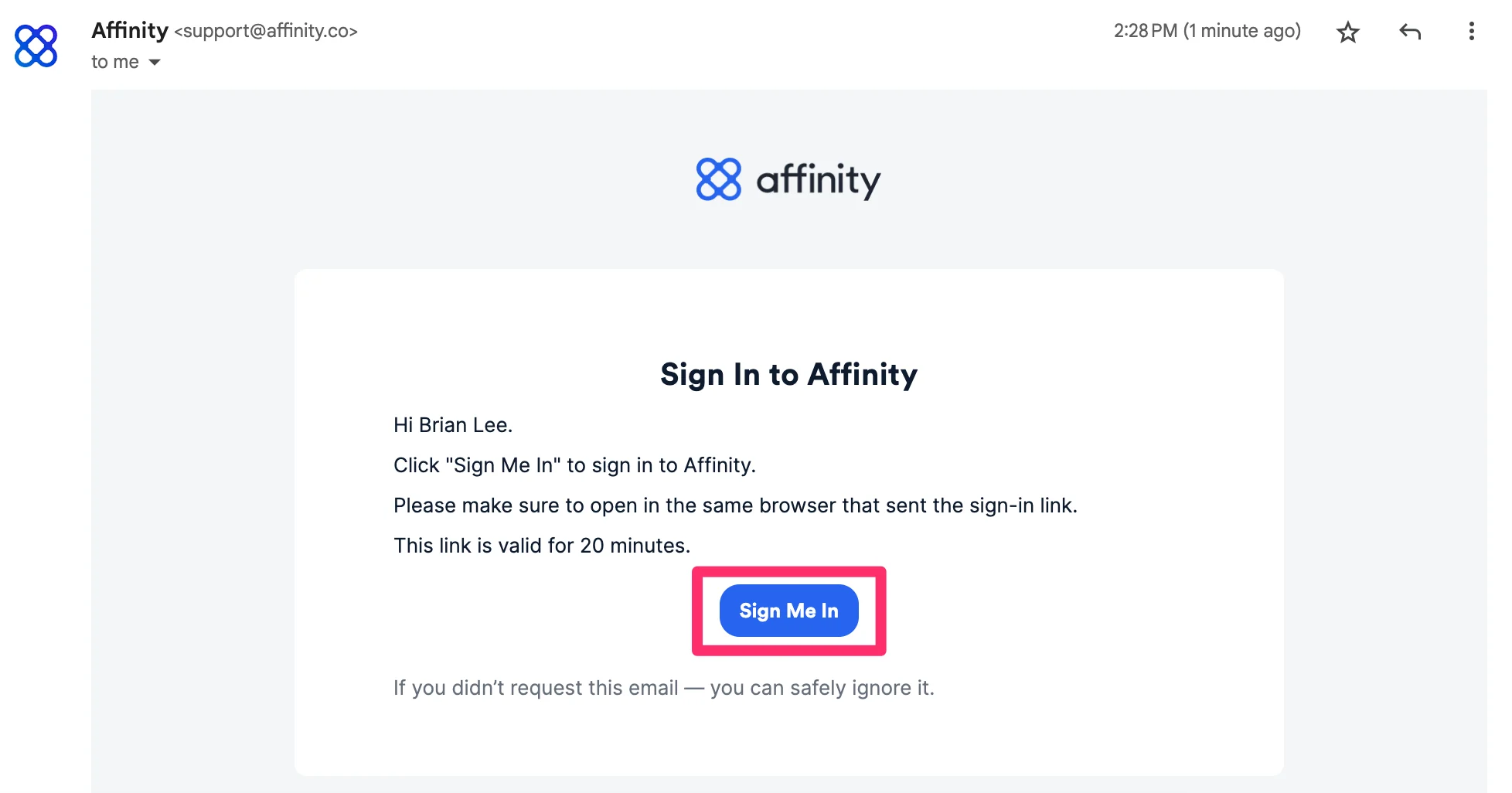
 5. Once the collaborator fills out their email address and clicks **Send Email**, they will receive a magic link via a new email.
 6. The collaborator must click on the **Sign Me In** button to authenticate and access these saved views. Rest assured that they will not be syncing their email/calendar data into your Affinity account.
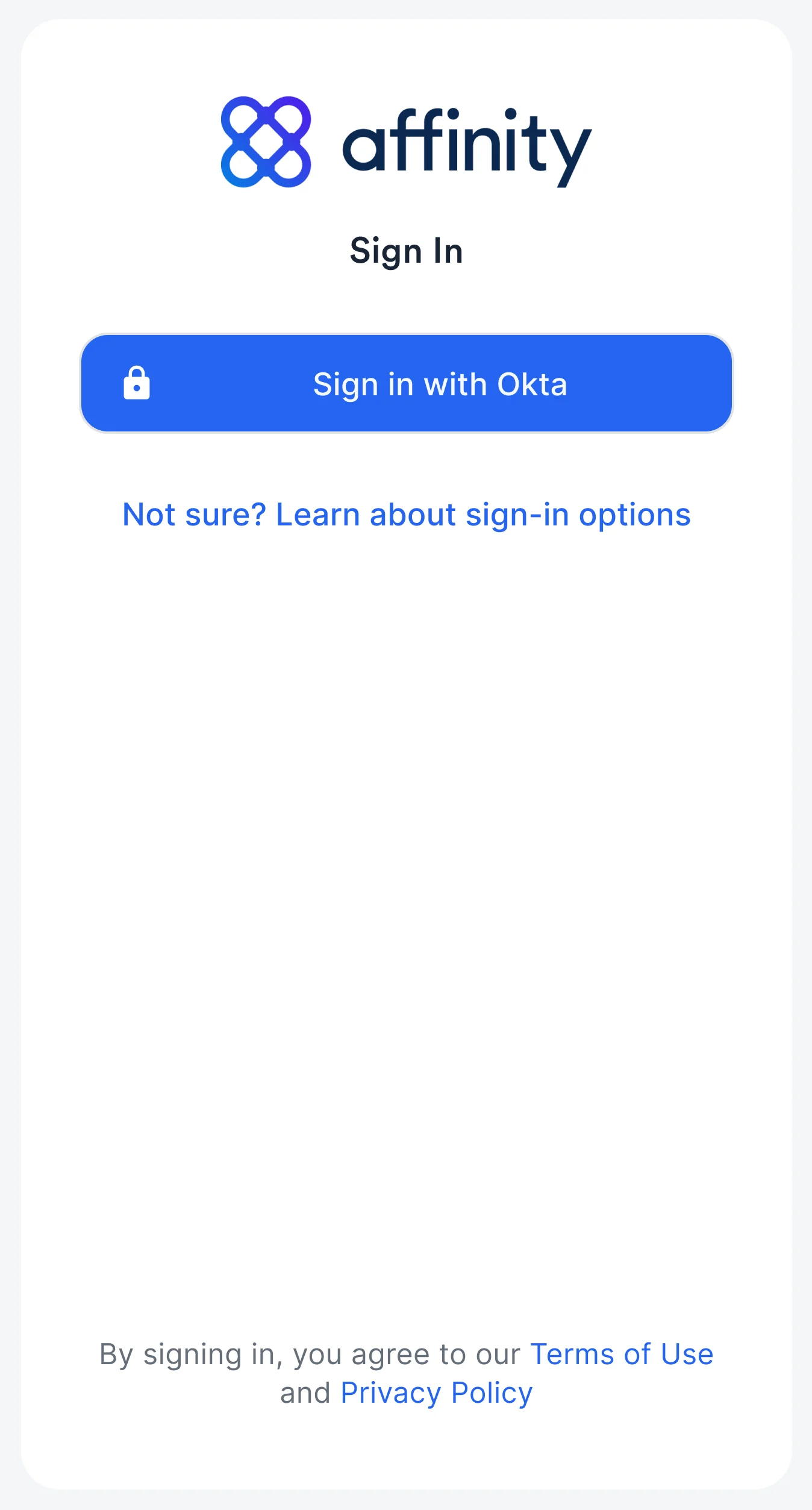
 7. If your company requires all Users and Collaborators to use SSO to sign in, please ask your IT admin to also add the Collaborators to your SSO Identity Provider. The Collaborators will then notice a different sign in screen (e.g. **Sign in with OKTA** button).
 ## How to remove access to specific saved views for Collaborators
If you meet the criteria within the section titled: Who can share/remove access to saved views for Collaborators?, follow these steps below to remove access to specific saved views for Collaborators:
### **Option A - Remove access directly from a sheet view within a list**
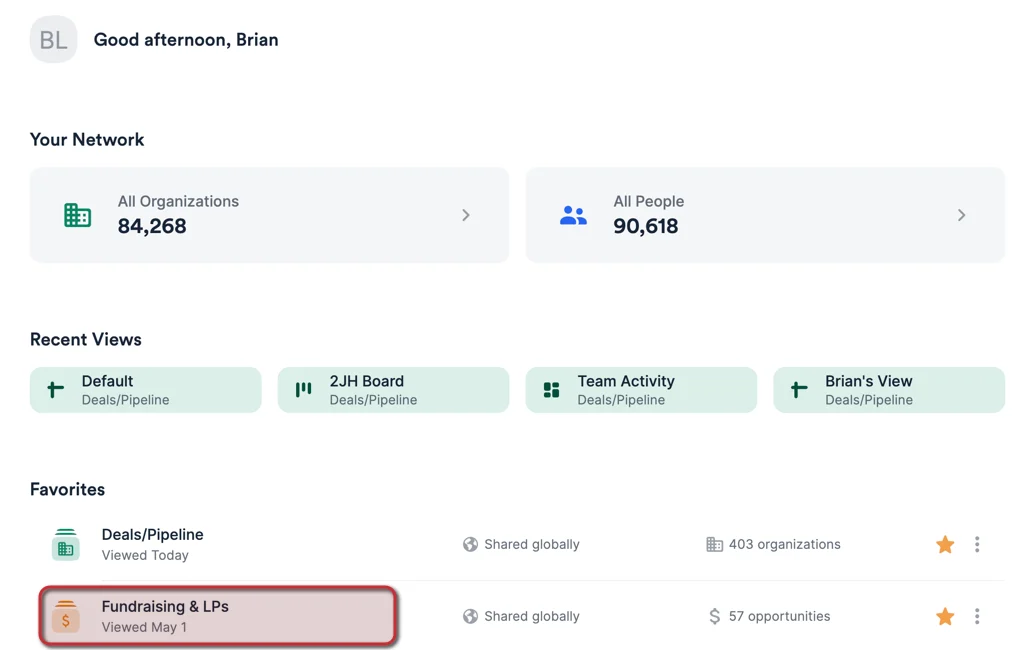
1. Click into the list that contains the sheet view you'd like to remove access to for a Collaborator.
## How to remove access to specific saved views for Collaborators
If you meet the criteria within the section titled: Who can share/remove access to saved views for Collaborators?, follow these steps below to remove access to specific saved views for Collaborators:
### **Option A - Remove access directly from a sheet view within a list**
1. Click into the list that contains the sheet view you'd like to remove access to for a Collaborator.
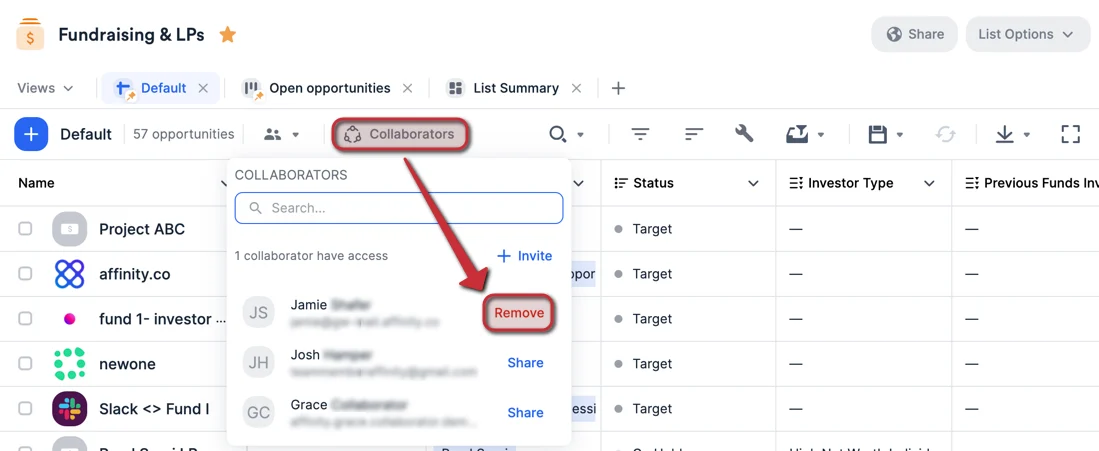
 2. Click the **Collaborators** button within the sheet view, then click **Remove**.
 ### **Option B - Remove access by going to Settings**
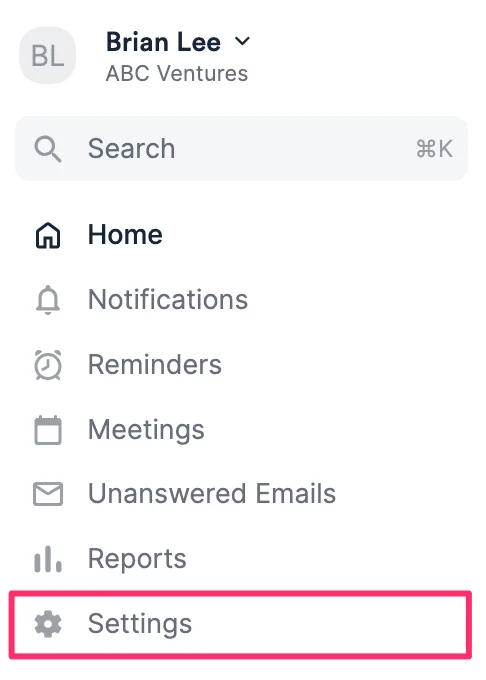
1. Click on **Settings** on the global navigation bar.
### **Option B - Remove access by going to Settings**
1. Click on **Settings** on the global navigation bar.
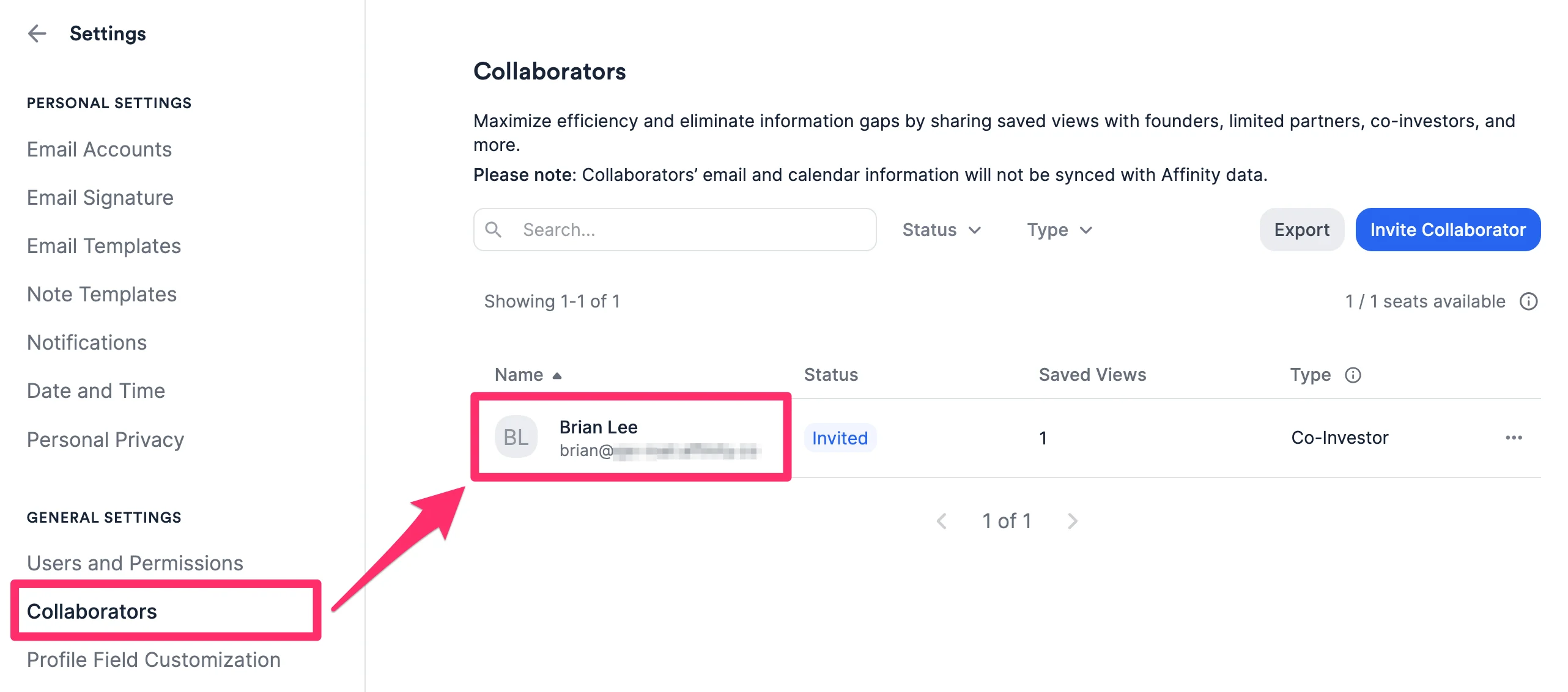
 2. Click the **Collaborators** tab, then click on the collaborator's name.
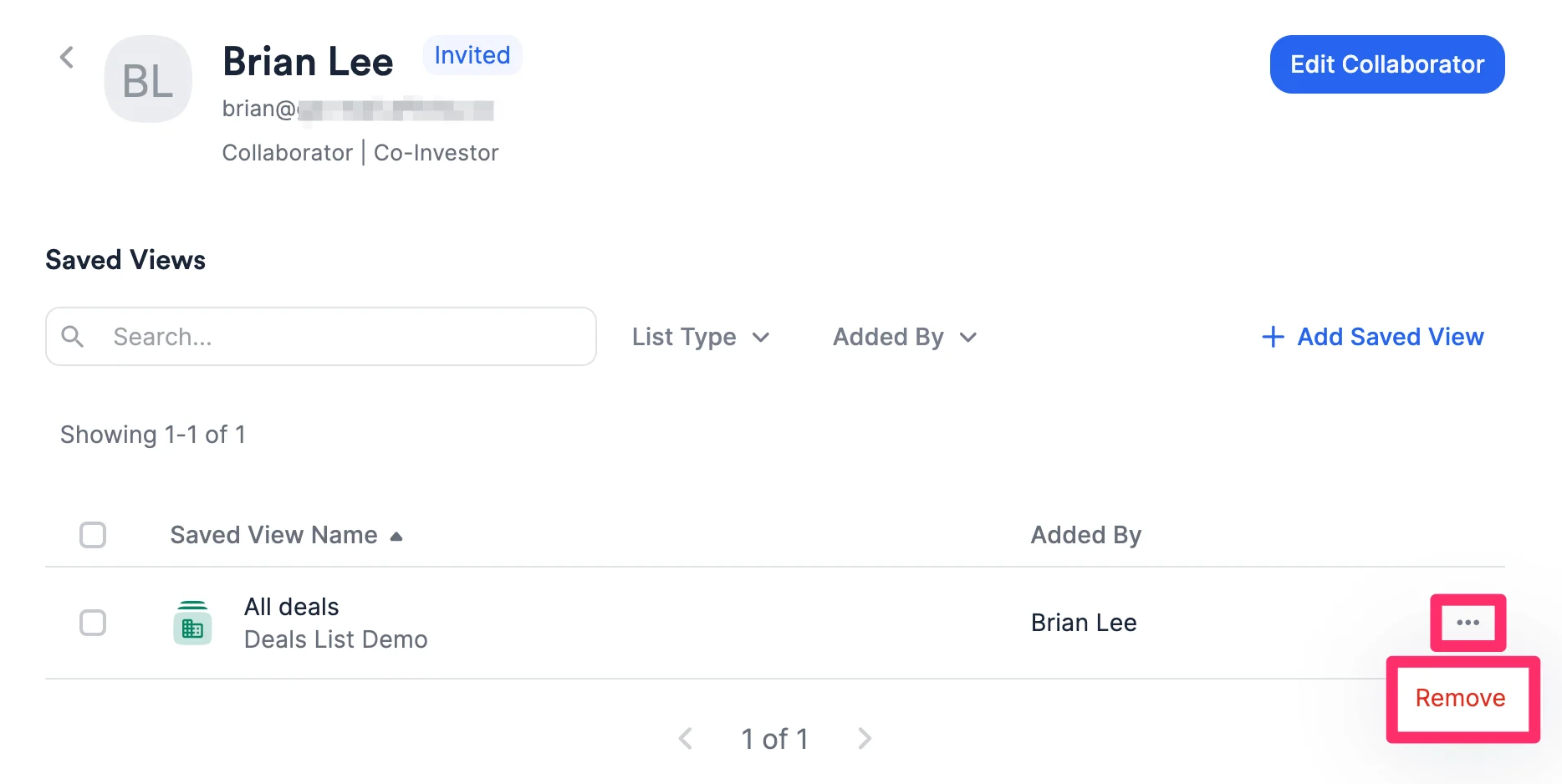
 3. From there, click the **ellipses** (3-dotted icon) next to the view you would like to remove access for.
 ## How to remove Collaborators from your account
If you meet the criteria within the section titled: Who can invite/remove Collaborators from your account?, follow these steps below to remove Collaborators from your account:
1. First, click on **Settings**.
## How to remove Collaborators from your account
If you meet the criteria within the section titled: Who can invite/remove Collaborators from your account?, follow these steps below to remove Collaborators from your account:
1. First, click on **Settings**.
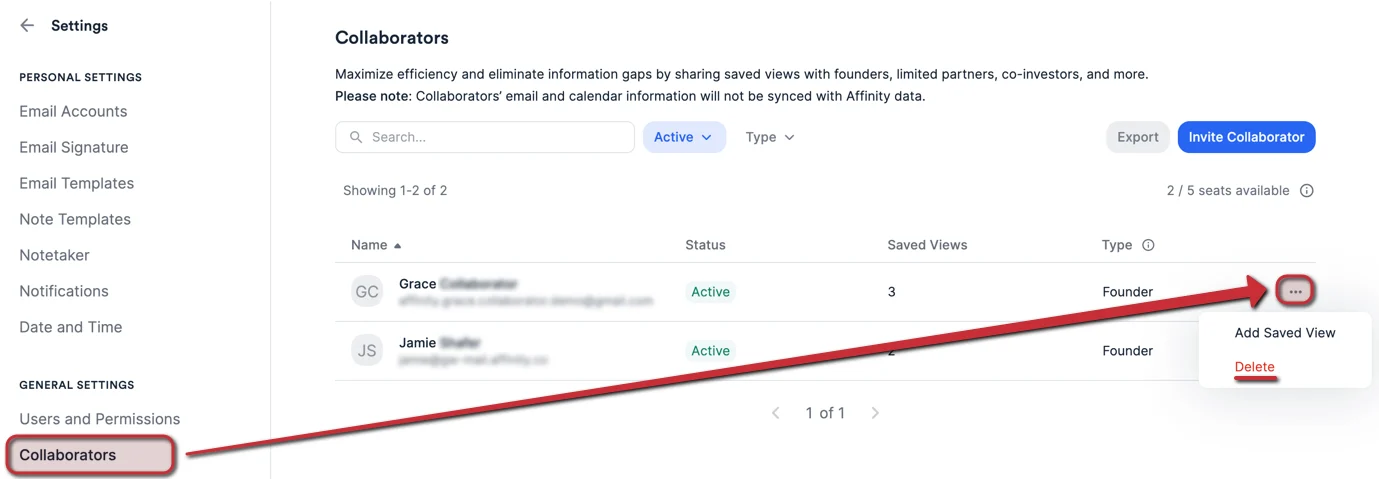
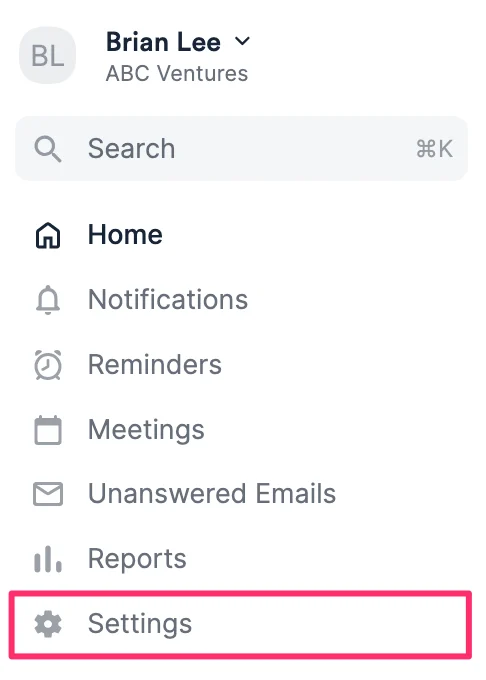 2. Click the **Collaborators** tab, then click the **ellipsis (3-dotted icon)** next to the collaborator you'd like to remove. Then, click **Delete** (or **Delete Invite** if they haven't accepted the invite yet.
 ## Can Collaborator seats convert to Full Access seats?
* Yes, to convert a Collaborator seat into a Full Access seat, please reach out to us at [support@affinity.co](mailto:support@affinity.co) with their first name, last name, and email address.
## Important Callouts
* Employees at your company **cannot** be added as Collaborators, they must be added as Full Access users (see [How to add new users to your Affinity account](/s/article/Admin)).
* If you've already set up a custom view-only solution with Affinity, please reach out to your Affinity Customer Success Manager or [support@affinity.co](mailto:support@affinity.co) to learn more about transitioning to the Collaborators experience.
* If you've shared a sheet view from a people-type list with a Collaborator, the Collaborator will only be able to see the names of the individuals in the people list, **not** their email addresses.
## Can Collaborator seats convert to Full Access seats?
* Yes, to convert a Collaborator seat into a Full Access seat, please reach out to us at [support@affinity.co](mailto:support@affinity.co) with their first name, last name, and email address.
## Important Callouts
* Employees at your company **cannot** be added as Collaborators, they must be added as Full Access users (see [How to add new users to your Affinity account](/s/article/Admin)).
* If you've already set up a custom view-only solution with Affinity, please reach out to your Affinity Customer Success Manager or [support@affinity.co](mailto:support@affinity.co) to learn more about transitioning to the Collaborators experience.
* If you've shared a sheet view from a people-type list with a Collaborator, the Collaborator will only be able to see the names of the individuals in the people list, **not** their email addresses.