> ## Documentation Index
> Fetch the complete documentation index at: https://support.affinity.co/llms.txt
> Use this file to discover all available pages before exploring further.
# How to Integrate Affinity with Snowflake
> Connect Affinity to your Snowflake account with Affinity Data Share.
## Overview
Affinity Data Share gives your team **read-only access to your Affinity data inside your own Snowflake account**, using Snowflake's built-in secure data sharing. Instead of building an export or a pipeline, Affinity shares your CRM data directly into Snowflake — where you can query it and connect it to your BI tools and dashboards (Looker, Tableau, Power BI, Sigma).
**Direction of sync:** Affinity → your Snowflake, read-only. The share never writes back to Affinity.
**Enterprise add-on — contact us to enable.** Data Share is available on **Advanced and Enterprise** plans as a **paid add-on that Affinity turns on for your account** — it isn't self-serve. Contact your Affinity account manager (or [support@affinity.co](mailto:support@affinity.co)) for pricing and to have it enabled.
## Prerequisites
* **Data Share enabled** for your Affinity organization (see above).
* **Admin access** in Affinity — you set up the connection in Settings.
* A **Snowflake account**, and your **Snowflake account identifier**.
## Step 1: Find your Snowflake account identifier
1. In Snowflake, click your **user profile** (bottom-left).
2. Go to **Account → View account details**.
3. Copy the **account identifier** (it looks like `ORG_NAME.ACCOUNT_NAME`).
## Step 2: Connect Snowflake in Affinity
1. In Affinity, go to **Settings → Integrations → Snowflake → "Affinity Data to Snowflake."**
2. Click **"Add New Configuration."** 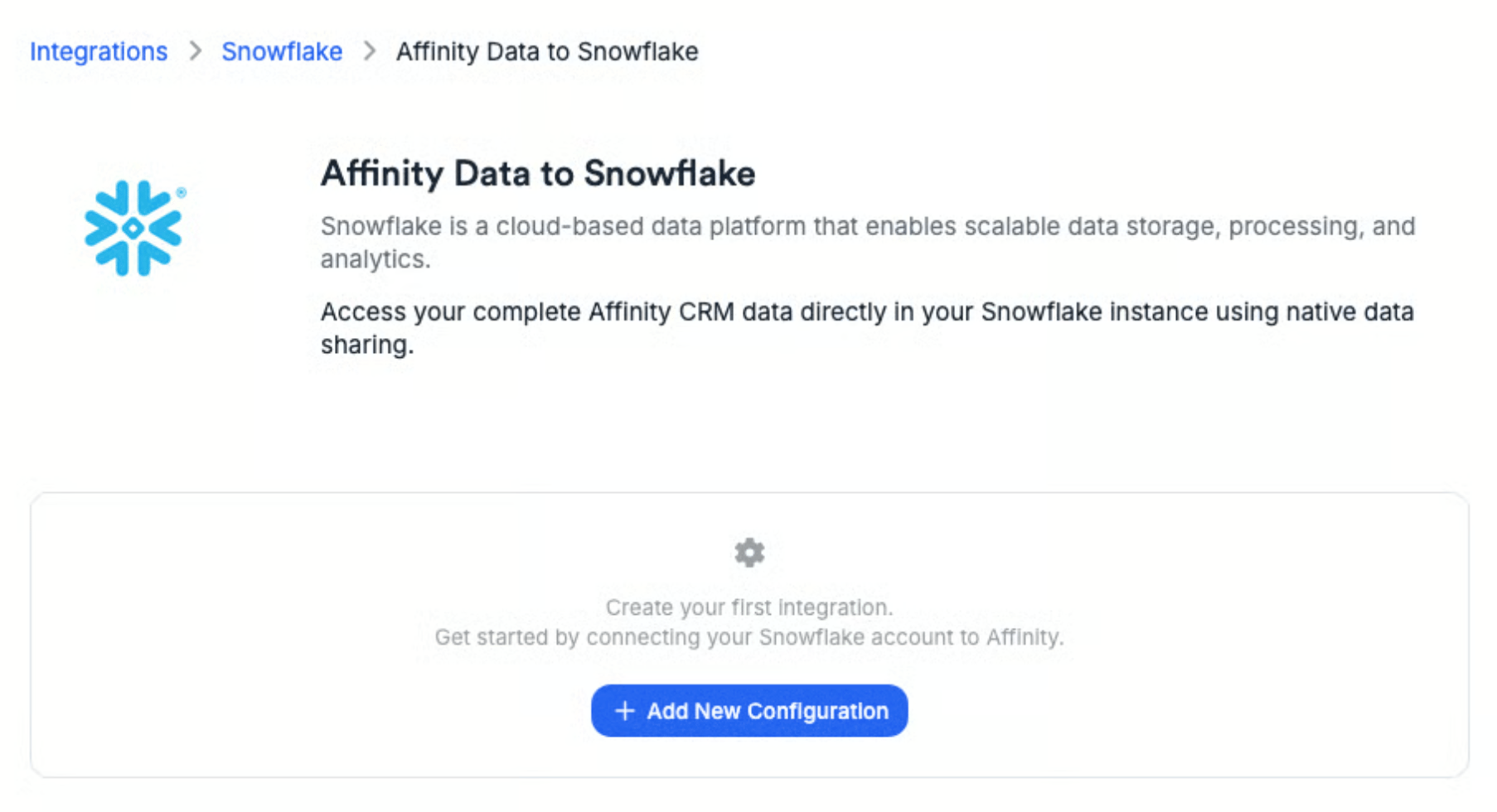 3. Paste your identifier into the **Snowflake Account Identifier** field. Affinity shows the **Organization** and **Account** names so you can double-check them.
4. Check the confirmation box, then click **"Connect to Snowflake."**
3. Paste your identifier into the **Snowflake Account Identifier** field. Affinity shows the **Organization** and **Account** names so you can double-check them.
4. Check the confirmation box, then click **"Connect to Snowflake."** 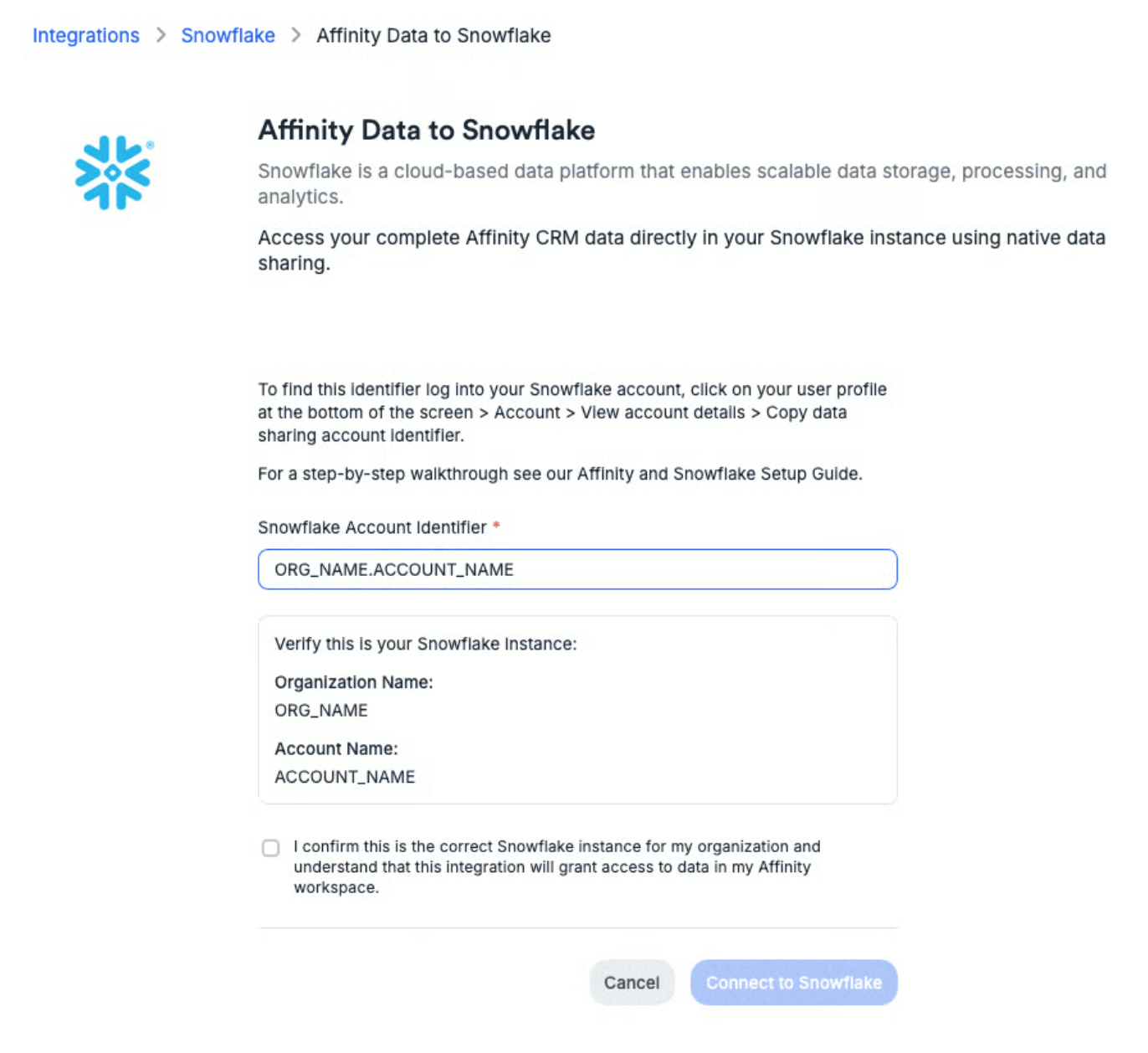 Affinity sets up the share, which usually finishes within a few minutes. Your Snowflake **account admins get an email** that a share has been sent to your account; accept it in Snowflake to start using the data.
## Step 3: Use your data in Snowflake
Once you accept the share in Snowflake, your Affinity data is available there to query and to connect to your BI tools and dashboards. For the exact tables and columns, plus example queries, see the [Data Share developer docs](https://developer.affinity.co/pages/data-share/setup).
## What's included
The share includes your core Affinity data, such as:
* **Companies, people, and opportunities**
* **Lists and list entries**
* **Interactions** — emails, meetings, calls, and chat messages (plus meeting transcripts)
* **Notes**
* **Relationship strengths** and your **custom fields**
New and updated records flow through automatically. For the full table-by-table breakdown, see the [Data Share reference](https://developer.affinity.co/pages/data-share/overview).
## How often it updates
Data refreshes **about every 2 hours** — so it's close to current, but not live.
## Good to know
* **Access is org-wide.** The share includes all of your organization's Affinity data and doesn't apply Affinity's in-app permissions — grant access only to people who should see everything, and use Snowflake's own access controls to limit it further.
* **Read-only** — the share never changes anything in Affinity.
* **Deleted records** stay in the share for about **7 days** (marked as deleted) before they drop off.
* **Plans:** Advanced and Enterprise only, and enabled by Affinity.
## Troubleshooting
**I don't see Snowflake under Settings → Integrations.** Data Share may not be enabled for your org, or you may not be an admin. Contact your account manager or [support@affinity.co](mailto:support@affinity.co).
**The share hasn't shown up in Snowflake.** It usually arrives within a few minutes — check the email sent to your Snowflake account admins, and double-check the account identifier you entered.
**The data looks out of date.** The share refreshes about every 2 hours, so very recent changes may not have synced yet.
**Still stuck?** See the [Data Share developer docs](https://developer.affinity.co/pages/data-share/setup), or contact [support@affinity.co](mailto:support@affinity.co).
Affinity sets up the share, which usually finishes within a few minutes. Your Snowflake **account admins get an email** that a share has been sent to your account; accept it in Snowflake to start using the data.
## Step 3: Use your data in Snowflake
Once you accept the share in Snowflake, your Affinity data is available there to query and to connect to your BI tools and dashboards. For the exact tables and columns, plus example queries, see the [Data Share developer docs](https://developer.affinity.co/pages/data-share/setup).
## What's included
The share includes your core Affinity data, such as:
* **Companies, people, and opportunities**
* **Lists and list entries**
* **Interactions** — emails, meetings, calls, and chat messages (plus meeting transcripts)
* **Notes**
* **Relationship strengths** and your **custom fields**
New and updated records flow through automatically. For the full table-by-table breakdown, see the [Data Share reference](https://developer.affinity.co/pages/data-share/overview).
## How often it updates
Data refreshes **about every 2 hours** — so it's close to current, but not live.
## Good to know
* **Access is org-wide.** The share includes all of your organization's Affinity data and doesn't apply Affinity's in-app permissions — grant access only to people who should see everything, and use Snowflake's own access controls to limit it further.
* **Read-only** — the share never changes anything in Affinity.
* **Deleted records** stay in the share for about **7 days** (marked as deleted) before they drop off.
* **Plans:** Advanced and Enterprise only, and enabled by Affinity.
## Troubleshooting
**I don't see Snowflake under Settings → Integrations.** Data Share may not be enabled for your org, or you may not be an admin. Contact your account manager or [support@affinity.co](mailto:support@affinity.co).
**The share hasn't shown up in Snowflake.** It usually arrives within a few minutes — check the email sent to your Snowflake account admins, and double-check the account identifier you entered.
**The data looks out of date.** The share refreshes about every 2 hours, so very recent changes may not have synced yet.
**Still stuck?** See the [Data Share developer docs](https://developer.affinity.co/pages/data-share/setup), or contact [support@affinity.co](mailto:support@affinity.co).