> ## Documentation Index
> Fetch the complete documentation index at: https://support.affinity.co/llms.txt
> Use this file to discover all available pages before exploring further.
# How To Integrate Affinity With Microsoft Teams
> Help center reference
**How-to** — task-oriented recipe.
Automate and expedite your workflows by integrating Affinity with Microsoft Teams.
## Getting started
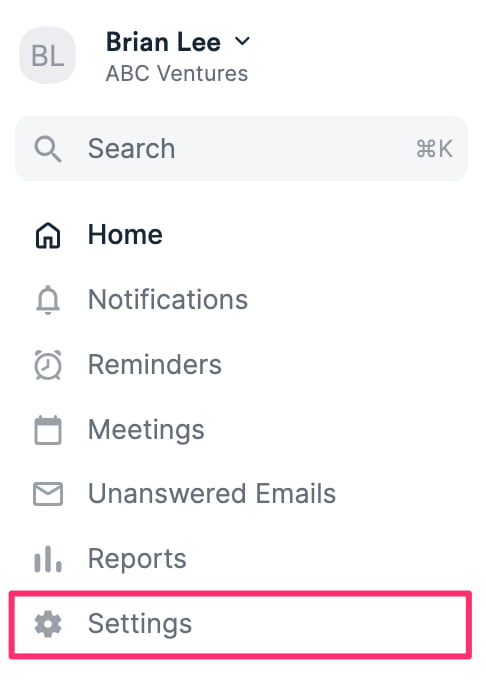
1. Once you've checked the prerequisites in [Getting started with native integrations in Affinity](/s/article/Getting-started-with-native-integrations-in-Affinity) and enabled proper access to Microsoft Teams, click **Settings** on the left side of your screen.
 2) Click on the **Integrations** tab, then click on **Microsoft Teams**.
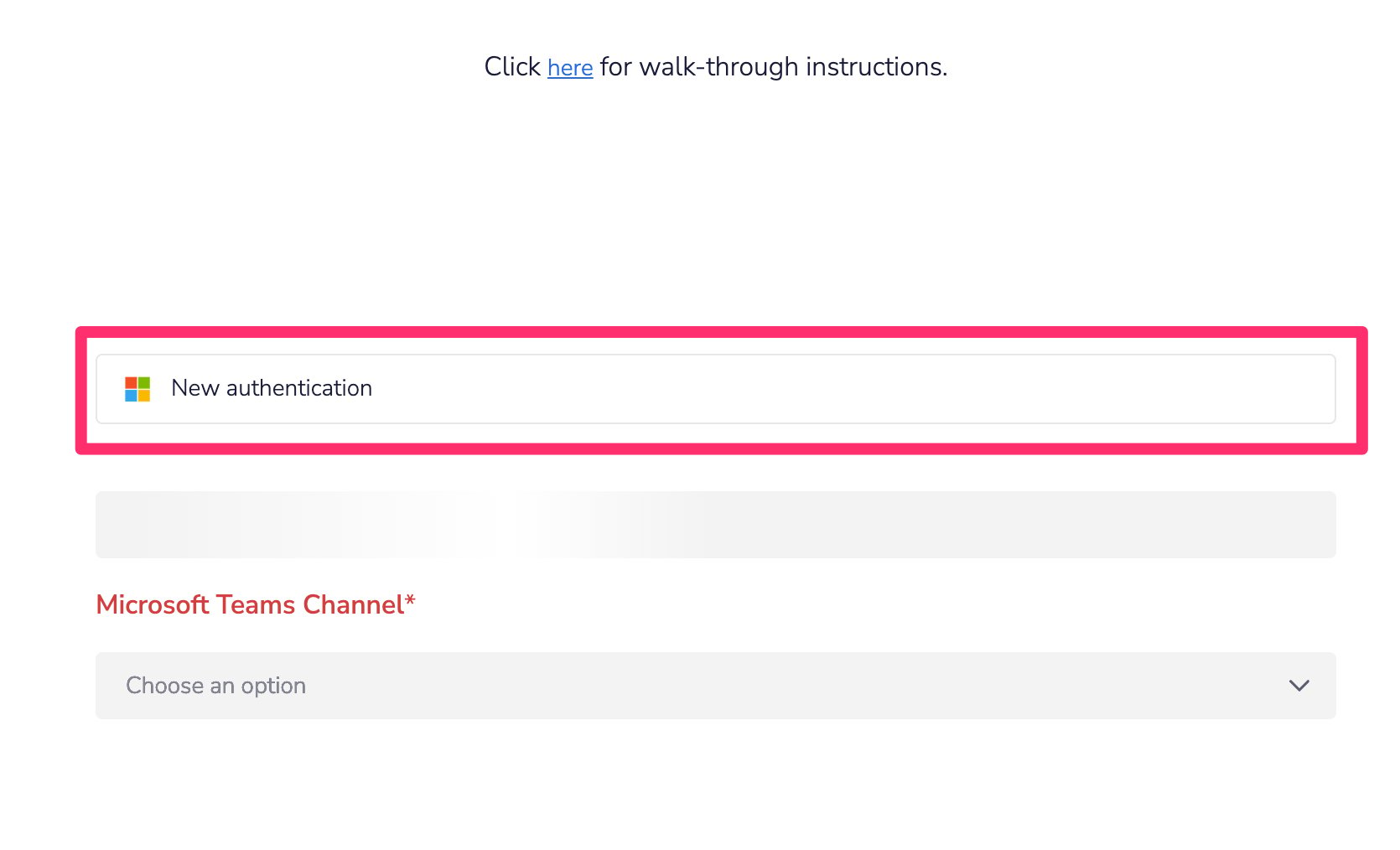
 3. If this is your first time, sign in with your Microsoft credentials to add a **New authentication**.
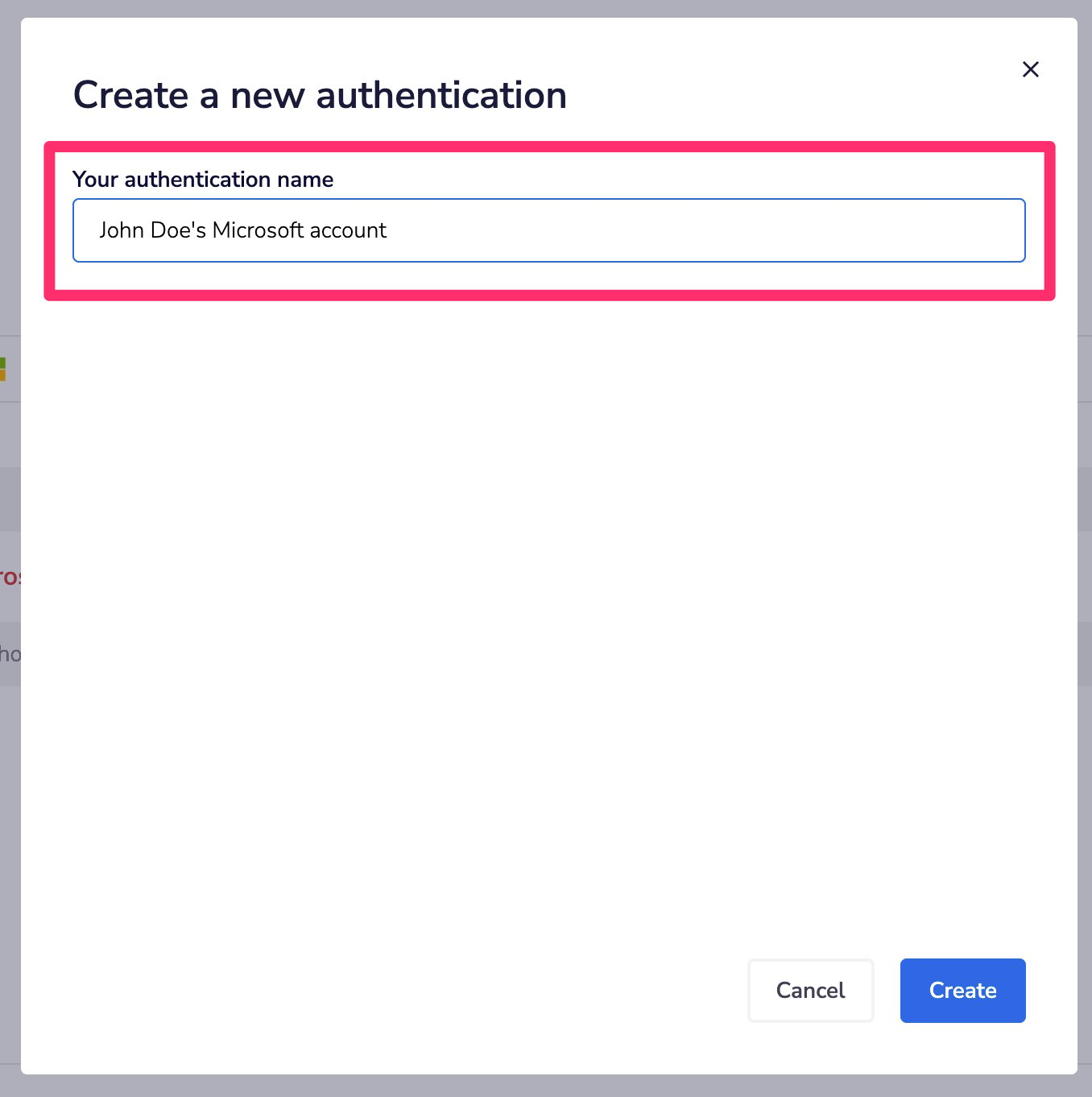
 4) Name the new authentication, then click **Create**.
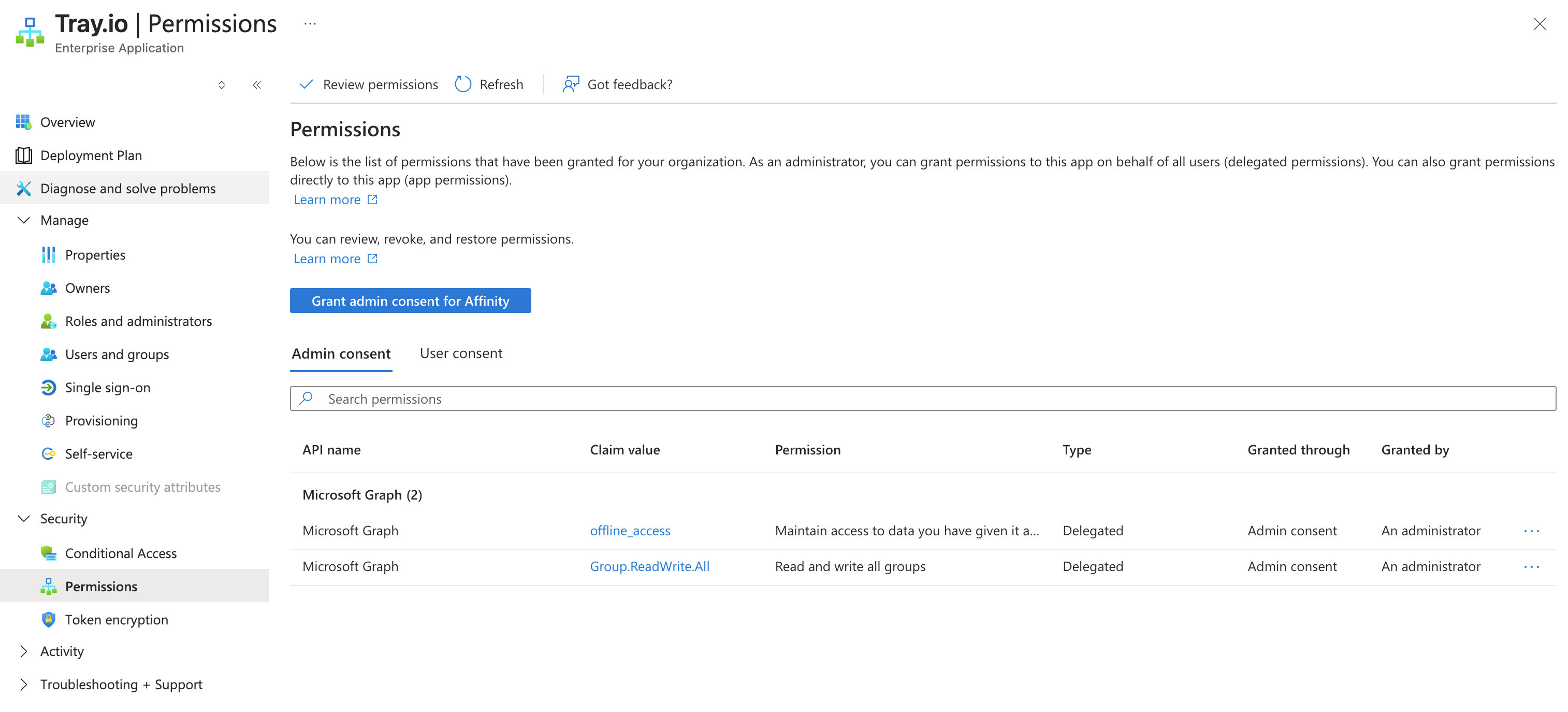
 5. A pop-up will ask for consent to your Microsoft account — you may need to be a Microsoft/Azure admin to grant access.
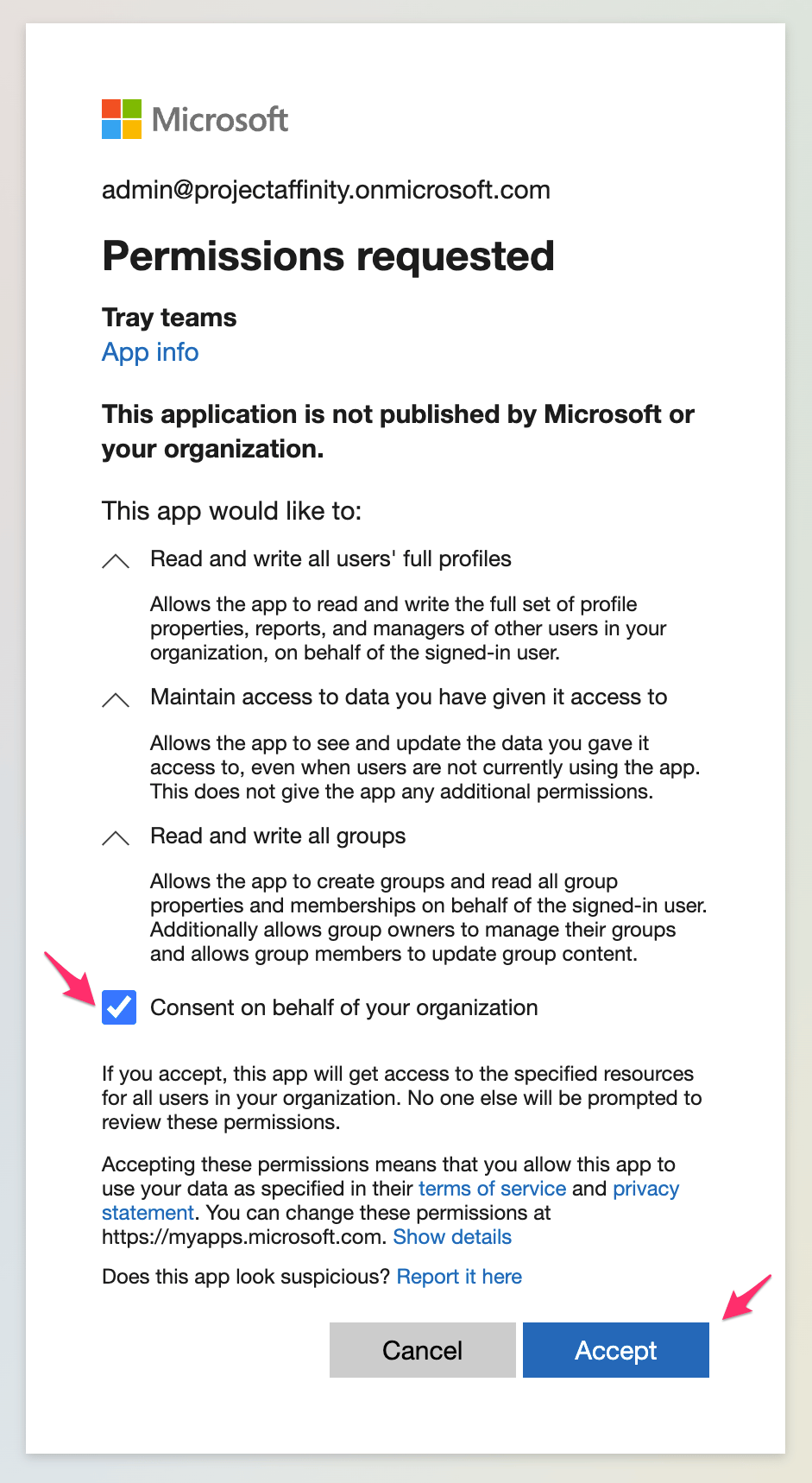 * Below is an example of the Tray.io enterprise application and the permissions.
 {/* SCREENSHOT 6 */}
## Affinity Field Updates to a Teams Channel
**What this integration does**: For updates that you/your team members make to certain fields, they will be pushed to a specific Teams channel. This integration **may** require some additional guidance for steps 7 and 8 — please reach out to [support@affinity.co](mailto:support@affinity.co).
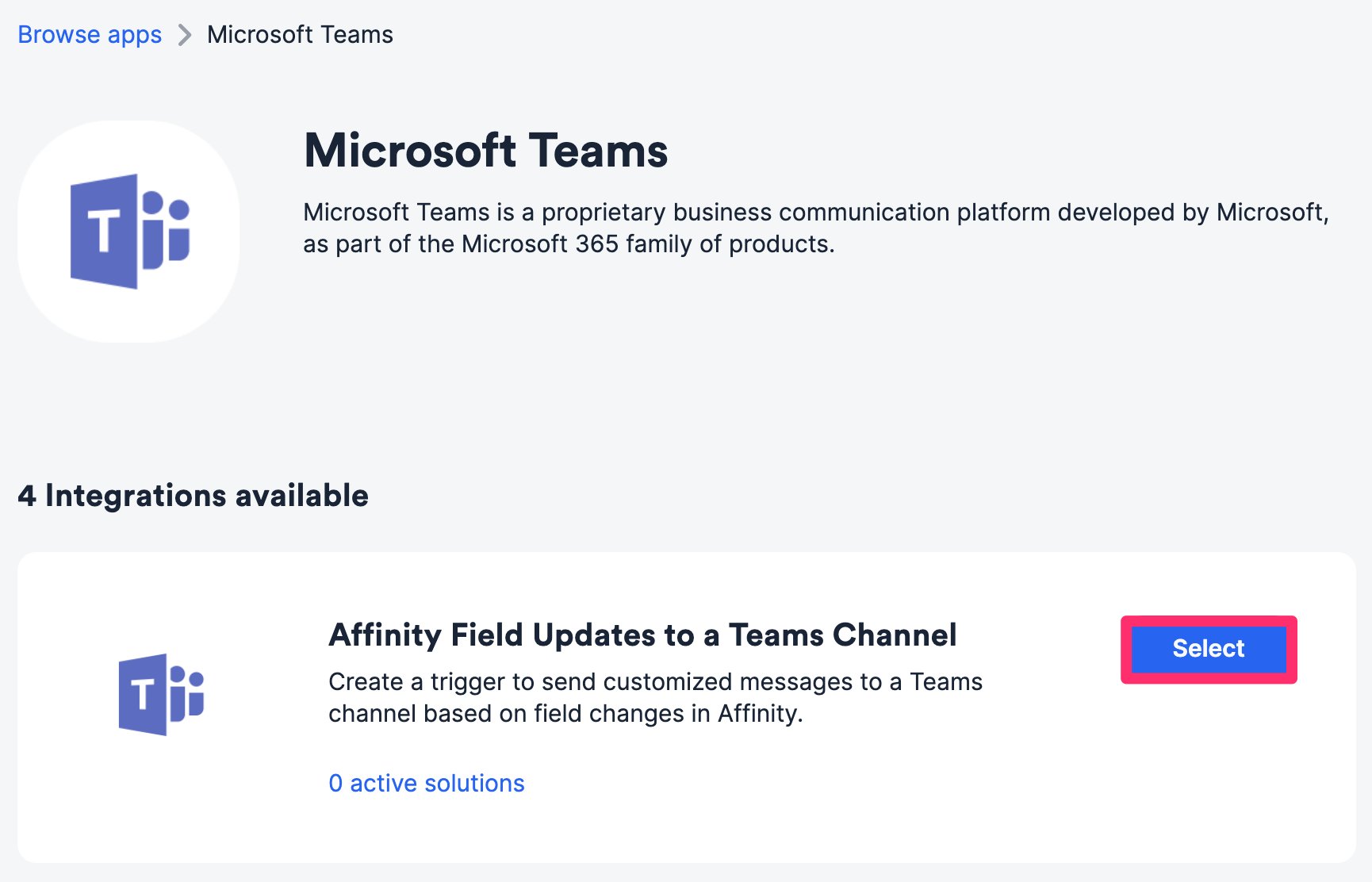
1. Within the **Affinity Field Updates to a Teams Channel** integration, click **Select**.
{/* SCREENSHOT 6 */}
## Affinity Field Updates to a Teams Channel
**What this integration does**: For updates that you/your team members make to certain fields, they will be pushed to a specific Teams channel. This integration **may** require some additional guidance for steps 7 and 8 — please reach out to [support@affinity.co](mailto:support@affinity.co).
1. Within the **Affinity Field Updates to a Teams Channel** integration, click **Select**.
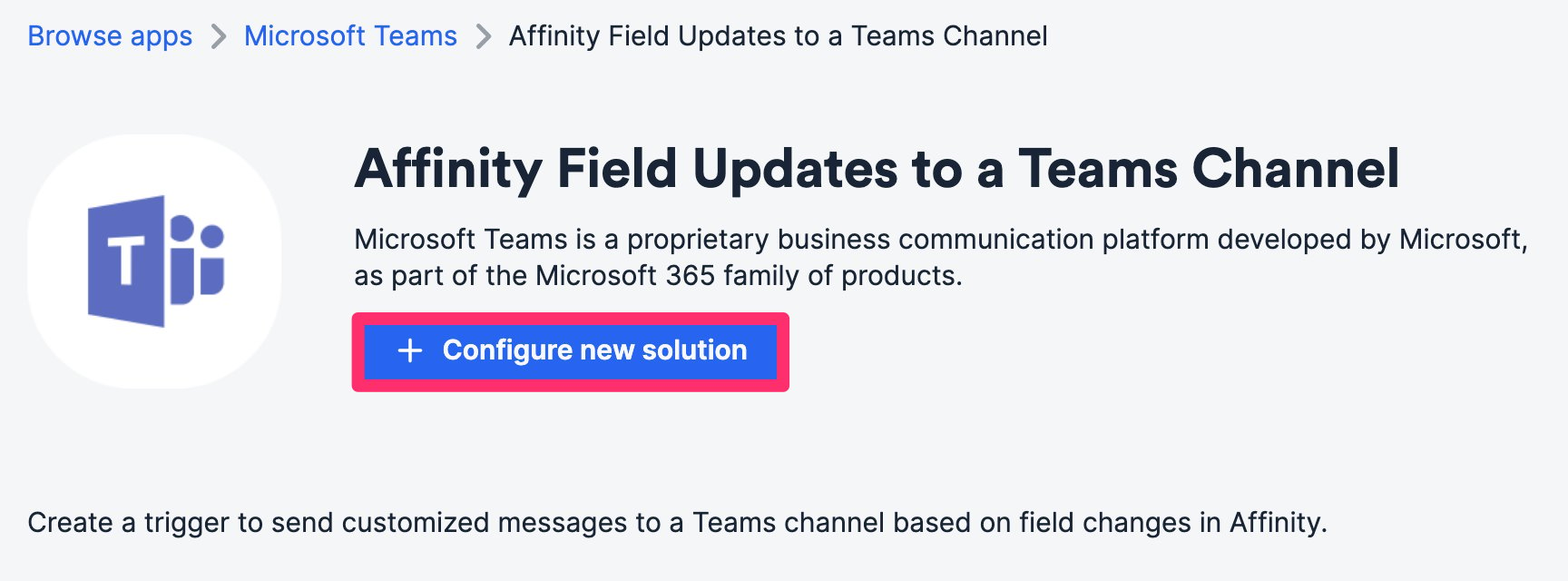
 2) Click **Configure new solution**.
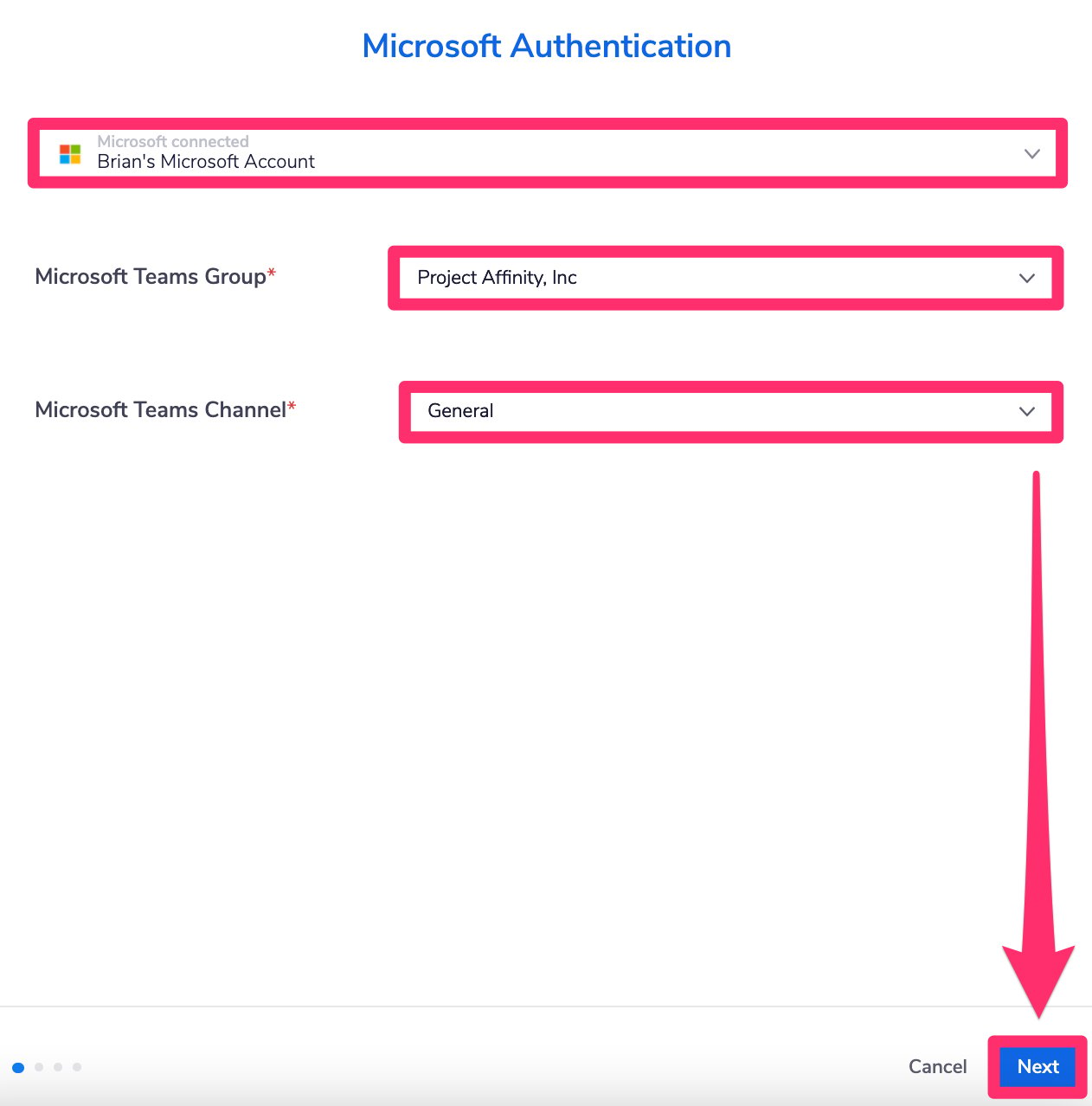
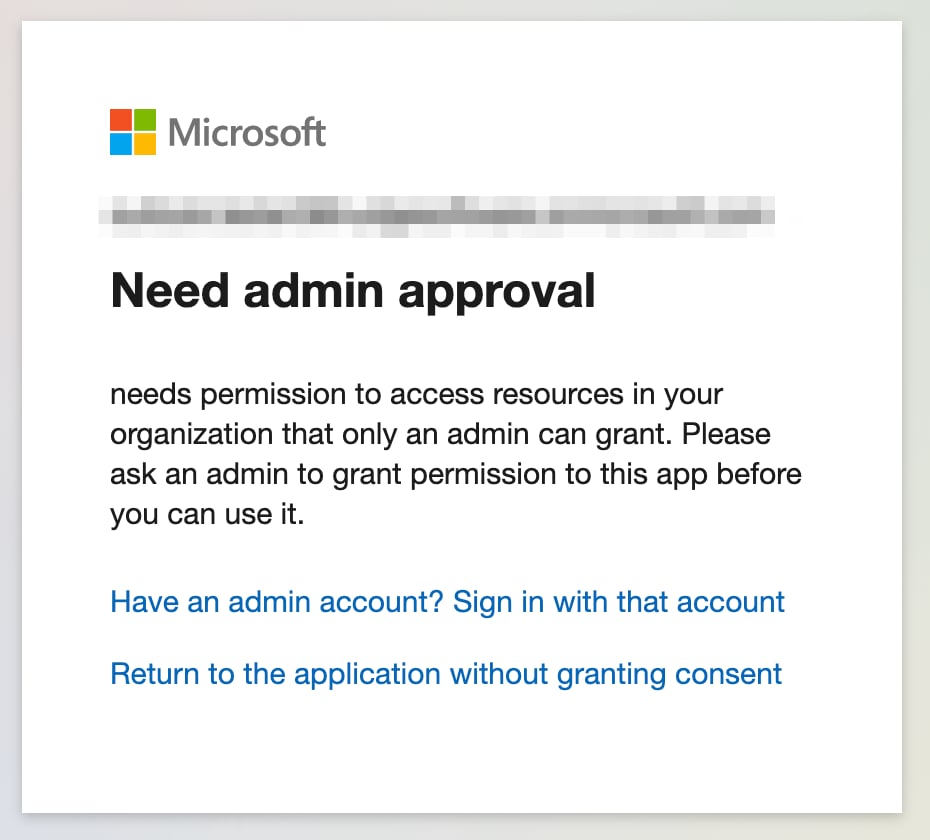
 3. Authenticate your **Microsoft account**. You may come across a modal stating that you "Need Admin Approval" (see [Need Admin Approval or Approval Required](/s/article/Microsoft-Troubleshooting-Need-Admin-Approval-or-Approval-Required)).
4) Then, select your **Microsoft Teams group** and **channel**, then click **Next**.
3. Authenticate your **Microsoft account**. You may come across a modal stating that you "Need Admin Approval" (see [Need Admin Approval or Approval Required](/s/article/Microsoft-Troubleshooting-Need-Admin-Approval-or-Approval-Required)).
4) Then, select your **Microsoft Teams group** and **channel**, then click **Next**.
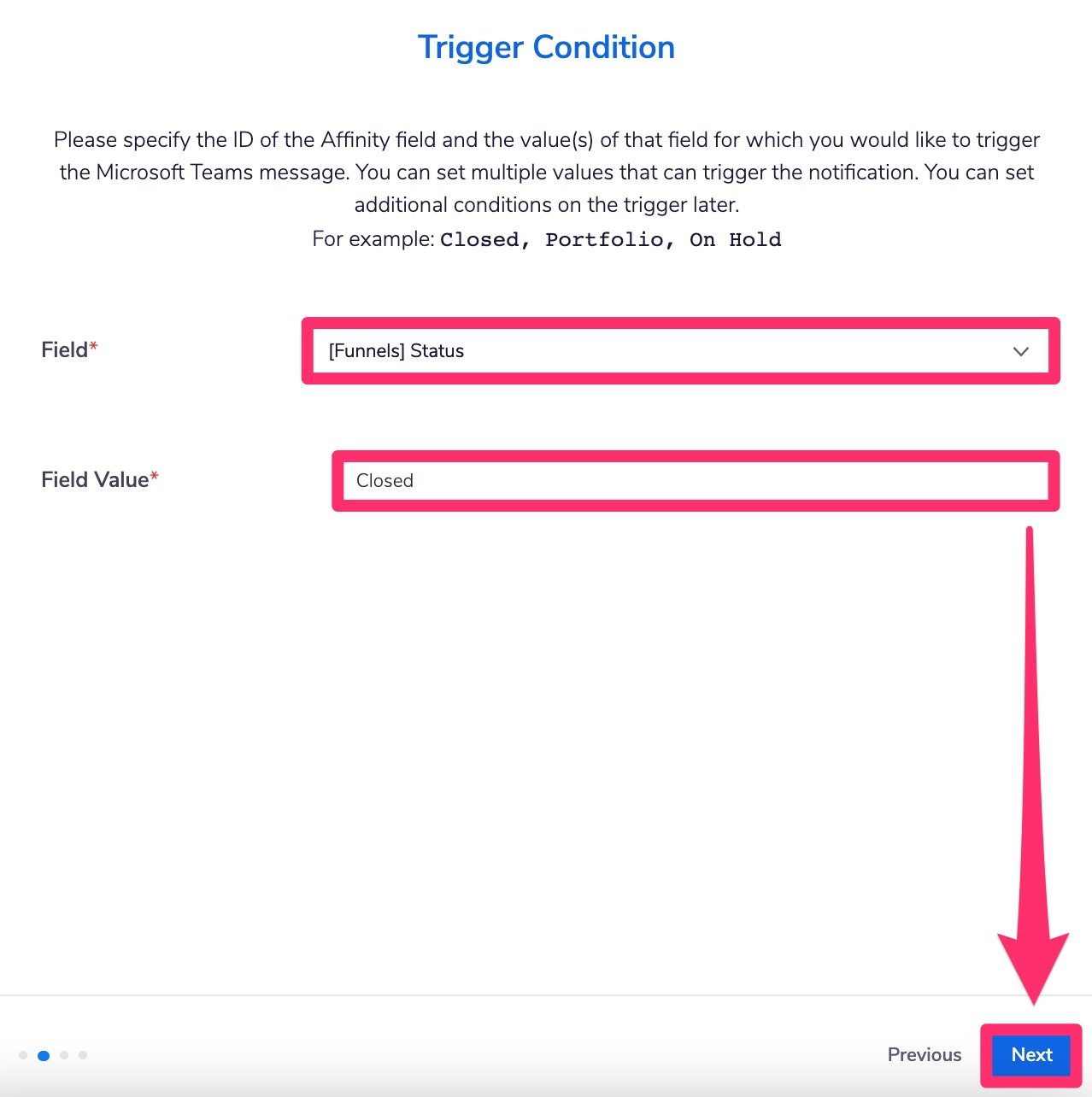
 5. Select which Affinity **field** and **field value** will be considered the trigger.
* For **Field**, the dropdown options will be in the format: **\[List Name] Field Name**.
* For **Field Value**, type out the field value(s) depending on what is available in the **Field**.
* Once you're done, click **Next**.
5. Select which Affinity **field** and **field value** will be considered the trigger.
* For **Field**, the dropdown options will be in the format: **\[List Name] Field Name**.
* For **Field Value**, type out the field value(s) depending on what is available in the **Field**.
* Once you're done, click **Next**.
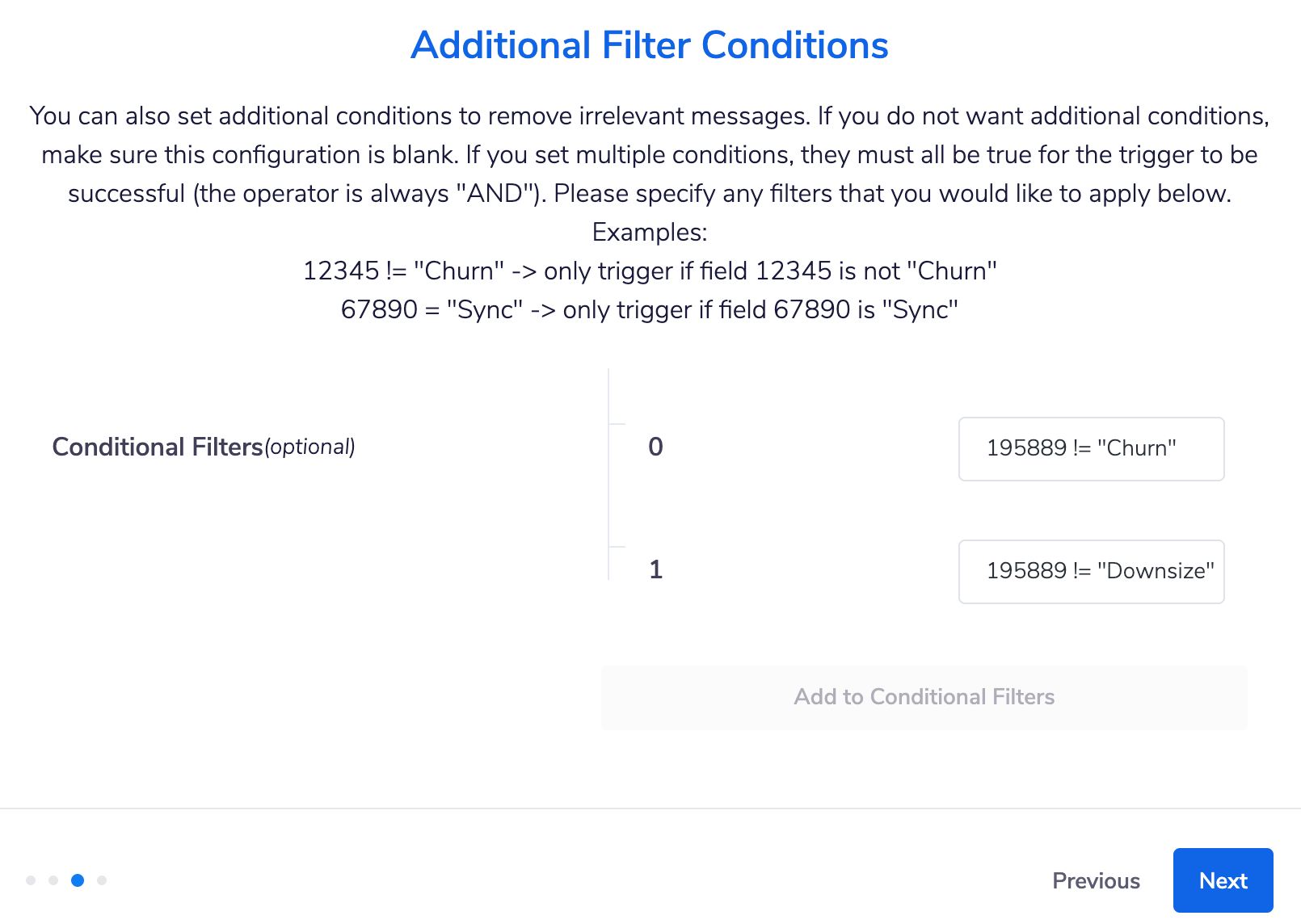
 6) Add some additional filter conditions for increased specificity (optional). This requires you to know the field IDs of the Affinity fields that you're setting up the filter conditions for.
* You can use [Affinity's API](https://api-docs.affinity.co/) to receive the relevant field IDs.
* If you don't need additional filter conditions, you can skip this step.
6) Add some additional filter conditions for increased specificity (optional). This requires you to know the field IDs of the Affinity fields that you're setting up the filter conditions for.
* You can use [Affinity's API](https://api-docs.affinity.co/) to receive the relevant field IDs.
* If you don't need additional filter conditions, you can skip this step.
 7. Now, embed **fields** and **field values** as a custom message (optional). This requires you to know the field IDs of the Affinity fields that you're planning to include in your custom message.
* You can use [Affinity's API](https://api-docs.affinity.co/) to receive the relevant field IDs.
7. Now, embed **fields** and **field values** as a custom message (optional). This requires you to know the field IDs of the Affinity fields that you're planning to include in your custom message.
* You can use [Affinity's API](https://api-docs.affinity.co/) to receive the relevant field IDs.
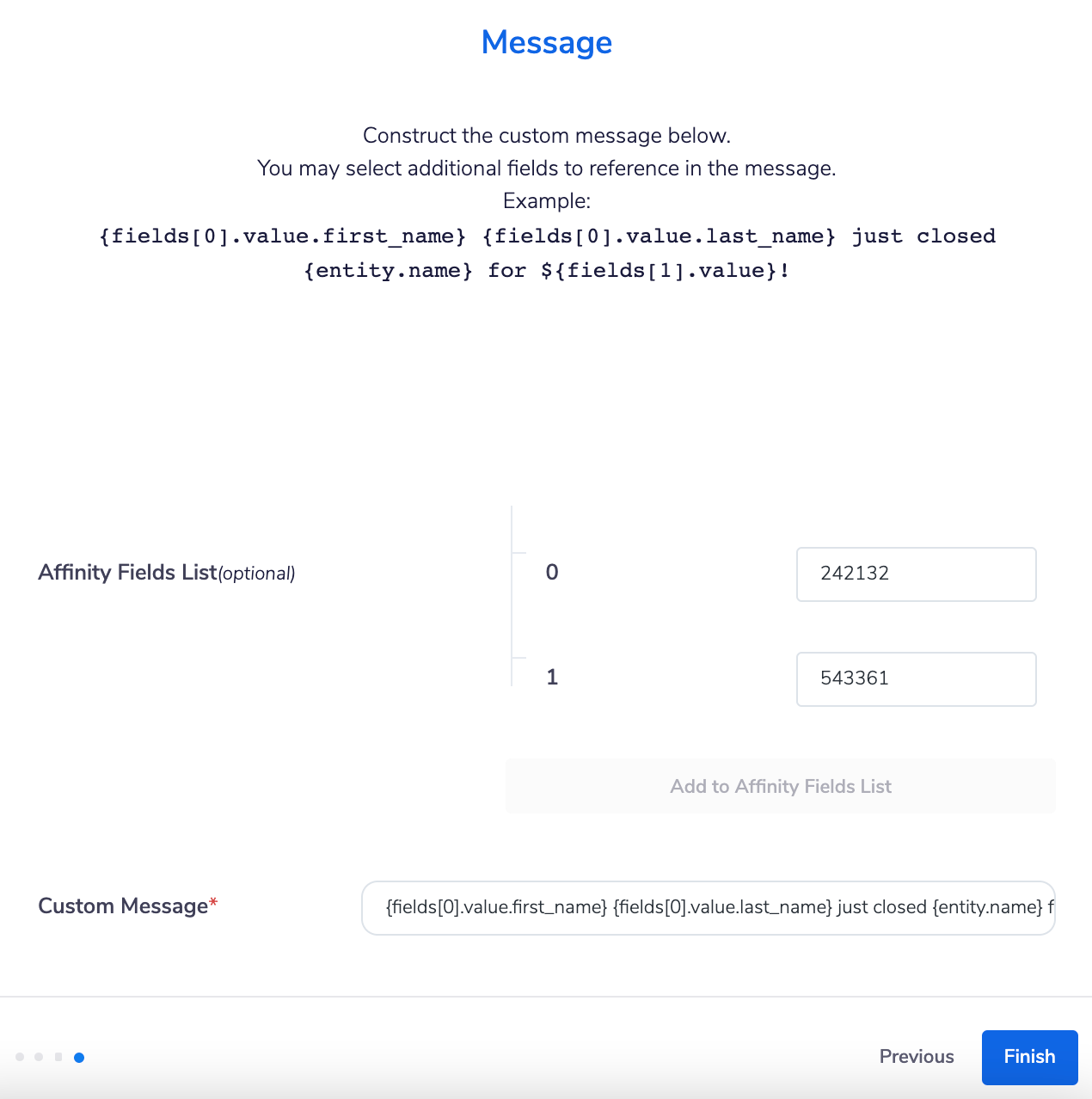 8) Click **Finish**, and you're all set.
## Affinity Notes from a List to a Teams Channel
**What this integration does**: For any notes that you/your team members add to the list entries within a specific list, they will be pushed into a specific Teams channel.
* If you select a **people-type** list: Notes added to the people in that list will get pushed into the Teams channel of your choice.
* If you select an **organization-type** list: Notes added to the organizations in that list will get pushed into the Teams channel of your choice.
* If you select an **opportunity-type** list: Notes added to the people and organizations associated with the opportunities in that list will get pushed into the Teams channel of your choice.
**Note**: For this integration, threaded replies within a note will **not** be sent as notifications to the designated Teams channel.
1. Within the **Affinity Notes from a List to a Teams Channel** integration, click **Select**.
8) Click **Finish**, and you're all set.
## Affinity Notes from a List to a Teams Channel
**What this integration does**: For any notes that you/your team members add to the list entries within a specific list, they will be pushed into a specific Teams channel.
* If you select a **people-type** list: Notes added to the people in that list will get pushed into the Teams channel of your choice.
* If you select an **organization-type** list: Notes added to the organizations in that list will get pushed into the Teams channel of your choice.
* If you select an **opportunity-type** list: Notes added to the people and organizations associated with the opportunities in that list will get pushed into the Teams channel of your choice.
**Note**: For this integration, threaded replies within a note will **not** be sent as notifications to the designated Teams channel.
1. Within the **Affinity Notes from a List to a Teams Channel** integration, click **Select**.
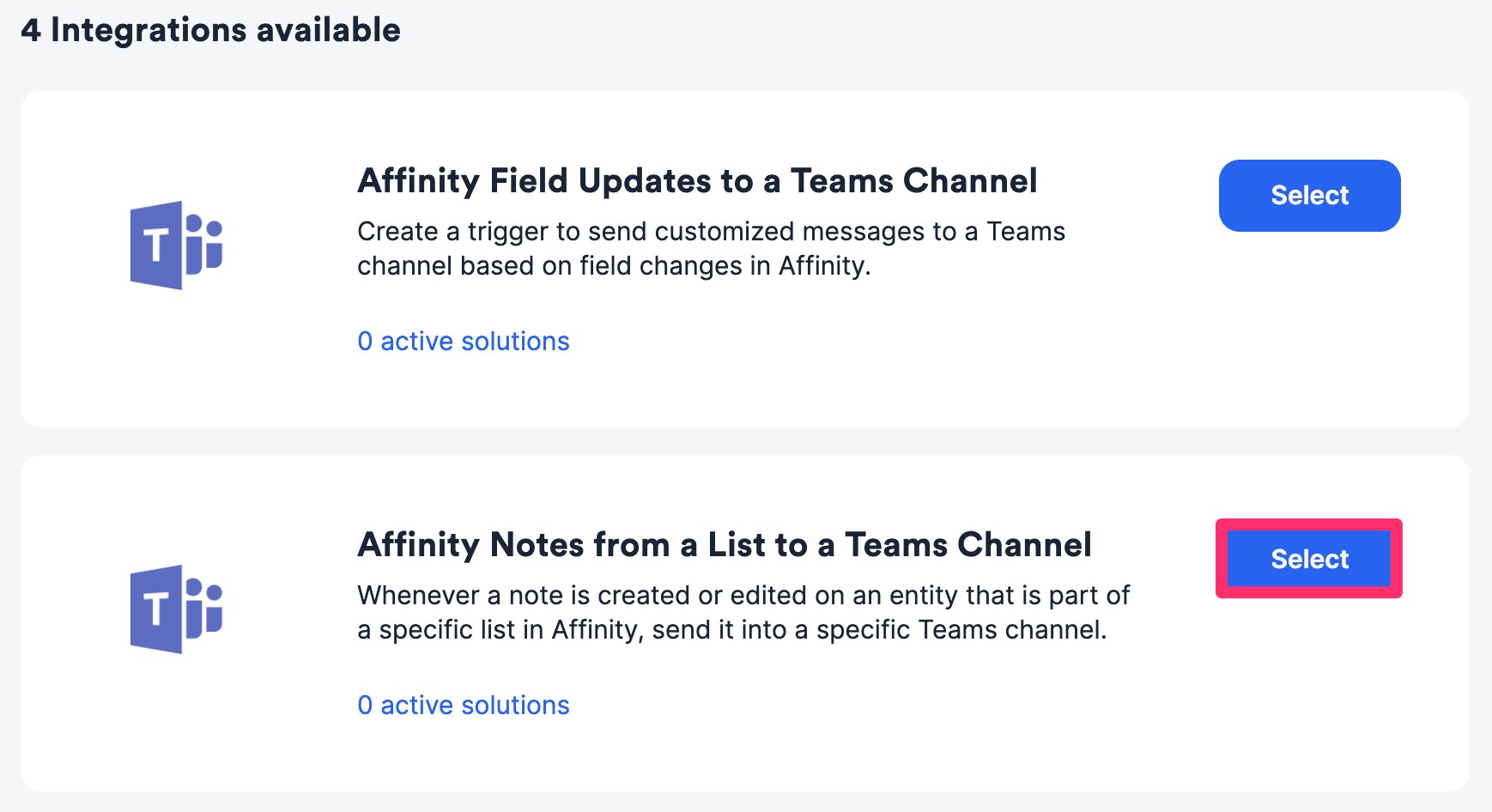 2) Click **Configure new solution**.
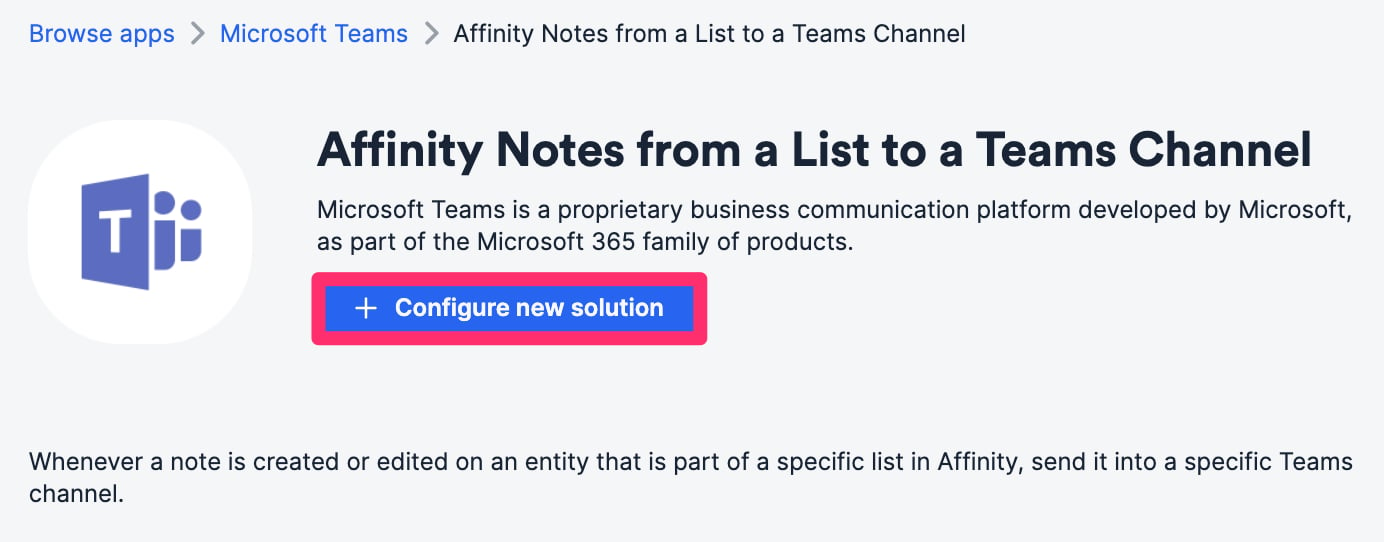 3. Authenticate your **Microsoft account**. You may come across a modal stating that you "Need Admin Approval" (see [Need Admin Approval or Approval Required](/s/article/Microsoft-Troubleshooting-Need-Admin-Approval-or-Approval-Required)).
 4) Then, select which **Affinity list** you will sync from, along with which **Microsoft Teams group** and **channel** you'd like to push the notes into.
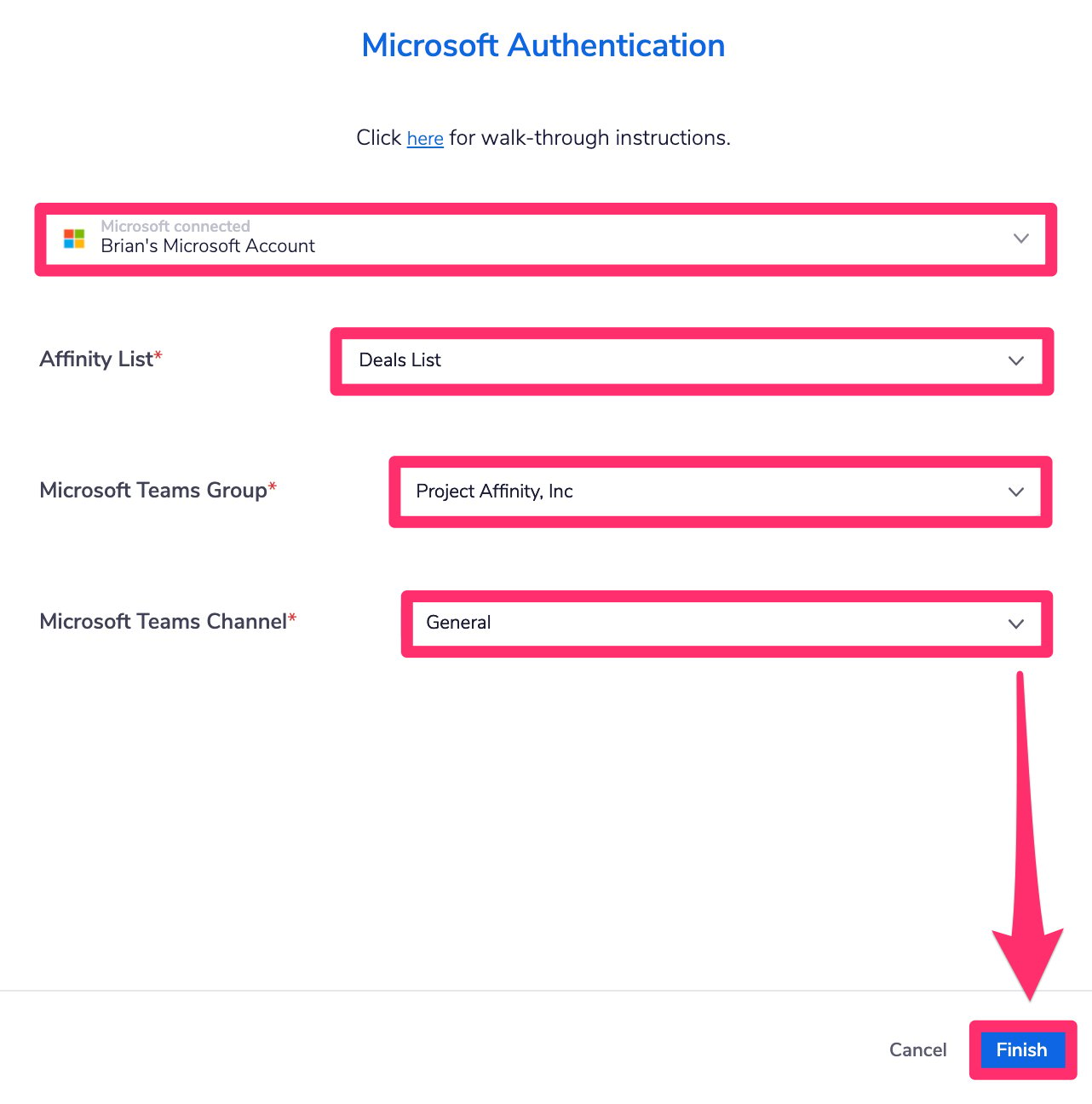 5. Click **Finish** and you're all set. Now, any notes added to the list entries in that specific list will also be pushed to the designated Teams channel.
## Affinity All Notes into a Teams Channel
**What this integration does**: For all notes that you/your team members add to Affinity in general (including auto-generated notes if you have [Affinity Notetaker](/s/article/How-to-set-up-and-use-Affinity-Notetaker) enabled), they will be pushed into a specific Teams channel.
**Note**: For this integration, threaded replies within a note will also be sent as notifications to the designated Teams channel.
1. Within the **All Affinity Notes to a Teams Channel** integration, click **Select**.
5. Click **Finish** and you're all set. Now, any notes added to the list entries in that specific list will also be pushed to the designated Teams channel.
## Affinity All Notes into a Teams Channel
**What this integration does**: For all notes that you/your team members add to Affinity in general (including auto-generated notes if you have [Affinity Notetaker](/s/article/How-to-set-up-and-use-Affinity-Notetaker) enabled), they will be pushed into a specific Teams channel.
**Note**: For this integration, threaded replies within a note will also be sent as notifications to the designated Teams channel.
1. Within the **All Affinity Notes to a Teams Channel** integration, click **Select**.
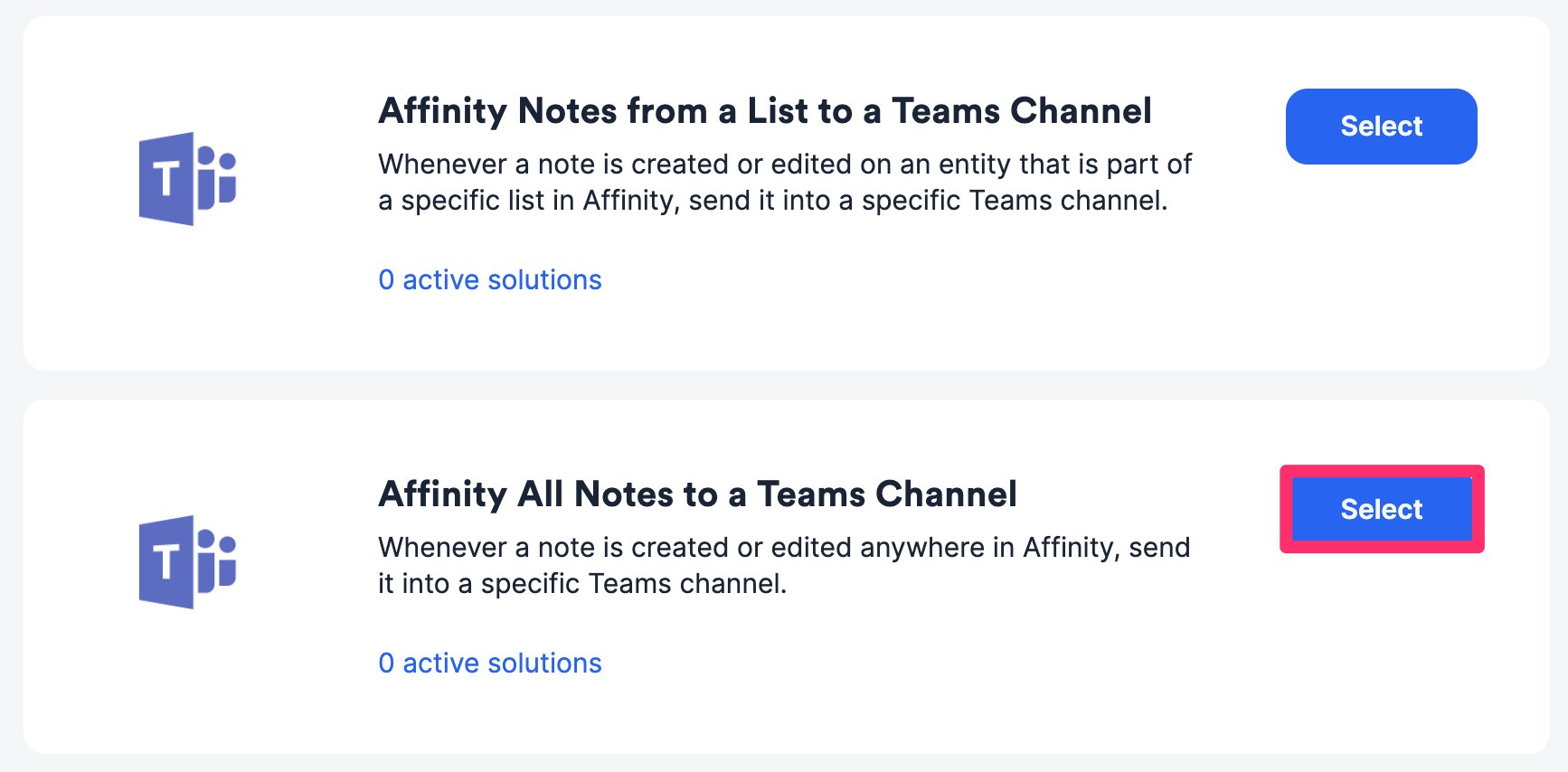 2) Click **Configure new solution**.
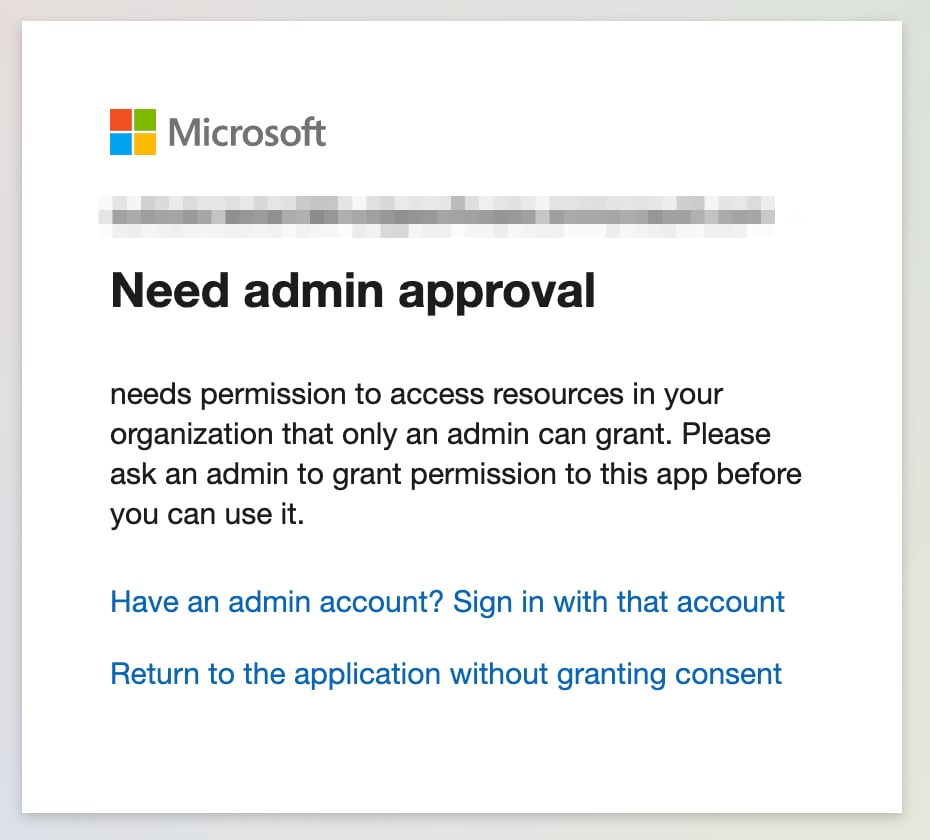
 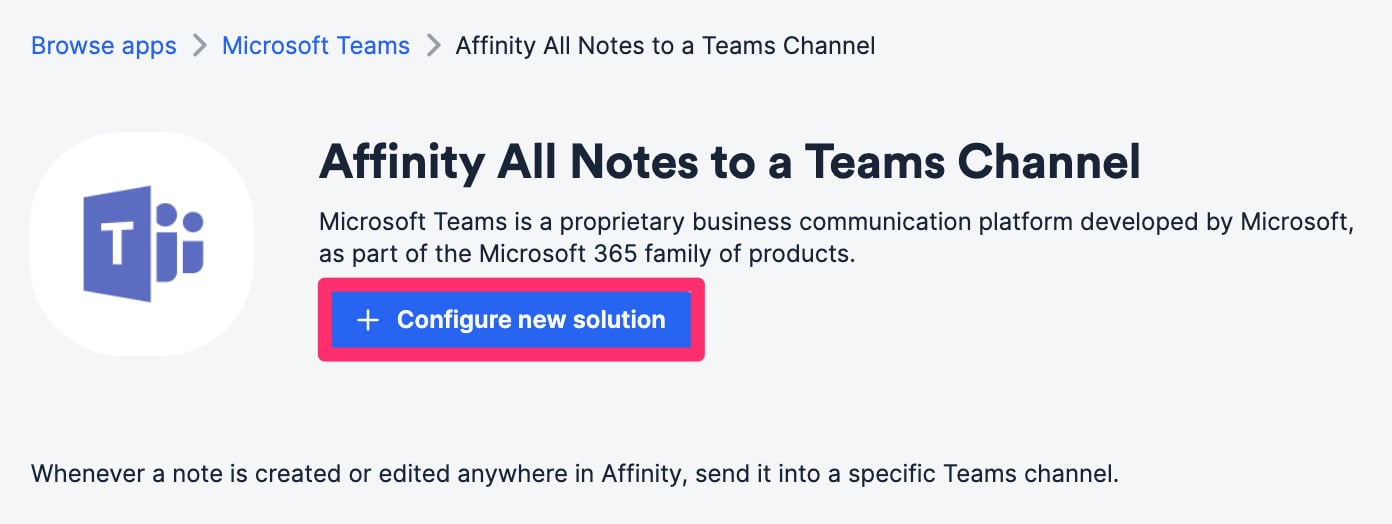 3. Authenticate your **Microsoft account**. You may come across a modal stating that you "Need Admin Approval" (see [Need Admin Approval or Approval Required](/s/article/Microsoft-Troubleshooting-Need-Admin-Approval-or-Approval-Required)).
 4) Then, select your Microsoft Teams group and channel.
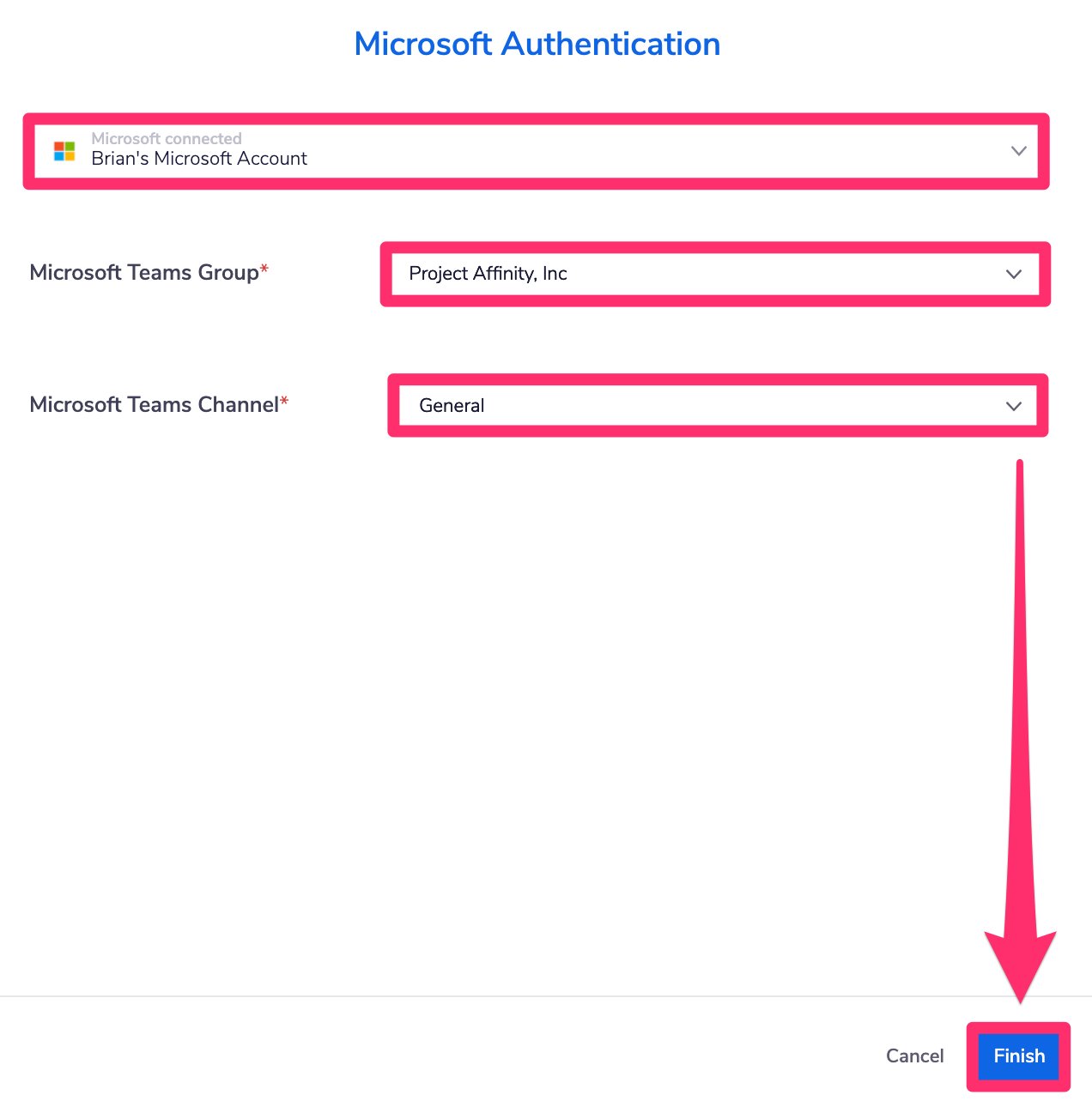 5. Click **Finish** and you're all set. All notes added to Affinity will now be pushed into the specific Teams channel as well.
## Affinity Organization Notes to a Teams Channel
**What this integration does**: For any notes that you/your team members add to a specific organization, they will be pushed into a specific Teams channel.
**Note**: For this integration, threaded replies within notes will **not** be sent as notifications to the designated Teams channel.
1. Within the **Affinity Organization Notes to a Teams Channel** integration, click **Select**.
5. Click **Finish** and you're all set. All notes added to Affinity will now be pushed into the specific Teams channel as well.
## Affinity Organization Notes to a Teams Channel
**What this integration does**: For any notes that you/your team members add to a specific organization, they will be pushed into a specific Teams channel.
**Note**: For this integration, threaded replies within notes will **not** be sent as notifications to the designated Teams channel.
1. Within the **Affinity Organization Notes to a Teams Channel** integration, click **Select**.
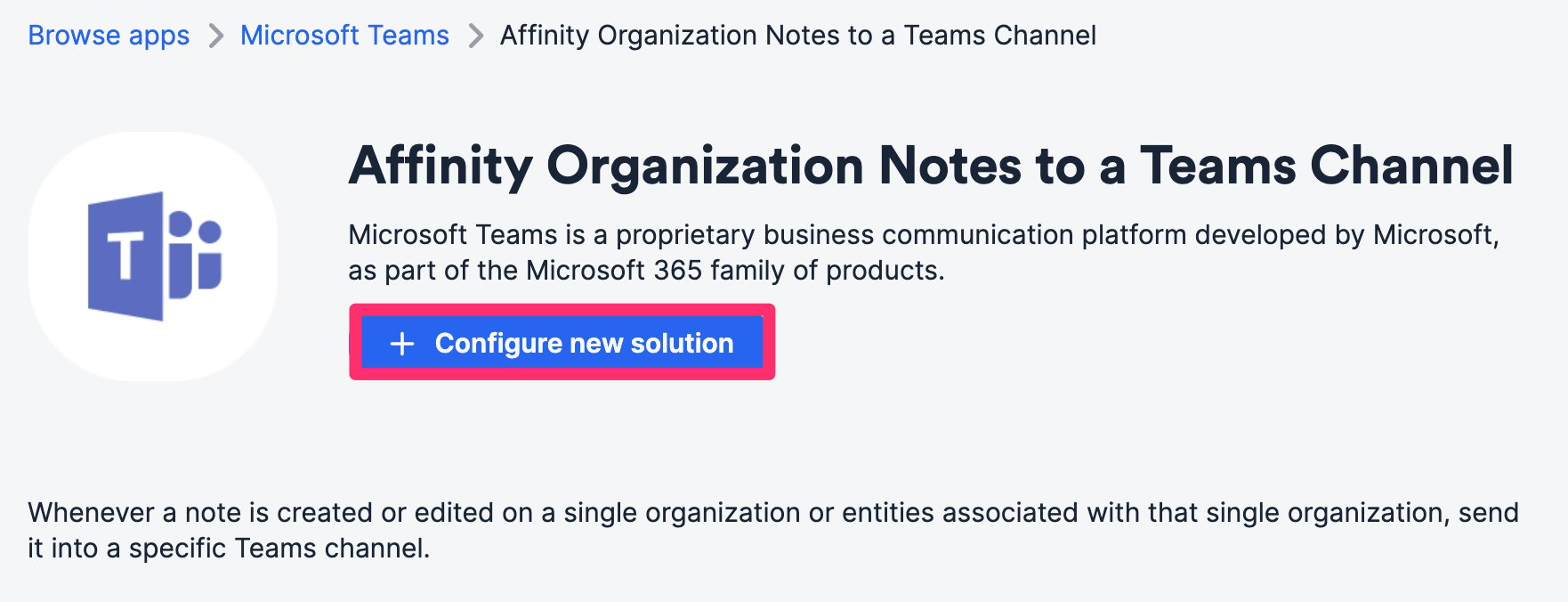
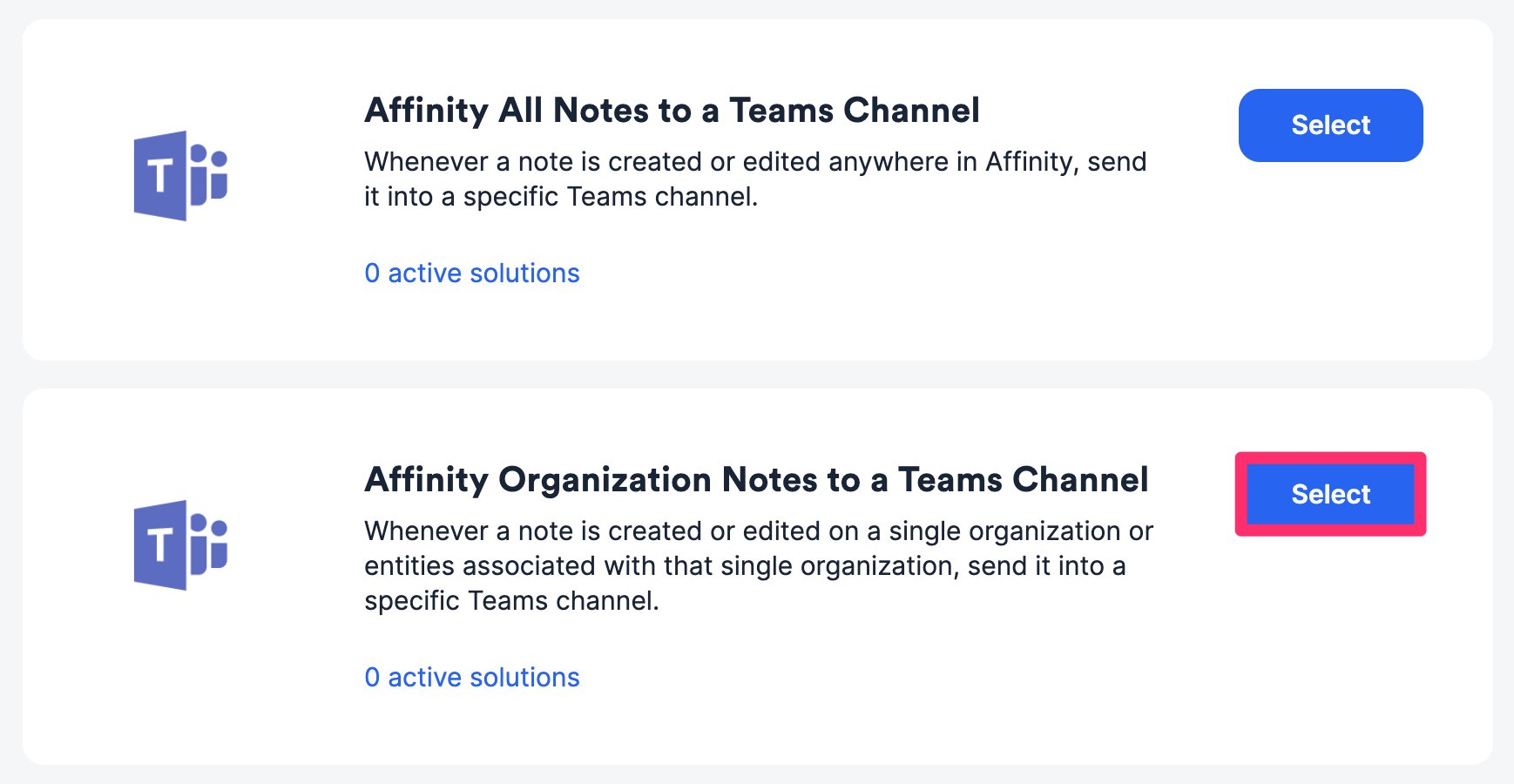 2) Click **Configure new solution**.
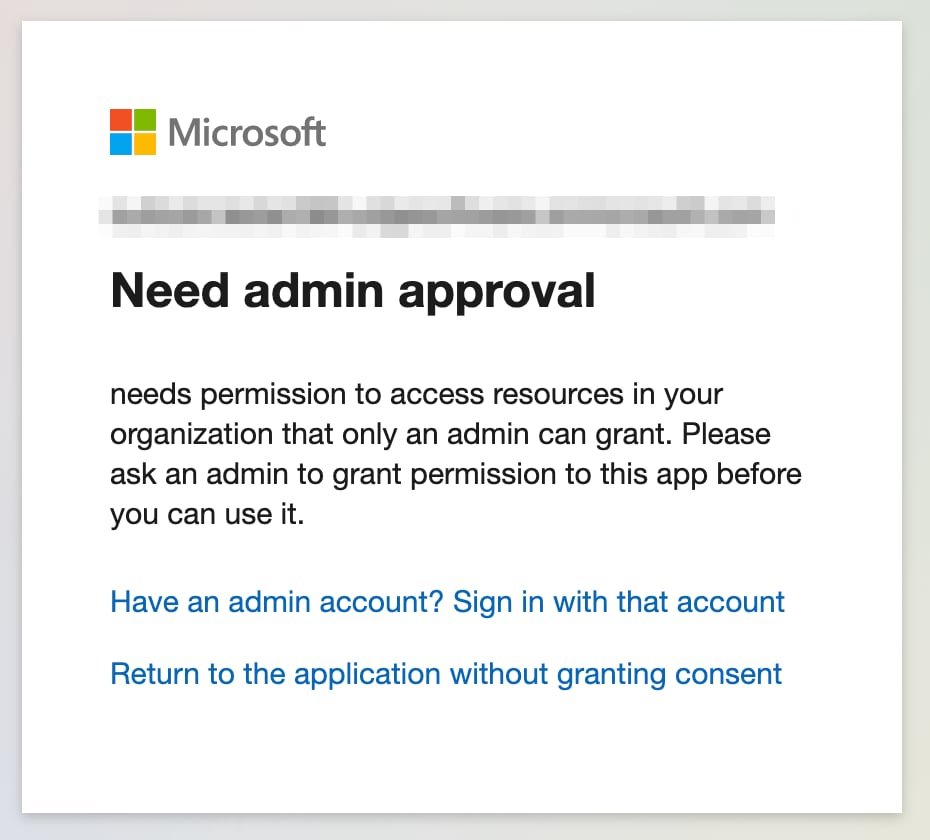
 3. Authenticate your **Microsoft account**. You may come across a modal stating that you "Need Admin Approval" (see [Need Admin Approval or Approval Required](/s/article/Microsoft-Troubleshooting-Need-Admin-Approval-or-Approval-Required)).
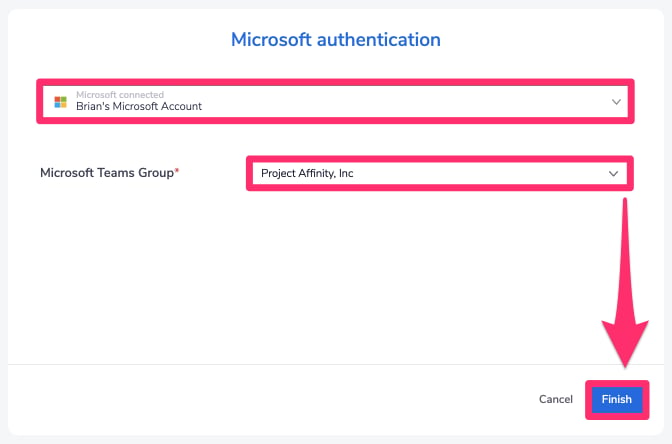
 4) Then, select your Microsoft Teams group and click **Finish**.
 5. Go to a specific organization's profile page (e.g. Stripe). You will see that Affinity automatically created a custom global field titled **Microsoft Teams Channel** under the **General** tab.
6. Fill out the name of the Teams channel (e.g. `stripe-notes`) where the notes will be pushed to and you're all set.
5. Go to a specific organization's profile page (e.g. Stripe). You will see that Affinity automatically created a custom global field titled **Microsoft Teams Channel** under the **General** tab.
6. Fill out the name of the Teams channel (e.g. `stripe-notes`) where the notes will be pushed to and you're all set.  **Note**: If you'd like, you can have multiple organizations direct their notes to the same Teams channel.