> ## Documentation Index
> Fetch the complete documentation index at: https://support.affinity.co/llms.txt
> Use this file to discover all available pages before exploring further.
# How To Integrate Affinity With Mailchimp
> Help center reference
**How-to** — task-oriented recipe.
Level up your email marketing workflows by integrating Affinity with Mailchimp.
## Getting started
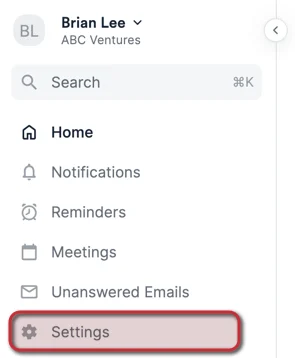
1. Once you've checked the prerequisites and enabled proper access to Mailchimp, click **Settings** on the global navigation bar.
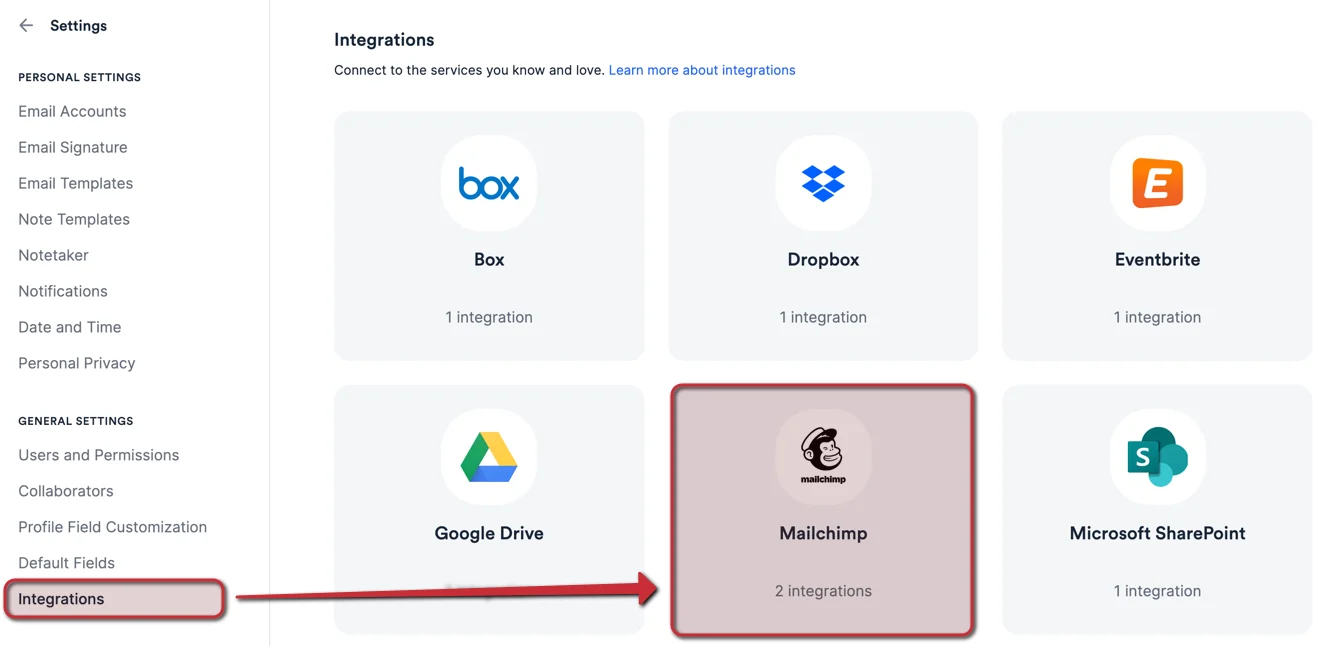
 2. Click **Integrations** on the left side, then select **Mailchimp**.
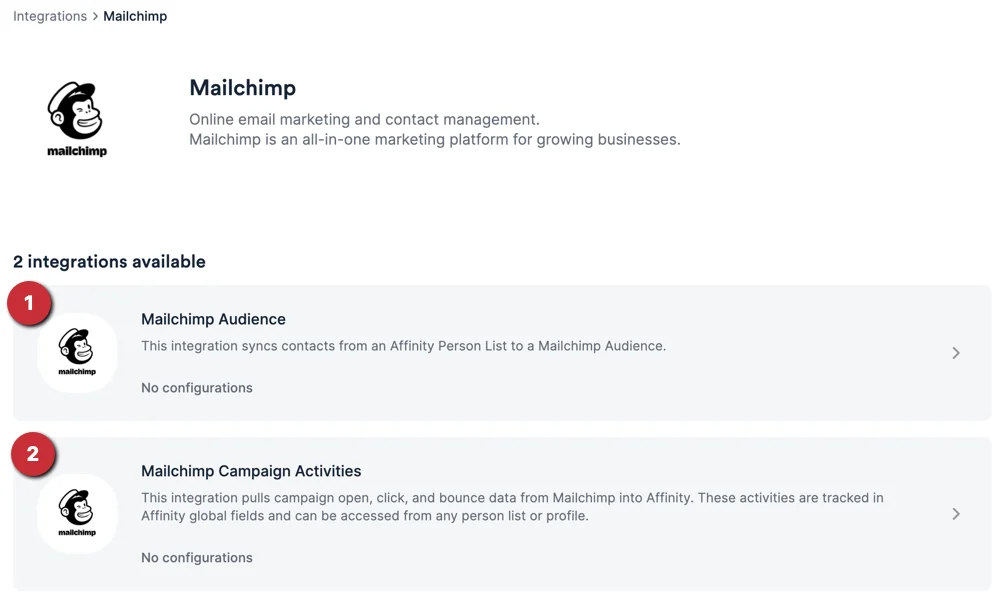
 3. Now, select one of integrations to follow step-by-step instructions.
 ## Integration 1 - Mailchimp Audience
For all list entries (including [blocklisted people](/s/article/Setting-up-your-privacy-preferences-in-Affinity)) within a specific Affinity people list, they will continuously sync to a specific Mailchimp audience of your choice.
**Note**: The [All People directory](/s/article/All-people-and-all-organizations) is not supported for this integration.
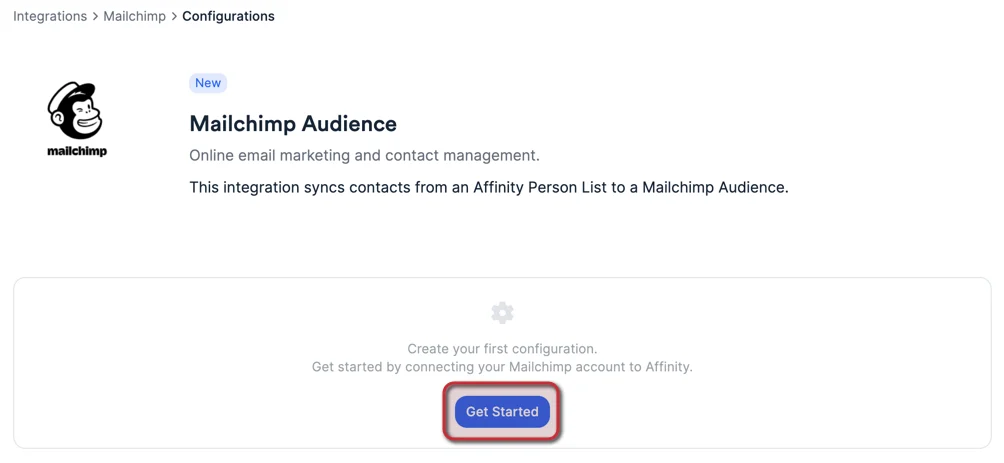
1. Once you click on **Mailchimp Audience**, click **Get Started**.
## Integration 1 - Mailchimp Audience
For all list entries (including [blocklisted people](/s/article/Setting-up-your-privacy-preferences-in-Affinity)) within a specific Affinity people list, they will continuously sync to a specific Mailchimp audience of your choice.
**Note**: The [All People directory](/s/article/All-people-and-all-organizations) is not supported for this integration.
1. Once you click on **Mailchimp Audience**, click **Get Started**.
 2. Please make sure that you're assigned the **Manager** role for your Mailchimp account, and that you have permission to **write Audience members** - otherwise, the integration will not work.
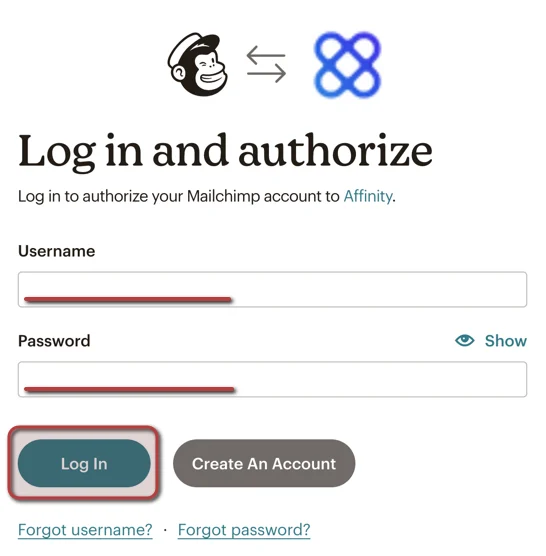
* Once you have confirmed that you've met the prerequisites above, enter in your Mailchimp credentials and click **Login**.
2. Please make sure that you're assigned the **Manager** role for your Mailchimp account, and that you have permission to **write Audience members** - otherwise, the integration will not work.
* Once you have confirmed that you've met the prerequisites above, enter in your Mailchimp credentials and click **Login**.
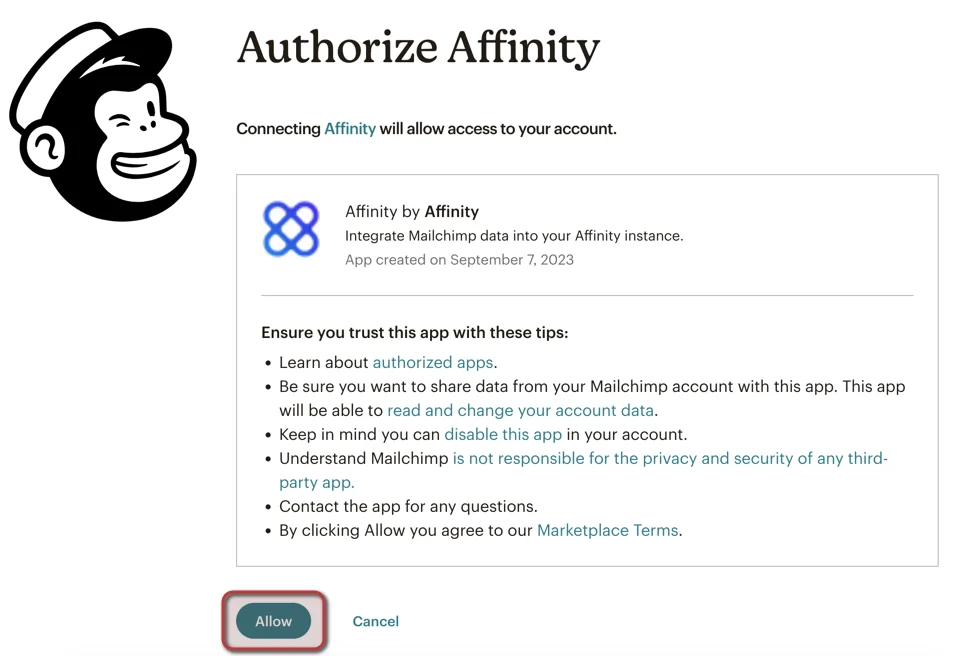
 * Read through the tips as needed, then click **Allow** at the bottom.
 3. Under the **Affinity List and Mailchimp Audience** section, select an **Affinity Person List** to continuously sync and update the **Mailchimp Audience**. Then, click **Save**.
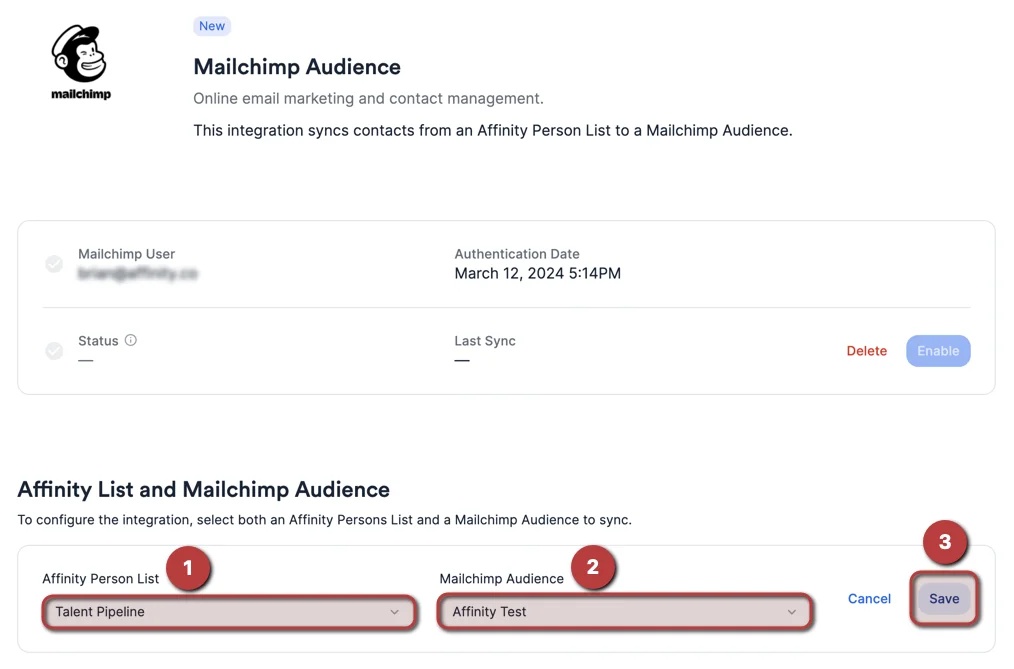 * **Note**: If there are list entries already within the people list you selected, they will be backfilled and **retroactively added** to the Mailchimp audience.
4. Under the **Sync Settings** section, you'll notice both checkboxes already filled - we **highly suggest** that they remain checked to ensure that your Mailchimp audience is up-to-date:
* Checkbox 1: When a person's primary email address changes in Affinity, create a contact in Mailchimp with the new email address
* Checkbox 2: When a person's name changes in Affinity, update their name in Mailchimp
* **Note**: If there are list entries already within the people list you selected, they will be backfilled and **retroactively added** to the Mailchimp audience.
4. Under the **Sync Settings** section, you'll notice both checkboxes already filled - we **highly suggest** that they remain checked to ensure that your Mailchimp audience is up-to-date:
* Checkbox 1: When a person's primary email address changes in Affinity, create a contact in Mailchimp with the new email address
* Checkbox 2: When a person's name changes in Affinity, update their name in Mailchimp
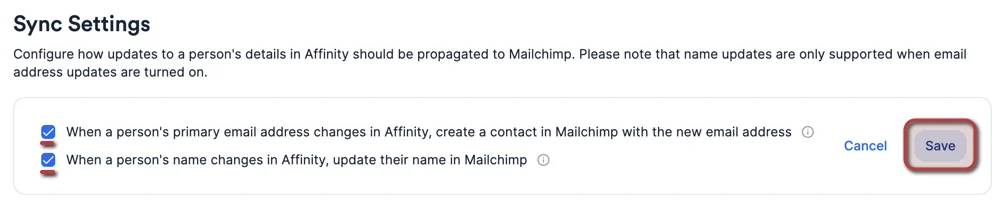 * **Note**: Checkbox 1 must be enabled in order to enable Checkbox 2.
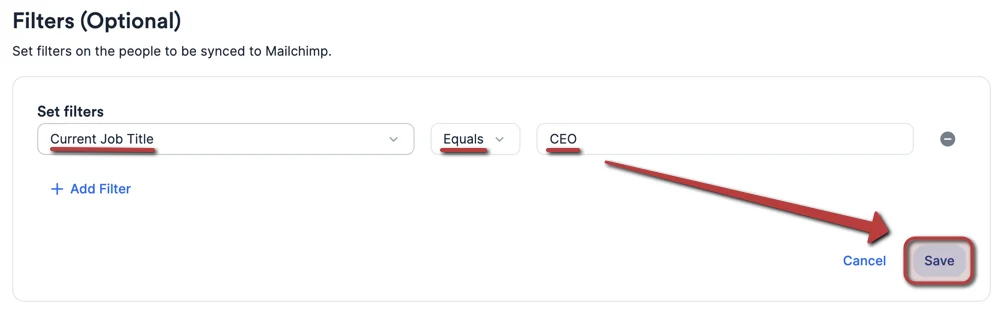
5. **Optional**: Feel free to add filters if you'd only like specific individuals from the people list to get synced to your Mailchimp audience.
* **Note**: Checkbox 1 must be enabled in order to enable Checkbox 2.
5. **Optional**: Feel free to add filters if you'd only like specific individuals from the people list to get synced to your Mailchimp audience.
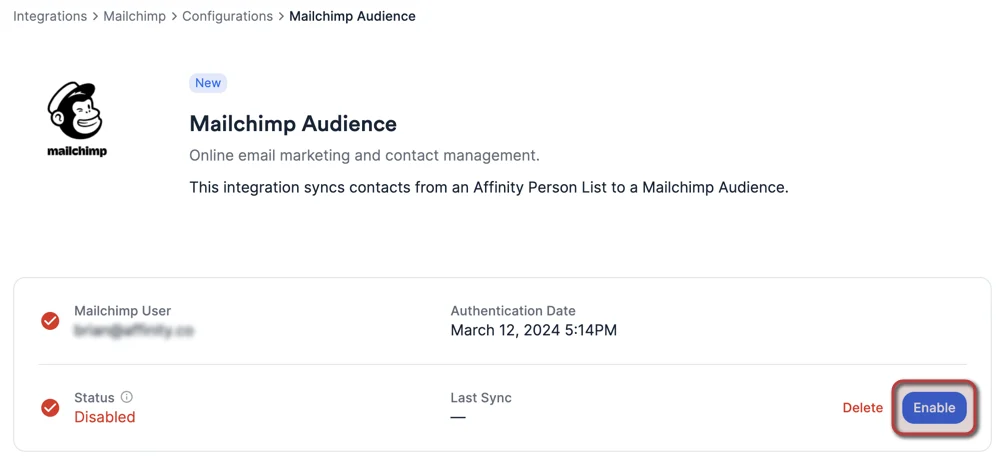
 6. **Important**: Last but not least, please make sure to click **Enable** to complete the setup.
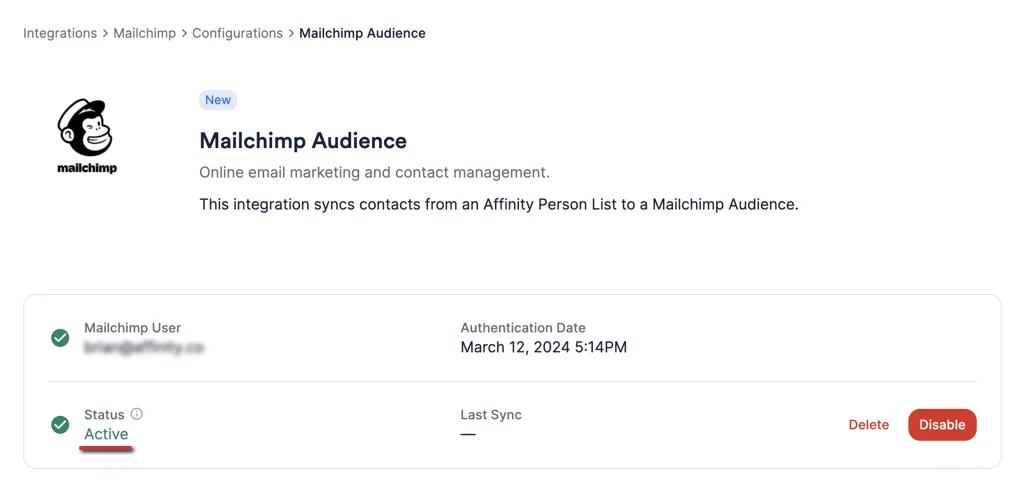
 7. Once the **Status** field changes to **Active**, you're all set.
 ## Important Callouts for Integration 1
* This integration will only sync from your Affinity people list (including blocklisted people) into your Mailchimp Audience list.
* Any changes made directly within your Mailchimp Audience list will not update your Affinity people list.
* Not all people who get added to the Affinity people list for this integration will get added to your Mailchimp Audience for one of the following reasons:
* If a person does **not** have an email address associated with their profile on Affinity, they will not get added to your Mailchimp Audience.
* To respect email subscription compliance for those who may have previously been unsubscribed or deleted from your Mailchimp Audience.
* Removing a person from your Affinity people list will archive that person in the Mailchimp Audience list.
* The [All People directory](/s/article/All-people-and-all-organizations) is not supported for this integration, only people-type lists.
## Integration 2 - Mailchimp Campaign Activities
For all Mailchimp campaign activities (e.g. open, click, and bounce data), Affinity will create global fields to sync and surface these activities accordingly on all Affinity people lists and person profile pages.
1. Once you click on **Mailchimp Audience**, click **Get Started**.
## Important Callouts for Integration 1
* This integration will only sync from your Affinity people list (including blocklisted people) into your Mailchimp Audience list.
* Any changes made directly within your Mailchimp Audience list will not update your Affinity people list.
* Not all people who get added to the Affinity people list for this integration will get added to your Mailchimp Audience for one of the following reasons:
* If a person does **not** have an email address associated with their profile on Affinity, they will not get added to your Mailchimp Audience.
* To respect email subscription compliance for those who may have previously been unsubscribed or deleted from your Mailchimp Audience.
* Removing a person from your Affinity people list will archive that person in the Mailchimp Audience list.
* The [All People directory](/s/article/All-people-and-all-organizations) is not supported for this integration, only people-type lists.
## Integration 2 - Mailchimp Campaign Activities
For all Mailchimp campaign activities (e.g. open, click, and bounce data), Affinity will create global fields to sync and surface these activities accordingly on all Affinity people lists and person profile pages.
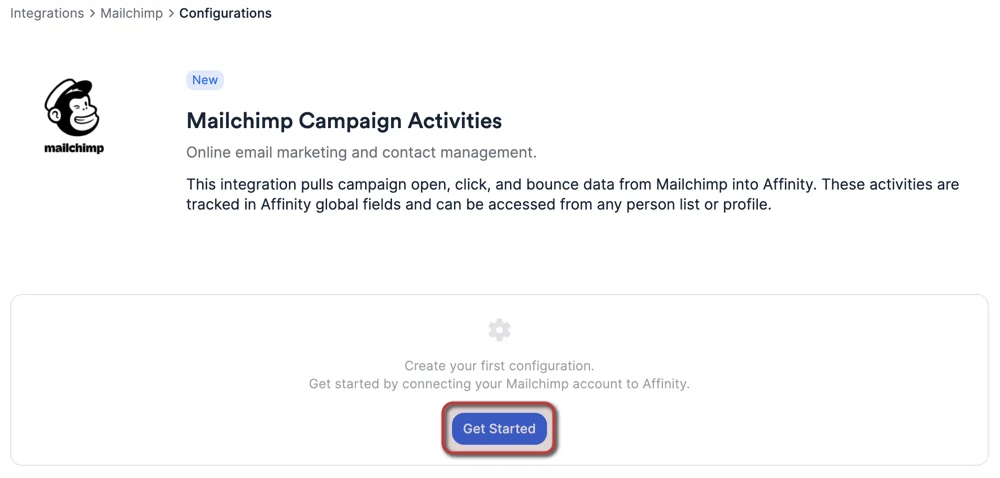
1. Once you click on **Mailchimp Audience**, click **Get Started**.
 2. Please make sure that you're assigned the **Manager** role for your Mailchimp account, and that you have permission to **read Campaign Activities** - otherwise, the integration will not work.
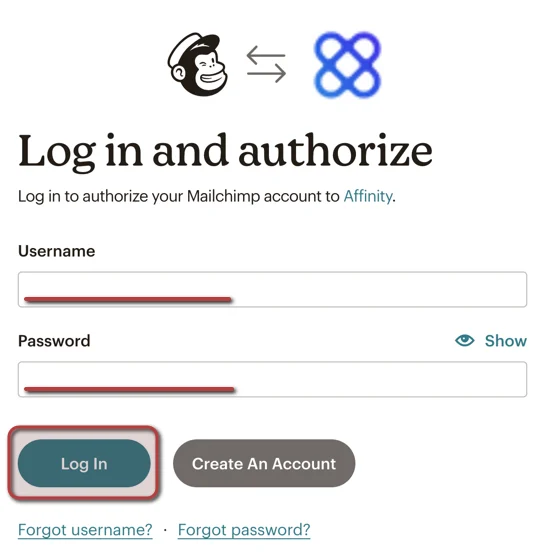
* Once you have confirmed that you've met the prerequisites above, enter in your Mailchimp credentials and click **Login**.
2. Please make sure that you're assigned the **Manager** role for your Mailchimp account, and that you have permission to **read Campaign Activities** - otherwise, the integration will not work.
* Once you have confirmed that you've met the prerequisites above, enter in your Mailchimp credentials and click **Login**.
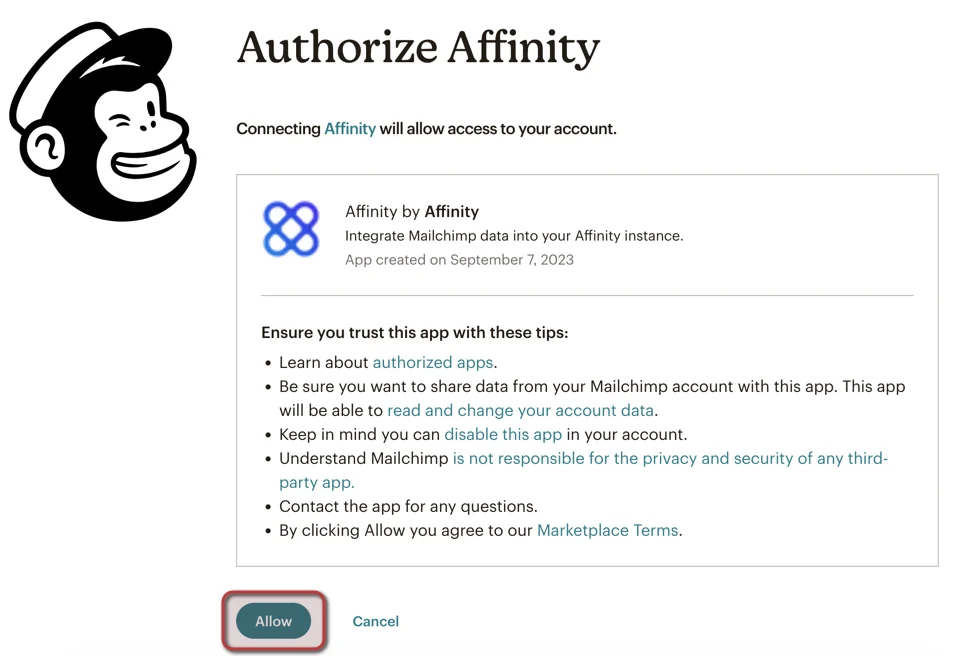
 * Read through the tips as needed, then click **Allow** at the bottom.
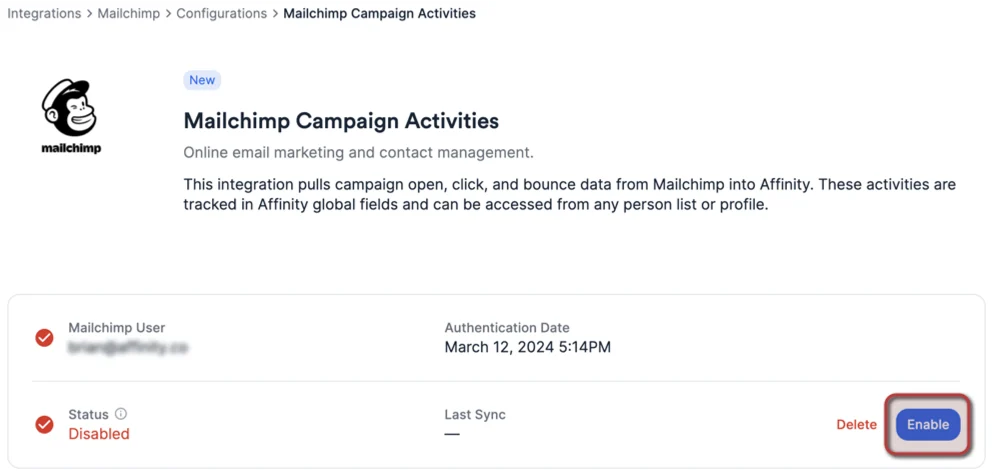
 3. **Important**: Last but not least, please make sure to click **Enable** to complete the setup.
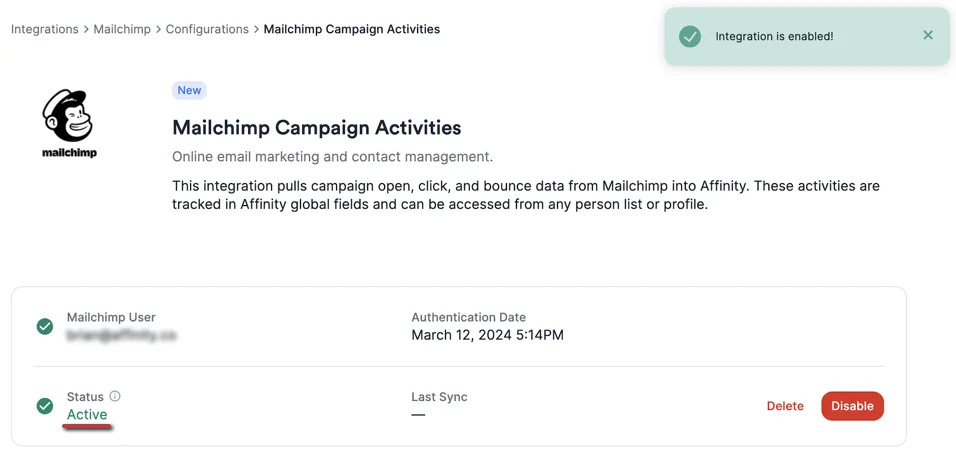
 4. Once the **Status** field changes to **Active**, you're all set.
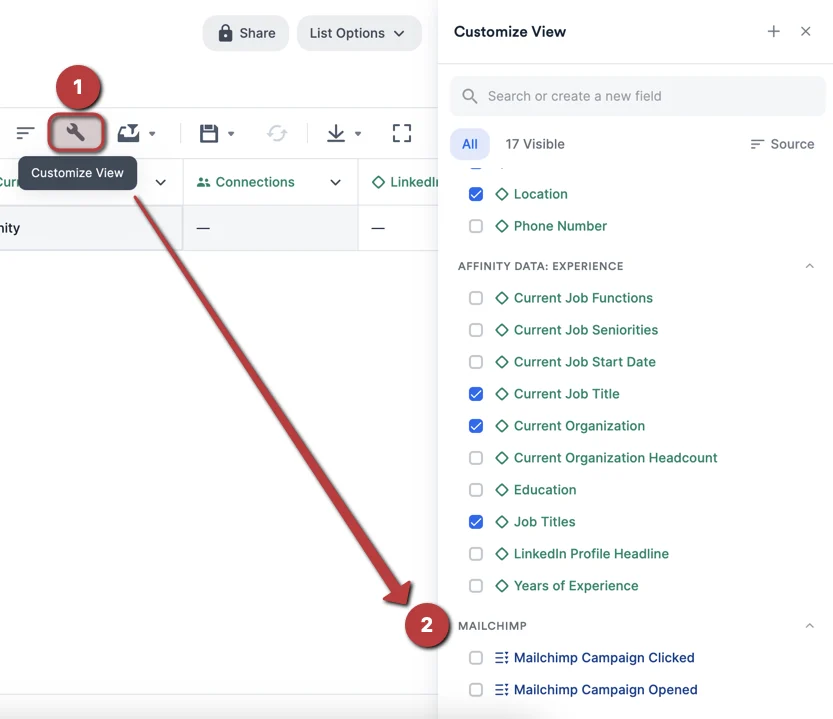
 5. To confirm that the integration is working, you should now see three global fields created: **Mailchimp Campaign Opened**, **Mailchimp Campaign Clicked**, and **Mailchimp Campaign Bounced**. They will be retroactively updated from your previous campaigns and will be accessible in your All People directory and across all people-type lists.
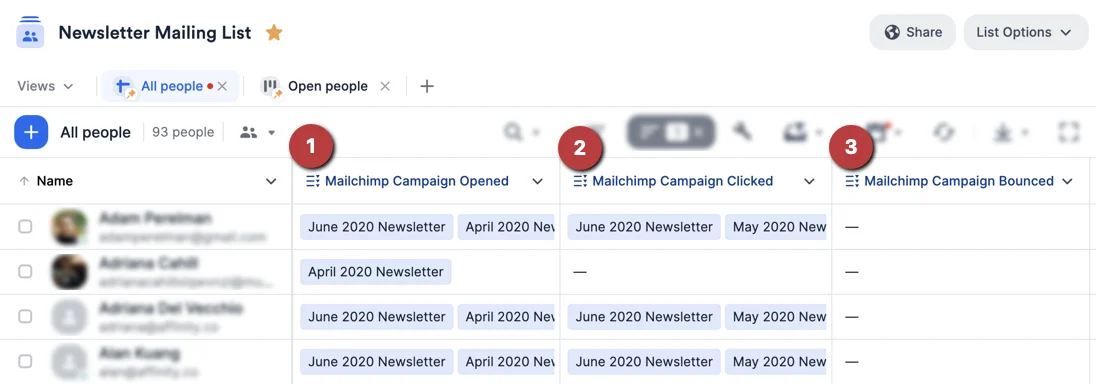 * **Note**: The **Mailchimp Campaign Opened** and **Mailchimp Campaign Clicked** fields will only appear if you have already sent out campaigns. The **Mailchimp Campaign Bounced** field will only appear once a bounce is recorded in Mailchimp.
 ## When to use Affinity's Mailchimp integration over the bulk email feature
We highly suggest leveraging Affinity's Mailchimp integration over the [bulk email feature](/s/article/How-to-send-personalized-bulk-emails-within-Affinity) if you/your team use Mailchimp and have the following use cases:
* For marketing teams that create branded and stylized email campaigns.
## When to use Affinity's Mailchimp integration over the bulk email feature
We highly suggest leveraging Affinity's Mailchimp integration over the [bulk email feature](/s/article/How-to-send-personalized-bulk-emails-within-Affinity) if you/your team use Mailchimp and have the following use cases:
* For marketing teams that create branded and stylized email campaigns.
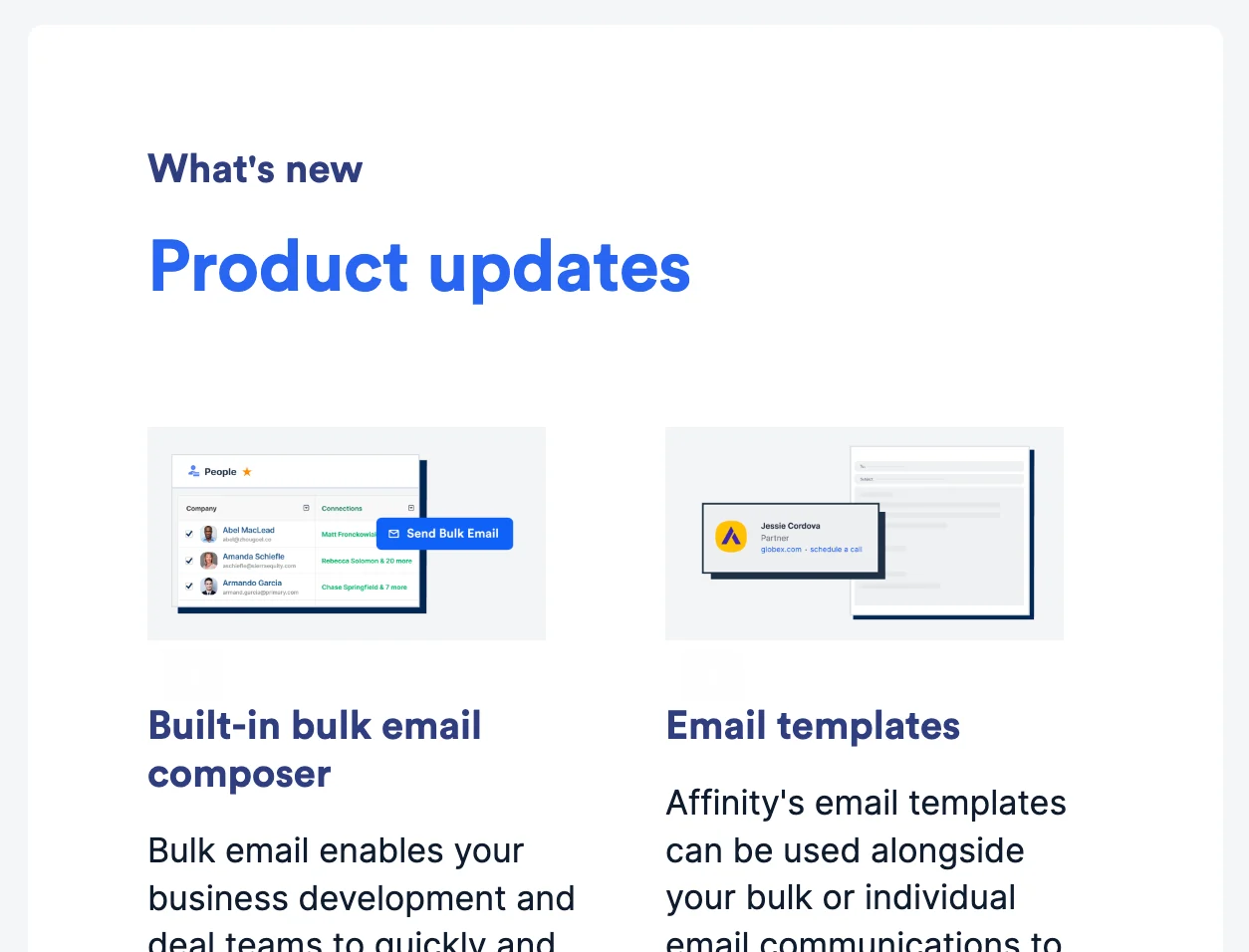 * For investor relations teams that send out newsletters with embedded images regarding investment updates and portfolio activity.
 * Announcements on new initiatives and events - often used by marketing/investor relations teams at larger firms.
 ## Frequently Asked Questions
**Why does Affinity choose to create a new contact in Mailchimp when there’s an email address change in Affinity? Why not just update the existing contact in Mailchimp?**
* In Mailchimp, a given contact can only have one email address, which means that “updating” a Mailchimp contact’s email address would amount to deleting the old one.
**When a person’s email address changes in Affinity, leading to the creation of a new contact in Mailchimp, what happens to the old contact in Mailchimp?**
* We will not delete the old contact from Mailchimp. This is to optimize for situations in which contacts are changing email addresses because they’re changing jobs.
* If they are in fact changing jobs, any emails sent to old email addresses will start to bounce, and users can use Mailchimp's features to clean them up accordingly.
**Why can’t I opt into “Name Updates” only? Why must I also opt into “Email Address Updates” as well?**
* When a person’s name changes in Affinity, we match on the person’s primary email address in Affinity to decide which Mailchimp contact to update. This only works if the person’s current primary email address is reflected somewhere in Mailchimp.
**What happens if I opt out of “Email Address Updates” for Integration 1 - Mailchimp Audience?**
* This can lead to stale email addresses in your Mailchimp audience over time. So when a person (who has already been synced from the Affinity people list to the Mailchimp audience) has their primary email address changed, nothing will happen in Mailchimp.
**What happens to existing Campaign Activity data when transitioning from the V1 integrations to the V2 integrations?**
* For those who had an existing V1 integration for Campaign Activities, the existing columns (e.g. **Mailchimp Campaign Clicked**, **Mailchimp Campaign Opened**, and **Mailchimp Campaign Bounced**) and their data on opens, clicks, and bounces will **NOT** be deleted.
* Once you set up the V2 integration, the Campaign Activities will resume syncing and update the same columns.
**How often does Affinity sync updates with Mailchimp?**
* **Mailchimp Audience**: Updated every minute.
* **Mailchimp Campaign Activities**: Updated every hour.
**Is there a limit to the number of Mailchimp configurations you can make for each integration?**
* **Mailchimp Audience**: No limit.
* **Mailchimp Campaign Activities**: Only one since it syncs all campaigns from your Mailchimp account.
**Can you integrate with more than one Mailchimp account?**
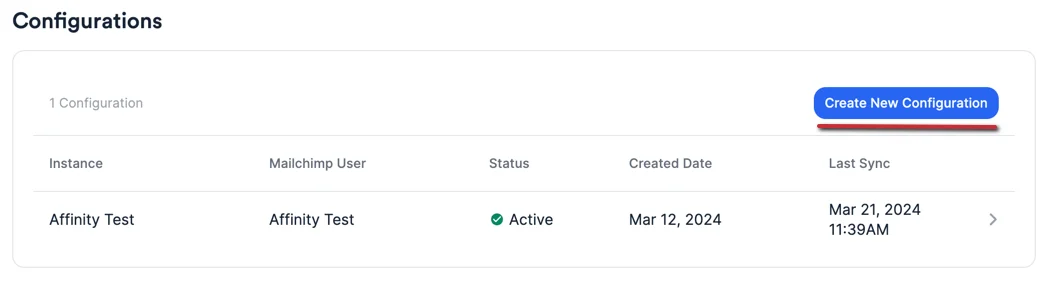
* Yes. By clicking **Create new configuration** for either [Integration 1 - Mailchimp Audience](https://affinity2ndorg.lightning.force.com/lightning/r/Knowledge__kav/ka0PQ0000006AG1YAM/view#h_01HS9JEKDX8XPHX2AQEJM35Y55) or [Integration 2 - Mailchimp Campaign Activities,](https://affinity2ndorg.lightning.force.com/lightning/r/Knowledge__kav/ka0PQ0000006AG1YAM/view#h_01HS9JM60SQKKZAEBDBZJWY4AP) you will be able to authenticate with a different Mailchimp account if you'd like.
## Frequently Asked Questions
**Why does Affinity choose to create a new contact in Mailchimp when there’s an email address change in Affinity? Why not just update the existing contact in Mailchimp?**
* In Mailchimp, a given contact can only have one email address, which means that “updating” a Mailchimp contact’s email address would amount to deleting the old one.
**When a person’s email address changes in Affinity, leading to the creation of a new contact in Mailchimp, what happens to the old contact in Mailchimp?**
* We will not delete the old contact from Mailchimp. This is to optimize for situations in which contacts are changing email addresses because they’re changing jobs.
* If they are in fact changing jobs, any emails sent to old email addresses will start to bounce, and users can use Mailchimp's features to clean them up accordingly.
**Why can’t I opt into “Name Updates” only? Why must I also opt into “Email Address Updates” as well?**
* When a person’s name changes in Affinity, we match on the person’s primary email address in Affinity to decide which Mailchimp contact to update. This only works if the person’s current primary email address is reflected somewhere in Mailchimp.
**What happens if I opt out of “Email Address Updates” for Integration 1 - Mailchimp Audience?**
* This can lead to stale email addresses in your Mailchimp audience over time. So when a person (who has already been synced from the Affinity people list to the Mailchimp audience) has their primary email address changed, nothing will happen in Mailchimp.
**What happens to existing Campaign Activity data when transitioning from the V1 integrations to the V2 integrations?**
* For those who had an existing V1 integration for Campaign Activities, the existing columns (e.g. **Mailchimp Campaign Clicked**, **Mailchimp Campaign Opened**, and **Mailchimp Campaign Bounced**) and their data on opens, clicks, and bounces will **NOT** be deleted.
* Once you set up the V2 integration, the Campaign Activities will resume syncing and update the same columns.
**How often does Affinity sync updates with Mailchimp?**
* **Mailchimp Audience**: Updated every minute.
* **Mailchimp Campaign Activities**: Updated every hour.
**Is there a limit to the number of Mailchimp configurations you can make for each integration?**
* **Mailchimp Audience**: No limit.
* **Mailchimp Campaign Activities**: Only one since it syncs all campaigns from your Mailchimp account.
**Can you integrate with more than one Mailchimp account?**
* Yes. By clicking **Create new configuration** for either [Integration 1 - Mailchimp Audience](https://affinity2ndorg.lightning.force.com/lightning/r/Knowledge__kav/ka0PQ0000006AG1YAM/view#h_01HS9JEKDX8XPHX2AQEJM35Y55) or [Integration 2 - Mailchimp Campaign Activities,](https://affinity2ndorg.lightning.force.com/lightning/r/Knowledge__kav/ka0PQ0000006AG1YAM/view#h_01HS9JM60SQKKZAEBDBZJWY4AP) you will be able to authenticate with a different Mailchimp account if you'd like.
 **What happens when you have connected the same Affinity list to multiple different Mailchimp audiences?**
* The people in that Affinity list will sync into all the different Mailchimp audiences that have had [Integration 1 - Mailchimp Audience](https://affinity2ndorg.lightning.force.com/lightning/r/Knowledge__kav/ka0PQ0000006AG1YAM/view#h_01HS9JEKDX8XPHX2AQEJM35Y55) set up.
**What happens when a person (in the Affinity people list) has multiple email addresses associated?**
* Only their primary email address will sync into Mailchimp (check out this section titled "How to quickly determine a contact's primary email address" within this article: [How to update a contact's primary email address in Affinity](https://affinity2ndorg.lightning.force.com/articles/Knowledge/How-to-update-a-contact-s-primary-email-address-in-Affinity)).
* If their primary email address changes in Affinity, please see [Integration 1 - Mailchimp Audience](https://affinity2ndorg.lightning.force.com/lightning/r/Knowledge__kav/ka0PQ0000006AG1YAM/view#h_01HS9JEKDX8XPHX2AQEJM35Y55) for the proper setup to make sure that your Mailchimp audience gets updated accordingly.
**What happens when a person unsubscribes from a Mailchimp audience?**
* Affinity will not receive any updates for those who unsubscribe from a Mailchimp audience.
* Affinity will not receive any updates for those who unsubscribe from a Mailchimp audience.
## Related topics
- [How to Integrate Affinity with Granola](/s/article/how-to-integrate-affinity-with-granola.md)
- [How to Integrate Affinity with Databricks](/s/article/How-to-integrate-Affinity-with-Databricks.md)
- [How to Integrate Affinity with Snowflake](/s/article/How-to-integrate-Affinity-with-Snowflake.md)
- [How to integrate Affinity with Box](/s/article/How-to-integrate-Affinity-with-Box.md)
- [How To Integrate Affinity With Typeform](/s/article/How-to-integrate-Affinity-with-Typeform.md)
**What happens when you have connected the same Affinity list to multiple different Mailchimp audiences?**
* The people in that Affinity list will sync into all the different Mailchimp audiences that have had [Integration 1 - Mailchimp Audience](https://affinity2ndorg.lightning.force.com/lightning/r/Knowledge__kav/ka0PQ0000006AG1YAM/view#h_01HS9JEKDX8XPHX2AQEJM35Y55) set up.
**What happens when a person (in the Affinity people list) has multiple email addresses associated?**
* Only their primary email address will sync into Mailchimp (check out this section titled "How to quickly determine a contact's primary email address" within this article: [How to update a contact's primary email address in Affinity](https://affinity2ndorg.lightning.force.com/articles/Knowledge/How-to-update-a-contact-s-primary-email-address-in-Affinity)).
* If their primary email address changes in Affinity, please see [Integration 1 - Mailchimp Audience](https://affinity2ndorg.lightning.force.com/lightning/r/Knowledge__kav/ka0PQ0000006AG1YAM/view#h_01HS9JEKDX8XPHX2AQEJM35Y55) for the proper setup to make sure that your Mailchimp audience gets updated accordingly.
**What happens when a person unsubscribes from a Mailchimp audience?**
* Affinity will not receive any updates for those who unsubscribe from a Mailchimp audience.
* Affinity will not receive any updates for those who unsubscribe from a Mailchimp audience.
## Related topics
- [How to Integrate Affinity with Granola](/s/article/how-to-integrate-affinity-with-granola.md)
- [How to Integrate Affinity with Databricks](/s/article/How-to-integrate-Affinity-with-Databricks.md)
- [How to Integrate Affinity with Snowflake](/s/article/How-to-integrate-Affinity-with-Snowflake.md)
- [How to integrate Affinity with Box](/s/article/How-to-integrate-Affinity-with-Box.md)
- [How To Integrate Affinity With Typeform](/s/article/How-to-integrate-Affinity-with-Typeform.md)